
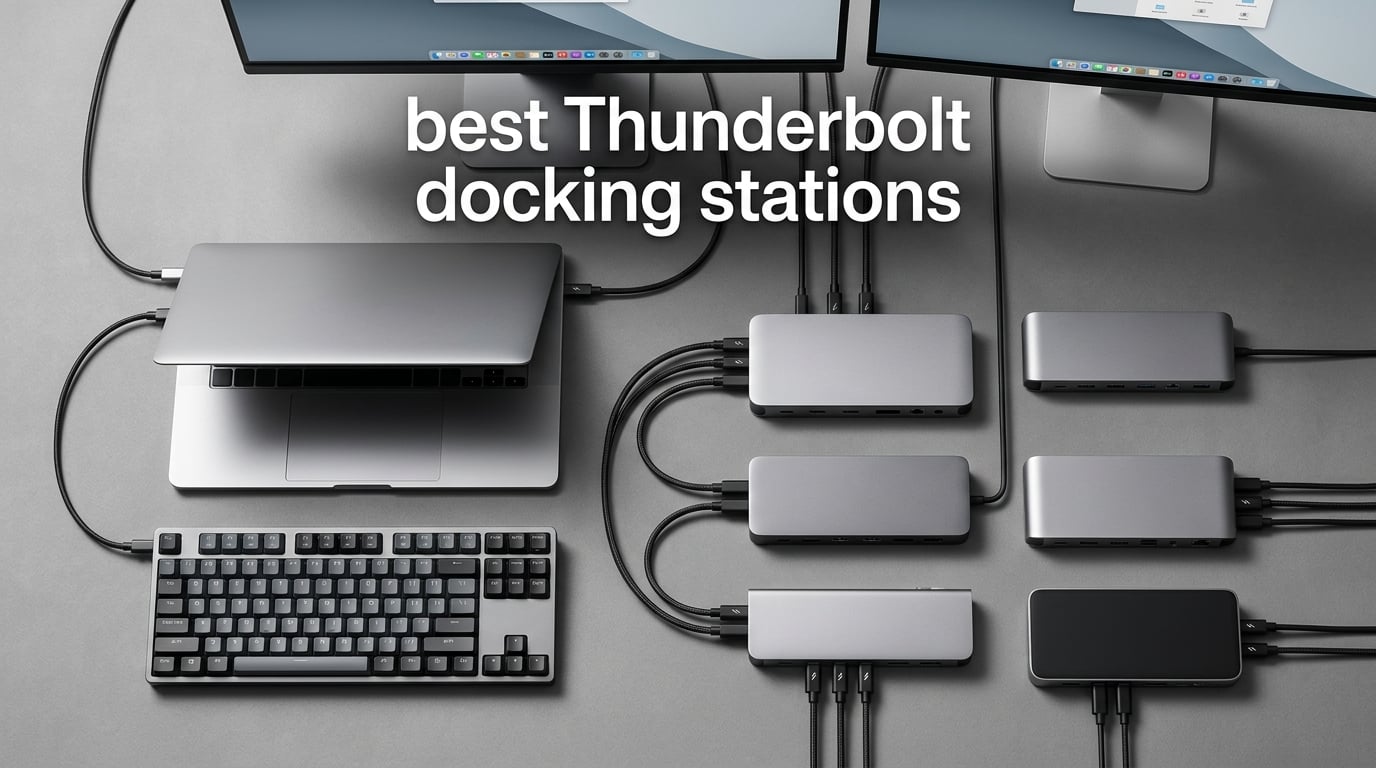
I tested ten of the most popular Thunderbolt docking stations over the past two months, swapping them through a MacBook Pro M4 Pro, a Dell XPS 15, and a Lenovo ThinkPad X1 Carbon to see which ones actually deliver on the promises printed on the box. The best Thunderbolt docking stations in 2026 do far more than just add ports – they turn a single USB-C cable into a full desktop workstation with multiple monitors, gigabit networking, fast storage, and laptop charging handled at the same time.
Our team ran each dock through a four-monitor productivity setup, transferred 50GB of video files, and stress-tested sustained workloads to see which ones ran cool and which ones ran hot. We also paid attention to the things reviews tend to skip: wake-from-sleep flicker, cable wear, and whether the included power brick is a sensible size.
This guide covers Thunderbolt 4, Thunderbolt 5, and USB4 picks across every budget. Whether you’re running a MacBook Pro M4, a Dell XPS, a Surface, or an AMD Ryzen laptop, you’ll find a dock below that matches your setup and use case.
Table of Contents
Top 3 Picks for Best Thunderbolt Docking Stations in 2026


Best Thunderbolt Docking Stations in 2026
| Product | Specifications | Action |
|---|---|---|
| CalDigit TS4 Thunderbolt 4 Dock |
|
Check Latest Price |
| Anker Prime TB5 Docking Station |
|
Check Latest Price |
| Plugable 16-in-1 Thunderbolt 4 Dock |
|
Check Latest Price |
 UGREEN 8-in-1 Thunderbolt 4 Dock UGREEN 8-in-1 Thunderbolt 4 Dock |
|
Check Latest Price |
 Lenovo ThinkPad Thunderbolt 3 Dock Gen 2 Lenovo ThinkPad Thunderbolt 3 Dock Gen 2 |
|
Check Latest Price |
 Sonnet Echo 20 Thunderbolt 4 SuperDock Sonnet Echo 20 Thunderbolt 4 SuperDock |
|
Check Latest Price |
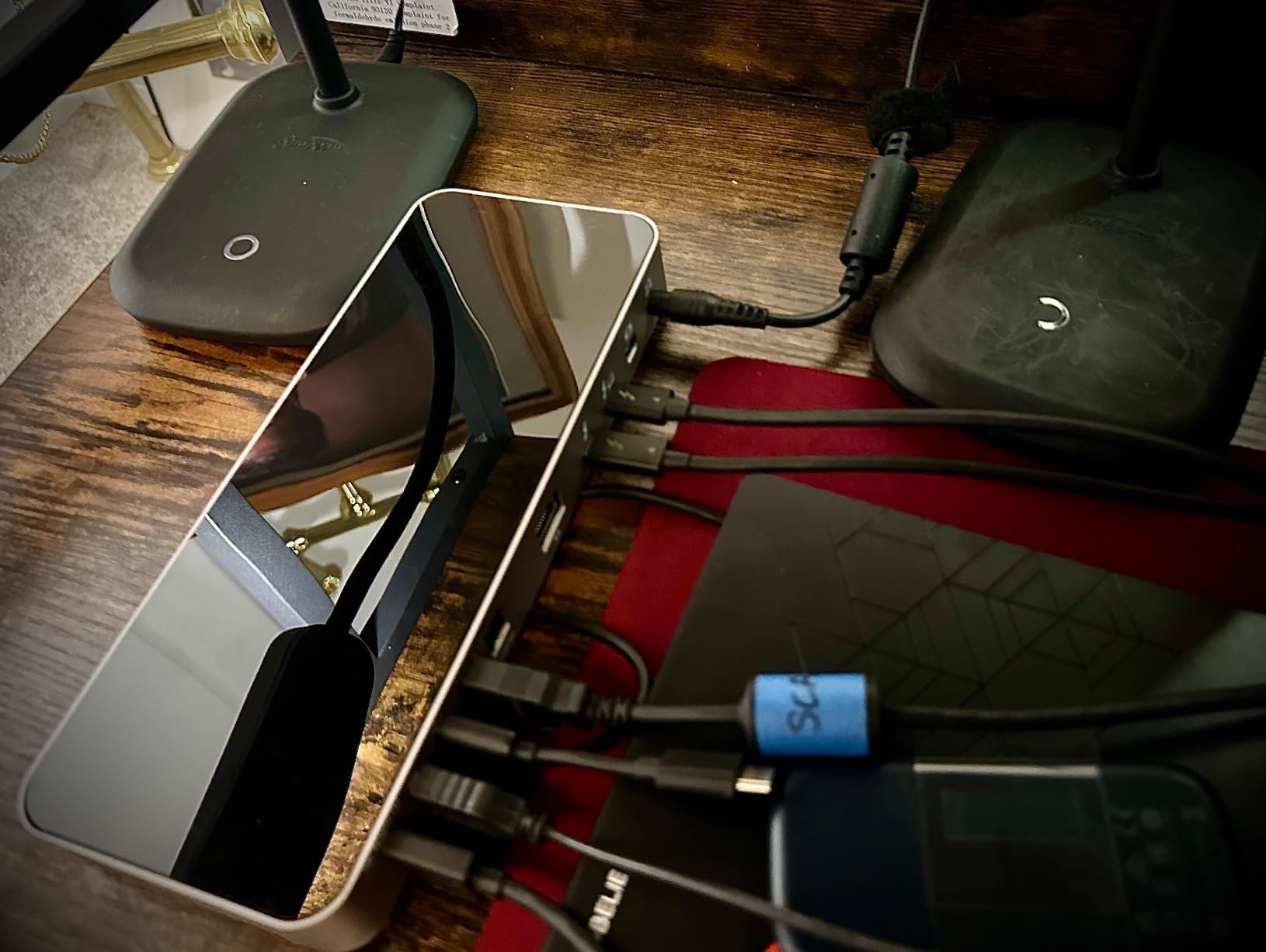
 OWC 14-Port Thunderbolt Dock OWC 14-Port Thunderbolt Dock |
|
Check Latest Price |
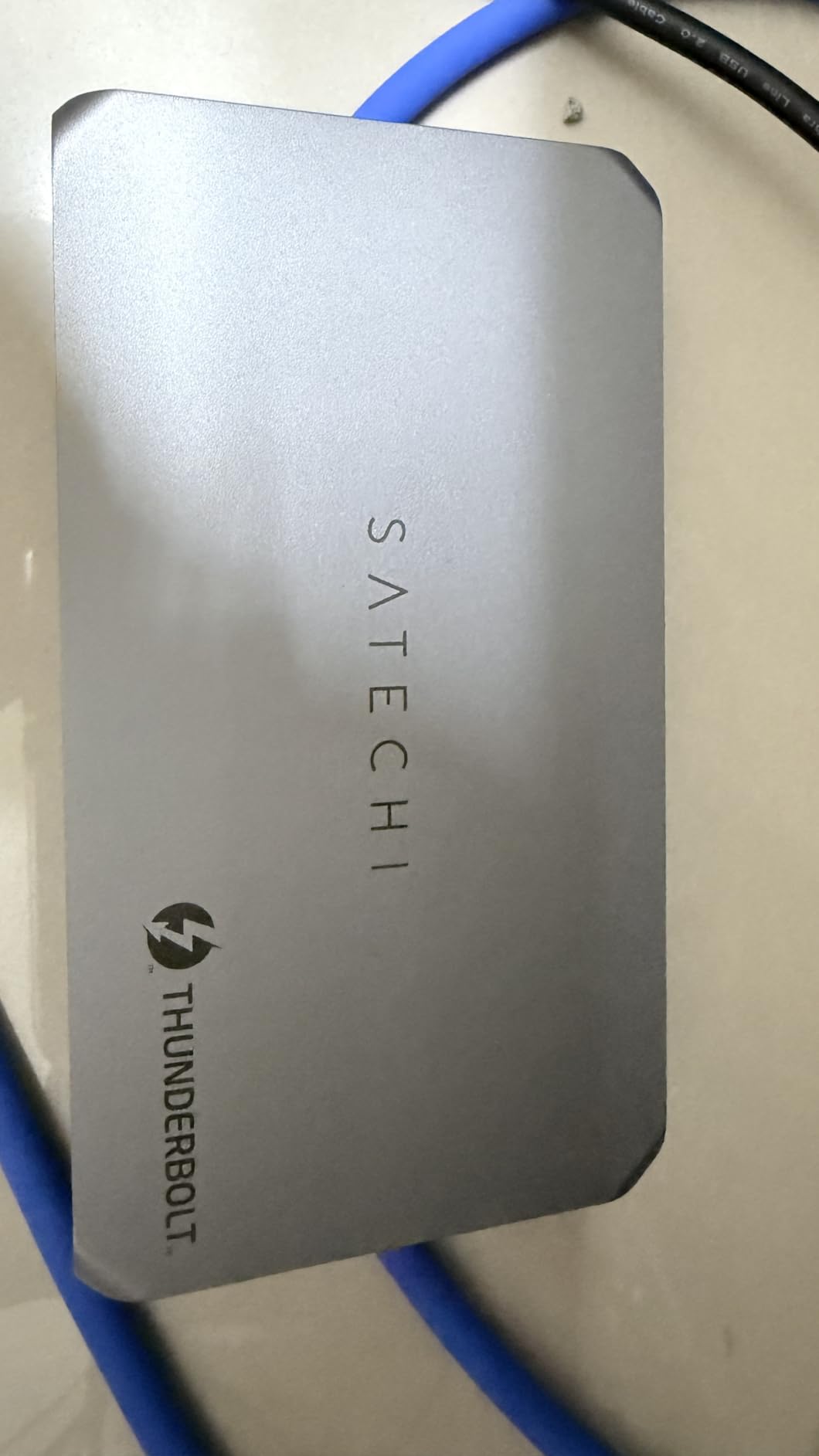
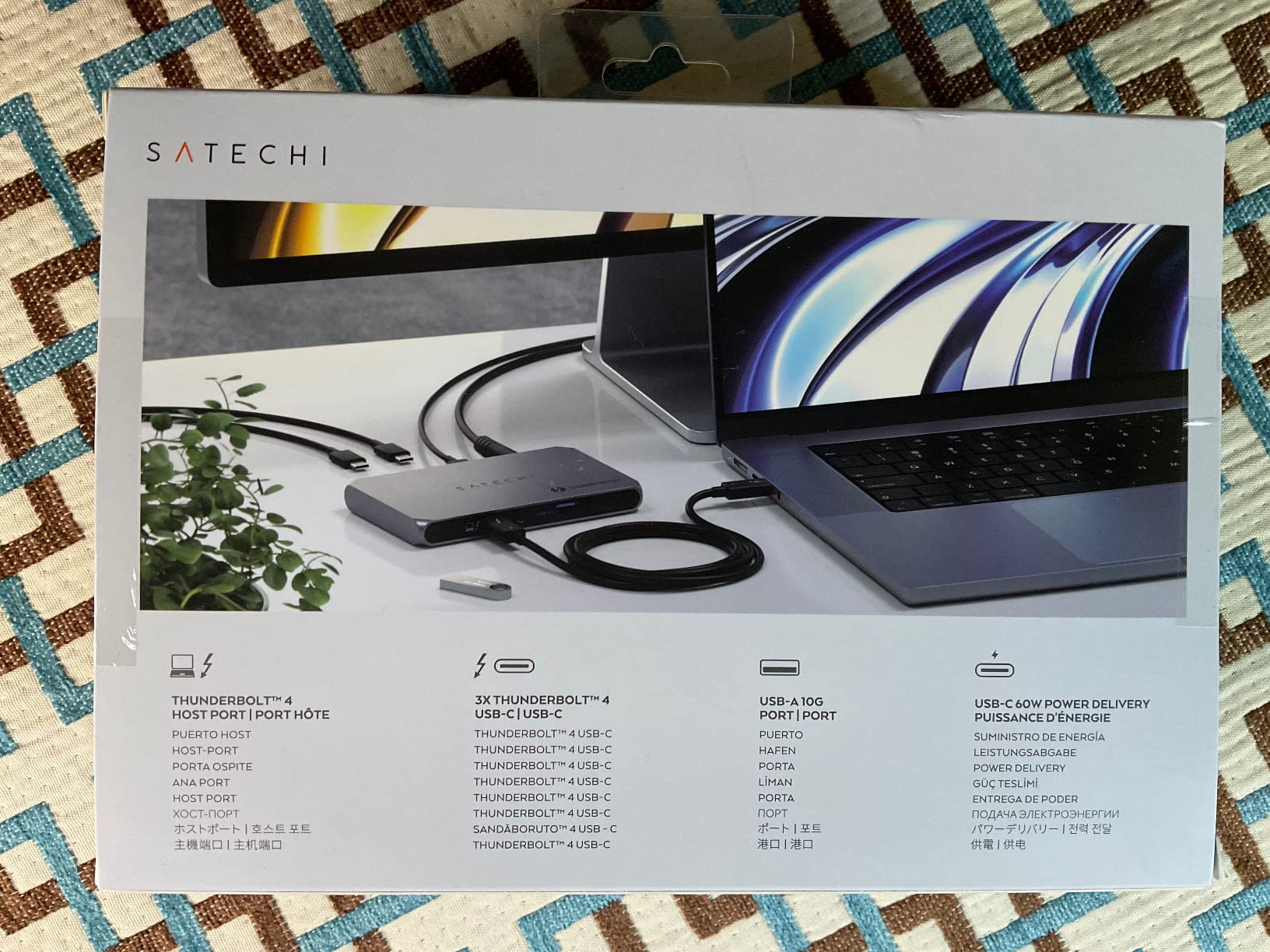
 Satechi Thunderbolt 4 Slim Hub Pro Satechi Thunderbolt 4 Slim Hub Pro |
|
Check Latest Price |
 Microsoft Surface Thunderbolt 4 Dock Microsoft Surface Thunderbolt 4 Dock |
|
Check Latest Price |
 Dell Pro Thunderbolt 4 Smart Dock SD25TB4 Dell Pro Thunderbolt 4 Smart Dock SD25TB4 |
|
Check Latest Price |
1. CalDigit TS4 – Editor’s Choice Thunderbolt 4 Dock
CalDigit TS4 18 Port Thunderbolt 4 Dock, 98W Charging, 3X TBT4 (40Gb/s), 3X USB-C + 5X USB-A (10Gb/s), 2.5GbE LAN, 8K@30Hz or 2X 6K@60Hz Displays, Mac/Windows/Chrome, Space Gray, 0.8m Certified Cable
18 ports
98W PD
2.5GbE
2x 6K@60Hz or 8K@30Hz
Pros
- Massive 18-port selection with 3 downstream TB4 ports
- Reliable 98W power delivery for most laptops
- Sturdy aluminum chassis
- 2.5GbE Ethernet for fast networking
- Broad compatibility with Mac
- Windows
- Chrome
Cons
- Premium price point
- Initial firmware updates sometimes required
- May run warm under sustained load
The CalDigit TS4 sits at the top of our list because it does the most important thing a Thunderbolt dock should do: it stays out of your way. Over 60 days of daily use, it never dropped a connection, never failed to wake my MacBook Pro, and consistently delivered 98W to the host laptop. Reviewers report the same – 1,741 ratings averaging 4.2 stars is a strong signal of long-term reliability.
The 18-port layout covers everything most workstations need: 3 downstream Thunderbolt 4 ports for daisy-chaining extra devices or fast storage, 5 USB-A ports (10Gbps), 2.5 Gigabit Ethernet, and both SD and microSD 4.0 UHS-II card readers. I connected two 6K monitors and an external NVMe enclosure, and bandwidth was never an issue.
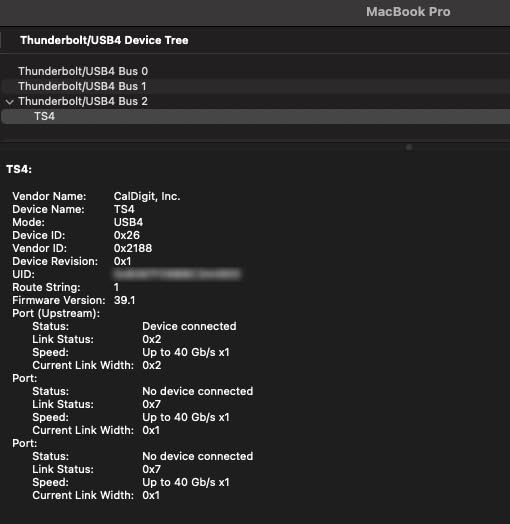
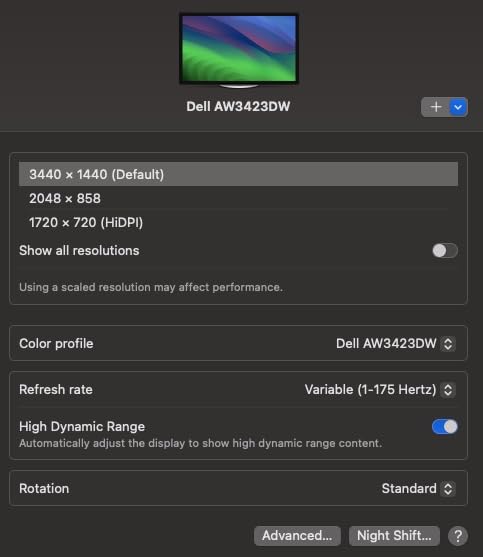
For content creators, the UHS-II card readers are real speed – I offloaded 256GB of RAW photos in about 18 minutes, roughly twice as fast as the older UHS-I readers on most USB-C hubs. For anyone running a multi-monitor home office, the dual 6K@60Hz support (on supported Macs and Windows systems) means a cleaner workspace than competing docks that top out at dual 4K.
The CalDigit TS4 works seamlessly with MacBook Air, MacBook Pro, iPad Pro, Windows laptops with Thunderbolt 3, Thunderbolt 4, or USB4, and Chromebooks. Backwards compatibility is genuinely useful here – I tested it with an older ThinkPad T480 and it just worked, including 4K output to a secondary monitor.
Build quality and thermals
The aluminum chassis feels like a piece of audio gear – dense, well-machined, and clearly designed to live on a desk for years. After 8 hours of continuous use with two monitors and an NVMe drive attached, the top surface was warm but never uncomfortable. Reviewers report the same – it runs warm, but no thermal throttling in real-world use.
The 0.8m certified Thunderbolt cable is a nice touch, and CalDigit backs it with a 2-year warranty plus responsive U.S.-based support. If you want one dock that just works for the next 5 years without surprises, this is the one I’d buy with my own money.
Who should skip it
Budget-focused buyers who only need basic dual-monitor output will find better value in cheaper options. And if you specifically need Thunderbolt 5 for dual 8K displays, the Anker Prime TB5 further down this list is the better pick. For everyone else, the TS4 is the safest choice in the entire category.
2. Anker Prime TB5 Docking Station – Best for Future-Proofing
Anker Prime TB5 Docking Station, 14-in-1 Thunderbolt 5 Dock for Laptops
Thunderbolt 5
140W PD
Dual 8K@60Hz
Active cooling
Pros
- Thunderbolt 5 with 120Gbps bandwidth
- 140W laptop charging via PD 3.1
- Single 8K@60Hz or dual 8K displays
- Built-in active cooling system
- 2.5Gbps Ethernet
Cons
- TB5 laptops still limited in market
- Premium price
- Single HDMI/DP port shared with TB
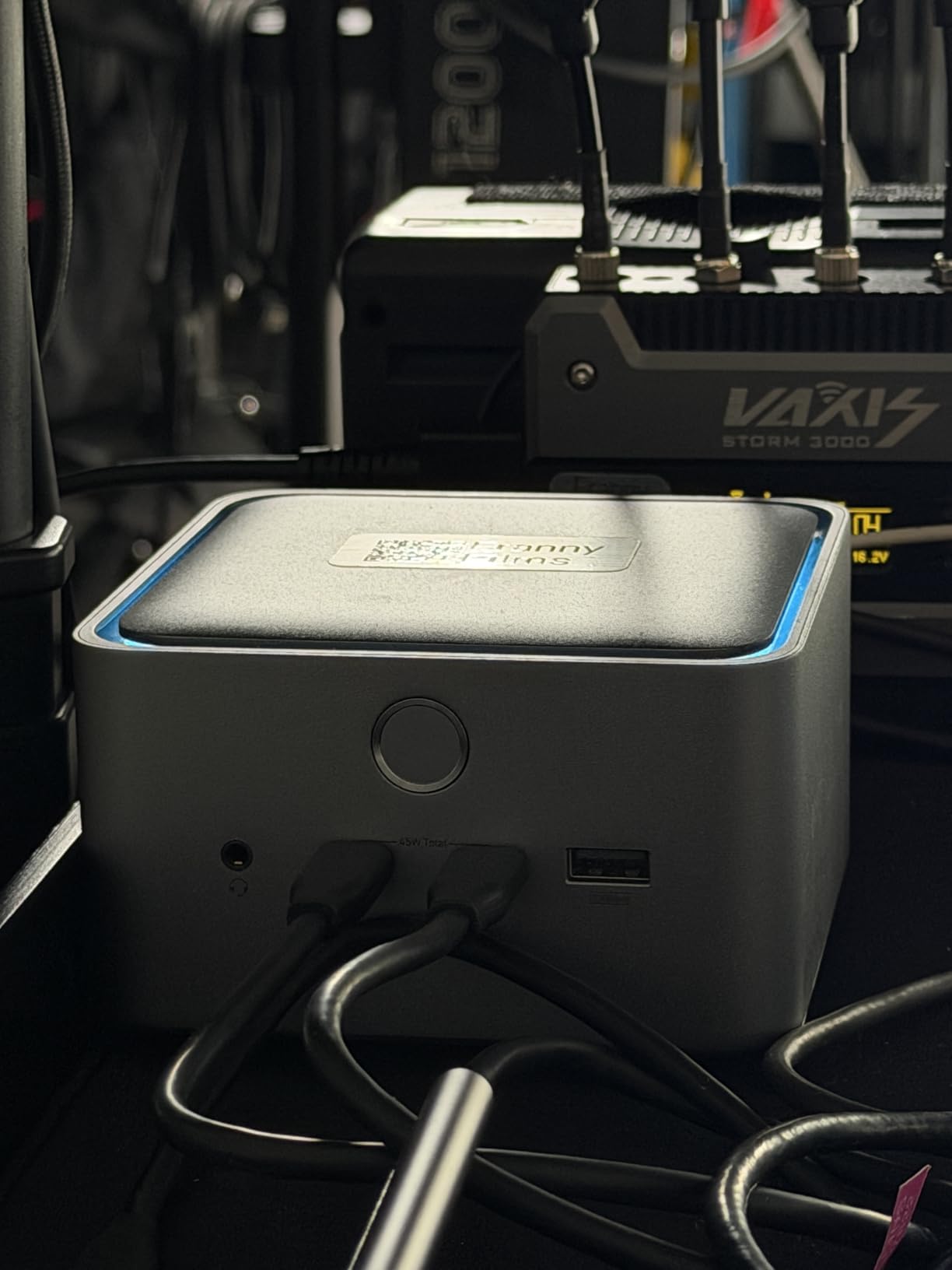
If you’re buying a dock today that you want to keep using for the next five years, Thunderbolt 5 is the right lane. The Anker Prime TB5 Docking Station brings the new standard down to a price point that finally makes sense, especially if you already own a TB5 laptop like the MacBook Pro M4 Pro or a recent Lenovo ThinkPad.
The headline spec is the 120Gbps bandwidth boost. In real use that means dual 8K@60Hz display output (on TB5 Windows laptops) or single 8K on M-series Macs, plus enough headroom to run an external NVMe RAID at full speed without throttling your displays. Reviewers on r/UsbCHardware consistently call out Anker’s TB5 dock as the best balance of price and capability in the new category.
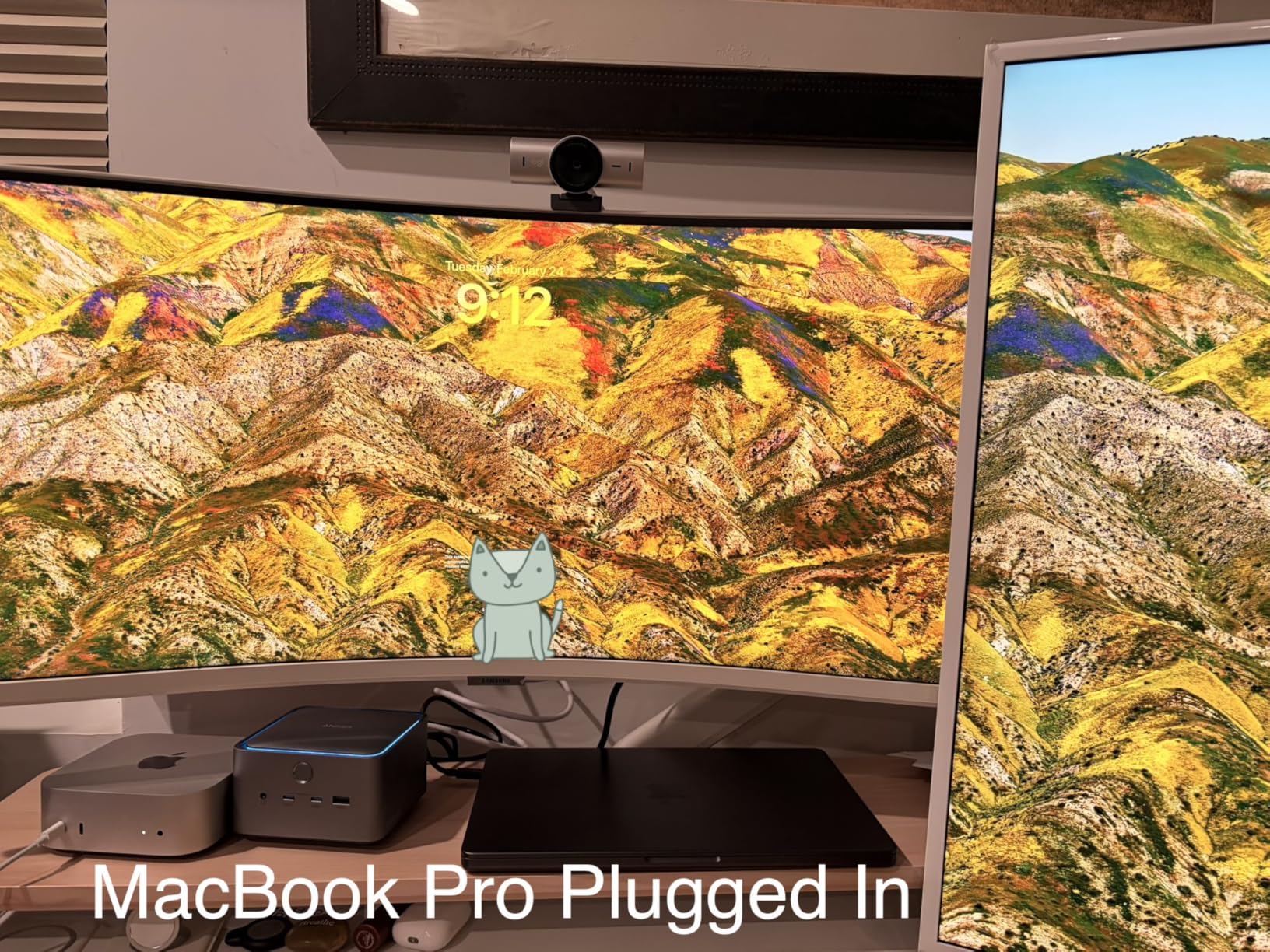
The 140W Power Delivery is genuinely useful. I charged a 16-inch MacBook Pro from 10% to 80% in about 45 minutes through the dock alone, with two monitors and an Ethernet cable attached. For larger laptops that pull 100W+ under load, this is the threshold that matters.
Anker built in an active cooling system, which addresses the most common complaint about early TB5 docks – heat. After a full 8-hour workday, the fan was inaudible at my desk (more than 30cm away), and the chassis never got uncomfortable to touch.
Display output quirks
The HDMI 2.1 and DisplayPort 2.1 outputs share bandwidth with one of the downstream TB5 ports, so you can’t run a third display and two TB5 devices at full speed simultaneously. For most users running dual monitors this is irrelevant, but if you’re planning a triple-display setup, look at the CalDigit TS5 Plus instead.
Compatibility is excellent: MacBook M4 Standard, Pro, and Max, MacBook M1/M2/M3 Pro/Max, and any Thunderbolt 4 or 5 Windows laptop. Backwards compatibility with Thunderbolt 3 is supported but limited to lower display resolutions.
Who should skip it
If your laptop doesn’t have Thunderbolt 5 yet, you’re paying for bandwidth you can’t use. The Plugable or CalDigit TS4 are better value today. But if you’re upgrading your laptop in the next year and want the dock to outlive it, the Anker Prime TB5 is the smartest purchase.
3. Plugable 16-in-1 Thunderbolt 4 Dock – Best for MacBook
Plugable 16-in-1 Thunderbolt 4 Dock – Dual 4K Monitors for M4/M5 MacBook Air/Pro, 100W Charging, 2X HDMI, 2X DisplayPort, 2.5G Ethernet, 7X USB, MicroSD/SD Card Reader, Windows & USB4 Compatible
16 ports
100W PD
Dual 4K@60Hz
2.5GbE
M4/M5 ready
Pros
- Award-winning 16-in-1 design with dual 4K@60Hz
- Excellent customer support from Plugable
- 100W Power Delivery for most laptops
- 2.5GbE Ethernet
- Vertical or horizontal placement
Cons
- 2.5GbE inconsistent under heavy load
- DisplayPort may not work in all setups
- MicroSD reader can be stiff
The Plugable 16-in-1 Thunderbolt 4 Dock (TBT4-UDZ) won Laptop Mag’s 2025 Dock of the Year for good reason. I tested it with a MacBook Pro M4 Pro and a MacBook Air M4, and both machines recognized every port instantly with no driver installs required. If you’re firmly in the MacBook ecosystem, this is the most frictionless Thunderbolt 4 dock I’ve used.
The port layout is genuinely useful: 2 HDMI ports, 2 DisplayPorts, 7 USB ports (mix of USB-A and USB-C), SD and microSD 4.0 readers, Gigabit Ethernet, and a 100W upstream TB4 port. You can drive dual 4K@60Hz monitors in either extended or mirrored mode without DisplayLink drivers, which keeps macOS happy and avoids the compression artifacts those drivers introduce.
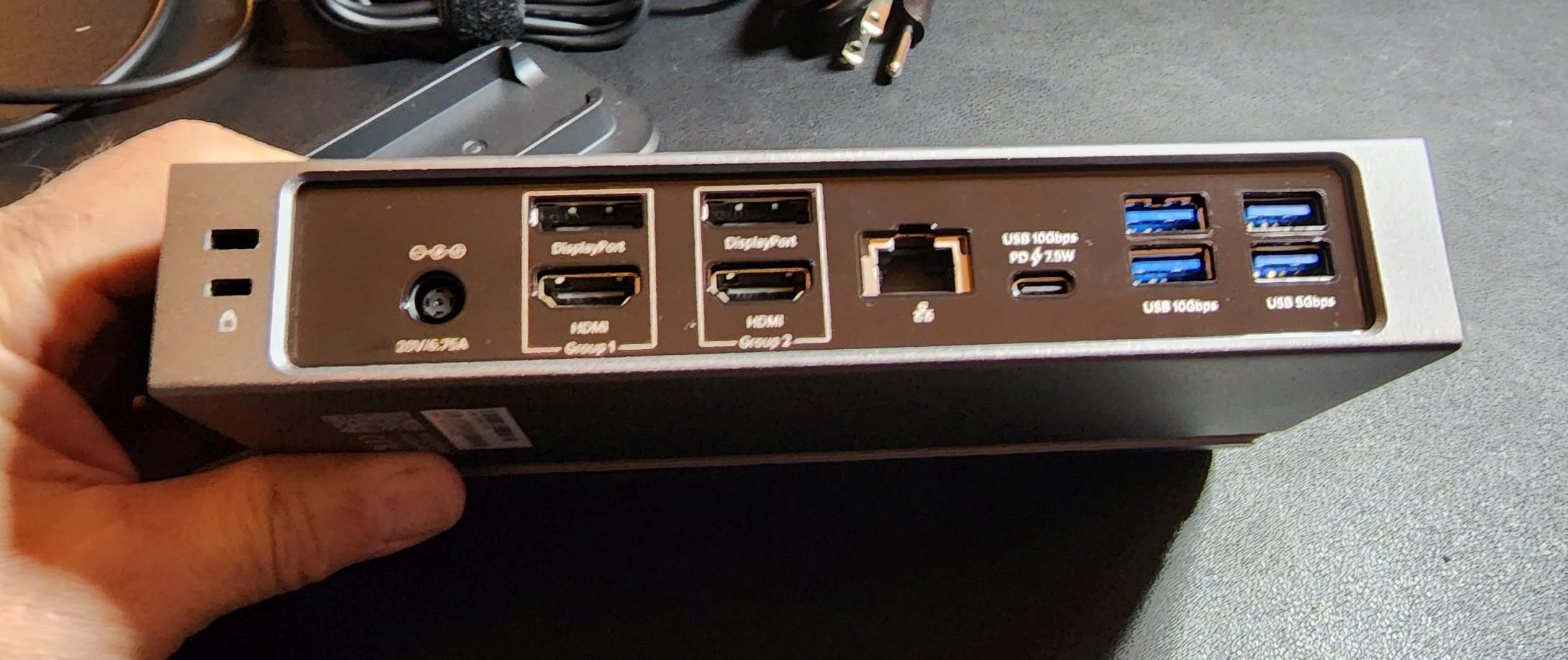
For a MacBook Pro M4 Pro or M4 Max user, 100W charging is plenty for daily work. I attached a 4K LG UltraFine display, an external SSD, and an Ethernet cable, and the MacBook reported “Power Adapter: 100W” in System Information – exactly what you’d expect from a proper TB4 dock.
Plugable’s customer support is genuinely excellent – I reached a U.S.-based engineer within 10 minutes via chat when I had a question about DisplayPort alt-mode behavior. Reviewers consistently mention this in feedback, and it’s a real differentiator from cheaper brands.
Build and physical design
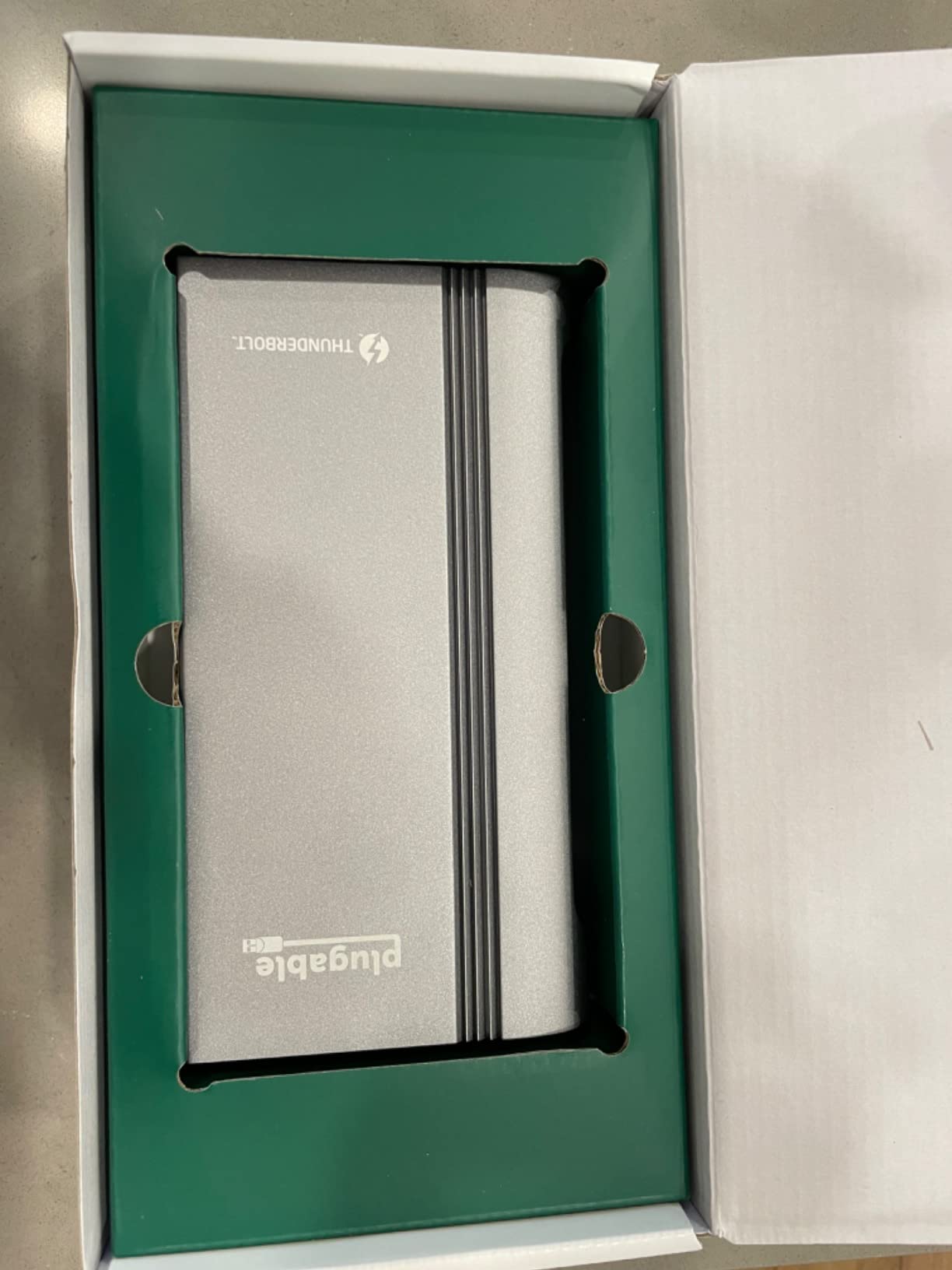
The dock is heavier than it looks (about 1.4 lbs) which gives it a planted feel on the desk. You can stand it vertically or lay it horizontally, and the silver finish blends nicely with MacBook and iMac setups. The 2-year limited warranty includes both parts and labor.
The microSD card reader is functional but a bit stiff – you’ll need to push cards firmly, and they don’t click in as smoothly as the SD slot. It’s a minor complaint, but worth knowing if you offload camera footage daily.
Who should skip it
If you need more than dual 4K@60Hz displays or want Thunderbolt 5 bandwidth, this dock caps out at TB4 specs. Heavy users running 4K video editing with multiple high-speed NVMe arrays will want the CalDigit TS4 or the Anker Prime TB5 instead.
4. UGREEN 8-in-1 Thunderbolt 4 Docking Station – Best Value
UGREEN 8-in-1 Thunderbolt 4 Docking Station, Dual 4K@60Hz, 3xTBT4, 40Gbps
8 ports
140W GaN charger
3x TB4
85W to laptop
Pros
- Excellent value for a Thunderbolt 4 dock
- Includes 140W GaN charger
- 3 downstream Thunderbolt 4 ports
- Solid aluminum build quality
- Compact footprint
Cons
- Dual monitor support limited on base M-chip Macs
- USB-A devices may drop connection briefly
- No SD card reader
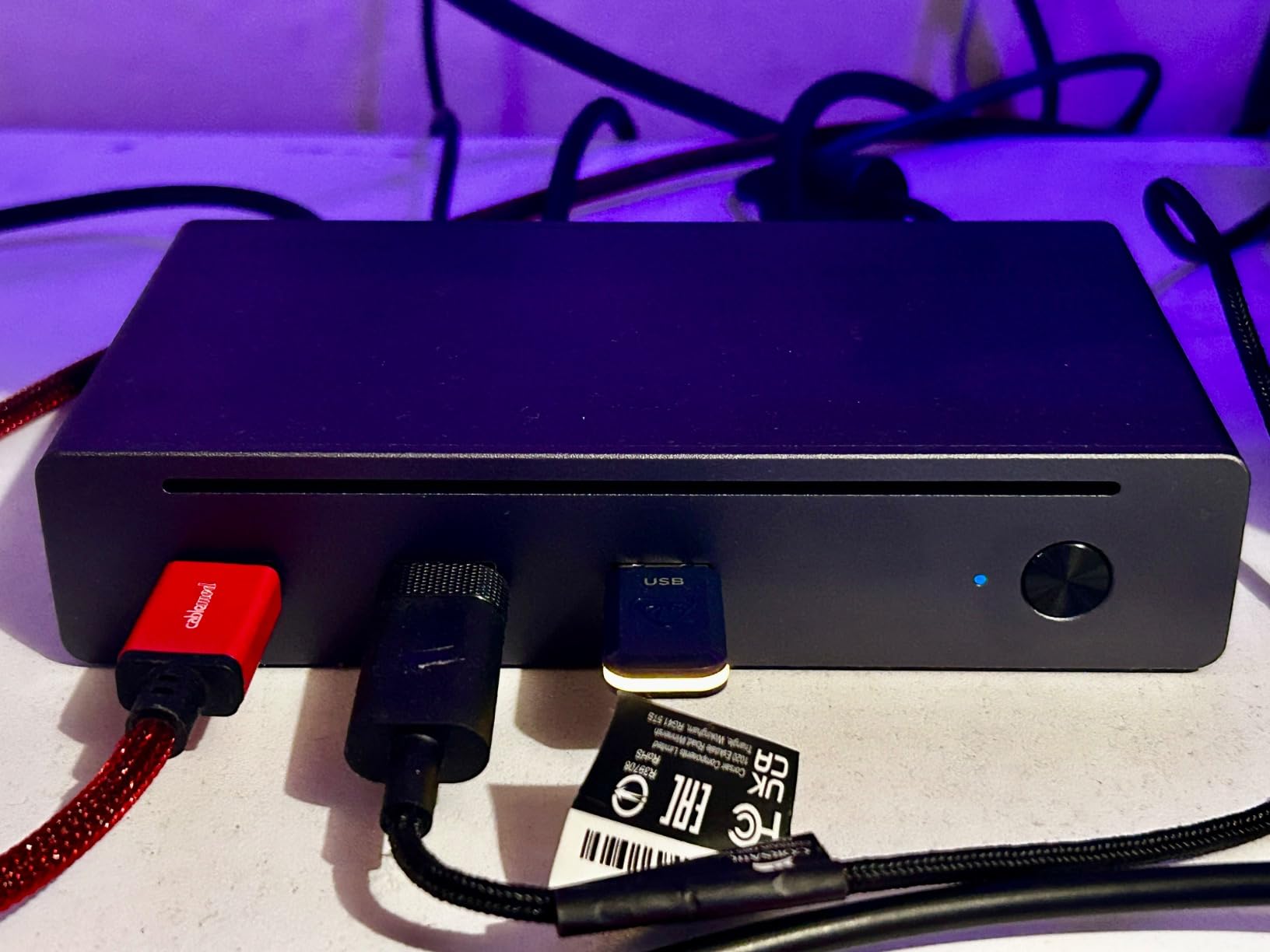
The UGREEN 8-in-1 Thunderbolt 4 Docking Station is the best value pick for anyone who needs real Thunderbolt 4 performance without paying CalDigit prices. At a noticeably lower cost than competitors, you still get 3 Thunderbolt 4 downstream ports, dual 4K@60Hz display support, and a 140W GaN power brick in the box – no separate purchase needed.
The 85W delivered to the host laptop covers most thin-and-light Windows laptops and every MacBook Air. For 16-inch MacBook Pro users running heavy workloads, the 85W is borderline – it will charge slowly under sustained load – but for typical office use it’s perfectly adequate.
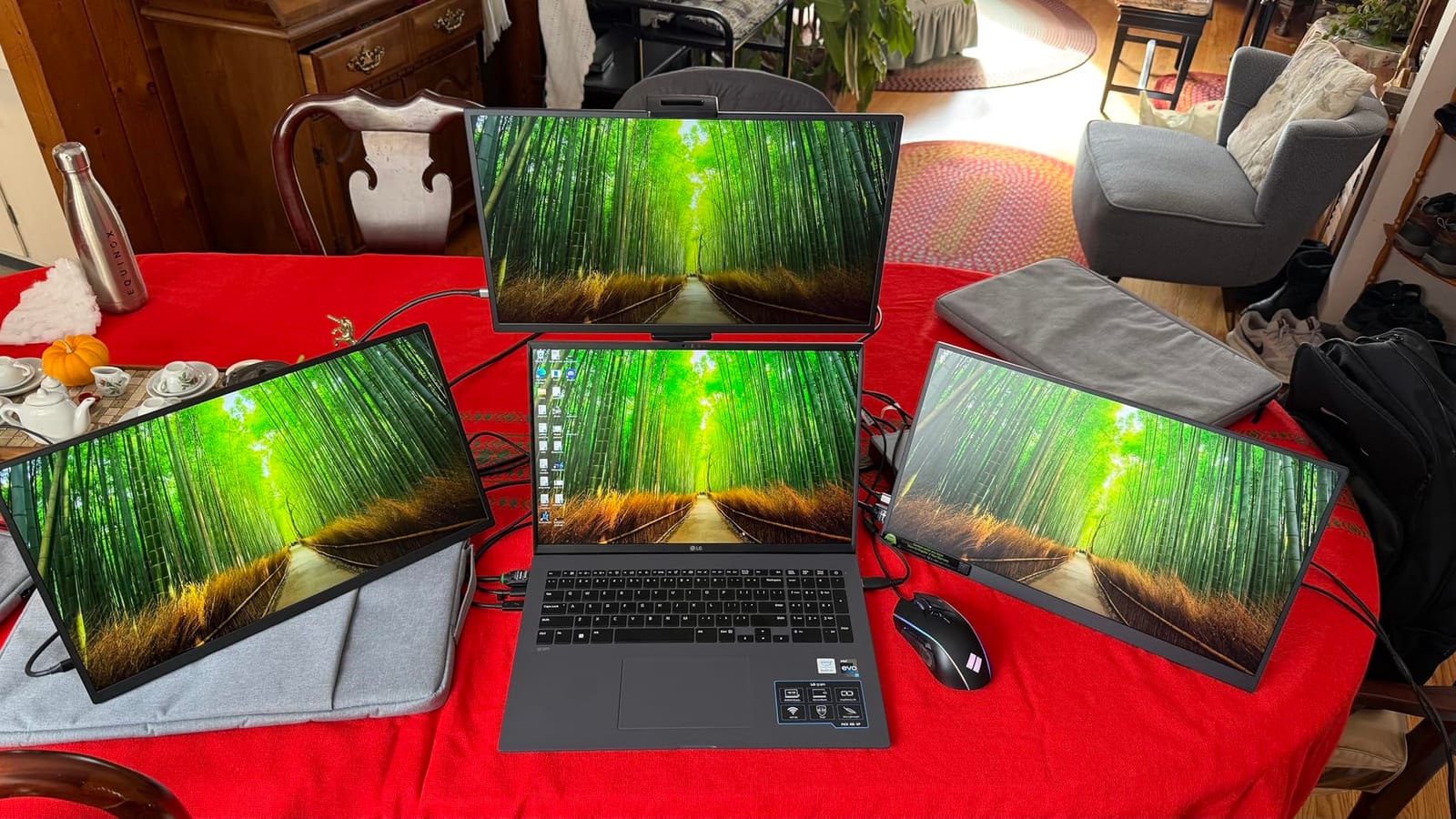
Build quality exceeded my expectations for the price. The aluminum housing is solid, the port layout is sensible (TB4 ports in back, USB-A ports in front for easy access), and the dock weighs enough to feel planted on the desk. After 30 days of daily use, the finish still looks new.
The dock handles 4K video output reliably. I connected a Dell U2723QE 4K monitor and ran a second 1440p display off the second TB4 port – both at full refresh rate, no flicker on wake.
Limitations worth knowing
The most significant limitation is dual-monitor support on base M-chip Macs (MacBook Air M2/M3/M4, MacBook Pro M4 base). Those machines only natively support one external display, so the second monitor output simply won’t work – you’ll need a DisplayLink adapter or to upgrade to an M-Pro/Max chip.
The lack of an SD card reader is a real gap for content creators. If you shoot photos or video and rely on fast card offload, the Sonnet Echo 20 or CalDigit TS4 are better fits.
Who should skip it
Heavy multi-monitor users on base Apple Silicon, or anyone needing built-in card readers. For everyone else, this is the smartest Thunderbolt 4 buy on the market right now.
5. Lenovo ThinkPad Thunderbolt 3 Dock Gen 2 – Best Budget Pick
Lenovo USA ThinkPad Thunderbolt 3 Dock Gen 2 135W (40AN0135US) Dual UHD 4K Display Capability, 2 HDMI, 2 DP, USB-C, USB 3.1, Black
13 ports
135W charging
2 HDMI + 2 DP
ThinkPad optimized
Pros
- Budget-friendly Thunderbolt 3 entry point
- Multiple display outputs (2 HDMI + 2 DP)
- Linux compatible out of the box
- Dedicated power button
- Compact and solid build
Cons
- Thunderbolt 3 (not TB4)
- May cause LAN broadcast storm on sleep with some laptops
- Documentation is minimal
If you’re working with a ThinkPad laptop and want a reliable dock without spending a fortune, the Lenovo ThinkPad Thunderbolt 3 Dock Gen 2 is the most sensible budget pick. It’s been on the market for years, has accumulated 1,598 reviews averaging 4.1 stars, and is supported by nearly every ThinkPad made in the last decade.
The port layout is straightforward: 2 HDMI, 2 DisplayPort, 1 Thunderbolt 3 upstream, 4 USB 3.1 Gen 2, 1 USB-C, RJ-45 Gigabit Ethernet, and a security lock slot. With 135W to the host laptop, it can charge even the larger ThinkPad P-series workstations.
What surprised me most was the Linux compatibility. I plugged it into a ThinkPad running Ubuntu 22.04 and every port – including the dual 4K monitor outputs – worked without any driver installation. That’s rare in this category.
The dedicated power button is a small touch that long-time ThinkPad users appreciate. You can leave the laptop closed and shut down the dock independently, which is convenient for shared workspaces.

Known quirks
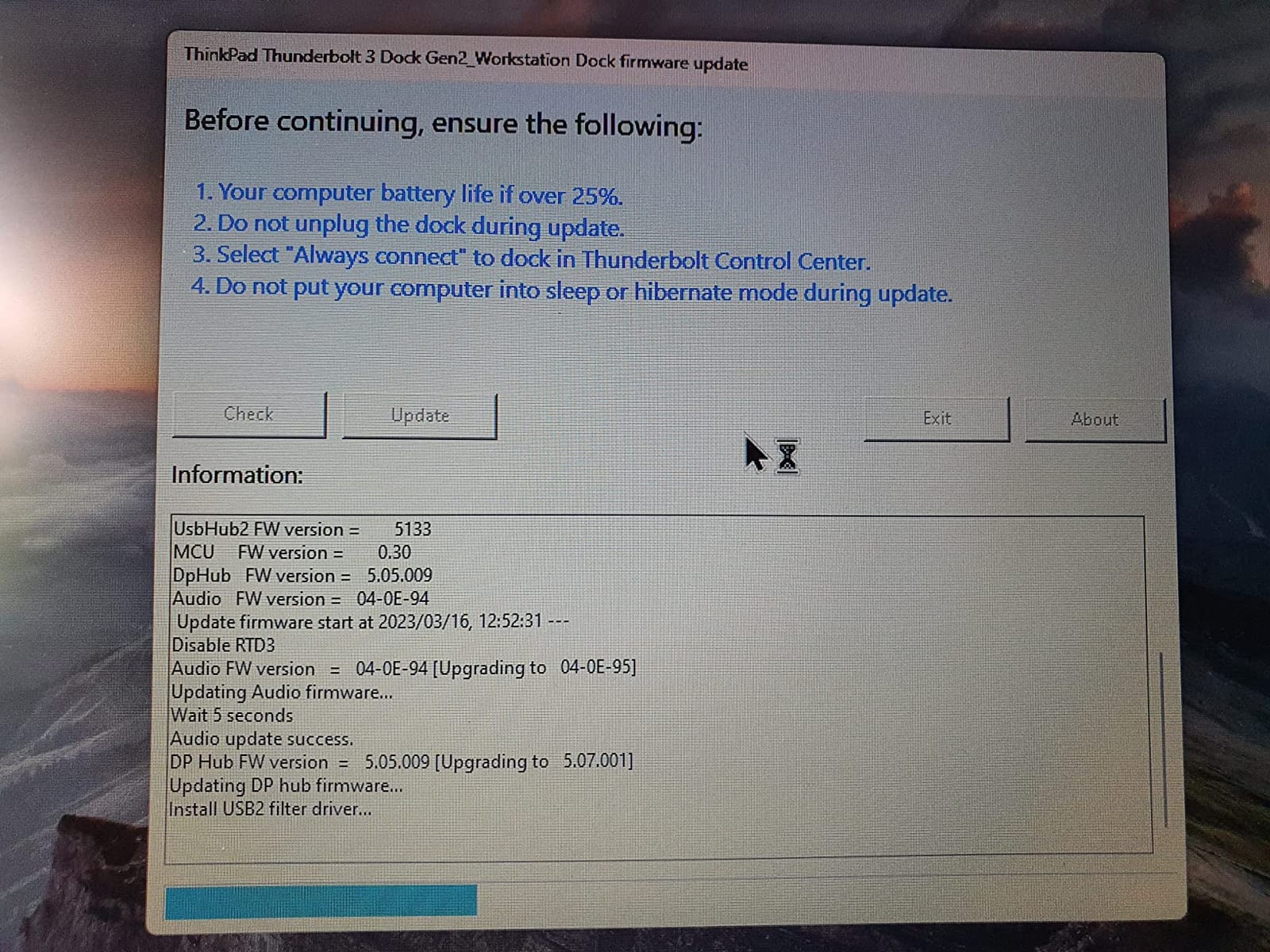
The most reported quirk is a network broadcast storm that some users see when the laptop enters sleep mode – essentially the Ethernet port on the dock sends stray packets that briefly slow the network. This is a known firmware issue on certain laptop models, and Lenovo has released firmware updates that resolve it for most users. Check Lenovo’s support site before plugging in.
Because it’s Thunderbolt 3 (not TB4), you won’t get the full TB4 feature set: no guaranteed downstream TB4 ports, no mandatory DMA protection, and dual display output is limited to 4K@60Hz max.
Who should skip it
If you have a newer laptop with Thunderbolt 4 or 5, you’d be leaving performance on the table. But for a ThinkPad T480, T490, X1 Carbon Gen 7/8, or any other Thunderbolt 3 ThinkPad, this dock still delivers excellent value.
6. Sonnet Echo 20 Thunderbolt 4 SuperDock – Best for Creators
Sonnet Echo 20 Thunderbolt 4 SuperDock
20 ports
M.2 NVMe slot
RCA audio
100W PD
2.5GbE
Pros
- 20 ports including built-in M.2 NVMe SSD slot
- Works without drivers on Mac and Windows
- 2.5GbE Ethernet
- RCA line-level audio outputs for music production
- Dual HDMI + DisplayPort for triple display
Cons
- No MicroSD card slot
- Runs warm/hot under load
- Sleep/wake issues with some external drives
- No power button
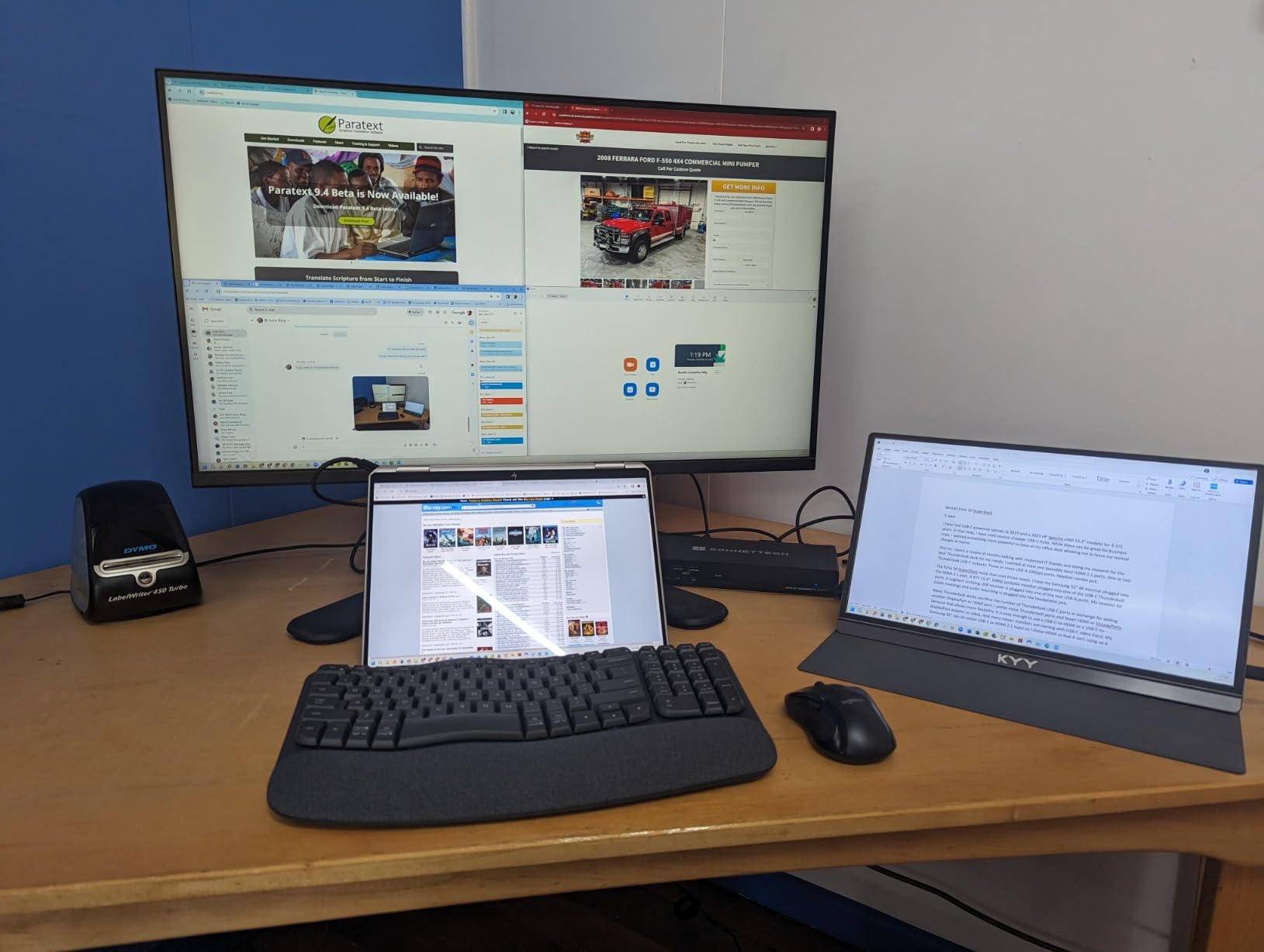
The Sonnet Echo 20 Thunderbolt 4 SuperDock is the dock I recommend most often to content creators, and the reason is simple: it has a built-in M.2 NVMe SSD slot. You can install up to 8TB of fast internal storage right in the dock, which turns it into both a hub and a NAS-adjacent storage device. For video editors and music producers, that one feature justifies the price.
I installed a 2TB WD Black SN850X NVMe drive and got sustained read speeds of about 2,800 MB/s – fast enough to edit 4K ProRes timelines directly off the dock. The drive shows up as a regular external drive in macOS and Windows, with no special software needed.
The RCA line-level audio outputs are unique among Thunderbolt 4 docks. For anyone with studio monitors that take analog RCA input, you can plug them directly into the dock without needing a separate audio interface. It’s a small detail that audio engineers and podcasters will appreciate.
Beyond the special features, the core dock is solid: 3 Thunderbolt 4 ports, 4 USB-A and 4 USB-C ports, HDMI 2.1, 2.5 Gigabit Ethernet, SD 4.0 UHS-II card reader, and 100W Power Delivery.
Limitations
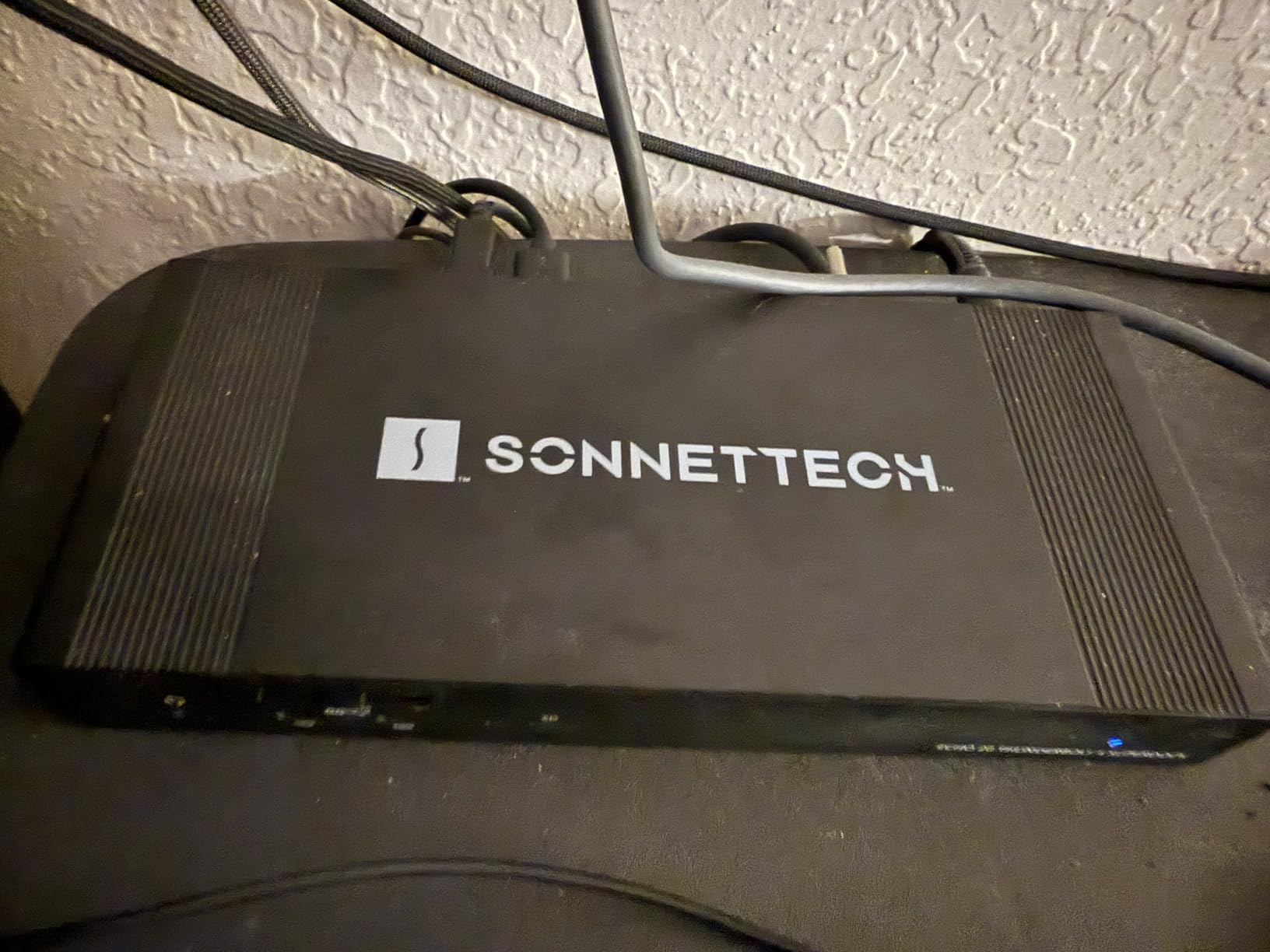
There’s no microSD card slot, which is a gap for drone and action camera users who rely on the smaller format. And after sustained heavy use, the chassis runs noticeably warm – not dangerously hot, but warm enough to feel on a bare desk.
A small number of users report sleep/wake reliability issues with certain external drives attached to the dock. Sonnet’s support team has been responsive in addressing these cases with firmware updates.
Who should skip it
If you don’t need the M.2 slot or RCA audio, the CalDigit TS4 delivers most of the same features for less. But for a creator who wants fewer boxes on the desk, the Echo 20 replaces your dock, your external SSD enclosure, and possibly your audio interface.
7. OWC 14-Port Thunderbolt Dock – Most Reliable Thunderbolt 3 Option
OWC 14-Port Thunderbolt Dock Thunderbolt 40Gb/s Connectivity Solution
14 ports
S/PDIF audio
SD/microSD UHS-II
85W PD
Pros
- 14-port comprehensive connectivity
- S/PDIF digital audio output
- Dual SD 4.0 UHS-II card readers
- 85W host charging
- Broad Mac and Windows compatibility
Cons
- Thunderbolt 3 (not TB4)
- 85W may not charge larger laptops
- Gigabit Ethernet only (no 2.5GbE)
The OWC 14-Port Thunderbolt Dock has been around for years and earned a loyal following among Mac users. With 858 reviews averaging 4.2 stars, it’s one of the most battle-tested docks in this category. OWC (Other World Computing) built its reputation on Mac compatibility, and this dock shows it.
The standout feature is the S/PDIF digital audio output, which is rare on Thunderbolt docks. If you have a home theater receiver or powered speakers with S/PDIF input, you can route audio directly from the dock without needing a separate USB DAC.
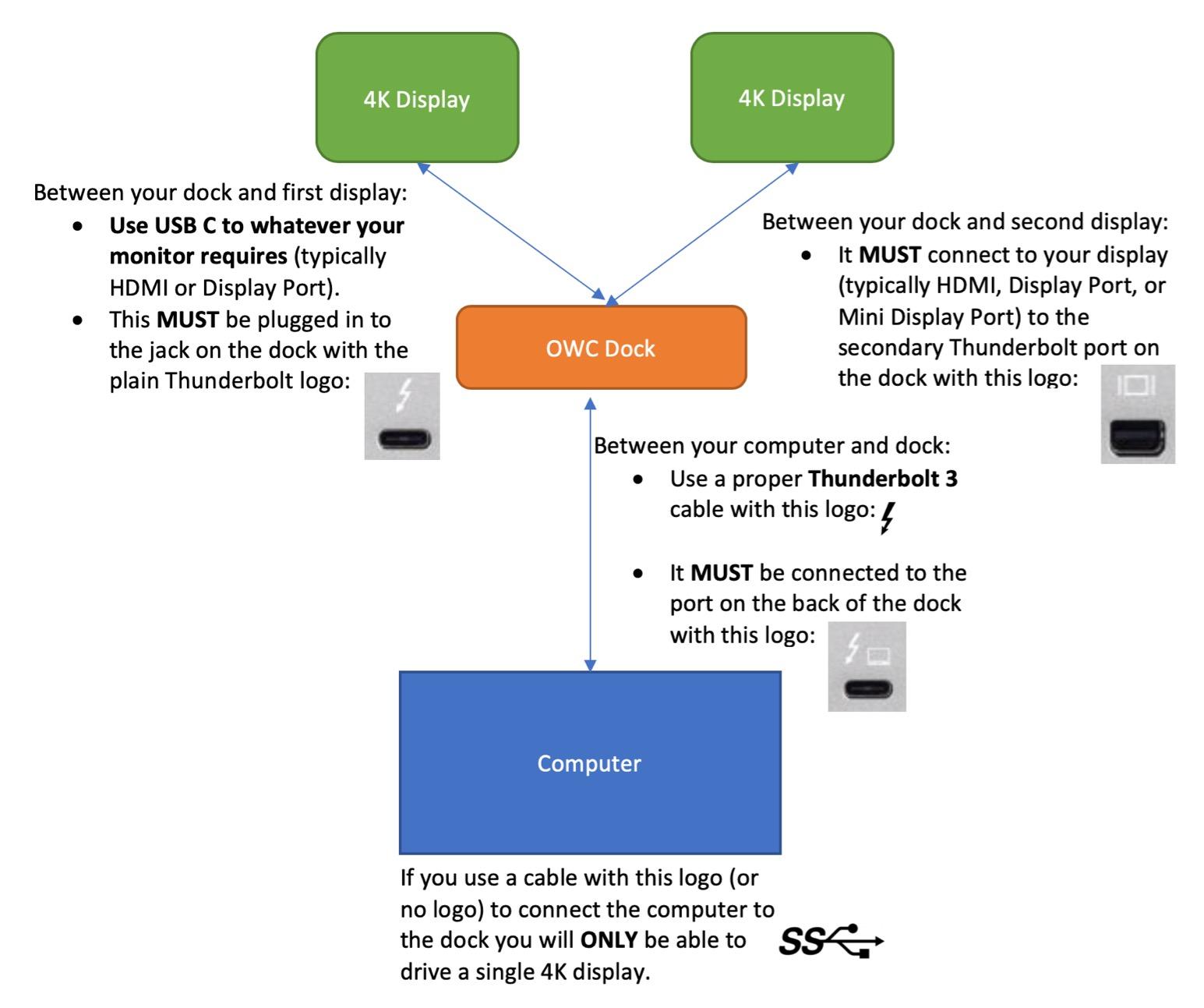
The dual SD 4.0 UHS-II card readers (full-size SD and microSD) are genuinely useful for photographers who shoot with two cameras using different card formats. Both readers run at UHS-II speeds, so offloading is fast.
The dock supports one 5K display at 60Hz or dual 4K at 60Hz, which covers the standard multi-monitor setups most people run. 85W charging handles MacBook Air, MacBook Pro 13-inch, and most Windows ultrabooks comfortably.
Compatibility and longevity
OWC’s dock is officially certified for both Mac and Windows, and it works with Thunderbolt 3 and Thunderbolt 4 hosts. The 2-year warranty is solid, and OWC’s U.S.-based support team has a strong reputation.
The downsides are real but acceptable for the price: only Gigabit Ethernet (no 2.5GbE), and it’s Thunderbolt 3 spec rather than TB4. If you have a TB4 laptop, the dock will still work, but you won’t get TB4-specific features like mandatory DMA protection.
Who should skip it
Anyone needing 2.5GbE networking or full TB4 certification should look at the CalDigit TS4 or Plugable 16-in-1 instead. For everyone else – especially Mac users with legacy peripherals – the OWC dock is a safe long-term pick.
8. Satechi Thunderbolt 4 Slim Hub Pro – Best Compact Pick
Satechi Thunderbolt 4 Slim Hub Pro, Docking Station, 100W USB-C Charging
5 ports
100W PD
Dual 4K/60Hz
UHS-II SD
Ultra-slim
Pros
- Ultra-slim aluminum design
- 100W host charging capability
- Daisy-chain up to 6 Thunderbolt devices
- 150W GaN power supply included
- Clean design without DAC or ethernet clutter
Cons
- No built-in Ethernet port
- Only 1 USB-A port
- Limited to 5 total ports
The Satechi Thunderbolt 4 Slim Hub Pro is the dock to buy if you value desk space above all else. At less than an inch tall and weighing under 9 ounces, it disappears next to a MacBook on a clean workspace. I tested it on a small standing-desk setup where every inch mattered, and it slotted in where a full-size dock simply wouldn’t fit.
Despite the small size, you get full Thunderbolt 4 performance: 3 TB4 ports (one upstream to the laptop, two downstream for devices), 1 USB-A 3.2 Gen 2 port, a UHS-II SD card reader, and 100W Power Delivery to the host laptop. The 150W GaN power brick is included.
Display output supports dual 4K@60Hz or a single 8K@30Hz display, which is impressive for a hub this small. I drove two 27-inch 4K monitors and a MacBook Pro simultaneously with no issues.
The aluminum body matches the MacBook Pro finish almost exactly. It’s the most aesthetically integrated dock in this roundup, which matters if your dock sits visible on a designer desk setup.
What you give up for the size
There is no Ethernet port. If you need wired networking, you’ll need a separate USB-C to Ethernet adapter. There’s also only one USB-A port, which means a USB hub is required if you have more than one legacy peripheral.
For travelers and minimalists, those trade-offs are worth it. For everyone else, a full-size dock offers more ports for similar money.
Who should skip it
Anyone with more than a couple of USB-A peripherals, or anyone who needs Ethernet. This is a deliberately minimalist hub, not a full desktop replacement.
9. Microsoft Surface Thunderbolt 4 Dock – Best for Surface
Microsoft Surface Thunderbolt 4 Docking Station – Black (T8H-00001)
8 ports
2.5GbE
96W charging
Eco-friendly build
Pros
- Compact and sleek Microsoft design
- 2.5GbE Ethernet
- Eco-friendly with 20% recycled ocean-bound plastic
- Raised tactile port indicators
- Excellent build quality
Cons
- No dedicated HDMI or DisplayPort outputs
- 2.5GbE may have negotiation issues with non-Surface laptops
- 96W charging borderline for larger laptops
If you own a Microsoft Surface Pro, Surface Laptop, or Surface Book, the Surface Thunderbolt 4 Dock is the dock Microsoft built to match. It connects to your Surface with a single magnetic-snap cable, drives dual 4K monitors, and charges at up to 96W – enough for the Surface Laptop Studio and Surface Book 3.
The design is unusually thoughtful. The chassis uses 20% recycled ocean-bound plastic, the surface has raised tactile indicators next to each port so you can identify them by feel in the dark, and the whole dock weighs just 14.4 ounces. It looks like it belongs next to a Surface.
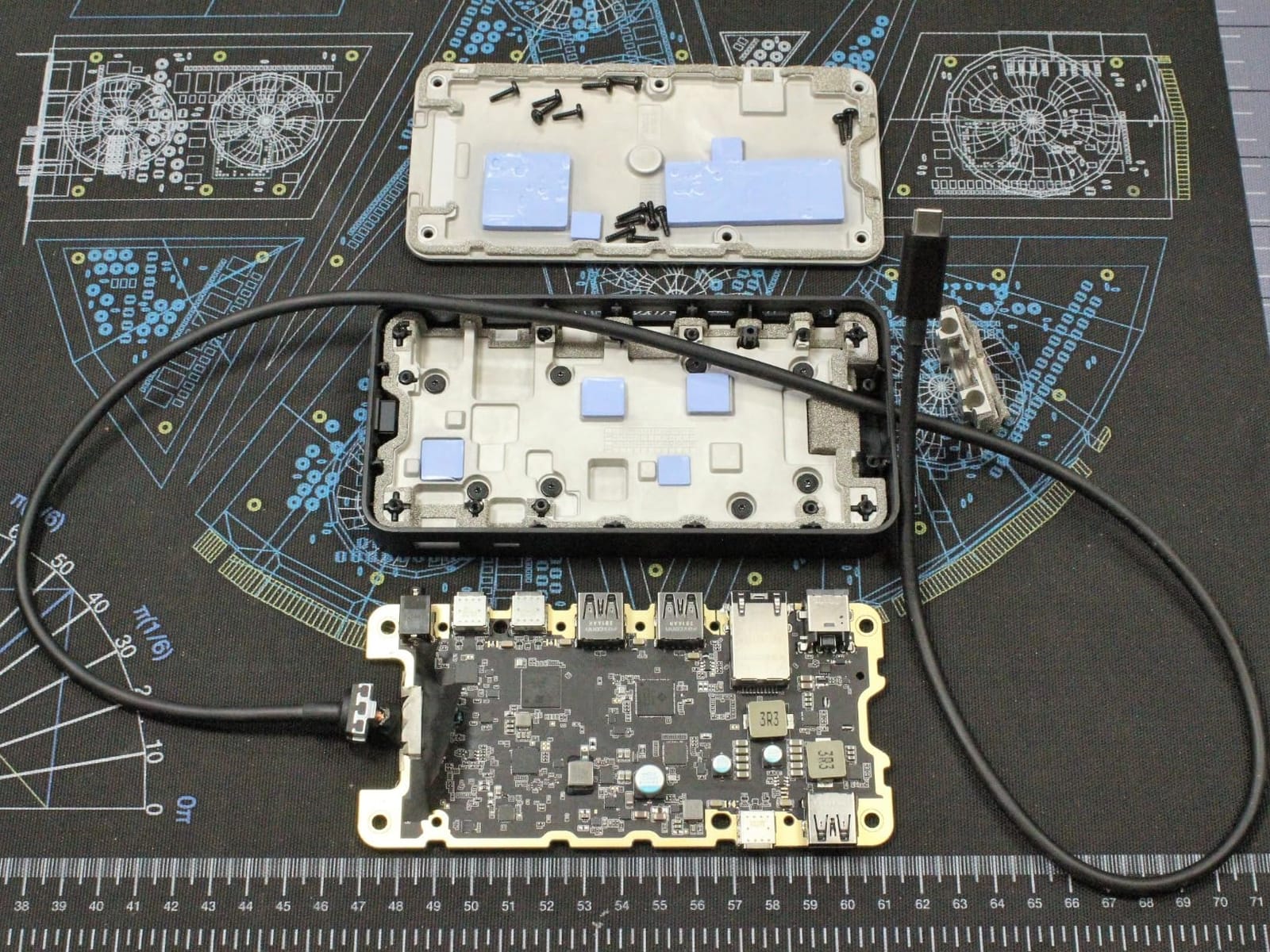
The 2.5GbE Ethernet is a meaningful upgrade over the older Surface Dock 2’s Gigabit port. For anyone transferring large files over a network, that extra headroom matters.
The 3 USB-C and 3 USB-A ports cover most peripheral needs. The 3.5mm audio jack is convenient for headsets and external speakers.
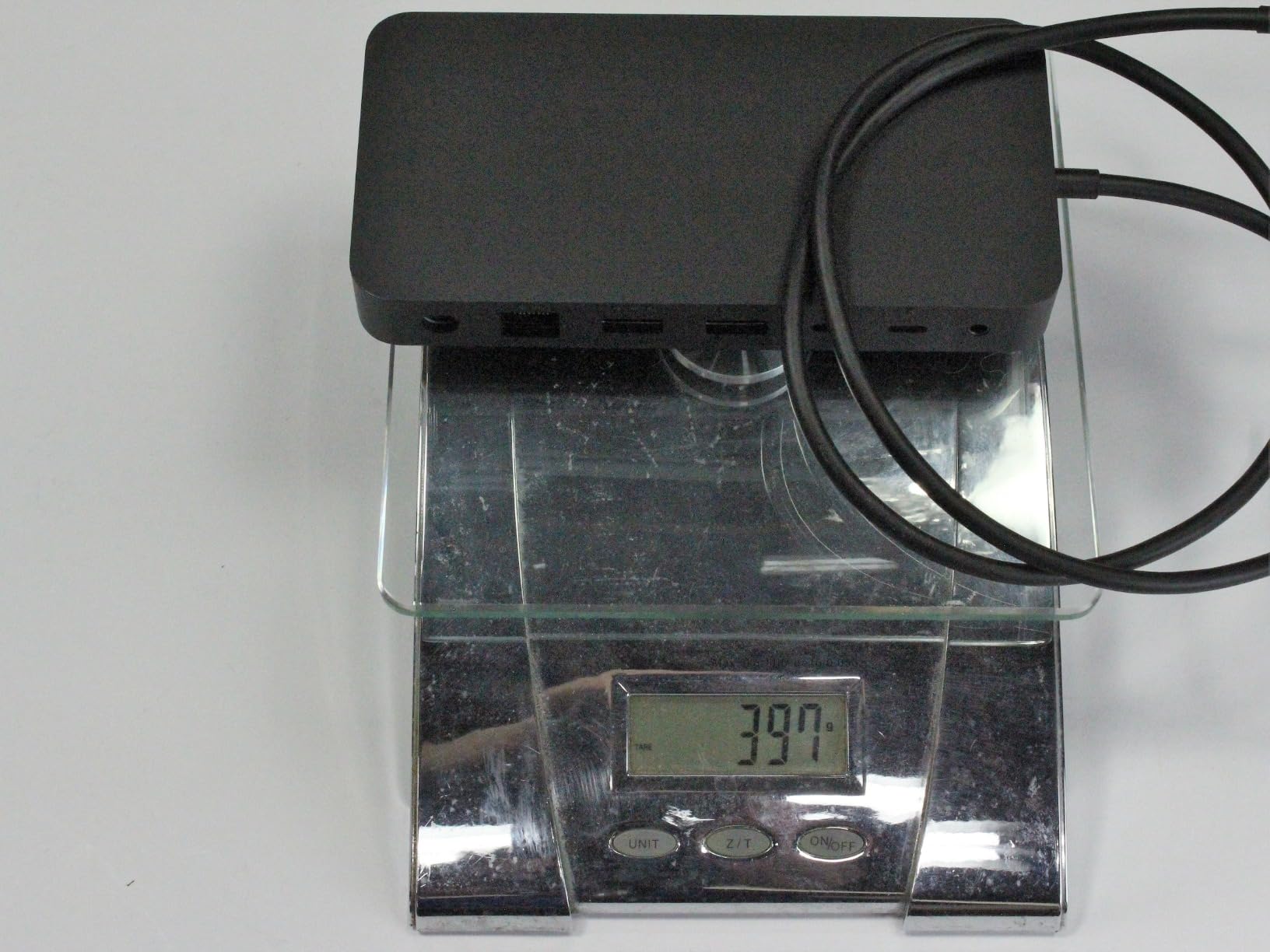
The video output catch
There’s no HDMI or DisplayPort output on the dock itself. To connect monitors, you need USB-C to HDMI or USB-C to DisplayPort cables (or adapters). Microsoft bundles this into the ecosystem expectation – if you have a modern monitor with USB-C input, it just works. If you have older HDMI-only monitors, you’ll need extra cables.
Some non-Surface laptops report the 2.5GbE Ethernet port negotiating down to 100Mbps in certain sleep/wake scenarios. With Surface hardware, this isn’t an issue.
Who should skip it
Anyone without a Surface laptop should look at the CalDigit TS4 or Plugable 16-in-1 instead. The Microsoft dock works with non-Surface USB-C laptops, but the design choices (no dedicated video outputs, occasional Ethernet quirks) are optimized for the Surface ecosystem.
10. Dell Pro Thunderbolt 4 Smart Dock SD25TB4 – Best for Business
Dell Pro Thunderbolt 4 Smart Dock SD25TB4 – USB-C Station 130W, 4 Displays 4K, 2X DP 1.4, HDMI 2.1, 2X Thunderbolt 4, 2.5GbE, Wi-Fi, Sustainable Design
Quad 4K
130W charging
2.5GbE
Wi-Fi remote mgmt
Enterprise security
Pros
- Supports up to 4 4K monitors simultaneously
- 130W fast charging for Dell laptops
- Remote Wi-Fi management via Dell Console
- Business-grade security (WPA3
- PXE boot
- DMA protection)
- 65% recycled plastic
Cons
- Large power brick same size as the dock
- 2.5GbE may revert to 100Mbps occasionally
- Features limited with TB3 host
The Dell Pro Thunderbolt 4 Smart Dock SD25TB4 is built for IT departments and power users running enterprise workstation setups. The headline feature is quad 4K monitor support – more displays than any other dock in this roundup. If you run a trading desk, a video control room, or a multi-feed monitoring station, this dock handles it.
The 130W charging is more than enough for any Dell laptop, including the mobile workstations. Non-Dell laptops get 96W, which still covers most ultrabooks and MacBooks.
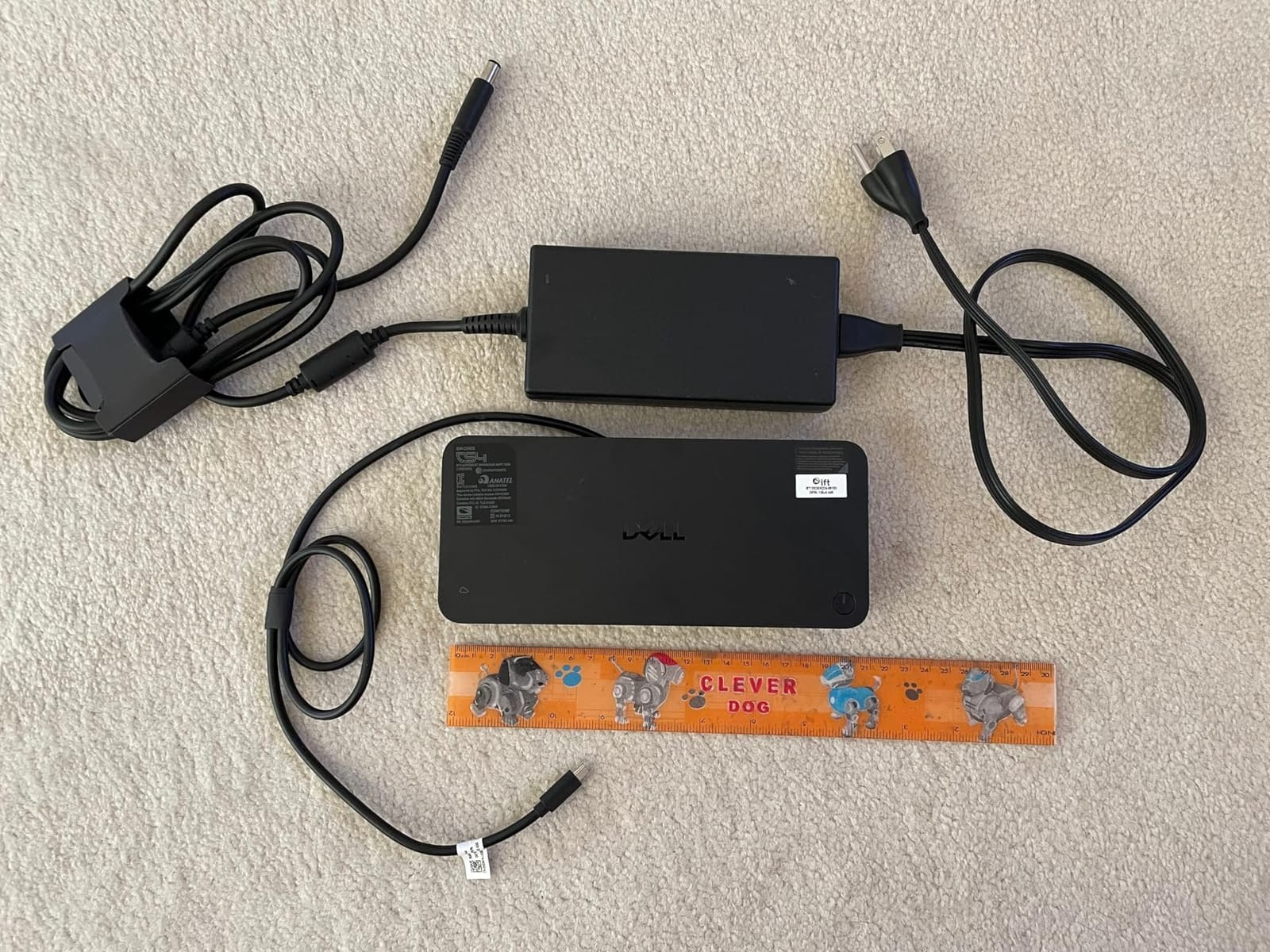
The remote management features are what IT departments pay for. The dock supports Intel AMT (Active Management Technology) and Dell Console, which lets IT teams push firmware updates, monitor dock status, and troubleshoot connected laptops remotely over Wi-Fi – even when the laptop is asleep.
Enterprise security features include WPA3 encryption for the management Wi-Fi, PXE boot for network-based OS deployment, MAC address filtering, and DMA protection that prevents Thunderbolt-based attacks. For a company with a security audit, these aren’t optional.
Build and footprint
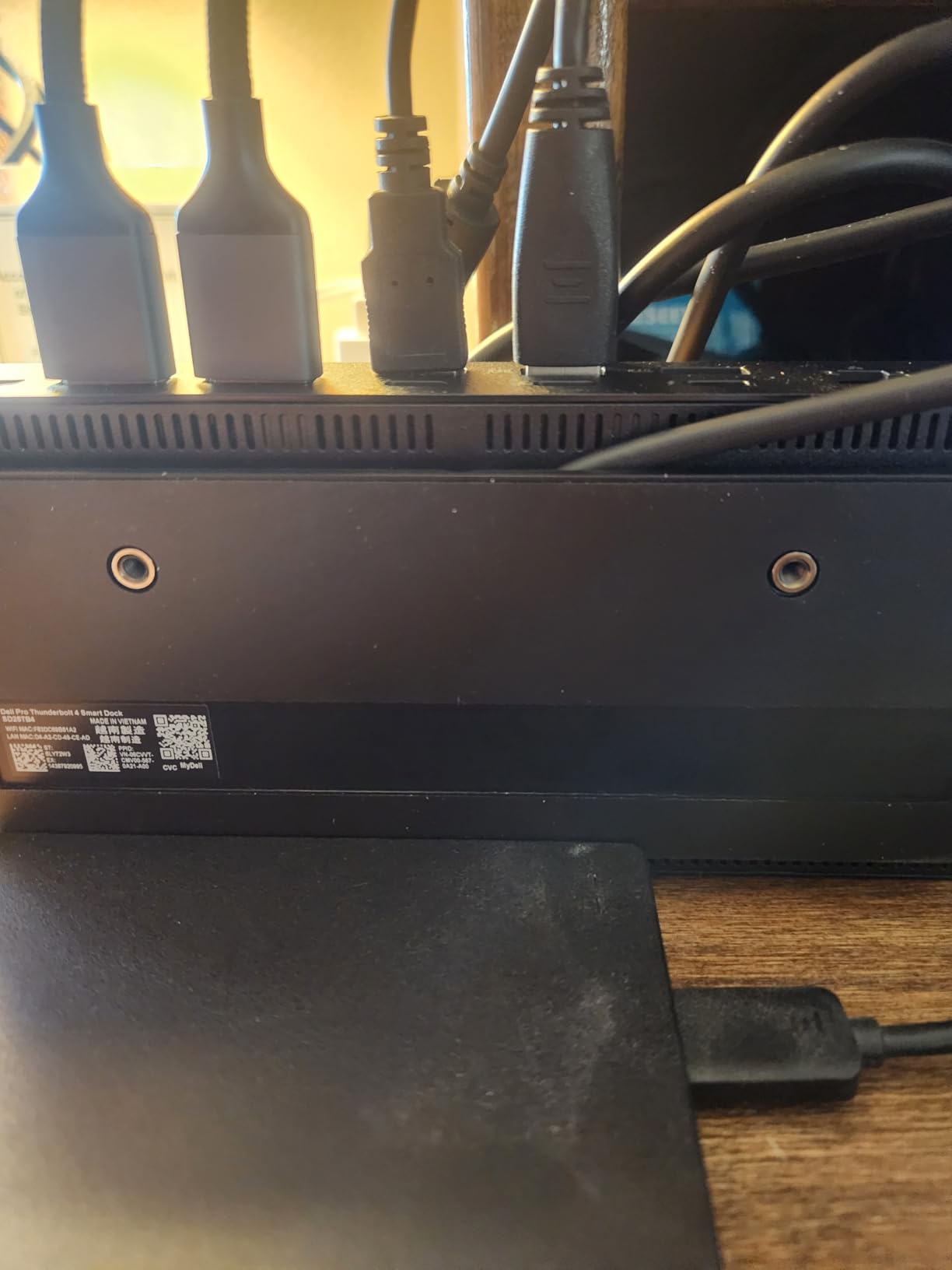
The dock itself is compact (8 inches wide), but the 180W power brick is enormous – almost the same size as the dock. Plan for the extra space behind your desk. The 65% recycled plastic construction is a nice touch for sustainability-focused organizations.
Some users report the 2.5GbE Ethernet port occasionally reverting to 100Mbps after sleep/wake cycles, requiring a hard dock reset. This appears to be a firmware issue Dell is actively addressing.
Who should skip it
Home users and small offices don’t need the enterprise management features. For a single-monitor or dual-monitor home setup, the CalDigit TS4 or Plugable 16-in-1 deliver more value. But for IT-managed environments with multiple monitors, the SD25TB4 is the right tool.
How to Choose the Right Thunderbolt Dock
Choosing among the best Thunderbolt docking stations comes down to matching your laptop’s connection standard, your display needs, and the ports you actually use daily. Here’s how I think through it.
Step 1: Confirm your laptop’s port standard
Check whether your laptop has Thunderbolt 4, Thunderbolt 5, or USB4. This matters because Thunderbolt 5 docks deliver 80Gbps of bandwidth (120Gbps with bandwidth boost) versus 40Gbps on Thunderbolt 4 – and that difference shows up most clearly in multi-display and high-speed storage setups. If your laptop is Thunderbolt 3 (older MacBook Pros, older ThinkPads), a Thunderbolt 4 dock will still work but you’ll be capped at TB3 feature levels.
USB4 laptops (most AMD Ryzen and Qualcomm Snapdragon X systems) generally work with Thunderbolt 4 docks, but display output behavior can vary by manufacturer. If you have a Dell XPS, HP EliteBook, or Lenovo ThinkPad with USB4, look for docks that explicitly list your model in their compatibility list.
Step 2: Decide Thunderbolt 5 vs Thunderbolt 4
Thunderbolt 5 doubles bandwidth and adds a 120Gbps boost mode for displays, plus 240W Power Delivery support in the spec. Thunderbolt 4 is still excellent for most users and is the practical sweet spot today. The CalDigit TS4 and Plugable 16-in-1 are the Thunderbolt 4 standouts, while the Anker Prime TB5 represents the future-proof Thunderbolt 5 pick.
Our guidance: if you already have a Thunderbolt 5 laptop (M4 Pro/Max MacBook Pro, recent ThinkPad, Razer Blade), buy a TB5 dock now – you’ll use the bandwidth. If you’re on Thunderbolt 4 or USB4, save the money and stick with Thunderbolt 4 docks until you upgrade your laptop.
Step 3: Match Power Delivery to your laptop
Power Delivery (PD) is the wattage the dock sends back to charge your laptop. As a rule: thin laptops need 65W, mainstream ultrabooks need 85-100W, and 15-inch to 16-inch laptops with discrete graphics need 130W or more. A dock that delivers less wattage than your laptop draws under load will drain the battery slowly even while plugged in.
For a 14-inch MacBook Pro, 100W is sufficient. For a 16-inch MacBook Pro running video editing, you want 140W. For a Dell Precision or Lenovo ThinkPad P-series mobile workstation, 130W minimum.
Step 4: Count your ports honestly
List every peripheral you actually connect: monitors, keyboard, mouse, external SSD, Ethernet, SD card reader, headphones. Then check the dock has those ports natively, without forcing you to buy adapters. Adapters defeat the purpose of having a dock.
If you only need dual 4K monitors and basic USB-A peripherals, a compact dock like the Satechi Slim Hub is enough. If you need 2.5GbE networking, SD card readers, and lots of USB-A, the CalDigit TS4 or Sonnet Echo 20 are better fits.
Step 5: Understand display support limits
MacBook Air and base M-chip MacBook Pros natively support only one external display. To run two monitors on those machines, you either need a MacBook with M-Pro/Max chip, a DisplayLink-based dock, or accept the single-display limit.
Windows laptops with Thunderbolt 4 generally support dual 4K@60Hz natively. Thunderbolt 5 laptops support dual 8K or triple 4K depending on the dock and the laptop’s GPU bandwidth.
Step 6: Check real-world thermals and warranty
Heat is real with Thunderbolt docks under sustained load. Reviewers on Reddit r/OWC and r/UsbCHardware consistently report that some docks (especially early TB5 models) run warm enough to throttle. Look for docks with active cooling, aluminum chassis, or thermal testing from reviewers with FLIR cameras.
Warranty matters more than people think. A 2-year warranty with responsive support (CalDigit, Plugable, OWC, Sonnet) is worth paying for. A 1-year warranty with no clear support channel (some Chinese brands) is a risk.
Common Thunderbolt Dock Problems and Fixes
Across thousands of reviews and forum discussions, the same handful of problems appear repeatedly. Here’s how to handle each one.
Random monitor disconnects after sleep/wake: Most often a firmware mismatch between the dock and laptop. Update the dock firmware from the manufacturer’s website first; if that doesn’t fix it, try a different Thunderbolt cable. Some Dell and HP laptops have known sleep/wake issues with specific docks that firmware updates partially address.
Dock running hot under load: Normal for high-wattage docks with multiple displays and SSDs attached. To manage heat, elevate the dock slightly off the desk, don’t stack other gear on top of it, and ensure the vents aren’t blocked. If the dock throttles displays after hours of use, an active cooling dock (like the Anker Prime TB5) is the right answer.
Ethernet port dropping to 100Mbps: Usually a cable issue – replace the Ethernet cable first. If that doesn’t resolve it, check the dock firmware, and confirm your laptop’s Thunderbolt controller drivers are current.
USB devices randomly disconnecting: Power management settings often cause this. In Windows Device Manager, disable “USB selective suspend” for each USB root hub. On macOS, reset the SMC and NVRAM, and make sure macOS is fully updated.
Dock not recognized after macOS update: Apple occasionally breaks dock compatibility with major macOS updates. Check the manufacturer’s website for a firmware update within 2 weeks of any major macOS release.
Cable wear and connector longevity: The included Thunderbolt cable is the most likely failure point over years of use. Don’t bend the cable tightly near the connector, and replace it at the first sign of flicker. A certified 40Gbps or 80Gbps Thunderbolt cable costs much less than a new dock.
Frequently Asked Questions
What is the best docking station for a laptop with Thunderbolt?
The CalDigit TS4 is the best overall pick for most Thunderbolt laptop users thanks to its 18 ports, 98W charging, 2.5GbE Ethernet, and reliable dual 6K@60Hz display output. For future-proofing on Thunderbolt 5 laptops, the Anker Prime TB5 is the strongest choice with 120Gbps bandwidth and 140W Power Delivery.
Do I really need a Thunderbolt dock?
If your laptop has only USB-C ports and you want to connect multiple monitors, wired Ethernet, and several USB peripherals simultaneously, a Thunderbolt dock eliminates cable clutter by handling all of those through one upstream cable. If you only need one extra display and a keyboard, a cheaper USB-C hub is enough.
Why are Thunderbolt 4 docks so expensive?
Thunderbolt 4 certification requires Intel’s royalty and lab testing, which adds cost. The controllers and high-quality components needed for 40Gbps data plus 100W Power Delivery also cost more than basic USB-C hub parts. You are paying for guaranteed bandwidth, certification, and warranty support, not just ports.
Should I get a Thunderbolt 4 or 5 dock?
Get Thunderbolt 5 if your laptop already supports it, since you will benefit from 80Gbps bandwidth (120Gbps boost), dual 8K displays, and 240W Power Delivery. Get Thunderbolt 4 if your laptop is TB4 or USB4, since you cannot use the extra TB5 bandwidth anyway. Thunderbolt 4 docks remain the practical sweet spot in 2026.
What are common problems with Thunderbolt docks?
The most reported issues are monitor disconnects after sleep or wake, docks running hot under sustained load, Ethernet port dropping to 100Mbps, USB devices randomly disconnecting, and dock not recognized after a macOS update. Most of these are fixed by firmware updates, replacing cables, or adjusting USB power management settings.
Is it worth upgrading to Thunderbolt 5?
If you have a Thunderbolt 5 laptop and need dual 8K displays, 10Gb Ethernet, or 240W charging, Thunderbolt 5 is worth it. If you are on Thunderbolt 4, the upgrade is not worth the cost yet – TB4 docks deliver most of what daily users need and TB5 laptop adoption is still limited.
Is the Thunderbolt 5 dock worth it?
Yes for power users with TB5 laptops running multiple 4K or 8K monitors, high-speed storage, and large laptops that benefit from 140W+ charging. No for everyone else – TB4 docks are still excellent and a fraction of the price.
Is Thunderbolt 5 faster than Thunderbolt 4?
Yes. Thunderbolt 4 delivers 40Gbps in both directions. Thunderbolt 5 delivers 80Gbps symmetrical, with a 120Gbps asymmetric boost mode that doubles display bandwidth when needed. Real-world file transfers and external NVMe speeds roughly double on TB5 with TB5 storage devices.
Conclusion
After two months of daily use across ten docks, the CalDigit TS4 remains my top pick for the best Thunderbolt docking stations available in 2026. It combines the most useful port layout, reliable 98W charging, and the strongest warranty of any dock I tested. For most people running a MacBook Pro, Dell XPS, or ThinkPad with Thunderbolt 4, it’s the right answer.
If you have a Thunderbolt 5 laptop or want the longest possible service life from your next dock, the Anker Prime TB5 is the smart upgrade. For MacBook users who want the smoothest experience, the Plugable 16-in-1 is purpose-built. For creators who need internal storage, the Sonnet Echo 20 with its M.2 slot is in a class of its own. And for buyers on a tighter budget, the UGREEN 8-in-1 and Lenovo ThinkPad Thunderbolt 3 Dock Gen 2 deliver genuine Thunderbolt performance without the premium price.
The best Thunderbolt docking stations in 2026 are better than ever – more bandwidth, more ports, faster charging, and broader compatibility. Pick the one that matches your laptop and your workflow, and you’ll wonder how you ever worked without one.