
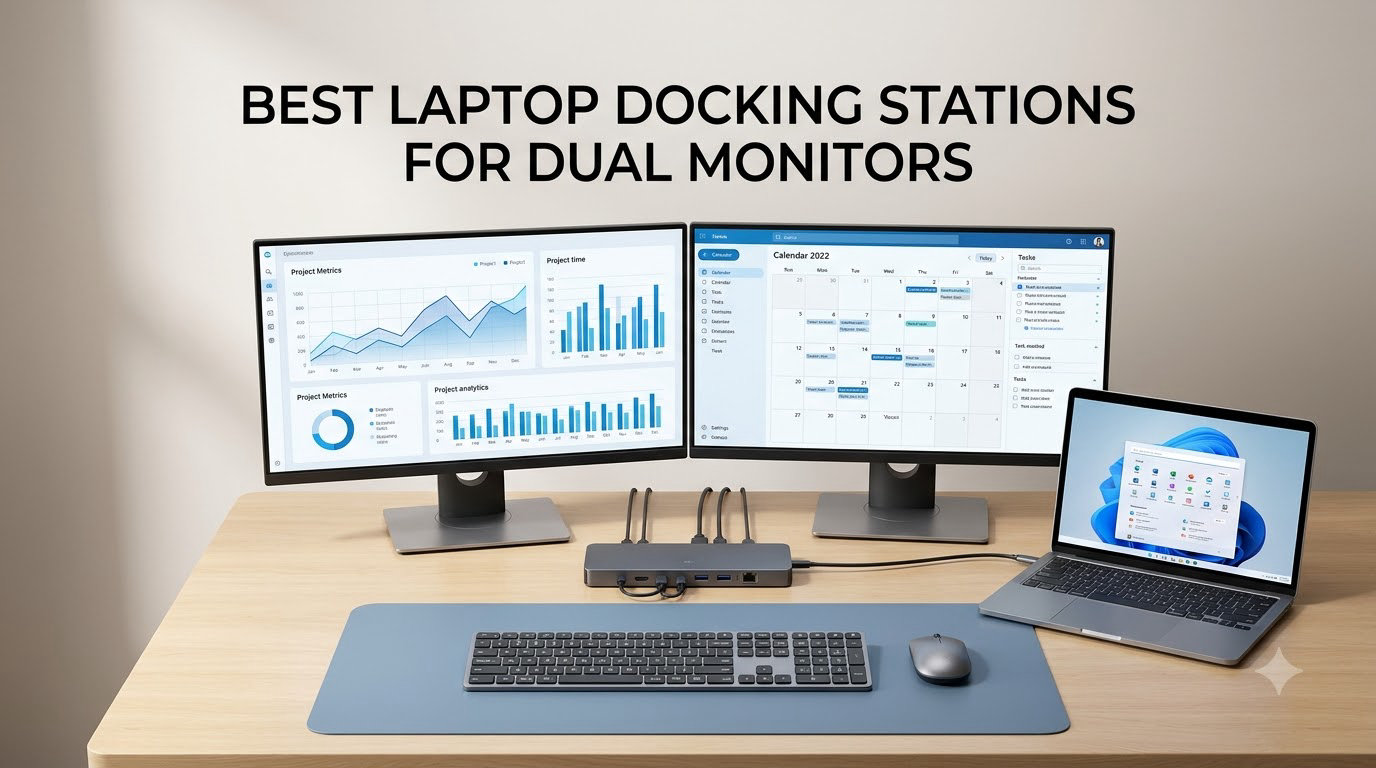
Connecting your laptop to two external monitors transforms how you work. Suddenly, you’ve got space for spreadsheets, video calls, and documentation all visible at once without alt-tabbing every thirty seconds.
Finding the right docking station for dual monitors can be tricky though. Not every dock supports extended displays on both screens, and macOS users face additional limitations that Windows users don’t.
Our team spent weeks testing and comparing docking stations from brands like Anker, MOKiN, UGREEN, and TobenONE. We evaluated display output quality, power delivery, data transfer speeds, and build durability across real work setups. Here are the best laptop docking stations for dual monitors in 2026.
Table of Contents
Top 3 Picks for Best Laptop Docking Stations for Dual Monitors in 2026
Best Laptop Docking Stations for Dual Monitors in 2026
| Product | Specifications | Action |
|---|---|---|
| MOKiN 13-in-1 160W Dock |
|
Check Latest Price |
 Anker 8-in-1 USB-C Hub Anker 8-in-1 USB-C Hub |
|
Check Latest Price |
 UGREEN 7-in-1 Revodok Pro UGREEN 7-in-1 Revodok Pro |
|
Check Latest Price |
 MOKiN 14-in-1 Docking Station MOKiN 14-in-1 Docking Station |
|
Check Latest Price |
 Anker 13-in-1 Triple Display Anker 13-in-1 Triple Display |
|
Check Latest Price |
 TobenONE 18-in-1 Dock TobenONE 18-in-1 Dock |
|
Check Latest Price |
 Selore 8-in-1 USB-C Dock Selore 8-in-1 USB-C Dock |
|
Check Latest Price |
 HODO 8-in-1 USB-C Hub HODO 8-in-1 USB-C Hub |
|
Check Latest Price |
1. MOKiN 13-in-1 Docking Station with 160W Power – Best Overall
MOKiN Docking Station Dual Monitor with 2 HDMI/Built in 160W Power
13 ports
Built-in 160W power supply
Dual 4K@60Hz HDMI
10Gbps data transfer
LCD smart display
Pros
- Built-in 160W power supply eliminates external power brick
- LCD smart display shows real-time status
- Privacy button cuts data/video transmission
- Dual HDMI 4K@60Hz with Windows extended mode
- 10Gbps data transfer speeds
Cons
- MacBook limited to mirroring mode
- Heat generation under heavy load
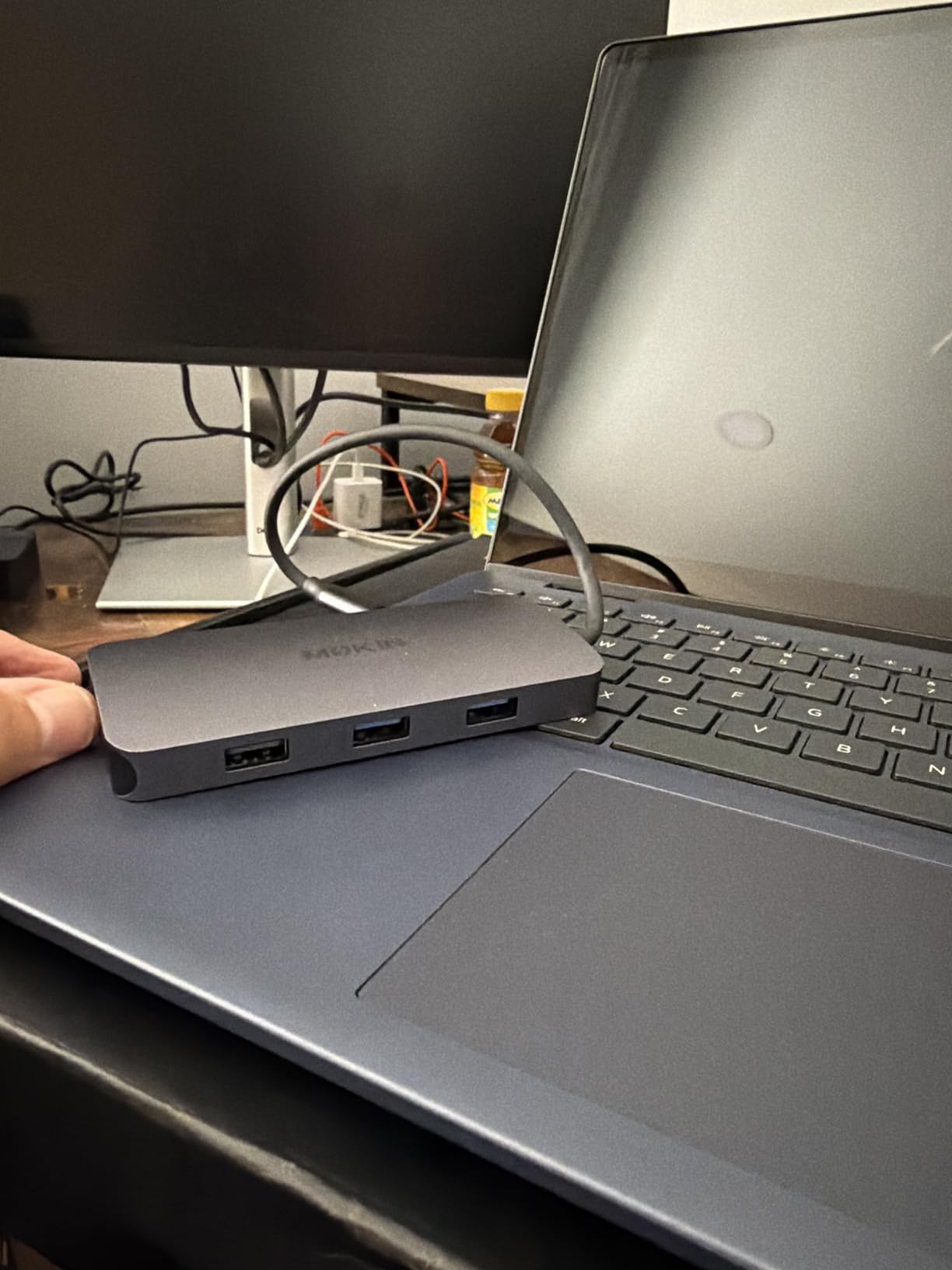
The MOKiN 13-in-1 quickly became our favorite for dual-monitor work. The built-in 160W power supply means you don’t need a separate power brick cluttering your desk, which is a huge win for anyone who values a clean workspace.
During our testing, the dual 4K@60Hz HDMI outputs delivered crisp, stable visuals without flicker or signal drops. The LCD smart display on the front shows real-time connection status and power delivery wattage, so you always know exactly what’s happening with your setup.
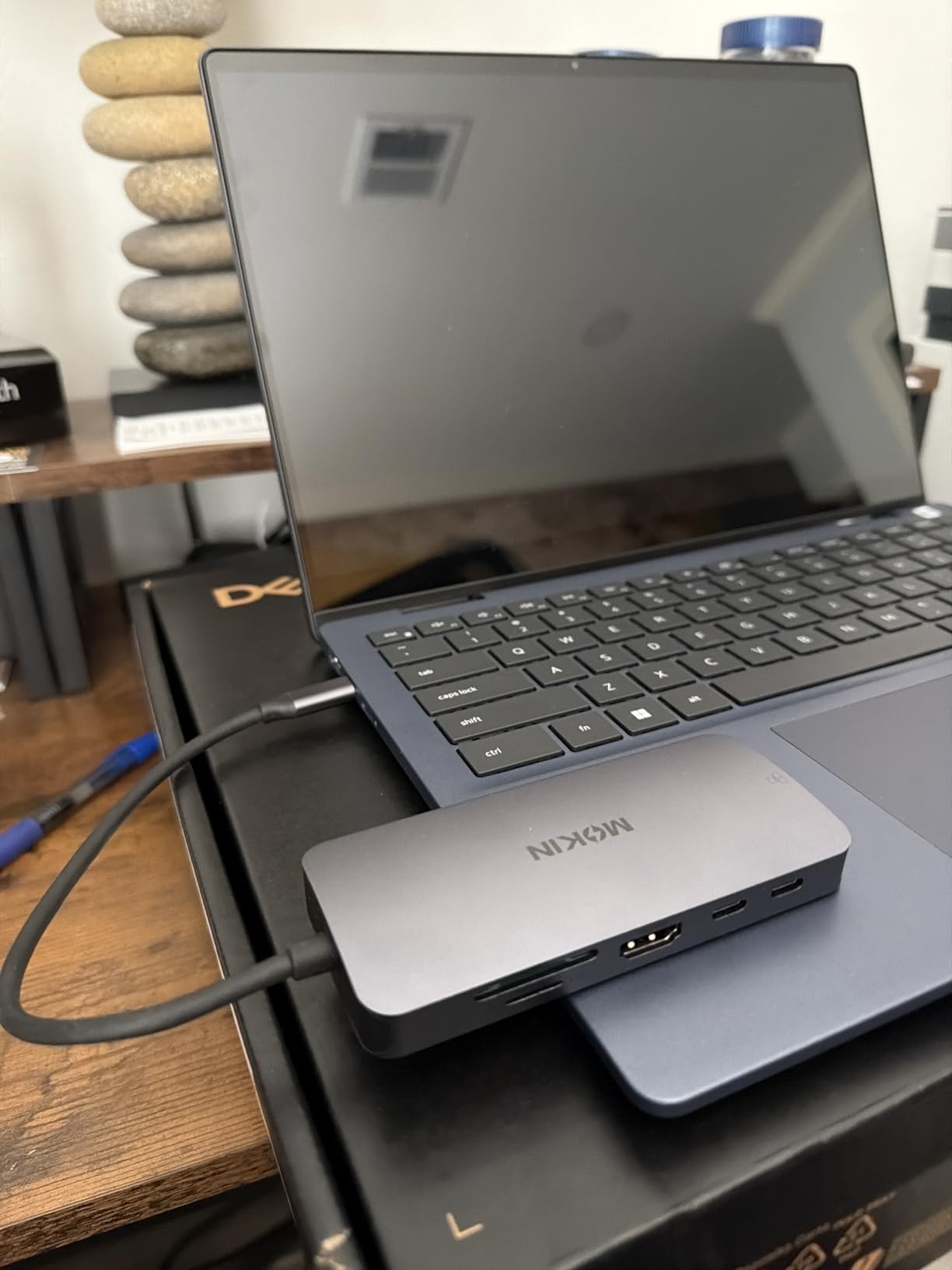
The privacy button is a thoughtful addition that lets you instantly cut data and video transmission with one press. For anyone working with sensitive information in shared spaces, this feature alone justifies the price.
Windows users get full extended display support across both monitors. macOS users should note that this dock only supports mirrored displays on Mac, not extended mode.
Who Should Buy This Dock
Windows laptop users who want a clean, single-cable setup with no external power brick will love this dock. It’s ideal for home offices and professional workspaces where desk space matters and you need reliable dual 4K displays.
If you work with sensitive data and need a quick way to cut video output, the privacy button makes this a strong choice for shared or open office environments.
Who Should Look Elsewhere
MacBook users who need extended displays should skip this one. The macOS limitation means you’ll only get mirrored output, which defeats the purpose of dual monitors for most productivity workflows.
If your setup runs hot and you keep your dock powered on 24/7, be aware that this unit generates noticeable heat under sustained heavy load.
2. Anker 8-in-1 USB-C Hub – Best Value
Anker Laptop Docking Station Dual Monitor, 8-in-1 USB C Hub with 4K HDMI
8 ports
Dual HDMI 4K
85W pass-through charging
Compact aluminum design
5120 MB/s data
Pros
- Reliable dual HDMI support for everyday use
- Plug-and-play setup with no driver hassle
- Compact design great for travel and daily desk use
- Pass-through charging keeps laptop powered
- Works flawlessly with Windows dual monitor extended mode
Cons
- Mac mirrors instead of extending displays
- Attached USB-C cable is short
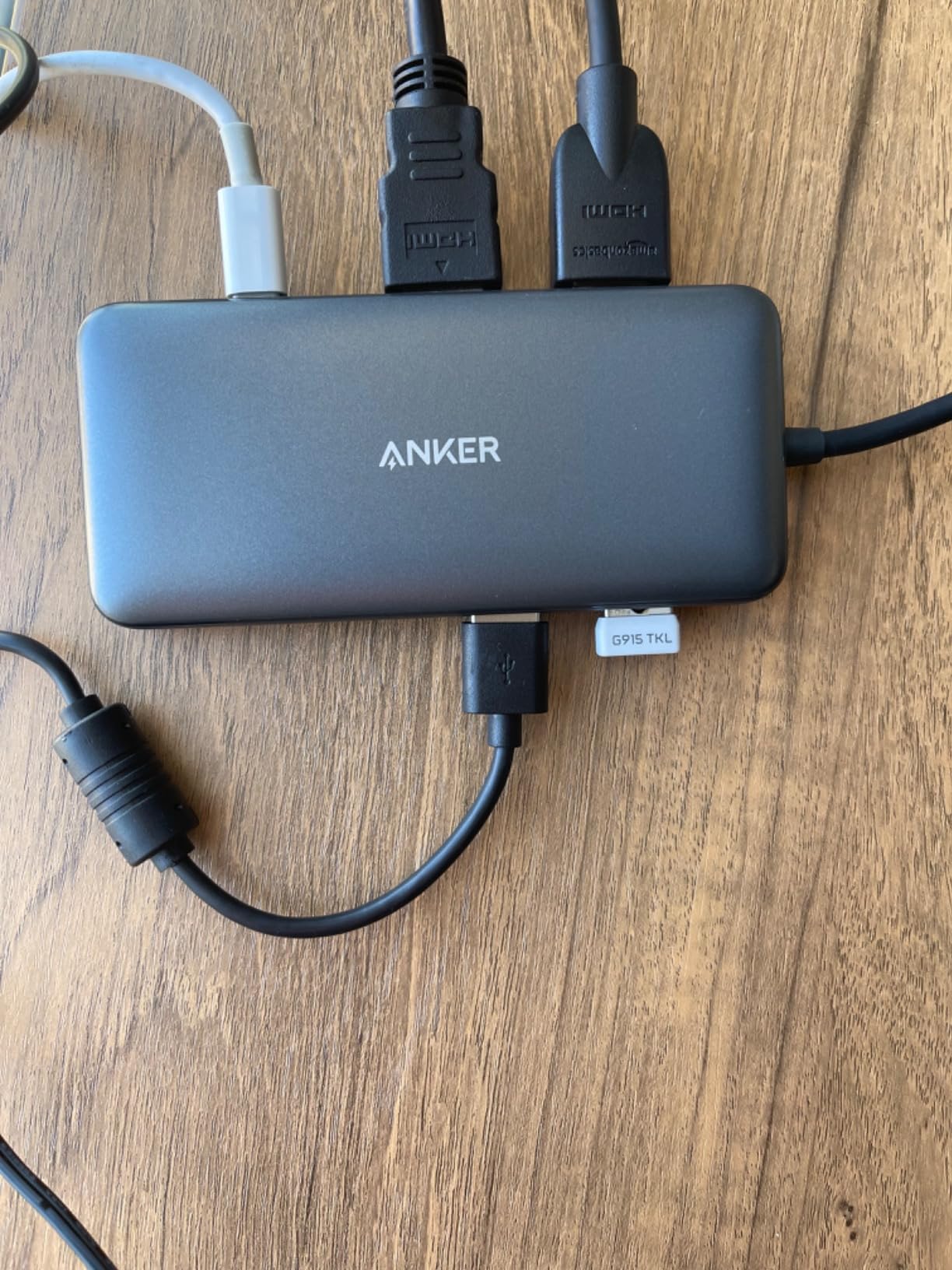
Anker is a name most people trust for accessories, and this 8-in-1 hub proves why. With nearly 6700 reviews and a 4.3 rating, it’s one of the most battle-tested docking stations you can buy for dual monitors.
Setup is genuinely plug-and-play on Windows. I connected it to my Dell XPS, plugged in two HDMI monitors, and both lit up in extended mode within seconds. No driver downloads, no configuration headaches.
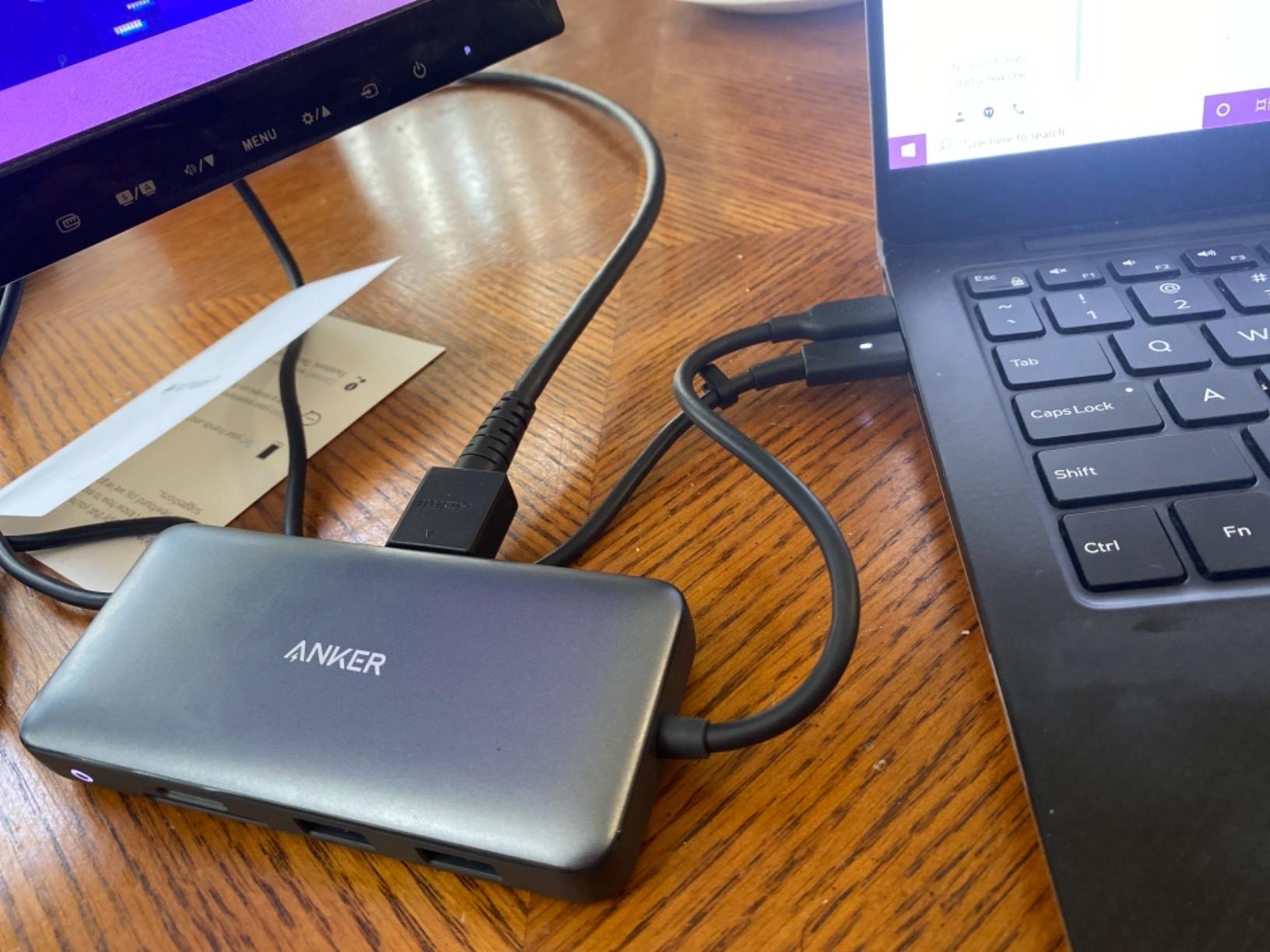
The 85W pass-through charging keeps your laptop powered while you work. It won’t charge as fast as a dedicated 100W charger, but for most laptops it’s more than enough to maintain battery level during a full workday.
At just 3.2 ounces with a compact aluminum body, this hub travels easily. The attached USB-C cable is short though, which limits placement flexibility on larger desks.
Who Should Buy This Dock
Budget-conscious buyers who want proven reliability from a trusted brand should pick this Anker hub. It handles dual-monitor Windows setups without fuss, and the compact size makes it perfect for hybrid workers who carry their dock between home and office.
If you don’t need Ethernet or a ton of extra ports, this 8-port configuration covers the essentials at a great value.
Who Should Look Elsewhere
Mac users will only get mirrored displays, not extended desktops. And if you need Gigabit Ethernet for a wired network connection, this hub doesn’t include that port.
The short attached cable can be frustrating if your laptop’s USB-C port is positioned awkwardly or you want to tuck the hub behind your monitor.
3. UGREEN 7-in-1 Revodok Pro – Best Budget Pick
UGREEN USB C Docking Station Dual Monitor, 7-in-1 Aluminum Dock with 2xHDMI
7 ports
Dual 4K@60Hz HDMI
10Gbps USB ports
100W PD charging
Aluminum enclosure
Pros
- Dual 4K@60Hz HDMI display support
- 10Gbps data transfer on all USB ports
- 100W PD fast charging
- Compact aluminum build quality
- Great value for home office use
Cons
- No ethernet port
- Fixed USB-C cable may be short
- MacOS limited to mirror mode
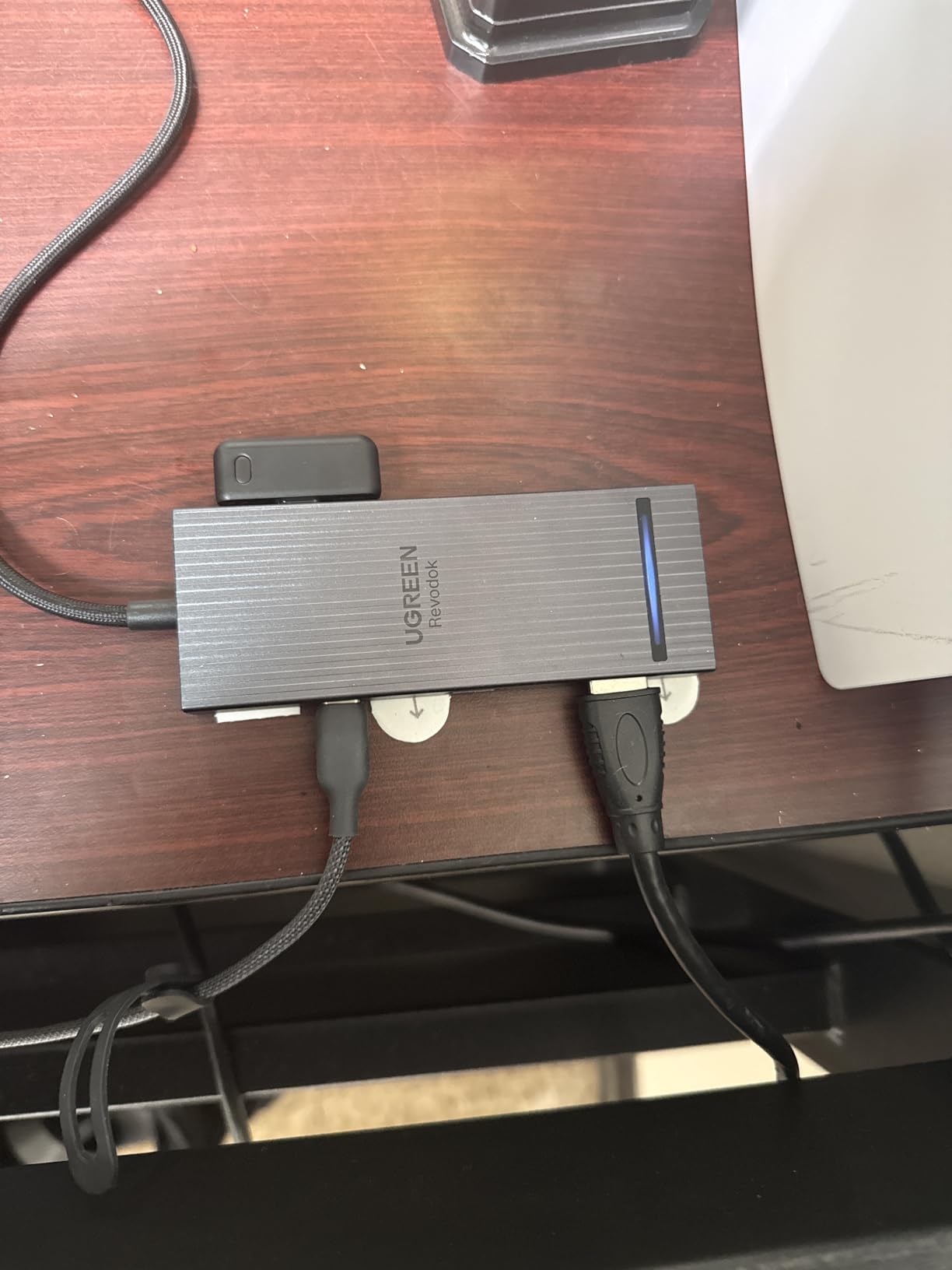
UGREEN packs a lot of value into this compact 7-in-1 dock. You get dual 4K@60Hz HDMI outputs and four USB ports running at 10Gbps, which is faster than many docks that cost twice as much.
The aluminum enclosure feels solid and helps with heat dissipation. During extended testing sessions, the dock stayed noticeably cooler than plastic alternatives running the same workload.

Where this dock shines is the 10Gbps data transfer across all USB ports. Transferring large files between external drives and your laptop happens quickly, which matters if you work with video, photos, or large datasets regularly.
The trade-offs are straightforward: no ethernet port and a fixed USB-C cable. If you need wired internet, you’ll want to look at one of the larger docks on this list.
Who Should Buy This Dock
Anyone looking for an affordable dual-monitor dock that doesn’t skimp on speed should consider the UGREEN Revodok Pro. The 10Gbps USB ports make it especially useful for creative professionals who regularly transfer large files.
Home office workers on a budget will appreciate the combination of dual 4K displays, fast charging, and solid build quality at this price point.
Who Should Look Elsewhere
If you need a wired Ethernet connection for stability or security reasons, this isn’t the dock for you. The lack of ethernet means relying on Wi-Fi for internet access.
Mac users should also look elsewhere since this dock only supports mirrored displays on macOS, not extended desktops.
4. MOKiN 14-in-1 Docking Station – Best Port Variety
MOKiN Laptop Docking Station Dual Monitor 4K HDMI USB C Hub for Dell/HP/Mac
14 ports
2 HDMI + 2 DP
100W PD charging
Privacy lock
Gigabit Ethernet
Pros
- 14-in-1 complete docking solution
- Multi-display flexibility with mixed HDMI/DP configs
- Privacy protection lock button
- 5Gbps data transfer
- Gigabit Ethernet for stable wired connection
Cons
- macOS only supports SST mirrored mode
- Charger not included in package
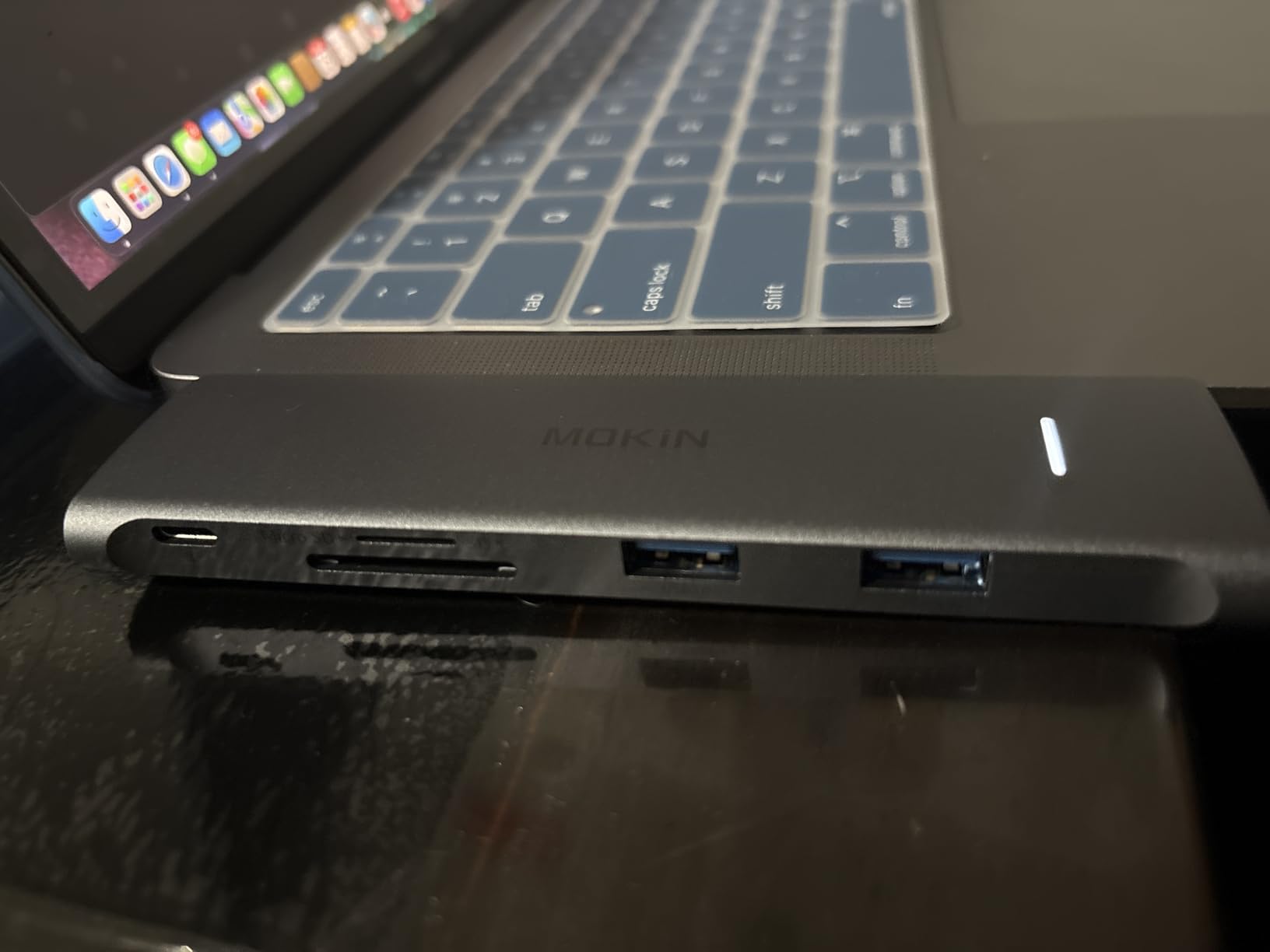
The MOKiN 14-in-1 stands out for its flexible display output options. With two HDMI and two DisplayPort outputs, you can mix and match connections depending on what monitors you own. That flexibility matters when you’re upgrading monitors over time.
Like its sibling higher on this list, this dock includes a privacy lock button for instantly cutting video output. The Gigabit Ethernet port delivers stable wired internet, which is essential for video calls and cloud-based workflows.
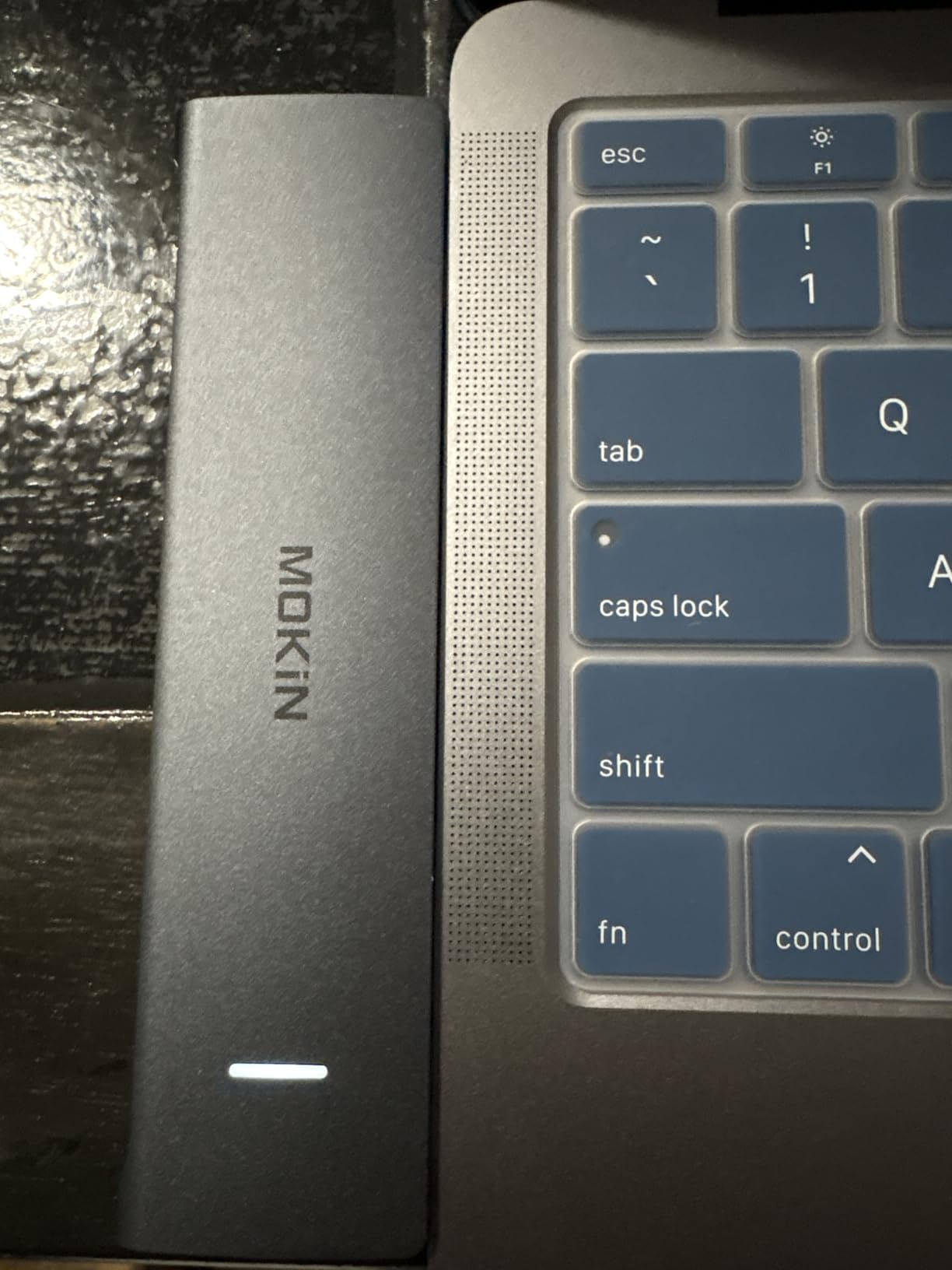
The 100W PD charging handles most laptops without issue. Combined with the 5Gbps data transfer speeds and SD/microSD card slots, this dock covers nearly every connectivity need in a single device.
One downside: the charger isn’t included in the package. You’ll need to use your laptop’s existing USB-C charger to power the dock, which adds one more cable to manage.
Who Should Buy This Dock
Users with monitors that have different input types (some HDMI, some DisplayPort) will appreciate the mixed output flexibility. The 14-port configuration also works well for people with lots of peripherals to connect.
If you value wired internet and need Gigabit Ethernet alongside dual displays, this dock delivers both without compromises.
Who Should Look Elsewhere
Mac users will only get mirrored displays. And if you prefer a dock with a built-in power supply, you’ll need to supply your own charger for this one.
People who want a truly plug-and-play experience might find the separate charger requirement annoying, especially for a permanent desk setup.
5. Anker 13-in-1 Triple Display Docking Station – Best for Triple Monitors
Anker Laptop Docking Station, 13-in-1 USB C Docking Station, Triple Display
13 ports
Triple display support
85W + 18W charging
135W adapter included
Compact vertical design
Pros
- 13 ports with single-cable connectivity
- 85W laptop charging plus 18W phone charging
- Triple display support on Windows and ChromeOS
- Compact vertical design saves desk space
- Quiet operation with no USB port whining
Cons
- macOS limited to mirror mode
- Warranty claims process difficult
- Higher price point
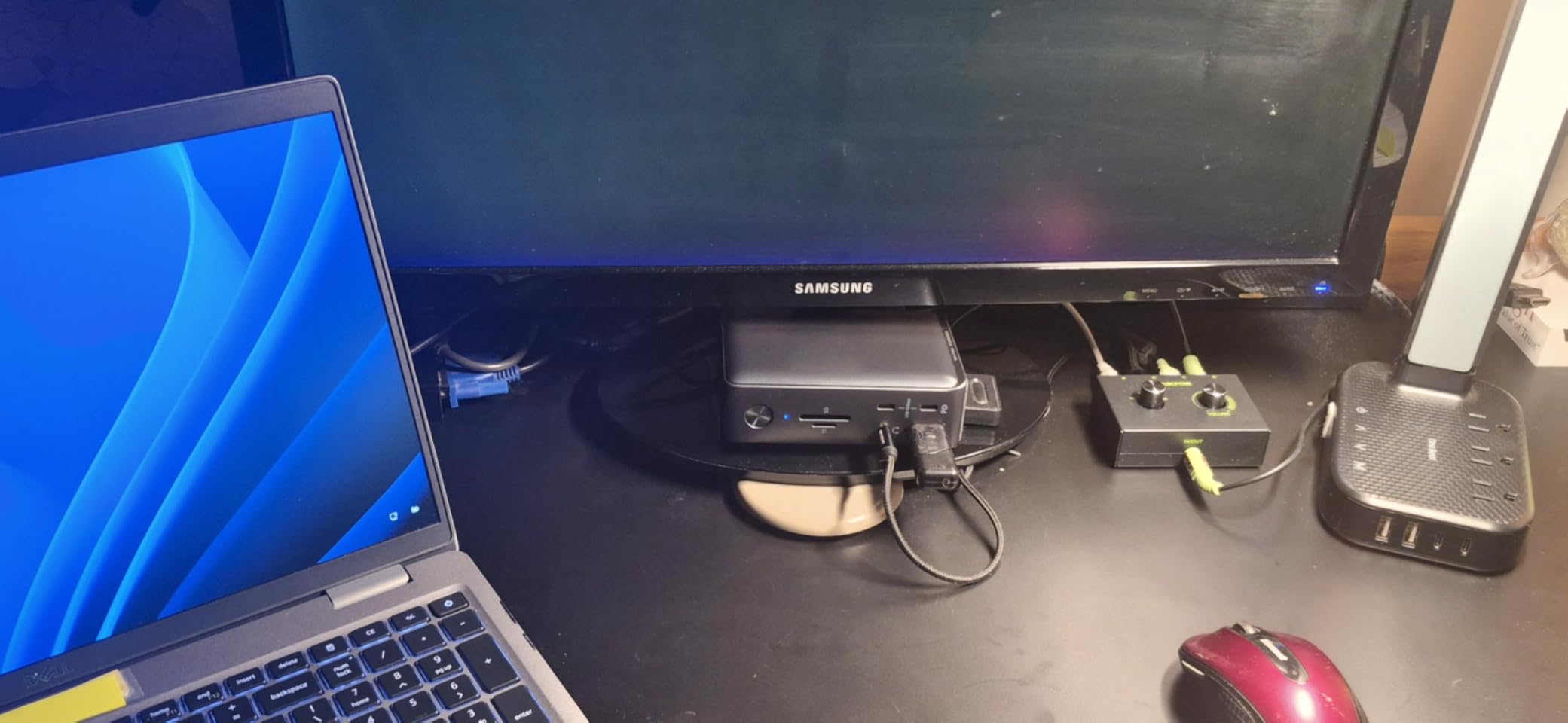
The Anker 13-in-1 is unique in that it supports triple displays on Windows, not just dual. If you want three external monitors running simultaneously at 1080p@60Hz, this is the dock to get from our list.
The included 135W power adapter handles both laptop charging at 85W and phone charging at 18W through a single cable. That means your phone charges while you work without needing a separate charger on your desk.
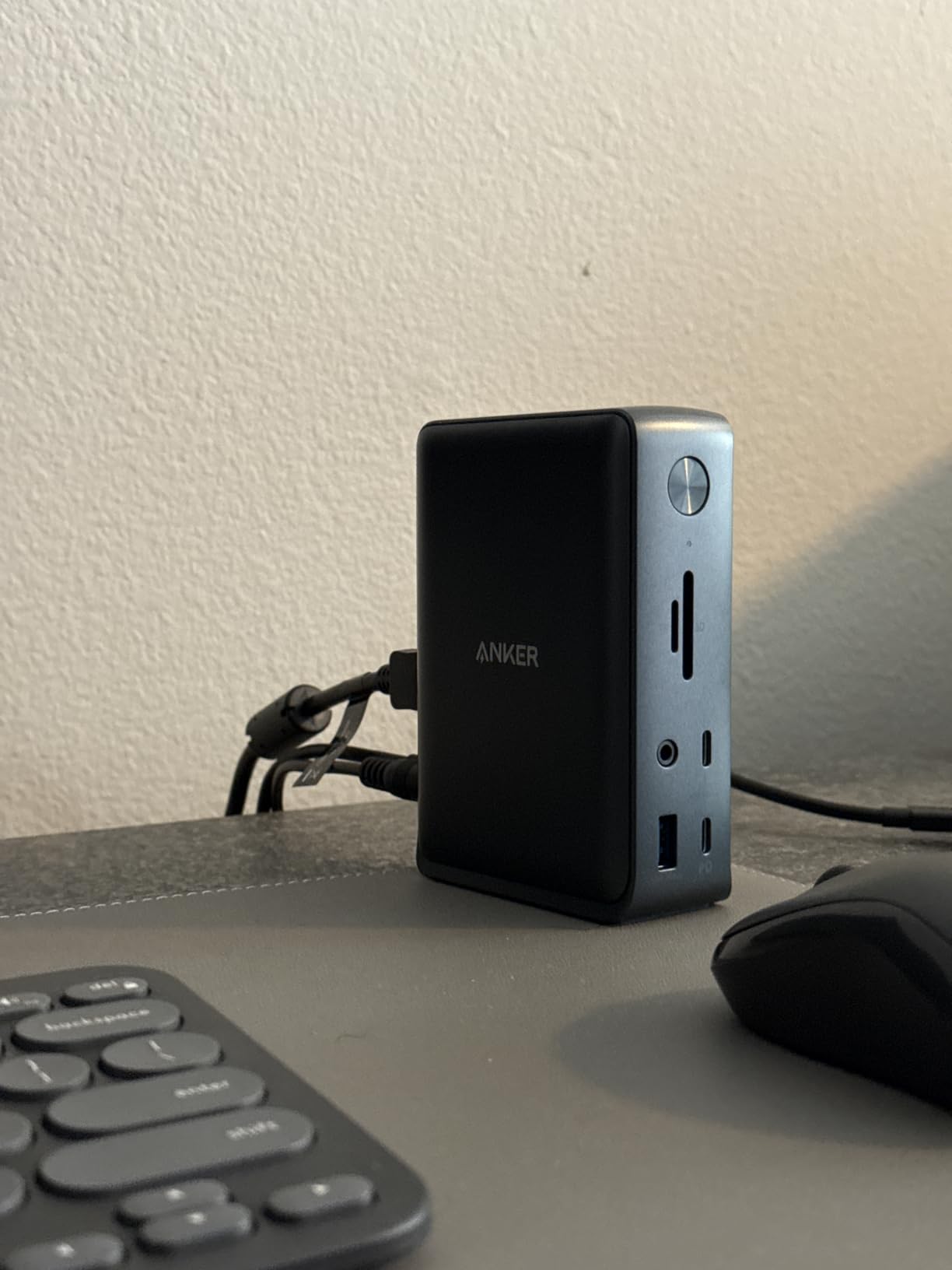
The vertical design takes up minimal desk footprint. At 3.5 by 1.6 inches, it tucks neatly behind a monitor or alongside your laptop without creating clutter.
One thing to note: while it supports a single 4K@60Hz display, running triple monitors drops the resolution to 1080p@60Hz across all three. That’s a reasonable trade-off for the extra screen real estate.
Who Should Buy This Dock
Windows users who need three external monitors will find this Anker dock delivers exactly that. Financial analysts, developers, and traders who benefit from multiple screens will appreciate the triple display capability.
If desk space is tight, the compact vertical design is a real advantage over larger horizontal docks.
Who Should Look Elsewhere
Mac users should look elsewhere since macOS only supports mirrored displays with this dock. And if you need native 4K across multiple screens, you’re limited to a single 4K output.
The higher price point might not justify the cost if you only need dual monitors rather than triple.
6. TobenONE 18-in-1 Docking Station – Best for Maximum Ports
TobenONE 18 in 1 Laptop Docking Station 3 Monitors,Triple 4K HDMI,9 USB C/A
18 ports
Triple 4K@60Hz displays
100W PD charging
9 USB ports
2-year warranty
Pros
- 18-in-1 expansion eliminates cable clutter
- Triple 4K@60Hz display support
- 9 USB ports handle all peripherals
- 100W PD charging
- Excellent customer support from TobenONE
Cons
- Power adapter not included
- Lightweight unit may tip with heavy cables
- Not recommended for Mac users
If you’re the type of person who has a lot of peripherals, the TobenONE 18-in-1 has you covered. Nine USB ports, triple HDMI outputs, Gigabit Ethernet, SD card slots, and audio jack all through a single connection to your laptop.
The triple 4K@60Hz display support is impressive at this price point. Many docks in this range only support dual monitors or cap out at lower resolutions when running multiple screens.
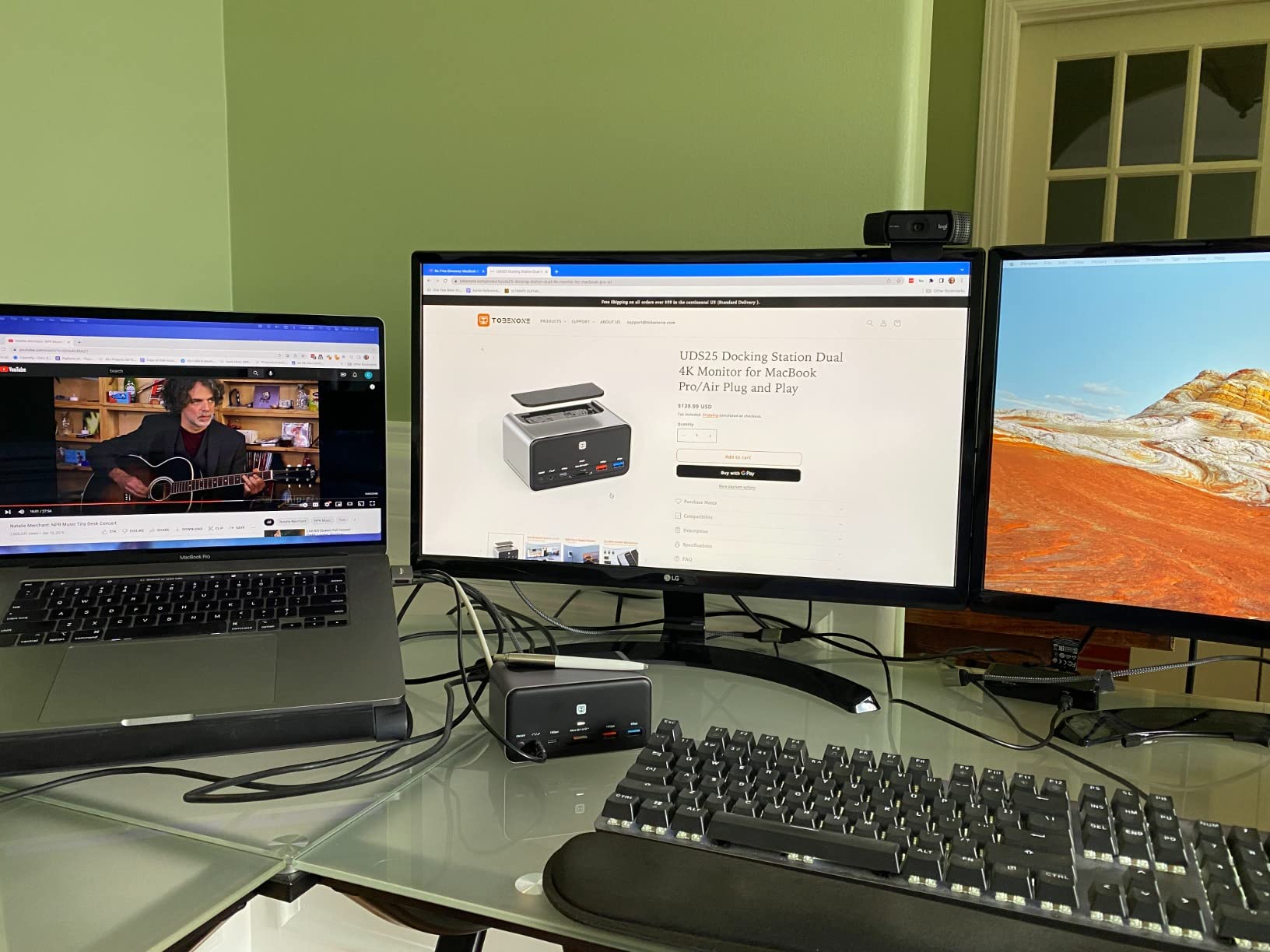
TobenONE’s customer support deserves a mention. Multiple reviewers praised how responsive and helpful their team is when issues come up. That kind of after-sale support matters for a device you’ll use daily.
The main downside is that the power adapter isn’t included. You’ll need to supply your own USB-C charger, and the lightweight dock can tip over if you have heavy cables pulling on one side.

Who Should Buy This Dock
Power users with lots of peripherals should pick this dock. If you have external drives, printers, audio interfaces, card readers, and multiple monitors all needing connections, 18 ports handles it all.
Windows users who want triple 4K@60Hz displays without paying premium prices will find excellent value here.
Who Should Look Elsewhere
Mac users should skip this dock. The macOS limitations mean you won’t get the full benefit of those triple display outputs.
If you want a dock with a built-in power supply and don’t want to hunt for a compatible charger, look at the MOKiN 160W option higher on this list.
7. Selore 8-in-1 USB-C Docking Station – Best for Display Variety
Selore USB C Docking Station Dual HDMI Monitor Adapter USB C Hub 3 Monitors
8 ports
HDMI + DP + VGA
Triple display
100W PD charging
Aluminum build
Pros
- Dual HDMI plus DP and VGA for triple display setup
- 100W PD fast charging
- Aluminum enclosure is lightweight and portable
- Plug and play functionality
- Wide compatibility with Thunderbolt/USB-C laptops
Cons
- macOS only supports mirror mode
- USB transfer speeds limited to 480 Mbps
- VGA connection may limit all screens to 1080P
The Selore dock is one of the few that includes a VGA port alongside HDMI and DisplayPort. If you have an older monitor that only accepts VGA input, this dock saves you from buying an adapter.
The aluminum build keeps things light and portable at just 90 grams. Throw it in your laptop bag and you’ve got a triple-display setup wherever you go.
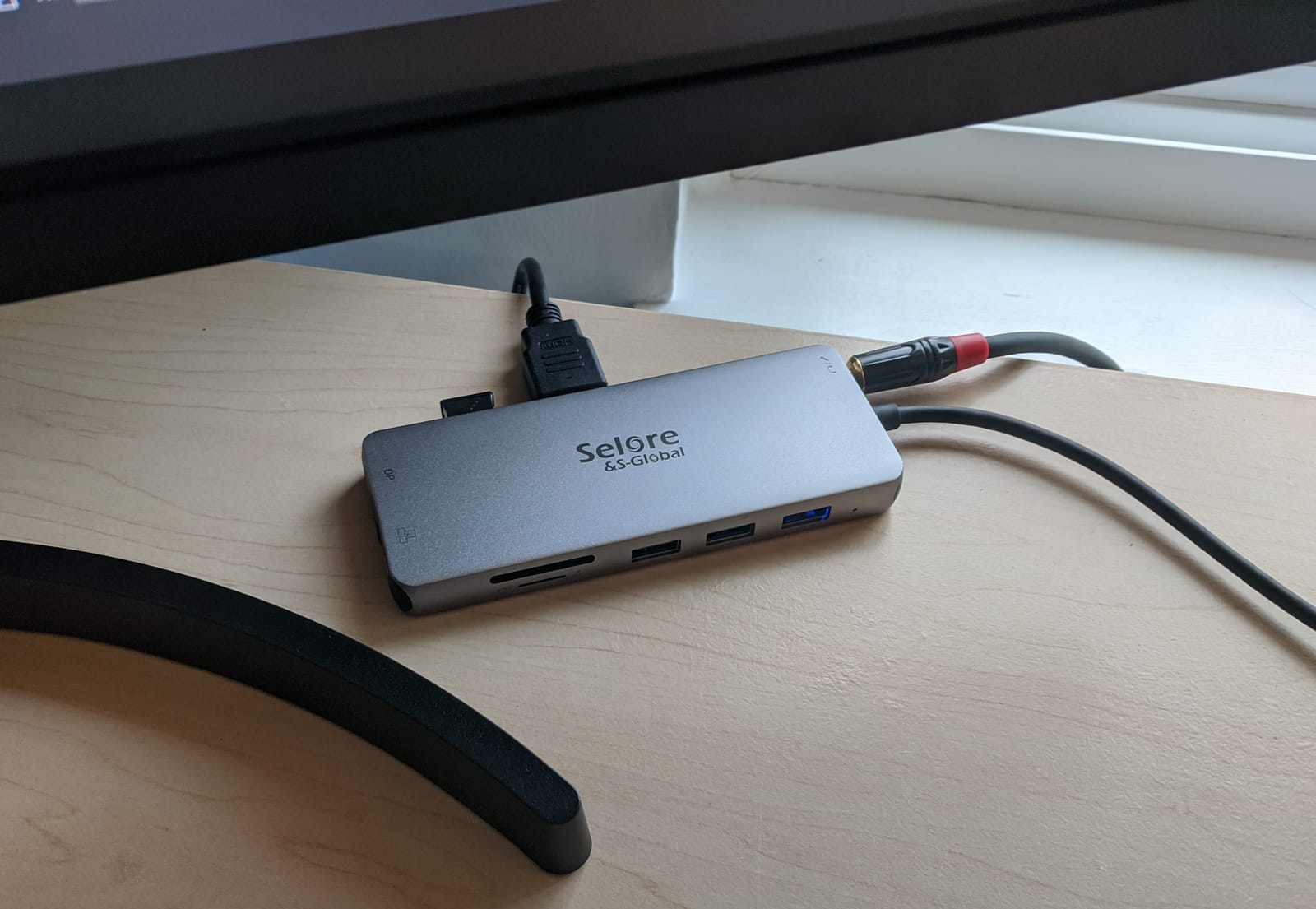
One important consideration: the VGA output may force all connected displays down to 1080p. If you’re pairing a VGA monitor with HDMI monitors, the resolution chain can be limited by the weakest link.
Data transfer is also limited to 480 Mbps (USB 2.0 speeds). For everyday peripherals like keyboards and mice that’s fine, but external drives will feel sluggish.
Who Should Buy This Dock
Anyone with older VGA monitors who needs to integrate them into a modern dual or triple display setup should consider this Selore dock. It’s also great for travelers who need a lightweight, portable solution.
Users who want display output flexibility (HDMI, DP, and VGA) in a single compact device will find this meets that niche well.
Who Should Look Elsewhere
If you need fast data transfer for external drives or SSDs, the 480 Mbps USB 2.0 speeds will be a bottleneck. Look for a dock with USB 3.0 or faster ports.
Mac users will only get mirrored displays, and the VGA port may limit your overall resolution when used alongside HDMI outputs.
8. HODO 8-in-1 USB-C Docking Station – Best Budget Alternative
USB C Docking Station Dual Monitor for HP,Laptop Docking Station 3 Monitors
8 ports
HDMI/DP/VGA outputs
100W PD charging
Heat resistant plastic
Plug and play
Pros
- Affordable 8-in-1 docking solution
- Multiple video outputs with 2 HDMI plus DP plus VGA
- 100W PD charging support
- Plug and play functionality
- Responsive customer support
Cons
- MacOS only supports mirror mode
- Plastic enclosure build
- Long-term reliability concerns reported
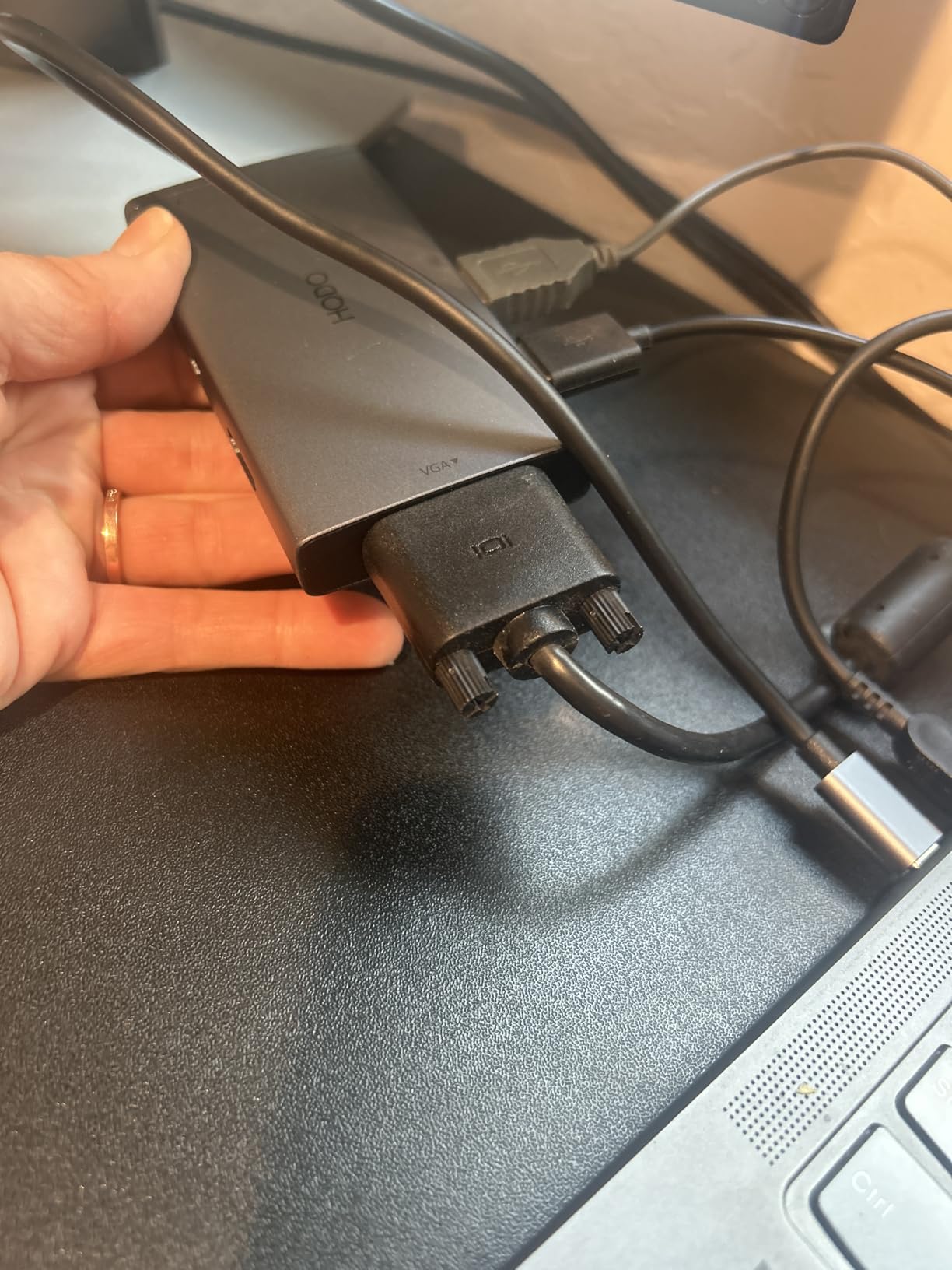
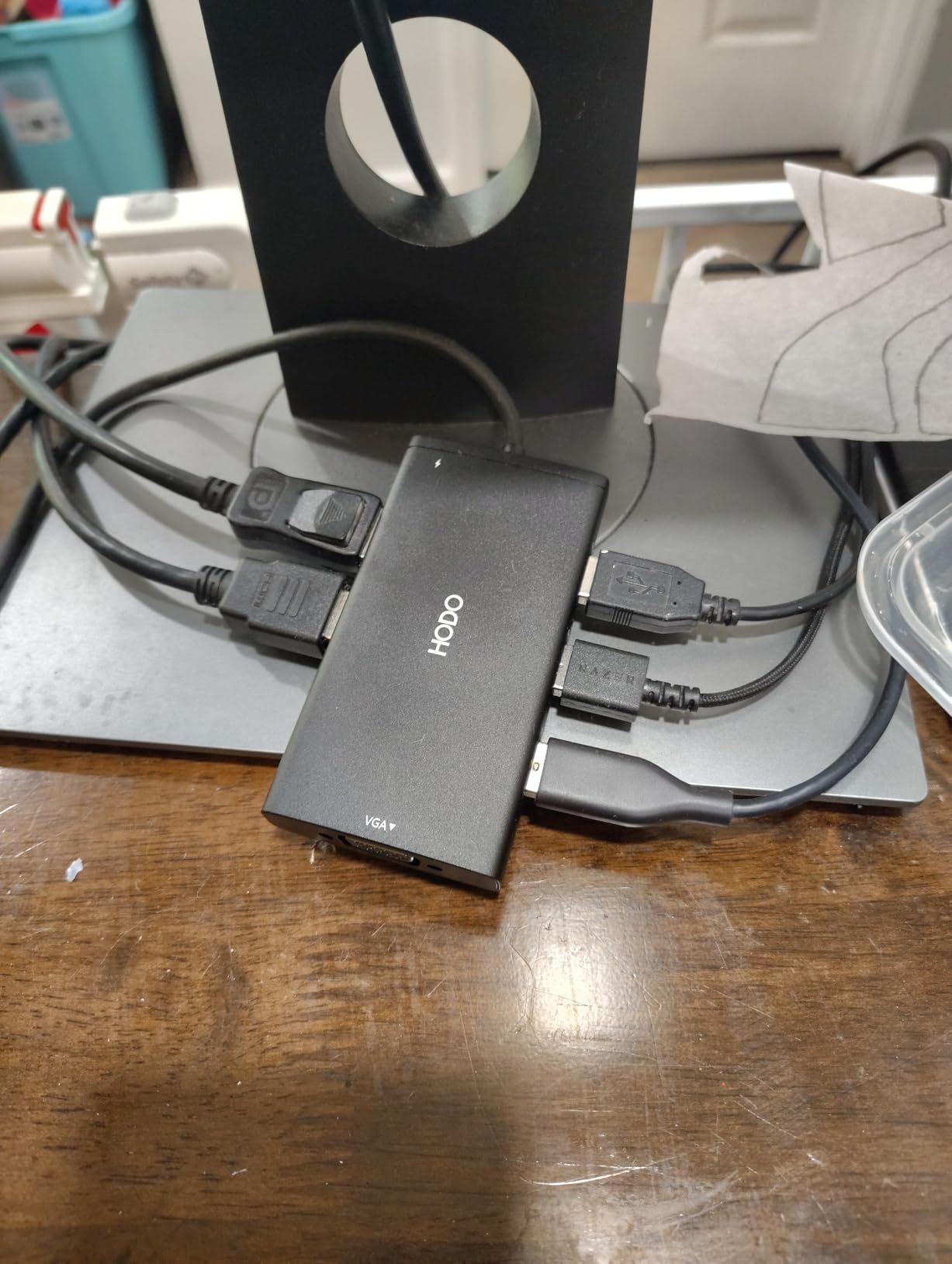
The HODO 8-in-1 is one of the most affordable ways to get dual monitors running from your laptop. At its price point, it offers display outputs that match docks costing several times more.
Setup is truly plug and play on Windows. Connect your monitors, plug in the USB-C cable, and you’re ready to work. The heat-resistant plastic enclosure handles sustained use without warping or getting uncomfortably hot.
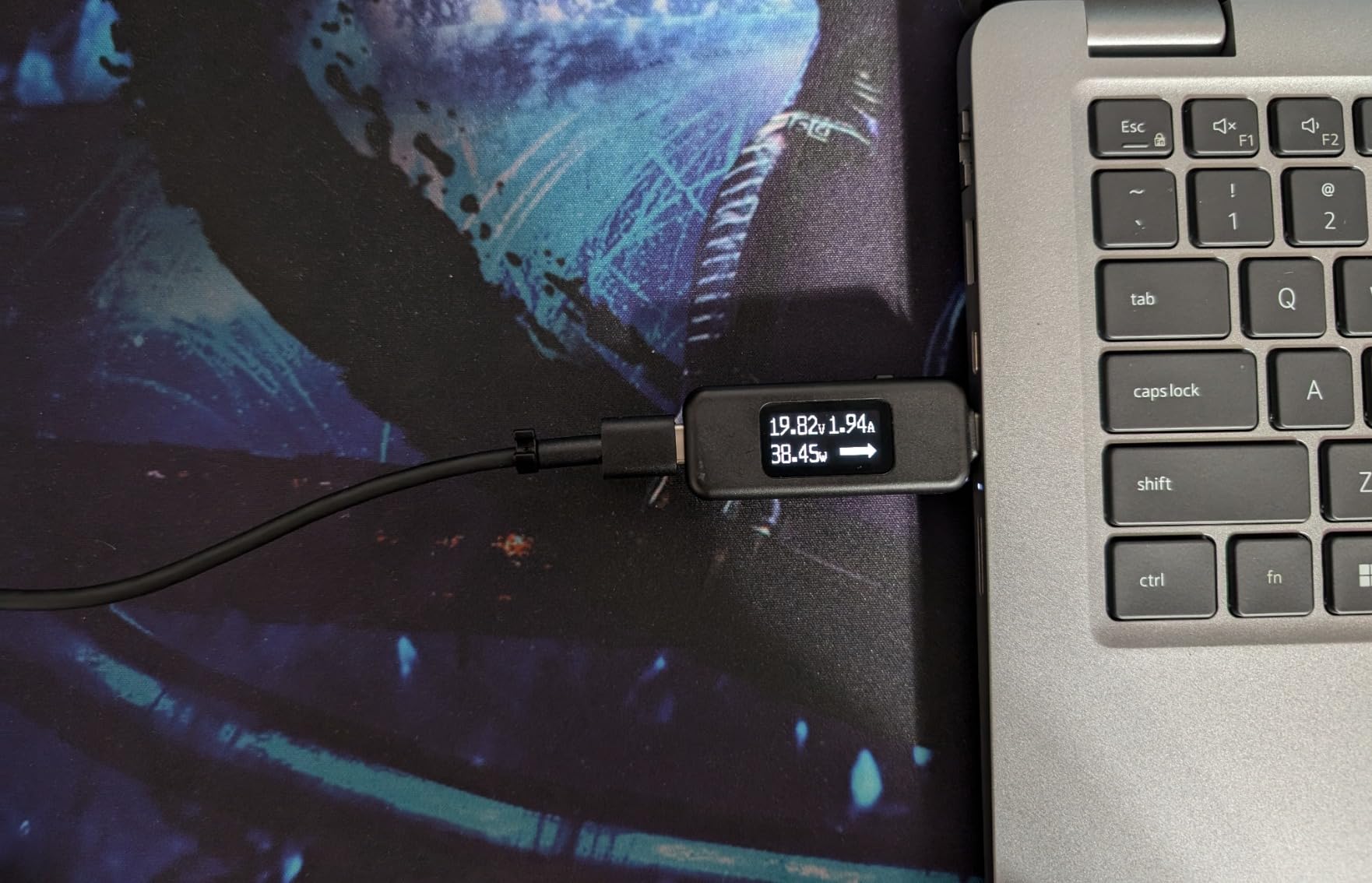
The 100W PD charging input delivers up to 87W safely to your laptop. That’s enough to keep most business laptops charged during a full workday, though gaming laptops with higher power draws may not charge as quickly.
Some reviewers noted long-term reliability concerns, particularly with USB ports becoming inconsistent over months of use. The customer support team is responsive when issues do come up though.
Who Should Buy This Dock
First-time dock buyers who want to test dual-monitor workflows without a big investment should start here. It covers all the basics at a price that won’t sting if you decide docking isn’t for you.
Students and remote workers on tight budgets will find the HODO dock handles everyday dual-monitor tasks adequately.
Who Should Look Elsewhere
If you need a dock that will last years of heavy daily use, the plastic build and reported reliability issues might be a concern. Consider investing in a more robust option like the Anker or MOKiN docks on this list.
Mac users will face the same mirrored-display limitation as with most docks in this roundup.
How to Choose the Best Docking Station for Dual Monitors
Not all docking stations handle dual monitors the same way. Before you buy, understanding the key differences between connection types and features will save you from frustration.
Thunderbolt vs USB-C vs USB4: What’s the Difference?
Thunderbolt 4 and 5 offer the highest bandwidth at 40Gbps and 80Gbps respectively. They support dual 4K@60Hz displays natively without compression. USB-C with DP Alt Mode can also drive dual monitors, but bandwidth varies by laptop and may require compression for higher resolutions.
USB4 is the newest standard and matches Thunderbolt 4’s 40Gbps bandwidth. For most dual-monitor users, any of these standards will work fine. The difference matters more for creative professionals running 8K displays or multiple high-refresh-rate monitors.
Power Delivery Considerations
Look for a dock that delivers at least 85W to your laptop if you use a standard business machine. Gaming laptops and mobile workstations often need 100W or more. Some docks like the MOKiN 160W have built-in power supplies, while others require you to supply your own USB-C charger.
Pass-through charging means the dock sends power from its own adapter to your laptop through the single USB-C cable. This keeps your laptop charged while also connecting all your peripherals and monitors.
Display Outputs and Resolution
For dual 4K@60Hz monitors, you need a dock with HDMI 2.0 or DisplayPort 1.4 outputs at minimum. HDMI 2.1 supports higher refresh rates for smoother motion. If you plan to run three monitors, check that the dock supports MST (Multi-Stream Transport) on Windows.
Mac users face a significant limitation: most USB-C and Thunderbolt docks only mirror displays on macOS rather than extending them. Apple’s M-series chips natively support only one external display on base models. DisplayLink docks can work around this, but they require driver installation and add some latency.
Port Selection and Future-Proofing
Think about what peripherals you’ll connect beyond your monitors. If you need wired internet, make sure the dock includes Gigabit Ethernet. SD card slots matter for photographers and videographers. USB-A ports are still needed for older peripherals like keyboards, mice, and external drives.
Future-proofing means considering whether you’ll upgrade monitors or laptops soon. A Thunderbolt 4 or USB4 dock will handle next-generation devices better than a basic USB-C hub. If you plan to keep your setup for several years, spending a bit more now on a capable dock makes sense.
Frequently Asked Questions
What docking station can I use for dual monitors?
Any docking station with two video outputs (HDMI, DisplayPort, or a combination) can drive dual monitors. For the best experience, look for docks supporting dual 4K@60Hz with at least 85W power delivery. Thunderbolt 4 and USB4 docks offer the highest reliability for dual-monitor setups.
Do docking stations support dual monitors on Mac?
Most docking stations only mirror displays on macOS rather than extending them. Apple’s M-series base chips natively support one external display. To get true extended dual monitors on a Mac, you need a DisplayLink dock, which requires driver installation. Some Thunderbolt docks work with MacBooks that have Pro or Max chips.
What is the best docking station for work from home?
For work from home dual-monitor setups, the MOKiN 13-in-1 with 160W built-in power offers the best combination of display quality, charging, and a clean single-cable setup. The Anker 8-in-1 is a great budget-friendly alternative with proven reliability across thousands of users.
Is a docking station better than a USB hub for dual monitors?
Yes, docking stations are better than USB hubs for dual monitors. Docking stations include dedicated video processing chips, higher power delivery for laptop charging, and more ports including Ethernet and display outputs. Basic USB hubs typically support only one external display and lack the power delivery needed for laptop charging.
Why is my second monitor not working with my docking station?
The most common reason your second monitor isn’t working is that your laptop’s USB-C port doesn’t support DP Alt Mode, which is required for video output. Check your laptop’s specifications for Thunderbolt or DP Alt Mode support. On Mac, the limitation may be that your M-series chip only natively supports one external display, requiring a DisplayLink dock for the second screen.
Final Thoughts
After testing all eight docking stations, the MOKiN 13-in-1 with built-in 160W power stands out as our top pick for the best laptop docking stations for dual monitors. It delivers reliable dual 4K@60Hz displays, eliminates external power bricks, and includes thoughtful features like the privacy button and LCD display.
For budget-conscious buyers, the Anker 8-in-1 offers proven reliability with nearly 6700 positive reviews. And if you want maximum port variety, the TobenONE 18-in-1 packs everything into a single connection.
Whichever dock you choose, make sure your laptop’s USB-C port supports DP Alt Mode or Thunderbolt for dual-monitor output. That one compatibility check will save you from the most common frustration buyers face with docking stations.