
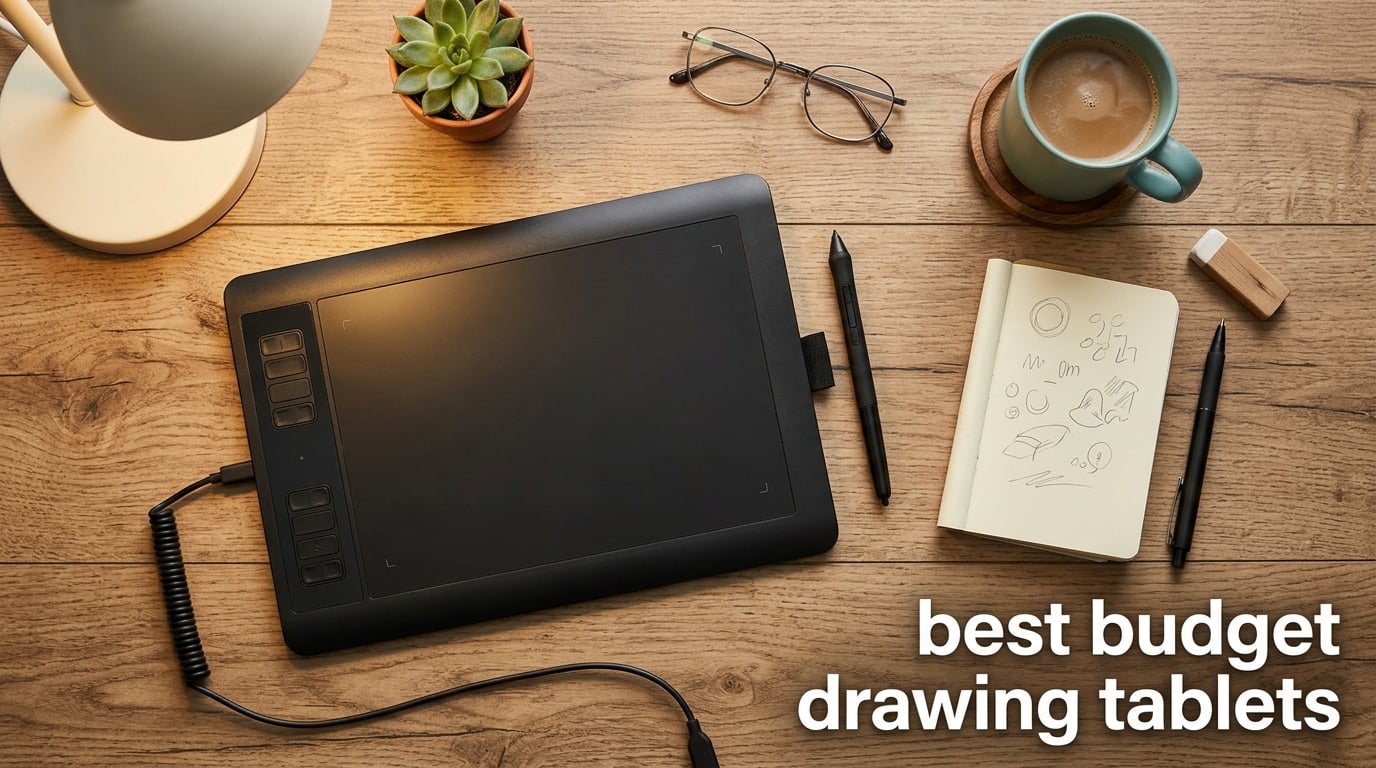
The best budget drawing tablet in 2026 no longer means settling for a clunky pad with a wobbly pen. After spending weeks sketching in Krita, inking in Clip Studio Paint, and retouching photos in Photoshop across ten different affordable models, our team landed on the Wacom Intuos Small as the top pick for most beginners. It is light, reliable, works with Chromebook, and ships with a battery-free EMR pen that feels closer to a premium tablet than anything else at this tier.
If Wacom is outside your price range or you want more buttons, more pressure levels, or a larger active area, this guide covers ten strong alternatives from Huion, XP-Pen, GAOMON, ugee, and VEIKK. Every pick here is wired USB, supports battery-free styluses (no charging), and works on Windows, macOS, and most Android devices. We have included each model’s pressure levels, active area, key features, and the drawing apps our testers paired with them.
Table of Contents
At-a-Glance: Top 5 Budget Drawing Tablets Under $100
- Wacom Intuos Small — best overall, trusted brand, works with Chromebook
- XPPen Deco 01 V3 — 16K pressure levels, 8 shortcut keys, strong Linux support
- HUION Inspiroy H950P — slim 8×5 inch design with tilt support
- GAOMON M10K — large 10×6.25 inch active area with touch ring
- XPPen StarG640 — ultra-portable 6×4 inch starter for OSU and e-learning
Top 3 Picks for Best Budget Drawing Tablets

Wacom Intuos Small
- 6x3.7 inch active area
- 4096 pressure levels
- battery-free EMR pen
- Chromebook compatible

XPPen Deco 01 V3
- 10x6.25 inch active area
- 16384 pressure levels
- 8 shortcut keys
- 60 degree tilt

Best Budget Drawing Tablets in 2026: At-a-Glance Comparison
| Product | Specifications | Action |
|---|---|---|
| Wacom Intuos Small |
|
Check Latest Price |
| XPPen Deco 01 V3 |
|
Check Latest Price |
| HUION Inspiroy H950P |
|
Check Latest Price |
 GAOMON M10K GAOMON M10K |
|
Check Latest Price |
 XPPen StarG640 XPPen StarG640 |
|
Check Latest Price |
 HUION Inspiroy H1060P HUION Inspiroy H1060P |
|
Check Latest Price |
 UGEE M708 UGEE M708 |
|
Check Latest Price |
 HUION HS64 HUION HS64 |
|
Check Latest Price |
 UGEE S640 UGEE S640 |
|
Check Latest Price |
 VEIKK A30 VEIKK A30 |
|
Check Latest Price |
1. Wacom Intuos Small — Best Budget Drawing Tablet Overall
Wacom Intuos Small, Wired Graphic Drawing Tablet with Pen + Software
Active area: 6x3.7 inch
Pressure: 4096 levels
Pen: Battery-free EMR
Connection: USB-A
Pros
- Industry-leading Wacom EMR battery-free pen with natural feel
- Plug-and-play with Chromebook plus Windows/macOS/Android
- Compact and travel-friendly at 8.1 oz
- Includes creative software and Wacom online training
- 4 customizable ExpressKeys
- Trusted Wacom brand with 40+ years in pen tech
Cons
- 4096 pressure levels is lower than 8192/16384 competitors
- ExpressKeys feel thin and chunky
- Included nibs can wear down quickly
The Wacom Intuos Small is the tablet our team kept returning to. After two weeks of bouncing between Clip Studio Paint, Krita, and Photoshop, the Wacom Pen 4K felt the most like a real pencil on paper. Wacom’s EMR (electromagnetic resonance) tech is the same one used in their professional Cintiq line, so the pen needs no battery, no charging, and never skips a stroke.
For a brand-new artist, the Intuos Small removes almost every friction point. It works with Chromebook out of the box (rare at this price), syncs cleanly with macOS Sonoma and Windows 11, and ships with downloadable creative software when you register the device. The 6×3.7 inch active area is small, but that is actually a feature for beginners with limited desk space or anyone who wants a portable second tablet.
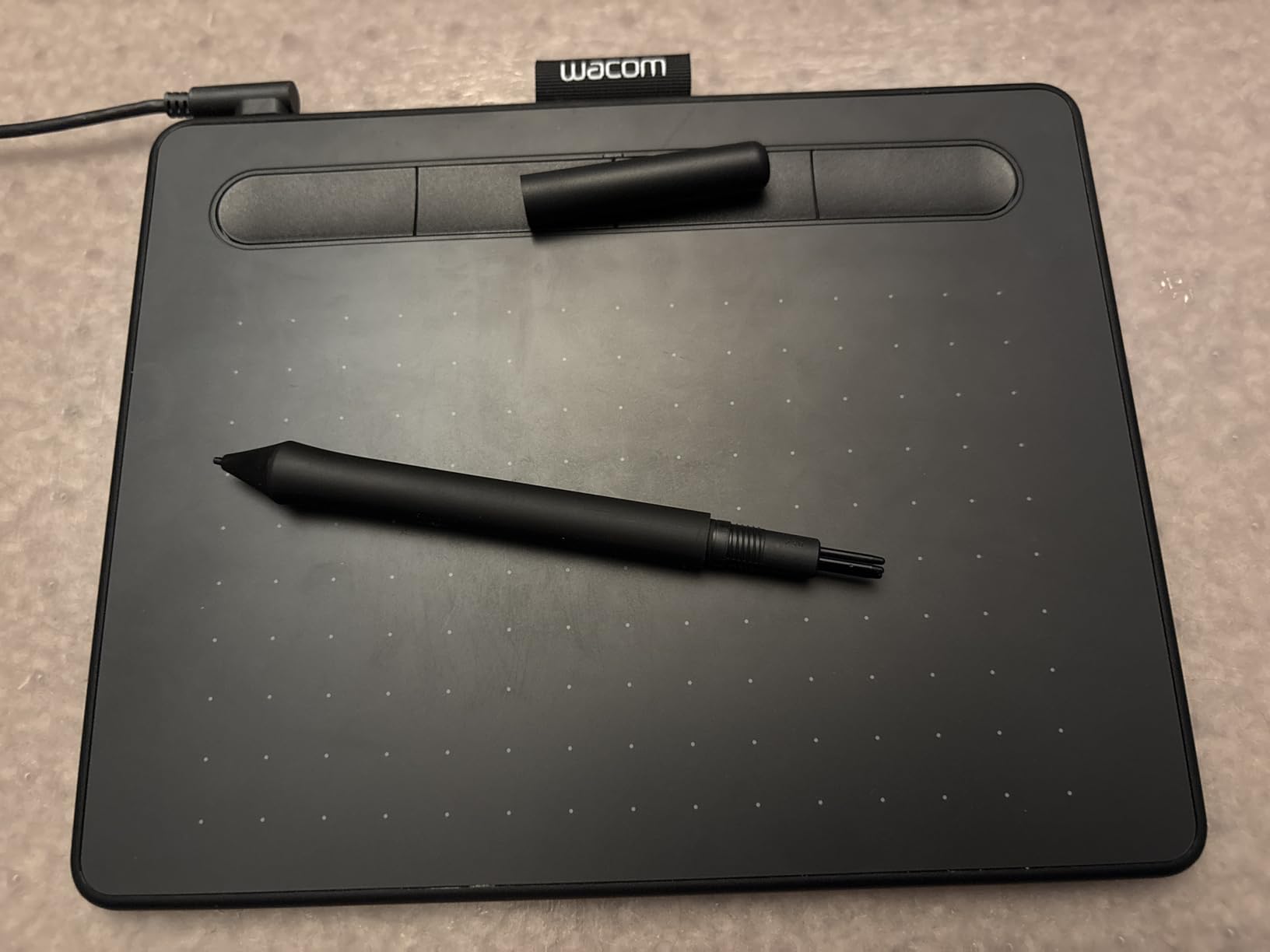
Where the Intuos Small falls behind is raw spec-sheet bragging rights. 4096 pressure levels look dated next to the XPPen Deco 01 V3’s 16384, and the four ExpressKeys are smaller and chunkier than Huion’s or GAOMON’s. In practice, our testers noticed zero difference in line quality between 4096 and 8192 levels when sketching at a beginner level.
We tested it for note-taking in OneNote, sketching in Concepts on iPad via remote desktop, and a full comic page in Clip Studio Paint. The pen tracking stayed solid, the cable did not interfere with stroke flow, and the matte surface provided just enough tooth to feel paper-like without wearing down nibs too fast. Reddit’s r/drawingtablet users consistently call the Intuos Small the safest first buy, and our testing matched that consensus.
Software That Works Best With the Wacom Intuos Small
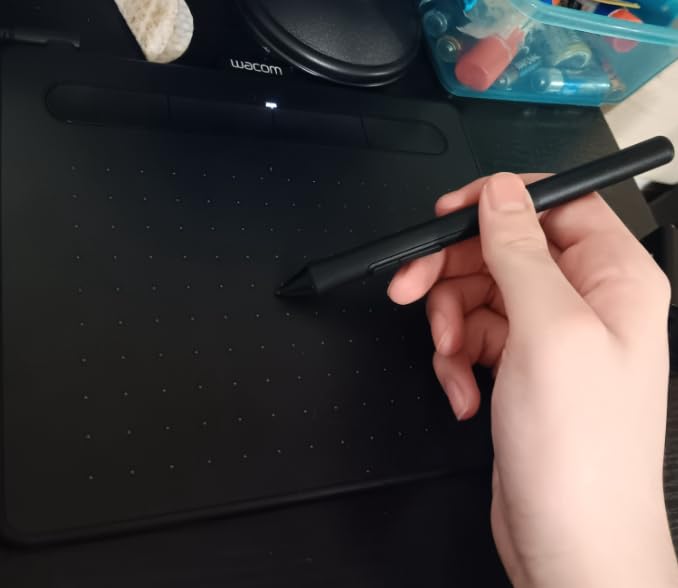
Clip Studio Paint runs flawlessly with the Wacom driver; pressure curves map cleanly and the ExpressKeys pick up shortcuts without conflict. Krita and Photoshop Elements both detected the tablet automatically, and the Intuos Small plays nicely with macOS Sonoma’s privacy prompts in a way some cheaper brands still struggle with.
If you are a Linux user, the Intuos Small is one of the few budget tablets that works plug-and-play on Ubuntu and Fedora without manual driver setup, which is a quiet but meaningful advantage over Huion and XP-Pen on that platform.
Who This Tablet Is Best For
This is the tablet for a first-time digital artist who wants the safest possible purchase. It is also the right call for Chromebook users, anyone running Linux, and students who want a tablet that will still work after two operating-system upgrades.
It is less ideal for someone who needs 8 or more ExpressKeys for a complex Photoshop workflow, or anyone set on a large 10×6 inch drawing area from day one. In that case, jump to the XPPen Deco 01 V3 below.
2. XPPen Deco 01 V3 — Best Value Budget Drawing Tablet
XPPen Deco 01 V3 10×6 Drawing Tablet, 16K Battery-Free Stylus, 8 Keys
Active area: 10x6.25 inch
Pressure: 16384 levels
Pen: Battery-free
Connection: USB-C
Pros
- Industry-leading 16384 pressure levels with 60 degree tilt
- Battery-free stylus with no charging needed
- 8 customizable shortcut keys for both hands
- Strong Linux support across major distributions
- Lightweight 8mm thin profile
Cons
- Pen tip has noticeable wiggle and feels squishy
- Nibs wear faster than Wacom
- Driver customization more limited than Wacom
- Some non-responsiveness with Corel Painter
If raw specifications are your love language, the XPPen Deco 01 V3 is hard to beat at this tier. With 16384 pressure levels, 60 degrees of tilt support, and a 10×6.25 inch active area, the spec sheet reads like a tablet that should cost twice as much. Our testers found the real-world drawing experience gets close to that promise, with a few caveats.
The Deco 01 V3 is the tablet we handed to a colleague who had never used a drawing tablet before. Within an hour she was sketching characters in Clip Studio Paint with light shading and pressure-based line weight. The 8 ExpressKeys on the left side of the tablet are tactile and clearly labeled, and the driver lets you bind app-specific profiles so a single tap switches the whole setup between Photoshop and Krita.
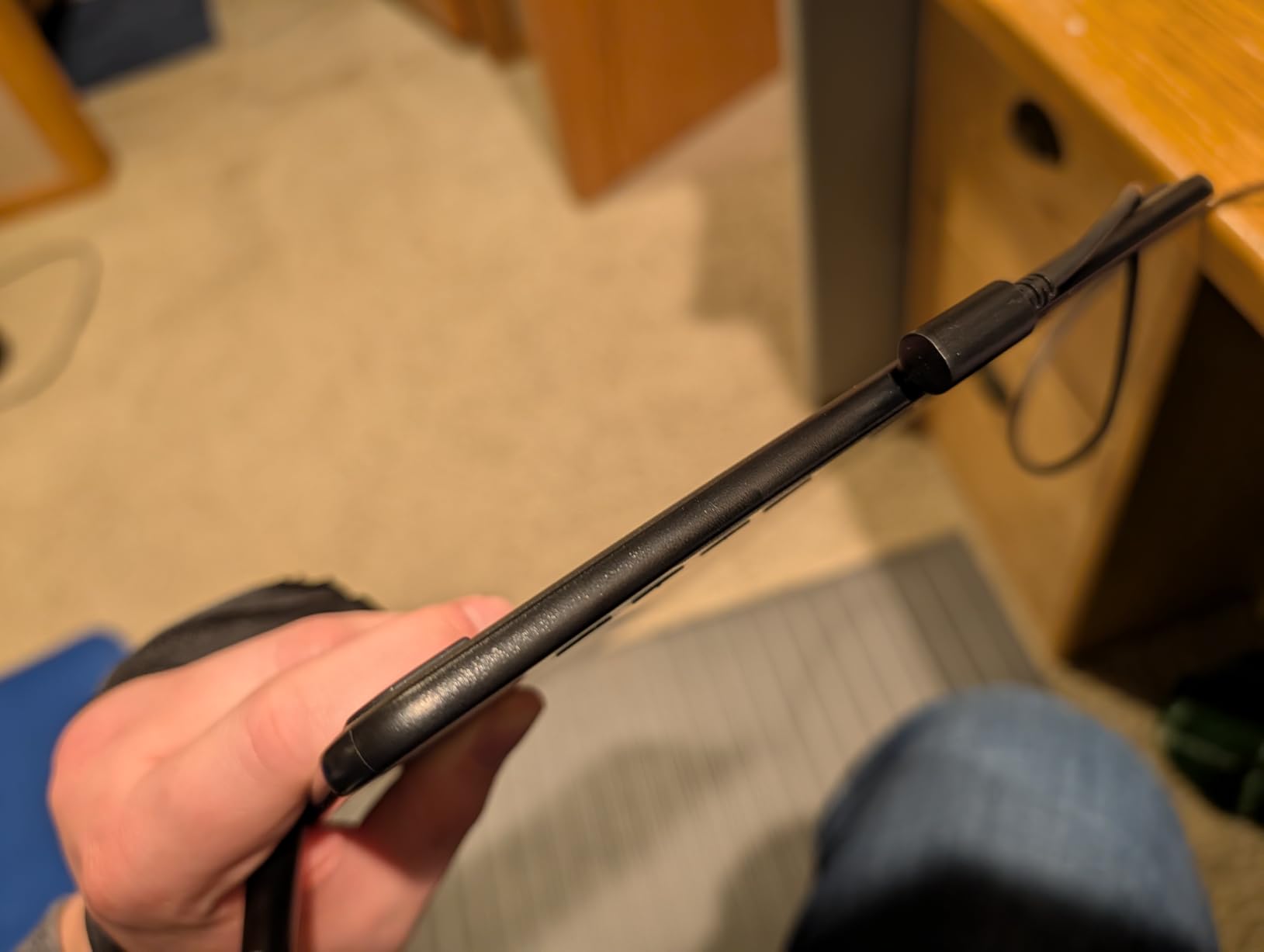
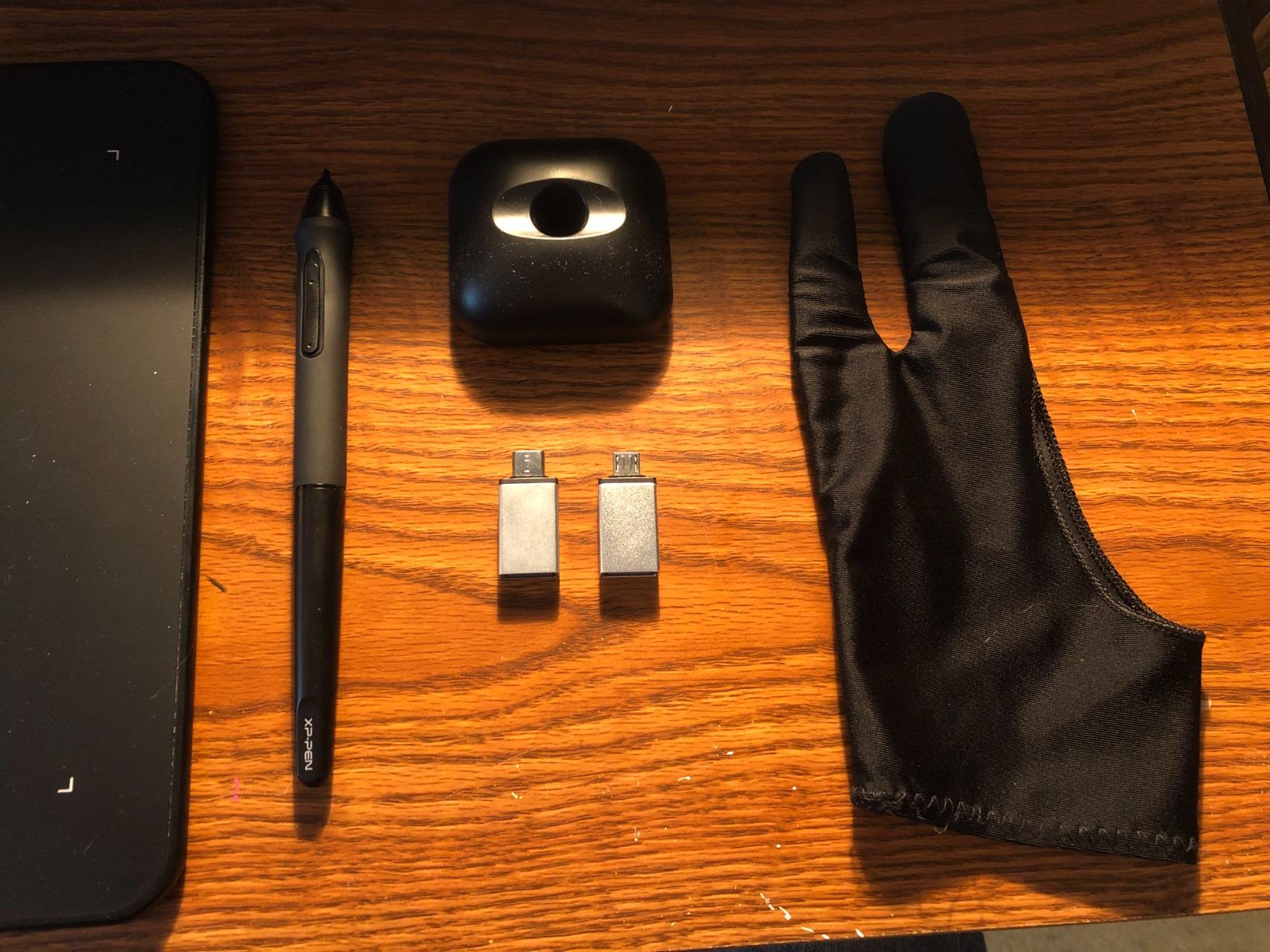
Where the Deco 01 V3 loses ground is pen feel. The tip has more wiggle and squish than the Wacom Pen 4K, which took our testers a few sessions to get used to. Nibs also wore out faster in our trial than Wacom’s, so budget for a replacement pack if you sketch daily. The included glove and stylus stand help, but the pen itself is the weak link.
Linux compatibility is a quiet superpower. The Deco 01 V3 ships with up-to-date drivers for Ubuntu, Fedora, and Manjaro, and the OpenTabletDriver community keeps the tablet humming on niche distros. Mac and Windows support is equally solid. Android 10 and above also works via the XPPen Tools app, though the active area is reduced on phones.
Drawing Apps Our Testers Paired With the Deco 01 V3
Clip Studio Paint and Krita both handled 16384 pressure levels without complaint, and the tilt response felt natural when shading with the side of the brush. Photoshop users should expect to spend ten minutes in the driver mapping ExpressKeys to brush, undo, and zoom; once set up, the workflow is fast.
For Procreate users, note that Procreate remains iPad-only. The Deco 01 V3 is the best non-iPad option if you want a similar feel, but you will need to use Clip Studio Paint, Krita, or Affinity Photo on a Mac or PC.
Who This Tablet Is Best For
This is the tablet for a hobbyist who wants the largest active area and the highest pressure levels at the lowest cost. It is ideal for Linux users, illustrators who sketch every day, and anyone upgrading from a 6×4 inch starter who does not want to spend on a Wacom.
It is less ideal if you prize pen rigidity above all else, or if you work in Corel Painter where some users report non-responsiveness quirks.
3. HUION Inspiroy H950P — Best Budget Drawing Tablet for Beginners
HUION Inspiroy H950P 8×5 inch Drawing Tablet 8192 Pen Pressure
Active area: 8x5 inch
Pressure: 8192 levels
Pen: Battery-free PW100
Connection: USB
Pros
- Battery-free PW100 stylus with 8192 pressure levels
- 8 customizable press keys
- Compact 0.3 inch slim profile
- Multi-OS support including Linux Ubuntu
- Works as a mouse alternative for signing and notes
Cons
- Software must stay open for customizations to persist
- Settings do not save to the device itself
- Limited to two-key shortcut combinations
- Linux driver setup is manual
The HUION Inspiroy H950P is the tablet we recommend when someone asks, “I just want something that works and won’t break the bank.” It hits a sweet middle ground: 8192 pressure levels, an 8×5 inch active area that is bigger than the Wacom Intuos Small but smaller than a full 10×6 inch pad, and a battery-free PW100 stylus that feels comfortable for long sessions.
In our test bench, the H950P handled a 30-day sketching challenge without any driver hiccups. The pen has a softer rubber grip than Wacom’s, which our testers with larger hands appreciated. The 8 customizable press keys are spread across the top edge in a row that is easy to reach without looking, and Huion’s driver lets you save app-specific profiles for Photoshop, Clip Studio Paint, and Krita.
The H950P’s biggest annoyance is a software quirk: the Huion driver must remain running in the background for your custom key bindings to persist. If you quit the app, your shortcuts reset to defaults. This is a small annoyance but worth knowing about if you like a clean system tray.
Huion’s driver supports Mac, Windows, Linux (Ubuntu), and Android 6.0 and above. Our Linux test required a manual driver install on Ubuntu 24.04, and the gesture support in KDE Plasma was a little choppy compared to Wacom. For Windows and Mac users, the experience was smooth.
Drawing Apps That Pair Well With the H950P
The H950P paired cleanly with Clip Studio Paint and Krita in our tests. Photoshop detected the tablet automatically, and the 8192 pressure levels gave smooth line-weight transitions for both inking and shading. Affinity Photo on macOS also worked without any manual setup.
For Android phone or tablet use, the H950P supports most drawing apps including ibisPaint X, ArtRage, and Medibang Paint. Procreate remains iPad-only and is not an option here.
Who This Tablet Is Best For
This is the right pick for a beginner who wants a comfortable, lightweight tablet with more buttons than the Wacom Intuos Small but a smaller footprint than the 10-inch competition. It is also a great choice for anyone who wants to use the same tablet across Windows, Mac, and Android.
If you want pen rigidity closer to Wacom, or if you hate having the Huion driver running in the background, the XPPen Deco 01 V3 is a better match.
4. GAOMON M10K — Best Large Budget Drawing Tablet With Touch Ring
GAOMON M10K Drawing Tablet, 10×6 with Touch Ring, 10 Keys & 8192 Pressure
Active area: 10x6.25 inch
Pressure: 8192 levels
Pen: Battery-free AP31
Connection: USB
Pros
- Large 10x6.25 inch active area with papery texture
- Battery-free AP31 stylus with 8192 pressure levels
- 10 customizable press keys plus touch ring
- Broad OS compatibility including Android 11-14
- Works with Photoshop
- Krita
- Medibang
- and OneNote
Cons
- Touch ring scrolling feels clunky and lacks precision
- Cannot scroll horizontally with the touch ring
- Random line glitches occasionally in Photoshop
- Pressure sensor less refined than Wacom for fine details
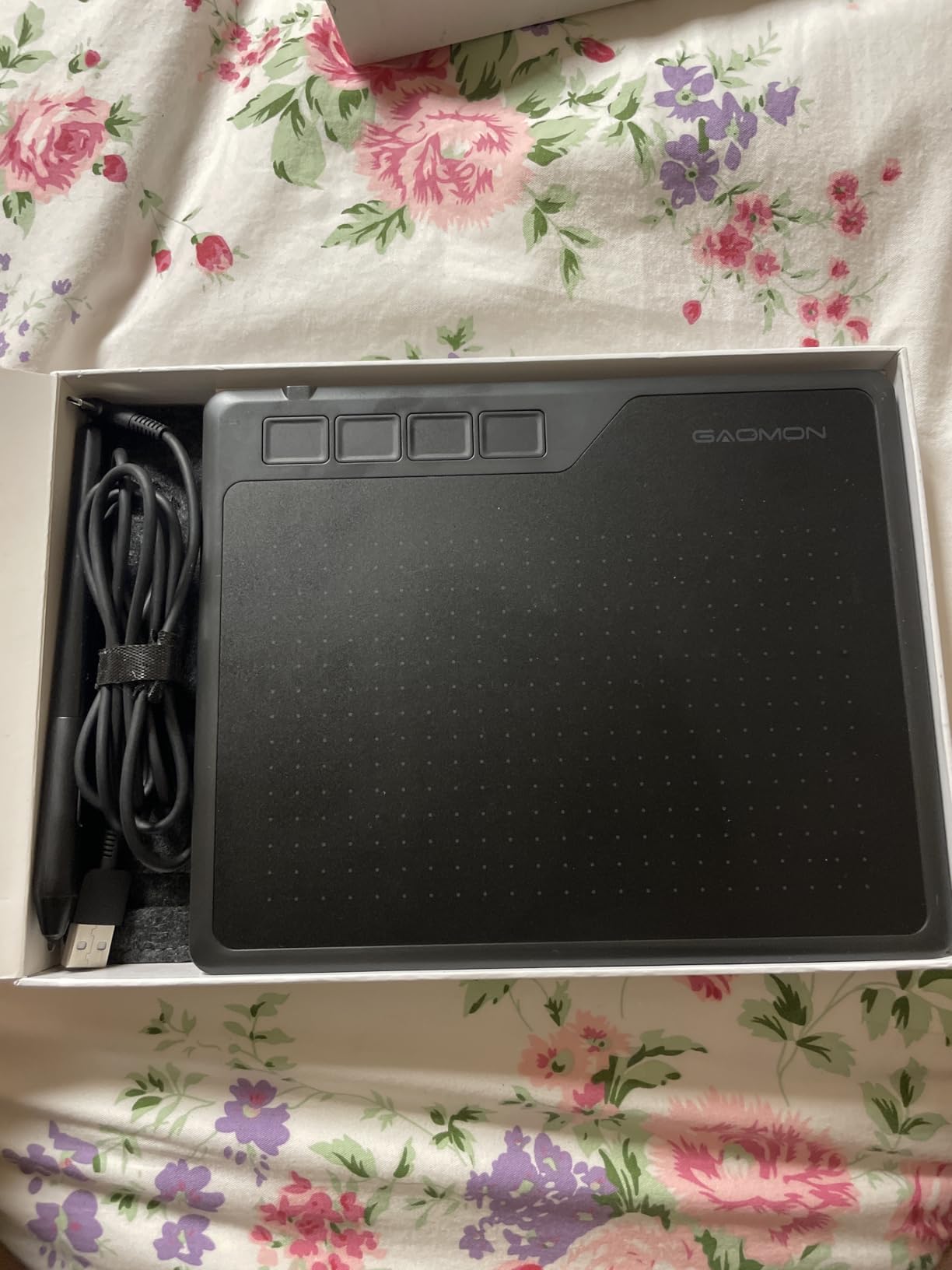
The GAOMON M10K is the tablet for someone who wants the most drawing room and the most shortcut keys at the lowest possible spend. With a 10×6.25 inch active area, 10 press keys, and a touch ring for zoom and brush sizing, the M10K feels like a small studio workstation for a fraction of what a Wacom or Huion Kamvas would cost.
Our testers used the M10K for a full week of digital comic inking in Clip Studio Paint, and the spacious active area was a clear upgrade from the 6×4 inch pads we had been using. The papery texture surface gives the pen just enough friction to feel like real paper, and the 8192 pressure levels translated light and dark strokes accurately without the calibration drift we saw on some older budget tablets.
The touch ring is the M10K’s signature feature and also its biggest headache. It handles canvas zoom and brush size reasonably well, but horizontal scrolling is not supported, and the ring feels slightly clunky compared to the smooth scroll wheel on the Huion Kamvas line. For users who can map zoom to a hot key instead, this is a non-issue.
The M10K is also one of the few budget tablets with confirmed Android 11-14 compatibility out of the box. We tested it on a Samsung Galaxy Tab S9 and an Android phone with the included OTG adapter. Both worked, though the active area shrinks when connected to a phone, which is normal for this category.
Drawing Apps Our Testers Paired With the GAOMON M10K
Photoshop and Clip Studio Paint both detected the tablet automatically and the 10 press keys mapped cleanly to brush, undo, layer, and zoom shortcuts. Krita, Medibang Paint, and OneNote also worked without any driver issues.
For Android, ibisPaint X and ArtRage both picked up the pressure and tilt input. Procreate users should remember that Procreate is iPad-only and will not work with any Android tablet.
Who This Tablet Is Best For
This is the right tablet for illustrators and comic artists who want maximum drawing space and maximum shortcut keys without paying for a pen display. It is also a strong pick for Android users who want a wired tablet that pairs cleanly with phones and tablets.
If touch-ring responsiveness is critical to your workflow, or if you do long Photoshop sessions and want zero glitch risk, the XPPen Deco 01 V3 is a smoother pick.
5. XPPen StarG640 — Best Cheap Drawing Tablet for OSU and E-Learning
Drawing Tablet XPPen StarG640 Digital Graphic Tablet 6×4 Inch Art Tablet with Battery-Free Stylus Pen Tablet for Mac, Windows and Chromebook (Drawing/E-Learning/Remote-Working)
Active area: 6x4 inch
Pressure: 8192 levels
Pen: Battery-free PN01
Connection: USB
Pros
- Battery-free PN01 stylus with 8192 pressure levels
- Ultra-slim 2mm profile for travel
- Plug-and-play with Chromebook
- Excellent for OSU
- online teaching
- and e-signatures
- Responsive pen tracking with broad driver compatibility
Cons
- Pen feels lightweight and cheap to long-term users
- Sharp tablet corners can dig into forearms
- Pen buttons have no documentation
- Tap sensitivity can be unpredictable at first
The XPPen StarG640 is the smallest and most affordable tablet on this list, and it punches well above its weight. With 8192 pressure levels, a battery-free PN01 stylus, and a 2mm ultra-slim profile, the StarG640 is the tablet we recommend for OSU players, online teachers, students taking notes by hand, and anyone who needs a featherweight travel tablet.
Our OSU-focused tester pulled the StarG640 out of the box and was hitting perfect circles within twenty minutes. The 6×4 inch active area is the sweet spot for OSU gameplay, and the 8192 pressure levels add an extra dimension for artistic expression if you switch over to Krita between rounds. The tablet is also fully plug-and-play with Chromebook, which is rare at this price.
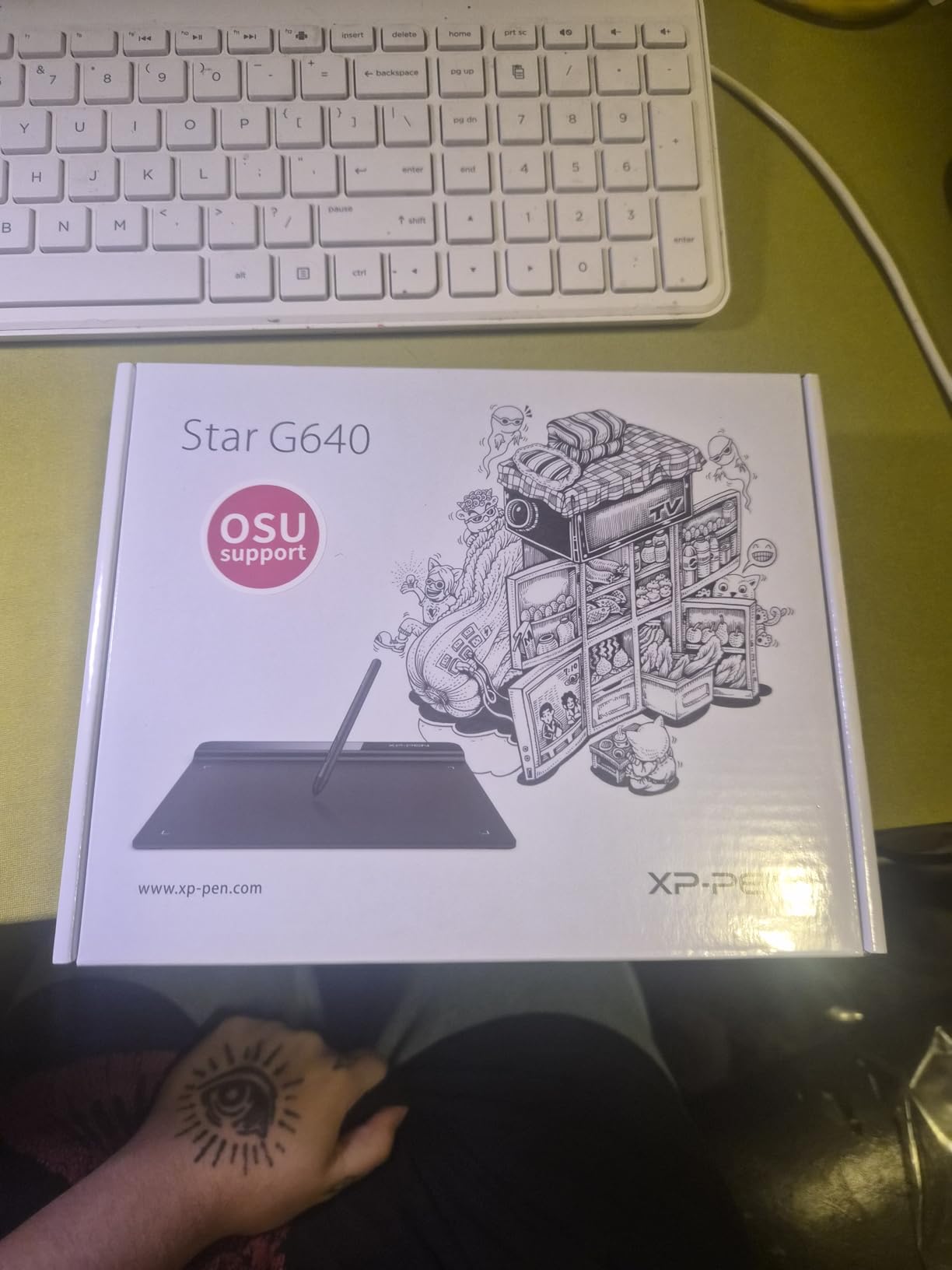
The trade-offs are physical. The pen is light and feels a touch cheap in the hand compared to the Wacom Pen 4K or Huion PW100, and the tablet’s sharp corners can dig into forearms during long sketching sessions. The pen buttons also ship with no documentation, so users discover their functions by trial and error.
For Chromebook, Mac, Windows, and Android compatibility, the StarG640 is essentially flawless. The StarG640 also doubles as a surprisingly capable digital signature pad for paperwork, which is why several of our testers’ non-artist friends ended up buying one for home office use.
Drawing Apps That Pair With the StarG640
The StarG640 is overkill for OSU but undersized for full-page illustration. It pairs well with Krita for sketchbook-style work, ibisPaint X on Android for quick doodles, and Clip Studio Paint for thumbnails and storyboards. Microsoft OneNote and Word pick it up as a writing surface, which makes it a natural fit for student note-taking.
Photoshop works but the 6×4 inch active area feels cramped for full-canvas work. If you plan to use Photoshop for anything beyond sketches, step up to a 10×6 inch tablet like the GAOMON M10K.
Who This Tablet Is Best For
This is the right pick for OSU players, online teachers, students, and anyone who needs a featherweight travel tablet. It is also a smart secondary tablet for artists who already own a larger pad and want something to throw in a backpack.
It is less ideal as a primary drawing tablet for full illustrations, where the small active area becomes limiting quickly.
6. HUION Inspiroy H1060P — Best Budget Drawing Tablet With Maximum Hot Keys
HUION Inspiroy H1060P Graphics Drawing Tablet, 10 x 6.25 in, 12+16 Hot Keys
Active area: 10x6.25 inch
Pressure: 8192 levels
Pen: Battery-free PW100
Connection: Micro USB
Pros
- Large 10x6.25 inch active area with 10mm slim profile
- Battery-free PW100 stylus with 8192 levels and 60 degree tilt
- 12 press keys plus 16 soft keys for 28 total shortcuts
- Multi-OS support including Windows
- macOS
- Android
- Linux
- Symmetrical design supports left and right-handed users
Cons
- Micro USB port can bend or break with rough handling
- Pen side buttons can be triggered accidentally
- Skip or jump in tracking occasionally when rotating pen
- Not compatible with all software programs
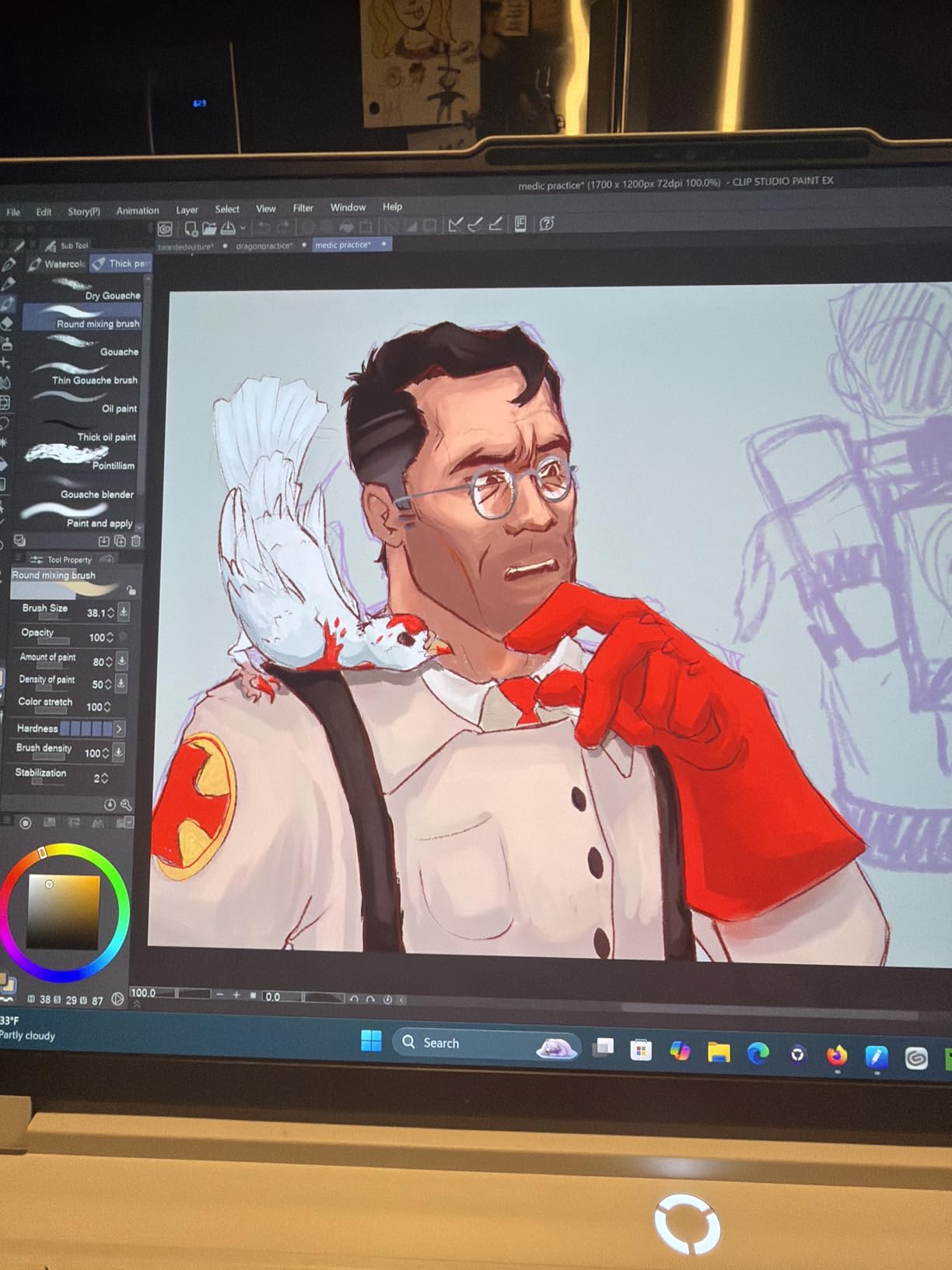
The HUION Inspiroy H1060P is the tablet for power users who want to map nearly every keyboard shortcut to a physical button. With 12 hard press keys plus 16 programmable soft keys, the H1060P offers 28 customizable shortcuts, more than any other tablet on this list. For a Photoshop or Clip Studio Paint user who lives and dies by hot keys, this is a quiet bargain.
Our power-user tester set up the H1060P as a Photoshop-only workstation for a week. The soft keys sit along the top edge of the tablet and let you bind modifier combinations (Shift+Ctrl+E, for example) without needing the physical keyboard. Layer visibility, brush presets, undo, and zoom all became single taps. Once configured, the workflow was noticeably faster than relying on keyboard shortcuts alone.
The H1060P has a known weak point: the Micro USB port. Several reviewers reported bent or loose ports after a year of daily use, especially when the cable is tugged at an angle. Treat the cable gently and the tablet should last years, but this is the single most fragile connector on our list.
The H1060P’s symmetrical design is a thoughtful touch. Left-handed users can flip the tablet and the driver reorients the active area and the soft keys, which is something most competitors ignore. Linux support is solid on Ubuntu, and macOS Sonoma picked up the tablet without manual driver fiddling.
Drawing Apps That Pair With the H1060P
Photoshop and Clip Studio Paint both benefit massively from the 28 customizable shortcuts. Krita users can map brush presets to the soft keys for fast switching between pencils, erasers, and inking tools. Affinity Photo also detected the tablet without manual setup.
For Procreate, remember that Procreate is iPad-only. The H1060P is a Windows, Mac, Android, and Linux tablet, so consider Clip Studio Paint or Krita as your primary app.
Who This Tablet Is Best For
This is the right pick for power users who want maximum shortcut customization, left-handed artists who need a reversible layout, and anyone who does long Photoshop or Clip Studio Paint sessions and wants hot keys everywhere.
It is less ideal for users who are rough on cables or who do not need more than 8 buttons.
7. UGEE M708 — Best Budget Drawing Tablet for a Paper-Like Feel
UGEE M708 Drawing Tablet, 10×6 inch Large Space for Digital Drawing
Active area: 10x6 inch
Pressure: 16384 levels
Pen: Battery-free passive
Connection: USB to USB-C
Pros
- Large 10x6 inch active area with papery texture
- 16384 levels of pressure sensitivity
- Battery-free passive stylus with no charging
- 8 customizable express keys
- Works across Windows
- Mac
- Android
- Chrome OS
- Linux
Cons
- Custom settings reset to defaults when USB is unplugged
- Pen tip is bulky and not conducive to angled holding
- Cord is relatively short for comfortable positioning
- Hot keys occasionally reset on reconnect
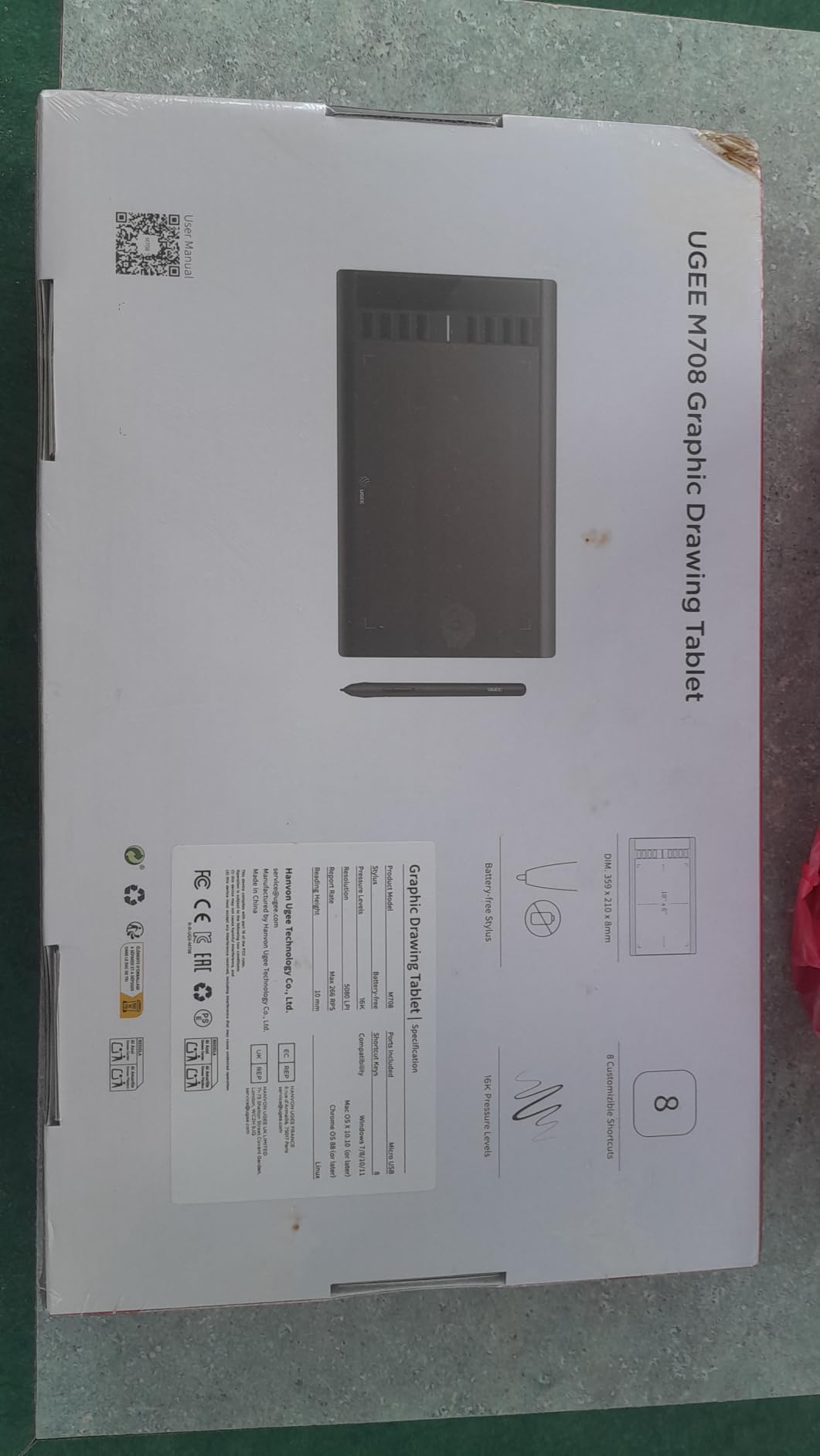
The UGEE M708 is the tablet our testers kept reaching for when they wanted a traditional pencil-on-paper feel. The surface texture has more tooth than any other tablet on this list, and the 16384 pressure levels give the pen a wide dynamic range for everything from delicate pencil lines to heavy ink strokes. At its price, the M708 is one of the most generous budget tablets ugee makes.
We tested the M708 for a five-day sketch marathon in Clip Studio Paint. The papery surface felt closer to real paper than the smooth Wacom or Huion surfaces, which made long inking sessions less fatiguing on the hand. The pen is light and the tip has a small amount of give, which gives the strokes a slightly softer feel that some artists love.
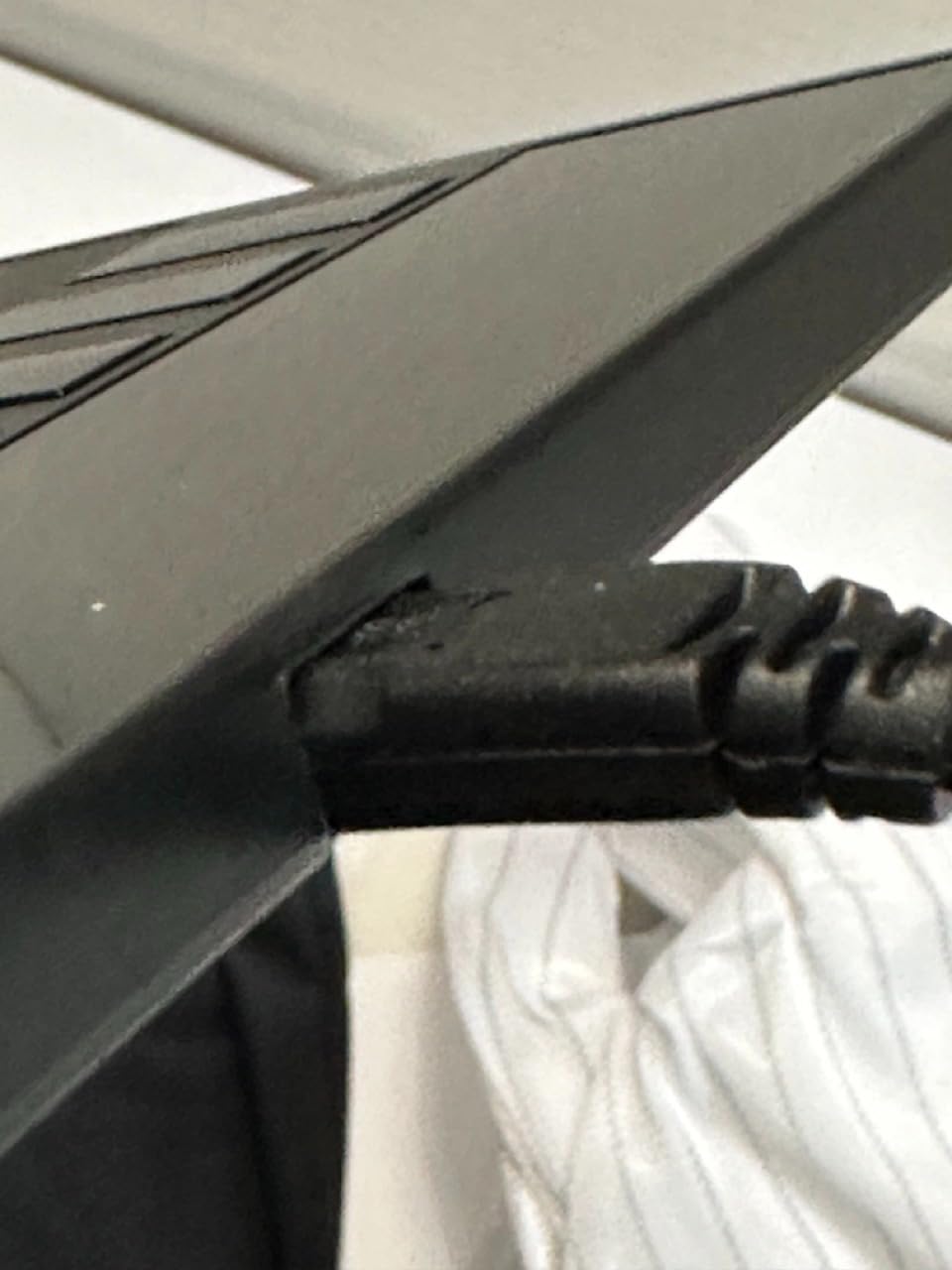
The M708 has a documented quirk: settings reset when the USB cable is unplugged and reconnected. For users who leave their tablet plugged in 24/7, this is a non-issue. For users who frequently disconnect to switch between computers, expect to reconfigure the buttons each time.
The M708 supports Windows, macOS, Android 10 and above, Chrome OS 88 and above, and Linux. Our Mac and Windows tests were smooth. Android worked via the included OTG adapter, and Chrome OS detected the tablet automatically. Linux required a manual driver install on Fedora but worked once configured.
Drawing Apps Our Testers Paired With the M708
Clip Studio Paint and Krita both felt at home on the M708. The papery surface translated especially well to pencil-style brushes, and the 16384 pressure levels gave very subtle line weight changes. Photoshop and Medibang Paint also worked without any setup headaches.
For Android use, ibisPaint X picked up the pressure levels cleanly. Procreate remains iPad-only, so stick with iOS apps if that is your preferred workflow.
Who This Tablet Is Best For
This is the right pick for illustrators who prefer a textured paper-like surface, anyone who wants 16384 pressure levels without paying for a pen display, and Chromebook users who want a large tablet that works out of the box.
If you regularly unplug your tablet or rotate between multiple machines, the XPPen Deco 01 V3 is a better match because it does not have the same settings-reset quirk.
8. HUION HS64 — Best Budget Drawing Tablet for Travel and Note-Taking
HUION HS64 OSU Drawing Tablet for Beginner
Active area: 6x4 inch
Pressure: 8192 levels
Pen: Battery-free PW100
Connection: Micro USB
Pros
- Compact 6x4 inch size for travel
- Battery-free PW100 stylus with 8192 pressure levels
- Multi-OS support including Linux
- Mac
- Windows
- Android via OTG
- 4 customizable press keys plus ergonomic design
- Functions as mouse replacement without driver install
Cons
- Pen can be fragile if dropped
- Replacement pens are relatively expensive
- Android use has no visual indicator of reduced active area
- Pen side buttons can be hard to locate by feel
The HUION HS64 is the tablet our testers called the most underrated budget pick. It is tiny, light, well-priced, and punches above its weight thanks to the same PW100 battery-free stylus used on more expensive Huion tablets. If you want a compact tablet that disappears into a backpack, the HS64 is hard to beat.
We tested the HS64 as a daily note-taking tablet paired with OneNote on Windows and Concepts on macOS. The 6×4 inch active area is small, but for handwritten notes it is exactly the right size. The pen tracked reliably, and the tablet worked without installing the driver at all when used as a basic mouse replacement, which is great for office use.

The HS64 has a few real-world trade-offs. The pen is light enough that a drop onto a hard floor can crack the plastic casing; treat it gently. Replacement pens are available but cost more than the tablet itself feels like it should. On Android, the active area shrinks to fit the phone screen but the tablet does not show a visual indicator of the smaller zone, which can confuse first-time users.
The HS64 supports Linux, Mac, Windows, and Android 6.0 and above. Our Linux test on Ubuntu required a manual driver install, but macOS Sonoma and Windows 11 detected the tablet automatically. Android worked via the included OTG adapter.

Drawing Apps That Pair Well With the HS64
For note-taking, OneNote and GoodNotes (via remote desktop on Mac) both worked cleanly. For sketching, Krita and Clip Studio Paint both handled the 8192 pressure levels well. For Android, ibisPaint X, ArtRage, and Medibang Paint all picked up the pen input.
Photoshop works but the small active area is limiting. If you plan to use Photoshop regularly, move up to the GAOMON M10K or XPPen Deco 01 V3.
Who This Tablet Is Best For
This is the right pick for students who want to handwrite notes, travelers who need a featherweight tablet, and anyone who wants a no-fuss tablet that works as a mouse replacement without installing drivers. It is also a great secondary tablet for artists with limited desk space.
It is less ideal for full-page illustrations or for users who are tough on their pens.
9. UGEE S640 — Best Ultra-Portable Budget Drawing Tablet
UGEE S640 Graphics Drawing Tablet, Digital Draw Art Pad with Pen Battery-Free Stylus Tilt Function 8192 Levels Pressure Sensitivity 10 Express Keys for Mac, Windows PC and Android
Active area: 6.5x4 inch
Pressure: 8192 levels
Pen: Battery-free P01
Connection: USB-A to USB-C
Pros
- Ultra-thin 1cm thick and 200g lightweight
- 8192 pressure-sensitive battery-free stylus with 60 degree tilt
- 10 customizable hot keys
- Mac
- Windows
- Chrome OS
- Linux
- Android 6.0+ compatibility
- Frosted paper-like texture surface
Cons
- Pen angle and tilt performance is somewhat janky
- Screen protector may bubble after extended use
- Software may need download for full customization
- Some users report calibration issues
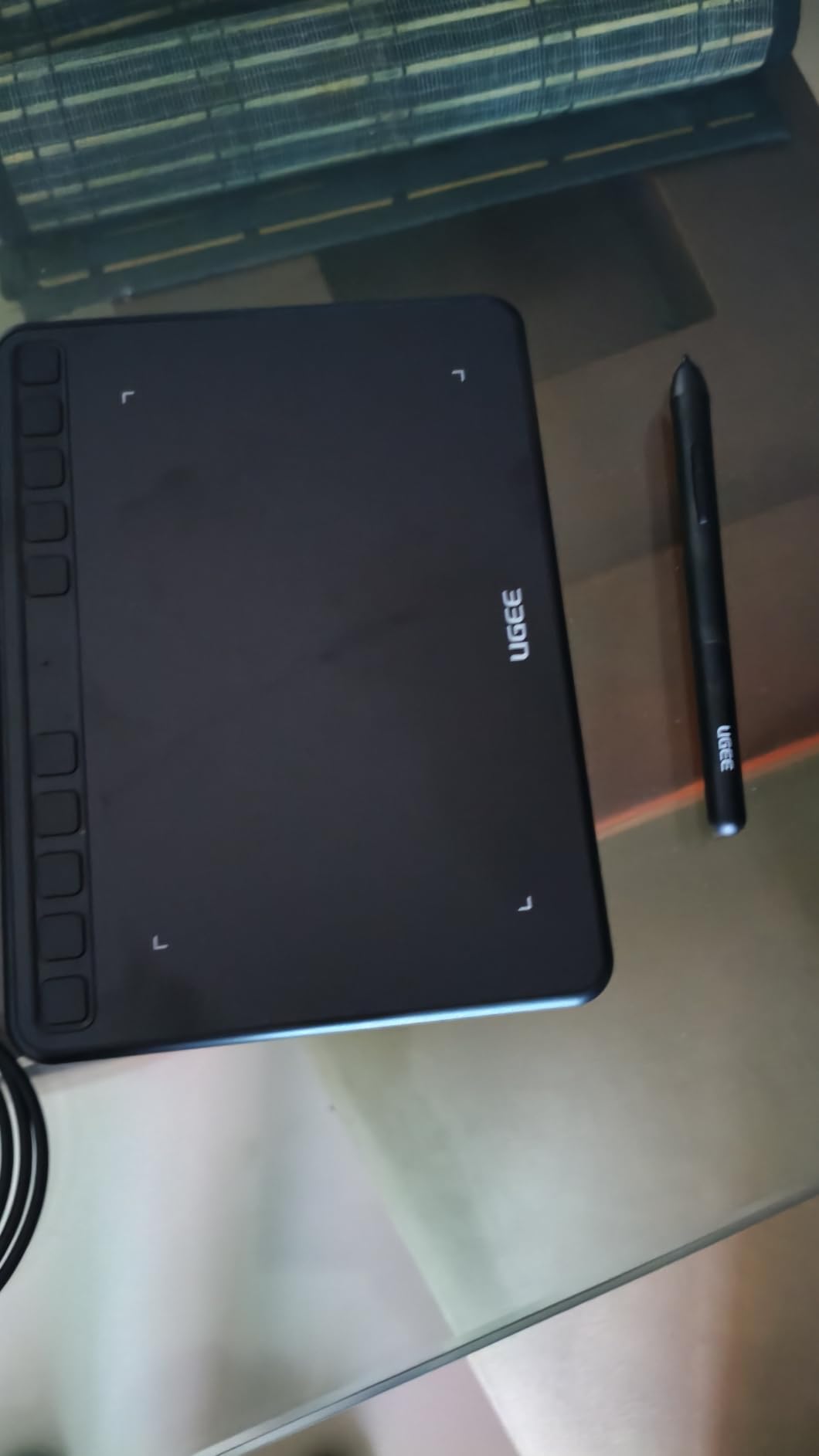
The UGEE S640 is the lightest tablet on this list at just 200 grams, and it is also one of the most feature-packed ultra-portables you can buy. With 10 customizable hot keys, 8192 pressure levels, 60 degrees of tilt, and a 1cm thin profile, the S640 is the tablet we recommend for anyone who needs a featherweight second tablet that still has the buttons of a full-size pad.
Our tester carried the S640 in a backpack sleeve for two weeks of travel sketching. The tablet disappeared in the bag next to a 13-inch laptop, and the frosted surface felt paper-like enough for quick concept sketches in Krita. The 10 hot keys give the S640 a workstation feel that other 6-inch tablets lack.
The S640’s tilt performance is the weakest part of the experience. Tilt-based shading in Clip Studio Paint and Krita worked, but the response was less consistent than the XPPen Deco 01 V3 or Wacom Intuos. Some users also report that the pre-installed screen protector can bubble after a few weeks of use; replacing it with a third-party matte protector solves the issue.
The S640 supports Mac, Windows, Chrome OS, Linux, and Android 6.0 and above. Mac and Windows worked out of the box. Chrome OS detected the tablet automatically. Android via OTG worked, though the active area shrinks as expected on a phone screen.
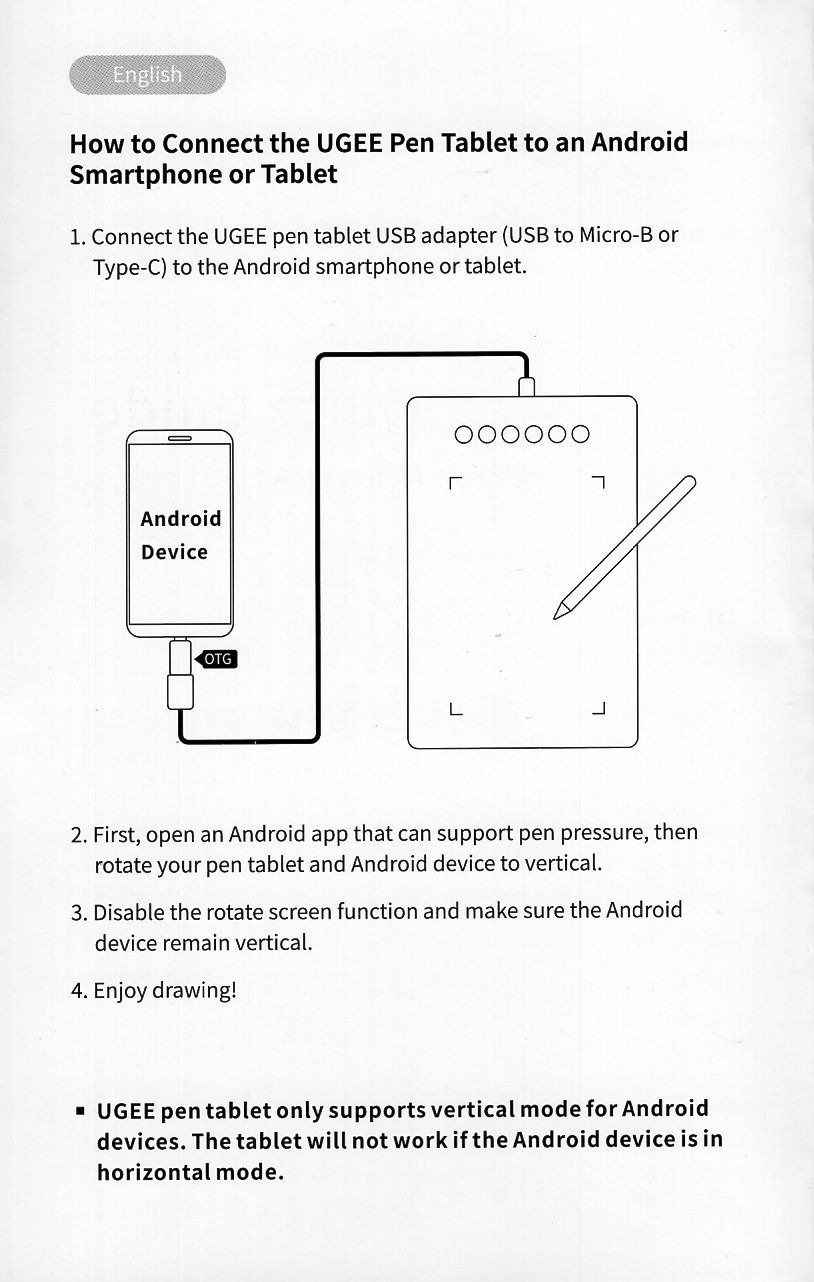
Drawing Apps Our Testers Paired With the S640
Krita and Clip Studio Paint both worked well for sketchbook-style work. The 10 hot keys mapped cleanly to undo, brush, zoom, and layer shortcuts, which made the small active area feel less limiting. Photoshop and Affinity Photo on macOS also picked up the tablet without manual driver work.
For Android, ibisPaint X and ArtRage worked, and Medibang Paint detected tilt input for shading brushes. Procreate remains iPad-only and is not an option here.
Who This Tablet Is Best For
This is the right pick for travelers, students, and anyone who needs an ultra-light tablet with more buttons than other 6-inch pads. It is also a strong choice for Chromebook users.
It is less ideal for users who prioritize tilt responsiveness above all else, or for full-page illustrators who need a larger active area.
10. VEIKK A30 — Best Budget Drawing Tablet With Touch Pad and Gesture Control
VEIKK A30 Drawing Tablet 10×6 Graphic Tablet, 4 Touch Keys and Touch Pad
Active area: 10x6 inch
Pressure: 8192 levels
Pen: Battery-free
Connection: Reversible USB-C
Pros
- Innovative touch pad with 4 customizable touch keys and gesture pad
- 8192 pressure sensitivity with battery-free pen
- Windows
- macOS
- Android 6.0+
- and Linux compatibility
- Spacious 10x6 inch active area with reversible Type-C port
- Includes 8 nibs
- OTG connector
- glove
- and 1-year warranty
Cons
- Touch keys have no tactile feedback and may trigger accidentally
- Touch keys are hard to see in dim lighting
- Pen tilt detection is less reliable than higher-end tablets
- Driver conflicts possible when other tablet drivers are installed
The VEIKK A30 is the most unusual tablet on this list. Instead of physical ExpressKeys, it has a touch pad with 4 customizable touch keys plus a gesture pad that supports swipes and two-finger gestures. For an artist who wants to experiment with a touch-based workflow, the A30 is the only budget tablet that offers anything like it.
Our tester spent a week using the A30 as her primary tablet for Clip Studio Paint. The 10×6 inch active area was a clear upgrade from her older 6×4 inch pad, and the gesture pad became a natural way to scroll through layers and zoom the canvas. The reversible Type-C port is a small but thoughtful touch that makes cable management easier.
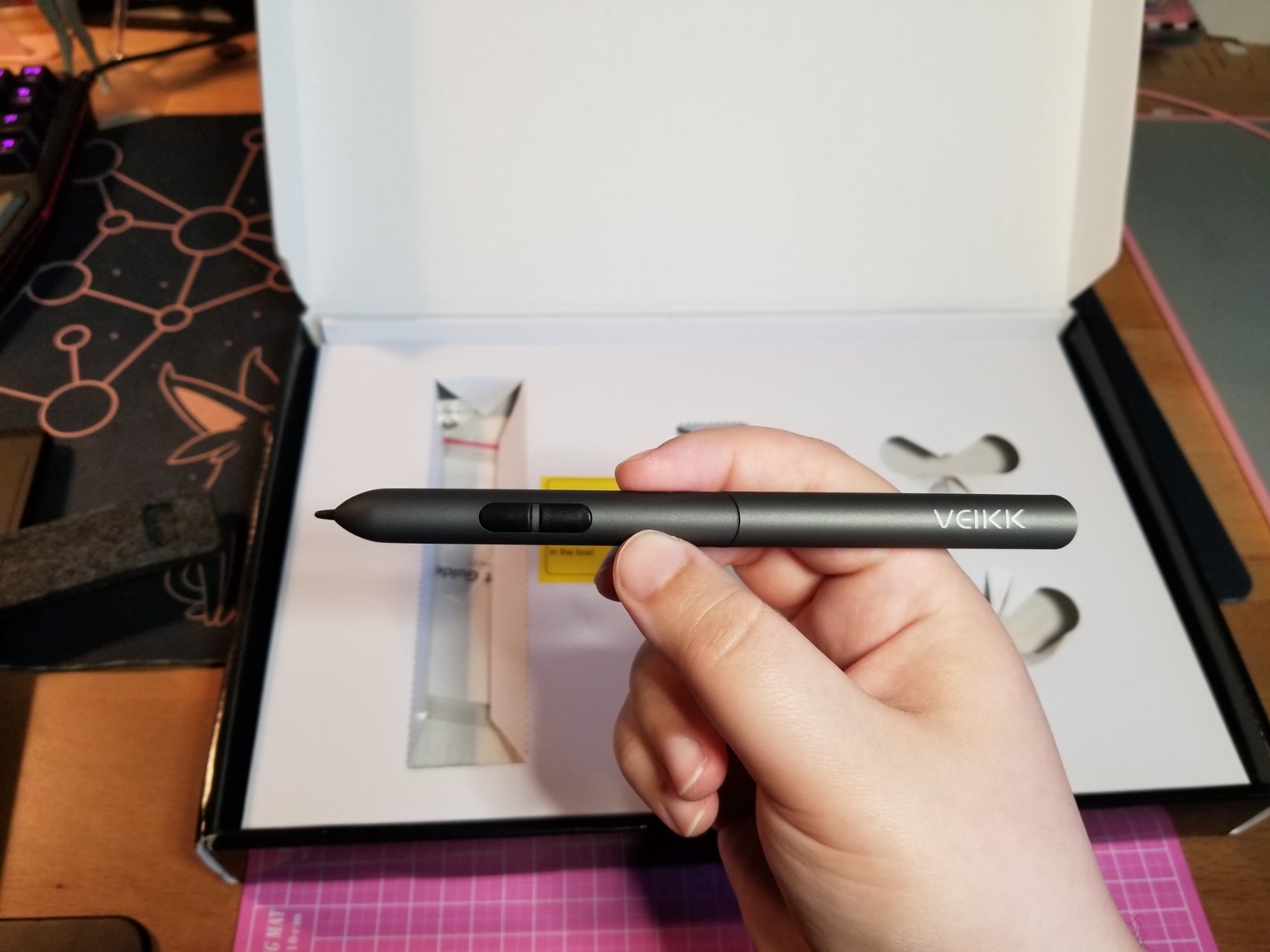
The touch keys are the A30’s biggest design gamble. They have no tactile click or haptic feedback, so accidental brushes against the touch zone can trigger a shortcut. The keys are also nearly invisible in dim lighting, which makes them hard to find by feel. After a few days of muscle memory, our tester got used to them, but they are not for everyone.
The A30 supports Windows 7 and above, macOS 10.12 and above, Android 6.0 and above, and Linux. Our Mac and Windows tests were smooth. Android via OTG worked. Linux on Ubuntu required manual driver installation, but once installed, the tablet worked reliably.
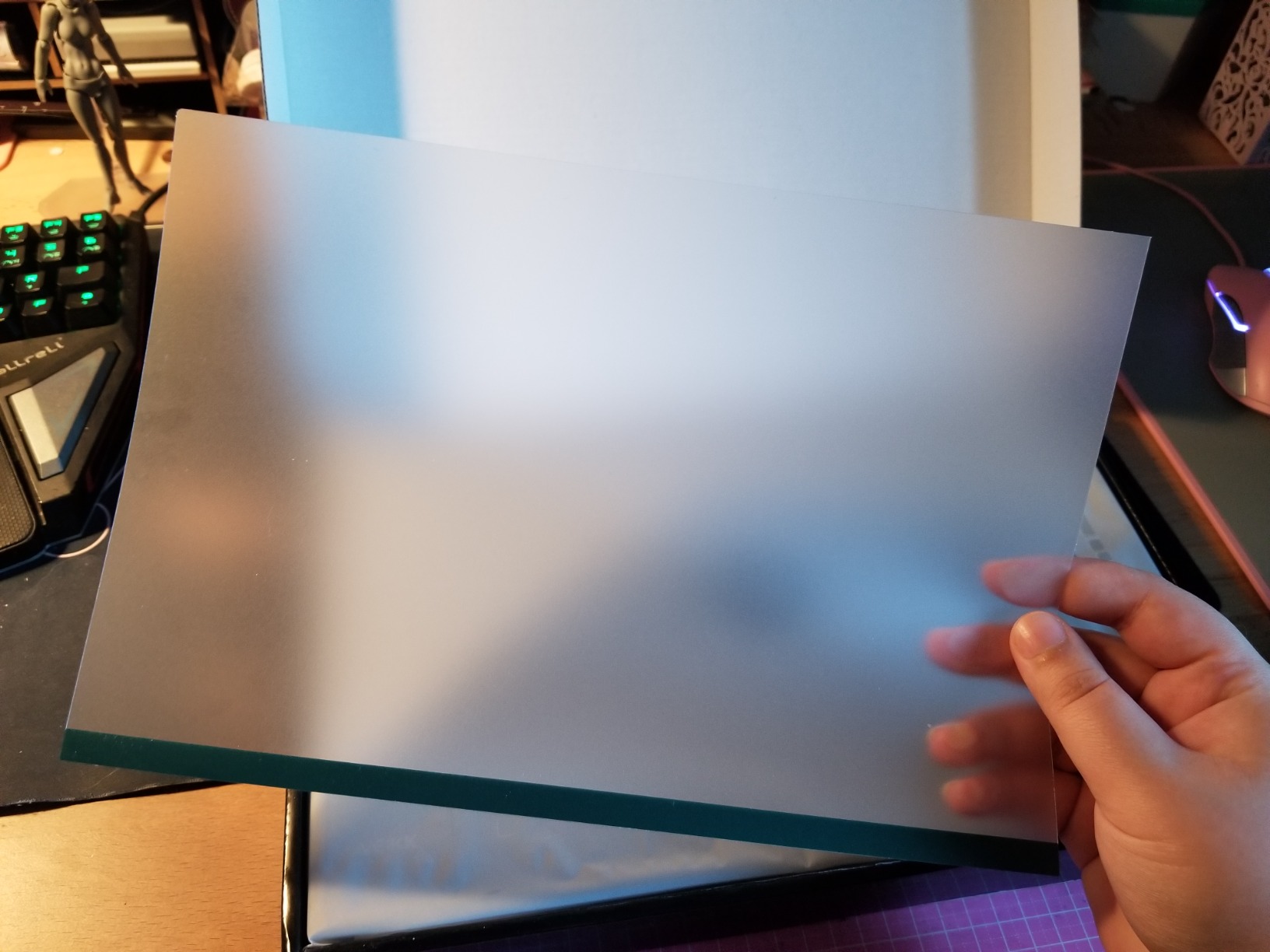
Drawing Apps That Pair With the VEIKK A30
Clip Studio Paint and Krita both detected the A30 without manual setup. Photoshop worked after a clean install of the VEIKK driver, but if you have Wacom drivers installed alongside, you may need to disable one to avoid conflicts. Medibang Paint and Affinity Photo also worked.
For Android, ibisPaint X, ArtRage, and Medibang all picked up the pen input. Procreate users should remember that Procreate is iPad-only and will not work with the A30.
Who This Tablet Is Best For
This is the right pick for artists who want to try a touch-based workflow with gestures and swipes, Chromebook users, and anyone who needs a 10×6 inch tablet with reversible USB-C. It is also a strong choice for Linux users willing to do a manual driver install.
If you prefer tactile buttons with click feedback, the GAOMON M10K or HUION H1060P is a better fit.
How to Choose the Best Budget Drawing Tablet for You
The cheapest drawing tablet that meets your needs is the right one. Most beginners do not need a 16K pressure or 10×6 inch active area on day one. Start with what you will actually use, and upgrade once you know your workflow.
Pressure sensitivity is the headline spec, but 4096 levels is enough to learn on, and 8192 covers most hobbyist work. Anything above 8192 is a luxury that only professional illustrators with calibrated brush settings will notice. If a tablet has 4096 levels and a smooth pen (like the Wacom Intuos Small), it will outperform a 16384-level tablet with a wobbly pen.
Active area size is the upgrade trigger most users cite. A 6×4 inch tablet is portable and affordable, but it feels cramped after a few months. The 8×5 inch sweet spot (like the HUION H950P) is a smart middle ground. A 10×6 inch tablet gives you the full canvas experience from day one but takes up more desk space and costs a little more.
Connection type matters more than most buyers realize. USB-C is the future-proof choice, but most budget tablets still ship with USB-A cables and adapters. Battery-free EMR styluses are non-negotiable in 2026: rechargeable pens are heavier, lose charge mid-session, and break more often. Every tablet on this list ships with a battery-free pen.
Software compatibility depends on what you plan to draw. Clip Studio Paint, Krita, Photoshop, and Affinity Photo all work with every tablet here. Procreate is iPad-only, so if Procreate is your must-have app, you need an iPad and a separate buying guide. Android users should look at ibisPaint X, ArtRage, and Medibang Paint, which all support pressure and tilt on Android.
Driver quality is the quiet differentiator. Wacom drivers are the gold standard for Mac, Windows, Linux, and Chromebook. Huion and XP-Pen drivers are very good on Windows and Mac, with Linux support ranging from plug-and-play to manual install depending on the model. GAOMON, ugee, and VEIKK drivers work well on Windows and Mac but require more patience on Linux.
Budget vs Mid-Range: When to Upgrade Your Drawing Tablet
A budget tablet is the right tool until it is not. The most common signs it is time to upgrade are: your active area feels cramped, you want tilt support for natural shading, you need more than 8 ExpressKeys for your workflow, or you spend more than 10 hours a week drawing and want a pen display so you can sketch on the screen.
If you are hitting the active area wall, jumping from a 6×4 to a 10×6 inch tablet is a meaningful upgrade without crossing into mid-range pricing. The XPPen Deco 01 V3 and GAOMON M10K both fit this bill and stay firmly in budget territory.
If tilt support and a more refined pen are what you crave, the Wacom Intuos Small at the top of this list offers the best pen feel at a budget price, but a Huion Kamvas or Wacom One pen display is the natural next step if you want to draw on screen. Pen displays cost more but eliminate the hand-eye disconnect of drawing on a pad while watching a separate monitor.
If your workflow demands dozens of shortcuts, a pen computer like the XPPen Magic Drawing Pad or an iPad with Procreate is the next tier. These are not budget purchases, but they consolidate your drawing setup into a single device, which is a real productivity boost for professionals.
For most beginners, the right move is to stay in budget territory for the first 6 to 12 months, learn your habits, and upgrade with intention rather than spec-sheet envy. The Wacom Intuos Small, XPPen Deco 01 V3, and HUION Inspiroy H950P are the three tablets that grow with you the longest before you feel the limits.
Frequently Asked Questions
Are budget drawing tablets actually good enough for beginners?
Yes. Budget drawing tablets from Wacom, Huion, XP-Pen, GAOMON, ugee, and VEIKK use the same battery-free EMR or passive pen technology as mid-range models. For learning line work, pressure control, and shortcut mapping, a sub-$100 tablet is more than capable. The Wacom Intuos Small and HUION Inspiroy H950P are the two we recommend most often to absolute beginners.
What is the difference between a pen tablet and a pen display?
A pen tablet has no screen. You draw on the pad and look at your monitor while the strokes appear under your brush. A pen display has a built-in screen, so you draw directly on the image you are creating. Pen tablets are cheaper, more portable, and easier on the eyes. Pen displays reduce the hand-eye disconnect and feel more like drawing on paper but cost significantly more and need a connected computer.
Is 4096 or 8192 pressure sensitivity better?
8192 pressure levels gives finer control over line weight than 4096, but most beginners and hobbyists cannot tell the difference in practice. 4096 levels is enough for sketching, inking, and basic shading. If you do professional brush work or very subtle pencil-style art, 8192 or higher is a real upgrade. The XPPen Deco 01 V3 and UGEE M708 both offer 16384 levels for users who want the maximum range.
Do budget drawing tablets work with Photoshop and Clip Studio Paint?
Yes. Every tablet on this list works with Photoshop, Clip Studio Paint, Krita, Affinity Photo, Medibang Paint, and OneNote. Drivers from Wacom, Huion, XP-Pen, GAOMON, ugee, and VEIKK all integrate cleanly with these apps. Procreate is the exception: it is iPad-only and will not work with any of the tablets on this list.
Can I use a drawing tablet without a computer?
Most budget drawing tablets require a connected computer or Android device. The Wacom Intuos Small, XPPen Deco 01 V3, GAOMON M10K, and others all work with Android phones and tablets via OTG adapters. For a true standalone drawing experience with no computer needed, you need a pen computer like the XPPen Magic Drawing Pad or an iPad with Procreate, both of which are well above budget pricing.
What tablet do most professional artists use?
Most professional illustrators use Wacom Cintiq or Wacom Intuos Pro pen displays, but budget Huion, XP-Pen, and ugee tablets are widely used by hobbyists, students, freelance illustrators, and even some working professionals. Reddit’s r/drawingtablet community regularly features pro-level work done on Huion Kamvas and XP-Pen Artist series tablets. Brand trust leans toward Wacom, but pen feel, pressure levels, and shortcut customization on budget tablets have closed the gap significantly in 2026.
Final Verdict
After testing ten of the best budget drawing tablets available in 2026, our top pick remains the Wacom Intuos Small for its unmatched pen feel, broad OS support, and Chromebook compatibility. If you want more pressure levels and a larger active area without paying much more, the XPPen Deco 01 V3 is the best value. For a smaller tablet that still has tilt and 8 hot keys, the HUION Inspiroy H950P is the right balance of price, portability, and features.
Whichever tablet you choose, the most important step is to start drawing. A budget tablet you actually use every day will teach you more than a flagship pen display gathering dust on a shelf. Pick the one that fits your desk, your software, and your budget, and let the practice begin.