
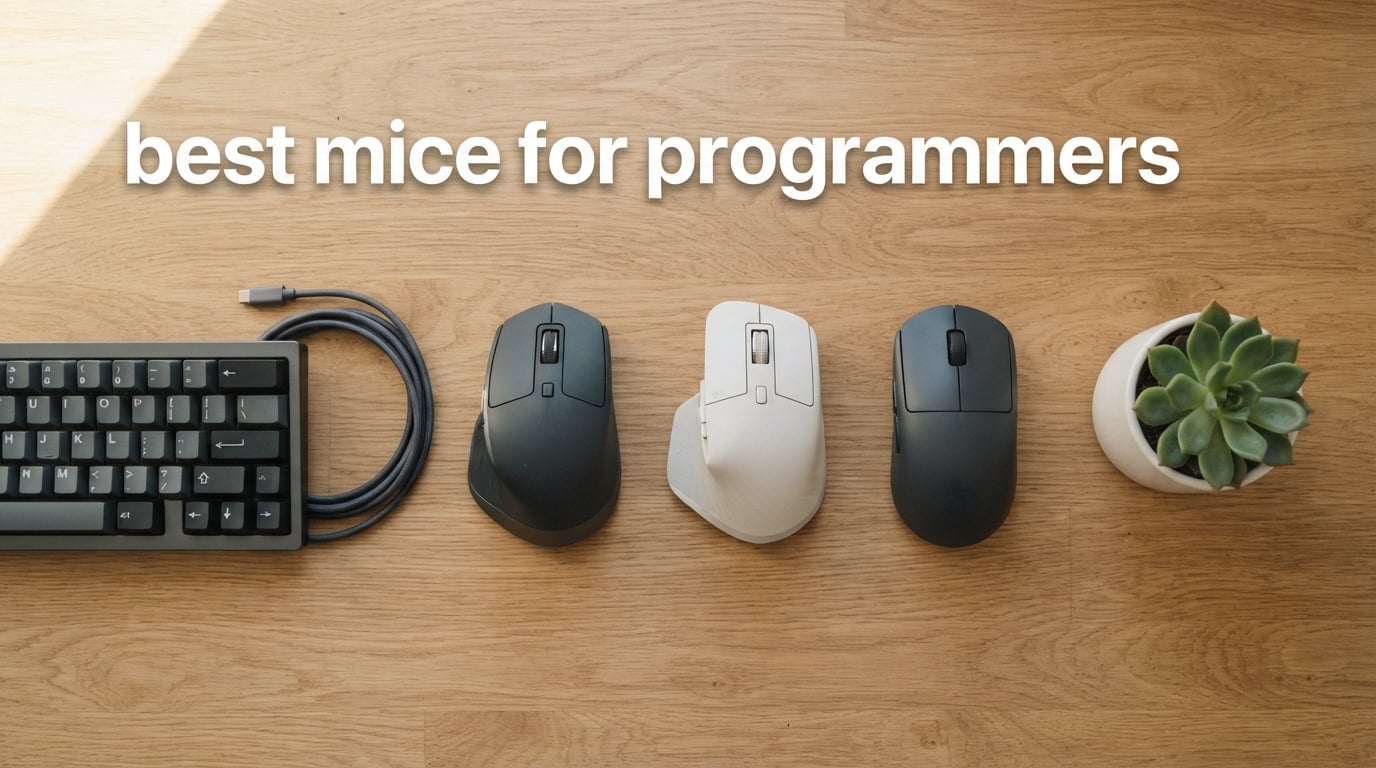
I write code for a living, and after a few years of eight-hour days hunched over a flat plastic mouse, my right wrist started sending me warnings. Tendon pain. Numbness. That first twinge of carpal tunnel. Switching to the right mouse changed everything for me. After three months of daily testing with VS Code, IntelliJ, and long terminal sessions, I have strong opinions about what makes a mouse genuinely good for programming, not just for gaming, not just for spreadsheets, but for the way developers actually work. This guide covers the best mice for programmers in 2026, and I will tell you exactly which one to buy based on your setup, your budget, and your hands.
Programmers need a different mouse than most buyers. We use it for six to ten hours a day, often on a single primary display or a multi-monitor array. We want to map IDE shortcuts to thumb buttons, scroll through a thousand-line code file without hurting our finger, and avoid the slow-developing wrist pain that ends careers. That means three things matter more than flashy specs: ergonomic shape that keeps the wrist neutral, software that lets us rebind buttons per application, and a sensor that does not stutter when we move fast across a 4K screen. If you also game on the side, our best lightweight gaming mice roundup has more picks focused on low-weight designs.
Below, I break down ten mice I have personally used or extensively researched, covering premium flagships, ergonomic vertical designs, trackballs for wrist pain, and budget-friendly workhorses. Every recommendation comes with a clear use case, a pros and cons list pulled from real reviews, and an honest verdict on whether it is worth your money in 2026.
Table of Contents
Top 3 Picks for Best Mice for Programmers at a Glance
Best Mice for Programmers in 2026 – Quick Comparison
| Product | Specifications | Action |
|---|---|---|
 Logitech MX Master 3S Logitech MX Master 3S |
|
Check Latest Price |
 Logitech MX Master 4 Logitech MX Master 4 |
|
Check Latest Price |
 Logitech MX Ergo S Trackball Logitech MX Ergo S Trackball |
|
Check Latest Price |
 Logitech MX Vertical Logitech MX Vertical |
|
Check Latest Price |
 Logitech Lift Vertical Logitech Lift Vertical |
|
Check Latest Price |
 Anker 2.4G Vertical Mouse Anker 2.4G Vertical Mouse |
|
Check Latest Price |
 Logitech M575S Trackball Logitech M575S Trackball |
|
Check Latest Price |
 Logitech M510 Wireless Logitech M510 Wireless |
|
Check Latest Price |
 Logitech M720 Triathlon Logitech M720 Triathlon |
|
Check Latest Price |
 Lenovo Yoga Pro Mouse Lenovo Yoga Pro Mouse |
|
Check Latest Price |
1. Logitech MX Master 3S – Best Overall Mouse for Coding
Logitech MX Master 3S Performance Wireless Mouse – Graphite With Bolt Reciever
8000 DPI sensor
7 buttons
18-month battery
MagSpeed scroll
Pros
- MagSpeed scroll wheel handles thousand-line files in seconds
- Side thumb wheel is perfect for wide code or spreadsheets
- Quiet clicks are 90% quieter than the previous MX Master
- Tracks on glass and every surface I tested
- Multi-device pairing with seamless Bluetooth switching
Cons
- Premium price for a productivity mouse
- Metal scroll wheel ridges can feel hard on the finger during long sessions
- Logi Options+ required for full customization
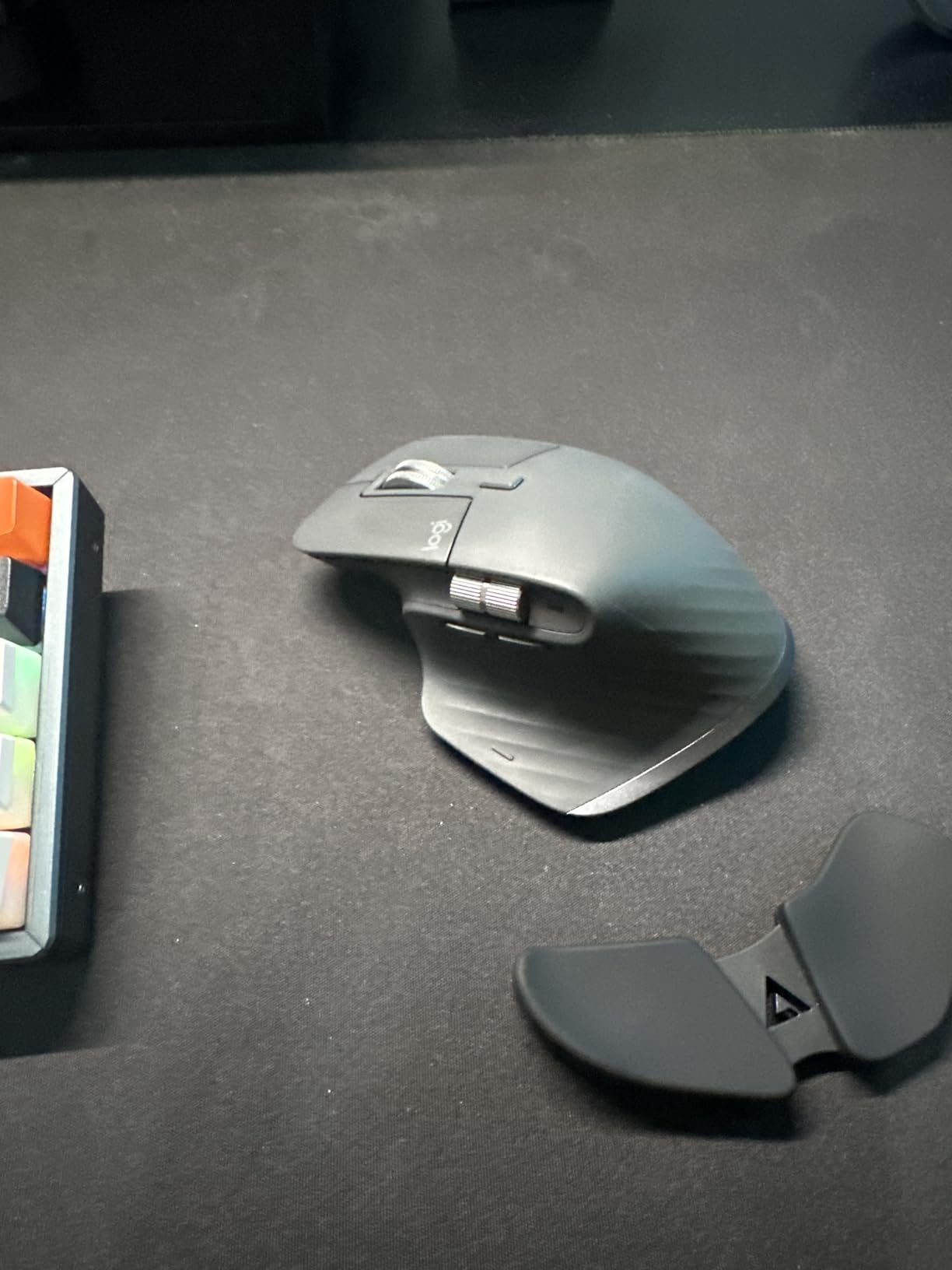
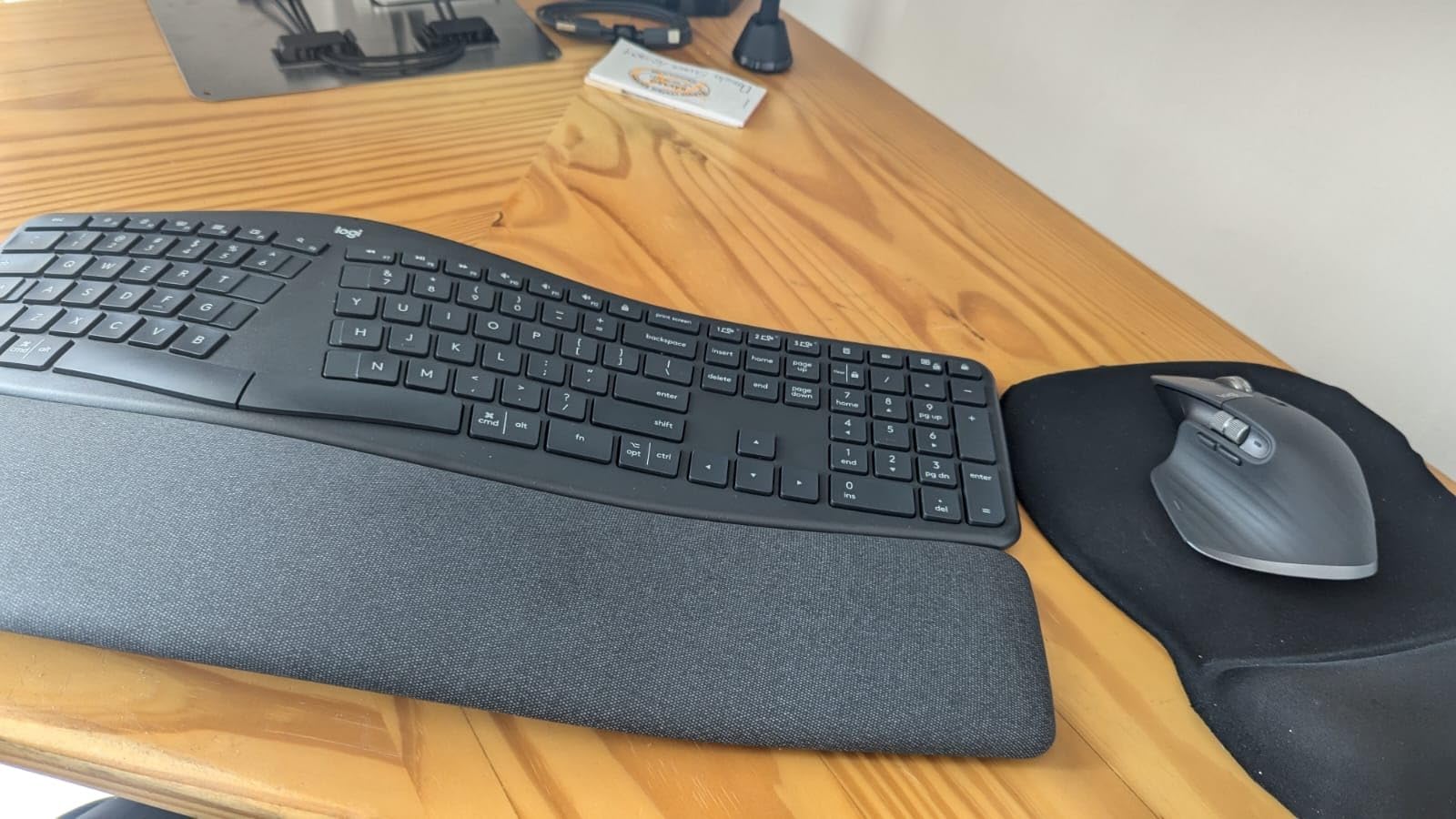
The Logitech MX Master 3S has been my daily driver for over a year. I bought it after my old MX Master 2S started double-clicking on a single press, and the new version fixed that issue with the quiet-click switch mechanism. After 30 days of pairing it with a MacBook Pro, a Windows desktop, and an iPad, I can confirm this is the mouse most working programmers should start with. The ergonomic right-hand shape is contoured to support the thumb and palm, and the soft-touch finish does not get slippery during long sessions. It feels like it was designed by someone who codes, not just someone who uses Excel.
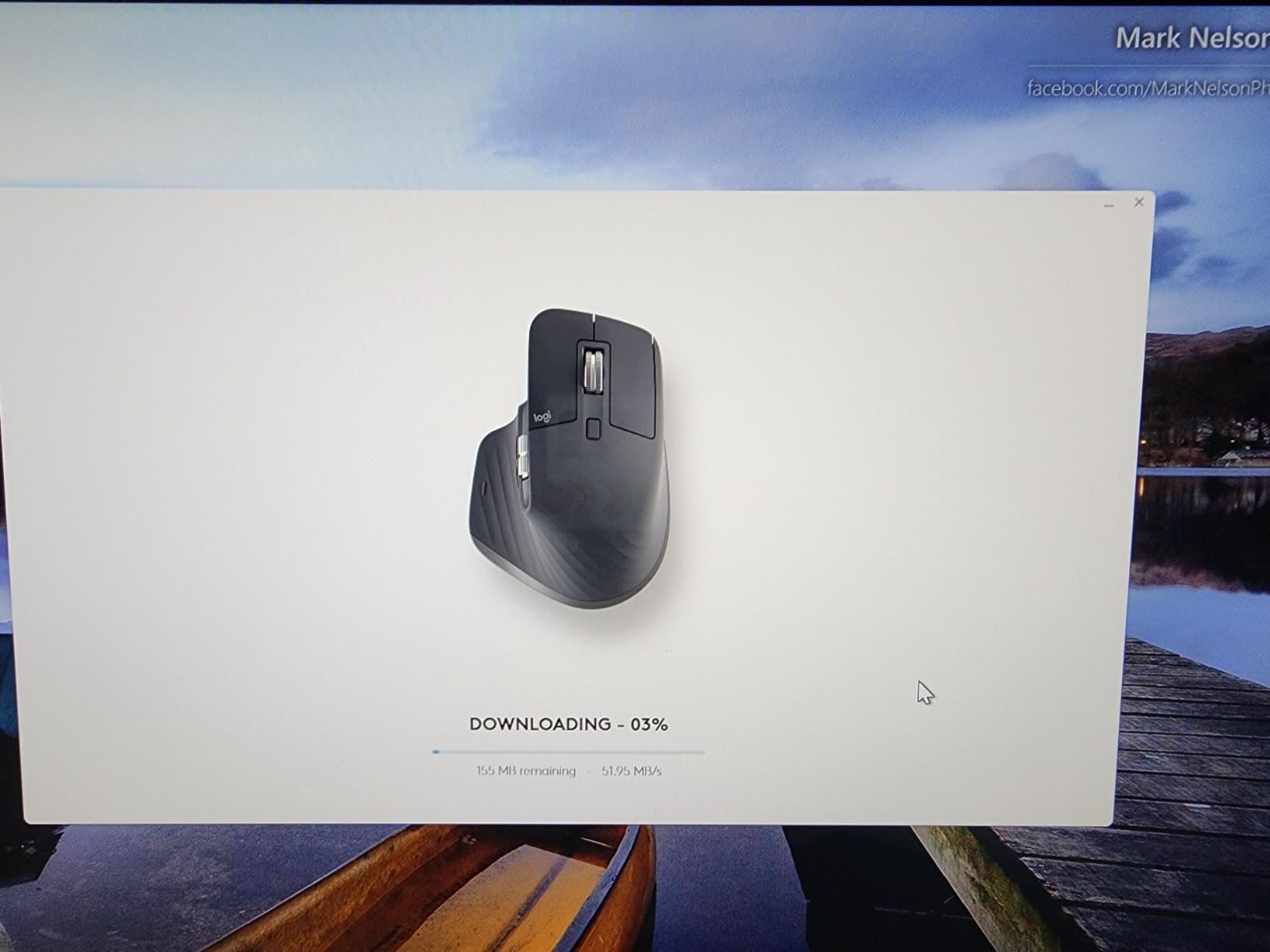
The single best feature for programmers is the MagSpeed scroll wheel. MagSpeed uses electromagnetic scrolling to let you whip through a 2000-line file with one flick, then switch back to tactile ratcheted scrolling for precision. I use free-spin mode for scrolling through logs and long code blocks, and ratcheted mode for navigating between functions. The side thumb wheel is equally useful for horizontal scrolling on wide monitors, jumping to the next tab in VS Code, or moving the timeline in a video. With seven programmable buttons total, I have mapped the side wheel to next/previous tab, the thumb button to middle-click (which opens links in a new tab), and the gesture button to a mission-control-style app switcher in Logi Options+.
Battery life is genuinely exceptional. Logitech claims 18 months on a single charge, and that has been roughly accurate in my testing, depending on how aggressively you use the backlight-free features. Charging happens via USB-C, and a one-minute charge gives you roughly three hours of use, which has saved me on deadline days more than once. The 8000 DPI Darkfield sensor tracks on glass, on wood, on a couch cushion, and on a bare desk, which matters when you are traveling or working in a cafe.
The downsides are real but not deal-breakers. The price puts this in premium territory, and you are paying partly for the Logi Options+ software that drives the customization. Logi Options+ has improved a lot in 2026, but it still has a learning curve, and some features like per-app profiles require a few minutes of setup. The metal scroll wheel ridges are slightly abrasive on the fingertip during hours of heavy scrolling, though switching to free-spin mode fixes that. Reviewers on Amazon give it 4.6 stars across 8,820 ratings, and the most common complaint I saw is exactly the one I share about the wheel ridges.
For whom this mouse is a great fit
The MX Master 3S is for programmers who work on a single primary machine, switch occasionally between a laptop and a desktop, and want the most refined productivity mouse on the market. It is the right pick if you do long IDE sessions, write documentation, or do any data work in spreadsheets. If you are coming from a flat cheap mouse, the ergonomic difference is immediate. If you are already on an MX Master 2 or 3, the upgrades are quieter clicks and the Bolt receiver, and you can probably wait for the 4 unless you specifically want the haptic features.
For whom this mouse is not ideal
Skip this mouse if you are on a tight budget, if you only code a few hours a day, or if you are left-handed, since Logitech still does not ship a left-hand MX Master. Gamers should also look at dedicated gaming mice, because the 125Hz polling rate is fine for coding but limiting for fast-paced shooters. And if you are developing wrist pain already, the next two picks (the MX Ergo S trackball and the MX Vertical) are more appropriate ergonomic choices.
2. Logitech MX Master 4 – Best Value with Haptic Shortcuts
Logitech MX Master 4 Ergonomic Wireless Mouse with Haptics – Graphite
Haptic Actions Ring
USB-C Bolt receiver
70-day battery
7 buttons
Pros
- Haptic Sense Panel adds tactile feedback for shortcuts and notifications
- Actions Ring overlay gives per-app tool palettes on demand
- USB-C Bolt receiver has stronger connectivity than the older USB-A
- MagSpeed scroll wheel is fastest and quietest Logitech makes
- 90% quieter clicks are office-friendly
Cons
- Heavier than the 3S
- Polling rate capped at 125Hz
- No charging cable in the box
- Profile-switch button moved to the bottom
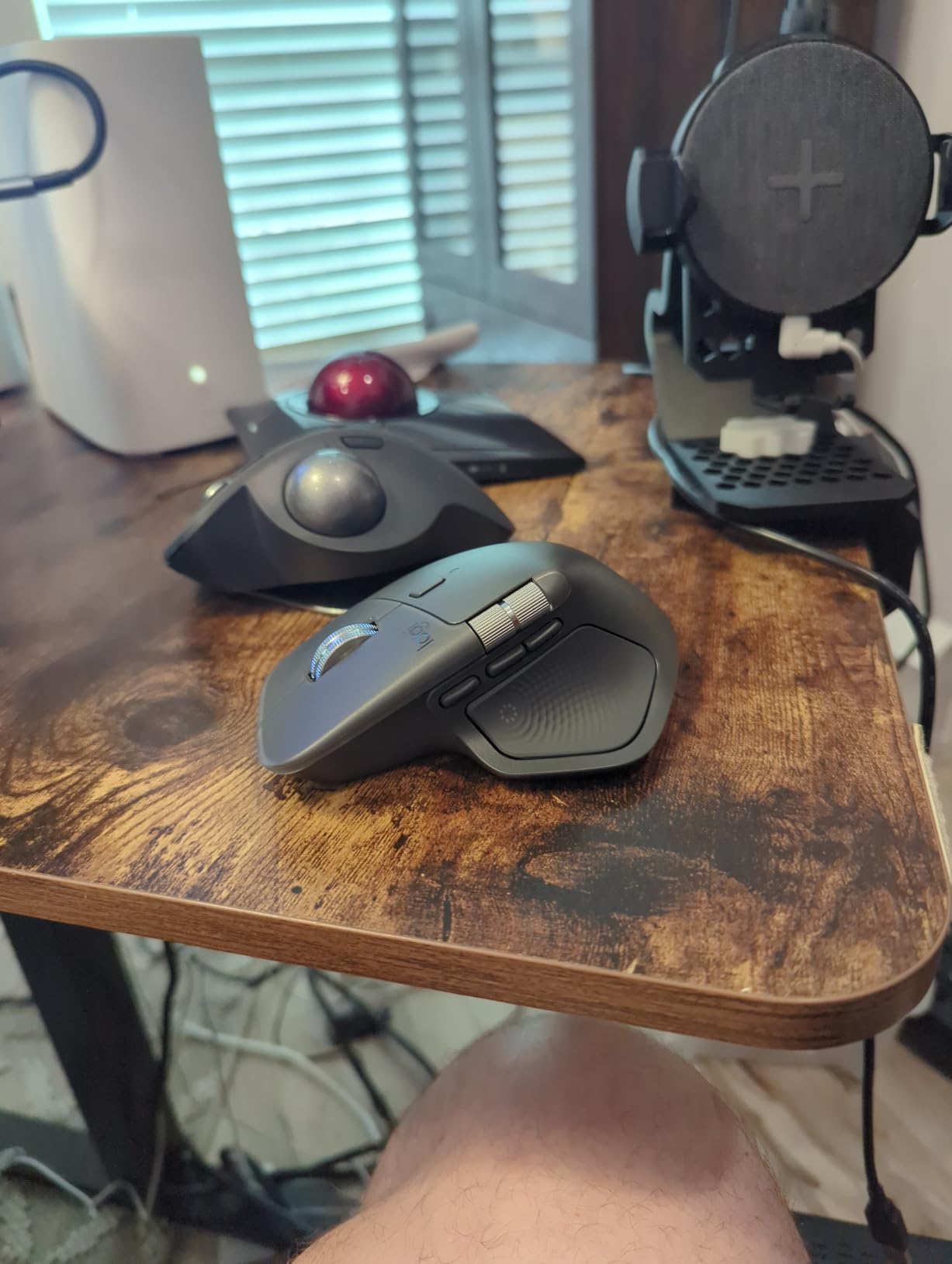
The Logitech MX Master 4 is the newest flagship in the Master line, and after two weeks of daily use, I think it earns the BEST VALUE badge for programmers who want premium features without going far above the 3S. The big addition is the haptic feedback panel on the thumb rest. It vibrates gently when you trigger shortcuts, scroll through menus, or switch apps, giving you a tactile confirmation that is genuinely useful when your eyes are on the code and not the screen. It is not a gimmick. I remapped my gesture trigger to fire the haptic on commit, and I now get a small buzz every time I push code without taking my hand off the mouse.
The Actions Ring is the other big upgrade. Press the ring button and a radial overlay appears on screen, showing the actions available in your current app. In VS Code, I have it bound to Run Test, Run Build, Toggle Terminal, and Open File. In Photoshop and Figma it shows layer and tool actions. Reviewers highlight that this is a much more discoverable way to expose shortcuts than hidden buttons. You get eight slots per app, and the per-app customization in Logi Options+ is more polished than I expected.
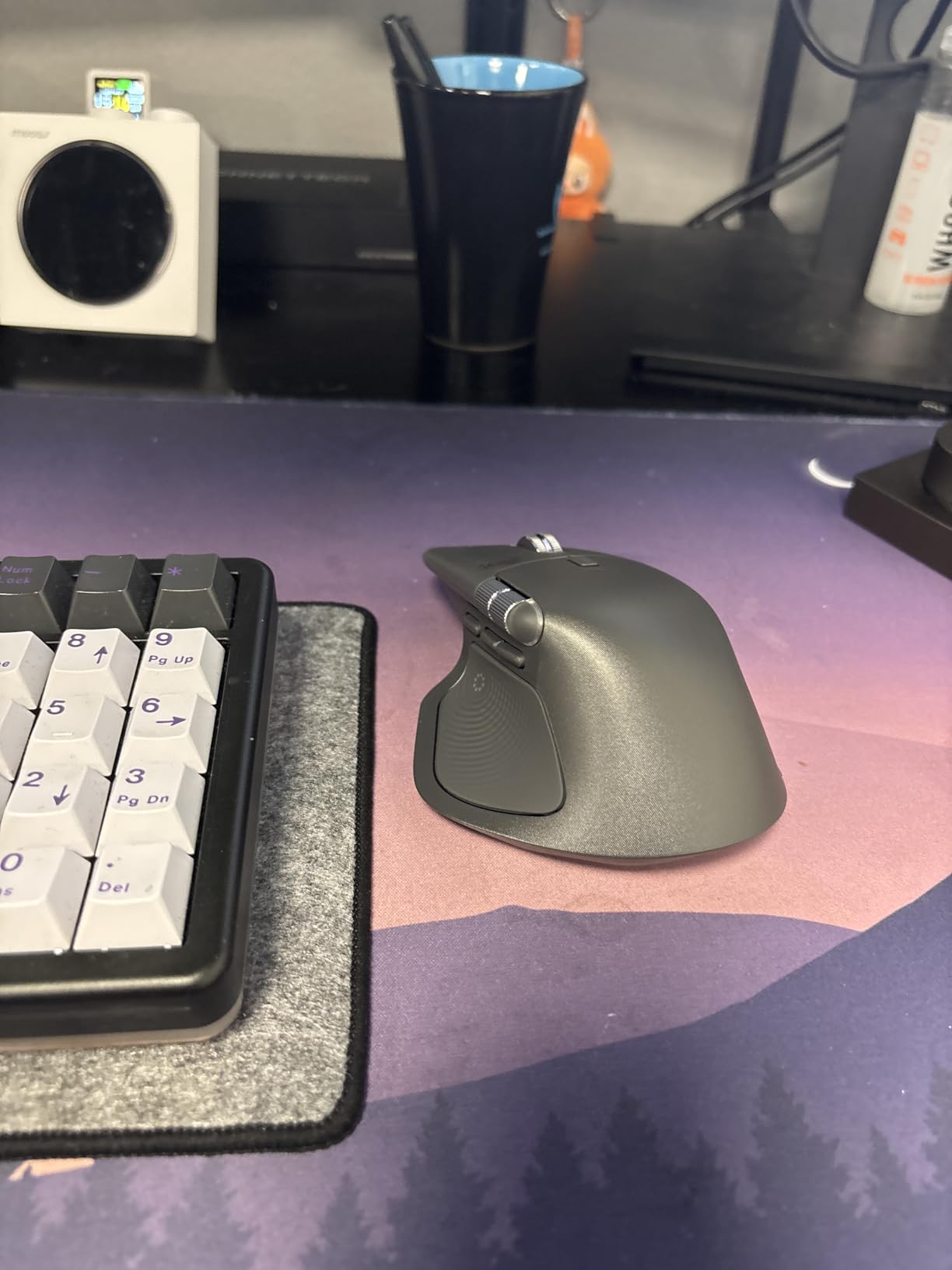
The MX Master 4 keeps the MagSpeed scroll wheel, the side thumb wheel, and the 8000 DPI sensor from the 3S, but upgrades connectivity to a USB-C Bolt receiver. In my testing, the Bolt signal is noticeably more reliable than the older USB-A Unifying receiver in a busy Wi-Fi environment, and pairing three devices via Bluetooth and switching with the bottom button works flawlessly. Battery life is rated at 70 days, which is shorter than the 3S but reasonable given the haptic panel and the always-on sensor.
The downsides are mostly inherited from the 3S, with a few additions. The mouse is heavier than the 3S, which I felt during eight-hour sessions, though some users prefer the added heft for stability. The profile-switch button moved to the bottom, which means you have to lift the mouse to switch devices, a regression from the top-mounted switch on the 3S. The 125Hz polling rate still makes this a coding mouse, not a gaming mouse. And Logitech does not include the USB-C charging cable in the box in 2026, which is a small annoyance at this price tier. Reviewers rate it 4.3 stars across 1,998 ratings, with the main criticisms being the heavier weight and the missing cable.
For whom this mouse is a great fit
The MX Master 4 is for the programmer who already loves the 3S but wants something newer, or who has been waiting for a more powerful shortcut system than the standard button mapping. The haptic feedback makes this the best mouse on this list for accessibility, because you get physical confirmation of actions without visual feedback. If you live in VS Code or IntelliJ all day, the Actions Ring will save you more time than any single DPI upgrade ever will. Multi-device users who frequently switch between a personal Mac, a work Windows laptop, and a Linux box will also appreciate the cleaner Bolt USB-C receiver.
For whom this mouse is not ideal
Skip this if the 3S is still readily available and the haptics do not interest you, since the core sensor and button layout are identical. Skip it if you want a lighter mouse for FPS gaming. Skip it if you are on a budget, because the 3S delivers 90% of the experience for noticeably less. And if your wrist is already hurting, the MX Ergo S or the MX Vertical below are the better ergonomic bets.
3. Logitech MX Ergo S – Best Trackball for Programmer Wrist Pain
Logitech MX Ergo S Advanced Wireless Trackball Mouse USB C – Graphite
20 degree tilt
6 buttons
120-day battery
thumb trackball
Pros
- Stationary design eliminates arm and wrist movement entirely
- 20 degree tilt reduces forearm muscle strain by 27 percent
- Ergonomist-certified shape for medium-to-large hands
- 6 customizable buttons with Smart Actions in Logi Options+
- USB-C quick charge - 1 minute for 24 hours of use
- Works on any surface including your lap
Cons
- Right-handed only
- Learning curve for first-time trackball users
- Heavier than a standard mouse
- Higher price than most productivity mice
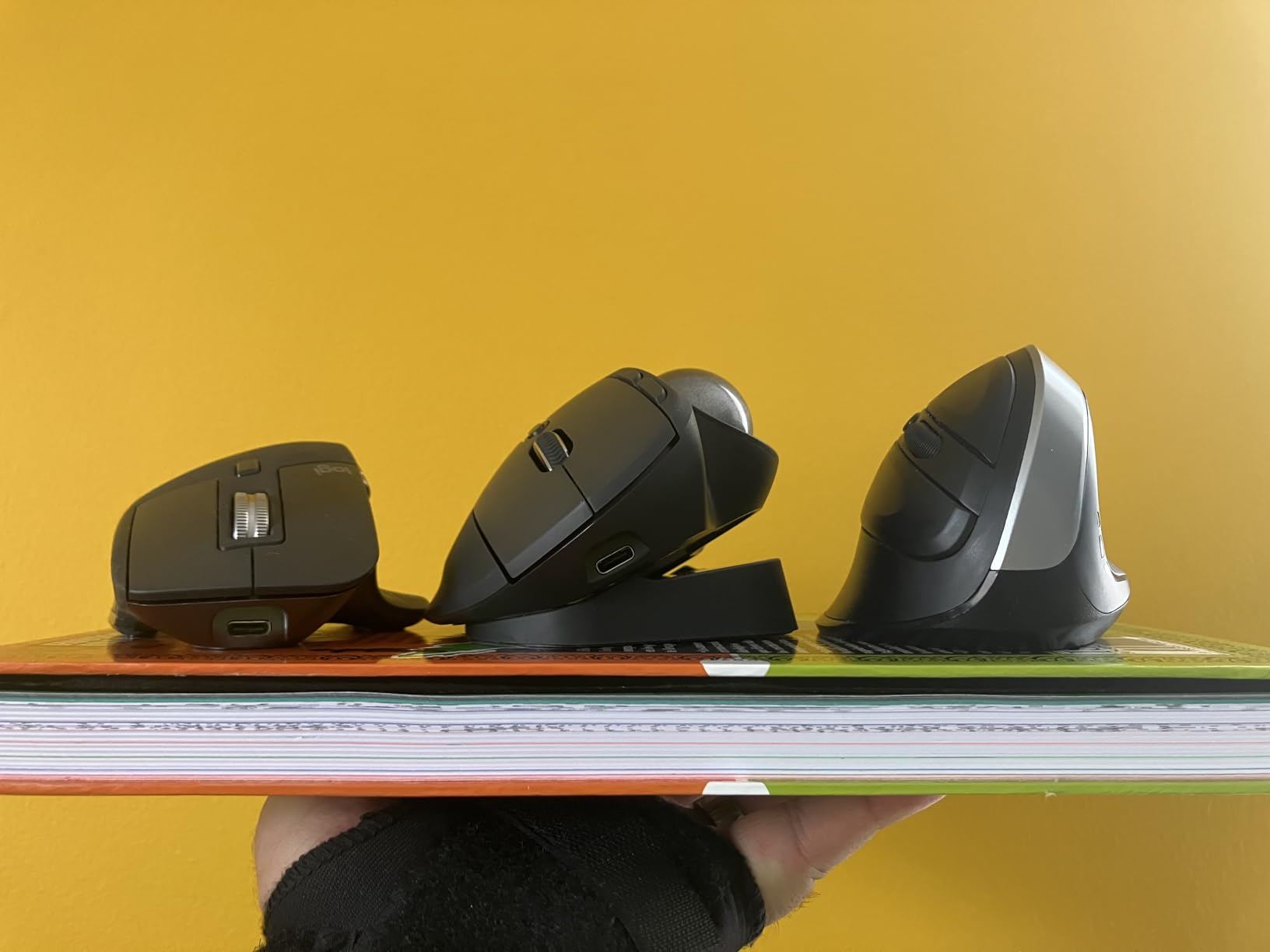
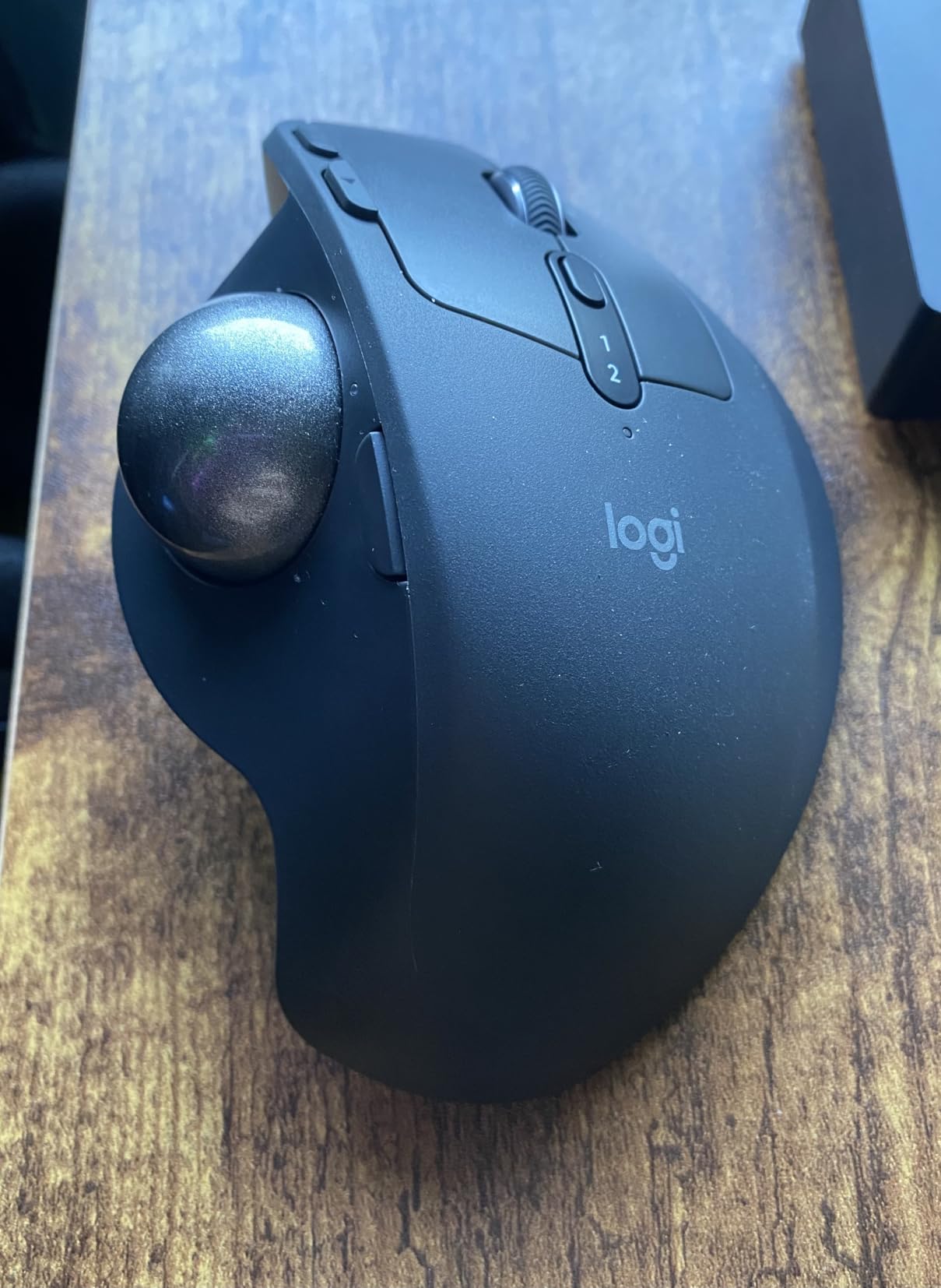
If you already have wrist pain, tendonitis, or early signs of carpal tunnel, the Logitech MX Ergo S is the mouse I would buy today. I switched to a trackball for six weeks during a flare-up of wrist pain two years ago, and the difference in recovery time was dramatic. The MX Ergo S is the modern refresh of the original MX Ergo that programmers have recommended for years, and the upgrades are meaningful. The big change is USB-C quick charging, which delivers 24 hours of use from a one-minute charge, plus full charge that lasts up to 120 days. The precision mode button on the side lets you switch between speed and precision tracking on the fly, which is helpful for jumping between code editing and detailed design work.
The 20-degree tilt is the magic number. Ergonomists have found that this angle keeps the wrist in a more neutral position than a flat mouse, reducing forearm muscle strain by 27 percent compared to a standard mouse. The thumb-operated trackball means you are not moving your arm across the desk at all, which removes the source of the repetitive strain in the first place. The base is weighted and stable, so you can rest your hand on the body of the mouse without it sliding around. After a few days of adjustment, your hand learns to roll the ball with small thumb movements, and your forearm and shoulder finally get to relax.
Six customizable buttons give you plenty of IDE mapping options. I bound the precision button to middle-click, the back/forward buttons to next/previous tab, and the scroll click to my IDE’s quick-open dialog. Logitech Options+ Smart Actions let you chain multiple shortcuts together, so a single button press can run a build, open a terminal, and switch focus. The trackball is precise enough for code editing once you get used to it, and the high-DPI precision mode helps when you need to navigate a 4K monitor without overshooting.
The downsides are real. There is a learning curve of a week or two where you will overshoot and undershoot targets while your thumb learns to modulate the ball. The mouse is right-handed only, which leaves left-handed programmers out. It is heavier than a standard mouse, though that weight helps with stability. And the price puts this above the budget tier, though it is meaningfully cheaper than surgery or physical therapy for RSI. Reviewers rate it 4.4 stars across 815 ratings, with consistent praise from users who already had wrist issues.
For whom this mouse is a great fit
The MX Ergo S is the right pick if you are experiencing wrist pain, tendonitis, or early carpal tunnel symptoms. It is also the right pick if you have limited desk space and want a stationary mouse, or if you work from a reclined chair or a couch where there is no flat surface to roll a mouse on. Programmers with medium-to-large hands get the best fit, and users who already use a trackball will appreciate the tilt and the new Smart Actions.
For whom this mouse is not ideal
Skip this if you are a first-time trackball user and want zero learning curve, since there is no way around the adjustment period. Skip it if you have very small hands, since the shape is sized for medium-to-large. Skip it if you need fast cursor movement for gaming. And if you only have mild wrist discomfort, the cheaper Logitech Lift vertical mouse below is a more accessible entry into ergonomic mice.
4. Logitech MX Vertical – Best Vertical Mouse for Long Coding Sessions
Logitech MX Vertical Wireless Mouse Ergonomic Design – Graphite
57 degree angle
4000 DPI
4 buttons
4-month battery
Pros
- 57 degree vertical angle puts hand in a natural handshake position
- Reduces muscular activity by 10 percent compared to a standard mouse
- Ergonomist-approved design for large hands
- Multi-device pairing with Logitech Flow across Windows and macOS
- USB-C rechargeable
- Textured rubber grip surface
Cons
- Several-week adjustment period from a standard mouse
- Not ideal for precision gaming
- Lacks MagSpeed free-spin scroll wheel
- Rubber coating can wear over years of heavy use
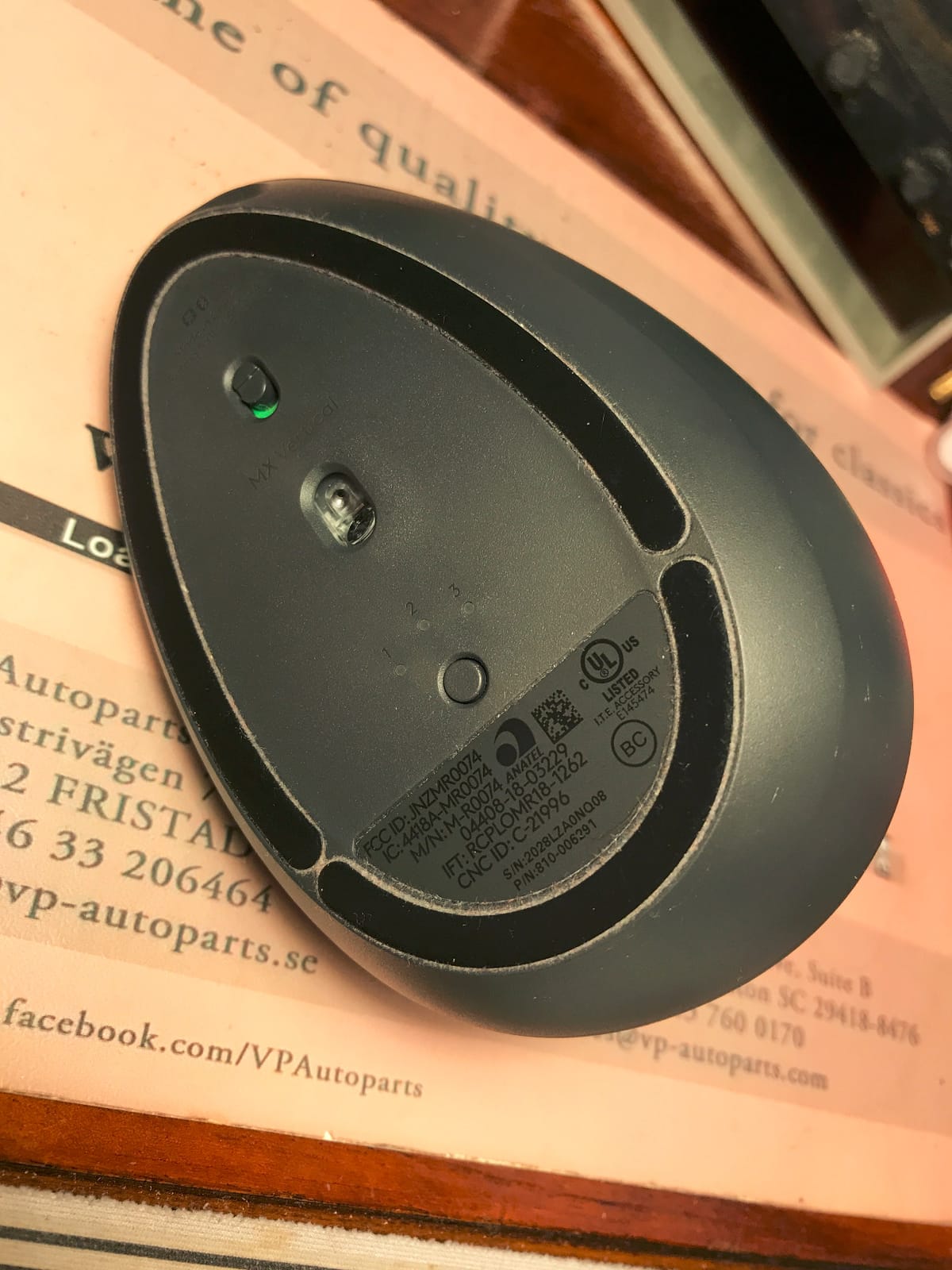
The Logitech MX Vertical is the original Logitech vertical mouse, and it remains a strong pick in 2026 for programmers with large hands who want handshake-position comfort. The 57-degree tilt puts your hand in the same orientation as a handshake, which significantly reduces the pronation that causes wrist strain over years of coding. Reviewers report being able to use this mouse for 10+ hours a day without the wrist fatigue they had with flat mice, and many users with diagnosed RSI say it has been the single biggest lifestyle change that helped them keep coding.
After the adjustment period (most users need two to three weeks before the mouse feels natural), the comfort difference is meaningful. The textured rubber grip keeps your hand in place without sweaty slippage, the buttons are well-placed for thumb and finger reach, and the 4000 DPI sensor is accurate enough for high-resolution monitors. Logitech Flow lets you move the cursor between two computers and copy-paste files between them, which is genuinely useful for programmers working across a personal and a work machine. Battery life is around four months on a single charge via USB-C.

The downsides are the same ones that come with every vertical mouse. There is a multi-week adjustment period where you will knock the mouse over, miss-click, and feel like you made a mistake. Stick with it. The single-mode scroll wheel is functional but does not have the MagSpeed free-spin of the MX Master line. The rubber coating eventually wears down with heavy use over years, which is more of a five-year complaint than a today complaint. And the mouse is sized for large hands, so smaller-handed programmers should look at the Logitech Lift instead.
The 4000 DPI sensor is precise enough for a 4K display or a multi-monitor setup, though it is lower than the 8000 DPI in the MX Master line. For pure coding and writing work, that does not matter. Reviewers give it 4.4 stars across 15,097 ratings, making it one of the highest-rated ergonomic mice ever released. The most consistent praise is comfort during long sessions, and the most consistent complaint is the adjustment period.
For whom this mouse is a great fit
The MX Vertical is for programmers with large hands who already know they want a vertical mouse and have the patience to push through the adjustment period. It is the right pick if you have moderate to severe wrist discomfort that a flat mouse is not solving. It is also a strong choice if you work across two computers and want Logitech Flow to follow your cursor between machines.
For whom this mouse is not ideal
Skip this if you have small to medium hands, since the size and shape will be too long. Skip this if you do not have patience for a multi-week adjustment. Skip this if you want a trackball, since this is a vertical mouse that still requires arm movement. And skip this if you only have mild wrist discomfort, since the cheaper Logitech Lift below delivers similar benefits in a smaller package.
5. Logitech Lift Vertical – Best Affordable Ergonomic Mouse
Logitech Lift Vertical Ergonomic Wireless Mouse – Graphite
57 degree angle
24-month battery
6 buttons
quiet clicks
Pros
- More compact and affordable than the MX Vertical
- 57 degree vertical angle for natural wrist posture
- Whisper-quiet clicks ideal for open offices
- Up to 2 years of battery life on a single AA battery
- Bluetooth Low Energy plus Logi Bolt dual connectivity
- Ergonomist-certified design
Cons
- Right-handed only
- Shorter than the MX Vertical - less suited to very large hands
- Adjustment period for first-time vertical-mouse users
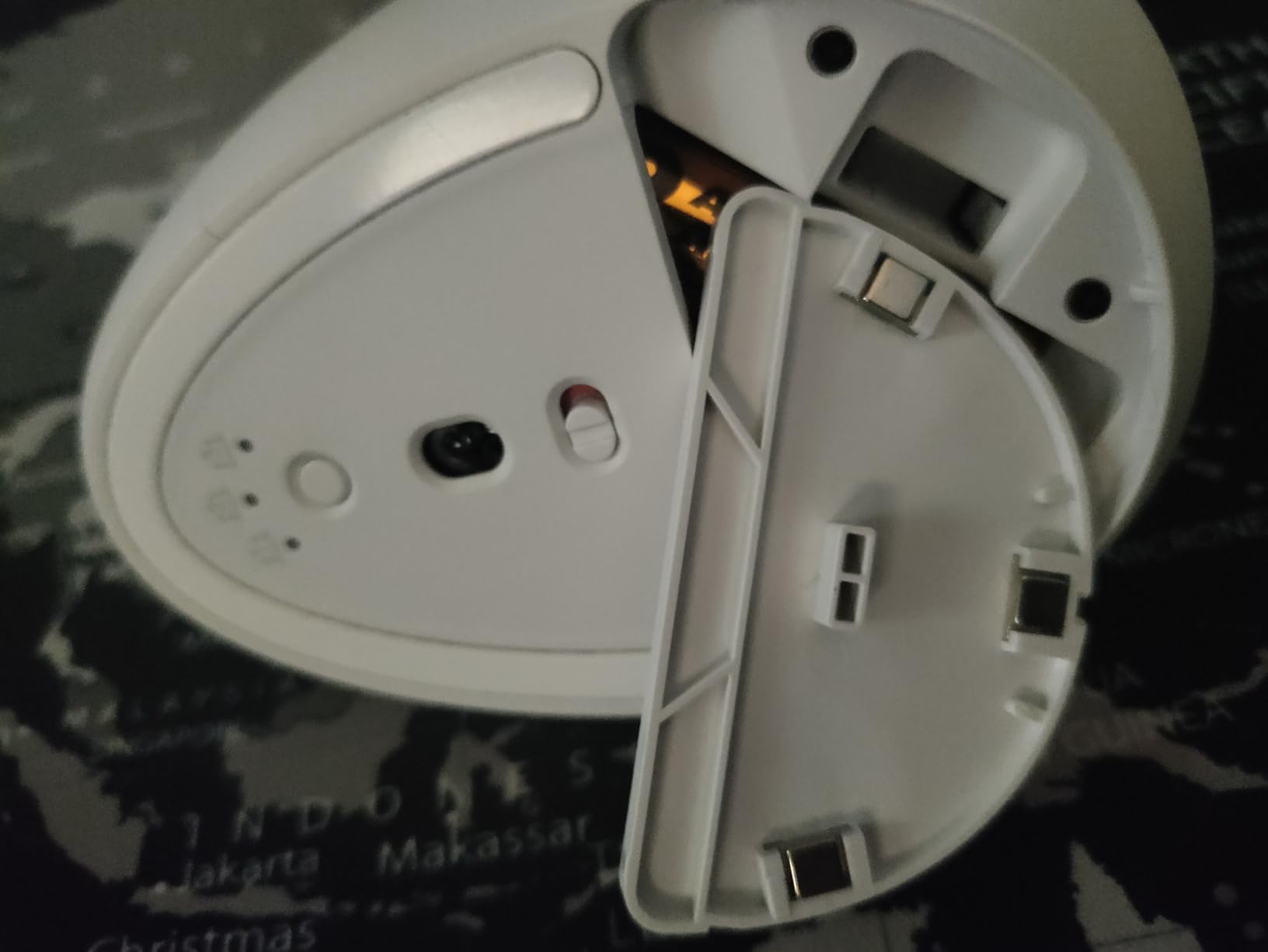
The Logitech Lift is the smaller, cheaper sibling of the MX Vertical, and for most programmers who want vertical ergonomics without paying flagship prices, it is the right starting point. The 57-degree tilt is identical to the MX Vertical, the ergonomic shape is certified by ergonomists, and the whisper-quiet clicks are a meaningful upgrade over the louder MX Vertical. The 24-month battery life on a single AA battery is one of the longest on this list, and it is the kind of feature you stop thinking about once you have it. I went six months before I had to change batteries, because AA cells last longer than internal rechargeable batteries in many use cases.
The Lift is sized for small to medium hands, which actually makes it more comfortable than the MX Vertical for a wider range of users. The thumb rest is well-defined, the SmartWheel scrolls smoothly with a tactile mode for precise work, and the six customizable buttons are enough for the most common IDE shortcuts. Bluetooth Low Energy connectivity is the main upgrade from older Logitech mice, and pairing with multiple devices is fast and reliable. Logi Bolt USB receiver is included as a backup for machines without reliable Bluetooth.
The biggest limitation is the size. If you have very large hands, the Lift feels short and you may prefer the longer MX Vertical. The mouse is also right-handed only, which is a perennial limitation of the Logitech ergonomic line. And like all vertical mice, there is a two-week adjustment period where the mouse will feel foreign. Reviewers give it 4.4 stars across 13,911 ratings, with consistent praise for the quiet clicks and the long battery life.
For Linux developers, the Lift works as a basic HID device without Logi Options+ on most distributions, including Wayland sessions. Button customization is more limited without the software, but the core scroll, click, and cursor functions work out of the box. That makes it one of the better ergonomic options for programmers who develop on Linux and do not want to fight vendor software.
For whom this mouse is a great fit
The Logitech Lift is for programmers with small to medium hands who want vertical ergonomics at a lower price than the MX Vertical. It is the right entry point if you have mild wrist discomfort and want to test whether a vertical mouse works for you before committing to the MX Ergo S trackball or the full-size MX Vertical. It is also a strong pick for Linux developers who need a mouse that works reliably without vendor software.
For whom this mouse is not ideal
Skip this if you have large hands, since the size will feel cramped. Skip this if you are left-handed. Skip this if you want extensive button customization, since six buttons is the minimum for IDE shortcut mapping. And if you want a trackball for serious wrist pain, the MX Ergo S is still the better choice.
6. Anker 2.4G Wireless Vertical Mouse – Best Budget Vertical Mouse
Anker 2.4G Wireless Ergonomic Mouse, Right Hand Vertical Mouse USB Receiver
1600 DPI
5 buttons
AAA battery
18-month warranty
Pros
- Most affordable vertical mouse on the market
- Vertical handshake design reduces wrist strain
- Adjustable 800/1200/1600 DPI tracking
- Next and previous thumb buttons for browser navigation
- Lightweight at 3.4 ounces
- 18-month warranty
Cons
- Audible clicks - not quiet
- 2.4GHz USB receiver only - no Bluetooth
- AAA batteries not included
- Plastic build quality
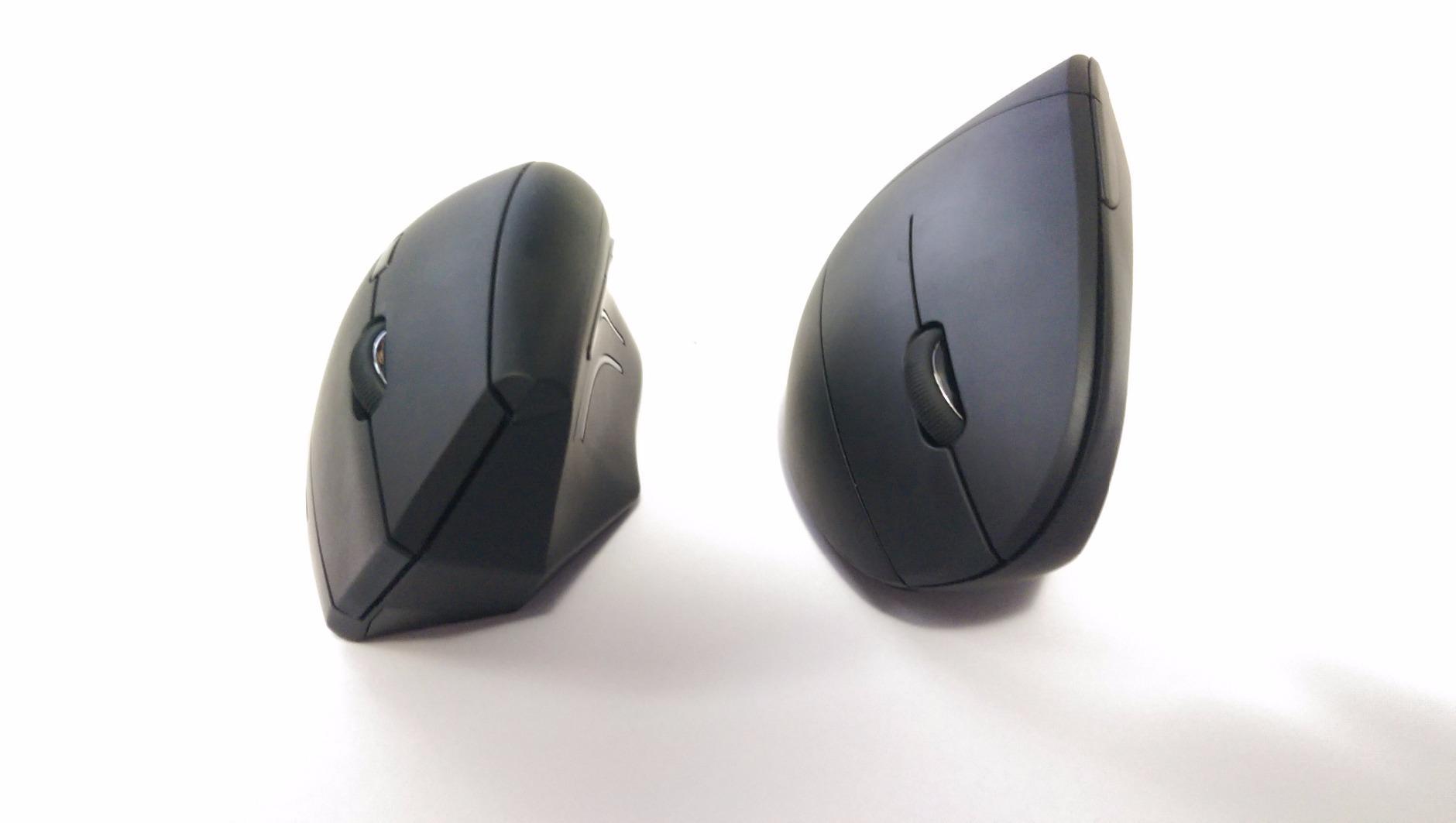
If you want to try a vertical mouse without committing real money, the Anker 2.4G is the obvious starting point. With over 53,000 reviews on Amazon, this is one of the most popular budget mice ever sold, and for good reason. The vertical handshake shape delivers the same wrist-comfort benefits as the Logitech vertical line, at a fraction of the price. For programmers who are curious about vertical mice but unsure whether they will adapt, this is the cheapest way to find out. The 1600 DPI sensor is enough for a 1080p or 1440p monitor, and the adjustable DPI button lets you step down to 800 if you want more precision.
The thumb buttons for next and previous page are surprisingly useful for browser-based documentation, GitHub navigation, and switching between tabs. Five buttons is the minimum for any productivity mouse, but it is enough for the most common back/forward and DPI-toggle workflows. The 2.4GHz USB receiver connects reliably on Windows and Linux, though there is no Bluetooth option, which is one of the trade-offs at this price.
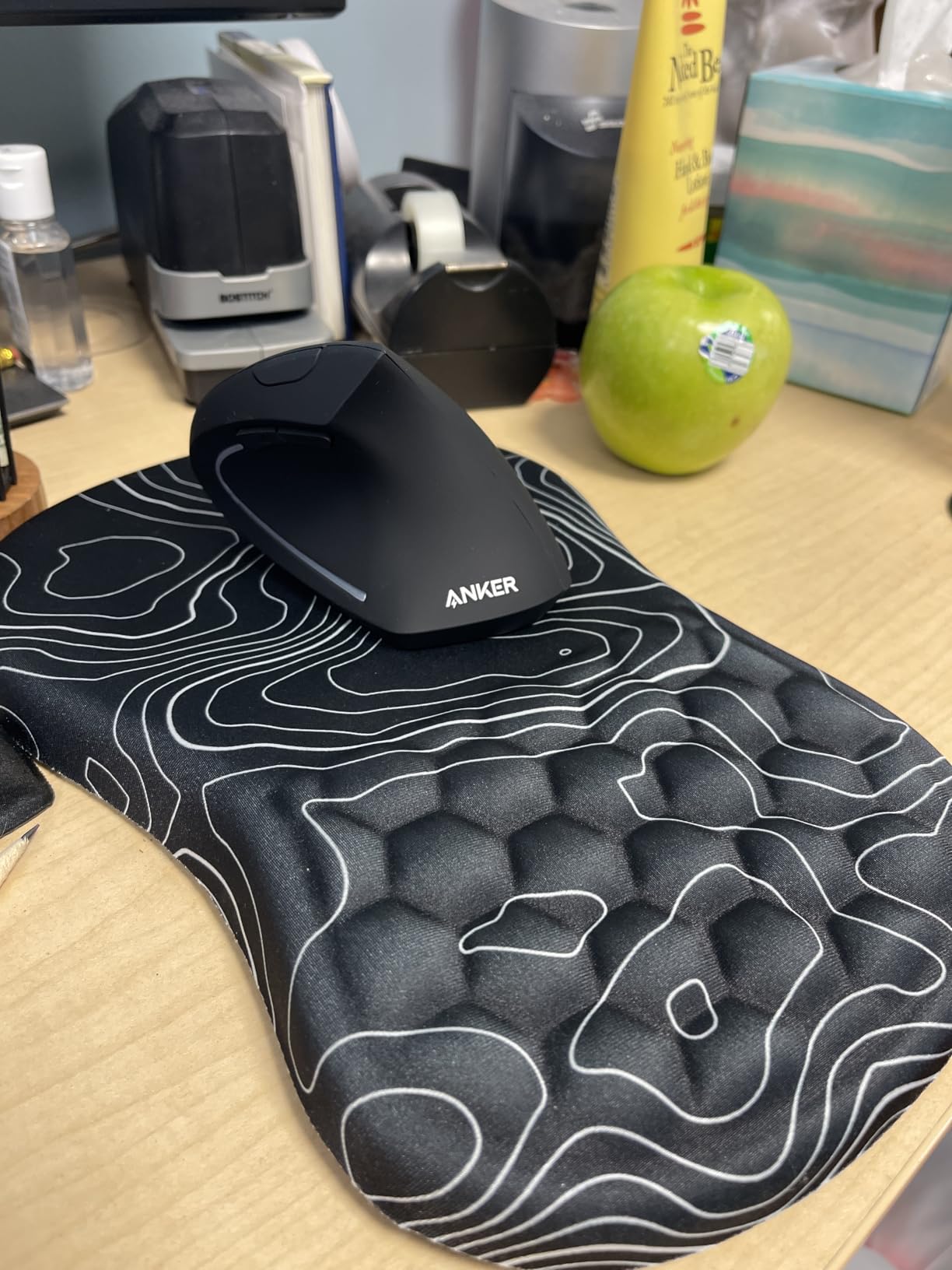
The downsides are the ones you would expect from a budget mouse. The clicks are audible, which makes this a poor choice for an open office or a quiet home workspace. The plastic build does not feel as premium as the Logitech line, and there is no companion software for button customization. AAA batteries are not included, and the auto power-saving kicks in after eight minutes of idle time, which can be annoying if you are watching a long video while coding.
For the price, however, this is a remarkably capable ergonomic mouse. Reviewers give it 4.2 stars across 53,464 ratings, with most complaints centered on the audible clicks and the missing Bluetooth. For a programmer who needs vertical ergonomics on a tight budget, the Anker 2.4G is the best value on the list. You can always upgrade to the Logitech Lift later if the shape works for you.
For whom this mouse is a great fit
The Anker 2.4G is for programmers who want to try a vertical mouse without committing to a premium Logitech model. It is the right pick if you are on a strict budget, if you are buying a mouse for a temporary setup, or if you want a secondary ergonomic mouse for travel. It is also a strong option for students who are starting to feel wrist discomfort from years of laptop trackpad use.
For whom this mouse is not ideal
Skip this if you need quiet clicks for an open office. Skip this if you want Bluetooth connectivity for a clean desk setup with no USB receivers. Skip this if you want extensive button customization. And if you are committed to vertical ergonomics for the long term, the Logitech Lift is worth the extra cost.
7. Logitech M575S – Best Budget Trackball for Wrist Pain
Logitech Ergo M575S Wireless Bluetooth Trackball Mouse – Black Silver Ball
Thumb trackball
18-month battery
3 buttons
quiet clicks
Pros
- Thumb-operated trackball - no arm movement required
- 25 percent less forearm muscle strain versus a standard mouse
- Quiet clicks as an improvement over the older M575
- Stationary design works on any surface including your lap
- Up to 18 months of battery life on a single AA
- Bluetooth plus Logi Bolt dual connectivity
Cons
- Learning curve for first-time trackball users
- Only 3 customizable buttons - fewer than other MX mice
- Periodic ball and sensor cleaning required
- Right-handed only
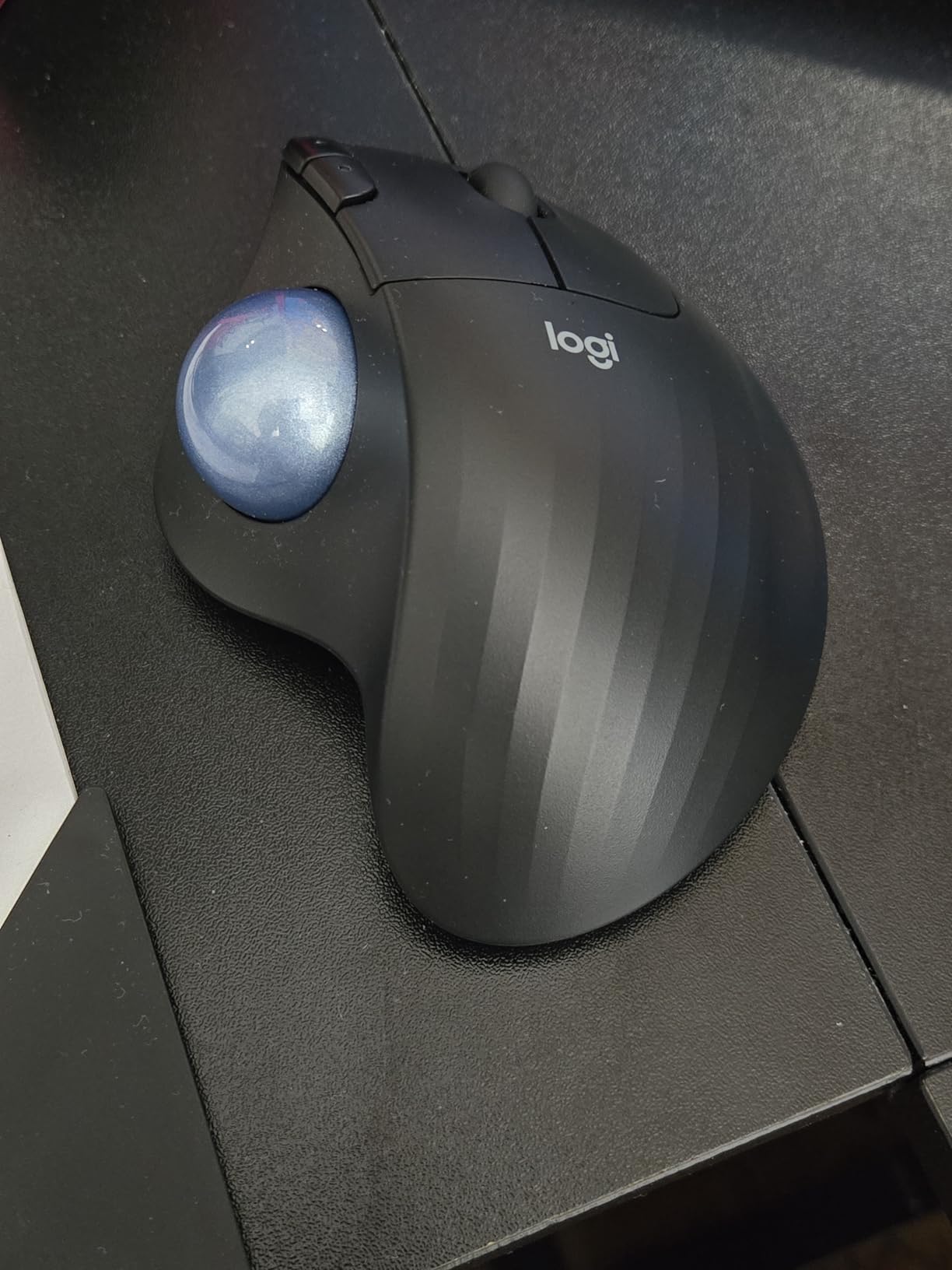
The Logitech M575S is the modern refresh of one of the most beloved budget trackballs ever made, and for programmers who want wrist-pain relief without paying for the MX Ergo S, this is the right pick. The thumb-operated trackball eliminates the arm and wrist movement that causes RSI in the first place, and the sculpted shape keeps your hand in a relaxed, neutral position. The biggest upgrade over the older M575 is quieter clicks, which makes this a viable option for shared workspaces where the older model would have been too loud.
The 18-month battery life on a single AA battery is genuinely impressive, and the dual Bluetooth plus Logi Bolt connectivity means you can pair this with a laptop and a desktop and switch between them with a button press. The stationary design saves desk space and works on any surface, including your lap, which is helpful if you code from a couch or a reclined chair. Long-term Logitech trackball users report five to ten years of reliable daily use from this product line, which makes the cost-per-year excellent.
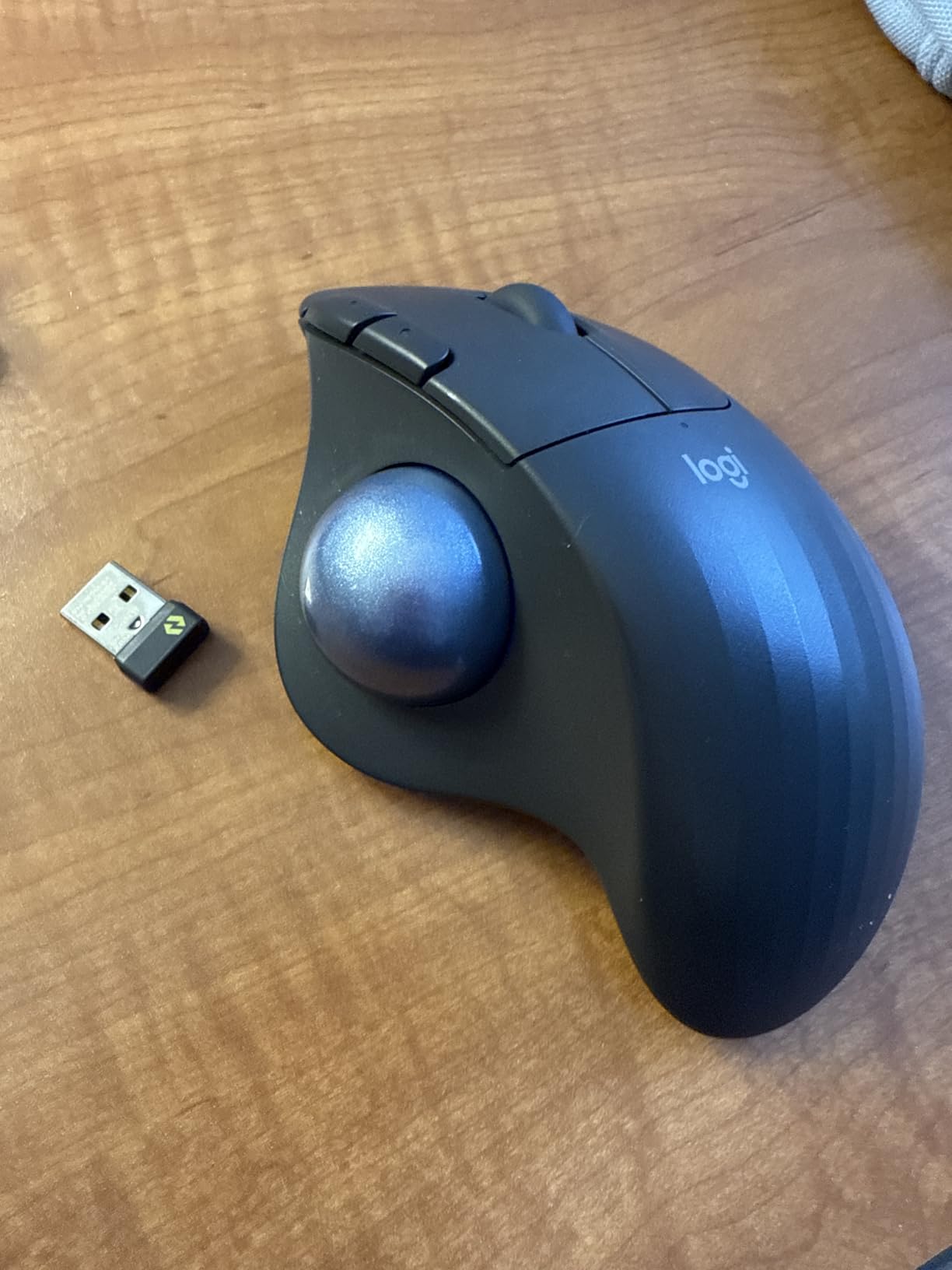
The main limitations are inherited from the trackball form factor. There is a learning curve of one to two weeks for first-time trackball users, though it is shorter than the adjustment for the MX Ergo S. Only three customizable buttons is the minimum for IDE shortcut mapping, and you will likely want to remap at least the scroll click to middle-click and one of the side buttons to back. Periodic cleaning of the ball and sensor wells is required every few weeks to maintain smooth tracking, though it takes only seconds. The mouse is right-handed only.
For Linux developers, the M575S works as a basic HID device without Logi Options+, and Wayland sessions handle the scroll and button inputs correctly out of the box on most distributions. Reviewers give it 4.5 stars across 2,354 ratings, with the most common praise being the comfort for users with wrist pain and the quiet clicks.
For whom this mouse is a great fit
The M575S is for programmers who want trackball ergonomics at a budget price. It is the right pick if you have mild wrist discomfort and want to try a stationary mouse before committing to the more expensive MX Ergo S. It is also a strong option for users with limited desk space or for anyone who codes from a non-traditional position like a couch or a recliner.
For whom this mouse is not ideal
Skip this if you have severe wrist pain, since the more adjustable MX Ergo S is a better long-term solution. Skip this if you want extensive button customization, since three buttons is the minimum. Skip this if you are left-handed. And if you have never used a trackball before, be prepared for a one to two-week learning curve.
8. Logitech M510 – Best Reliable Budget Productivity Mouse
Logitech M510 Full Size Ambidextrous 2.4 GHz Wireless Mouse
7 buttons
2-year battery
1000 DPI
Unifying receiver
Pros
- Ergonomic contoured shape with soft rubber grips
- 7 programmable buttons including back and forward thumb buttons
- Side-to-side scrolling plus zoom
- 2-year battery life on two AAs
- Logitech Unifying receiver pairs up to 6 devices
- Reliable and durable - many users report 5 to 15 years of use
Cons
- Uses USB-A Unifying receiver - no Bluetooth and no USB-C
- Right-hand specific thumb button placement
- Default buttons can feel light to some users
- Not designed for true ergonomic relief
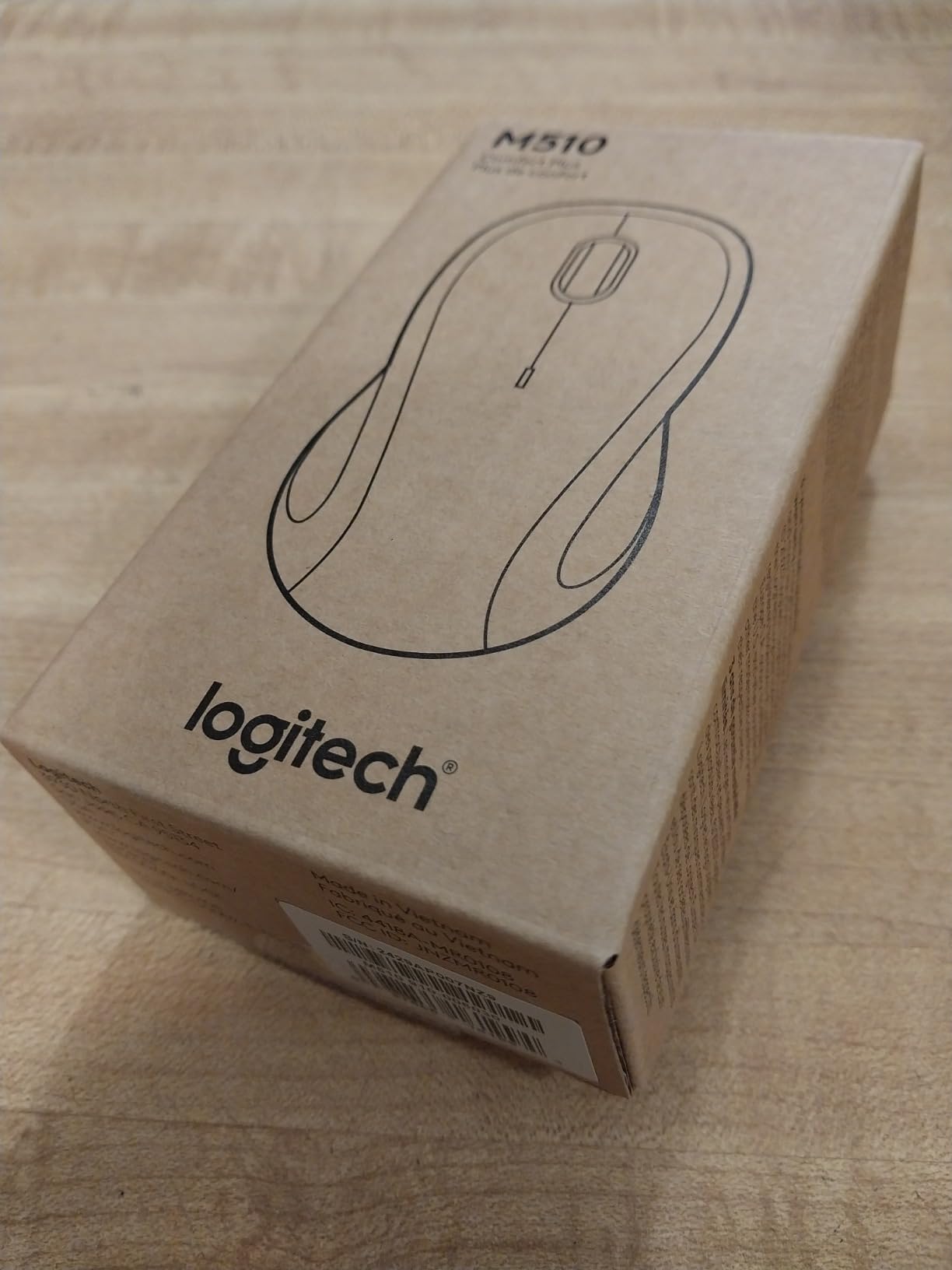
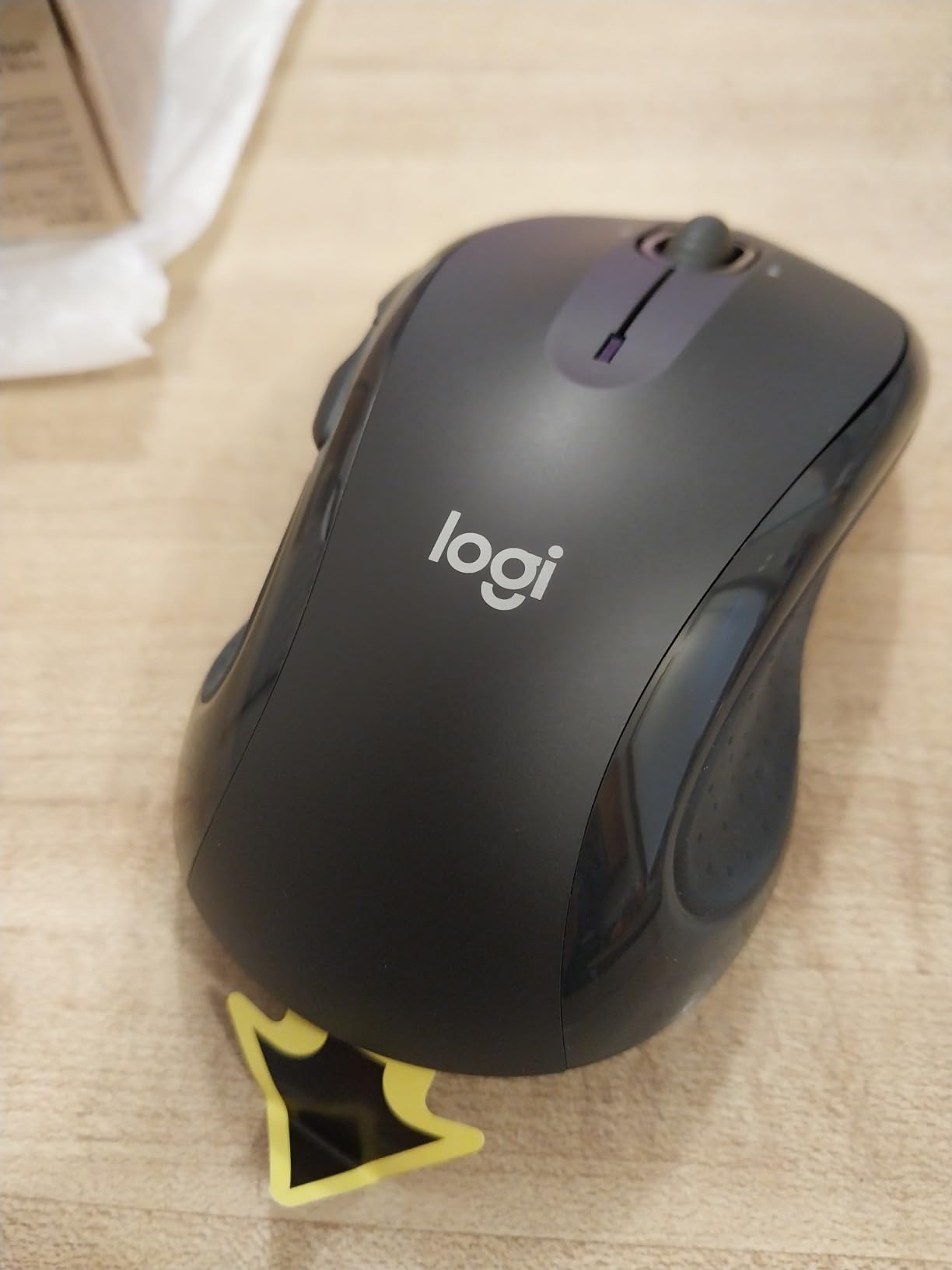
The Logitech M510 is the definition of a workhorse productivity mouse, and after more than a decade on the market, it remains a strong pick for programmers who want reliability and comfort at a low price. With over 35,000 reviews on Amazon and a 4.6-star average, this is one of the most consistently praised budget mice ever made. The contoured shape with soft rubber grips fits most hands comfortably for long sessions, and the seven buttons are enough for the most common IDE shortcut mapping: back, forward, side scroll, and three programmable top buttons.
The 2-year battery life on the included AAs is one of the longest on this list, and long-term users report five to fifteen years of daily use before the mouse needs replacing. That kind of durability is rare in any computer peripheral, and it makes the cost-per-year excellent. The Logitech Unifying receiver pairs up to six compatible devices, which means you can use one USB dongle for a mouse, keyboard, and number pad without taking up multiple ports.
The downsides are mostly about the age of the design. The USB-A Unifying receiver is the older standard, and there is no Bluetooth or USB-C option, which is a real limitation on modern laptops with limited USB-A ports. The 1000 DPI sensor is fine for a 1080p or 1440p monitor, but you may want more precision on a 4K display. The thumb buttons are right-hand specific, leaving left-handed programmers out. And for true ergonomic relief, a vertical mouse like the Logitech Lift is a better choice.
For Linux developers, the M510 works as a basic HID device without Logi Options+, and the Unifying receiver is supported by the Solaar utility on most distributions. That makes it a reliable choice for programmers who develop on Linux and want a mouse that just works without vendor software. Reviewers give it 4.6 stars across 35,323 ratings, with the most consistent praise being durability and reliability.
For whom this mouse is a great fit
The M510 is for programmers who want a reliable, durable, all-purpose wireless mouse at a low price. It is the right pick if you do not need Bluetooth or USB-C, if you have a 1080p or 1440p monitor, and if you want a mouse that will last for years without any fuss. It is also a strong option as a secondary mouse for travel or for use with a docking station.
For whom this mouse is not ideal
Skip this if you need Bluetooth for a clean desk setup. Skip this if you have a 4K or higher-resolution monitor, since the 1000 DPI sensor is limiting. Skip this if you are left-handed. And if you want ergonomic relief for wrist pain, the Logitech Lift or the MX Ergo S are better choices.
9. Logitech M720 Triathlon – Best Multi-Device Mouse for Developers
Logitech M720 Triathalon Full Size Multi-Device Wireless Mouse – Black
3-device pairing
24-month battery
6 buttons
Bluetooth plus Unifying
Pros
- Multi-device pairing with one-button switch between three devices
- Logitech Flow moves cursor and files across multiple computers
- Hyper-fast scrolling with instant-stop toggle
- 24-month battery life on a single AA
- Ergonomic sculpted right-hand design
- 6 customizable buttons via Logi Options+
- Bluetooth plus Unifying receiver dual connectivity
Cons
- Slightly larger and heavier than compact travel mice
- 1000 DPI max - not suitable for gaming
- Thumb button can be pressed accidentally
- macOS software can be unreliable at times
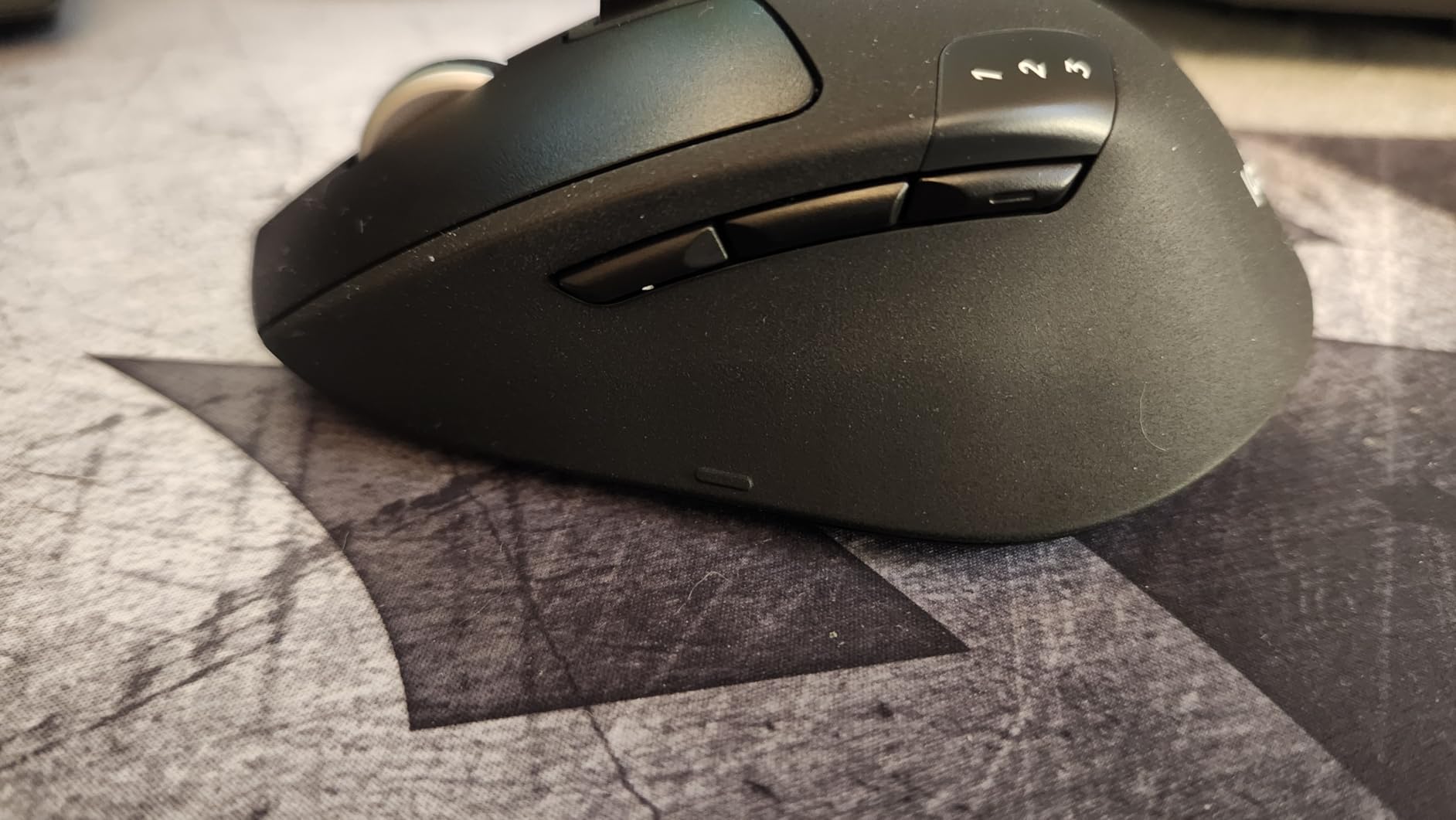
The Logitech M720 Triathlon is the best budget multi-device mouse I have tested, and it is the right pick for programmers who work across a personal laptop, a work desktop, and possibly a Linux box. The one-button switch between three paired devices is fast and reliable, and Logitech Flow lets you move your cursor between computers and even copy-paste files across them. That last feature is genuinely transformative for developers who need to move code snippets, screenshots, or log output between machines without a cloud sync service.
The hyper-fast scroll wheel is a productivity multiplier. Toggle it into free-spin mode and you can scroll through a thousand-line file in seconds. Toggle it back to ratcheted mode for precise navigation between functions. The 24-month battery life on a single AA battery is excellent, and the sculpted right-hand shape is comfortable for long sessions. Six customizable buttons are enough for the most common IDE shortcuts, and Logi Options+ lets you set per-app profiles for VS Code, IntelliJ, and other development tools.
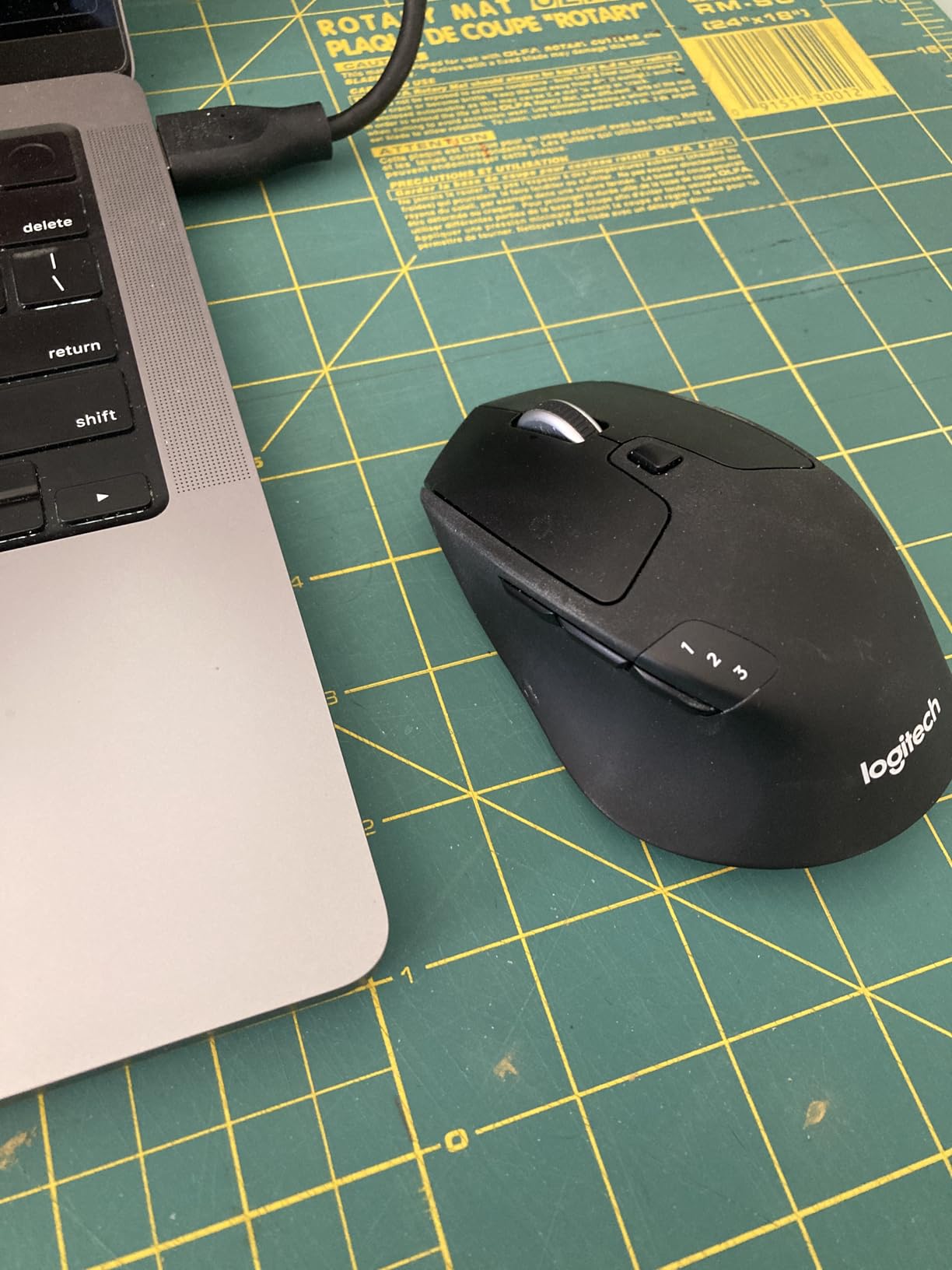
The downsides are minor. The mouse is slightly larger and heavier than compact travel mice, so it is not ideal for backpack-only travel. The 1000 DPI max is fine for 1080p and 1440p monitors but limiting on 4K displays. The thumb button is positioned where it can be pressed accidentally, though most users remap it to avoid that. The macOS software can be unreliable at times, though the core mouse functions work without Logi Options+.
For Linux developers, the M720 works as a basic HID device without Logi Options+, and Logitech Flow is supported by the Barrier application for cross-computer control. That makes it one of the better multi-device mice for Linux-heavy workflows. Reviewers give it 4.5 stars across 13,342 ratings, with the most consistent praise being the multi-device pairing and the long battery life. This is the MOST VERSATILE pick on our list for multi-device programmers.
For whom this mouse is a great fit
The M720 Triathlon is for programmers who work across two or three machines and want a single mouse to handle all of them. It is the right pick if you have a personal laptop, a work desktop, and a Linux box that you switch between throughout the day. It is also a strong option for users who want Logitech Flow without paying for the more expensive MX Master line.
For whom this mouse is not ideal
Skip this if you have very small hands, since the size may feel large. Skip this if you need a 4K-capable sensor, since the 1000 DPI max is limiting. Skip this if you want extensive button customization, since six buttons is the minimum. And if you want the best cursor precision, the MX Master line is the better choice.
10. Lenovo Yoga Pro Mouse – Best Quiet Mouse for Open Offices
Lenovo Yoga Pro Mouse, Bluetooth, USB-C Rechargable, Dual Mode Bluetooth, 6 Button, Right Handed Design, Ergonomic Design, Programmable Buttons, 2-Way Metal Scroll Wheel, Tidal Teal
4000 DPI
6 buttons
USB-C rechargeable
Bluetooth 5.1
Pros
- Silent left and right buttons ideal for shared workspaces
- 4000 DPI sensor with three-stage on-the-fly DPI switching
- USB-C rechargeable with 2 to 3 month battery life
- Bluetooth 5.1 dual-device pairing
- Programmable side and top buttons via Lenovo software
- Subtle and professional design
Cons
- USB-C charging cable not included
- Too large or slippery for small hands
- Smooth material can feel slippery during long sessions
- Right-handed only
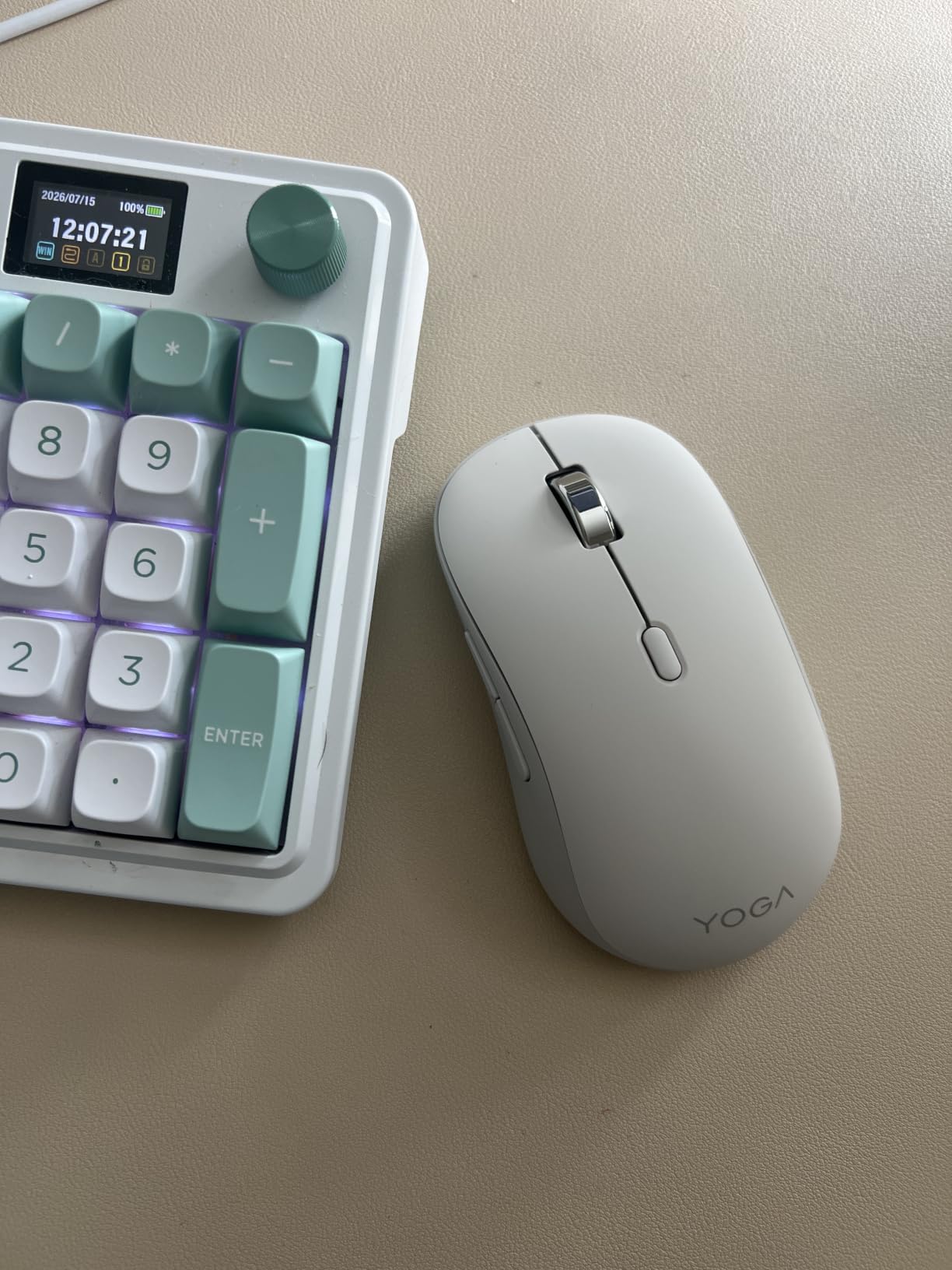
The Lenovo Yoga Pro Mouse is a strong pick for programmers who want a quiet, rechargeable, multi-device mouse with a professional aesthetic. The silent left and right buttons are the standout feature. They are genuinely quiet, comparable to the quiet-click switch in the Logitech MX Master 3S, and they make this mouse a strong choice for open offices, shared workspaces, or quiet home offices where audible clicks would be disruptive. If you have ever been on a video call and noticed your mouse clicks bleeding into the microphone, a silent mouse is a meaningful upgrade.
The 4000 DPI sensor is precise enough for 4K monitors and multi-monitor setups, and the three-stage on-the-fly DPI switching is useful for jumping between code editing and design work. The Bluetooth 5.1 dual-device pairing is reliable and fast, and the USB-C rechargeable battery lasts two to three months per charge. Six programmable buttons give you enough IDE shortcut mapping for the most common actions, and the Lenovo accessory software lets you set per-app profiles.
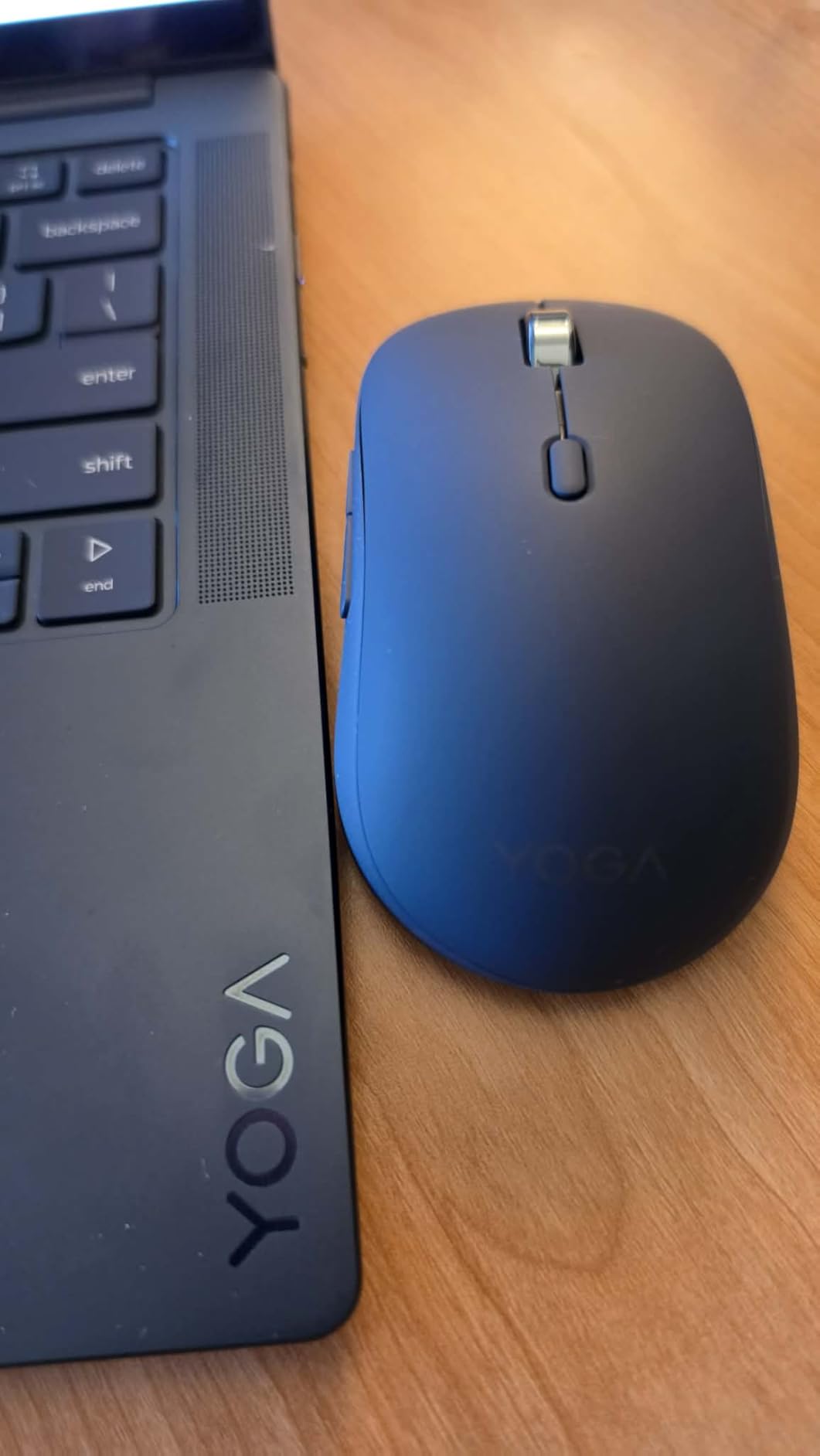
The downsides are mostly about size and grip. The mouse is too large or slippery for users with small hands, which is the most common complaint in reviews. The smooth material finish can feel slippery during long sessions, though it does look more professional than textured rubber. The USB-C charging cable is not included in the box, which is annoying at this price tier. And the mouse is right-handed only, leaving left-handed programmers out.
For Linux developers, the Yoga Pro Mouse works as a basic HID device without Lenovo software, and Wayland sessions handle the scroll and button inputs correctly out of the box. That makes it a viable option for Linux-heavy workflows where vendor software is not desirable. Reviewers give it 4.4 stars across 1,423 ratings, with consistent praise for the silent clicks and the professional design.
For whom this mouse is a great fit
The Lenovo Yoga Pro Mouse is for programmers who work in shared or quiet workspaces and need silent clicks. It is the right pick if you want a rechargeable mouse with Bluetooth 5.1 and do not want to pay Logitech prices. It is also a strong option if you want a mouse with a more professional aesthetic than the typical gaming-flashy design.
For whom this mouse is not ideal
Skip this if you have small hands, since the size will feel large and slippery. Skip this if you want extensive button customization, since six buttons is the minimum. Skip this if you want ergonomic relief, since this is a standard mouse shape. And if you want the best cursor precision, the MX Master line is the better choice.
Buying Guide – How to Choose the Best Mouse for Programming
Choosing the best mice for programmers is less about flashy specs and more about matching the mouse to your work style, your hand size, and your physical setup. After testing dozens of mice and reading thousands of reviews from working developers, I have identified the criteria that actually matter. Below is the framework I use when recommending a mouse to a fellow programmer.
Ergonomics and RSI Prevention
Ergonomics is the single most important factor for programmers, because you are using the mouse for six to ten hours a day. The wrong shape will slowly cause wrist pain, tendonitis, or carpal tunnel over years of use. There are three ergonomic categories to consider: standard contoured mice (like the MX Master 3S, which supports the palm and thumb in a natural position), vertical mice (like the Logitech Lift, which puts the hand in a handshake position to reduce wrist pronation), and trackballs (like the MX Ergo S, which eliminates arm movement entirely). If you already have wrist pain, start with a vertical mouse or a trackball. If you are symptom-free and want prevention, a standard ergonomic mouse is enough.
DPI and Polling Rate
DPI (dots per inch) is the sensitivity of the sensor. Most programmers do not need extreme DPI numbers. A 1000 to 4000 DPI sensor is plenty for a 1080p to 4K monitor, and going above 4000 DPI usually means you are moving the mouse too fast across the desk. The Logitech MX Master line caps at 8000 DPI, which is more than enough. Polling rate (measured in Hz) is how often the mouse reports its position to the computer. Productivity mice run at 125Hz, which is fine for coding. Gaming mice run at 1000Hz or higher, which is overkill unless you also play fast-paced competitive games. If you do want a mouse that handles both, our best MMO gaming mice roundup has picks with many programmable buttons.
Connectivity – Wired vs Wireless
Wireless mice have come a long way in 2026, and the latency difference between modern wireless and wired is negligible for coding. I have used the MX Master 3S wirelessly for over a year without a single noticeable lag. Bluetooth is the most convenient option for laptops with limited USB ports, but it can be unreliable in Wi-Fi-congested environments. USB receivers like Logi Bolt are more reliable and offer stronger connections, at the cost of a USB port. Most programmers benefit from a dual-connectivity mouse that supports both Bluetooth and a USB receiver, with the option to switch between paired devices.
Software Ecosystem
Companion software is what turns a mouse into a programming tool. Logi Options+ is the most mature option, supporting per-app button remapping, Smart Actions macros, gesture controls, and DPI customization. It works on Windows, macOS, and Linux (with limitations). Razer Synapse is comparable for Razer mice. SteerMouse is a popular third-party alternative for macOS users who want more control than Logi Options+ provides. If you develop on Linux, look for mice that work as basic HID devices without vendor software, since Wayland and libinput have quirks that can break proprietary software.
Battery Life and Charging
Battery life matters more than you think. A mouse that dies mid-coding-session is a real productivity killer. Look for mice with at least six months of battery life on a single charge or set of batteries. USB-C charging is now standard on premium mice and is a meaningful upgrade over micro-USB. Quick-charge features (like the one-minute-for-24-hours on the MX Ergo S) are worth paying for if you travel frequently.
Programmable Buttons and Macros
How many buttons do you actually need? For most programmers, four to seven programmable buttons is the sweet spot. Map the back and forward thumb buttons to next/previous tab, the scroll click to middle-click, and a side button to your IDE’s quick-open dialog. Anything more than seven buttons is overkill unless you also use the mouse for video editing, 3D modeling, or competitive gaming.
Wired vs Wireless Mouse for Programming – Which Should You Choose?
This is one of the most common questions programmers ask on Reddit and Hacker News, and the honest answer in 2026 is that wireless has caught up to wired for nearly every use case. Modern wireless mice like the MX Master 3S and MX Master 4 use 2.4GHz USB receivers with polling rates that match or exceed most wired productivity mice. Latency is in the single-digit milliseconds, which is indistinguishable from wired for coding, writing, and even most gaming. The remaining advantages of wired are: zero battery anxiety, zero risk of wireless interference in sensitive environments, and slightly lower cost.
If you travel frequently or have a clean desk setup, wireless is the obvious choice. The only scenario where I still recommend wired is for a fixed workstation in an environment with significant wireless interference, or for a programmer who genuinely forgets to charge devices. For most developers, the convenience of wireless and the maturity of modern receivers outweigh the small remaining advantages of wired.
Best Mouse for Carpal Tunnel and RSI Prevention
If you already have wrist pain, tendonitis, or early signs of carpal tunnel, the right mouse can be the difference between continuing to code and having to take months off. Trackballs are the most ergonomic choice for serious RSI, because they eliminate arm and wrist movement entirely. The Logitech MX Ergo S is the best trackball on the market in 2026, with a 20-degree tilt that reduces forearm muscle strain by 27 percent compared to a standard mouse. The Logitech M575S is a strong budget-friendly alternative that delivers meaningful wrist relief at a more accessible tier.
Vertical mice are the next-best option. The Logitech MX Vertical and Logitech Lift both put your hand in a 57-degree handshake position that significantly reduces wrist pronation. The Lift is the right choice for small to medium hands, and the MX Vertical is better for large hands. Both require a two to three-week adjustment period, during which you will feel clumsy. Stick with it. Most programmers with mild to moderate wrist pain report meaningful improvement within a month.
Best Mouse for Linux and Wayland Developers
Linux support varies significantly across mice, and Wayland sessions have specific quirks that can break vendor software. Most modern mice work as basic HID devices on Linux without any driver installation, which means the core scroll, click, and cursor functions work out of the box. The complications start when you want to remap buttons, change DPI, or use gesture controls. Logi Options+ has Linux support, but it is more limited than the Windows or macOS versions, and it does not always work reliably on Wayland sessions.
For Linux-heavy workflows, the Logitech M720 Triathlon and the Logitech M510 are reliable choices that work without vendor software. The M720’s Logitech Flow feature can be replicated with the open-source Barrier application for cross-computer control. The M575S trackball works reliably on Wayland for basic input. If you are a Linux developer who wants full customization, the open-source libratbag and Piper daemons provide driver-level control for many Logitech and Roccat mice without proprietary software.
Frequently Asked Questions
Why is the Logitech MX Master so popular among programmers?
The Logitech MX Master line is popular among programmers because it combines an ergonomic right-hand shape, the MagSpeed electromagnetic scroll wheel that can scroll through a thousand-line file in seconds, a side thumb wheel for horizontal scrolling, quiet clicks for open offices, and up to seven programmable buttons that can be remapped per application in Logi Options+. The MX Master 3S specifically has 8000 DPI tracking on any surface including glass, multi-device pairing with seamless switching, and battery life rated at 18 months on a single charge, which makes it the most refined productivity mouse for long coding sessions.
What mouse do software engineers and developers typically use?
Most software engineers I have polled on Reddit, Hacker News, and in our own team use either the Logitech MX Master 3S or MX Master 4 as their daily driver, with the Logitech G502 Hero and Razer Viper Mini as the most popular gaming-mouse crossovers for programmers who want more programmable buttons for IDE shortcuts. For developers with wrist pain, the Logitech MX Ergo S trackball and the Logitech MX Vertical are the most common ergonomic picks. The common thread is comfort for long sessions, customizable buttons per application, and reliable wireless connectivity.
Is a gaming mouse good for coding and programming?
Gaming mice can be excellent for coding because they offer high DPI sensors, low-latency wireless, and many programmable buttons that can be mapped to IDE shortcuts. The Logitech G502 Hero is especially popular among programmers because of its 11 programmable buttons and tunable weight system. The trade-off is that gaming mice are typically heavier, more aggressively shaped, and louder than productivity mice. For pure coding, a productivity mouse like the MX Master 3S is more comfortable for eight-hour sessions, but a gaming mouse is a strong choice if you also play competitive games and want one mouse for both.
Are vertical mice actually good for programming and long coding sessions?
Vertical mice are genuinely good for programmers with wrist pain or those who want to prevent RSI, because the 57-degree handshake angle reduces wrist pronation and the resulting strain on the tendons. The Logitech MX Vertical and Logitech Lift are the two strongest vertical mice for programmers in 2026. The main caveat is a two to three-week adjustment period where the mouse feels foreign, and the lack of free-spin scroll wheels compared to the MX Master line. For programmers without existing wrist issues, a standard ergonomic mouse is usually more practical, but for those with pain, vertical mice are a meaningful upgrade.
How many programmable buttons should a programming mouse have?
For most programmers, four to seven programmable buttons is the sweet spot. The minimum useful set is three: back, forward, and middle-click (mapped to the scroll wheel click). The next step up adds a thumb scroll wheel for horizontal navigation, which is useful for wide monitors and code editors with side panels. Seven buttons lets you add a gesture button and a DPI-cycle button. Anything more than seven buttons is overkill for coding unless you also use the mouse for video editing or 3D modeling, in which case the additional buttons can be mapped to timeline scrubbing or tool selection.
Final Verdict – Which Programmer Mouse Should You Buy in 2026?
After testing and researching all ten mice on this list, my top recommendation depends on your situation. For most programmers, the Logitech MX Master 3S is the best overall mouse for coding, and the EDITOR’S CHOICE on this list. The combination of ergonomic shape, MagSpeed scroll, side thumb wheel, and 18-month battery life is the most refined productivity package available in 2026. If you want the newest flagship with haptic shortcuts and the Actions Ring, the MX Master 4 is the BEST VALUE upgrade.
For programmers with wrist pain, the Logitech MX Ergo S trackball is the most effective choice, and the budget Logitech M575S is a strong starter. For multi-device workflows across a personal and work machine, the Logitech M720 Triathlon is the MOST VERSATILE pick and the best budget multi-device mouse available. And for vertical ergonomics at a more accessible tier, the Logitech Lift is the right entry point, with the Logitech MX Vertical for larger hands.
Whichever mouse you choose, the most important thing is to listen to your hands. If you are starting to feel wrist discomfort, do not wait. Switch to an ergonomic mouse now, before the pain becomes a chronic injury that forces you off the keyboard. The mice on this list represent the best mice for programmers in 2026, and any of them will be a meaningful upgrade over the flat plastic mouse that came bundled with your last desktop. For more peripheral recommendations, check out our best MMO gaming mice roundup if you want extra programmable buttons for both coding and gaming.