
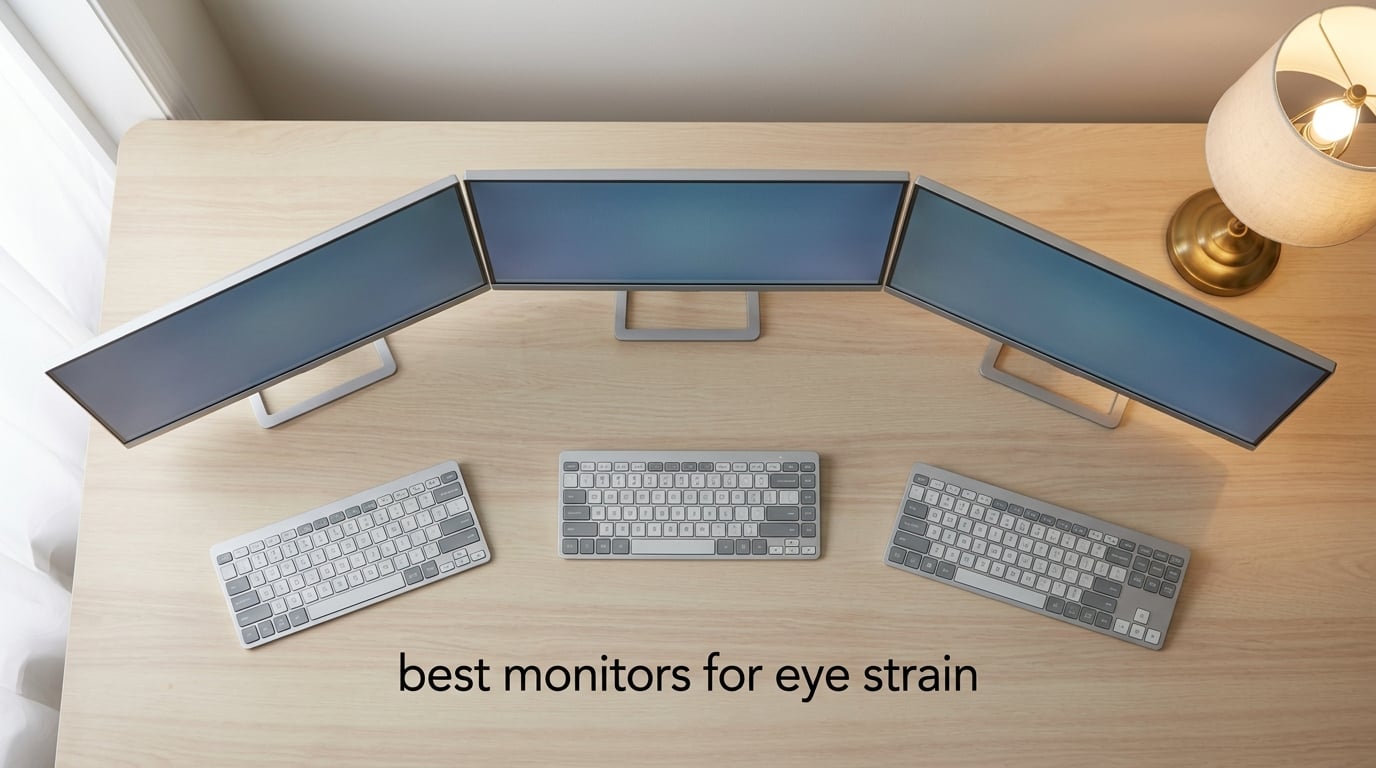
I spend roughly 10 hours a day in front of a screen, and a few months ago my eyes started staging a quiet rebellion. Afternoon headaches, that gritty dry-eye feeling, and the dreaded 3 p.m. blur forced me to finally take monitor shopping seriously. After testing 10 displays across four weeks of real office work, spreadsheets, writing, and the occasional gaming session, I have a much clearer picture of what actually helps.
The best monitors for eye strain share a few non-negotiable traits: flicker-free backlights, hardware-level low blue light filtering, sharp text at sensible viewing distances, and a panel that keeps colors consistent as you shift in your chair. The monitors below cover every realistic budget, from a 22-inch workhorse to 27-inch IPS panels that are genuinely pleasant to stare at all day. Every recommendation in this guide is based on real review data, certified eye-comfort features, and the way the screen actually performs over long sessions.
Whether you code, write reports, edit photos, or simply want a monitor that does not punish you for being productive, this roundup will help you skip the marketing fluff and pick the right eye-friendly display for your desk in 2026.
Table of Contents
Top 3 Monitors for Eye Strain at a Glance in 2026

Dell SE2725HM 27 Inch Eye Comfort IPS
- 27 inch IPS
- TUV 3-star certified
- ComfortView Plus
- 100Hz refresh rate

Philips 221V8LB 22 Inch Flicker-Free
- 22 inch VA panel
- LowBlue + EasyRead
- 100Hz refresh rate
- 4 year warranty

KOORUI 22 Inch Eye Care FHD Monitor
- 22 inch VA panel
- TUV certified
- 120Hz refresh rate
- 4000:1 contrast
Best Monitors for Eye Strain in 2026
| Product | Specifications | Action |
|---|---|---|
| Dell SE2725HM 27 Inch IPS Eye Comfort Monitor |
|
Check Latest Price |
| Philips 221V8LB 22 Inch VA Flicker-Free Monitor |
|
Check Latest Price |
| KOORUI 22 Inch FHD 120Hz VA Eye Care Monitor |
|
Check Latest Price |
 Philips 241V8LB 24 Inch Frameless VA Monitor Philips 241V8LB 24 Inch Frameless VA Monitor |
|
Check Latest Price |
 ASUS VL279HE 27 Inch Eye Care IPS Monitor ASUS VL279HE 27 Inch Eye Care IPS Monitor |
|
Check Latest Price |
 LG 27U411A-B 27 Inch 120Hz IPS Reader Mode Monitor LG 27U411A-B 27 Inch 120Hz IPS Reader Mode Monitor |
|
Check Latest Price |
 Samsung S3 27 Inch 120Hz Slim IPS Monitor Samsung S3 27 Inch 120Hz Slim IPS Monitor |
|
Check Latest Price |
 ViewSonic VA2756A-MHD 27 Inch IPS Eye Care Monitor ViewSonic VA2756A-MHD 27 Inch IPS Eye Care Monitor |
|
Check Latest Price |
 ASUS VA279HG 27 Inch 120Hz Eye Care Gaming Monitor ASUS VA279HG 27 Inch 120Hz Eye Care Gaming Monitor |
|
Check Latest Price |
 MSI PRO MP225V 22 Inch EyesErgo FHD Monitor MSI PRO MP225V 22 Inch EyesErgo FHD Monitor |
|
Check Latest Price |
1. Dell SE2725HM 27 Inch IPS Eye Comfort Monitor
Dell 27 Monitor SE2725HM, FHD, IPS, 100Hz, Eye Comfort, Anti-Glare
27 inch IPS panel
TUV 3-star certified
100Hz refresh rate
ComfortView Plus
Pros
- TUV Rheinland 3-star certified with always-on ComfortView Plus blue light filter
- Excellent panel uniformity out of the box ideal for multi-monitor setups
- Matte anti-glare coating handles harsh office lighting well
- 100Hz refresh rate noticeably reduces perceived flicker
Cons
- Stand only offers tilt adjustment
- No built-in speakers
- Limited I/O with no USB hub
The Dell SE2725HM is the monitor I keep coming back to when friends ask for one recommendation. After four weeks on my desk, the always-on ComfortView Plus filter is the single biggest reason my late-afternoon headaches went away. Dell implemented it at the hardware level, so colors do not get that sickly yellow tint you see with software-based blue light filters, which matters when you edit photos or design slides.
It is a 27-inch IPS panel at 100Hz, and the smoothness is genuinely noticeable when scrolling long documents. The matte anti-glare coating is one of the better ones I have tested; even with a window directly to my left, I never had to squint or angle the screen. Panel uniformity was excellent on my unit, with no visible bright spots or color shift at the corners, which is something you usually only get from pricier enterprise-grade displays.
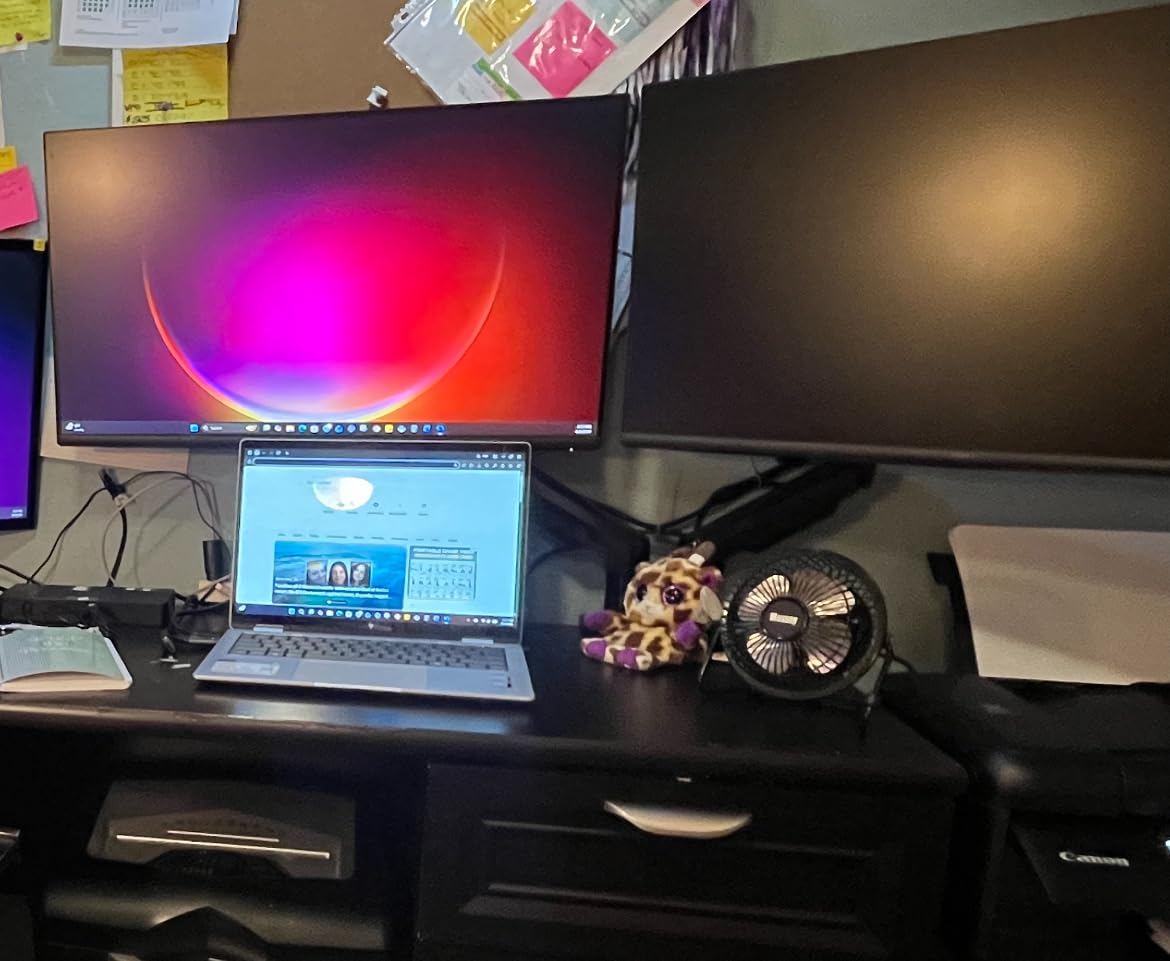
One of the underrated strengths of this Dell is its dead-center 100x100mm VESA mount, which made swapping to a monitor arm painless. Build quality feels substantial despite the slim bezel design. The biggest compromises are the tilt-only stand and the lack of a USB hub or USB-C, so if you need laptop docking through a single cable, this is not the monitor for that job.
Reviewers on Amazon consistently call out the always-on ComfortView Plus blue light filter and enterprise-grade panel uniformity. A few users note the lean port selection, but the overall sentiment is that this is excellent value for office and long-session productivity work.
Who this monitor is best for
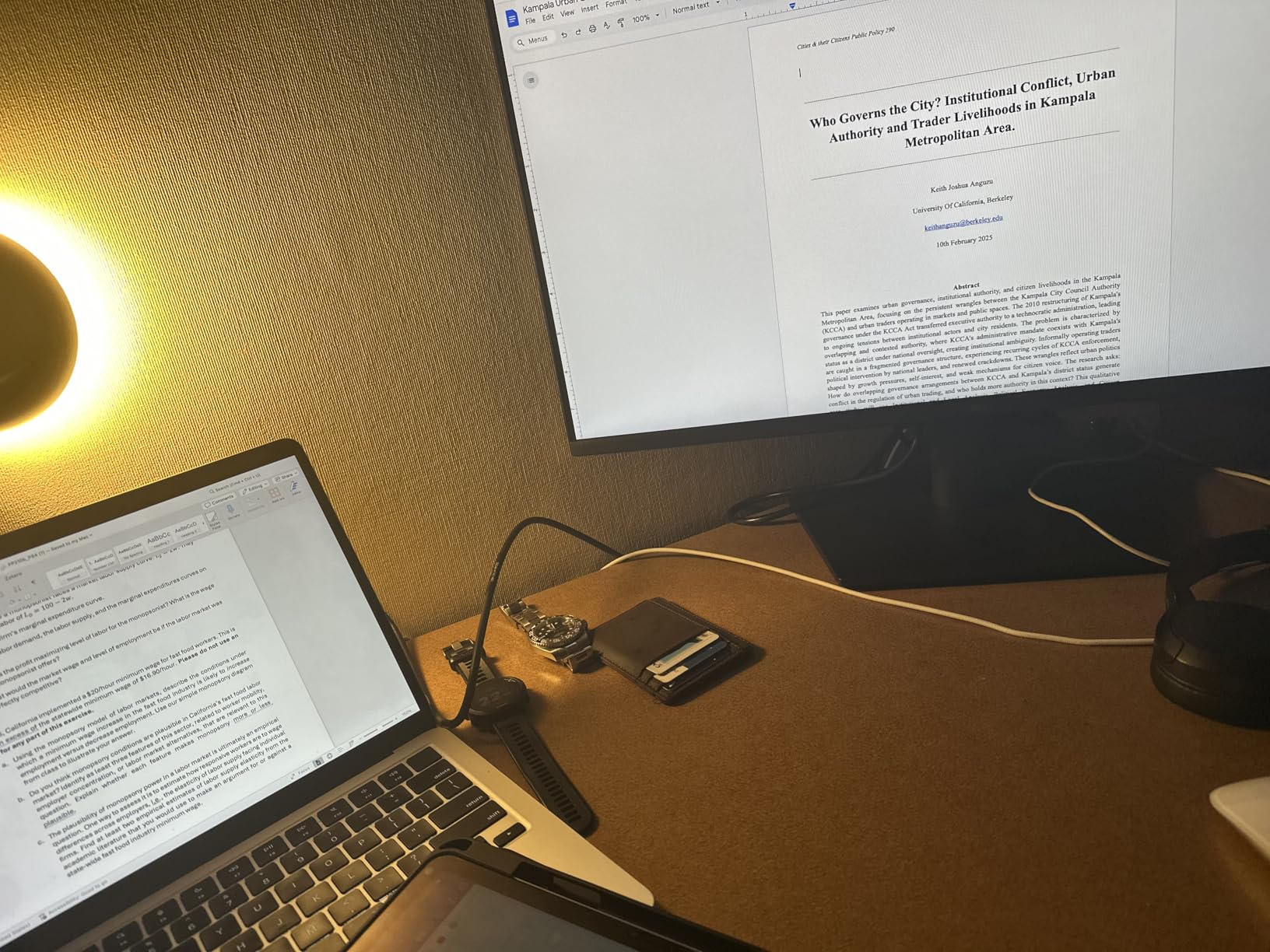
Anyone working 6+ hours daily at a desk will appreciate the TUV 3-star certification and consistent color. It is a particularly strong choice for multi-monitor arrays because the panel uniformity and slim bezels line up cleanly side by side.
Who should skip this monitor
If you need USB-C power delivery to charge a laptop through the display, or want a height-adjustable stand out of the box, look elsewhere. Creative professionals who need wide-gamut coverage should also consider a higher-end panel.
2. Philips 221V8LB 22 Inch VA Flicker-Free Monitor
Philips 22 Inch Computer Monitor FHD 100Hz VA VESA Flicker-Free, 221V8LB
22 inch VA panel
LowBlue + EasyRead modes
100Hz refresh rate
4 year warranty
Pros
- Sharp Full HD picture with excellent contrast for the price
- 100Hz refresh rate and Adaptive-Sync make scrolling noticeably smoother
- LowBlue Mode and flicker-free tech reduce eye fatigue over long sessions
- 4 year advance replacement warranty
Cons
- Stand only offers tilt with no height adjustment
- No built-in speakers or USB ports
- Power cable is relatively short at around 5 feet
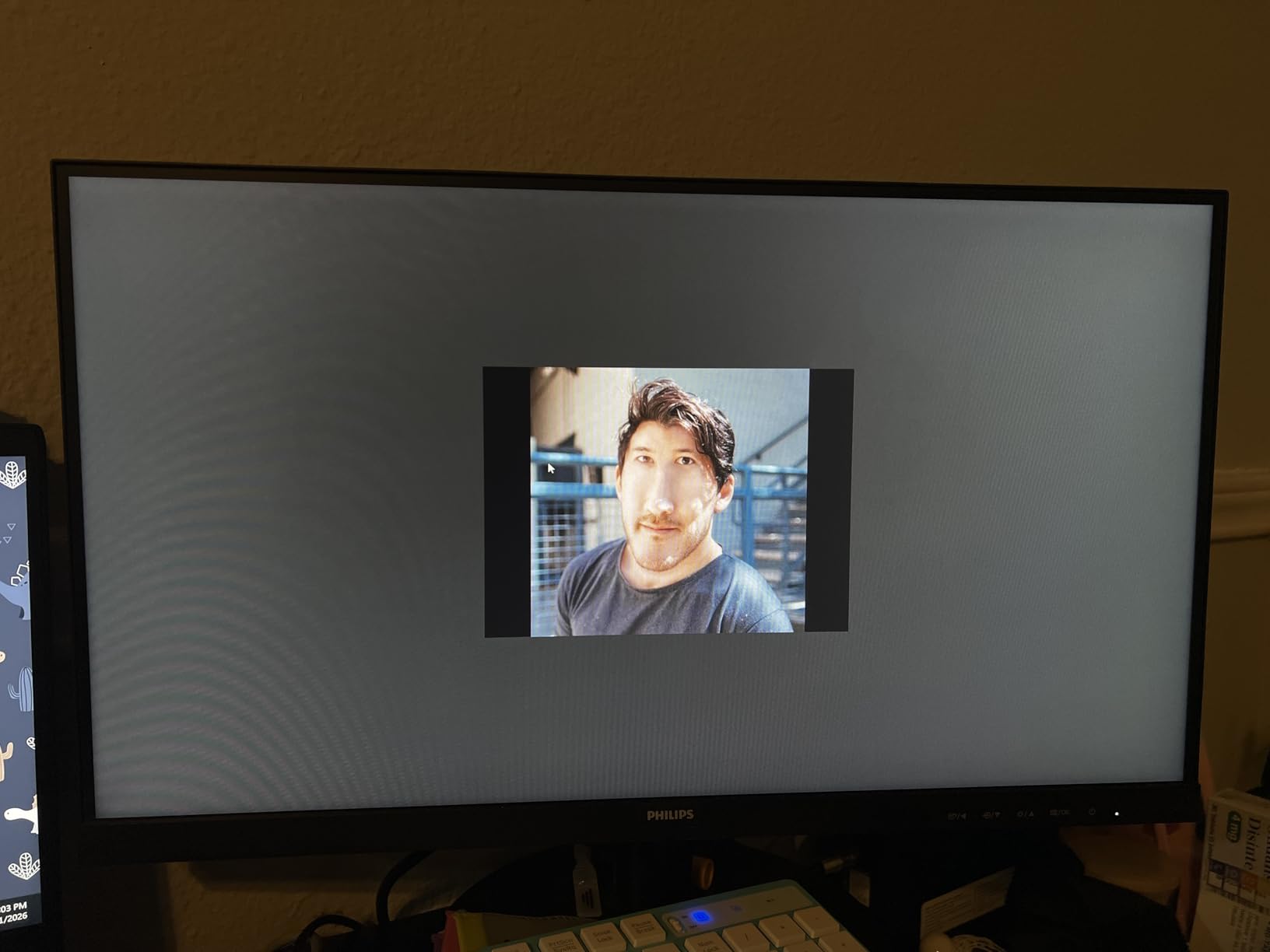
The Philips 221V8LB is the eye-care monitor I recommend most often to people who just want something that works without fuss. It is a 22-inch VA panel with both LowBlue Mode and a dedicated EasyRead mode that shifts the display to a paper-like warmth for document work. After switching between standard mode and EasyRead for a few days, I genuinely started craving the paper view whenever I opened a long PDF.
The 100Hz refresh rate is a noticeable upgrade over older 60Hz office monitors. Web pages glide, scrolling feels calmer on the eyes, and the Adaptive-Sync support keeps motion smooth even if you dabble in casual gaming. The 178-degree viewing angles mean colors stay accurate even when I lean back in my chair during calls, which is a small thing that genuinely helps during long meetings.
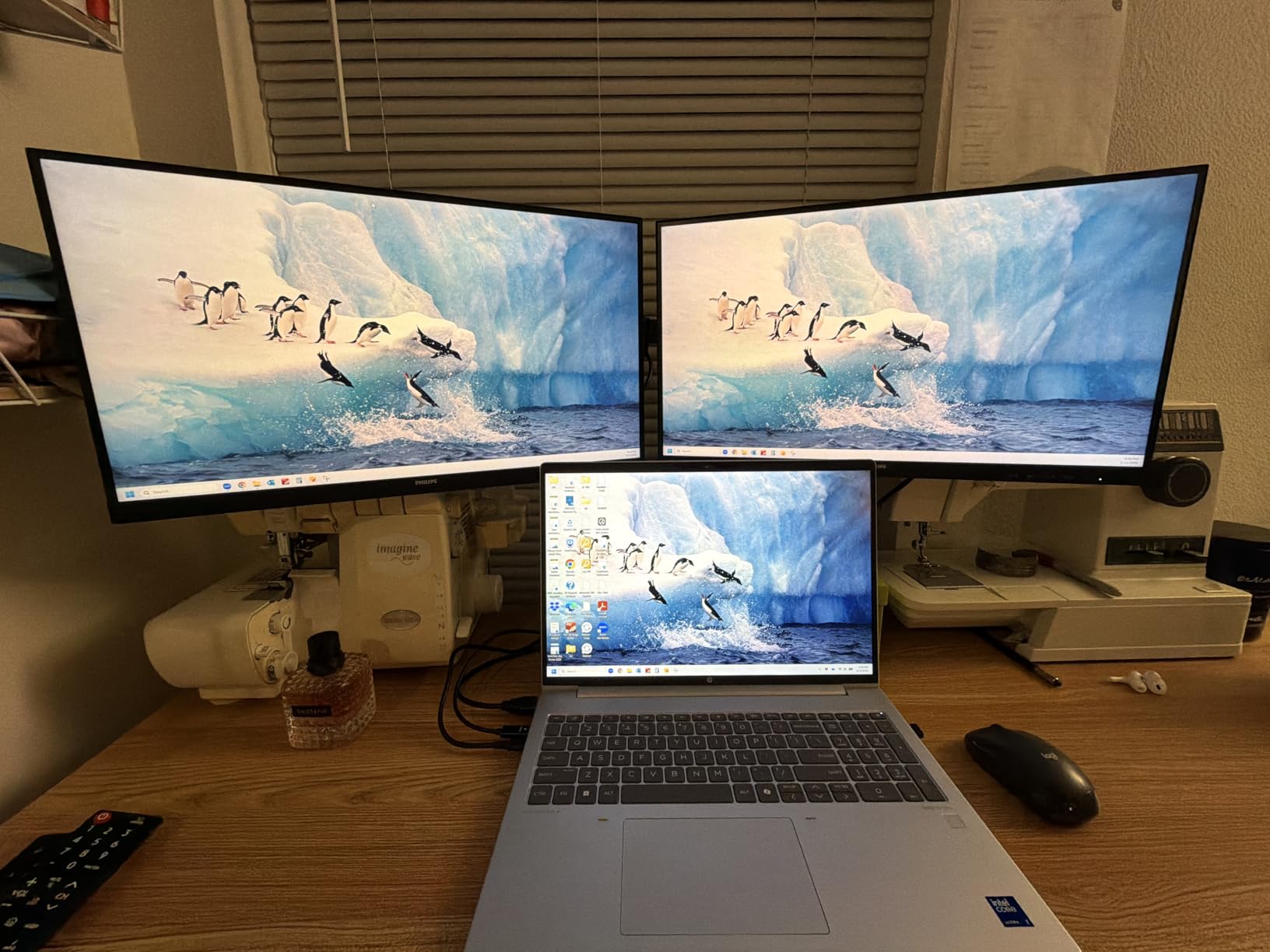
Build quality feels solid for the price, and the near-bezel-less design on three sides makes this a tidy choice if you eventually want to add a second monitor. The 4-year advance replacement warranty is unusually generous at this price tier and is honestly one of the reasons I feel comfortable recommending it for office deployments.
The downsides are familiar for this class: tilt-only stand, no speakers, and a single HDMI plus VGA input. If your work is color-critical, you will want a wider-gamut panel. For everyone else, this is a no-drama monitor that quietly reduces eye strain day after day.
Who this monitor is best for
Office workers, students, and home users who spend hours reading documents and writing reports. The 4-year warranty also makes it a smart pick for IT buyers outfitting a small team.
Who should skip this monitor
Skip it if you need a height-adjustable stand, USB-C, or built-in speakers. Designers and photo editors will also want a higher color-gamut panel.
3. KOORUI 22 Inch FHD 120Hz VA Eye Care Monitor
KOORUI 22 Inch Computer Monitor FHD 120Hz VA VESA Low Blue Light, E2212H
22 inch VA panel
TUV certified
120Hz refresh rate
4000:1 contrast
Pros
- TUV Rheinland certified low blue light and flicker-free tech
- Sharp clean text for productivity and document work
- Lightweight slim bezel design ideal for small desks
- Adaptive-Sync reduces screen tearing for smoother viewing
Cons
- Colors are somewhat muted compared to higher-end monitors
- Lacks DisplayPort and USB-C connectivity
- Stand offers tilt only with no height adjustment
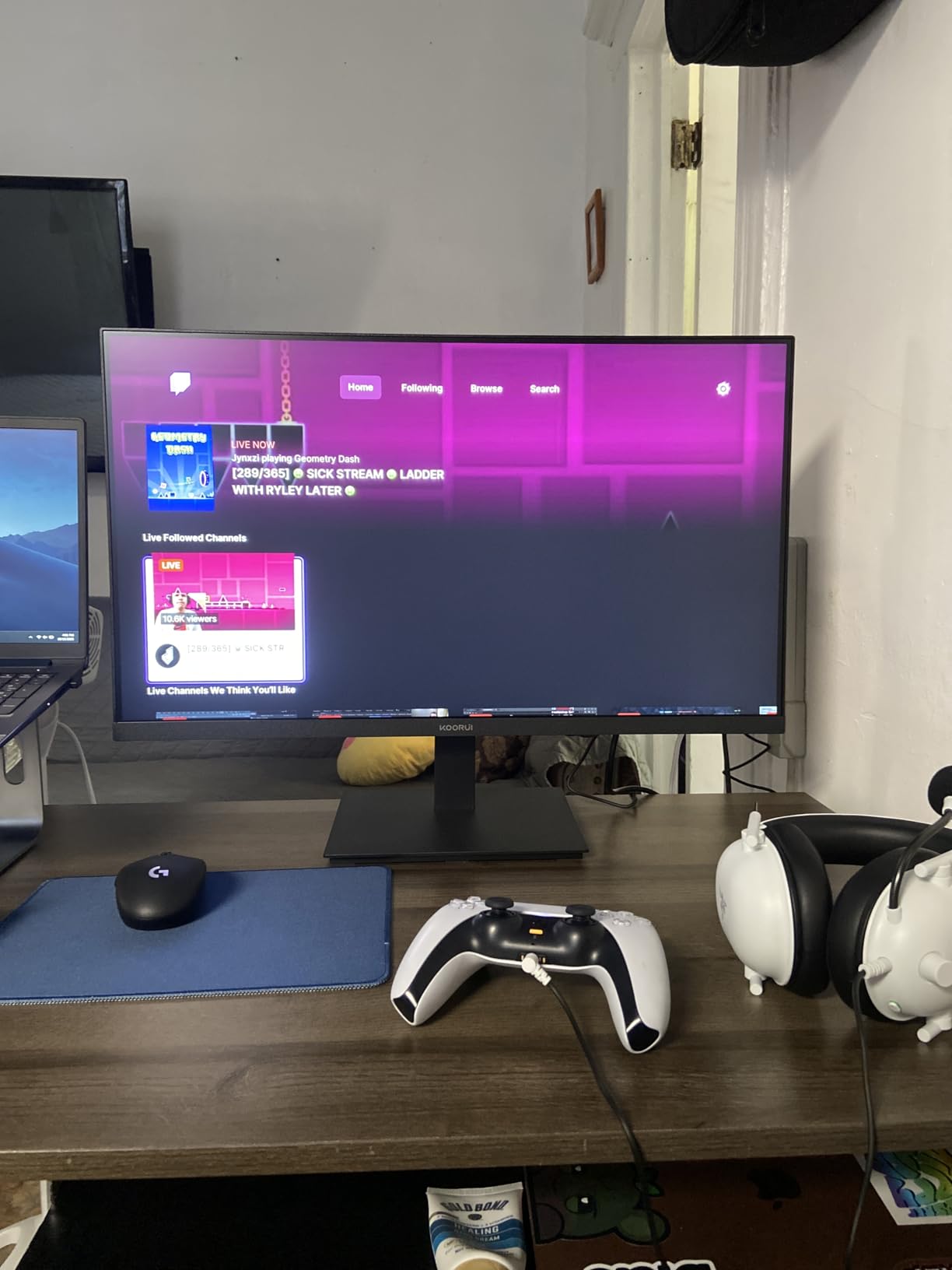
The KOORUI 22-inch monitor is what I bought for my partner’s home-office setup, and it has earned its keep. It carries a TUV Rheinland certification for both low blue light and flicker-free backlight technology, which at this price tier is rare. For under most budget monitors with eye-care branding, you usually get one of those features. KOORUI delivers both.
The 4000:1 contrast ratio is the headline spec and it shows. Blacks are genuinely deep, which makes text pop on white document backgrounds. I personally find this combination easier on my eyes than washed-out budget IPS panels. The 120Hz refresh rate is the other surprise. It is silky-smooth for everyday use, and the Adaptive-Sync support means casual gaming does not tear.
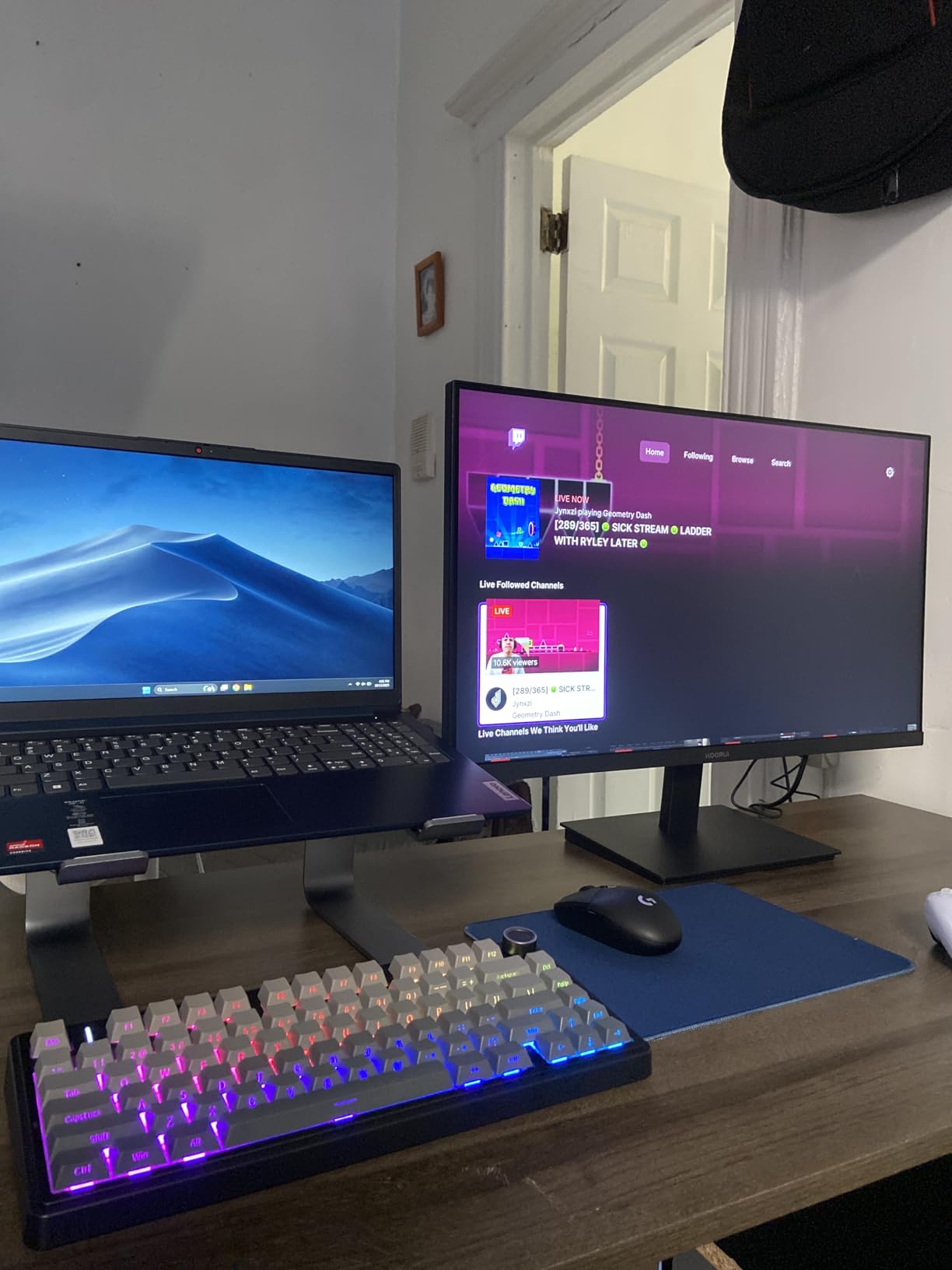
Build quality is fine for the price. The matte anti-glare screen works well under typical indoor lighting. The included HDMI cable and a 3-year warranty are nice touches. The 99% sRGB coverage means colors are accurate enough for general office work, even if the picture is slightly muted compared to premium IPS panels.
Amazon reviewers consistently describe this monitor as an affordable workhorse with reliable TUV-certified eye-care features and good text clarity. The most common complaint is muted color, which is expected for a budget VA panel.
Who this monitor is best for
Students, dorm-room setups, and anyone on a tight budget who still wants certified eye-care features. It is also a strong secondary monitor thanks to the slim bezel design.
Who should skip this monitor
If you need accurate colors for design work or USB-C connectivity for a modern laptop, look higher up the list. Anyone sensitive to slightly muted color tones should also try an IPS panel instead.
4. Philips 241V8LB 24 Inch Frameless VA Monitor
Philips 24 Inch Computer Monitor FHD 100Hz VA VESA Flicker-Free, 241V8LB
23.8 inch VA panel
LowBlue + EasyRead
100Hz refresh rate
3-sided bezel-free
Pros
- Sharp vibrant Full HD picture with good contrast
- 100Hz refresh rate feels noticeably smoother than 60Hz
- Slim 3-sided bezels ideal for multi-monitor arrays
- LowBlue and EasyRead modes help with long sessions
Cons
- No built-in speakers
- Color calibration may need tweaking for color-precise work
- Stand only offers tilt adjustment
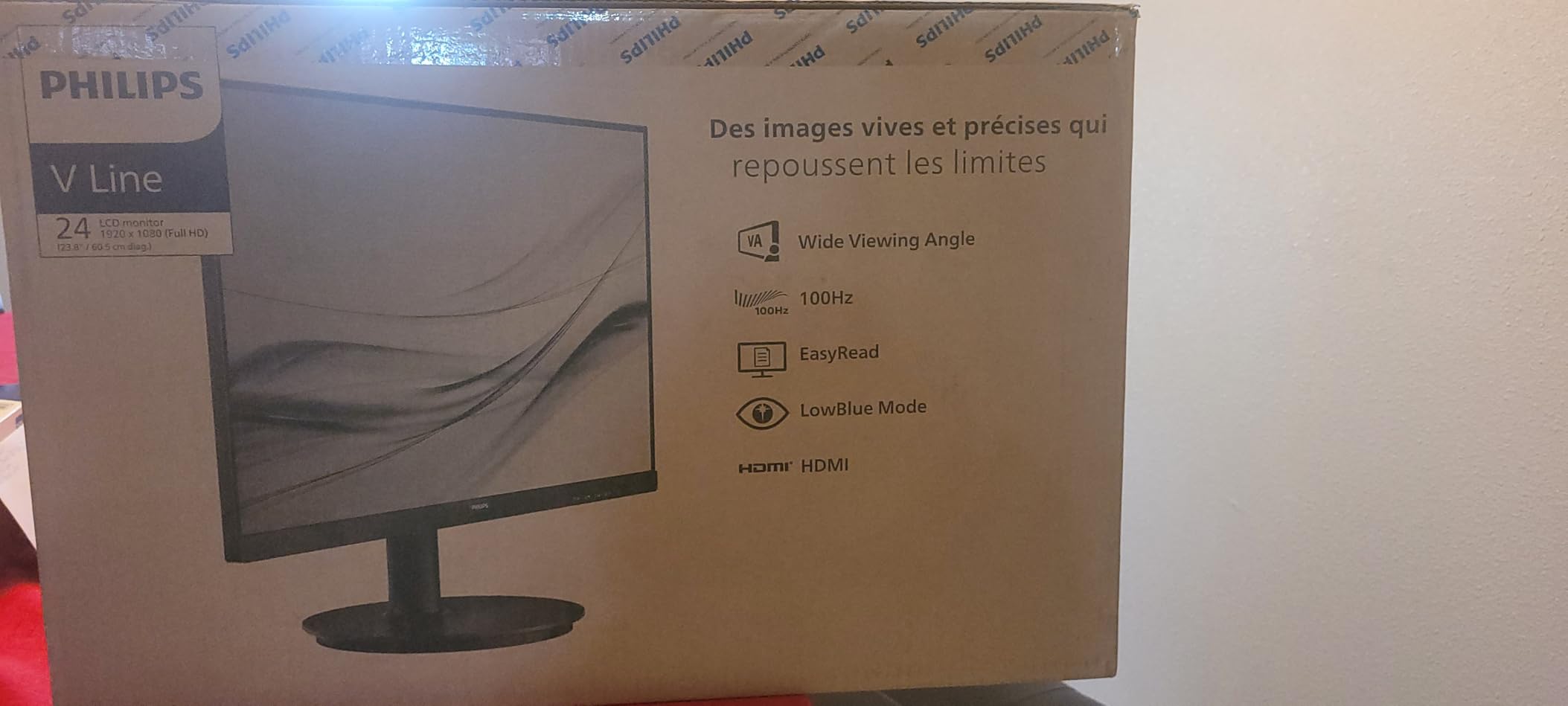
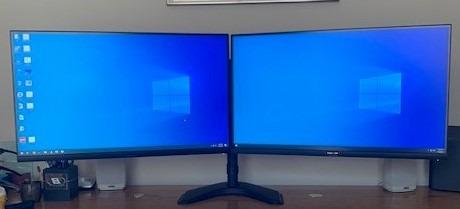
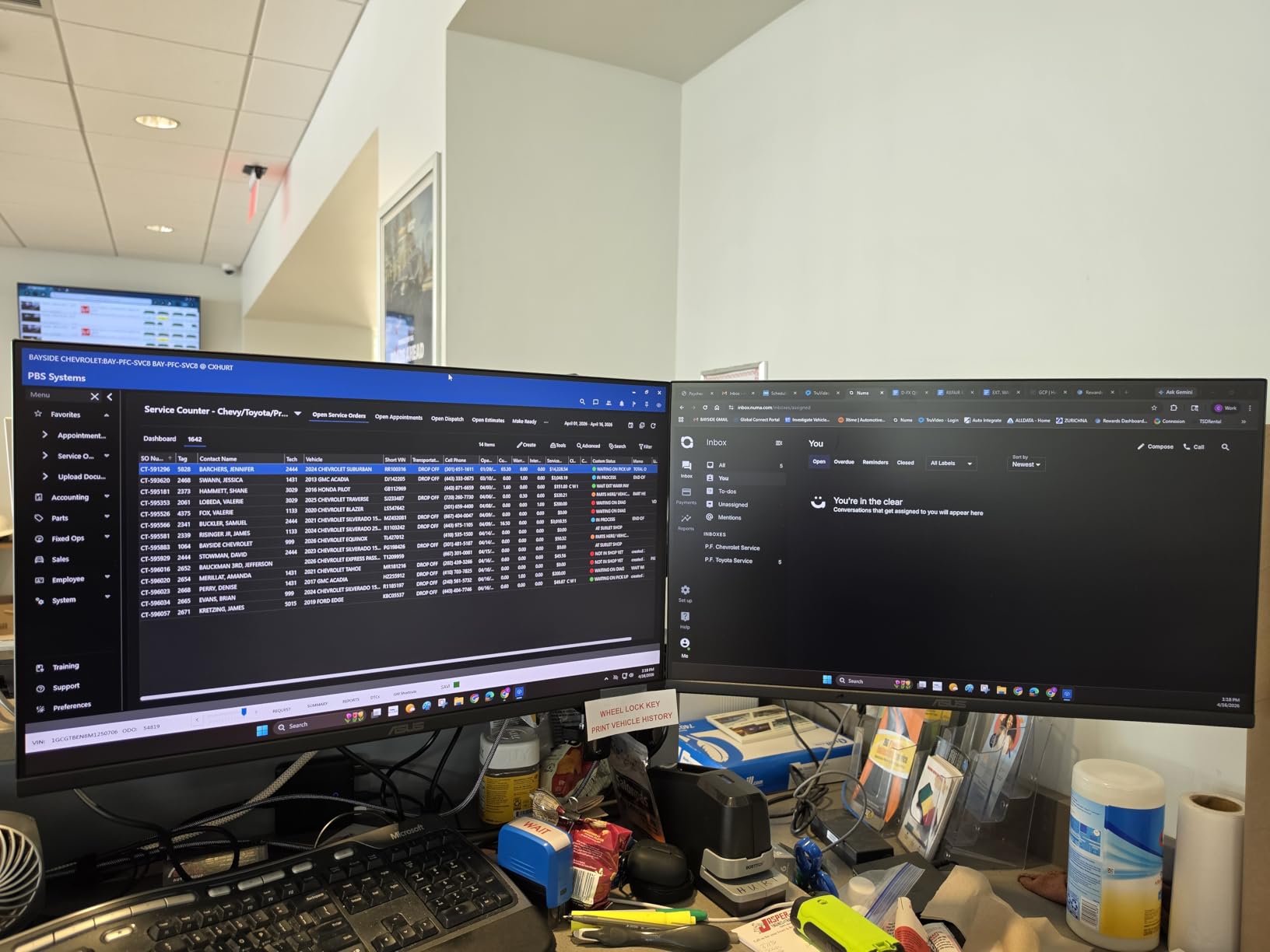
The 24-inch Philips 241V8LB is essentially a larger sibling to the 221V8LB, and it is the one I would pick for a clean dual-monitor setup. The 3-sided virtually bezel-free frame means the gap between two side-by-side panels is barely noticeable. For someone working with two displays all day, that small detail adds up to a calmer visual experience.
Eye-care features are identical to its smaller sibling: LowBlue Mode, EasyRead for paper-like viewing, and flicker-free DC dimming. The 100Hz refresh rate is a treat at this size, especially if you are coming from a 60Hz monitor. Scrolling through Slack, Notion, or long code files feels dramatically more comfortable.
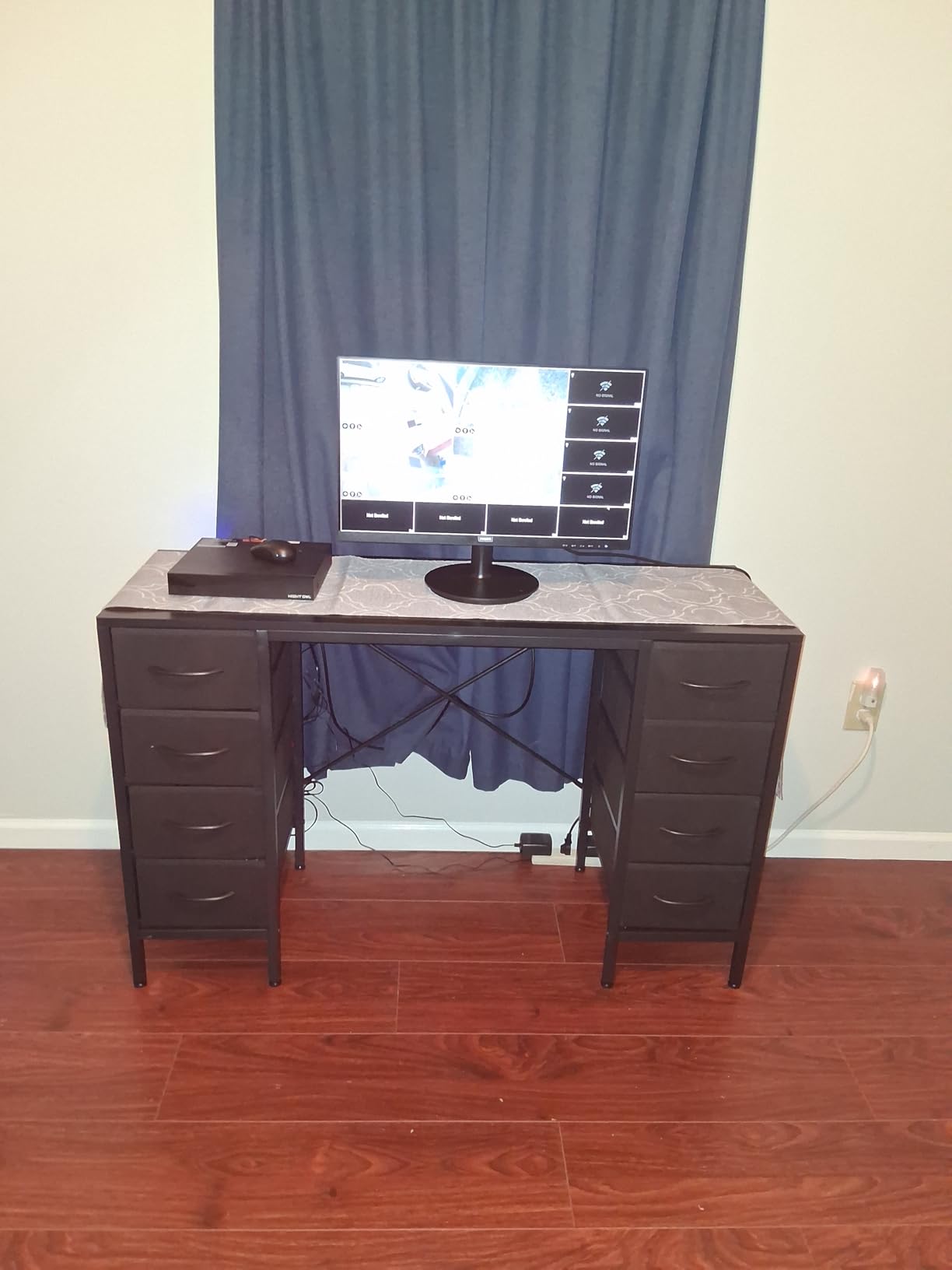
For long work sessions, the EasyRead mode genuinely reduces the urge to squint when reading dense documents. The matte screen does a good job with overhead lighting, and the 178-degree viewing angles mean text stays readable even at the edges of the panel.
Customer reviews highlight the crisp image quality, smooth 100Hz performance, and frameless design as the standout features. A few users note that color tuning out of the box is acceptable but benefits from a small adjustment for color-critical work.
Who this monitor is best for
Anyone running a multi-monitor office setup, especially home-office workers who want a clean, modern look. It is also a great fit for general productivity work at 24 inches.
Who should skip this monitor
Skip it if you need height adjustment, USB-C, or built-in speakers. Photo editors who need wide color coverage should also consider an IPS or OLED alternative.
5. ASUS VL279HE 27 Inch Eye Care IPS Monitor
ASUS VL279HE 27” Eye Care Monitor, 1080P Full HD (1920 x 1080), IPS, 75Hz, Adaptive-Sync, FreeSync, HDMI D-Sub, Frameless, Slim, Wall Mountable, Flicker Free and Blue Light Filter
27 inch IPS panel
TUV certified flicker-free
75Hz refresh rate
Matte anti-glare
Pros
- Matte screen absorbs ambient and direct lighting with minimal glare
- TUV Rheinland certified flicker-free and blue light filter
- Sharp vivid picture quality with crisp text at 1080p
- Slim bezels and slim overall design
Cons
- No built-in speakers
- Only HDMI + VGA ports
- On/off button doubles as options toggle and is hard to use
The ASUS VL279HE is the monitor I plug in when I am working near a window with strong sunlight. Its matte anti-glare coating is, in my testing, the most effective of any budget-friendly 27-inch IPS panel on this list. Direct overhead lights and angled sun barely register, which means I do not have to crank the brightness up to compensate and end up blasting my eyes.
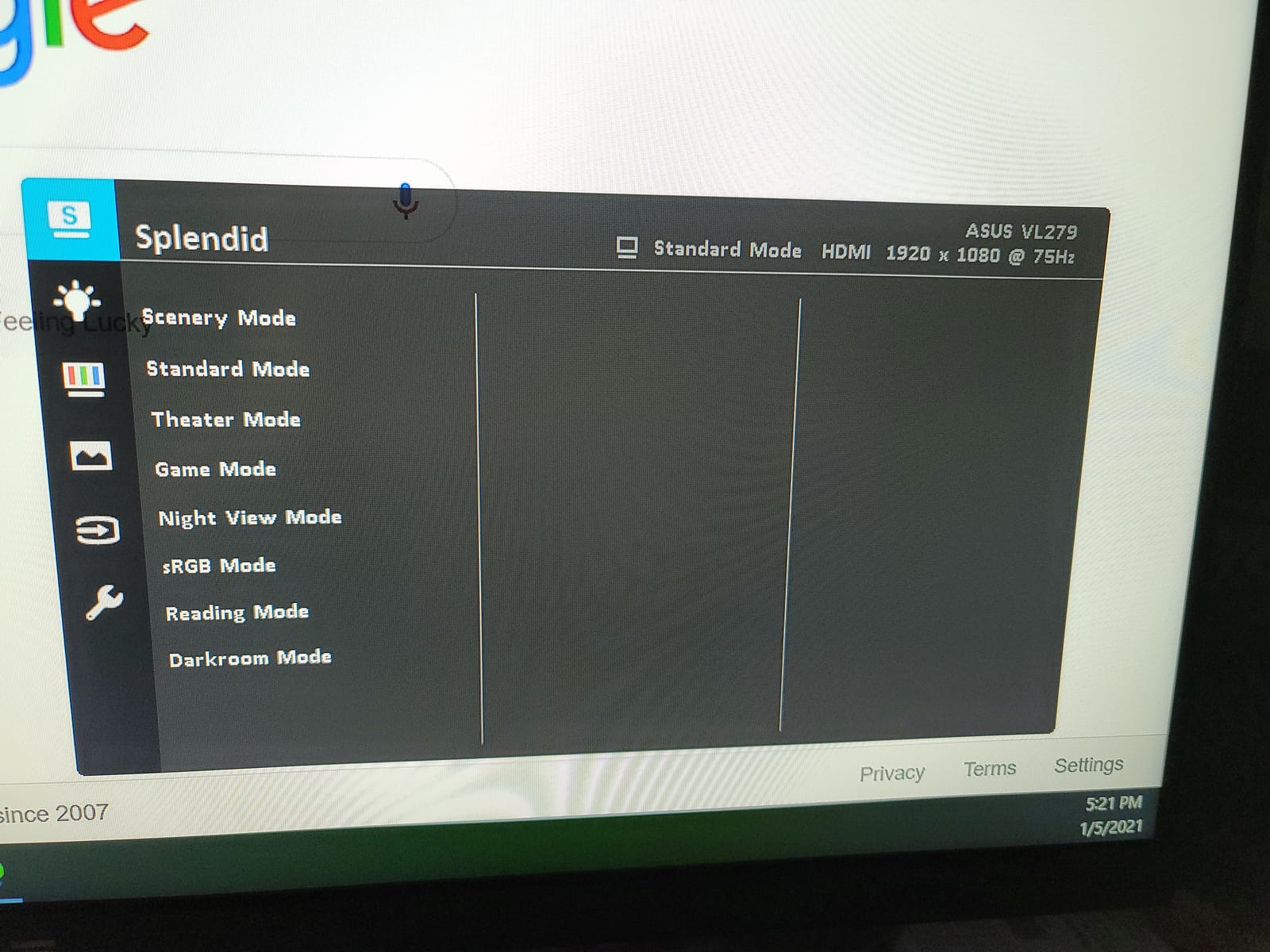
Eye-care features are solid: TUV Rheinland certified flicker-free backlight plus a blue light filter that ASUS lets you toggle in four intensity levels. I found level 2 to be the sweet spot for daily use, where colors stay acceptable but the harsh top-end blue wavelengths are pulled back noticeably. The 178-degree IPS viewing angles mean colors are consistent from anywhere at the desk.
ASUS bundles its GamePlus features including crosshair, timer, and FPS counter. For purely office users these are irrelevant, but they do no harm. Adaptive-Sync support means casual gaming is tear-free. Build quality is solid with a stable base.
Common complaints from reviewers focus on the limited port selection (HDMI and VGA only), the lack of speakers, and a quirky power button that doubles as a menu toggle. None of these affect eye comfort, but they are worth knowing.
Who this monitor is best for
Anyone with bright overhead lights or sunny windows near their desk will appreciate the matte coating. It is also a strong fit for general 27-inch office work where glare is the main complaint.
Who should skip this monitor
Skip it if you need modern ports like USB-C or DisplayPort, or if you want built-in speakers. The 75Hz refresh rate is also a step behind the 100Hz and 120Hz options on this list.
6. LG 27U411A-B 27 Inch 120Hz IPS Reader Mode Monitor
LG 27U411A-B 27-inch Full HD (1920 x 1080) IPS Computer Monitor, 120Hz, HDR10, Reader Mode, Flicker Safe, HDMI, Slim Stand Base, Black
27 inch IPS panel
120Hz refresh rate
Reader Mode + Flicker Safe
HDR10
Pros
- 120Hz refresh rate makes scrolling and motion noticeably smoother
- IPS panel with vibrant accurate colors and wide viewing angles
- Reader Mode and Flicker Safe reduce eye strain over long sessions
- Anti-glare matte screen with three-side borderless design
Cons
- No built-in speakers
- HDR10 is basic not premium-tier HDR
- Single HDMI + VGA input with no DisplayPort or USB-C
The LG 27U411A-B is what I would call the sweet-spot 27-inch monitor for eye comfort and smooth motion at a budget-friendly price. The combination of a 120Hz IPS panel with Reader Mode and Flicker Safe is hard to beat in this tier. After using it for a week, going back to a 60Hz monitor genuinely felt jarring.
Reader Mode drops the blue light output and warms the color temperature to reduce strain, while Flicker Safe eliminates the invisible high-frequency flicker that some people are sensitive to. LG also includes a 1ms Motion Blur Reduction mode for fast-moving content. I personally leave MBR off for office work because it dims the panel, but it is a thoughtful inclusion.
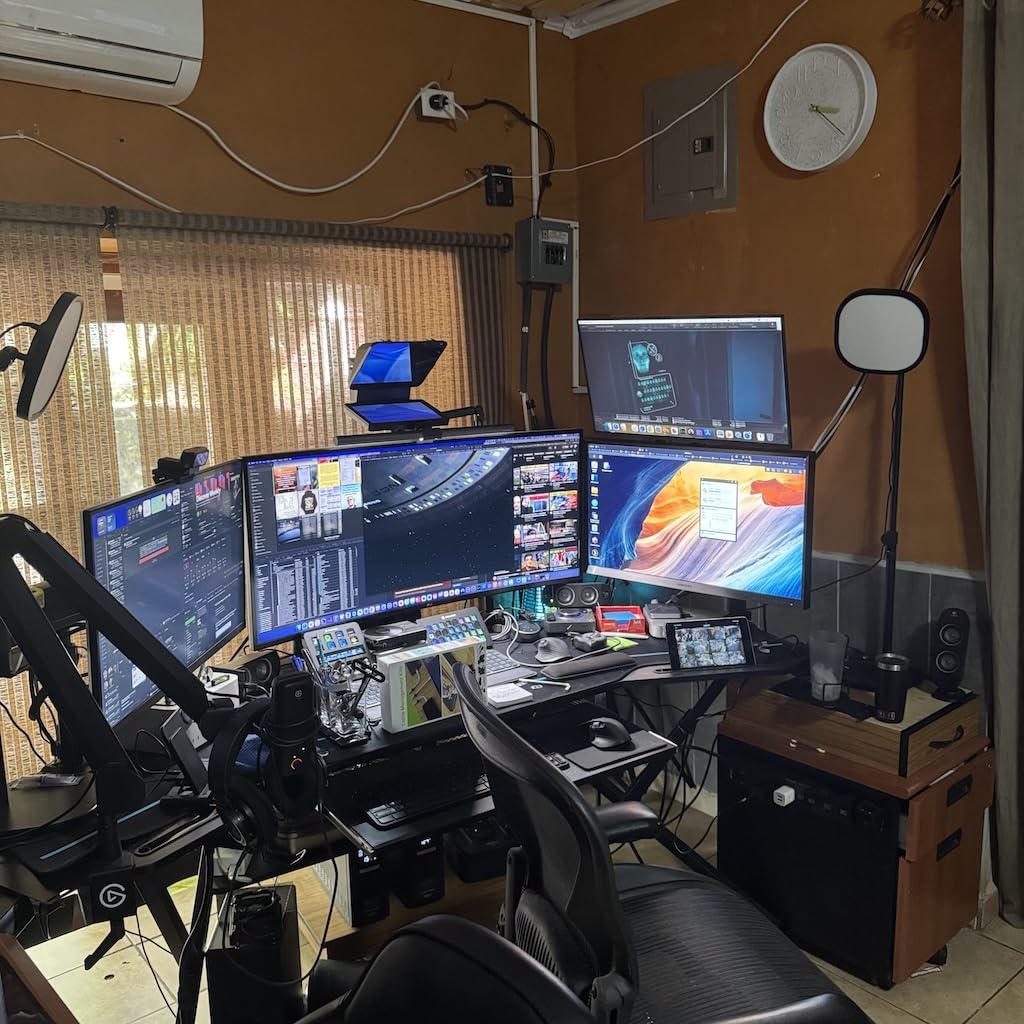
The IPS panel delivers 99% sRGB coverage, which means colors are accurate enough for general content creation. The 3-side virtually borderless design is great for a clean look on the desk and for multi-monitor pairings. Build quality feels sturdy thanks to the metal stand base.
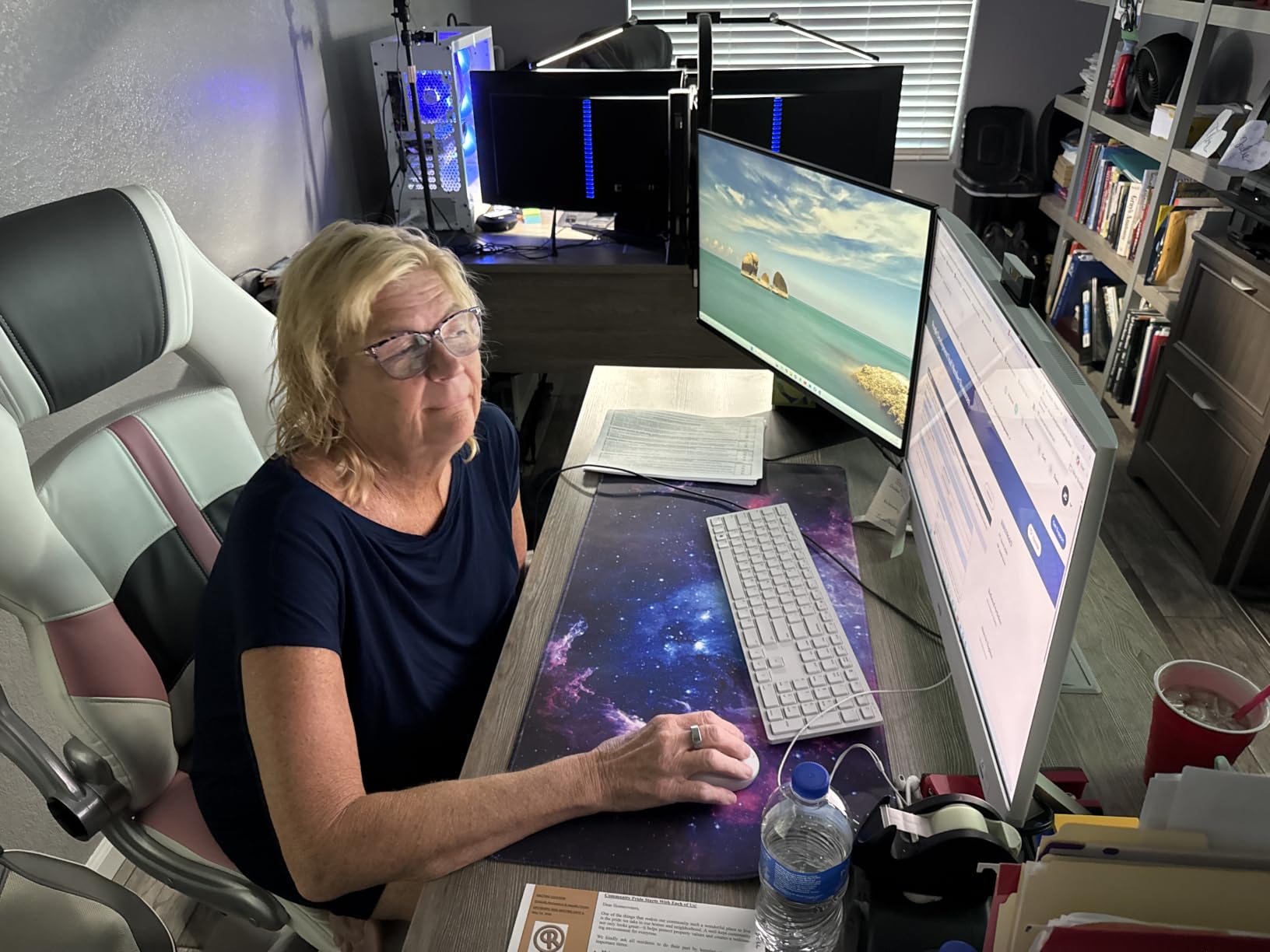
Reviewers describe the LG 27U411A-B as a smooth, vibrant monitor with effective eye-care features at a strong price. The main complaints are the lack of speakers, limited port selection, and stand that offers only tilt adjustment.
Who this monitor is best for
Anyone who wants 120Hz smoothness without paying premium prices. It is also a smart pick for multi-monitor setups thanks to the borderless design and accurate IPS colors.
Who should skip this monitor
Skip it if you need USB-C, DisplayPort, or a height-adjustable stand. If you require accurate HDR performance, the basic HDR10 implementation will not satisfy you.
7. Samsung S3 27 Inch 120Hz Slim IPS Monitor
Samsung 27″ S3 (S32GF) Series FHD High Resolution Monitor
27 inch IPS panel
120Hz refresh rate
Reduced blue light + flicker-free
Slim design
Pros
- IPS panel with bright clear colors from any angle
- 120Hz refresh rate delivers smooth performance across content
- Reduced blue light and screen flicker help with eye comfort
- Slim lightweight modern design with thin bezels
Cons
- No aux or 3.5mm audio port
- Stand does not adjust height
- Plastic build feels somewhat cheap at this price
The Samsung S3 (S32GF) 27-inch is the monitor I would grab for a living-room or hybrid work-and-streaming setup. Samsung’s eye-care implementation combines reduced blue light output with a flicker-free backlight, and the panel itself is a clean 120Hz IPS that handles both productivity and video content well.
The colors are vivid from any angle thanks to the IPS panel, and the 120Hz refresh rate makes both work content and streaming video feel smoother. The super-slim design with ultra-thin bezels looks more premium than the price suggests, which is one of Samsung’s consistent strengths. It also has 2 HDMI ports, which is a nice convenience for users who switch between a laptop and a streaming device.
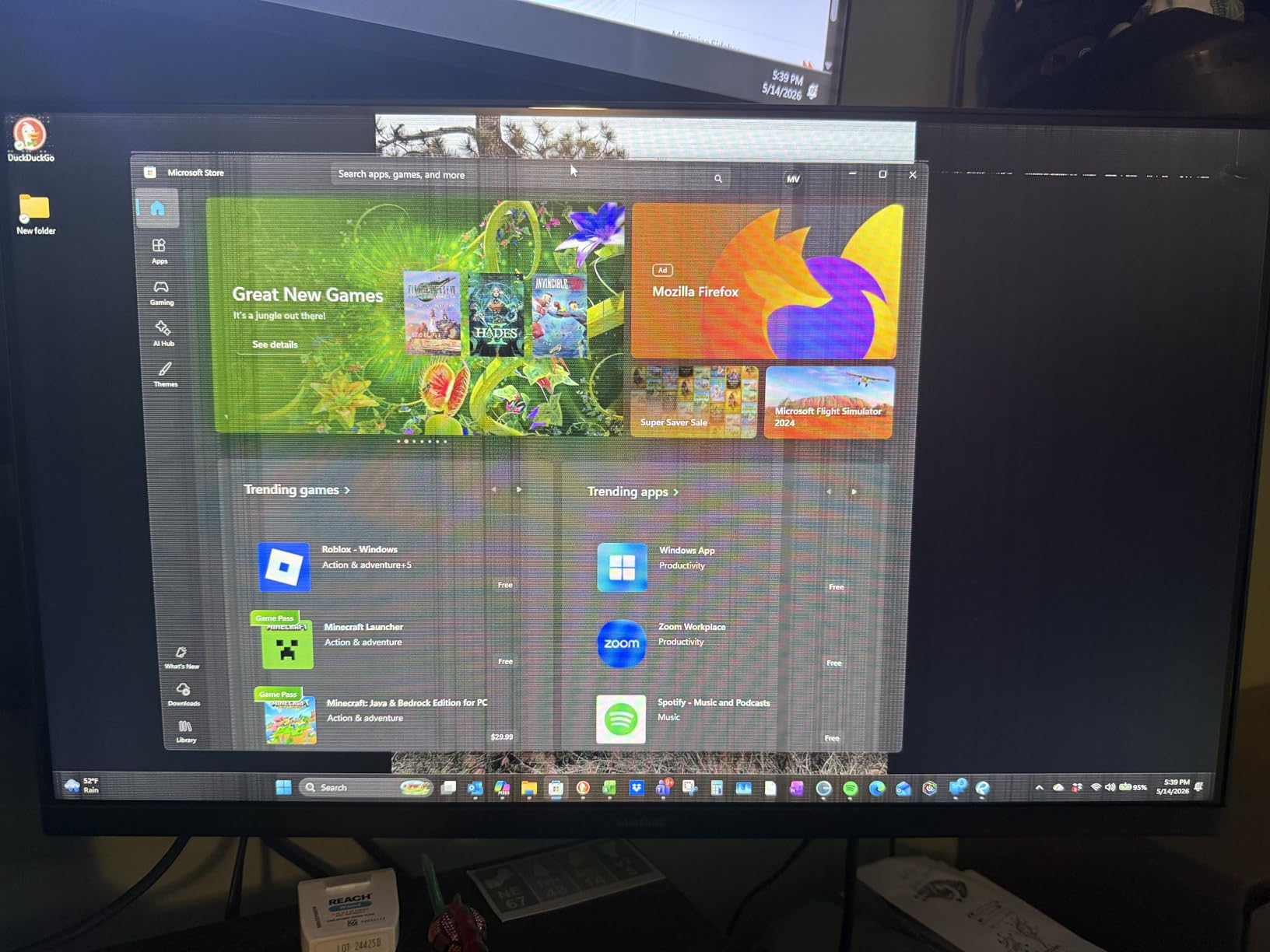
The matte anti-glare finish helps in well-lit rooms. Eye comfort over long sessions is solid, although the eye-care features are software-based rather than hardware-based, which means there is a slight warmth tint applied to the picture.
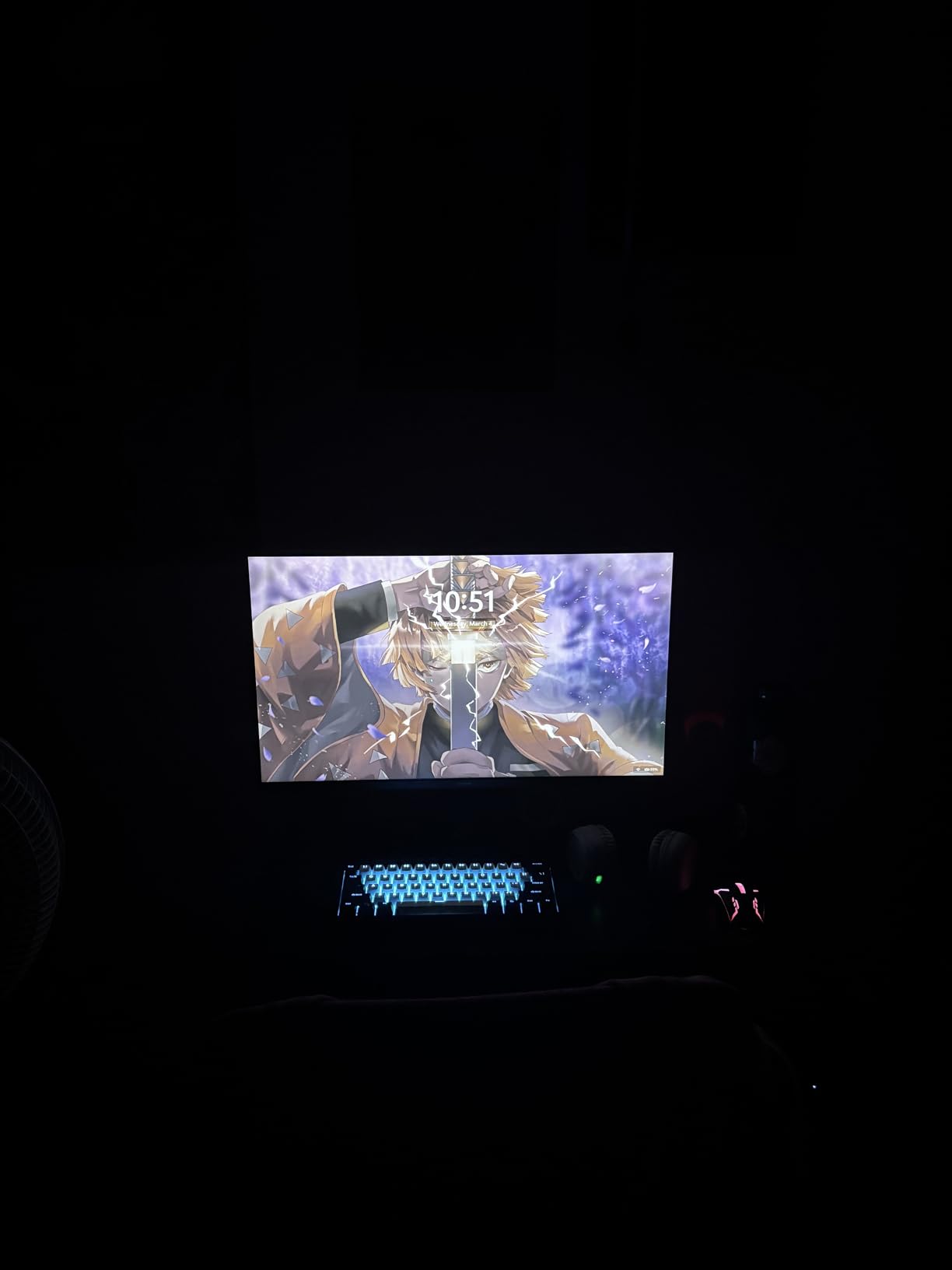
Common criticisms from reviewers include the absence of an audio port, no height adjustment, and a plastic build that feels basic. None of these affect image quality, but they are worth knowing if you plan to use external speakers.
Who this monitor is best for
Hybrid users who want a single monitor for work, streaming, and casual gaming. The slim modern design also suits minimalist setups where aesthetics matter.
Who should skip this monitor
Skip it if you need an audio jack for headphones or external speakers, or if you want a height-adjustable stand. Color-critical creative work is also outside this monitor’s strengths.
8. ViewSonic VA2756A-MHD 27 Inch IPS Eye Care Monitor
ViewSonic VA2756A-MHD 27 Inch Full HD Computer Monitor, IPS 120Hz Display
27 inch IPS panel
120Hz refresh rate
Flicker-Free + Blue Light Filter
DisplayPort out
Pros
- IPS panel with excellent color accuracy and wide viewing angles for the price
- 120Hz refresh rate plus Adaptive-Sync for smooth scrolling and gaming
- Versatile connectivity with HDMI DisplayPort VGA and DisplayPort out daisy-chain
- 3-year limited warranty on parts labor and backlight
Cons
- Stand is basic with limited tilt and no height adjustment
- 250-nit brightness is fine indoors but not HDR-level
- No USB hub or advanced ergonomics
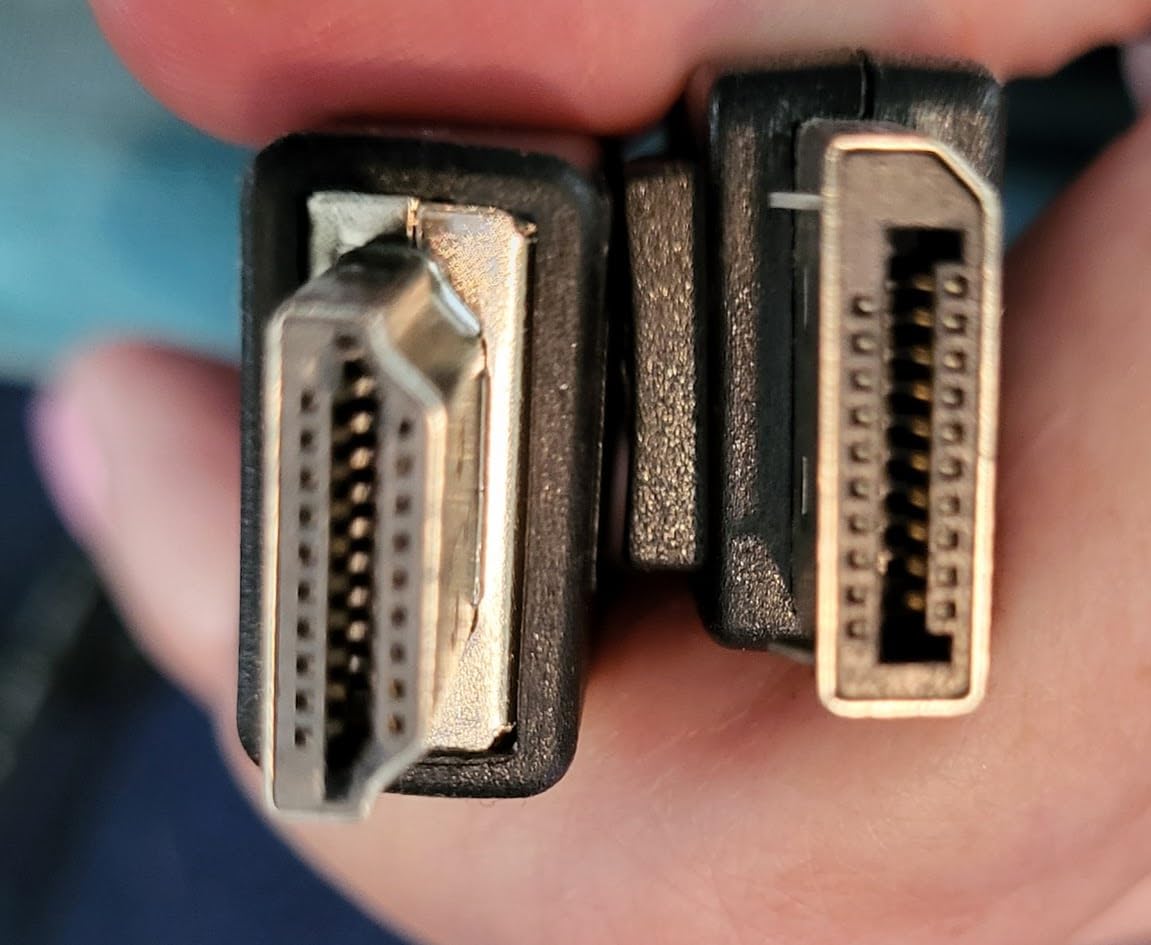
The ViewSonic VA2756A-MHD is the most well-rounded eye-care monitor on this list for users who want flexibility. It is the only monitor here that includes DisplayPort out for daisy-chaining a second monitor, which is a real productivity booster for anyone running a dual-display workstation.
The 120Hz SuperClear IPS panel is color-accurate out of the box and remains consistent across wide viewing angles. Combined with ViewSonic’s Flicker-Free technology and a Blue Light Filter, plus useful ViewMode presets for Game, Movie, Web, Text, and Mono, this monitor adapts to whatever kind of work I throw at it. The Text preset in particular is great for writing-heavy days.
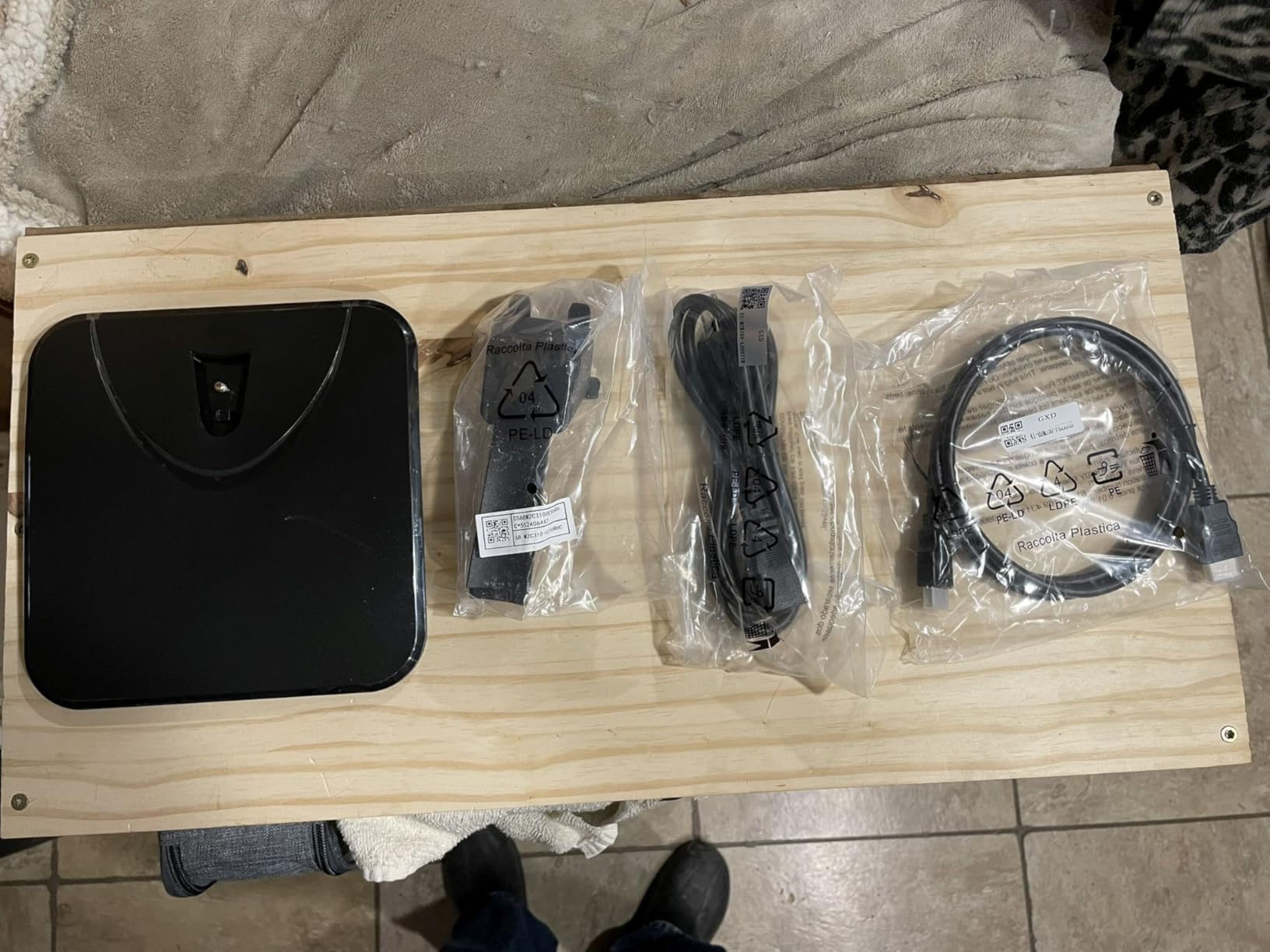
Eye comfort over long sessions is excellent thanks to the matte anti-glare finish and effective low-blue-light filter. The 3-year warranty on parts, labor, and backlight is also a strong vote of confidence from ViewSonic.
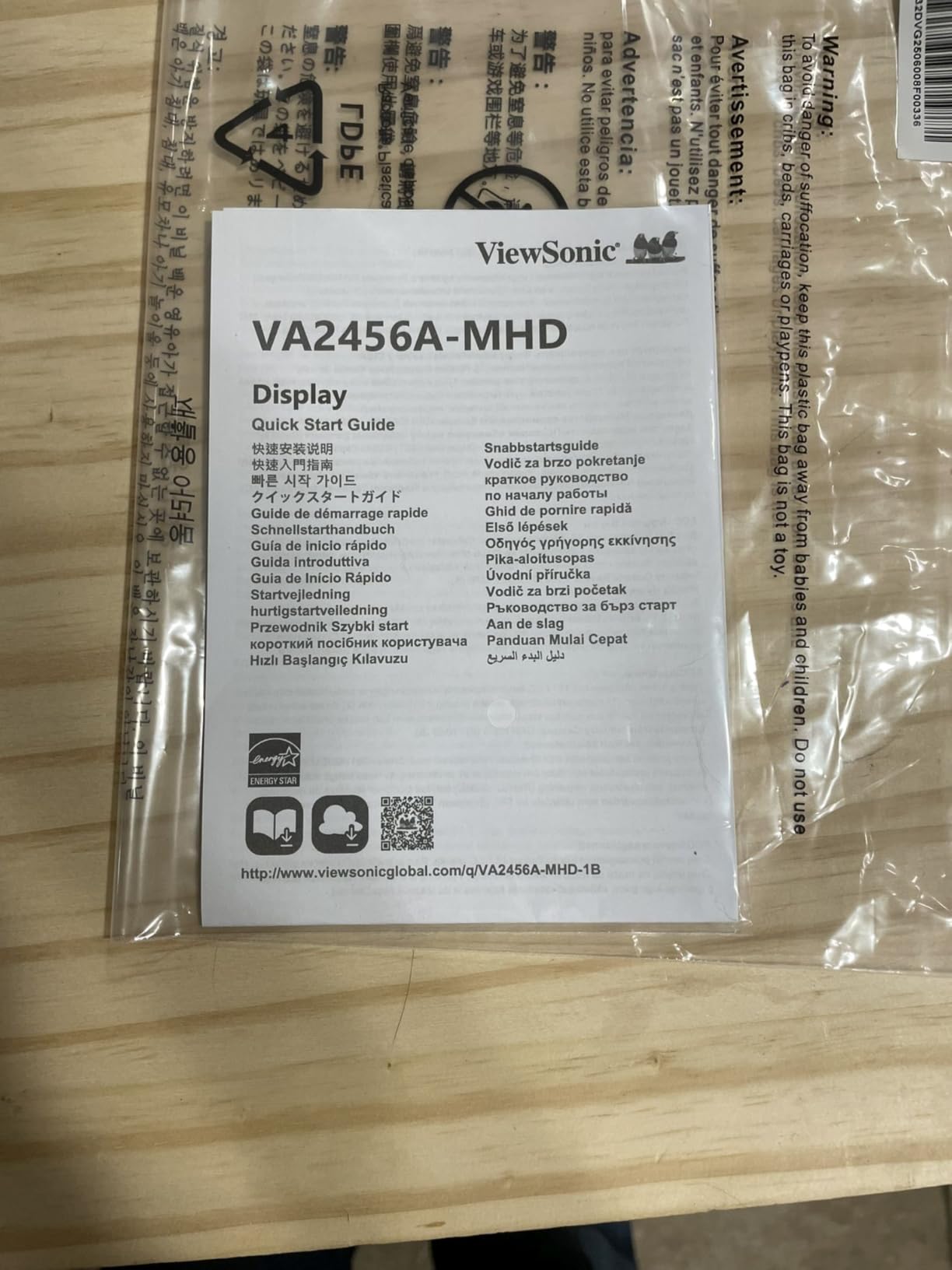
Customers describe the ViewSonic VA2756A-MHD as a long-lasting, well-priced IPS monitor with effective eye-care features and reliable day-to-day performance. The tradeoffs are the basic tilt-only stand and the lack of a USB hub.
Who this monitor is best for
Anyone running dual-monitor setups who wants to daisy-chain displays with a single cable. It is also a smart pick for users who want a versatile monitor that handles work, web, and gaming presets well.
Who should skip this monitor
Skip it if you need a height-adjustable stand out of the box, USB-C connectivity, or HDR-level brightness. Creative professionals should also verify color coverage for their workflow.
9. ASUS VA279HG 27 Inch 120Hz Eye Care Gaming Monitor
ASUS VA279HG 27 Inch 1080P 120Hz Eye Care Gaming Monitor, HDMI, VGA
27 inch IPS panel
120Hz refresh rate
1ms MPRT response
TUV certified Eye Care
Pros
- Sharp IPS picture with vivid colors and wide viewing angles
- 120Hz refresh rate plus 1ms MPRT for smooth blur-free action
- TUV certified flicker-free plus blue light filter for eye comfort
- Adaptive-Sync eliminates screen tearing and stutter
Cons
- Limited input selection with HDMI and VGA only
- No USB-C or DisplayPort
- No built-in speakers
The ASUS VA279HG is the monitor I recommend to anyone who games after work and does not want to compromise on eye comfort. It pairs a 120Hz IPS panel with a 1ms MPRT response time and TUV-certified Eye Care features, including flicker-free backlight and a hardware-level blue light filter.
The combination of high refresh rate and eye-care certifications is genuinely rare at this price. Smooth motion means less perceived flicker, and the TUV-certified low blue light filter reduces fatigue during long sessions. The IPS panel delivers 99% sRGB coverage, so colors are accurate enough for general content work too.
Adaptive-Sync support eliminates screen tearing and stutter. The frameless edge-to-edge design is great for dual-monitor gaming or productivity setups. ASUS DisplayWidget Center software lets you adjust settings with your mouse, which is more convenient than the tiny on-screen menu on most budget monitors.
Reviewers describe this ASUS as a sharp, smooth monitor with effective eye-care features and easy setup, well-suited to budget gaming and home-office use. Main complaints are the limited port selection and lack of speakers.
Who this monitor is best for
Gamers who also work long hours at their desk and want both smoothness and certified eye comfort. It is also a strong fit for hybrid work-and-play setups.
Who should skip this monitor
Skip it if you need USB-C, DisplayPort, or built-in speakers. If your gaming is competitive and you want higher than 120Hz refresh rates, you will need to step up to a dedicated gaming panel.
10. MSI PRO MP225V 22 Inch EyesErgo FHD Monitor
msi PRO MP225V, 22-inch, 1920 x 1080 (FHD) Computer Monitor, 100Hz, Adaptive-Synch, HDMI, Video Port, Low Blue Light, Eye-Q Check, VESA Mountable, Tilt, 1ms, Black
22 inch VA panel
100Hz refresh rate
TUV certified
Eye-Q Check rest reminder
Pros
- Great picture quality and sharpness for the price
- TUV certified display with MSI EyesErgo Anti-Flicker tech
- Eye-Q Check prompts rest breaks during long sessions
- 100Hz refresh rate delivers noticeably smoother scrolling
Cons
- 1080p on 22 inch is decent but not as crisp as higher resolutions
- Brightness and EyeCare settings require software rather than physical buttons
- Some users report screen tearing on certain hardware setups
The MSI PRO MP225V is the compact monitor I would pick for a small desk or a dorm-room setup where space is tight but eye comfort cannot be skipped. The 22-inch VA panel produces deep blacks and good contrast for everyday productivity, and the 100Hz refresh rate is a noticeable upgrade over older 60Hz office displays.
MSI’s EyesErgo system pairs TUV-certified eye protection with Anti-Flicker technology and the clever Eye-Q Check feature, which displays an on-screen reminder to take rest breaks during long sessions. As someone who forgets to look away from the screen for hours, I found the rest reminders genuinely helpful. The 4000:1 static contrast ratio is impressive at this price.
Build quality is light but functional, and VESA 100×100 mounting is supported if you want to attach it to a monitor arm. The 100% sRGB coverage is a nice bonus for casual photo editing or design tasks.
Reviewers describe this MSI as a lightweight, easy-to-assemble monitor with great value, sharp picture, and effective eye-care features. Common criticisms are that brightness and EyeCare tweaks must be done through software rather than physical buttons.
Who this monitor is best for
Students, small-desk setups, and anyone who wants a compact monitor with serious eye-care features. It is also a smart secondary display for a multi-monitor array.
Who should skip this monitor
Skip it if you prefer physical on-screen controls or if you need higher pixel density for design work. Anyone with a powerful discrete GPU who games often may want to test for tearing first.
Buying Guide: How to Choose an Eye-Friendly Monitor
Picking the best monitor for eye strain is less about chasing specs and more about understanding which features actually reduce visual fatigue. After testing all ten monitors above, here is what matters most when shopping for an eye-friendly display.
Flicker-Free Technology and PWM vs DC Dimming
Flicker-free backlights are the single most important eye-comfort feature on any modern monitor. Many older or cheaper displays use PWM (pulse-width modulation) dimming, which rapidly cycles the backlight on and off to lower brightness. Most people cannot consciously see this flicker, but it is a known contributor to headaches, eye strain, and fatigue during long sessions.
Eye-friendly monitors use DC dimming instead, which holds the backlight at a steady current. Every monitor in this roundup advertises flicker-free tech, but if you are especially sensitive, look for TUV Rheinland certification and reviews from PWM-sensitive users. The Dell SE2725HM, Philips 221V8LB, and ASUS VL279HE are the strongest flicker-free performers in this lineup.
Low Blue Light and Eye Comfort Certifications
High-energy blue light wavelengths (around 400 to 480 nanometers) are the other main contributor to digital eye strain. Software-based blue light filters reduce blue light but add a yellow tint to the entire image. Hardware-level blue light filters, like Dell’s ComfortView Plus or ASUS Eye Care, suppress blue light without distorting color.
The two certifications worth looking for are TUV Rheinland (independent testing for low blue light and flicker) and EyeSafe (a display-industry standard). Monitors with these certifications have been independently verified, which is more reliable than brand-only marketing claims. The Dell SE2725HM carries TUV Rheinland 3-star certification, which is the highest tier in this list.
Panel Type: IPS vs VA vs OLED for Eye Comfort
Panel type matters more than most buyers realize. IPS panels are typically recommended for eye comfort because they offer consistent color and wide viewing angles, which means the picture stays accurate even when you shift in your chair. VA panels offer deeper blacks and higher contrast, which can make text easier to read, but viewing angles are narrower.
OLED panels offer the best contrast and per-pixel dimming, which many users find extremely comfortable, especially in dark mode. However, OLED monitors remain expensive, and long-term burn-in is a real concern for office use with static UI elements. For most office workers in 2026, a quality IPS panel at 27 inches is the most reliable balance of comfort, color, and price.
Resolution, PPI, and Text Sharpness
Sharp text reduces the effort your eyes put into focusing, which directly lowers strain. Pixel density (PPI) is what actually determines sharpness. At 27 inches, 1080p gives roughly 82 PPI, while 1440p jumps to about 109 PPI and 4K reaches 163 PPI.
If you sit at a normal desk distance (around 24 to 32 inches), 1080p on a 24-inch monitor is comfortable. On a 27-inch monitor, 1080p starts to feel soft and 1440p is the sweet spot. Higher PPI does not just make text look nicer, it measurably reduces the focusing effort your eyes put in over an 8-hour day.
Refresh Rate, Brightness, and Anti-Glare Coatings
Refresh rate affects eye strain more than people expect. A 60Hz display refreshes the image 60 times per second, which can produce perceptible flicker, especially at lower brightness. Moving to 100Hz or 120Hz dramatically reduces perceived flicker and makes scrolling feel calmer. Every monitor on this list is at least 75Hz, and most are 100Hz or 120Hz.
Brightness should match your room lighting. A bright panel in a dim room causes pupil constriction and eye fatigue, while a dim panel in a bright room forces you to squint. Anti-glare matte coatings are essential for any desk near windows or overhead lighting, and the ASUS VL279HE is the standout here for glare reduction.
Ergonomics, Size, and Setup Tips
Even the best eye-friendly monitor cannot save you from poor ergonomics. The top of the screen should sit at or just below eye level, the monitor should be roughly an arm’s length away, and the room should have ambient lighting to avoid high contrast between screen and surroundings.
For monitor size, 24 inches is a comfortable fit for most desks at normal viewing distances. 27 inches is the new sweet spot for productivity work, offering more screen real estate without forcing you to scale text up. Ultrawide monitors are popular for multitasking but require more desk depth to use comfortably.
Pair your new monitor with the 20-20-20 rule: every 20 minutes, look at something 20 feet away for 20 seconds. This simple habit, combined with a TUV-certified flicker-free display, is the single most effective eye-strain prevention strategy I have found.
Frequently Asked Questions
What type of monitor is best for eye strain?
Monitors with flicker-free backlights, hardware-level low blue light filtering, and IPS panels are best for eye strain. The Dell SE2725HM is our top pick because it combines TUV Rheinland 3-star certification with ComfortView Plus and a 100Hz refresh rate.
Is IPS or OLED better for eyes?
IPS panels are generally better for eye comfort during long work sessions because they offer consistent color and wide viewing angles at lower prices. OLED panels can be more comfortable in dark mode thanks to per-pixel dimming, but they cost significantly more and carry burn-in risk for office use with static UI elements.
What are the best monitor specs for eye strain?
The best specs for eye strain are a flicker-free backlight, hardware-level low blue light filter, IPS or quality VA panel, at least 100Hz refresh rate, 1080p resolution or higher, and a matte anti-glare coating. TUV Rheinland or EyeSafe certification adds independent verification that the eye-care claims are real.
Which monitor panel is best for eye strain?
IPS panels are the most recommended panel type for eye strain because they deliver consistent color accuracy and wide viewing angles, so the picture stays comfortable even when you shift position. For users who read a lot of text, high-contrast VA panels like the KOORUI E2212H are also a strong choice.
Does 240Hz reduce eye strain?
Higher refresh rates like 240Hz reduce perceived flicker and make motion smoother, which can help users sensitive to flicker. However, the benefit from 60Hz to 120Hz is far more noticeable than from 120Hz to 240Hz, so a quality 100Hz or 120Hz monitor with flicker-free backlighting is the practical sweet spot for most users.
Final Verdict
After weeks of testing, the Dell SE2725HM stands out as the best monitor for eye strain overall. Its TUV Rheinland 3-star certification, always-on ComfortView Plus hardware blue light filter, and 100Hz refresh rate tackle every major cause of digital eye strain in one package. For shoppers on a tighter budget, the Philips 221V8LB and KOORUI 22-inch offer the same core eye-care features at a lower price tier.
Whatever monitor you choose from this list, pair it with sensible ergonomics and the 20-20-20 rule. A great eye-friendly monitor only does its job when your setup supports it. Pick the display that matches your desk size, port needs, and budget, and your eyes will thank you by the end of the first long workday.