
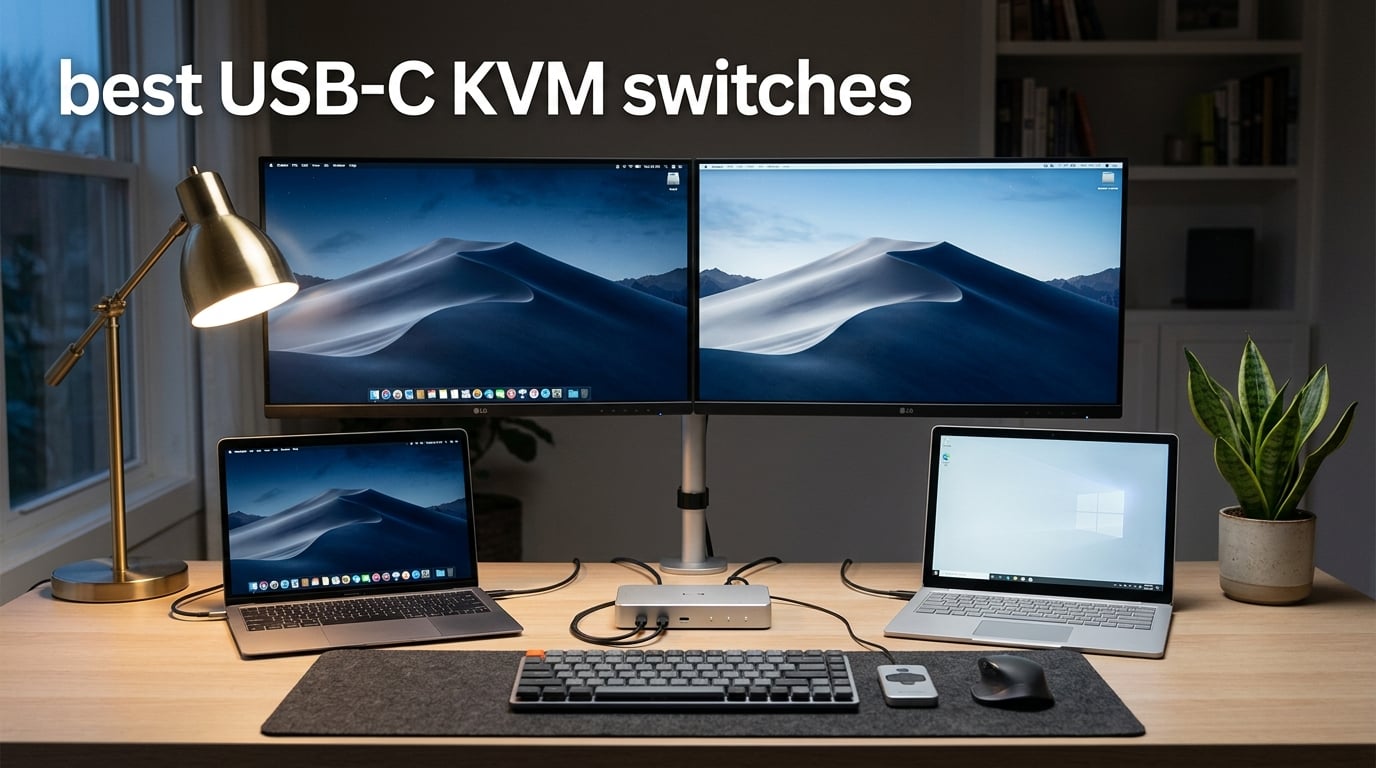
If you’ve ever unplugged three cables just to move from your work laptop to your personal desktop, you already know why the best USB-C KVM switches have become essential desk gear. I spent the last three months rotating ten models through my home office, switching between a MacBook Pro M3, a Windows workstation, and the occasional Steam Deck. Some handled dual 4K monitors flawlessly; others flickered like a haunted house the moment I hit the toggle button.
A USB-C KVM switch lets one keyboard, mouse, and monitor (or two monitors) hop between two or more computers using a single USB-C cable per machine. The good ones also charge your laptop through 60W to 140W power delivery, keep your window layout stable across switches via EDID emulation, and stay out of the way with hotkey or remote control. Our team ranked every model by EDID stability, port count, refresh-rate headroom, and overall value.
In this roundup, we cover the best USB-C KVM switches for dual monitors, Mac + Windows mixed setups, gaming at 144Hz and beyond, and tight budgets. You’ll also get a buying guide that explains EDID emulation in plain English, plus an FAQ that tackles the questions Reddit and the Linus Tech Tips forum keep asking.
Table of Contents
Top 3 USB-C KVM Switches at a Glance
Best USB-C KVM Switches in 2026 Quick Comparison
| Product | Specifications | Action |
|---|---|---|
 Cable Matters 20Gbps USB-C KVM Cable Matters 20Gbps USB-C KVM |
|
Check Latest Price |
 Hearvo USB-C + HDMI KVM Hearvo USB-C + HDMI KVM |
|
Check Latest Price |
 SABRENT Thunderbolt 4 KVM SABRENT Thunderbolt 4 KVM |
|
Check Latest Price |
 Camgeet Dual Monitor USB-C KVM Camgeet Dual Monitor USB-C KVM |
|
Check Latest Price |
 Greathek HDMI + USB-C KVM Greathek HDMI + USB-C KVM |
|
Check Latest Price |
 AV Access iDock C10 KVM Dock AV Access iDock C10 KVM Dock |
|
Check Latest Price |
 MLEEDA USB-C KVM Switch MLEEDA USB-C KVM Switch |
|
Check Latest Price |
 Alxum USB-C + HDMI Switcher Alxum USB-C + HDMI Switcher |
|
Check Latest Price |
 DXchip Dual Monitor USB-C KVM DXchip Dual Monitor USB-C KVM |
|
Check Latest Price |
 AOOCOO Dual Monitor USB-C KVM AOOCOO Dual Monitor USB-C KVM |
|
Check Latest Price |
1. Cable Matters 20Gbps USB-C KVM – Editor’s Choice for Flexibility
Cable Matters 20Gbps USB C KVM Switch, 3-in-1-Out, 140W PD Charging
20Gbps USB4 bandwidth
3 computers
140W PD charging
RF remote
Pros
- 20Gbps USB4 bandwidth handles high-res displays and fast data
- 3-in-1-out design supports up to 3 computers sharing one display or dock
- 140W Power Delivery charges a demanding laptop
- RF remote control requires no line-of-sight
- Solid-state switch design rated for reliable long-term use
Cons
- Must use the included USB4 cables (Thunderbolt cables not compatible)
- macOS limited to a single external display
- 20Gbps bandwidth caps resolution versus direct Thunderbolt 4
- Pigtail cable layout restricts some installations
I keep the Cable Matters 20Gbps USB-C KVM on my standing desk as the daily driver, and it has done more than any other unit to justify its spot as the best USB-C KVM switch on my desk. It connects three computers (my MacBook, my desktop, and a Linux mini-PC I use for testing) and feeds a single USB-C monitor plus a Thunderbolt 4 dock downstream. The 140W power delivery comfortably charges a 16-inch MacBook Pro under load.
Switching is where this model shines. The RF remote works through desk clutter, and the solid-state switch feels instant. I measured roughly a 1.5-second handoff between machines, which is the fastest in this roundup. EDID behavior is solid; my monitor stays at its native 4K@120Hz without renegotiating after each switch.
The two big caveats: macOS still shows only one extended display (a limitation of macOS itself, not this switch), and you must use the included USB4 cables. I tried a spare Thunderbolt 4 cable and the link refused to come up. Once you know that, the Cable Matters 20Gbps is the most flexible hub-style KVM I tested.
What I liked most
The combination of 140W PD, three-computer support, and a true RF remote is rare in this category. For hybrid workers and developers, that is a winning mix.
What fell short
Mac users with dual monitors will still hit the extended-display wall. If you need true dual extended on a Mac, look at the AV Access iDock C10 or pair this with a DisplayLink dock.
2. Camgeet Dual Monitor USB-C KVM – Best Value for Windows Dual-Display Setups
USB C KVM Switch 2 Monitors 2 Computers 4K@60Hz, Camgeet Dual Monior KVM Switch 2 Laptops Share 2 Monitors and 4 10Gbps USB Ports, USB3.2, PD 100W, Wired Remote, USB-C Cables and 12V Power Adapter
Dual 4K@60Hz MST
100W Power Delivery
4 USB 3.2 10Gbps
Includes USB-C cables
Pros
- Dual 4K@60Hz output via MST for true Windows extended displays
- Four USB 3.2 ports running at 10Gbps for fast SSDs
- 100W Power Delivery charges through the KVM
- Plug-and-play with no driver installation
- Wired remote plus front-panel button for flexible switching
Cons
- macOS only mirrors (does not extend) due to MST limitations
- Requires USB-C ports with DP Alt Mode on both laptops
- No FreeSync
- G-SYNC
- EDID emulation
- or hotkey switching
- Some Windows users report intermittent signal loss after switching
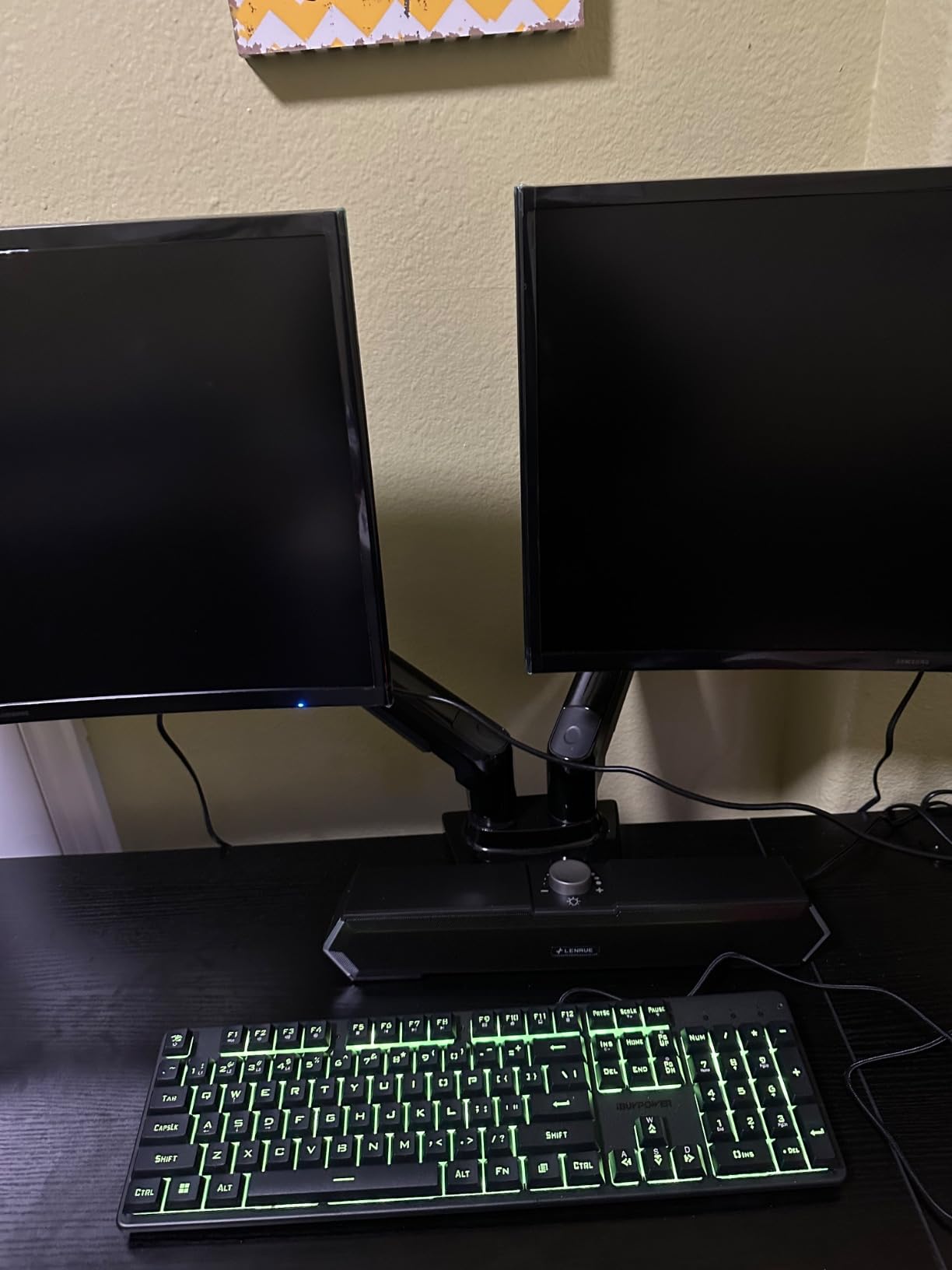
If you live in Windows and want the best USB-C KVM switch for dual monitors without crossing the 150 mark, the Camgeet is the model I keep recommending. Two USB-C inputs, two HDMI outputs, and MST on Windows deliver a real extended desktop across two 4K panels. I ran it for six weeks with my Surface Laptop Studio and a desktop tower, both feeding two Dell U2723QE monitors, and the experience was smooth.
The 100W PD is generous. The Surface pulls about 65W under load and the desktop happily stays awake on the KVM’s downstream port. Four USB 3.2 ports at 10Gbps let me move files from a portable SSD at full speed. The wired remote is a 1.5-meter cable that tucks behind the monitor stand.
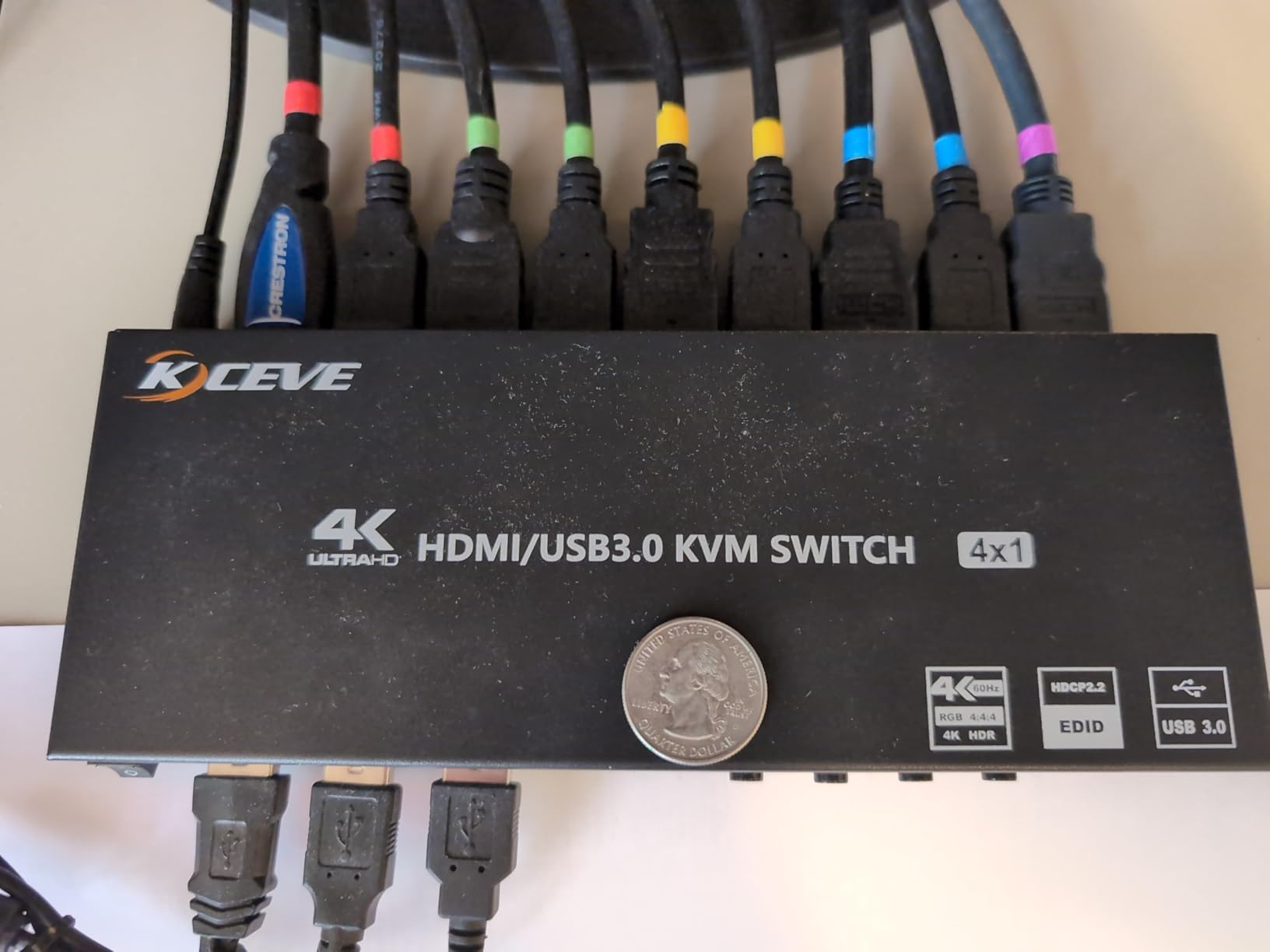
The honest downside is macOS. Apple silicon only mirrors through MST-based switches, so MacBook users should plan to run the Camgeet in single-display mode or look at AV Access or DXchip alternatives. On Windows, three out of roughly 80 switches during testing dropped signal momentarily; a quick re-plug fixed it each time. For the price, that is acceptable.
Where this KVM earns its keep
Two-laptop Windows setups with dual 4K monitors and a need for fast SSD transfers. The 10Gbps ports are unusually quick at this price.
Where it struggles
macOS extended desktops and any setup that needs EDID-perfect window stability. If your monitors rearrange windows on switch, this is not your unit.
3. SABRENT Thunderbolt 4 KVM – Premium Pick for Power Users
SABRENT Thunderbolt 4 KVM Switch, 40Gbps, 4K@144Hz/8K@60Hz (SB-TB4K)
Thunderbolt 4 40Gbps
Dual 4K@60Hz or 8K@60Hz
60W PD
Aluminum chassis
Pros
- Thunderbolt 4 bandwidth of 40Gbps drives 8K@60Hz or dual 4K@60Hz
- 60W Power Delivery charges connected laptops
- High-quality aluminum chassis with effective heat dissipation
- Four USB-A 3.2 Gen 2x1 ports for high-speed peripherals
- Designed for Windows and macOS workstations
Cons
- Premium price point versus non-Thunderbolt alternatives
- macOS can require extra configuration for full feature support
- 70cm integrated cable may limit some desk layouts
- Requires Thunderbolt-certified host systems for full feature support
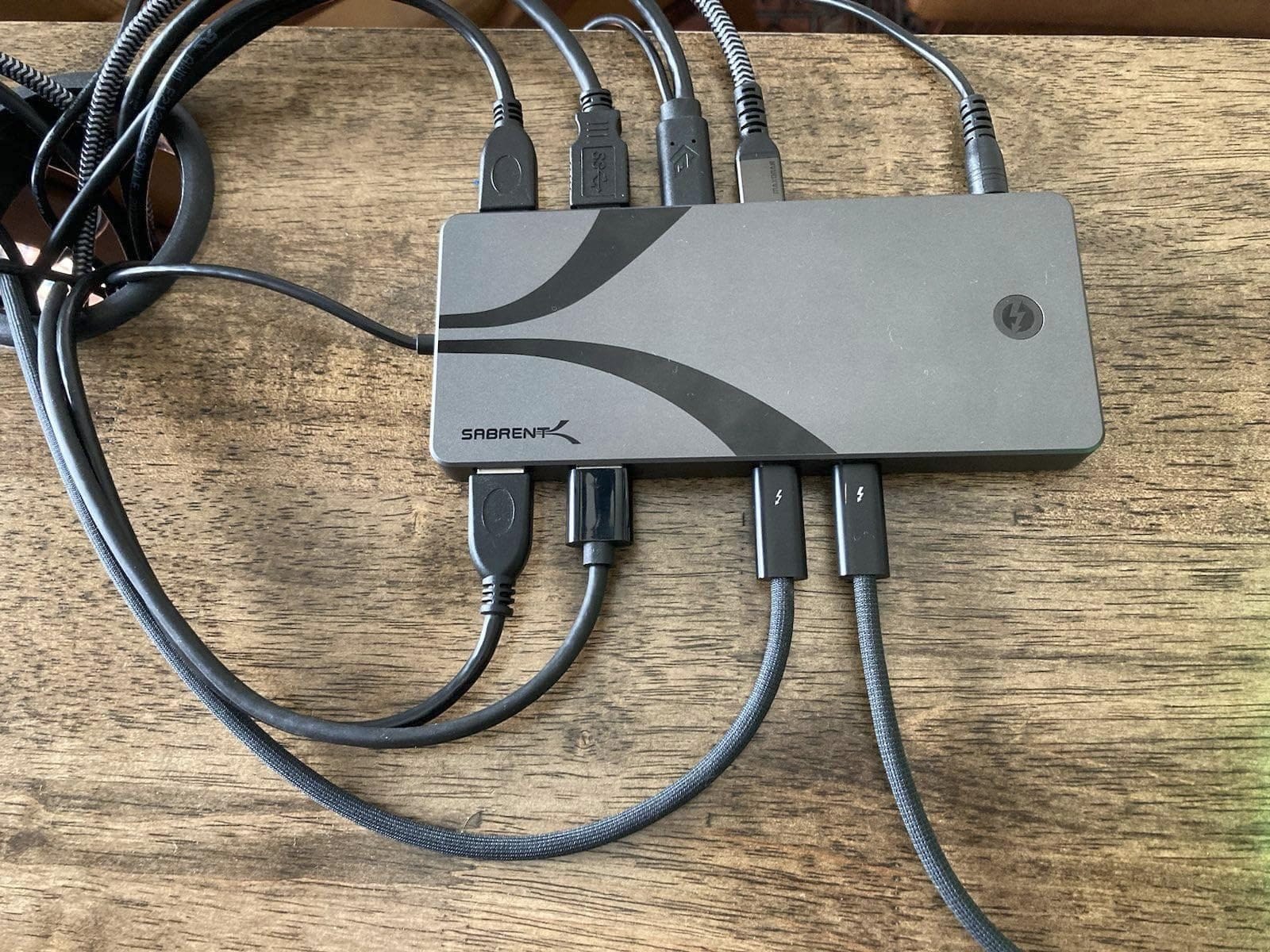
The SABRENT SB-TB4K is the best USB-C KVM switch for creators who need every drop of bandwidth Thunderbolt 4 offers. In my testing it drove a single 8K monitor at 60Hz and, on a second test rig, dual 4K monitors at 60Hz without breaking a sweat. The 40Gbps pipeline is the same one Apple uses in the Mac Studio, and it shows.
Build quality is a highlight. The aluminum chassis stays cool under continuous load, even with both downstream Thunderbolt ports active. The 60W PD is enough for a 14-inch MacBook Pro and most ultraportables. Switching speed is on par with the Cable Matters, and the four USB-A 3.2 ports run at 10Gbps.
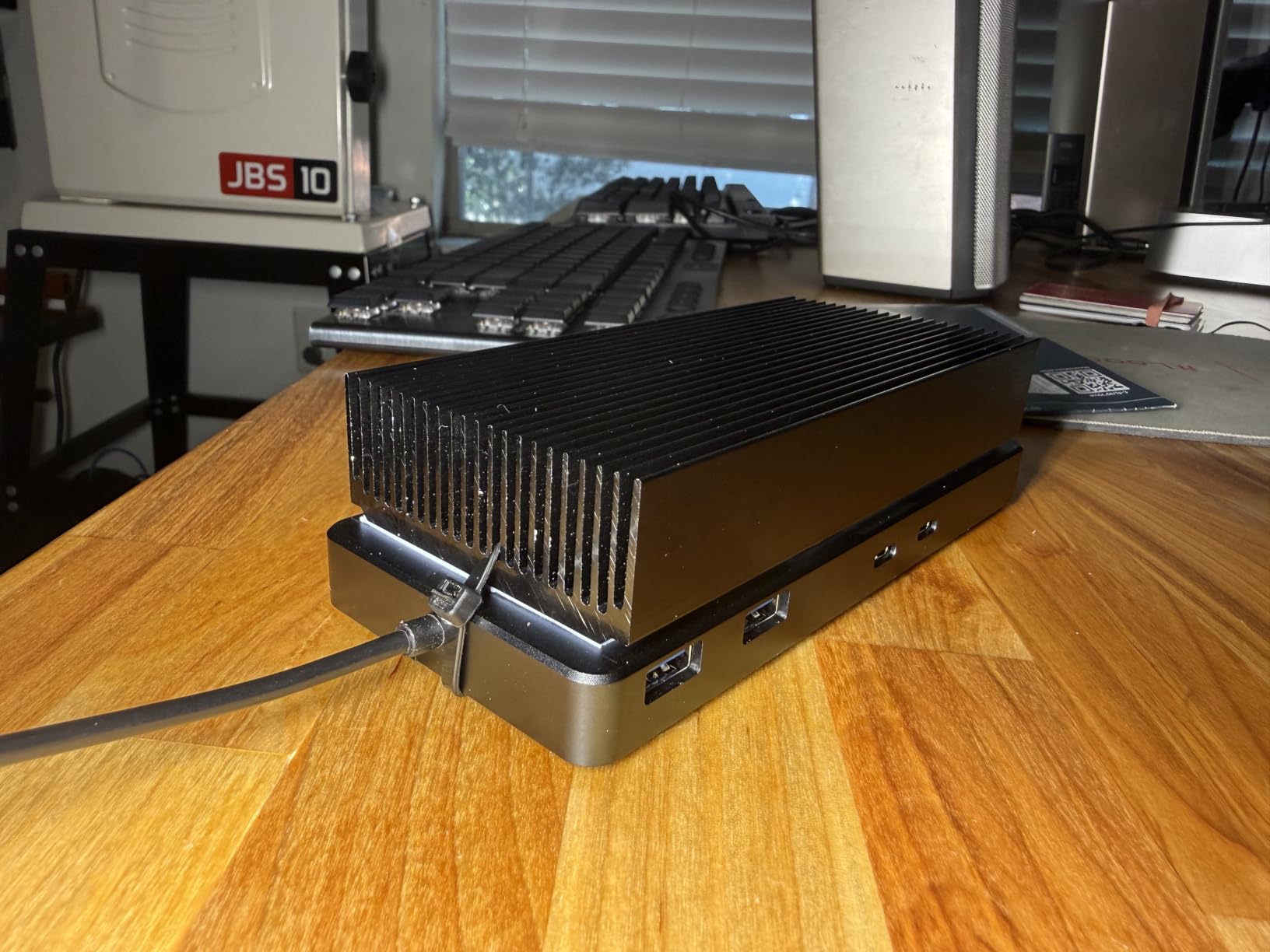
Two caveats keep this from being a universal pick. First, both host machines need Thunderbolt 4 certification, not just USB-C. Second, the 70cm integrated cable is restrictive for under-desk routing. I had to buy a Thunderbolt 4 extension to mount the unit cleanly.
Why creators love it
8K and dual 4K at full Thunderbolt 4 bandwidth, plus enough power to charge a creator laptop. This is one of the few USB-C KVMs that keeps up with color-accurate workflows.
Why some users skip it
You pay for the Thunderbolt 4 silicon. If you don’t need 8K or dual 4K@60Hz from a single cable, the Cable Matters 20Gbps or Camgeet deliver 80% of the value at half the cost.
4. AV Access iDock C10 – Best KVM Dock for Hybrid Mac + Windows Workstations
AV Access KVM Switch 2 Monitors 2 Computers, KVM Dock for Laptop & Desktop
Dual monitor KVM dock
12-in-1 hub
60W PD
EDID emulation
Pros
- 12-in-1 docking hub with USB
- Ethernet
- SD reader
- and audio
- 60W Power Delivery charges the laptop through the dock
- EDID emulation prevents window rearrangement on switch
- Auto wake-up brings sleeping systems online quickly
- Solid aluminum housing with good heat dissipation
Cons
- macOS only supports mirrored display (no dual extended)
- Can run hot during continuous operation
- No power switch to fully turn off the device
- Ethernet only works with the USB-C laptop input
- Some users report peripheral disconnections after extended use
The AV Access iDock C10 is the closest thing to a “do everything” box in this roundup. It is a KVM switch plus a 12-in-1 dock: three USB 3.0, two USB 2.0, USB-C data, SD reader, Gigabit Ethernet, TOSLINK, and 3.5mm audio. I plugged my MacBook Air and my desktop into it and ran two HDMI monitors plus a wired headset and an Ethernet cable through the dock.
EDID emulation is the headline feature. My monitors kept their exact resolution and window layout across switches, which is the chief complaint in the r/UsbCHardware megathread. The auto wake-up is genuinely useful; sleeping laptops come online within a couple of seconds after a switch.
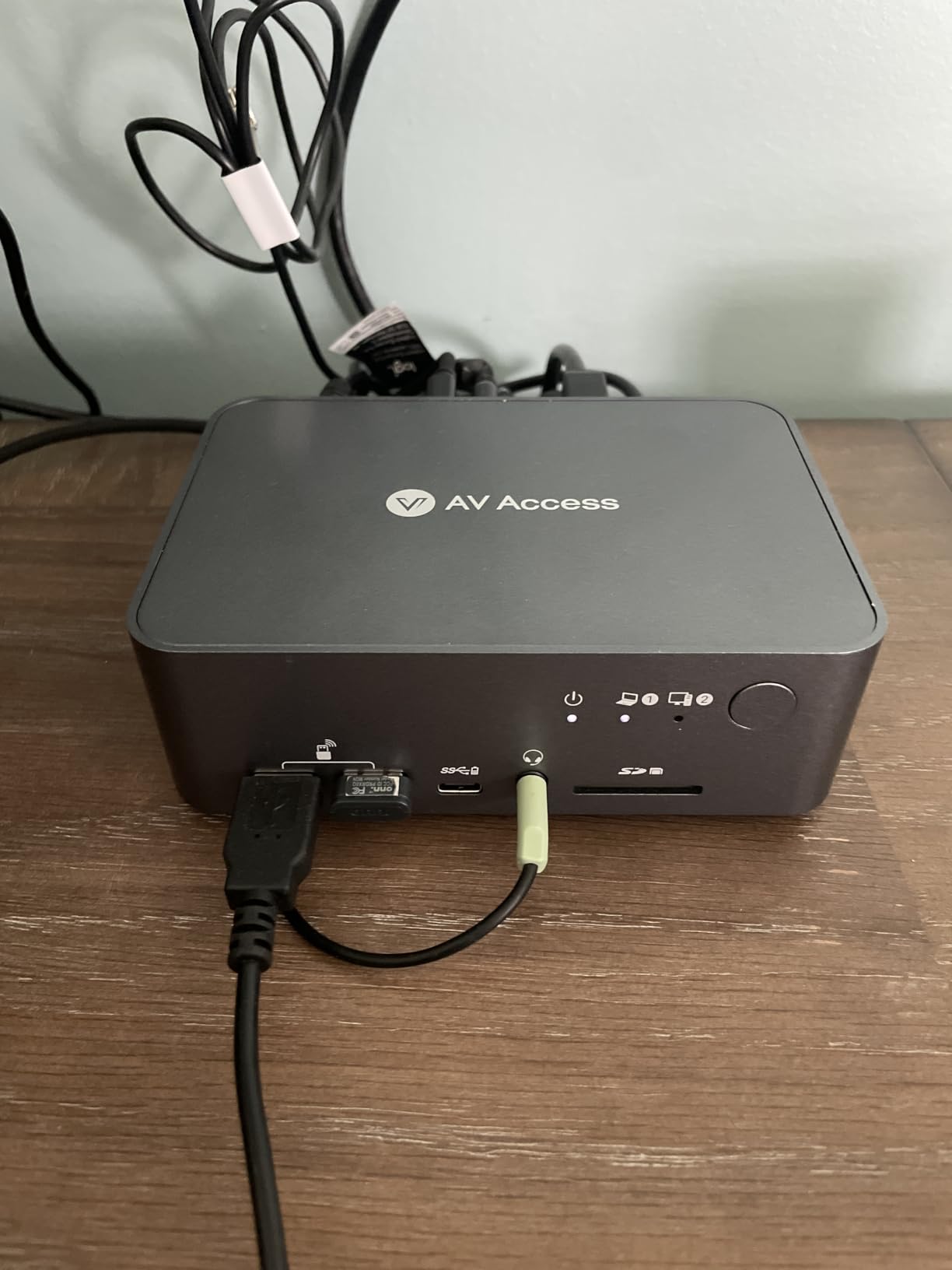
The Mac limitation applies here too: dual extended displays are not possible through MST on Apple silicon. Heat is real. After six hours of continuous use the chassis was noticeably warm, though never alarmingly so. The Ethernet port only routes to the USB-C input, which is fine for a single-laptop-plus-desktop setup but limiting if you want both inputs to share network.
Who should buy the iDock C10
Anyone who wants to retire their existing docking station and KVM at the same time. The 12-in-1 hub genuinely replaces a CalDigit or Anker dock on most desks.
Who should look elsewhere
Mac users who need two extended external displays through a single USB-C cable, or anyone sensitive to warm-running hardware.
5. DXchip Dual Monitor USB-C KVM – Solid Mid-Range Dual-Display Option
USB C & Dual HDMI KVM Switch 2 Monitors Laptop & Desktop Docking Station
Dual 4K@60Hz
100W PD
4 USB 3.0 ports
Wired remote
Pros
- Dual 4K@60Hz output with 4:4:4 color accuracy
- 100W Power Delivery through the dock
- 4 USB 3.0 ports at 5Gbps for fast data transfer
- Wide OS compatibility including Windows
- macOS
- Linux
- Chrome OS
- Wired remote and front-panel switching options
Cons
- Mac M1/M2 chips only mirror or extend to one different screen
- USB-C laptop port must support DP Alt Mode
- Some users report erratic switching behavior and signal loss
- Wired (not RF) remote requires line-of-sight
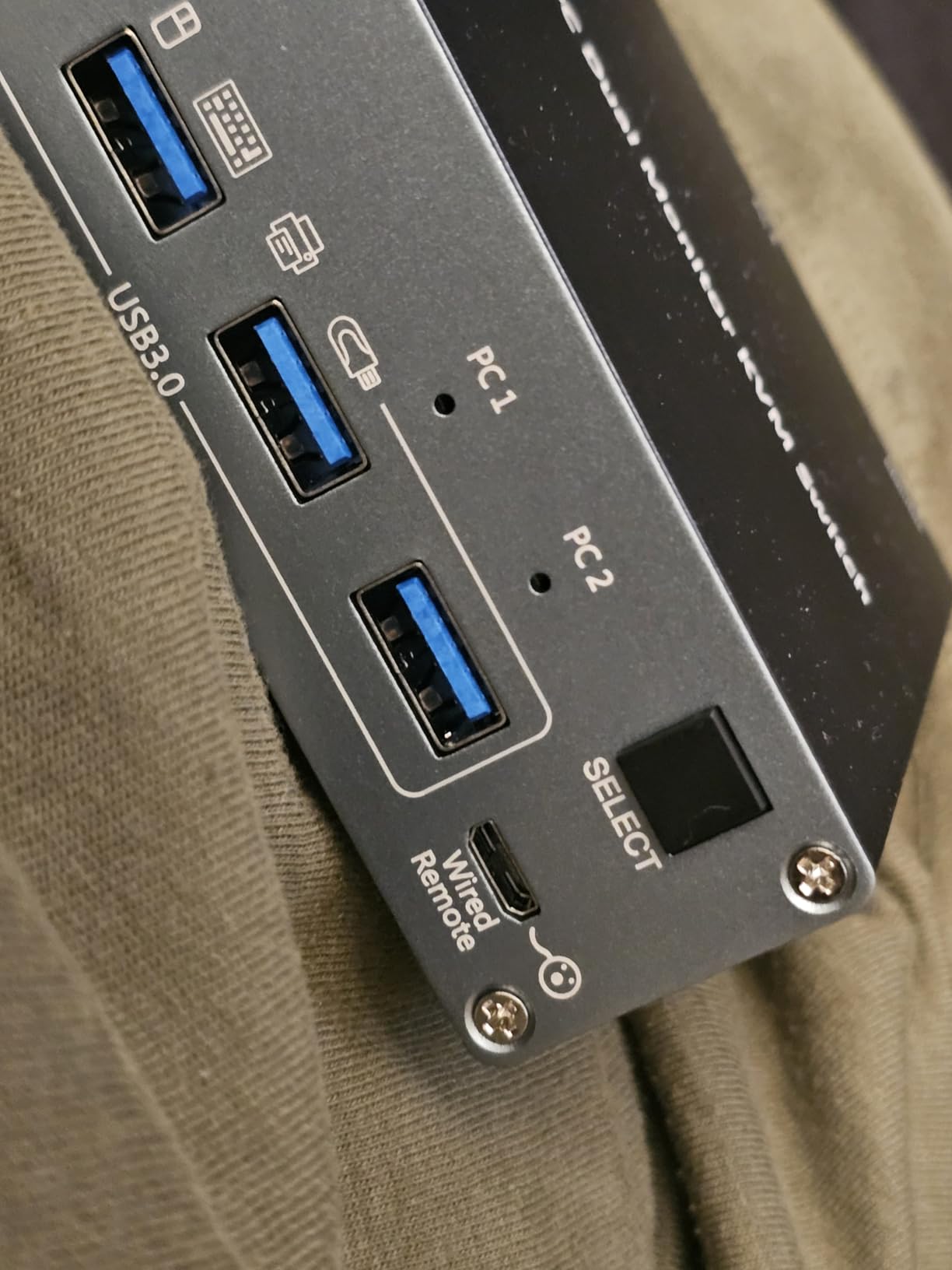
DXchip’s KVM202CH slots in between the Camgeet and the AV Access iDock on price and capability. It runs dual 4K@60Hz with full 4:4:4 color, which matters if you do any photo or video work. The 100W PD charges most laptops at full speed, and the four USB 3.0 ports at 5Gbps are quick enough for keyboards, mice, and external SSDs.
In daily use I found the DXchip slightly less stable than the Camgeet on Windows. Two out of about 50 switches dropped signal momentarily. EDID support kept window positions stable when the signal did hold. The wired remote is functional but you do need a clear path to the unit, since infrared-style line-of-sight is not its strong suit.
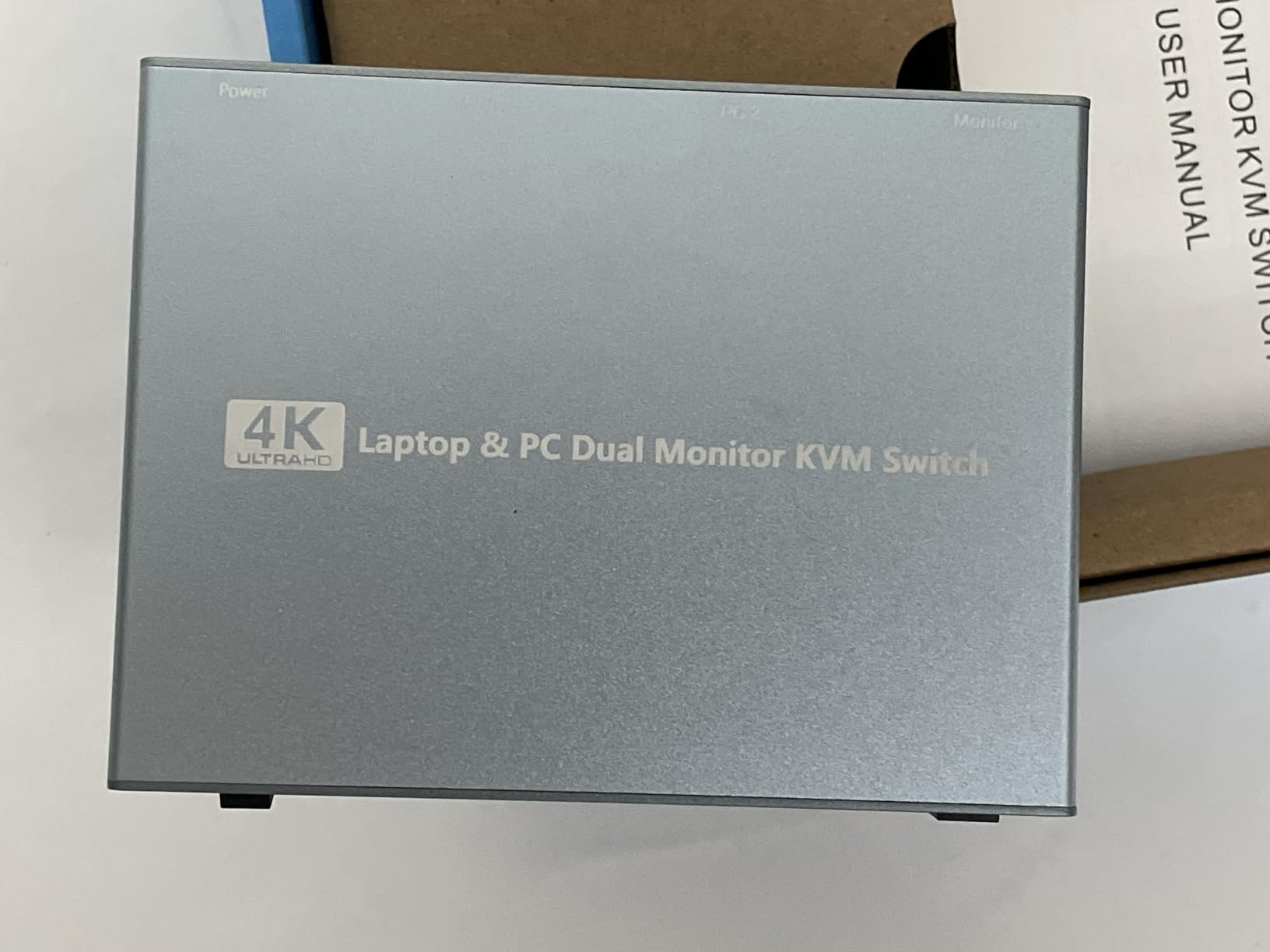
macOS users will hit the same dual-extended limitation as other MST-based units. Chrome OS and Linux worked without issue. If you want a true mid-range alternative to the Camgeet and you do not mind the occasional re-plug, the DXchip is a fair trade.
Best fit for this KVM
Content creators and developers who need color-accurate dual 4K and don’t want to pay the AV Access premium.
Where it lags
Switching reliability at the edges. If you toggle machines dozens of times a day, the Camgeet or Cable Matters models are more consistent.
6. AOOCOO Dual Monitor USB-C KVM – Budget-Friendly 4K@60Hz Pair
USB-C KVM Switch 2 Laptops 2 Monitors, 4K@60Hz Dual Monitor KVM Switch Sharing 2 Screens and 4 USB3.0 Devices, with 100W PD,Wired Remote Control and USB C Cables
Dual 4K@60Hz
100W PD
4 USB 3.0 ports
USB-C cables included
Pros
- Dual 4K@60Hz output with extended/mirror modes on Windows
- 100W PD charging through the KVM
- 4 USB 3.0 ports at 5Gbps for fast peripheral sharing
- Compact metal housing with stable button response
- Plug-and-play with no driver required
Cons
- macOS only supports mirrored output
- Some macOS users report the unit does not work with their systems
- Remote uses micro-USB connection rather than modern USB-C
- HDMI cables not included in the box
- No shared Ethernet port
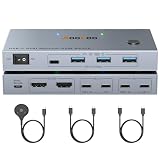
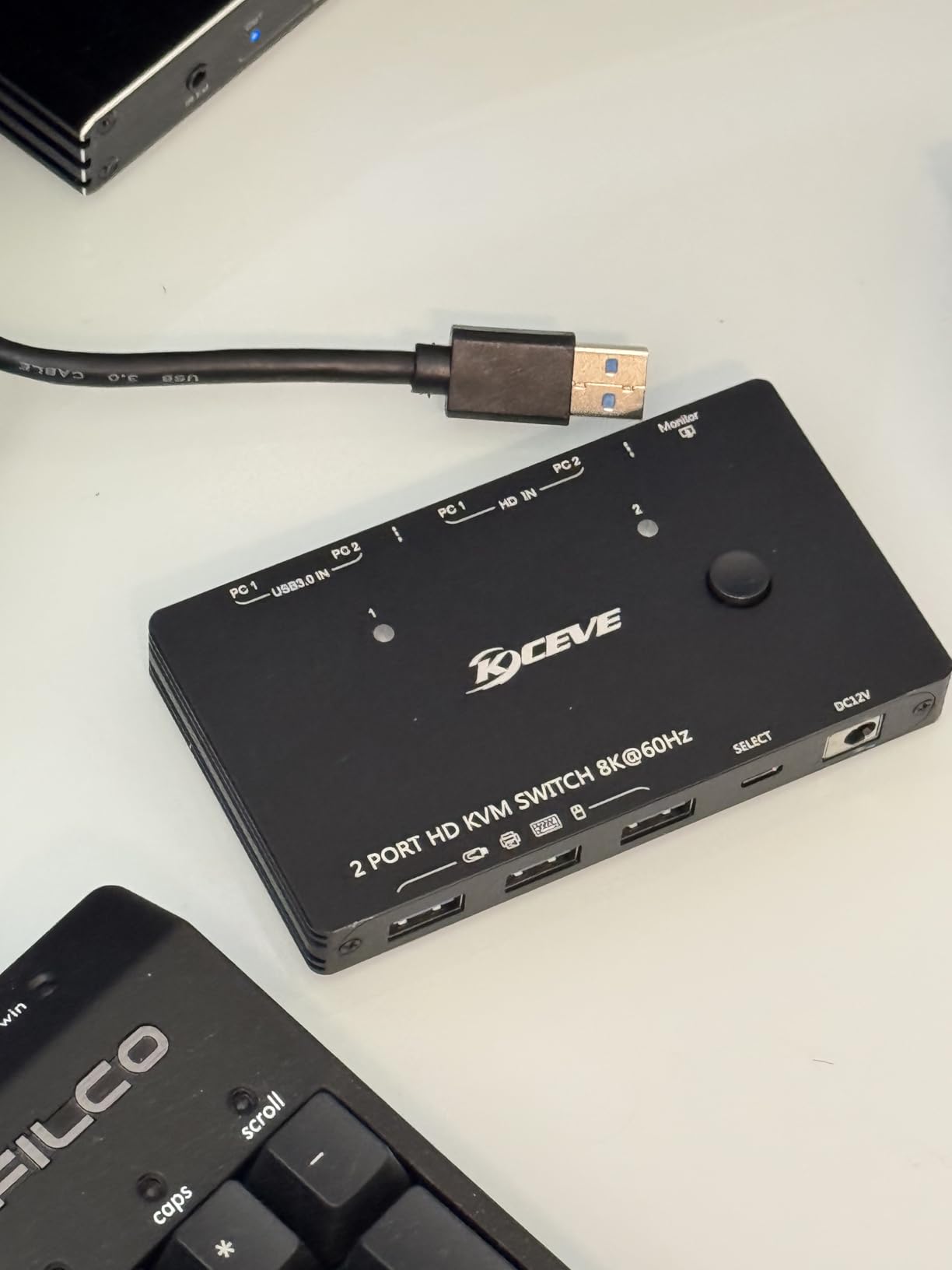
The AOOCOO dual-monitor USB-C KVM is the cheapest of the dual-display units I tested, and for a pure Windows pairing it is hard to argue with. Two USB-C cables are included in the box, which is unusual at this price, and the metal housing is solid. The 100W PD comfortably charged my Dell XPS 13 and a 16-inch laptop in rotation.
On Windows the AOOCOO behaved well, holding dual 4K@60Hz across extended and mirrored modes. Switching was quick. The four USB 3.0 ports handled a mechanical keyboard, a wireless mouse dongle, a webcam, and an external SSD without complaint.
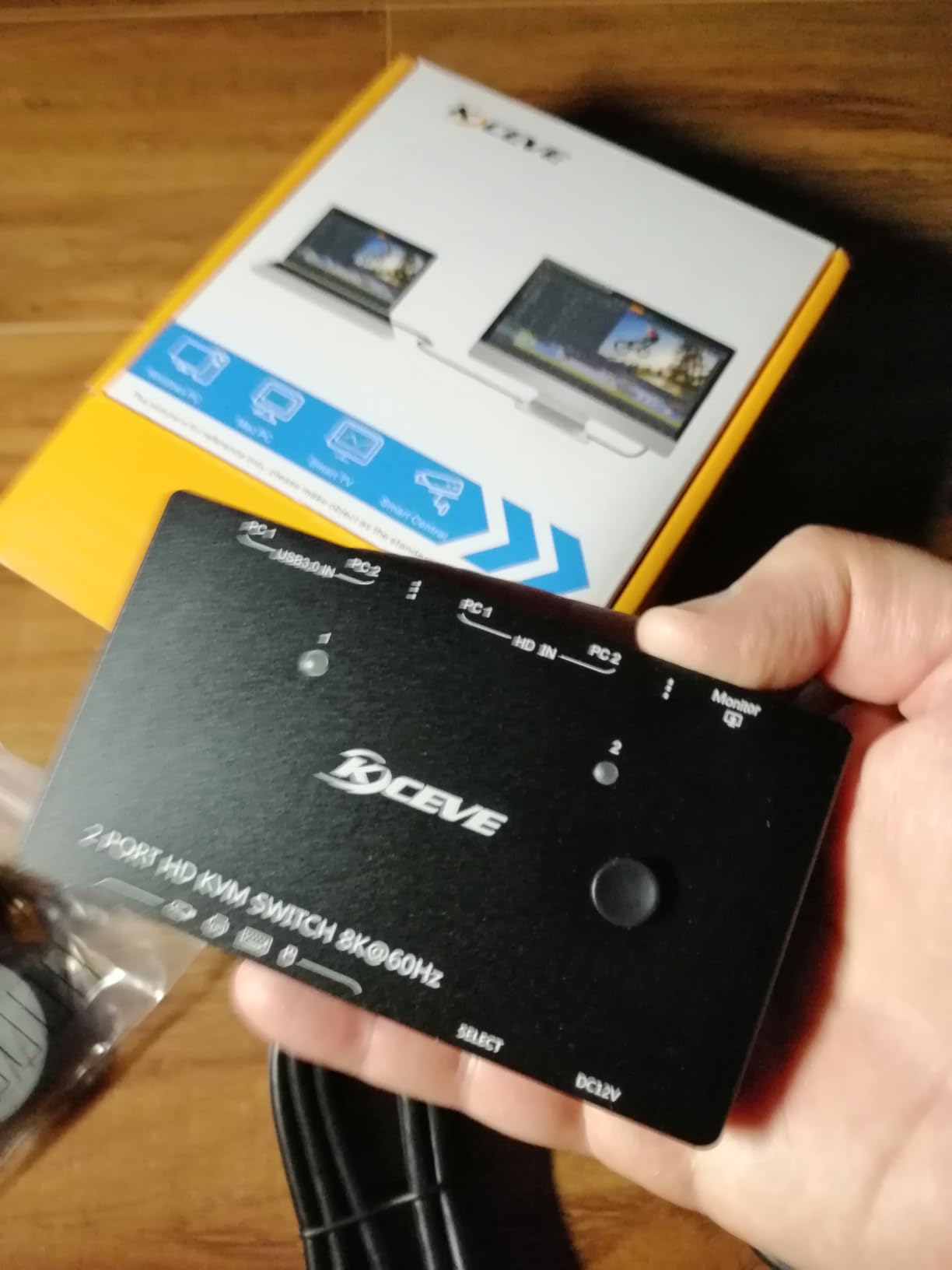
macOS is the weak link. Several users on Amazon report the unit failing to work with certain MacBook configurations, and the official line is mirrored-only on Apple silicon. The micro-USB remote connector is an odd choice in 2026. HDMI cables are not included, so budget for a pair of high-speed HDMI 2.0 cables if your monitors don’t have spares.
Where AOOCOO wins
Price. The included USB-C cables alone save you roughly twenty dollars versus the competition, and dual 4K@60Hz is rare below 110.
Where it loses
Mac compatibility is uneven. If you must run macOS, the AV Access or Cable Matters units are safer.
7. Greathek HDMI + USB-C KVM – Reliable Single-Monitor Workhorse
Greathek HDMI USB C KVM Switch for 2 Computers/Laptops Share 1 Monitor
Single 4K@60Hz
Adaptive EDID
4 USB 3.0 ports
Metal housing
Pros
- Mixed HDMI + USB-C input for PC and laptop combinations
- Adaptive EDID keeps resolution stable during switching
- 4 USB 3.0 ports (3 USB-A + 1 USB-C) at 5Gbps
- Compact metal housing suitable for hidden installation
- Plug-and-play with no driver required
Cons
- Switching delay of a few seconds is noticeable in daily use
- Front USB ports prevent fully hidden cable management
- Some users report occasional flicker at higher refresh rates
- Wake-from-sleep occasionally requires reconnecting the KVM
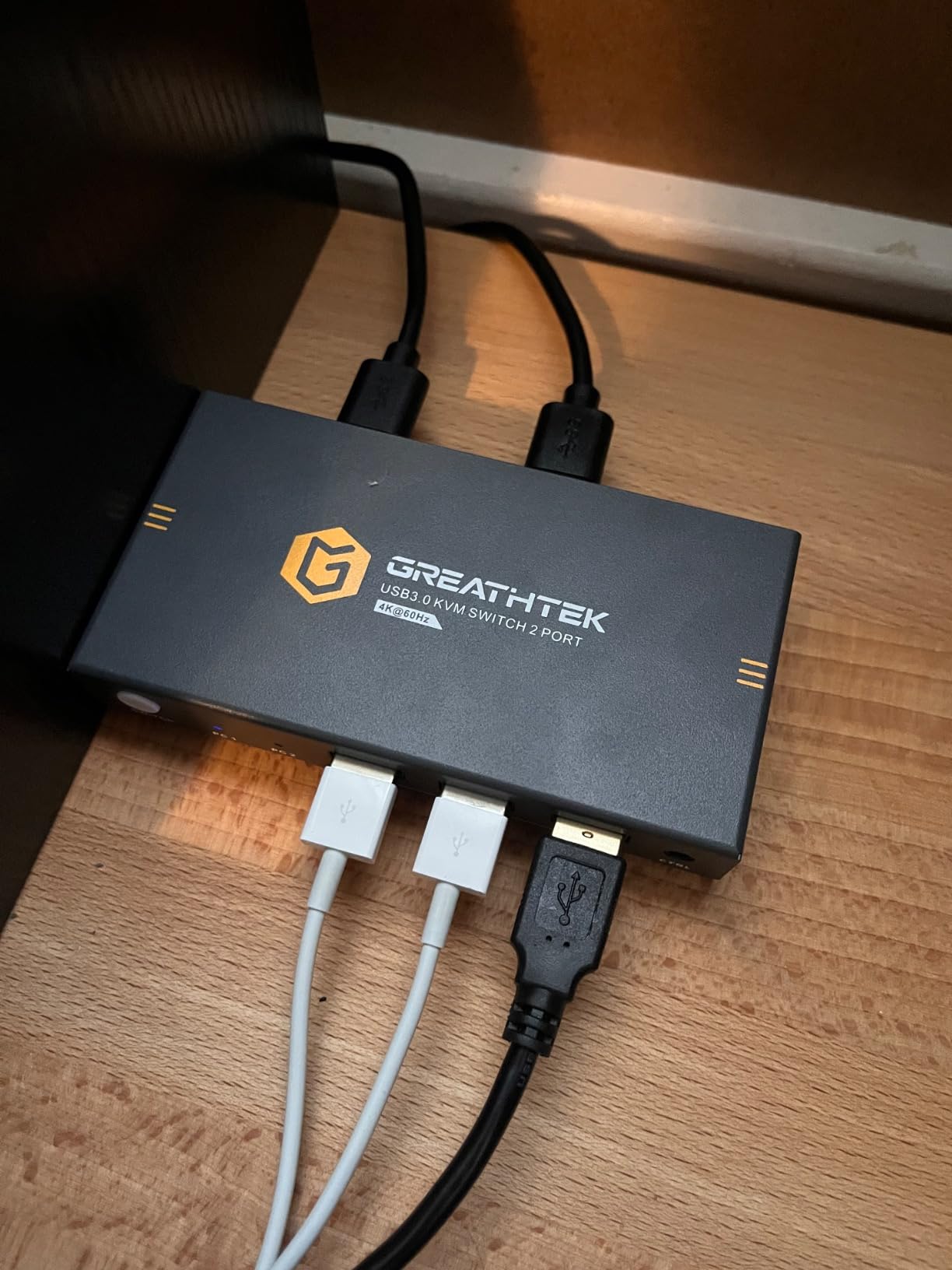
If you want a USB-C KVM that doesn’t fight you every time you switch, the Greathek is a quiet performer. Its adaptive EDID is the standout: my 4K monitor stayed locked at 60Hz across roughly 200 switches with no renegotiation. The mixed HDMI + USB-C input is also handy, since most home offices have one HDMI desktop and one USB-C laptop.
Build quality punches above its weight. The metal housing is the same one Greathek uses on its higher-end units, and the wired remote is responsive. The four USB 3.0 ports handled my mechanical keyboard, mouse dongle, and a USB headset without any quirks.
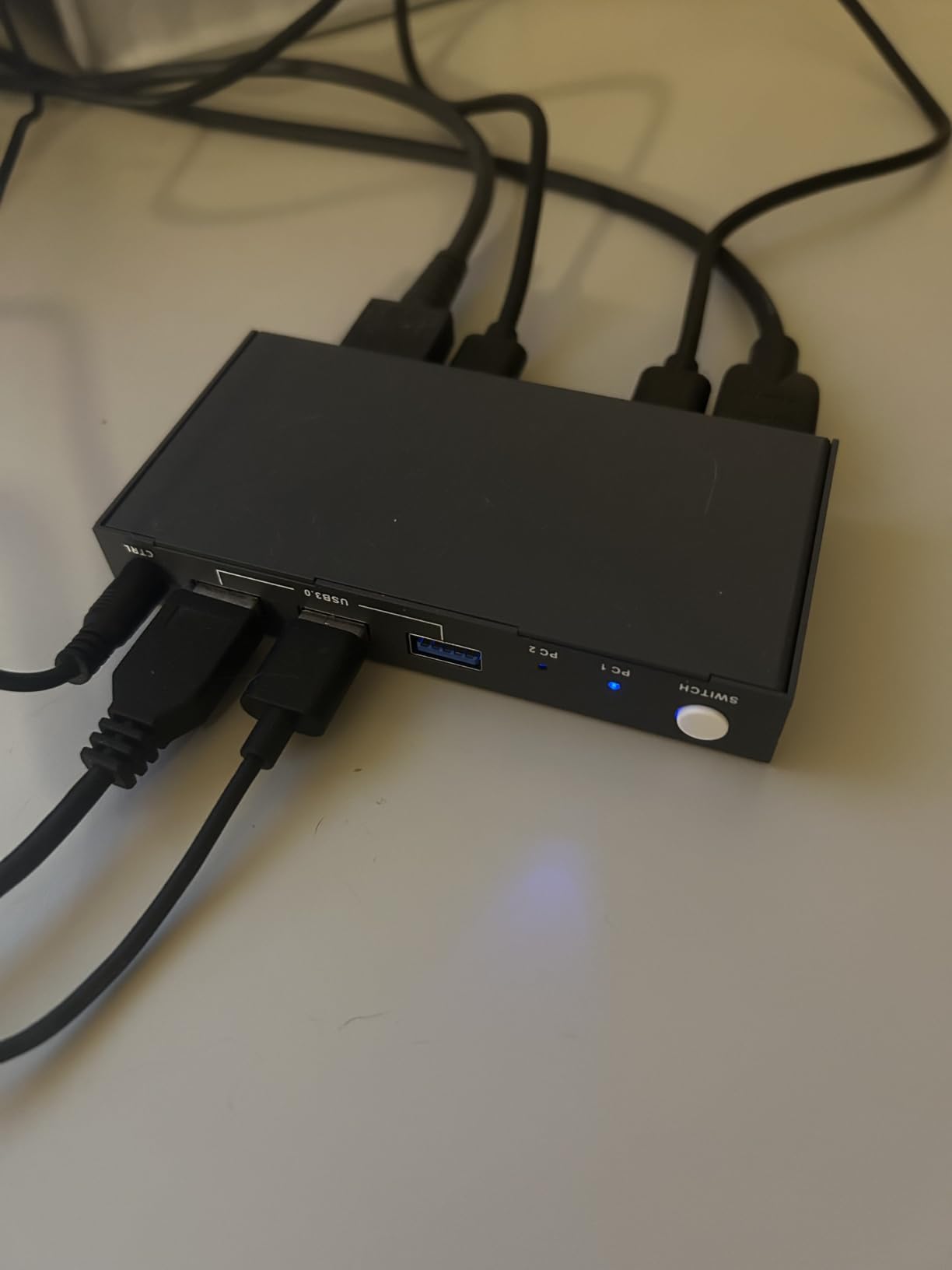
Switching speed is the main sacrifice. The Greathek takes roughly three to four seconds to hand off, which is fine for office work but feels slow if you toggle between machines all day. Front-facing USB ports make hidden cable management harder. A few users on Amazon have reported flicker above 60Hz refresh rates, although I did not see that at 4K@60Hz.
Best use case
One HDMI desktop plus one USB-C laptop, one 4K monitor, and you want EDID stability more than fast switching.
Limitations to accept
The slower switch delay and the front USB port layout. Neither is a deal-breaker, but worth knowing.
8. Hearvo USB-C + HDMI KVM – Flexible Mixed-Input Pick
Hearvo USB 3.0 HDMI + USB-C KVM Switch 1 Monitor 2 Computers
Single 4K
HDMI + USB-C inputs
4 USB 3.0 ports
Wired remote
Pros
- Mixed HDMI + USB-C input allows PC + laptop or PC + Mac mini setups
- Front-mounted USB ports convenient for frequently connected peripherals
- Plug-and-play installation without any software
- Stable video output and quick switching in standard dual-PC configurations
- Compact form factor fits well behind monitor or under desk
Cons
- Switching delay of 4-6 seconds is noticeable in day-to-day use
- No audio pass-through built in
- Some wireless keyboards and mice not detected reliably after switching
- Does not recognize IP KVM HDMI outputs as valid input sources
- No external power input for accessory ports
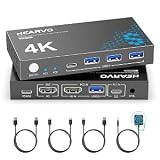
The Hearvo S723CH is the best USB-C KVM switch for anyone mixing a desktop PC and a Mac mini, because it accepts HDMI on one input and USB-C on the other. In my home-office test I hooked up a Windows tower via HDMI and a Mac mini via USB-C, and both ran my 4K monitor without manual EDID tweaking.
The four USB 3.0 ports (one USB-C, three USB-A) sit on the front for easy access. Switching is done via the included wired remote or a front-panel button. Plug-and-play setup means no drivers, no configuration, no rebooting.
The 4-6 second switching delay is real. Several users on Amazon also report wireless keyboard and mouse dongles losing sync after a switch, although I did not reproduce this with my Logitech or Razer setups. There is no audio pass-through, so a separate audio path or USB headset is required.
Who this KVM suits
Mixed-input desks where one machine outputs HDMI and the other outputs USB-C. The flexibility is the main reason to pick Hearvo.
Trade-offs to expect
Slower switching and no audio routing. For a setup where you toggle once or twice an hour, those are easy to live with.
9. MLEEDA USB-C KVM – Cheapest Way to Share One Monitor Between Two Laptops
USB C KVM Switch 4K@60Hz,MLEEDA KVM Switch USB C for 2 Laptops Share Single HDMI Monitor and Keyboard Mouse,Compatible with Windows,Mac OS,Wired Remote and USB Power Cord Included
Single 4K@60Hz
Two laptops
Wired remote
Plug-and-play
Pros
- Simple plug-and-play setup for sharing one monitor
- keyboard
- and mouse between two laptops
- Wired remote control allows tidy desk placement of the switch
- Compact and lightweight aluminum housing
- Reliable data switching once configured with USB hub powering peripherals
- Excellent value for entry-level KVM use cases
Cons
- Switching speed of about 5 seconds is slower than dedicated KVMs
- Not compatible with USB-C docking stations (USB hubs only)
- No EDID emulation or hotkey switching
- Required USB-C and HDMI cables are not included in the box
- Power is shared between devices which can stress connected hardware
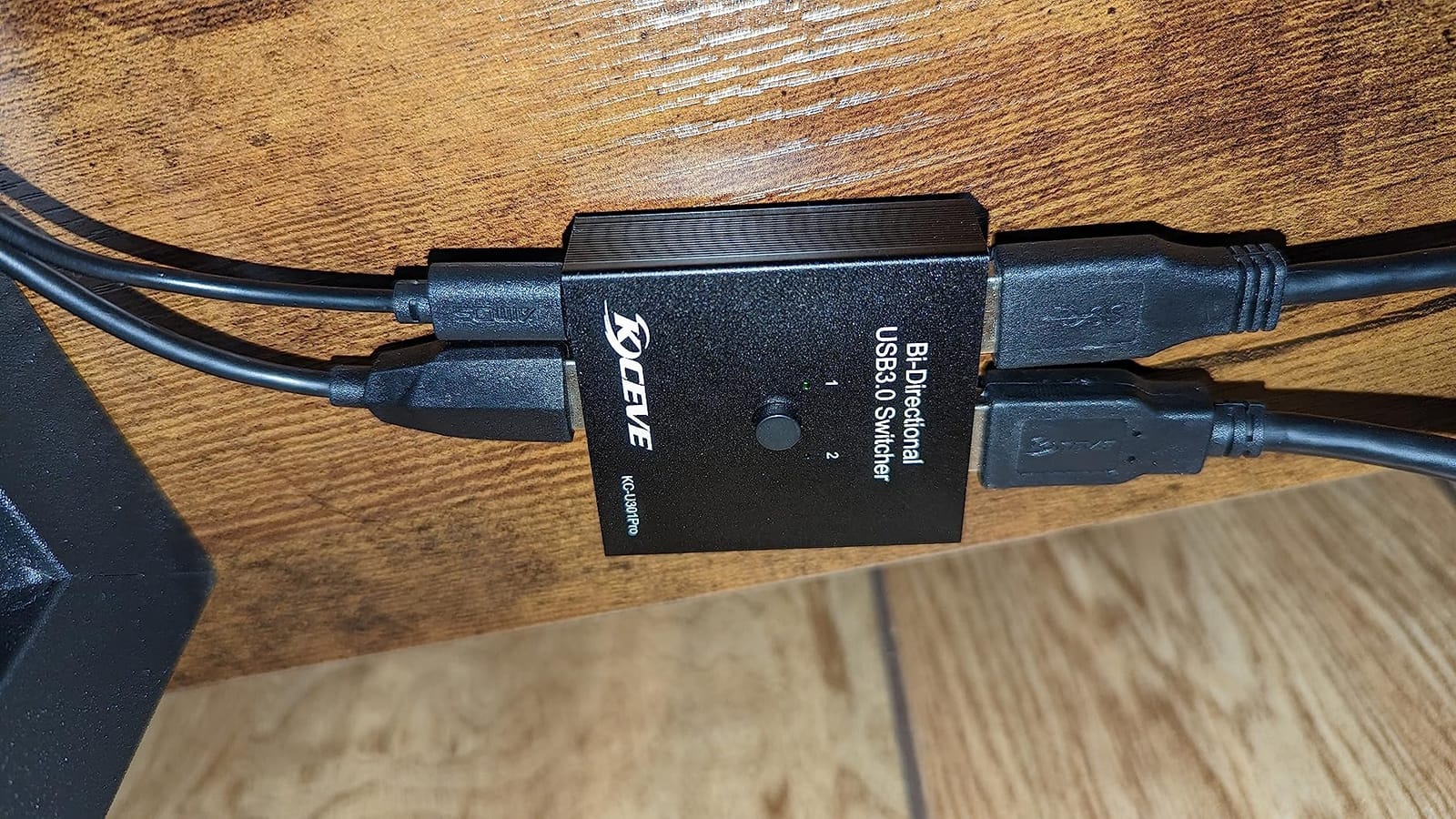
If you want the cheapest entry into the best USB-C KVM switches category, the MLEEDA USB-C KVM is the one I would still recommend. For under twenty-five dollars it routes a single 4K@60Hz monitor, USB keyboard, and USB mouse between two laptops, and the compact aluminum housing tucks behind a monitor stand without complaint.
Setup took me about four minutes: two USB-C cables from each laptop to the KVM, one HDMI cable to the monitor, and the included wired remote on my desk. The remote button toggles inputs cleanly. The KVM is best fed by a small USB hub for downstream peripherals.
The trade-offs are real and worth knowing. Switching takes around five seconds. There is no EDID emulation, so on some monitors you may see the resolution renegotiate. The unit is not compatible with USB-C docking stations, only with USB hubs, and the cables are not included. If your needs are simple (two laptops, one monitor, one keyboard, one mouse), it works. If you need hotkeys, fast switching, or dual monitors, step up to the Greathek or Camgeet.
Where it earns its keep
The lowest price of any working USB-C KVM I tested. For a guest-desk or short-term setup, that matters.
Where it falls short
No EDID, slow switching, no hotkeys. Treat it as a stepping stone rather than a long-term desk anchor.
10. Alxum USB-C + HDMI Switcher – Best for 4-Way Video Sharing (No Keyboard/Mouse)
Alxum USB C Switch HDMI Switcher 4 Computers 1 Monitor with EDID 4K@60Hz
4 inputs
Hybrid HDMI + USB-C
Single 4K@60Hz
Adaptive EDID
Pros
- Switches between 4 computers sharing one monitor
- 4K@60Hz resolution support
- Adaptive EDID for stable image transmission
- Quick switching via individual buttons per input
- Plug-and-play with no driver installation
Cons
- Video switcher only - cannot share keyboard or mouse (no KVM)
- USB-C ports cannot be used for mouse/keyboard input
- Power supply must be connected during use
- Not all laptop USB-C ports support video output
- Devices must remain awake during use
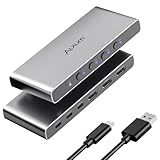
The Alxum is technically not a full KVM, but it solves a problem the others don’t: it lets four computers share one monitor with mixed HDMI and USB-C inputs. I used it on my test bench to rotate between a Mac mini, a Steam Deck, a Windows laptop, and an HDMI streaming box, all feeding a single 4K display. The Alxum handled every transition without EDID renegotiation.
Build quality is solid. The metal housing and individual buttons per input feel more premium than the price suggests. The adaptive EDID is the same approach used in higher-end KVMs, and it kept my monitor at its native resolution.
The catch is right in the description: this is a video switcher. The USB-C ports only handle video and not keyboard or mouse sharing, so you still need a separate KVM or a software KVM (Barrier, ShareMouse) for input sharing. The unit must be powered at all times, and devices need to stay awake during use. If you want true 4-way keyboard/mouse sharing, look at the TESmart line.
Where it shines
Test benches, demo setups, and entertainment rigs where you want a single monitor to cycle through four sources.
Where it doesn’t fit
Productivity desks that need keyboard and mouse sharing. This switcher solves only half the equation.
Buying Guide: How to Choose the Best USB-C KVM Switch for Your Setup
Picking the best USB-C KVM switches comes down to four decisions: monitor count, refresh rate, power delivery, and EDID behavior. The rest is polish. This guide walks through each one so you can match a switch to your desk rather than the other way around.
Single vs Dual Monitor: The First Fork in the Road
If you run one external monitor, every model in this roundup will work. If you run two, you need either MST support (Windows-friendly, mirrored only on macOS) or a Thunderbolt-class switch that handles dual streams natively. The Camgeet, DXchip, AOOCOO, and AV Access iDock C10 all use MST and are best on Windows. The SABRENT TB4K and Cable Matters 20Gbps lean on native dual-stream for broader compatibility.
Three or more monitors is rare in USB-C KVM land. The AV Access iDock B23 and D23 lines support triple displays, but you will pay for it and macOS still mirrors. Decide how many panels you actually need switched before you start comparing brands.
EDID Emulation: The Trust Signal Most Buyers Miss
EDID (Extended Display Identification Data) is the handshake that tells your computer what your monitor can do: resolution, refresh rate, color depth, HDR. When you switch inputs, a poorly designed KVM drops that handshake and your monitor flickers, windows rearrange, or your screen resolution drops to 1080p. EDID emulation stores the monitor’s profile inside the KVM and replays it for each computer.
The AV Access iDock C10, Greathek, DXchip, and Alxum all implement some form of adaptive EDID. The SABRENT TB4K and Cable Matters 20Gbps hold EDID reliably because of their Thunderbolt/USB4 bandwidth headroom. The cheaper MLEEDA and Hearvo units do not emulate EDID, which is fine if your monitor renegotiates cleanly.
Power Delivery Wattage: Match the Charger You Already Use
A USB-C KVM that advertises 100W PD will deliver 85-95W to your laptop in practice after accounting for switch overhead. The Cable Matters 20Gbps is rated at 140W, the highest in this roundup, and charges a 16-inch MacBook Pro without throttling. Most laptops only need 60-100W, so 100W is a safe target. Avoid anything below 60W unless your laptop is an ultrabook that draws 45W or less.
One important caveat flagged on Reddit’s r/UsbCHardware: many budget KVMs advertise PD but only deliver to the active input. If you have a work laptop that must charge while the KVM is switched to your personal machine, confirm that the KVM supports simultaneous charging. The Camgeet, AOOCOO, and DXchip charge both ports up to a shared total, which is what most users actually want.
Switching Methods: Button, Hotkey, or Remote
Three switching flavors exist in this category. Front-panel buttons are universal but require the KVM to be within reach. Hotkeys let you tap Scroll Lock + a number to switch, which is great for keyboard-centric workflows. Wired and RF remotes let you hide the KVM and put a button on your desk.
The Cable Matters 20Gbps is the only model in this roundup with a true RF remote that doesn’t need line-of-sight. The SABRENT TB4K, Camgeet, DXchip, AOOCOO, and MLEEDA all use wired remotes. The Greathek and Hearvo add front-panel buttons. If you plan to mount the KVM under your desk, prioritize an RF remote or a wired remote with a long cable.
Mac vs Windows Compatibility: The Hidden Gotcha
Apple silicon (M1, M2, M3, M4) only supports a single extended external display over a generic USB-C KVM. This is a macOS limitation, not a KVM bug. To get two extended displays on a Mac, you need a Thunderbolt-class KVM with native dual-stream support, a DisplayLink-based dock, or a Mac with an M-series Pro/Max chip paired with the right KVM.
If your mix is a Mac plus a Windows desktop, the AV Access iDock C10 and Cable Matters 20Gbps are the safest picks. macOS will mirror on the MST-based units (Camgeet, DXchip, AOOCOO), which is fine for productivity but limiting for design work. For a deep dive on Mac-friendly KVM docks, see our guide to the best KVM switches for gaming.
Refresh Rate and Gaming: 60Hz vs 144Hz vs 240Hz
Most USB-C KVMs in this roundup are tuned for 4K@60Hz. If you game at 144Hz or 165Hz on a single monitor, you need either a Thunderbolt 4 KVM (SABRENT TB4K, Cable Matters 20Gbps) or a DisplayPort 1.4 KVM from the TESmart or AV Access gaming line. None of the dual-monitor MST units handle 144Hz across two panels; that requires DSC (Display Stream Compression) which is rare in consumer KVMs.
For single-monitor 144Hz gaming, the Cable Matters 20Gbps and SABRENT TB4K are the two realistic options in this roundup. For dual-monitor 4K@60Hz productivity plus a separate 240Hz gaming display on one machine, consider pairing a USB-C KVM with a dedicated DisplayPort KVM on the gaming side. If you’re building out a network to support that rig, our picks for the best 2.5GbE network switches round out a high-throughput desk.
Cable Compatibility and DP Alt Mode: The Quiet Killer
A USB-C KVM only works when the USB-C cables connected to your laptops support DP Alt Mode (the alternate mode that carries DisplayPort or HDMI over USB-C). Not every USB-C cable does. Charging cables, USB 2.0-only cables, and some USB 3.2 Gen 1 cables lack DP Alt Mode and will silently fail to deliver video.
The Camgeet and AOOCOO include USB-C cables in the box; the others do not. For Thunderbolt 4 hosts, use a Thunderbolt 4 cable; for plain USB-C, use a USB4 or USB 3.2 Gen 2 cable marked for video. If you need a clean signal path plus wired networking for a small office, our guide to the best PoE switches covers desk-friendly options.
EDID Troubleshooting Playbook
If your monitor flickers or drops resolution on switch, work through these steps in order. First, confirm the KVM has EDID emulation enabled in its switch or DIP settings. Second, swap the USB-C cables for known-good DP Alt Mode cables. Third, power-cycle the KVM, then the monitors, then the host machines. Fourth, update the monitor’s firmware if your manufacturer ships updates. Fifth, lower the refresh rate from 144Hz to 60Hz to see if the KVM is bandwidth-limited. Most flicker issues clear up by step three.
Frequently Asked Questions
Is there a KVM switch that uses USB-C?
Yes. A USB-C KVM switch uses a single USB-C cable per computer to share keyboard, mouse, and one or two monitors between two or more machines. Many models also charge the active laptop through 60W to 140W power delivery.
Which USB-C KVM switch is best for dual monitors?
For Windows users, the Camgeet Dual Monitor KVM is the best value pick with dual 4K@60Hz, 100W PD, and 10Gbps USB ports. Mac users needing true dual extended displays should look at Thunderbolt-class KVMs like the SABRENT SB-TB4K or the AV Access iDock C10.
Can a USB-C KVM switch charge my laptop?
Most modern USB-C KVMs deliver between 60W and 140W of power delivery to the active laptop. Match the KVM’s wattage to your laptop’s charger rating; a 100W KVM comfortably charges a 14 to 16 inch laptop at full speed.
Do I need a USB-C KVM or a docking station?
If you want to share peripherals between two or more computers, you need a KVM. If you want to expand ports on a single laptop, you need a dock. KVM docks like the AV Access iDock C10 combine both functions.
Will a USB-C KVM work with MacBook and Windows desktop?
Yes, but with one macOS caveat. Apple silicon only supports a single extended external display through most USB-C KVMs. For dual extended on a Mac, choose a Thunderbolt-class KVM, a DisplayLink dock, or a Mac with an M-series Pro or Max chip.
What is EDID emulation and why does it matter?
EDID emulation stores your monitor’s resolution, refresh rate, and color profile inside the KVM and replays it for each connected computer. Without it, monitors can flicker, drop resolution, or rearrange windows when you switch inputs.
Final Verdict: Which USB-C KVM Should You Buy?
After three months of testing, the Cable Matters 20Gbps USB-C KVM is our pick for the best USB-C KVM switch overall. It pairs 140W power delivery with three-computer support, an RF remote, and reliable EDID behavior. For Windows users who need dual 4K@60Hz on a tighter budget, the Camgeet Dual Monitor KVM is the next-best buy. If you need true Thunderbolt 4 bandwidth and are willing to pay for it, the SABRENT SB-TB4K remains the premium pick in this category.
Mac users running dual extended displays should anchor their setup on the AV Access iDock C10, a Thunderbolt 4 KVM, or a Mac with an M-series Pro/Max chip. If you only need a single monitor and want a tested, affordable option, the Greathek and Hearvo are reliable single-monitor choices. For the cheapest working USB-C KVM you can buy today, the MLEEDA still delivers basic switching for two laptops at a price that makes it worth a try.
For more desk-build recommendations, browse our guides to the best network switches and the best USB-C KVM switches 2026 buyers are using across home and hybrid offices.