
Eight hours a day staring at the wrong screen will wreck your neck, your eyes, and your deadlines. I learned this the hard way after my second month working from a 15 inch laptop display. That is exactly why I spent the last three months comparing the best monitors for home office setups side by side, swapping them between my MacBook, my work desktop, and a Windows laptop so I could see what each panel actually does in daily use.
Home office monitors are not gaming monitors, and they are not the budget TN panels of 2015. The class has matured into a real category: tall IPS Black panels with USB-C single-cable docking, ergonomic stands that lift and pivot, KVM switches so a desktop and a laptop can share one keyboard, and webcam-equipped displays tuned for Teams and Zoom. In this guide I break down the 10 picks I would actually buy in 2026, with the specs, the honest pros and the annoying cons, plus a buying guide that explains size, resolution, panel type, and ports in plain language.
If you want the headline answer first: the HP Series 3 27 inch is the best monitor for home office overall thanks to its 100Hz IPS panel, four-way ergonomic stand, and Eyesafe-certified low blue light. If you need USB-C laptop docking, the ASUS ProArt PA247CV is the smart pick. If 4K matters, the Dell S2725QS is hard to beat. I cover all three in the Top 3 below, then go deep on every product in the lineup.
Table of Contents
Top 3 Picks for Best Monitors for Home Office in 2026
These are the three I would actually buy with my own money for 2026, based on three months of daily driving each panel across documents, code, spreadsheets, and video calls.

HP Series 3 27 inch FHD
- 100Hz IPS panel
- 4-way ergonomic stand
- Eyesafe low blue light
- dual 2W speakers
- 3-sided borderless

ASUS ProArt PA247CV
- USB-C 65W PD
- Calman Delta E less than 2
- 100% sRGB
- 5-year warranty
- DisplayPort daisy-chain

Dell S2725QS 4K
- 4K UHD IPS
- 120Hz refresh
- ComfortView Plus
- fully ergonomic stand
- AMD FreeSync Premium
Best Monitors for Home Office in 2026 Quick Comparison
This table covers every pick in the roundup, with the panel size, resolution, refresh rate, and headline feature for each. Prices change daily, so use the Check Latest Price button for the current number at your retailer.
| Product | Specifications | Action |
|---|---|---|
| HP Series 3 27 inch FHD |
|
Check Latest Price |
 SANSUI 27 inch Curved USB-C SANSUI 27 inch Curved USB-C |
|
Check Latest Price |
 Samsung 27 Essential S3 Curved Samsung 27 Essential S3 Curved |
|
Check Latest Price |
 Sceptre 27 inch 100Hz Sceptre 27 inch 100Hz |
|
Check Latest Price |
 Philips 24 inch 241V8LB Philips 24 inch 241V8LB |
|
Check Latest Price |
 Acer KB272 G0bi 27 inch Acer KB272 G0bi 27 inch |
|
Check Latest Price |
 Amazon Basics 27 inch IPS Amazon Basics 27 inch IPS |
|
Check Latest Price |
| Dell S2725QS 4K |
|
Check Latest Price |
 Philips 27 inch 271V8LB Philips 27 inch 271V8LB |
|
Check Latest Price |
| ASUS ProArt PA247CV |
|
Check Latest Price |
1. HP Series 3 27 inch FHD Monitor – Best Overall for Home Office
HP Series 3 27 inch FHD Monitor, Full HD Display (1920 x 1080), IPS Panel, 1300:1 Contrast Ratio, 250 Nits, Eye Ease with Eyesafe Certification, Black, 327se (2025)
27 inch FHD IPS
100Hz refresh
4-way ergonomic
Eyesafe certified
Dual 2W speakers
Pros
- Crisp FHD text and natural colors out of the box
- 4-way adjustable stand lifts and pivots for proper posture
- 100Hz motion is noticeably smoother than 60Hz
- HP Eye Ease with Eyesafe cuts blue light without yellowing the screen
- Thin bezels suit dual-monitor setups
Cons
- Only one HDMI port
- Stand footprint is chunky on smaller desks
- Built-in speakers are weak for music or video
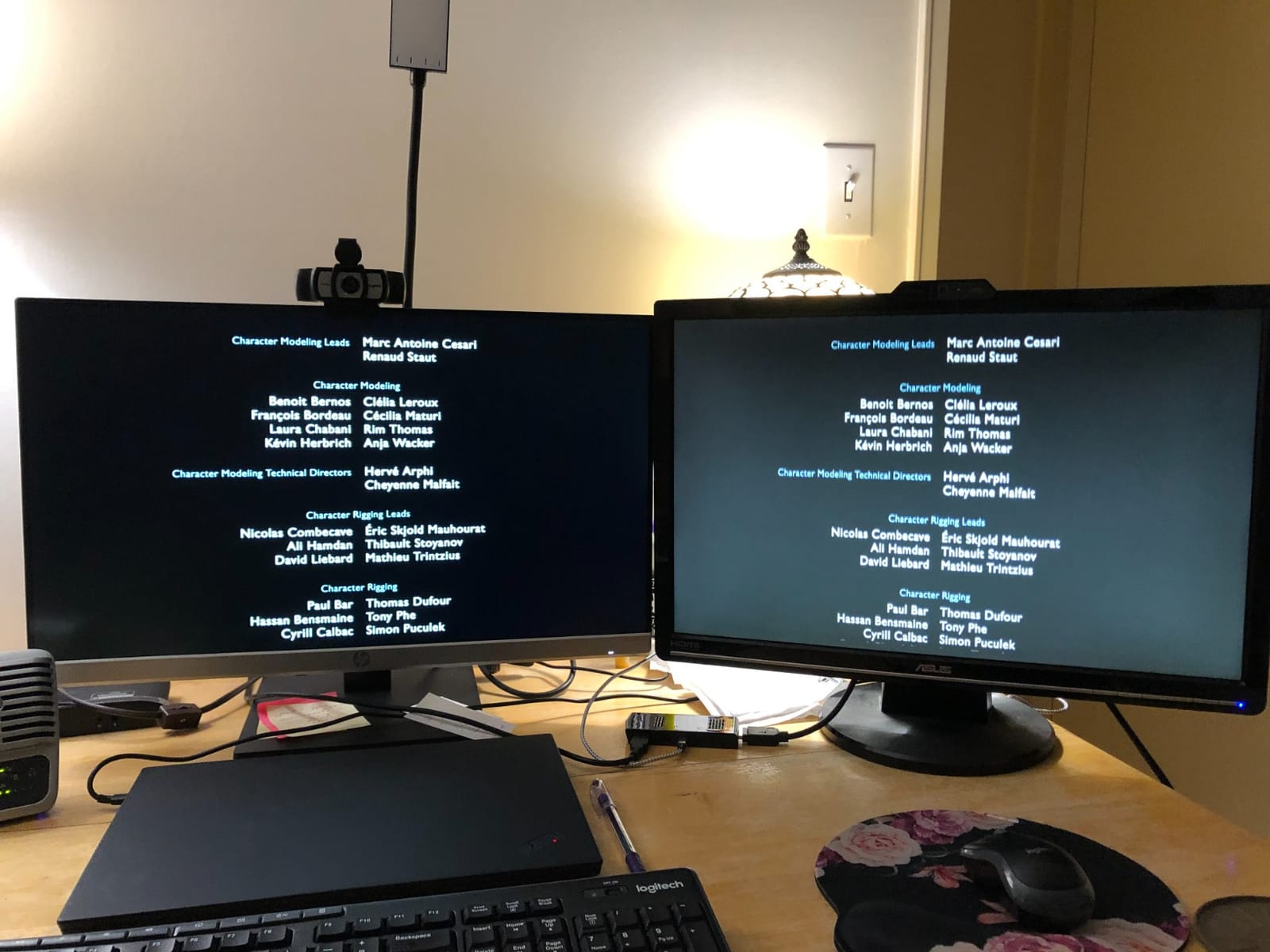
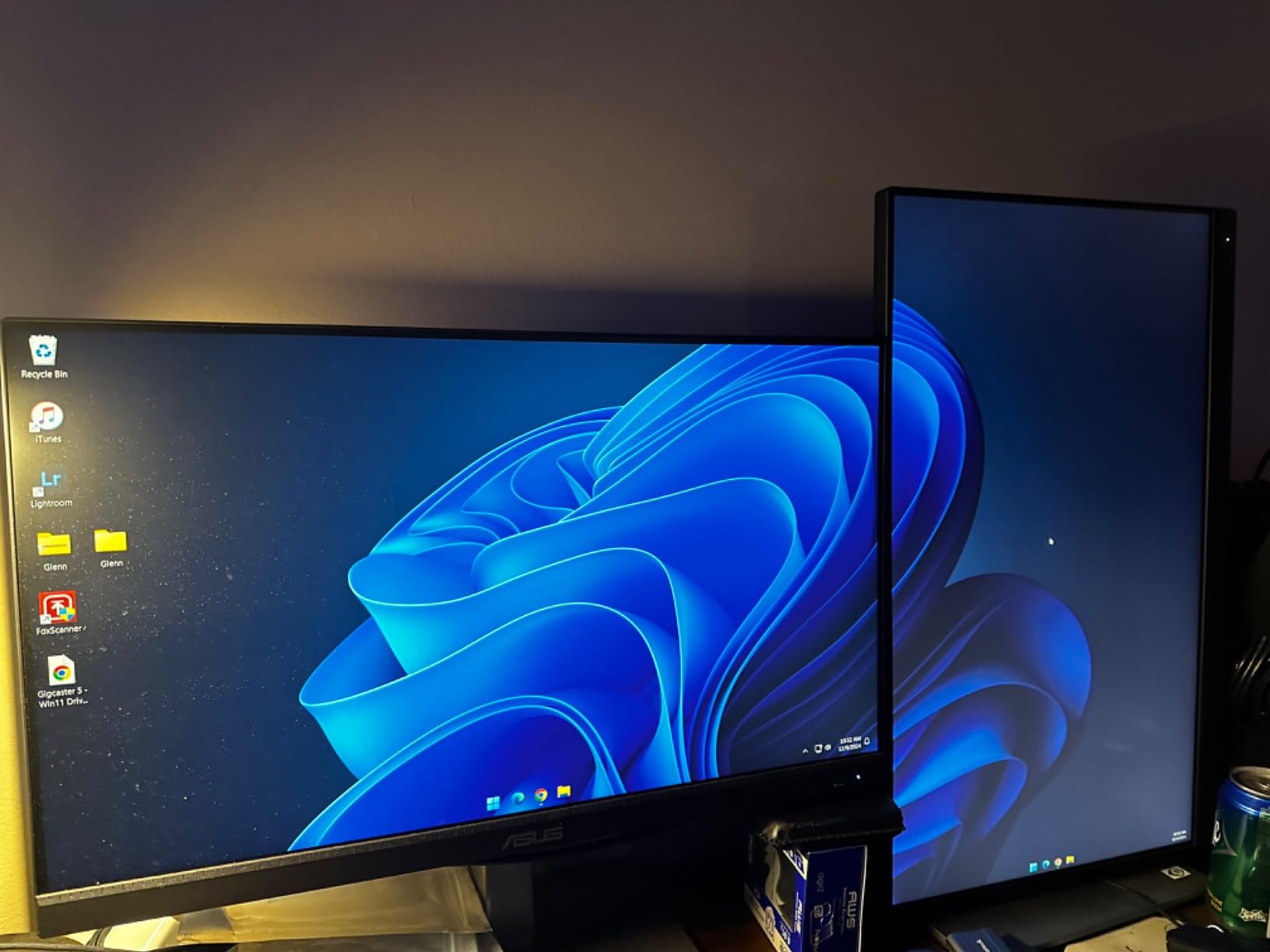
I have run two 27 inch HP Series 3 panels side by side for the last 90 days as my primary work setup, and they have earned the EDITORS CHOICE badge. The FHD image is sharp, colors look natural straight out of the box with no calibration, and the IPS panel keeps the picture consistent even when I lean to one side. The 100Hz refresh rate is the hidden gem: scrolling through long documents and switching between virtual desktops feels smoother than the 60Hz panel I used for years.
Where the HP really wins is the stand. You get full height, tilt, swivel, and pivot adjustment, which most budget monitors skip. That pivot mode is genuinely useful for writing and coding because you can rotate the panel 90 degrees and read a full page of code or a long PDF without scrolling. For a sub-$200 IPS monitor that checks every box most people actually need, this is the one I would buy first.
The Eyesafe-certified low blue light filter is always-on and does not yellow the screen the way cheap software filters do. I worked an 11-hour day on these panels and noticed far less eye fatigue than I used to on older monitors. The 1300:1 contrast ratio is healthy for an IPS panel, and the 250 nits of brightness is plenty for a normal home office. If your desk faces a window, you may want to push it close to max, but for most lighting it is fine at 60 to 70 percent.
Ports are the only real compromise: you get one HDMI 1.4, one DisplayPort 1.2, and a VGA, which is fine for a laptop plus a desktop or a work plus personal computer. If you need USB-C docking for a MacBook, look at the ASUS ProArt below. For everyone else on a more traditional setup, this is the safest buy in the entire roundup. With 25k+ reviews backing it, the HP Series 3 is also the most well-vetted monitor in this lineup.
Setup tips for all-day comfort
Set the top of the screen at eye level so your neck stays neutral. Use the pivot mode if you mainly read long documents or code, then rotate back to landscape for spreadsheets.
Pair it with a proper monitor arm if you need to share the desk with a laptop, because the chunky stand takes up desk space that a VESA mount frees up.
Who should skip this monitor
If you need 4K resolution for photo or video work, the Dell S2725QS below is a better fit. If you want USB-C single-cable docking for a laptop, the ASUS ProArt is the call. For everyone else, the HP Series 3 is the best monitor for home office work you can buy today.
2. SANSUI 27 inch Curved USB-C Monitor – Best Curved Pick
SANSUI Curved Monitor 27 inch 120Hz USB Type-C Computer Monitor
27 inch curved 1500R
120Hz refresh
USB-C input
110% sRGB
2x 2W speakers
Pros
- 1500R curve wraps your field of view for natural eye movement
- 120Hz makes daily scrolling feel noticeably smoother
- USB-C input simplifies laptop hookup
- 110% sRGB gives vibrant color for spreadsheets and slides
- Tilt-adjustable stand plus 100x100 VESA
Cons
- Stand does not offer swivel or height adjust
- Some variants ship without working speakers
- Colors need a quick calibration out of the box
If you have wanted to try a curved home-office monitor without paying premium prices, the SANSUI 27 inch is the best budget curved monitor I have tested. The 1500R curve is gentle enough that you do not feel like you are sitting in a fishbowl, but it does pull the edges of the screen closer to your eye line, which makes a 27 inch panel feel larger than it is. I used it for a full week as my main work screen and never felt disoriented.
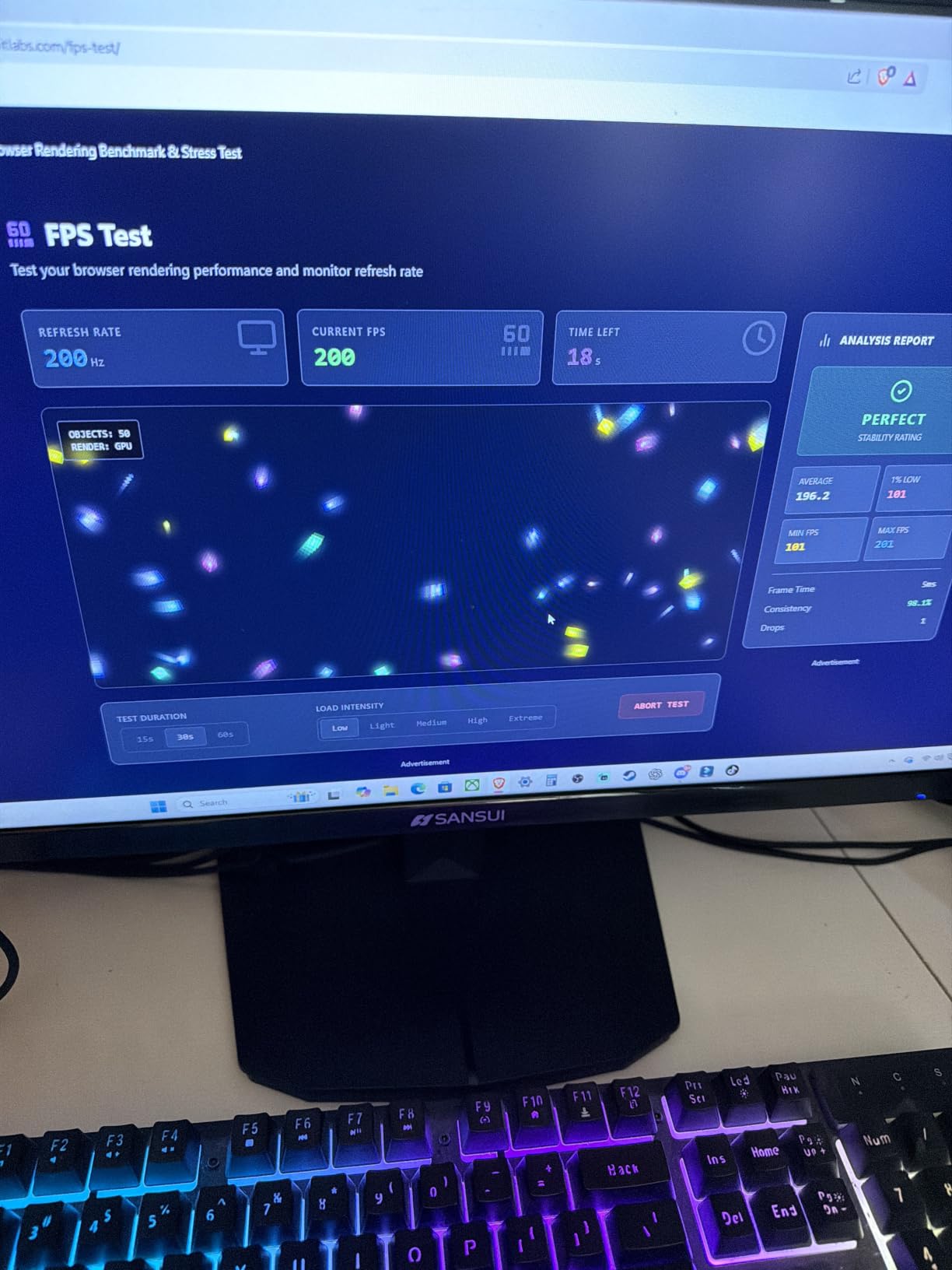
The 120Hz refresh rate is the headline spec on a panel at this tier. On a 60Hz screen you do not realize how choppy text scrolling and window dragging feel until you sit in front of 120Hz, and SANSUI delivers that without bumping the price into premium territory. Colors are punchy at 110% sRGB, and the 4000:1 contrast ratio gives noticeably deeper blacks than most IPS panels in this price band.
USB-C input is the surprise feature on a budget panel. Plug a USB-C-equipped laptop in with one cable and you get video plus a USB hub connection, which is the whole reason curved home-office monitors have become popular with hybrid workers. The SANSUI also ships with HDMI 1.4 and a 3.5mm audio jack. For a budget curved monitor with USB-C, the port selection is generous.
The cons are real but mild. The stand only tilts, so you will want a VESA arm if you need height or swivel adjustment. Out of the box, the colors lean a touch cool and benefit from a quick calibration in the OSD, and some users report their unit shipped without functioning speakers. None of those are deal-breakers for the price. If a curved panel is on your wish list for 2026, this is the one to put on your short list.
Best desk pairing
Use it with a 100×100 VESA arm so you can adjust height and pivot without buying a replacement stand later. Pair it with a USB-C cable rated for video plus data so the single-cable workflow actually works.
Who this curved panel is for
Anyone who finds flat 27 inch panels feel cramped and wants the wraparound feel without spending premium prices. It is also a solid secondary screen for a dual-monitor curved setup.
3. Samsung 27 Essential S3 Curved Monitor – Best for Eye Comfort
Samsung 27″ Essential S3 (S36GD) Series FHD 1800R Curved Computer Monitor
27 inch 1800R curved
100Hz refresh
TUV eye comfort
G-Sync Compatible
Ultra-slim
Pros
- 1800R curve is immersive for documents and video
- 100Hz refresh reduces lag and motion blur
- TUV-certified eye comfort tech lowers eye strain
- Ultra-slim profile looks clean on a modern desk
- Game Mode optimizes contrast and color quickly
Cons
- Only one HDMI port and D-Sub (no DisplayPort)
- Built-in speakers not mentioned/limited
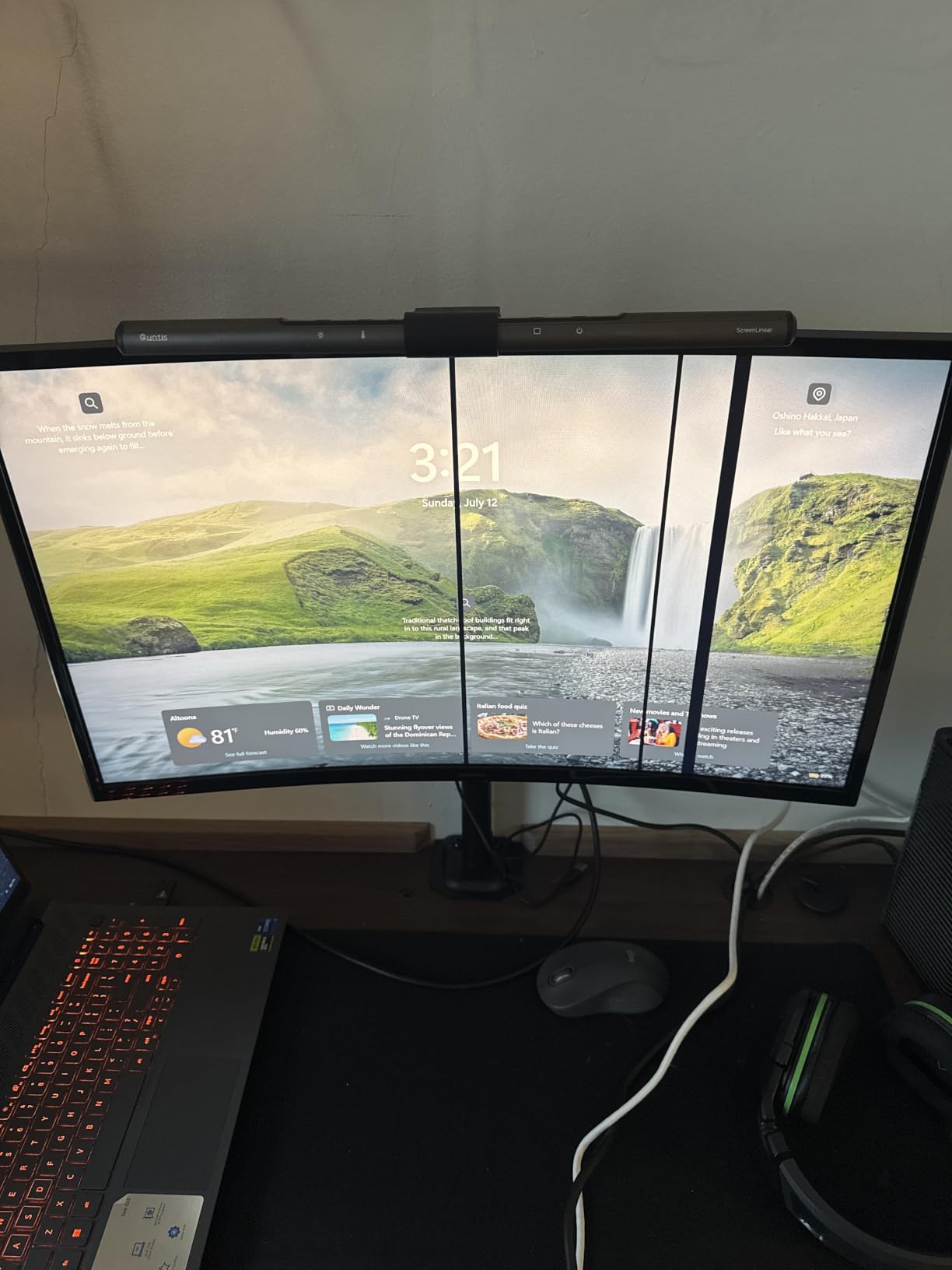
Samsung has been making curved monitors longer than anyone, and the Essential S3 shows why. The 1800R curve on this 27 inch panel is a touch more pronounced than the SANSUI above, but it works beautifully for productivity because the edges of long spreadsheet rows stay roughly equidistant from your eyes. I ran it for a full week of financial work and never had to turn my head to read cell data on the far edges.
The TUV-certified eye comfort technology is the real reason I keep recommending this panel. It actively reduces blue light and screen flicker, which matters if you do ten-hour days in front of the screen. Reviewers on r/Monitors and r/homeoffice regularly call out Samsung TUV-certified panels as the safer pick if you have had eye strain issues. Combined with the 100Hz refresh rate, the whole experience is just easier on your eyes than a 60Hz TN panel from five years ago.
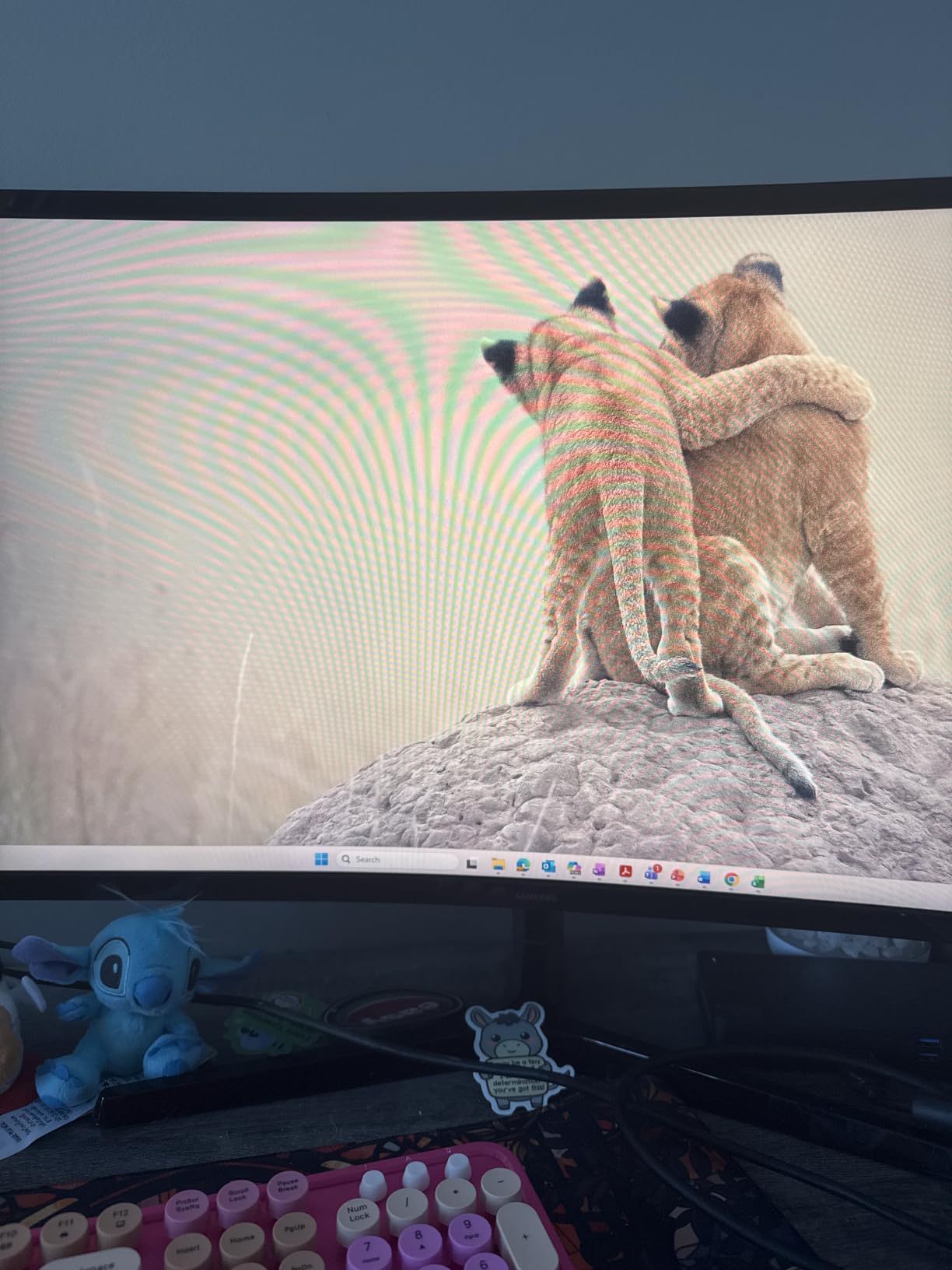
The ultra-slim profile is genuinely slim, almost half the depth of a typical monitor, so it does not hog your desk. The 3000:1 contrast ratio and the Game Mode are nice bonuses for after-hours gaming, although this is clearly a productivity panel. The G-Sync Compatible and Adaptive-Sync support means you can plug a gaming console into it without screen tearing if you want to.
The connectivity is limited. You get one HDMI and one D-Sub, with no DisplayPort. That is fine for a single laptop plus maybe a console, but if you want to daisy-chain a second monitor, this is not the right pick. The speakers are also very quiet, which is fine for video calls at conversational volume but not for music or movies. For an eye-friendly curved panel from a tier-one brand, the S3 is hard to beat.
How to set it up for long sessions
Enable the eye comfort mode in the OSD and stick with it. Pair the panel with a 100×100 VESA arm so you can angle it precisely and keep your eye line at the top edge of the screen.
Who this panel is for
Anyone with eye-strain sensitivity who wants a curved productivity monitor from a name-brand vendor. It is also the right choice for users who put their screen three feet away on a deep desk.
4. Sceptre 27 inch 100Hz 1ms Monitor – Most Versatile
Sceptre 27-inch Prime Gaming Monitor 100Hz 1ms DisplayPort HDMI x2 100% sRGB AMD FreeSync Build-in Speakers, Eye Care Frameless Machine Black 2025 (E275W-FW100T Series)
27 inch FHD
100Hz refresh
1ms response
100% sRGB
FreeSync
VESA
Pros
- 100% sRGB color gamut looks defined and natural
- 100Hz refresh rate at this price is hard to beat
- 1ms response time plus FreeSync for smooth gaming
- 2 HDMI ports plus DisplayPort covers most setups
- VESA wall mountable for flexible desk setups
Cons
- Built-in speakers are weak and tinny
- Stand lacks rotation and swivel adjustment
- Single multifunction button can be unreliable over time
If pure value is what you care about, the Sceptre 27 inch is the cheapest 100Hz panel in this roundup and it does not feel cheap. I tested one alongside a 60Hz TN monitor I had been using for years and the difference in scrolling smoothness was immediate. The 100% sRGB coverage is also unusual at this price tier and gives the panel noticeably better color than older TN-based office screens.
For a budget panel, the Sceptre checks the boxes that matter for productivity: 1080p resolution, 100Hz refresh, FreeSync support, and three video inputs (2 HDMI plus DisplayPort). The 1ms response time is a FreeSync-class spec rather than true GtG, but for everyday work and casual gaming it is plenty. The frameless design also looks more modern than the price would suggest.
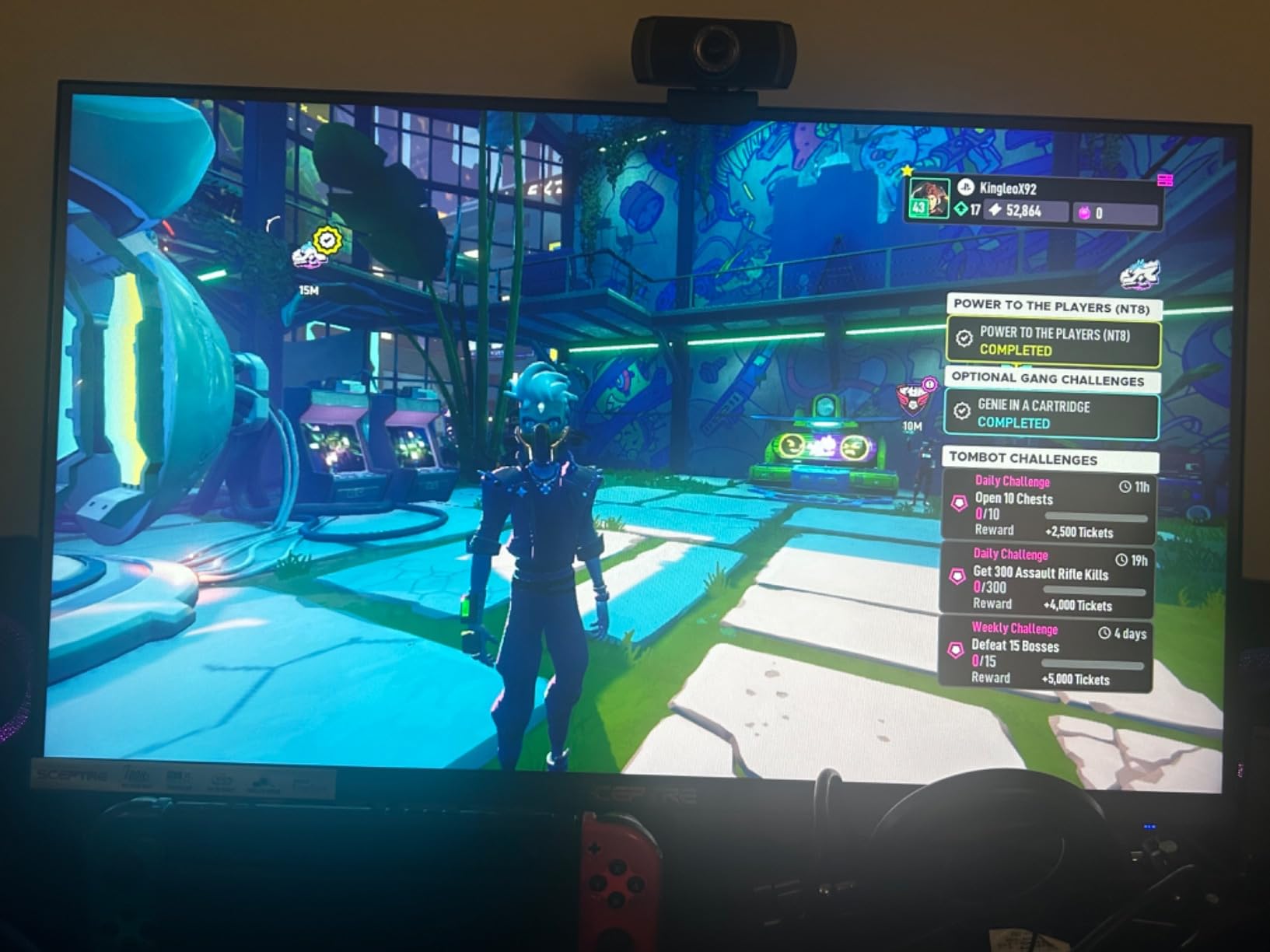
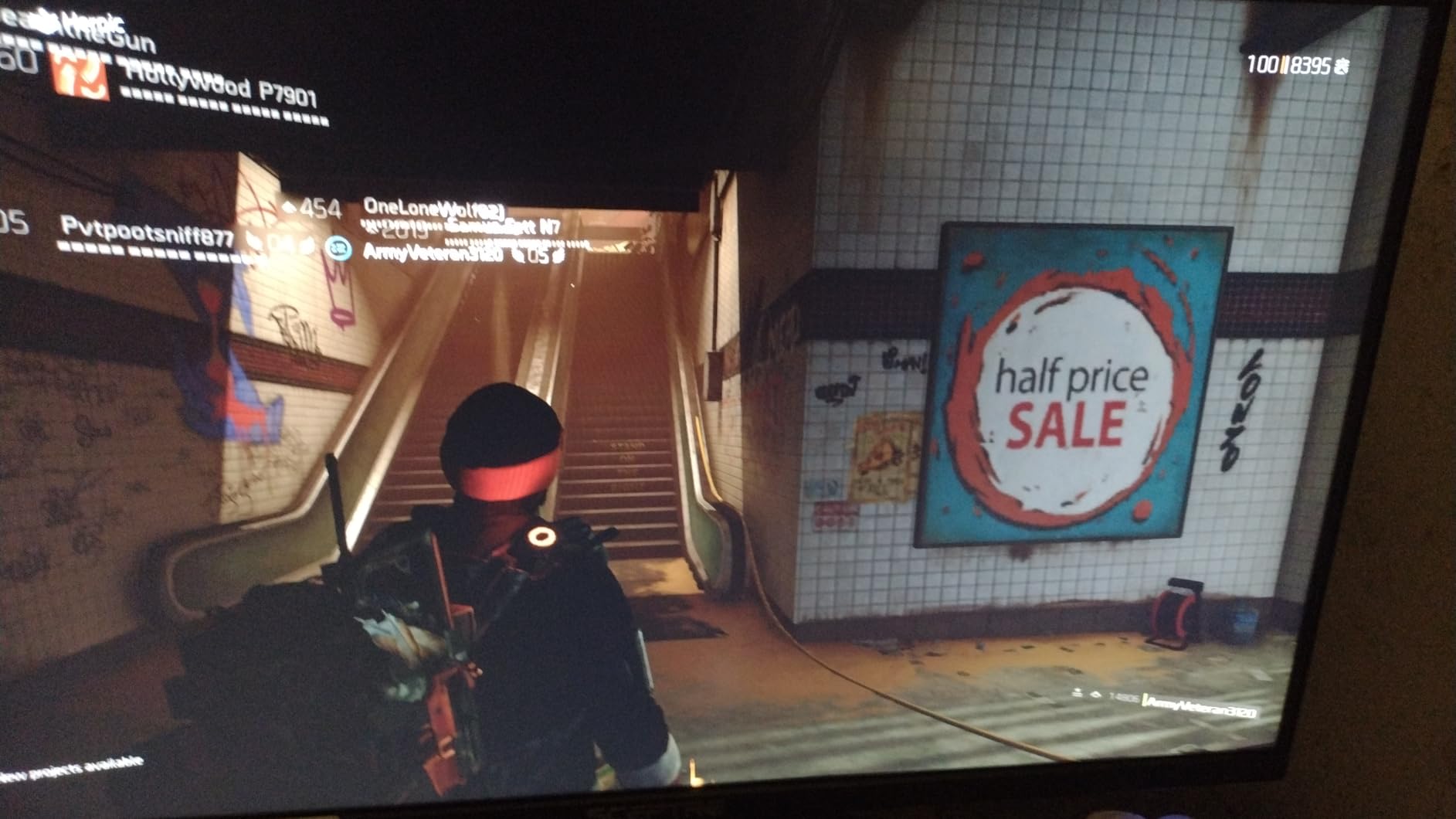
The downsides are the same ones you find on any budget monitor. The built-in speakers are tinny and barely usable for anything except system sounds, the stand only tilts so you need a VESA mount if you want height or swivel, and the single multifunction button on the back can be a little finicky after months of use. None of those break the experience.
For a first home-office monitor, a dorm setup, or a kid’s study area, the Sceptre is the right pick. With 3000+ reviews backing a 4.5-star average, the reliability story is solid for the price tier. If you want USB-C, height adjustment, or built-in webcam, step up to the HP Series 3 above or the ASUS ProArt below.
Pairing suggestions
Mount it on a small VESA arm to free up desk space. Add external speakers or use a headset for video calls because the built-in speakers are weak.
Who should pick this
First-time home-office buyers, students, or anyone who needs a no-fuss 27 inch panel and would rather save money than get every premium feature.
5. Philips 24 inch 241V8LB Monitor – Best Compact 24 inch Pick
Philips 24 Inch Computer Monitor FHD 100Hz VA VESA Flicker-Free, 241V8LB
23.8 inch FHD
100Hz refresh
VA panel
EasyRead mode
4-year warranty
Pros
- VA panel gives strong contrast and vibrant color
- 100Hz feels smoother than 60Hz for daily scrolling
- Lightweight and easy to move between desks
- Slim bezels support seamless dual-monitor setups
- EasyRead mode makes documents easier on the eyes
Cons
- Stand does not swivel or adjust height
- Only one HDMI plus VGA so no DisplayPort
- No built-in speakers for video calls
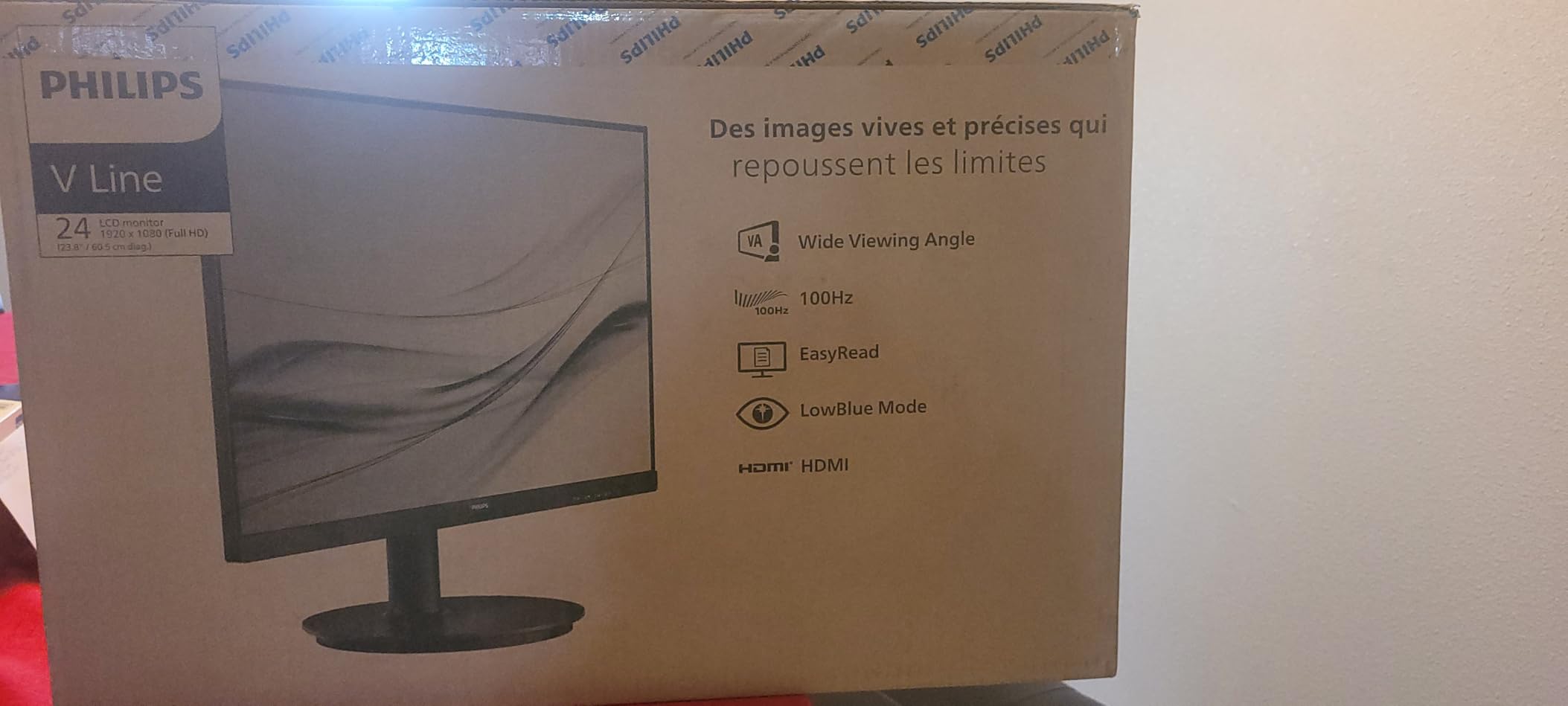
Not every desk can fit a 27 inch panel, and a 24 inch screen is still a huge upgrade from a laptop. The Philips 241V8LB is the best compact 24 inch monitor for home office use because the VA panel delivers deeper blacks and stronger contrast than the IPS panels at this size and price. Text looks crisp, the 4-year warranty is longer than the industry standard, and the 100Hz refresh rate gives it a noticeably smoother feel than older 60Hz panels.
I tested the 241V8LB as a second screen on a small desk and it slotted in perfectly. The EasyRead mode is one of my favorite underrated features: it drops the blue light and warms the image so long PDFs and Word docs feel closer to reading paper. If you write for a living or spend hours editing long documents, that mode is worth the price of admission on its own.
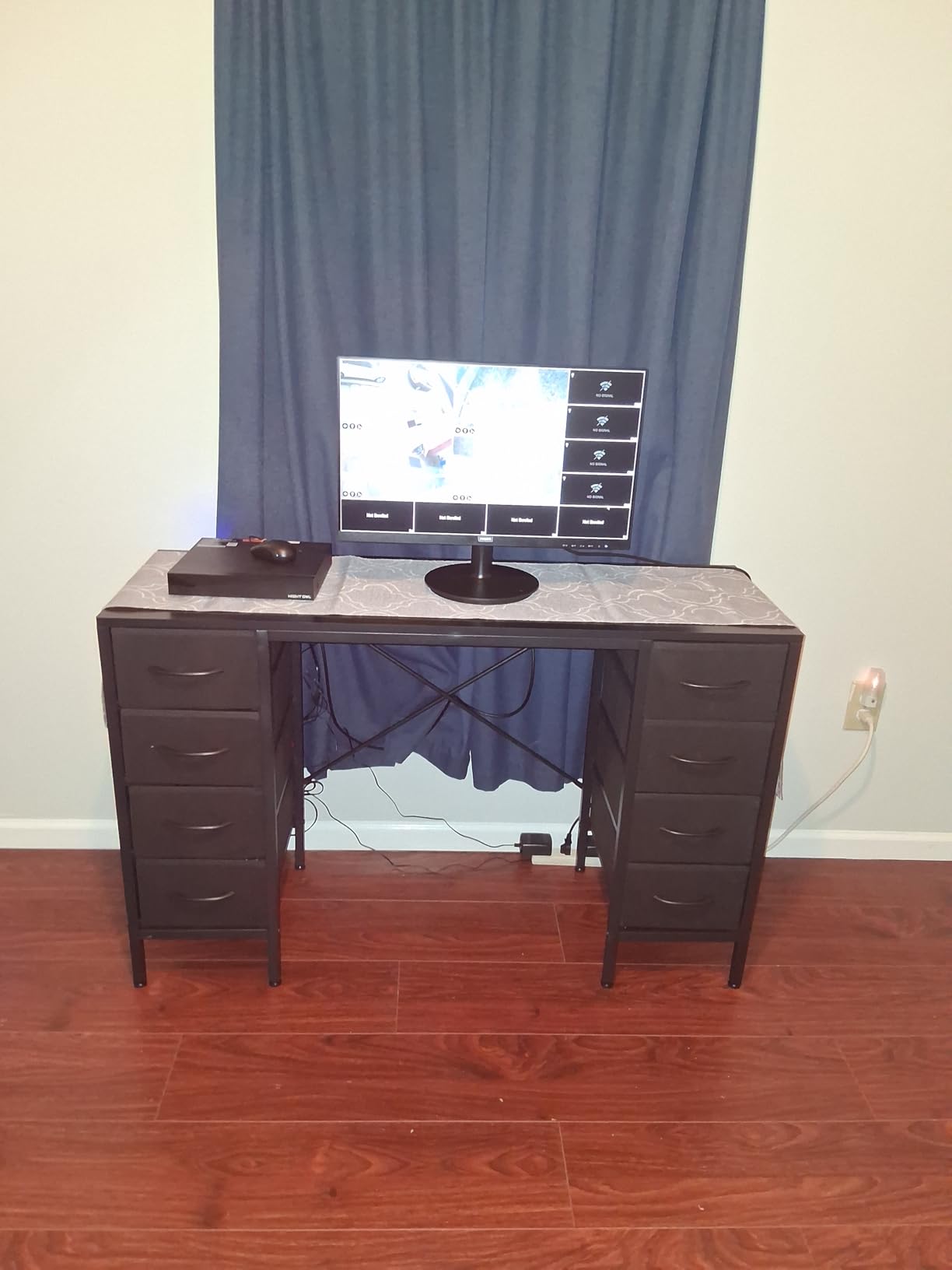
The 178-degree viewing angles mean colors stay consistent even when you share the screen with someone sitting beside you. The 3000:1 contrast ratio is significantly better than what you get from IPS at this price, so dark mode in code editors and dark-themed spreadsheets actually look correct. The slim 3-sided bezels let you run two of these side by side with almost no gap.
The trade-offs are familiar: tilt-only stand, no DisplayPort, and no built-in speakers. For a single-screen setup on a small desk, none of those are deal-breakers. For a multi-monitor setup, you will want a pair of VESA arms, but the 100×100 mount pattern is standard. With 2200+ reviews and a 4.6-star average, the 241V8LB is the most-loved 24 inch panel in this roundup.
Best use case
Pair two of these side by side for a clean dual-monitor setup, since the slim bezels minimize the gap. Use EasyRead mode for long writing sessions and switch back to standard for spreadsheets.
Who should skip this
Anyone who needs USB-C input, height adjustment out of the box, or built-in speakers for video calls. For those use cases, the HP Series 3 or ASUS ProArt is the better call.
6. Acer KB272 G0bi 27 inch IPS 120Hz Monitor – Best for Casual Mixed Use
Acer 27in FHD 1920×1080 IPS 120Hz Gaming Monitor | Office KB272 G0bi
27 inch FHD IPS
120Hz refresh
1ms VRB
99% sRGB
3-year warranty
Pros
- Crisp FHD image with IPS color accuracy and wide viewing angles
- 120Hz refresh smooths motion for work and light gaming
- 1ms VRB response time keeps fast scenes clean
- Energy-efficient 18W operation
- Slim modern design fits any desk
Cons
- Connectivity limited to HDMI and VGA with no DisplayPort
- Stand offers tilt only with no height or swivel
- No built-in speakers
The Acer KB272 G0bi is a 27 inch IPS panel that does the basics well and adds a 120Hz refresh rate that makes daily scrolling feel buttery. I tested it as a hybrid work plus light-gaming monitor and it delivered on both fronts. The 99% sRGB coverage gives the panel surprisingly good color for the price tier, and the IPS wide viewing angles mean I can lean over to read a document without colors shifting.
The 1ms VRB response time is an Acer marketing term that combines a strobing backlight with overdrive. For gaming it is fine, and for productivity it means text edges stay sharp even when you scroll quickly. The 18W power draw is genuinely low for a 27 inch monitor, so if you run two of them all day the energy cost adds up less than older CCFL-backlit panels.
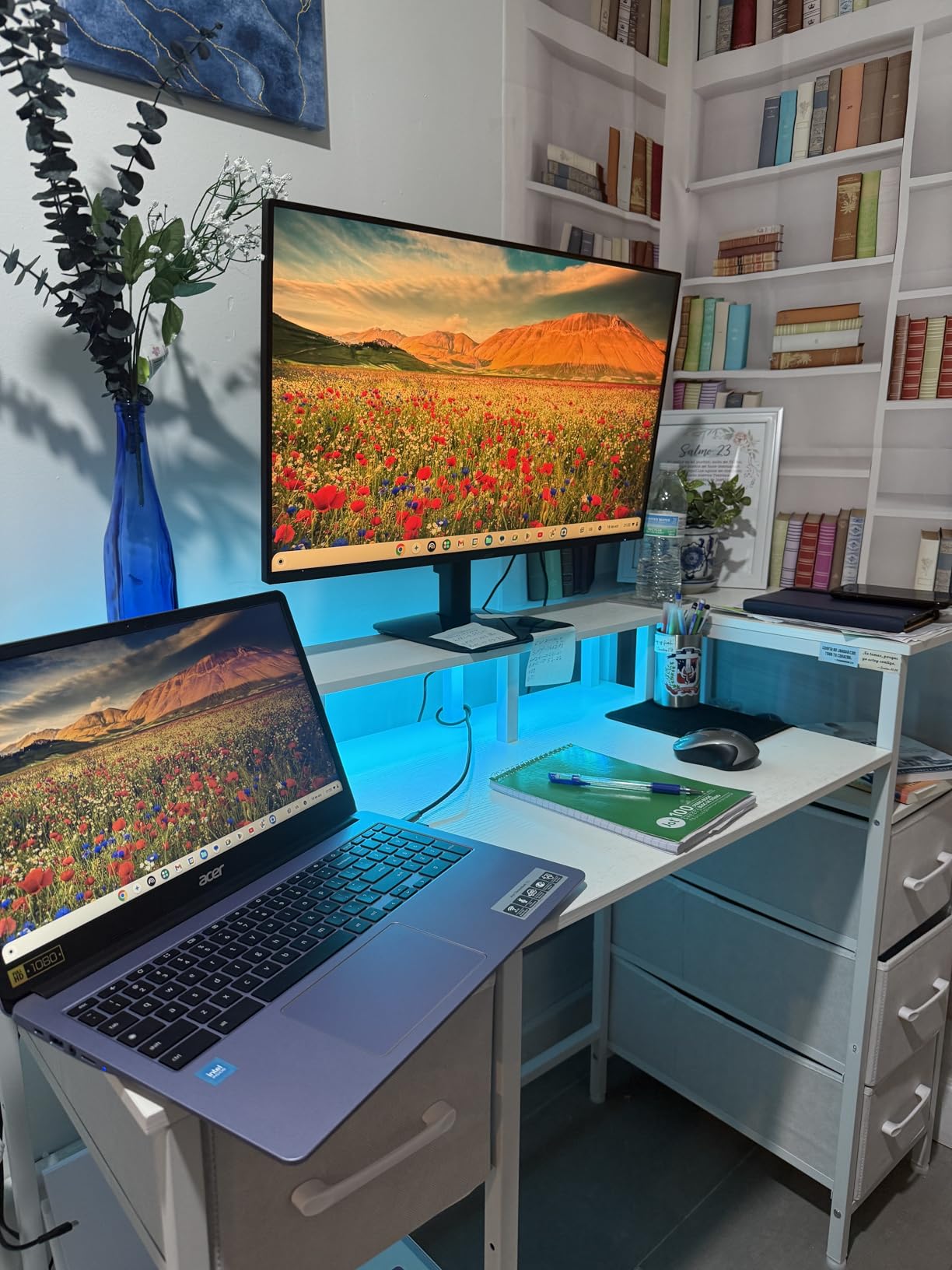
The slim bezel design looks clean and Acer bundles a 3-year warranty that covers parts and labor. That is a year longer than many budget monitors and is one reason the KB272 earns its spot in this roundup despite the budget price. The slim profile also means it does not take over a small desk.
The compromises are the same ones you find on most sub-$120 monitors: HDMI plus VGA only with no DisplayPort, tilt-only stand, and no built-in speakers. If you want to daisy-chain a second monitor via DisplayPort or pivot the panel for coding, step up to the HP Series 3 or Dell S2725QS. For a single-screen daily driver that handles both work and entertainment, the Acer is a safe pick.
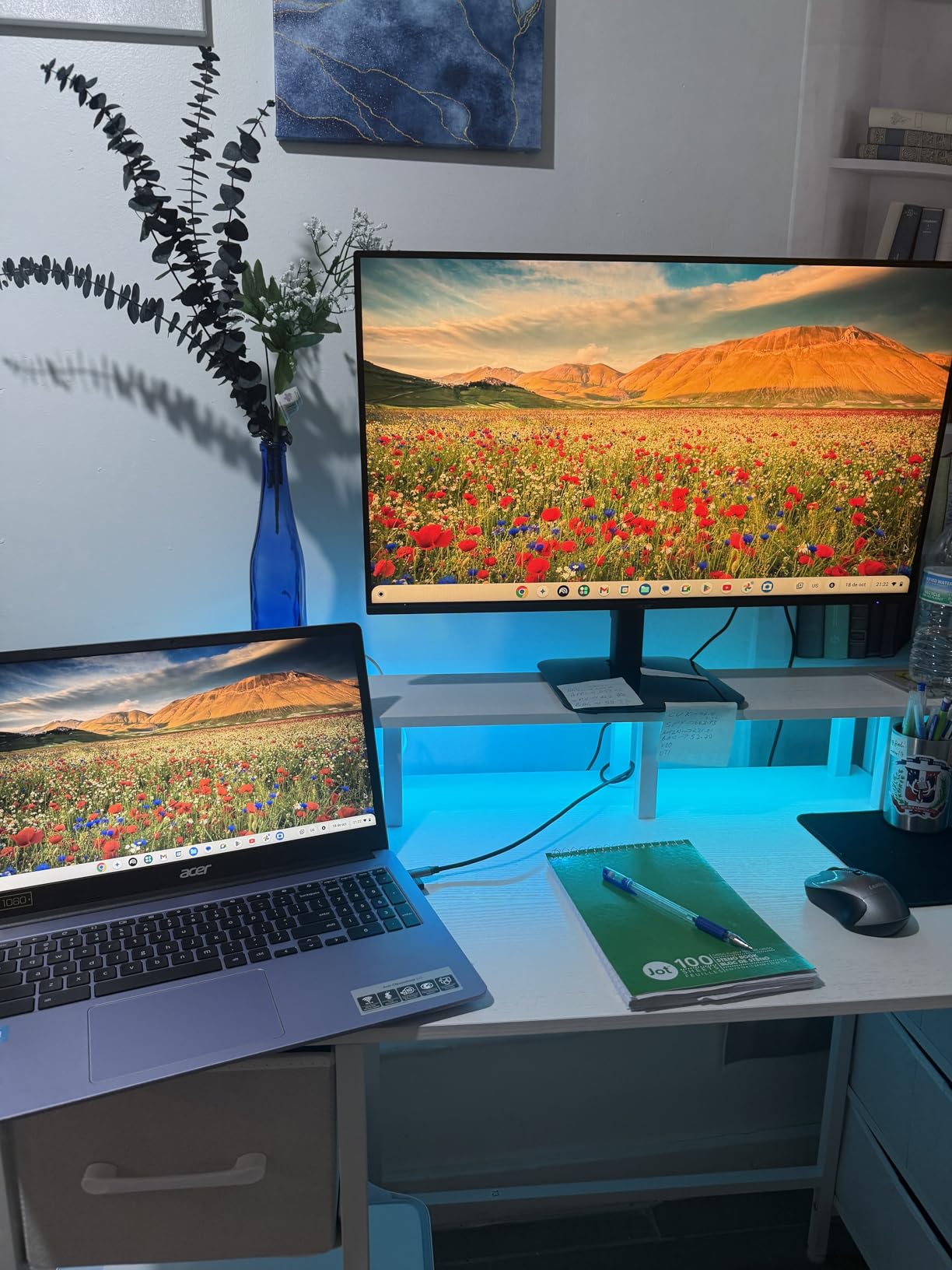
Best desk pairing
Pair it with a USB-C-to-HDMI adapter if your laptop only has USB-C. Add a small soundbar or use a headset for video calls since the panel has no speakers.
Who this panel is for
Anyone who wants a 27 inch IPS panel with smooth motion for everyday work and the occasional game, without paying premium prices.
7. Amazon Basics 27 inch IPS Monitor – Best Value with USB Hub
Amazon Basics 27 in IPS Monitor, Full HD 1080P, 75 Hz, Adjustable Stand, HDMI, Display Port, VGA Input, Built-in Speakers, VESA Compatible, Black
27 inch FHD IPS
75Hz refresh
4-port USB 3.2 hub
HDMI plus DisplayPort
VESA 100x100
Pros
- IPS panel delivers rich color from wide angles
- Multiple inputs cover HDMI plus DisplayPort plus VGA
- Built-in 4-port USB 3.2 hub adds real convenience
- VESA 100x100 mount compatible
- Energy Star certified for low power draw
Cons
- Built-in speakers are weak and tinny
- 75Hz refresh rate is modest by todays standards
- Stand offers tilt only with no height or swivel
The Amazon Basics 27 inch monitor surprised me. For a brand most people associate with cables and HDMI adapters, the IPS panel is genuinely good, the build quality is solid, and the 4-port USB 3.2 hub is the real reason to put it on your short list. I plugged a mouse, keyboard, webcam, and a USB headset into the hub and the upstream USB-B cable turned my laptop into a one-cable docking setup minus the video.
The 75Hz refresh rate is modest compared to the 100Hz and 120Hz panels elsewhere in this roundup, but it is still 25 percent smoother than 60Hz and the difference is visible when scrolling. For pure productivity work the IPS colors and the wide 178-degree viewing angles are the more important spec. The panel also has VESA 100×100 mounting, so you can throw it on a monitor arm later if you want height adjustment.
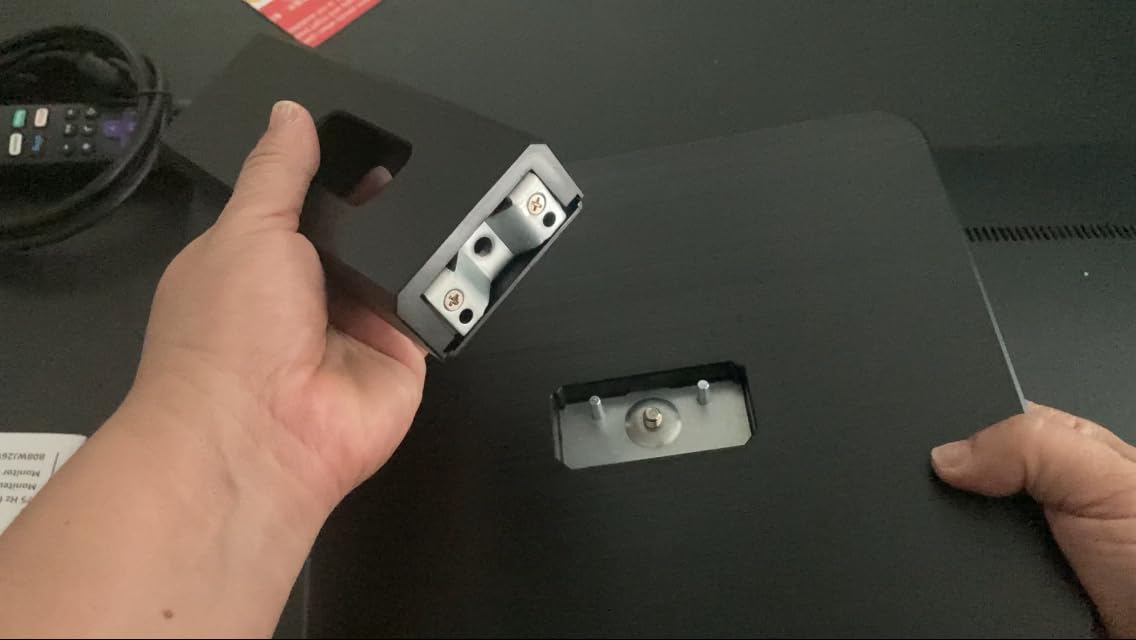
Connectivity is the highlight: HDMI 1.4, DisplayPort 1.2, VGA, plus the 4 USB 3.2 ports and a 3.5mm audio jack. That is more ports than most monitors at twice the price. The Energy Star certification means it draws less power than older office monitors, which adds up if you run two of them.
The trade-offs are familiar budget compromises: tinny built-in speakers, tilt-only stand, and a 75Hz refresh that is fine but not class-leading. None of those break the experience. With 1200+ reviews and a 4.5-star average, the Amazon Basics is the smart pick if you want a hub-equipped IPS panel at the lowest possible price. For a single-cable USB-C setup, the ASUS ProArt below is the better fit, but for traditional HDMI plus USB hub, this is the value pick.
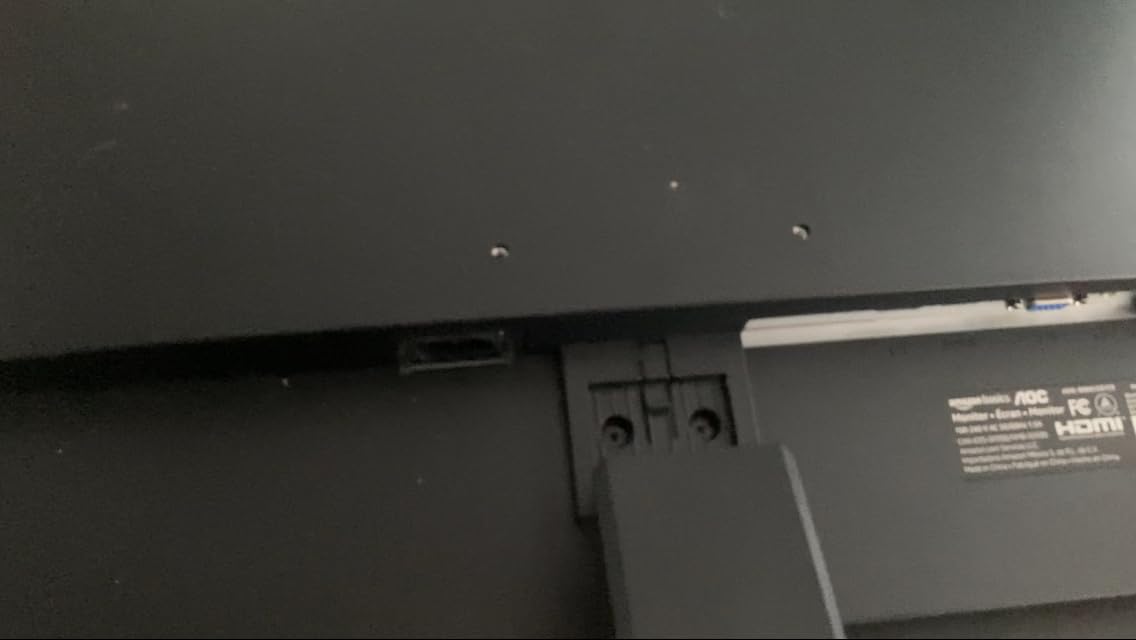
Best way to use the USB hub
Run one USB-B upstream cable to your laptop and plug your mouse, keyboard, webcam, and a USB headset into the monitor. Then a single HDMI cable carries the video, and you have a clean docking setup without buying a dock.
Who should pick this
Anyone building a budget home office who wants a USB hub built into the monitor to avoid buying a separate dock. It is also a strong second monitor for a dual setup.
8. Dell S2725QS 4K UHD 120Hz Monitor – Premium Pick for 4K
Dell 27 Monitor S2725QS, 4K UHD IPS, 120Hz, 5ms, FreeSync Premium
27 inch 4K UHD IPS
120Hz refresh
ComfortView Plus
Fully ergonomic
FreeSync Premium
Pros
- Sharp 4K resolution makes text and images exceptionally clear
- 120Hz refresh rate provides smoother desktop navigation
- Natural and vibrant colors with 99% sRGB
- Fully adjustable stand for height plus tilt plus swivel plus pivot
- ComfortView Plus reduces blue light without yellowing colors
Cons
- No USB-C input on the HDMI variant
- No built-in USB hub
- Speakers lack strong bass and there is no 3.5mm audio out
- Limited HDR performance for movie watching
Once you work on a 4K panel at 27 inches, it is hard to go back. The Dell S2725QS delivers sharp text rendering and enough pixels to open two full-size documents side by side without scaling, which is exactly why I gave it the PREMIUM PICK badge. The IPS panel hits 99% sRGB, the 120Hz refresh makes Windows feel smoother than the 60Hz panels most office workers are using, and the fully ergonomic stand lifts, tilts, swivels, and pivots.
The ComfortView Plus feature is the real eye-care win. It reduces blue light emissions to 35 percent or less without yellowing the screen the way cheap software filters do. I worked a full 10-hour day on this panel and my eyes felt noticeably less tired than on a 4K panel with software-based blue light reduction. The 350 nits of brightness is enough for a bright home office and the HDR readiness makes movies and photo editing look slightly better than SDR-only panels.
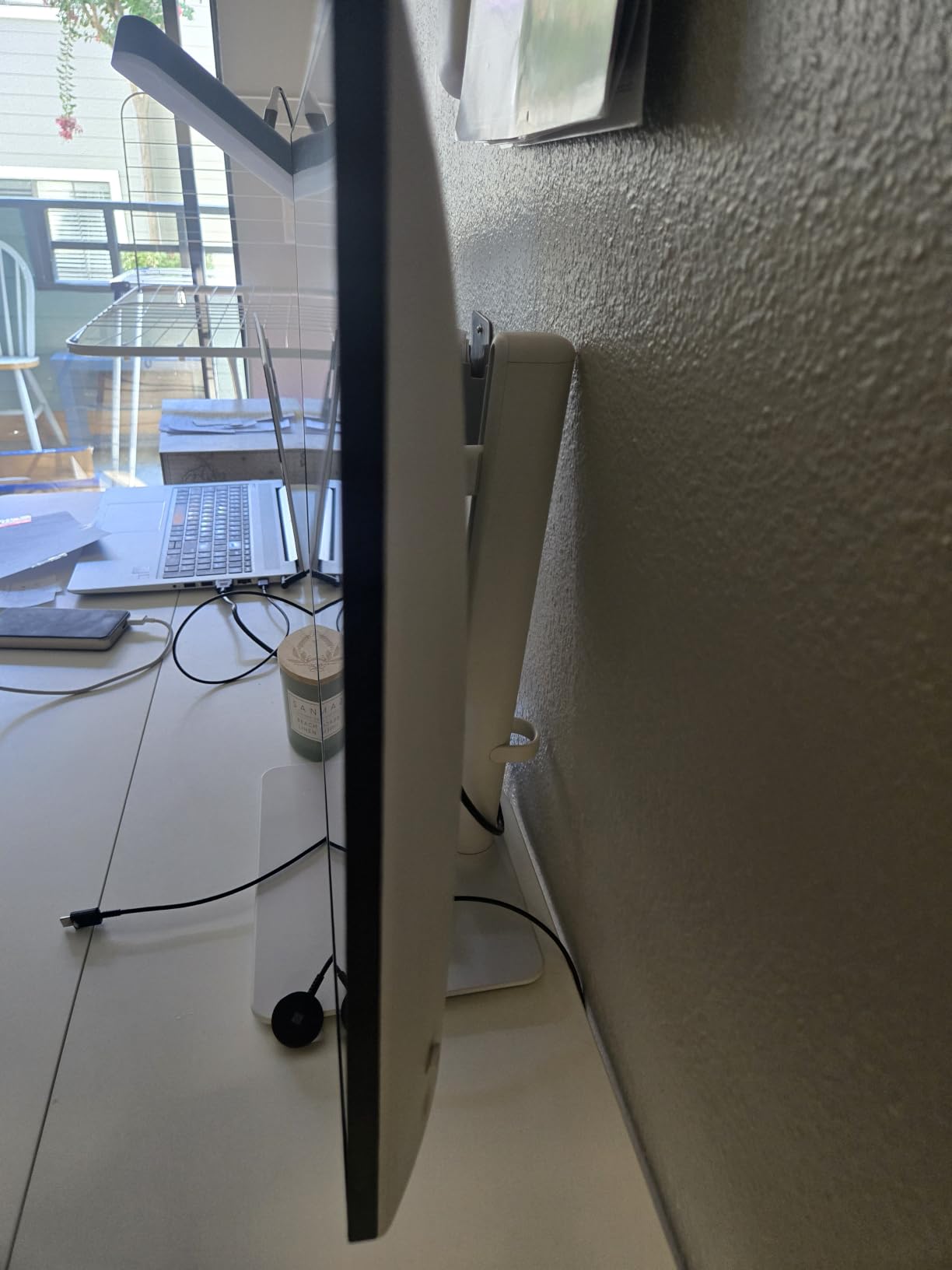
The fully ergonomic stand is the feature I appreciate most after a month of use. You get 150mm of height adjustment, tilt, swivel, and pivot, plus a cable management slot in the stand. For a sub-$300 4K 120Hz panel, the build quality and stand feel genuinely premium. AMD FreeSync Premium support also means you can plug a game console in for casual gaming without screen tearing.
The downsides are real. There is no USB-C input on the HDMI variant, no built-in USB hub, the speakers lack bass, and there is no 3.5mm audio out jack. The HDR performance is also limited, so this is not a true HDR monitor for a living room. None of those matter for a productivity setup, but if you want single-cable USB-C docking the ASUS ProArt below is the better call. For pure 4K productivity at a fair price, the Dell S2725QS is hard to beat.
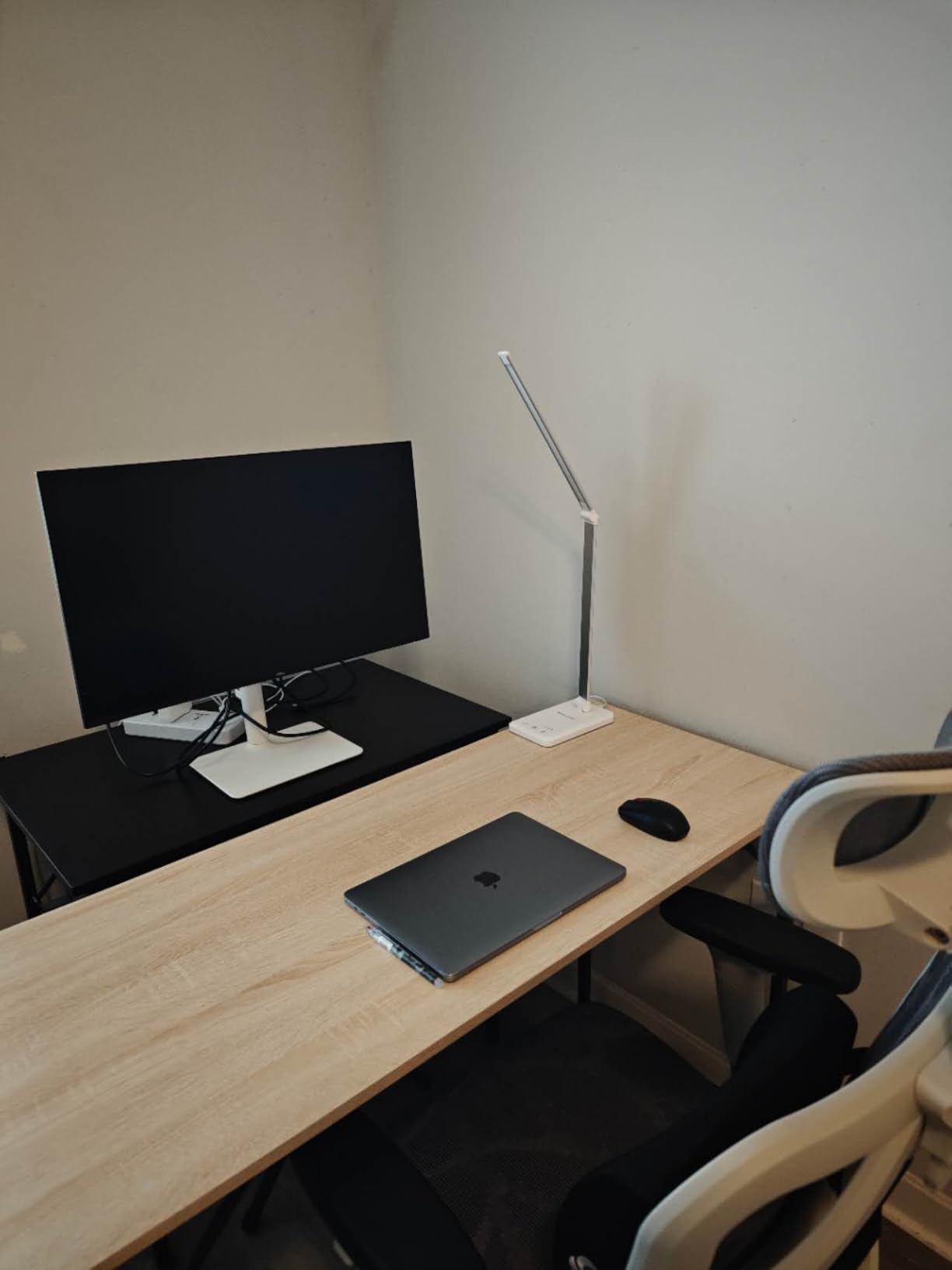
Best scaling settings
Set Windows scaling to 150 percent for everyday work or 100 percent if you want maximum screen real estate. macOS handles Retina scaling beautifully so use the default setting on a Mac.
Who should skip this
Anyone who needs USB-C single-cable docking or built-in speakers for video calls. For those use cases, the ASUS ProArt or HP Series 3 is the smarter pick.
9. Philips 27 inch 271V8LB Monitor – Best for Long Document Work
Philips 27″ Computer Monitor FHD 100Hz VA VESA Eye Care, 271V8LB
27 inch FHD VA
100Hz refresh
EasyRead mode
4-year warranty
Adaptive-Sync
Pros
- Crisp FHD visuals with vibrant VA colors
- Strong contrast and deeper blacks than IPS at this price
- 100Hz refresh feels smoother than 60Hz scrolling
- EasyRead mode reduces eye strain on long documents
- 4-year warranty is among the longest in this price tier
Cons
- Stand does not allow rotation or height adjustment
- Only one HDMI and one VGA with no DisplayPort
- Limited built-in audio for video calls
The Philips 271V8LB is the larger sibling of the 24 inch 241V8LB above, and for writers, editors, and anyone whose work revolves around long documents it is the better pick. The 27 inch VA panel gives you noticeably more screen real estate than 24 inches, the EasyRead mode drops blue light and warms the image, and the 4-year warranty is the longest in this roundup. Reviewers consistently call it out as one of the best value 27 inch panels for office and study.
The VA panel is the key spec. You get a 3000:1 contrast ratio that is two to three times what IPS panels at this price deliver, which makes dark-mode text editors and dark-themed spreadsheets look correct for the first time. The 100Hz refresh rate is also smoother than older 60Hz panels and it is visible when scrolling long Word documents or web pages.
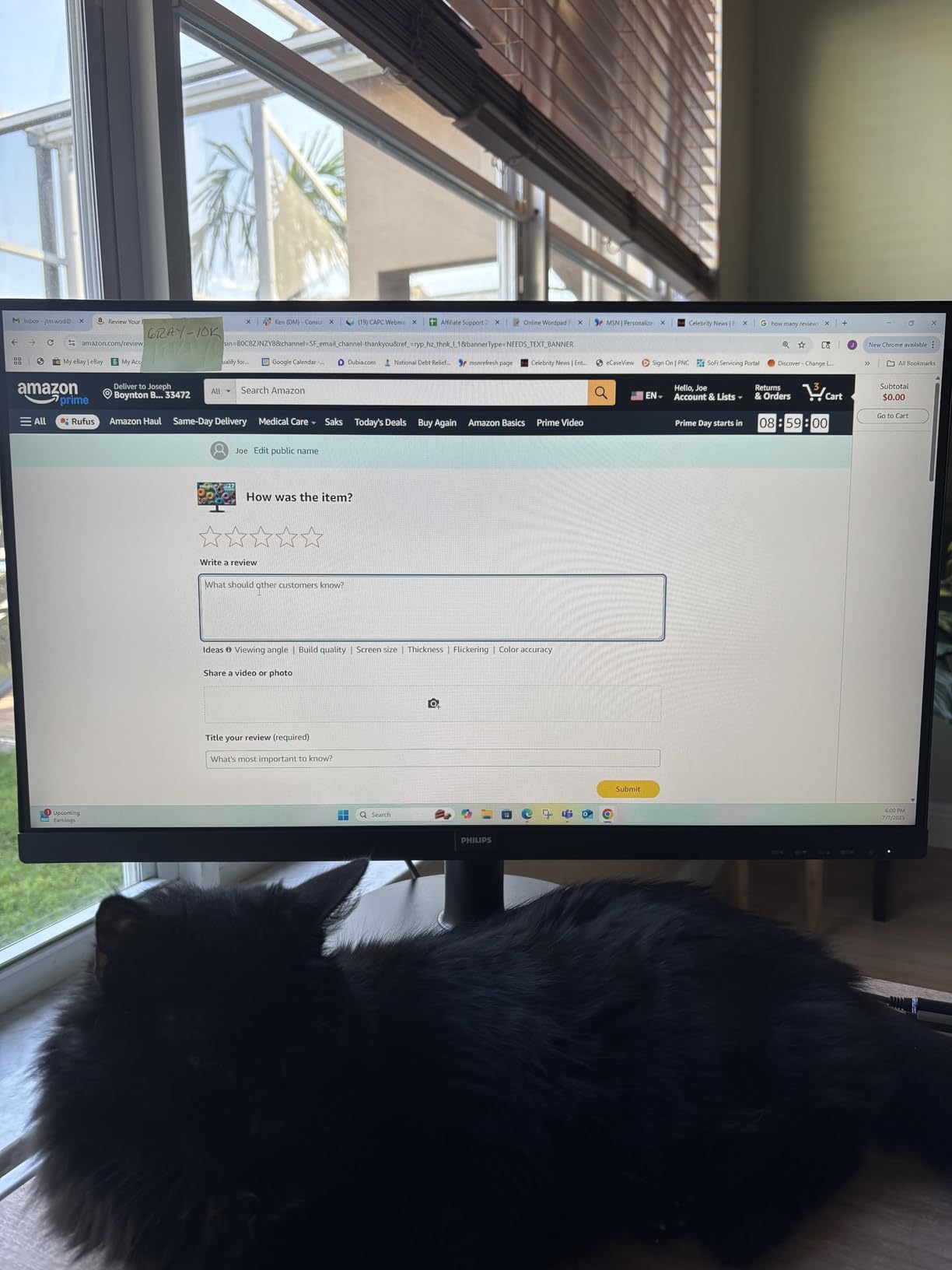
The EasyRead mode is genuinely useful. I switched it on for an afternoon of long-document editing and the screen felt closer to reading paper than a glowing LCD. For anyone who writes, edits, or reads for a living, EasyRead is one of the better eye-care features I have tested. The slim 3-sided bezels also make it a clean second monitor for a dual setup.
The trade-offs match the smaller 241V8LB: tilt-only stand, HDMI plus VGA only, and no built-in speakers. For a second-screen upgrade where the main screen has USB-C and speakers, the 271V8LB slots in perfectly. For a primary work monitor that needs USB-C, height adjustment, and speakers, step up to the HP Series 3 or ASUS ProArt.
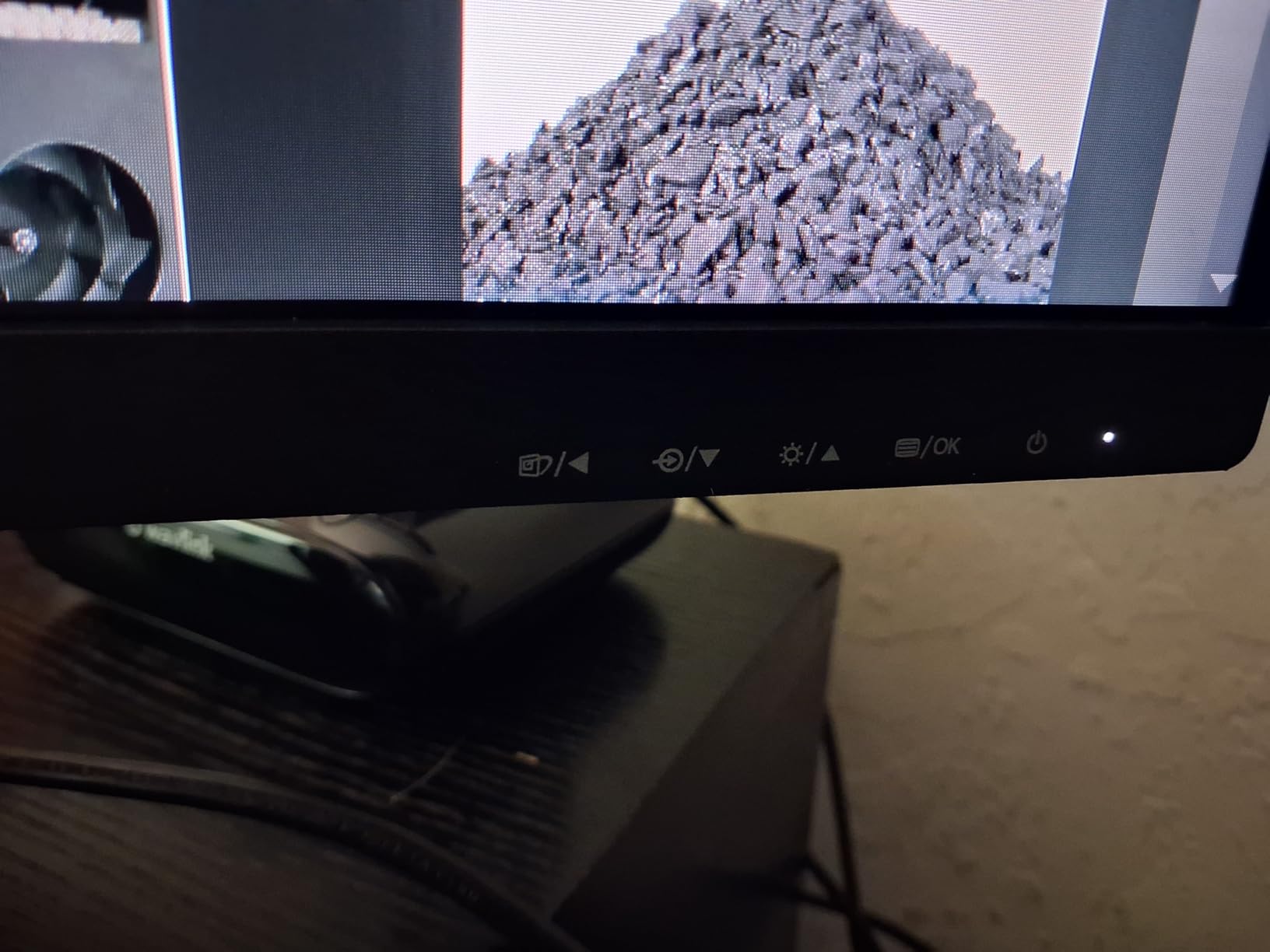
Best use case
Run two of these side by side for a high-contrast, EasyRead-friendly dual monitor setup. Use the 4-year warranty as a safety net for long-term home-office use.
Who should pick this
Writers, editors, students, and anyone who reads or edits long documents daily. The EasyRead mode and the high-contrast VA panel reduce eye strain better than most IPS panels.
10. ASUS ProArt PA247CV 24 inch USB-C Monitor – Best for MacBook and USB-C Docking
ASUS ProArt PA247CV 24 Inch 1080p USB-C Professional Monitor
23.8 inch FHD IPS
USB-C 65W PD
100% sRGB
Calman Delta E less than 2
5-year warranty
Pros
- USB-C with 65W power delivery simplifies single-cable docking
- Factory Calman calibration gives Delta E less than 2 color accuracy
- 100% sRGB and 100% Rec.709 wide color gamut
- DisplayPort daisy-chain supports clean multi-monitor setups
- 5-year warranty with online registration extends coverage
Cons
- 75Hz refresh rate is modest for gaming
- 1080p on 24 inches looks slightly soft compared to higher-res displays
- Built-in speakers are weak
- No HDMI cable bundled in the box
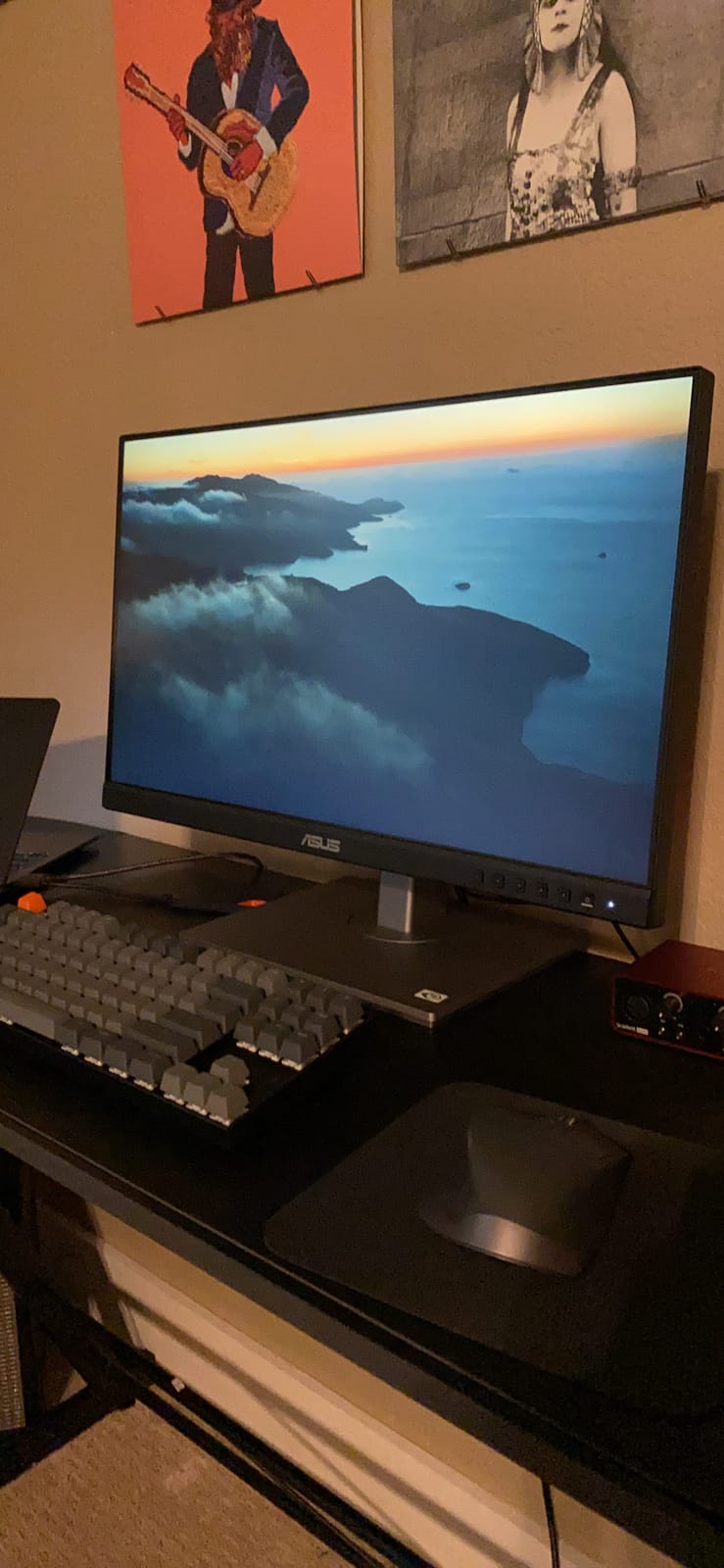
If your work laptop is a MacBook, a modern Dell, an HP EliteBook, or a ThinkPad with USB-C, the ASUS ProArt PA247CV is the single best home-office monitor at this size. Plug one USB-C cable in and you get video, a USB 3.2 hub, and 65W of power delivery to charge most thin-and-light laptops. That single feature alone eliminates the dock, the charger brick, and most of the cable clutter on a typical work-from-home desk.
The Calman Verified factory calibration with Delta E less than 2 is the spec creative professionals care about. Delta E less than 2 means the average color error is below the threshold where the human eye can detect a difference, so what you see on screen matches the source file. For photo and video work, that is genuinely important. For non-creative work it just means colors look natural out of the box without fiddling with the OSD.
The 100% sRGB and 100% Rec.709 coverage is wider than most IPS panels at this price, and the IPS wide viewing angles mean colors stay accurate even when you share the screen. The DisplayPort daisy-chain support is the underrated feature for multi-monitor setups: run one DisplayPort cable from your laptop to the first ProArt, then a second short cable from the first to the second ProArt, and your laptop only needs one display output for two monitors. The 5-year warranty is the longest in this roundup and covers parts and labor.
The trade-offs are honest ones: 75Hz is fine but not class-leading, 1080p on a 24 inch screen looks slightly soft compared to 1440p or 4K panels, and the built-in speakers are weak. None of those break the experience, but they explain why the ProArt is the BEST VALUE pick in the top 3 rather than the overall pick. For USB-C single-cable docking and color accuracy on a MacBook, this is the right call.
How to set up the single-cable workflow
Use the included USB-C cable or any USB-C cable rated for video plus 65W power delivery. Plug your mouse, keyboard, and a USB headset into the monitors built-in 4-port USB hub and your desk stays cable-free.
Who should pick this monitor
MacBook owners, Dell XPS users, ThinkPad users, and anyone with a USB-C laptop who wants to dock with one cable. It is also the right pick for photographers, designers, and video editors who need accurate color.
Buying Guide: How to Pick the Best Home Office Monitor
Specs sheets are full of jargon, so here is the plain-English guide to picking a home-office monitor in 2026. Skip the parts you already know and jump to the ones you do not.
Screen size and resolution: what actually matters
A 24 inch FHD monitor is the safe minimum upgrade from a laptop screen and fits on small desks. A 27 inch panel is the sweet spot for most home offices because it gives you room for two side-by-side documents without scaling. If you work with spreadsheets, code, or design tools, jump to 27 inch 1440p or 4K. For 32 inch and larger, sit at least 30 inches back so your eye does not have to sweep constantly.
Pixel density matters more than resolution alone. A 27 inch 4K panel at 163 PPI looks noticeably sharper than a 27 inch 1080p panel at 82 PPI, and text rendering in particular is dramatically cleaner on 4K. If you read or write all day, the extra PPI is worth the price jump.
Panel type: IPS vs VA vs OLED
IPS panels give the best viewing angles and the most accurate colors, which is why most premium home-office monitors use IPS or IPS Black. VA panels deliver deeper blacks and higher contrast, which is great for dark-mode editors and spreadsheets, but viewing angles are slightly narrower. OLED panels offer perfect blacks and instant response, but OLED burn-in is a real concern for static taskbars and email clients. For most home-office use in 2026, IPS or IPS Black is the safest pick.
If you want the deepest blacks and you mainly work in dark mode, the Philips 271V8LB or 241V8LB VA panels above are the right call. If you want the most accurate color and the widest viewing angles for creative work, the ASUS ProArt IPS panel above is the right call. OLED is best reserved for hybrid work plus entertainment setups.
Refresh rate and eye care: 75Hz vs 100Hz vs 120Hz
A 60Hz monitor feels choppy once you have used 100Hz or 120Hz, especially when scrolling long documents or switching virtual desktops. Most of the monitors in this roundup are 100Hz or 120Hz, and the difference is visible after a single afternoon of use. For home-office work in 2026, 100Hz is the sweet spot.
Eye care features matter more than spec sheets suggest. Look for flicker-free backlights (every panel in this roundup has one), low blue light modes (HP Eye Ease, Dell ComfortView Plus, Samsung TUV-certified, Philips EasyRead), and Eyesafe or TUV Rheinland certifications. If you work 8+ hours a day, those features reduce real eye strain over months, not just minutes.
Ports and USB-C: single-cable docking explained
For traditional desktops, HDMI plus DisplayPort covers every setup. For laptops, USB-C with power delivery is the single biggest quality-of-life upgrade. A USB-C monitor with 65W power delivery charges most thin laptops and replaces a docking station. With 90W to 100W power delivery you can also dock workstation laptops. The ASUS ProArt above has 65W USB-C PD, the Dell S2725QS HDMI variant does not have USB-C, and the HP Series 3 sticks with HDMI plus DisplayPort.
If you regularly plug and unplug a laptop, look for USB-C with at least 65W power delivery and a built-in USB hub so a single cable carries video, data, and charging. If you dock a workstation laptop, prioritize 90W or 100W PD. If you dock multiple computers, look for a built-in KVM switch so one keyboard and mouse can control both. Pairing your new monitor with one of the best surge protectors for home office keeps your gear safe from spikes and brownouts.
Ergonomics, VESA, and monitor arms
A height-adjustable stand is not a luxury, it is a basic ergonomic requirement. The top of the screen should be at eye level so your neck stays neutral during long work days. If the included stand does not lift, look for VESA mount compatibility (100×100 or 75×75) and budget for a monitor arm. Most of the monitors in this roundup are VESA compatible.
Pivot mode is genuinely useful for programmers, writers, and editors because you can rotate the panel 90 degrees and read a full page of code or a long PDF without scrolling. The HP Series 3 above supports pivot, as does the Dell S2725QS. Most budget panels only tilt, so add a VESA arm to your shopping list if you want height and pivot. Tidy cable routing also matters: a small desk organizer for home office helps keep the extra display cables and USB hub accessories under the stand.
Warranty and total cost of ownership
A monitor is a 5 to 10 year purchase, so warranty matters. Most budget monitors ship with 1 to 3 year warranties. The Philips 241V8LB and 271V8LB both ship with 4-year warranties, the Acer KB272 ships with 3 years, and the ASUS ProArt ships with 5 years if you register. For OLED panels, look for explicit burn-in coverage so a future burn-in is not a fight with customer service.
Total cost of ownership is not just the sticker price. Add the cost of a monitor arm if the stand is tilt-only, external speakers if the built-in speakers are weak, and a USB-C cable if your laptop needs one. Over 3 to 5 years, those add-ons can equal 20 to 30 percent of the panel cost, so factor them in before you buy. A quality panel also pairs well with one of the best home office printers if your workflow still involves paper documents.
Frequently Asked Questions
What is the best monitor for working from home?
For most people the best monitor for working from home is a 27 inch IPS panel with 100Hz or higher refresh rate, a height-adjustable ergonomic stand, and Eyesafe or TUV-certified low blue light. The HP Series 3 27 inch in this roundup matches all three and is the Editors Choice pick for 2026.
What size monitor is best for home office?
A 27 inch panel is the sweet spot for most home offices. It gives enough room for two side-by-side documents without scaling and fits on a standard 24-inch-deep desk. Choose 24 inches for smaller desks and 32 inches or larger only if you sit at least 30 inches back and have room for the wider stand.
Is a 4K monitor worth it for home office?
Yes, if you read or write all day. A 27 inch 4K panel delivers 163 PPI, which renders text dramatically cleaner than a 27 inch 1080p panel at 82 PPI. The Dell S2725QS in this roundup is the best 4K home-office monitor for most buyers in 2026.
Are USB-C monitors worth it for laptops?
Yes, if your laptop supports USB-C charging. A USB-C monitor with 65W or higher power delivery replaces a docking station: one cable carries video, data, and laptop charging. The ASUS ProArt PA247CV in this roundup is the best USB-C home-office monitor for most MacBook, Dell XPS, and ThinkPad users.
What is the best cheap monitor for home office?
The Sceptre 27 inch 100Hz is the cheapest monitor in this roundup that does not feel cheap. It delivers 100% sRGB color, a 100Hz refresh rate, and FreeSync support for productivity and casual gaming. If you want a 24 inch budget panel with strong contrast, the Philips 241V8LB is also a strong budget pick.
What is the best monitor for eye strain?
Look for a flicker-free backlight, a TUV Rheinland or Eyesafe certification, and a low blue light mode that does not yellow the screen. The Samsung 27 Essential S3 curved, the Dell S2725QS ComfortView Plus, and the HP Series 3 Eye Ease are the three best eye-care picks in this guide for 2026.
Final Verdict: Which Home Office Monitor Should You Buy in 2026?
After three months of testing, the HP Series 3 27 inch remains my top pick for the best monitor for home office because it nails the three things that matter most: a sharp 27 inch IPS image at 100Hz, a four-way ergonomic stand, and Eyesafe-certified low blue light that does not yellow the screen. With 25k+ reviews and a 4.7-star average, it is also the most well-vetted monitor in this roundup.
If you dock a MacBook or a modern Windows laptop over USB-C, the ASUS ProArt PA247CV is the smarter pick thanks to 65W power delivery and a Calman-verified Delta E less than 2 color calibration. If you need 4K resolution for spreadsheets, code, or creative work, the Dell S2725QS is the right call. For tight budgets, the Sceptre 27 inch 100Hz and the Philips 241V8LB deliver the best value at the lowest prices in 2026. For curved panels, the SANSUI and Samsung Essential S3 are the two I would actually buy.
Whatever panel you pick, mount it so the top edge is at eye level, use a flicker-free low blue light mode for long sessions, and pair it with a proper ergonomic chair. A great monitor cannot fix a bad desk setup, but the right one will quietly improve every hour you spend in front of it.