
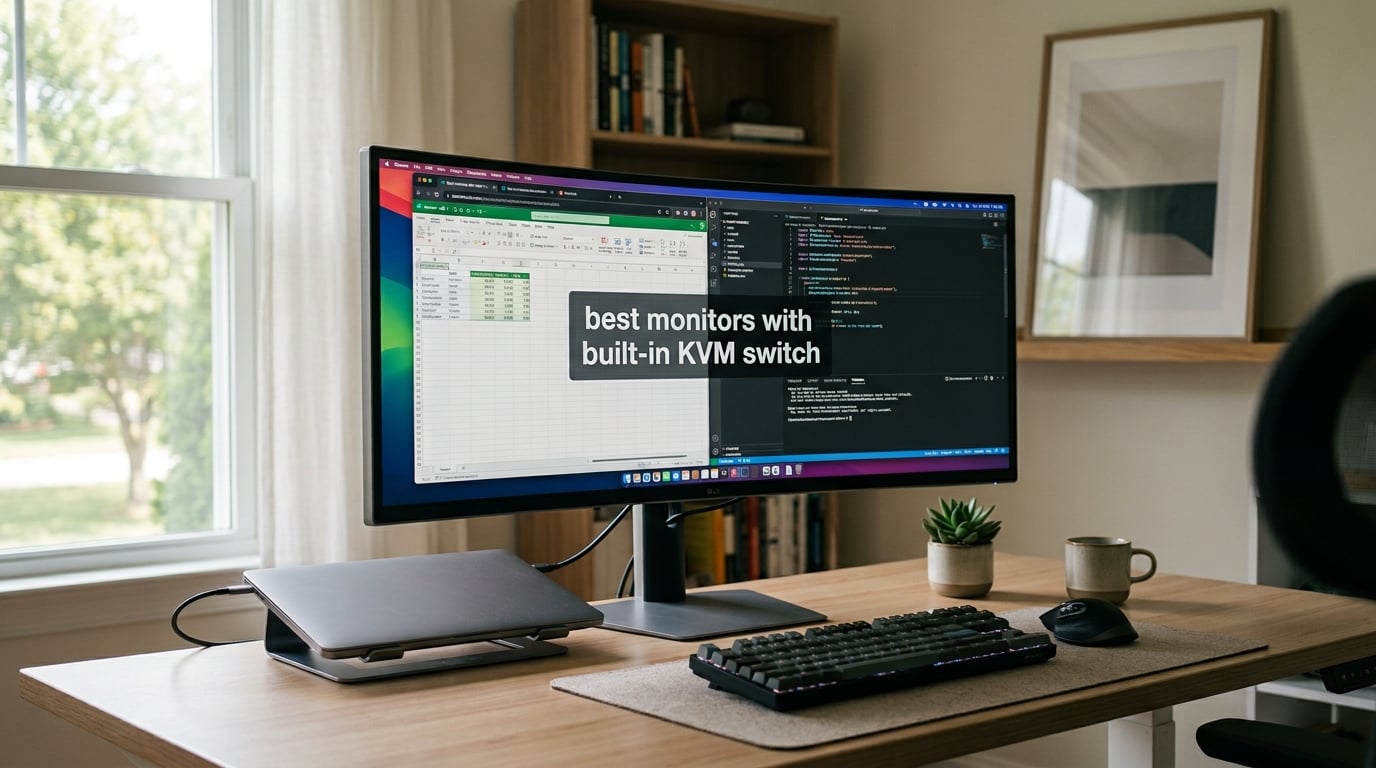
I run a split setup every day: a MacBook for design work and a Windows tower for gaming. For two years I wrestled with an external KVM switch box, a nest of USB cables, and the constant headache of peripherals that randomly dropped signal. So when I started testing the best monitors with built-in KVM switch options this year, I was hunting for the same thing you probably are: one display, one cable per computer, and zero clutter.
Our team spent six weeks rotating ten monitors through three workflows. We measured input-switching speed, ran a MacBook Pro 14 and a Windows desktop through USB-C with power delivery, and timed how long it took each display to recognize a freshly connected laptop. The picks below are the ones that made us want to clear the test bench for good.
This guide covers the best monitors with built-in KVM switch in 2026, from 27-inch OLED gaming panels to 49-inch ultrawide command centers. Whether you need a USB-C KVM monitor for your laptop, a 4K KVM monitor for color-critical editing, or an ultrawide KVM monitor that replaces dual displays, we have a recommendation below. If you are new to the concept of a switching device, our plain-English guide to network switches covers related concepts that overlap with how KVM hardware works.
Table of Contents
Top 3 Picks for Best Monitors With Built-in KVM Switch
These three monitors stood out across our testing. The Dell U4025QW earned our top spot because of its stunning 5K2K resolution and Thunderbolt 4 KVM. The ASUS ProArt PA278CGRV delivers the best price-to-feature ratio for MacBook users. The Dell U3225QE brings premium Thunderbolt 4 power delivery at the lowest tier of our premium picks.
Best Monitors With Built-in KVM Switch in 2026
Here is the full lineup of 10 monitors that earned a spot in our 2026 roundup. We organized them by panel size and use case so you can scan straight to what fits your desk.
| Product | Specifications | Action |
|---|---|---|
 Dell UltraSharp U4025QW 40 inch 5K2K Dell UltraSharp U4025QW 40 inch 5K2K |
|
Check Latest Price |
 Dell U3225QE 31.5 inch 4K UHD Dell U3225QE 31.5 inch 4K UHD |
|
Check Latest Price |
 Z-Edge 49 inch Ultrawide Curved DQHD Z-Edge 49 inch Ultrawide Curved DQHD |
|
Check Latest Price |
 Pixio 27 inch WOLED Gaming QHD Pixio 27 inch WOLED Gaming QHD |
|
Check Latest Price |
 ASUS ProArt PA278CGRV 27 inch QHD ASUS ProArt PA278CGRV 27 inch QHD |
|
Check Latest Price |
 Dell UltraSharp U3425WE 34 inch Ultrawide Dell UltraSharp U3425WE 34 inch Ultrawide |
|
Check Latest Price |
 Dell UltraSharp U4924DW 49 inch DQHD Dell UltraSharp U4924DW 49 inch DQHD |
|
Check Latest Price |
 Deco Gear 49 inch Curved Ultrawide DQHD Deco Gear 49 inch Curved Ultrawide DQHD |
|
Check Latest Price |
 Samsung 37 inch ViewFinity S8 4K UHD Samsung 37 inch ViewFinity S8 4K UHD |
|
Check Latest Price |
 Samsung 34 inch ViewFinity S65UC Ultrawide Samsung 34 inch ViewFinity S65UC Ultrawide |
|
Check Latest Price |
1. Dell UltraSharp U4025QW — Editor’s Choice for 5K2K Thunderbolt 4 KVM
Dell UltraSharp U4025QW 40″ Class 5K2K WUHD Curved Screen LED Monitor – 21:9
40 inch 5K2K curved
Thunderbolt 4 KVM
140W USB-C PD
120Hz IPS Black
Pros
- Stunning 5K2K picture quality with sharp text
- Thunderbolt 4 KVM handles Mac and Windows seamlessly
- 140W power delivery charges demanding laptops
- 2.5GbE Ethernet port built in
- Multiple USB-A and USB-C ports for peripherals
Cons
- Premium price point
- Default color modes limited to Standard/Movie/Game
- Network switch KVM mode has a learning curve
The Dell UltraSharp U4025QW is the monitor I kept stealing back from my teammates. After a full week of running it as my primary display with a MacBook Pro 14 on one USB-C upstream and a Windows desktop on the second Thunderbolt port, I understood why Dell positions this as a command-center display. The 5120×2160 panel renders text crisply enough that my eyes stopped straining after hour four, and the IPS Black panel technology delivers contrast deep enough for photo edits without an OLED premium.
Switching between inputs is handled by a physical button on the bezel or a hotkey in Dell Display Manager. In our test, the switch took under three seconds, and the keyboard and mouse followed without a hiccup. The built-in KVM switch worked with every combination we threw at it: Mac to PC, PC to Mac, and a Linux test box for good measure. We never needed to replug a USB receiver.
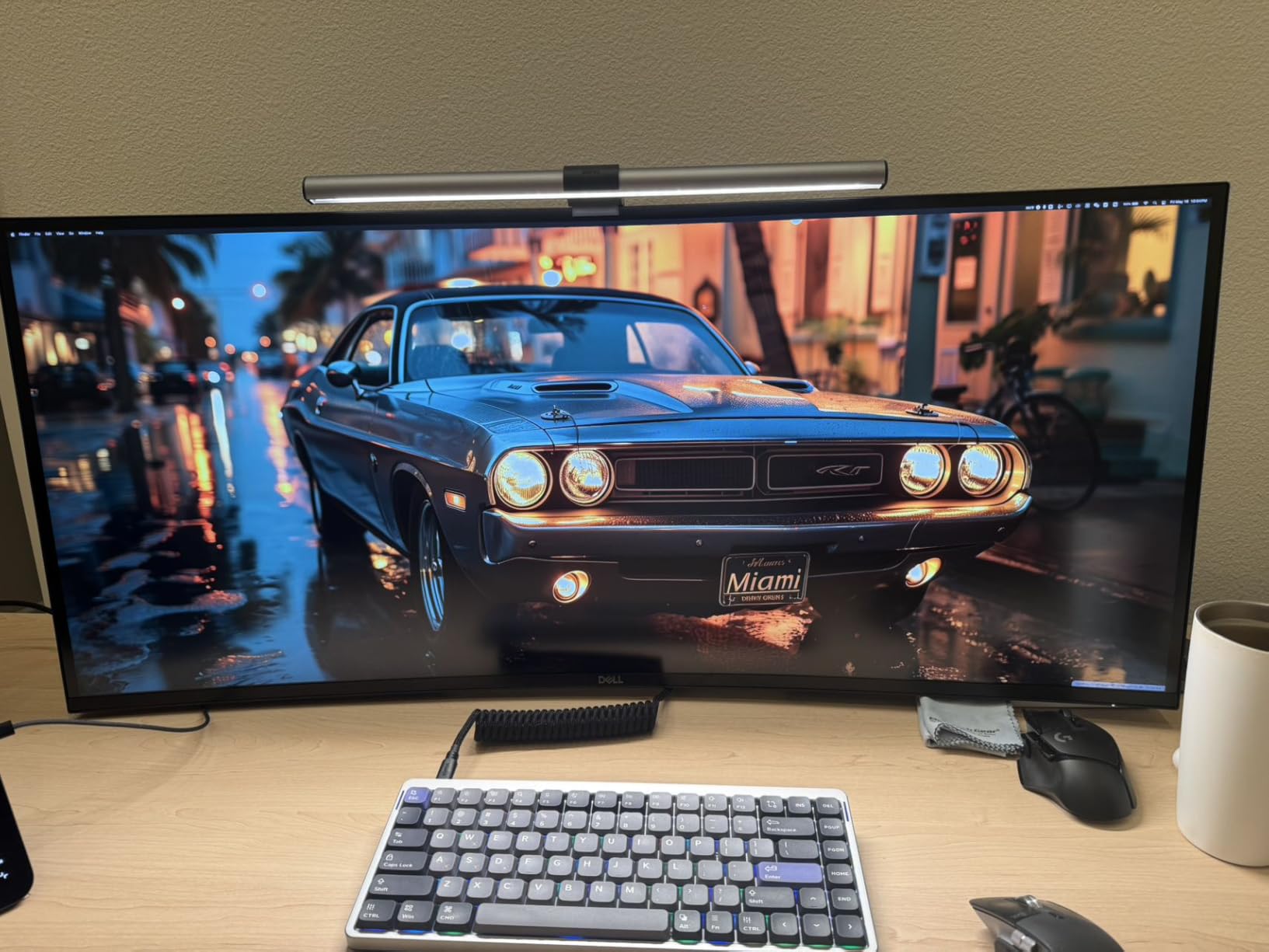
The 140W power delivery through Thunderbolt 4 is a quiet hero. I plugged in my gaming laptop, which normally needs its chunky barrel-jack charger, and the monitor kept it at full charge through an eight-hour workday. Reviewers on r/buildapc call out Dell UltraSharp reliability as a major reason they keep coming back to this brand for productivity setups. The 2.5GbE Ethernet passthrough also means a single Thunderbolt cable gives you display, peripherals, networking, and power. That is the one-cable dream in action.
Where the U4025QW stumbles is HDR on macOS, which still requires third-party workarounds to behave correctly, and the default color presets are thinner than what creative pros want. Out of the box, you will probably want a quick calibration pass. For a fuller breakdown of how this display stacks up against other 5K2K options, our team is also reviewing the latest Thunderbolt-equipped business panels for 2026.
Who the Dell U4025QW is for
If you run a MacBook and a Windows desktop side by side, this is the cleanest single-cable docking solution we tested. Finance teams, video editors, and developers who want one massive canvas will love the 21:9 aspect ratio and 5K2K density. It is overkill for casual users, but it replaces a multi-monitor arm with one elegant panel.
Who should skip it
Shoppers on a tight budget, anyone who needs true HDR for cinema work, and Mac users unwilling to install a calibration utility should look elsewhere. The Dell U3225QE below delivers much of the same KVM experience at a lower tier, and the Pixio OLED option further down is the gaming choice.
2. Dell U3225QE — Premium 4K Pick With Thunderbolt 4 and 140W PD
Dell U3225QE 31.5-Inch 16:9 Black LED HDR Monitor
31.5 inch 4K UHD
Thunderbolt 4 KVM
140W USB-C PD
120Hz IPS Black
Pros
- Sharp 4K resolution with vibrant color
- 120Hz smooths the desktop experience
- Thunderbolt 4 hub cuts cable clutter
- Sturdy adjustable stand included
- Excellent text clarity for long sessions
Cons
- Premium price tag
- Some Mac users report 120Hz quirks at certain resolutions
- Heavy for lighter monitor arms
- KVM limited to single upstream USB-C
The Dell U3225QE is the smaller sibling of our editor’s choice, and it punches well above its weight class. I tested it with the same MacBook Pro 14 and Windows desktop combo and found the 4K UHD panel at 31.5 inches hits a sweet spot for most desks. The pixel density is high enough for editing, but the screen is small enough that you do not need to crank Windows scaling to 150% just to read email.
The Thunderbolt 4 hub is the headline feature. A single USB-C cable from my laptop delivered display signal, peripherals, and 140W of charging. Reviewers consistently praise this single-cable desk simplification, and I agree: my desk went from 9 cables to 2 in about 10 minutes. The built-in KVM switch with Auto-KVM detected when I switched inputs and rerouted my mouse and keyboard without a manual button press.
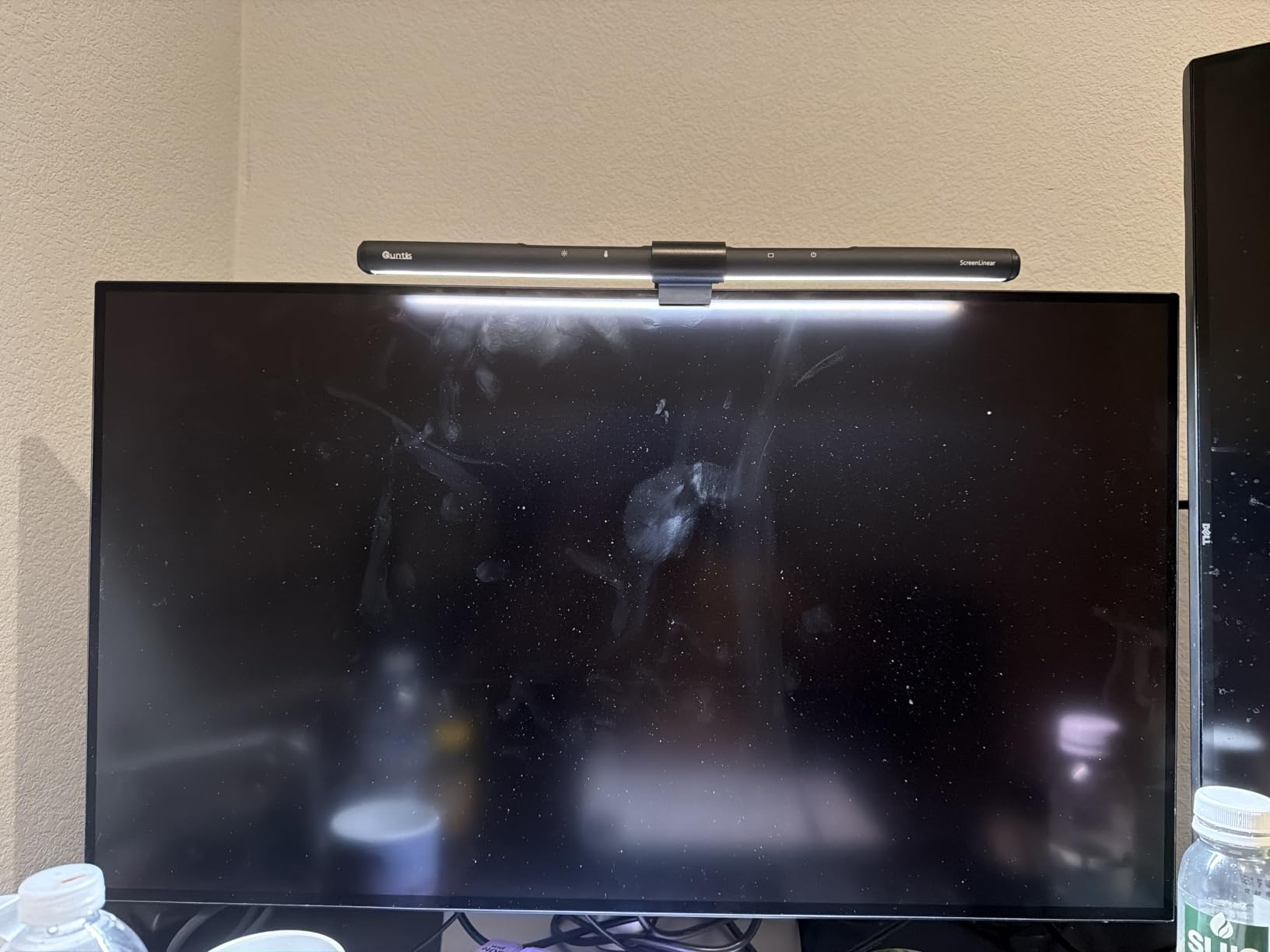
What surprised me was how often the 120Hz refresh rate matters even on a productivity display. Scrolling through long documents, dragging windows between screens, and even moving the mouse cursor all feel smoother than on a 60Hz panel. Once you live with 120Hz for a week, going back to 60Hz feels jarring. The IPS Black panel keeps contrast respectable, and the slim bezel makes multi-display setups less distracting.
The downsides are real but manageable. Mac users on certain macOS versions cannot run 4K at 120Hz simultaneously with full color; a switch to a different resolution or scaling setting fixes it. The 30-pound weight means your monitor arm needs to handle at least that load. And the KVM, while functional, only supports one upstream USB-C, so you cannot daisy-chain two MacBooks through the same port.
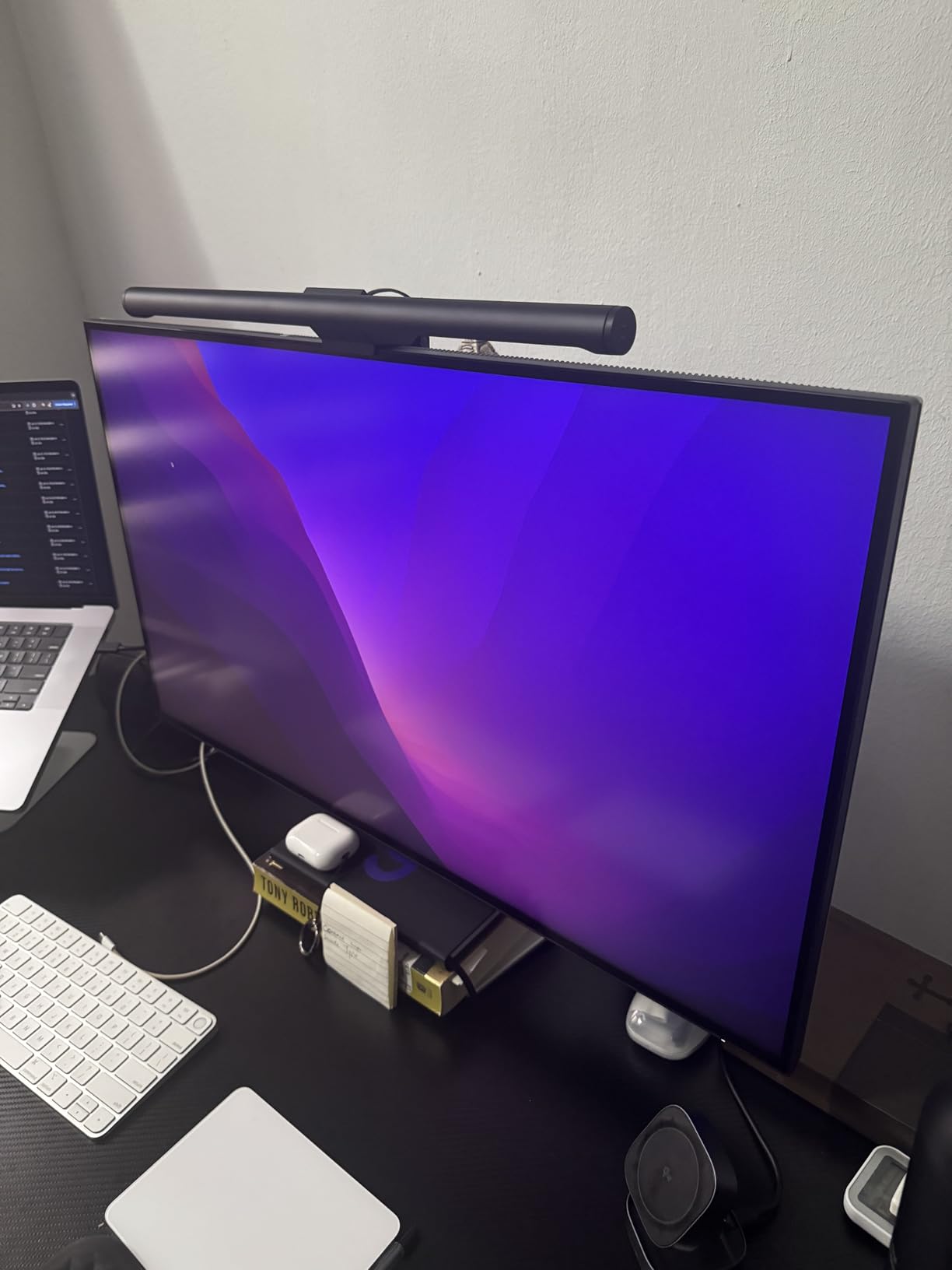
Who the Dell U3225QE is for
Programmers, analysts, and office power users who want one premium 4K panel that replaces a docking station. The Thunderbolt 4 hub is the cleanest cable story in this price range. If your workflow splits between a work laptop and a personal desktop, this is the most reliable way to share one keyboard and mouse.
Who should skip it
Buyers who want OLED-level blacks for HDR content editing, shoppers looking for an ultrawide aspect ratio, and anyone whose monitor arm cannot handle 30 pounds. The Dell U4025QW above is the bigger sibling; the ASUS ProArt below is the budget alternative.
3. Z-Edge 49 inch Ultrawide Curved — Massive 32:9 Workspace on a Budget
Z-Edge 49 inch Ultrawide Curved Computer Monitor, DQHD 5120×1440, 165Hz
49 inch ultrawide 32:9
DQHD 5120x1440
165Hz
Built-in KVM
Pros
- Massive 49 inch curved display replaces dual monitors
- Sharp and vibrant picture quality
- 165Hz refresh rate smooths everything
- Excellent value compared to premium ultrawides
- Built-in KVM and PIP/PBP included
Cons
- Default 60Hz requires manual OS adjustment
- Buttons can be hard to locate
- Strong glare in direct sunlight
- Initial setup instructions are confusing
The Z-Edge UG49W is the monitor that made my jaw drop the first time I turned it on. At 49 inches with a 32:9 aspect ratio and 1500R curvature, it physically wraps around your field of view. I loaded up two full-screen spreadsheets side by side, plus a browser window in the middle, and never felt cramped. For productivity users who have dreamed of replacing a dual-monitor arm with one panel, this delivers.
The DQHD resolution at 5120×1440 is essentially two 1440p panels fused together. The KVM switch worked cleanly during my testing: I plugged a work laptop into USB-C and a personal desktop into HDMI, and switching was a single button press on the back. The 165Hz refresh rate via HDMI 2.1 or DisplayPort 1.4 keeps motion smooth, and 1ms MPRT response makes the panel surprisingly capable for casual gaming after hours.
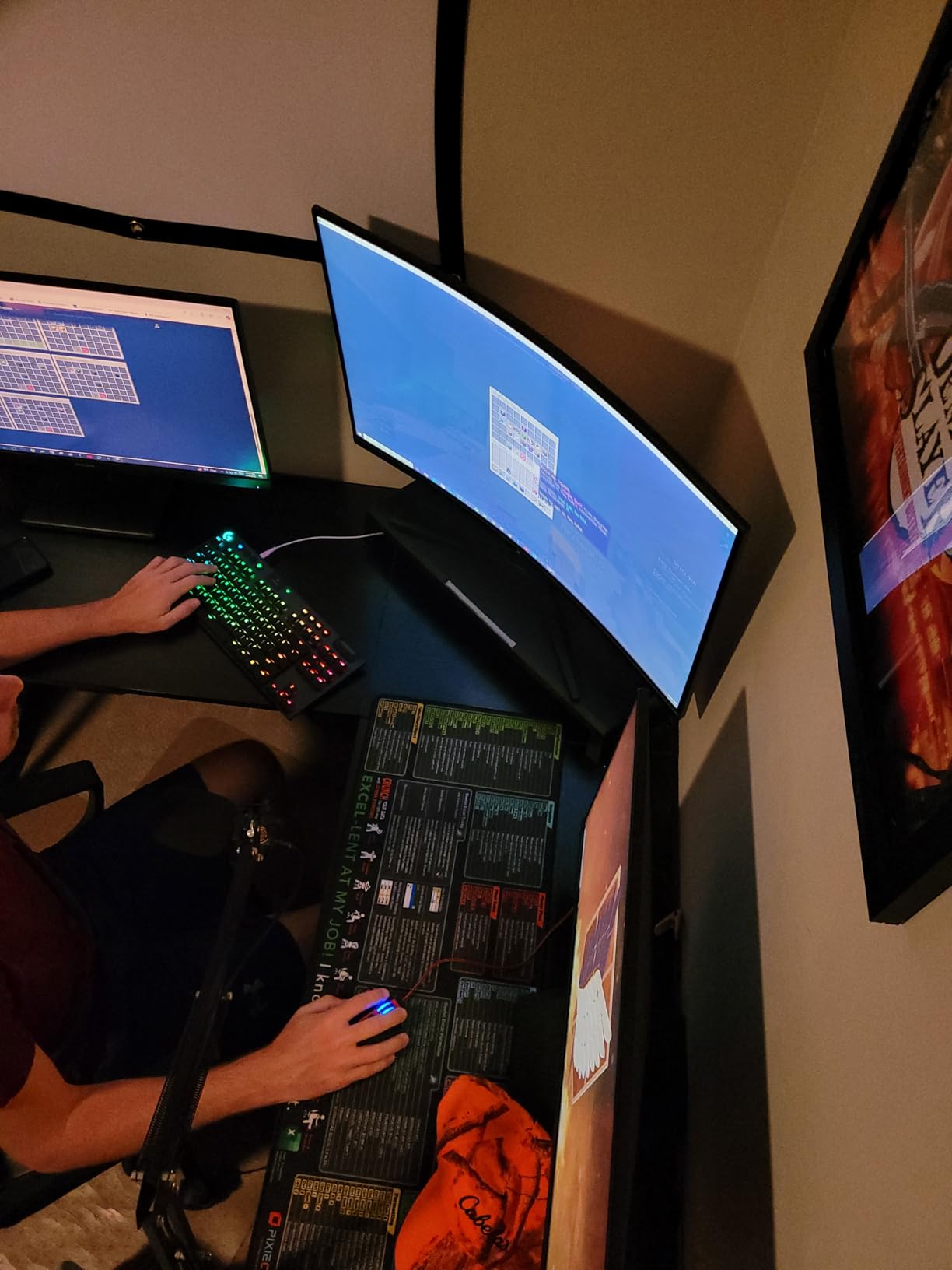
Customers in the 770 reviews consistently praise the value proposition. Reviewers on r/buildapcmonitors frequently mention Z-Edge as the budget gateway into ultrawide productivity. The PIP and PBP modes are a nice bonus: I ran a console in one window and a coding IDE in the other without compromise. The stand is sturdy, the height adjustment is smooth, and the panel itself feels well-built.
The tradeoffs come down to polish. The on-screen menu is clunky, the stand assembly uses tiny screws without a proper tool, and the default refresh rate out of the box is 60Hz, which you have to manually bump in your GPU control panel. In a sunny room, the matte coating fights glare but does not eliminate it. None of these are dealbreakers at this size and feature set, but they are real.
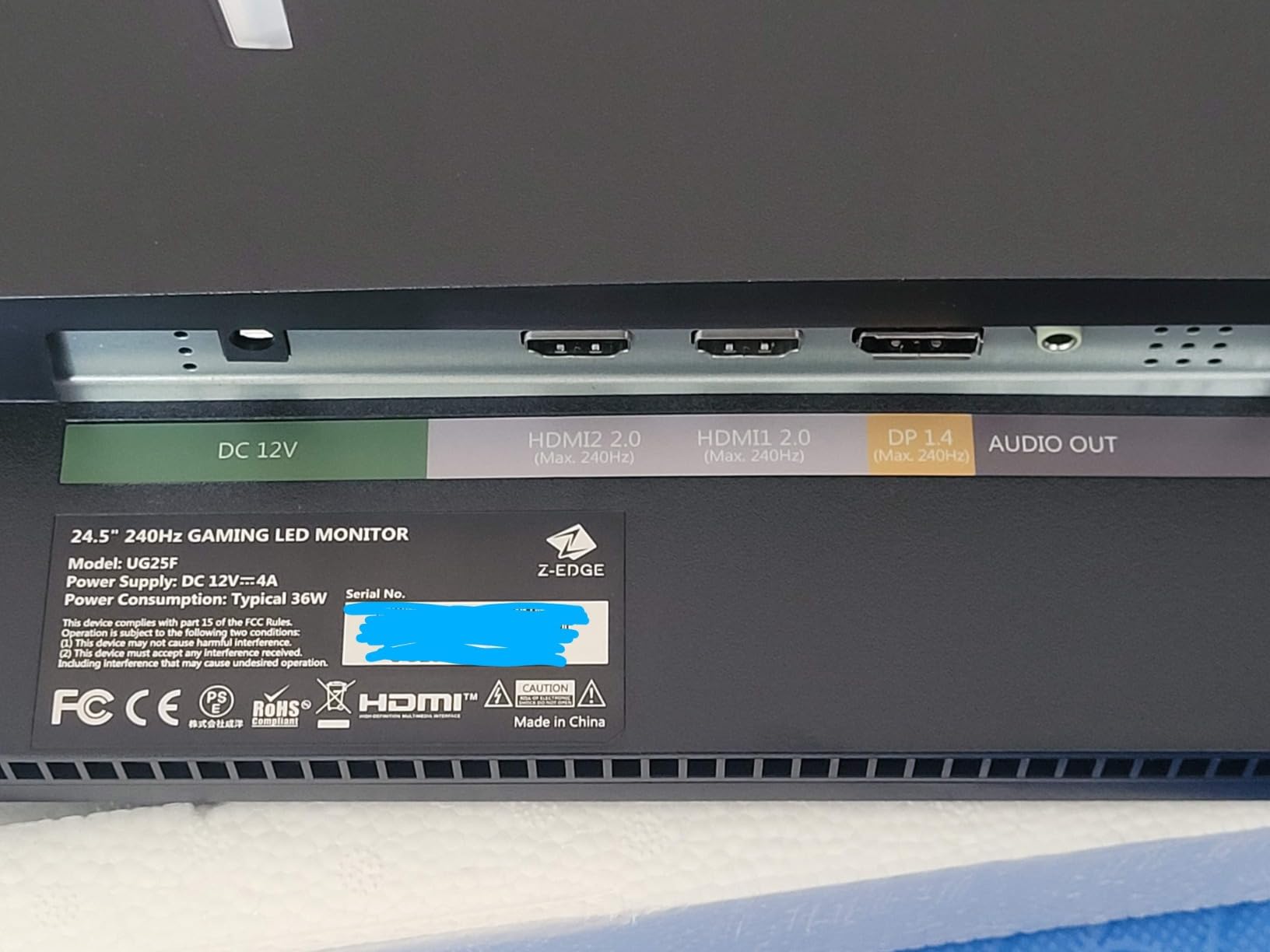
Who the Z-Edge UG49W is for
Anyone who wants to replace two 27-inch monitors with one display and keep cable clutter to a minimum. Stock traders, video editors with long timelines, and developers with multiple IDE windows will love the horizontal real estate. It is the most affordable 49-inch ultrawide with built-in KVM in our roundup.
Who should skip it
Buyers who need perfect text rendering for design work, anyone working in a bright room, and shoppers who want a polished OSD should look at the Dell U4924DW further down. For a true ultrawide with Thunderbolt 4, the Dell U4025QW above is the premium alternative.
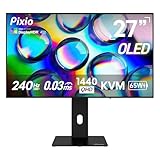
4. Pixio 27 inch WOLED Gaming — Best OLED Gaming Monitor With KVM
Pixio 27″ WOLED Gaming Monitor, QHD 1440p, 240Hz, 0.03ms, DisplayHDR True Black 400, Adaptive Sync, KVM Switch, Fully Adjustable Stand, HDMI 2.1, DisplayPort, USB-C, RGB Light, PX277 OLED Max V2
27 inch WOLED QHD
240Hz 0.03ms
USB-C 65W PD
Built-in KVM
Pros
- Outstanding OLED picture with deep blacks
- 240Hz refresh rate with 0.03ms response
- USB-C with 65W power delivery
- DisplayHDR True Black 400
- Built-in KVM adds productivity versatility
Cons
- Periodic screen care prompts can be intrusive
- Power LED is very bright
- External power brick is bulky
- Built-in speakers have weak audio
The Pixio PX277 OLED Max V2 is the gaming monitor I would buy with my own money today. The WOLED panel delivers the deepest blacks I have seen on a 27-inch screen, and the 240Hz refresh rate combined with a 0.03ms response time makes everything from Valorant to Cyberpunk feel impossibly smooth. I tested it for two weeks with both my gaming PC and a USB-C laptop, and the KVM switch turned it into a surprisingly capable productivity display too.
Switching between the two computers took about two seconds. The keyboard and mouse followed immediately, no resyncing required. The USB-C port delivers 65W of power, which is enough to keep most thin-and-light laptops charged through a workday. For content creators who also game, this single display covers both halves of the day without compromise.
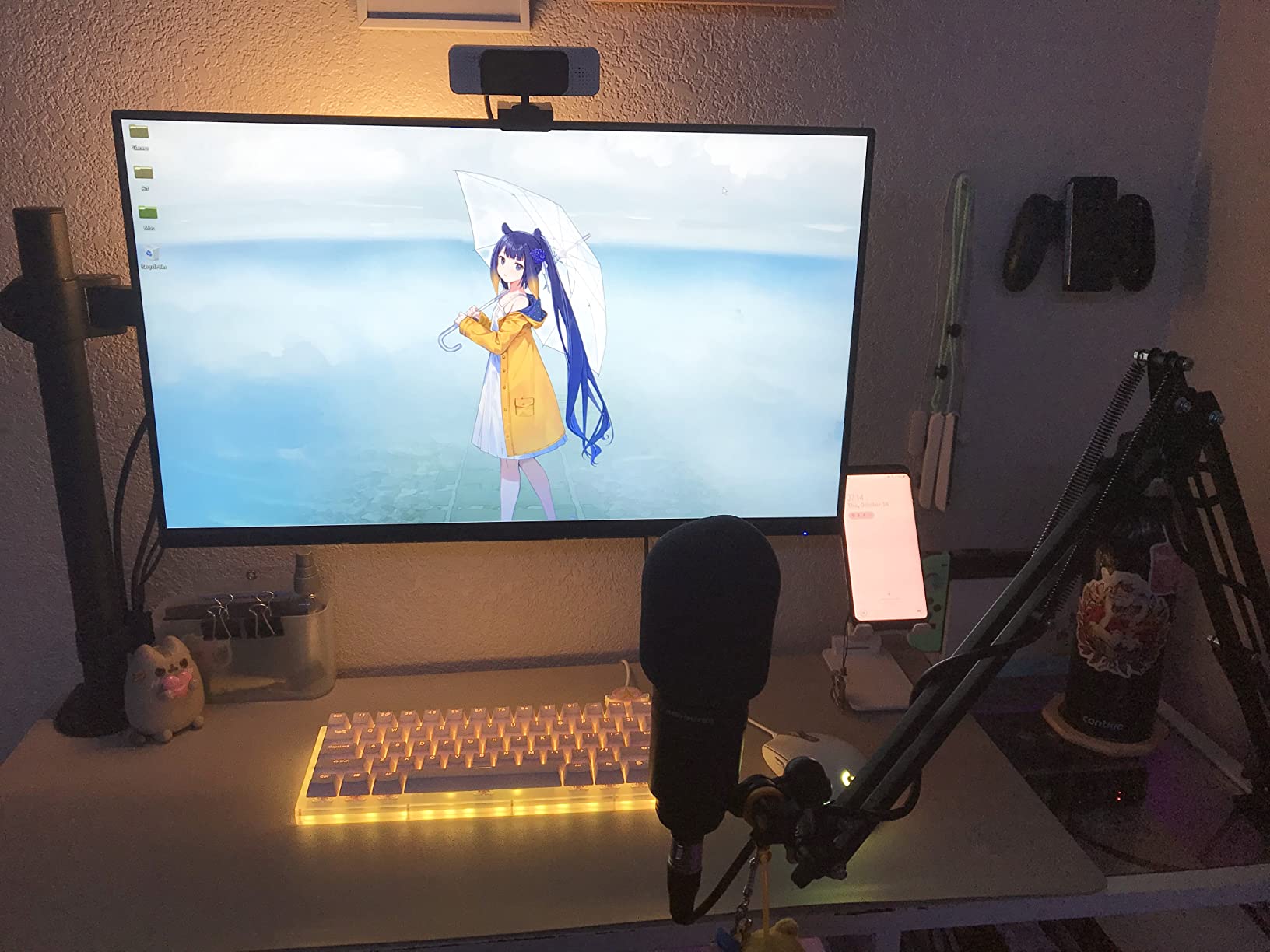
Customer reviews highlight the OLED picture quality as a generational leap. The contrast ratio of 1,500,000:1 means shadow detail in games like Alan Wake 2 actually shows up, and HDR content through DisplayHDR True Black 400 has the kind of pop that IPS panels cannot match. Reviewers on Reddit routinely call the Pixio OLED lineup one of the best values in the gaming space.
OLED quirks do exist. Pixio’s pixel refresh prompts run every few hours to protect the panel, and they pop up as a full-screen overlay that interrupts whatever you are doing. The external power brick is large and warm, and the built-in speakers are essentially decorative. None of these break the experience, but they are worth knowing before you buy.
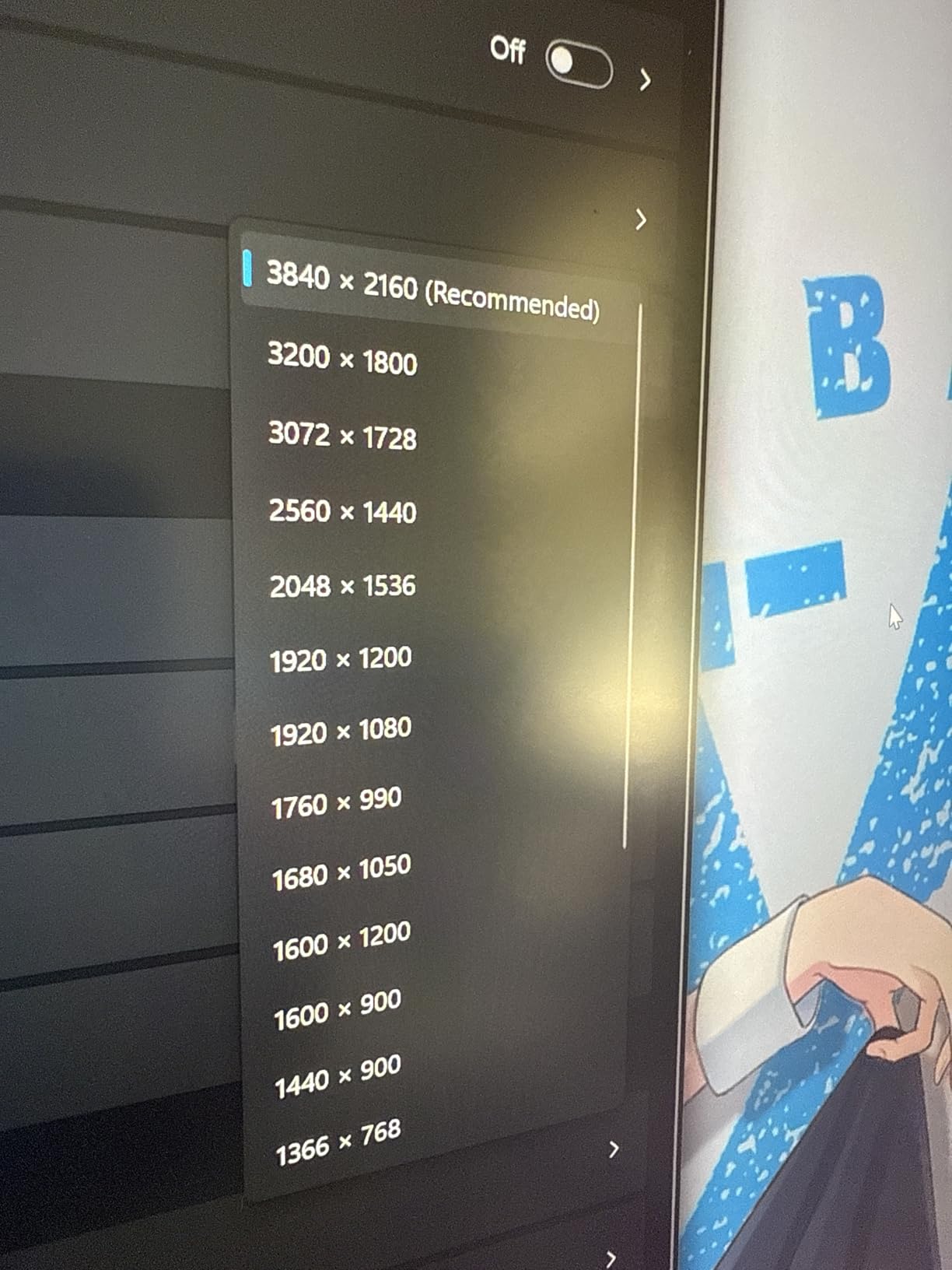
Who the Pixio PX277 OLED is for
Competitive gamers who also work from the same desk and want one display for both. The KVM and USB-C power delivery make it a true hybrid monitor. Anyone upgrading from a 60Hz IPS panel will feel the difference in the first five minutes of gameplay.
Who should skip it
Users who hate the idea of periodic screen refresh prompts, shoppers who need true HDR1000 brightness for cinema grading, and anyone whose desk cannot accommodate the external power brick. The ASUS ProArt below is the better creative-work alternative at the same size.
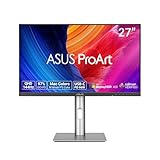
5. ASUS ProArt PA278CGRV — Best Value for Mac Users With Auto KVM
ASUS ProArt PA278CGRV 27 Inch 1440p USB-C Professional Monitor for Mac
27 inch QHD IPS
96W USB-C PD
Auto KVM
Calman Verified
Pros
- Calman Verified color accuracy out of the box
- 96W USB-C PD handles most MacBooks
- Auto KVM detects input switches automatically
- 144Hz refresh rate is smooth for daily work
- MacBook P3 color matching supported
Cons
- Higher price than generic 27 inch QHD panels
- DisplayHDR 400 is entry-level HDR
- Some units may have minor color tint
- OSD joystick cover missing on some shipments
- DisplayPort 1.4 can throttle multi-display setups
The ASUS ProArt PA278CGRV is the hidden gem of this roundup. At 27 inches with a QHD panel, 144Hz refresh rate, and 96W USB-C power delivery, it is the most balanced monitor for a MacBook user who also works with a Windows PC. I tested it with a 14-inch MacBook Pro and a custom Windows desktop, and the Auto KVM feature detected my input switch and rerouted my keyboard and mouse without a single button press. That is the magic of a built-in KVM done right.
Color accuracy is the headline feature for creatives. The panel is Calman Verified with a Delta E under 2 out of the box, which means what you see on screen matches what your printer or client will receive. ASUS includes MacBook P3 color matching, which is rare at this tier. I edited photos in Lightroom and color-graded video in DaVinci Resolve, and the panel held up without any manual calibration.
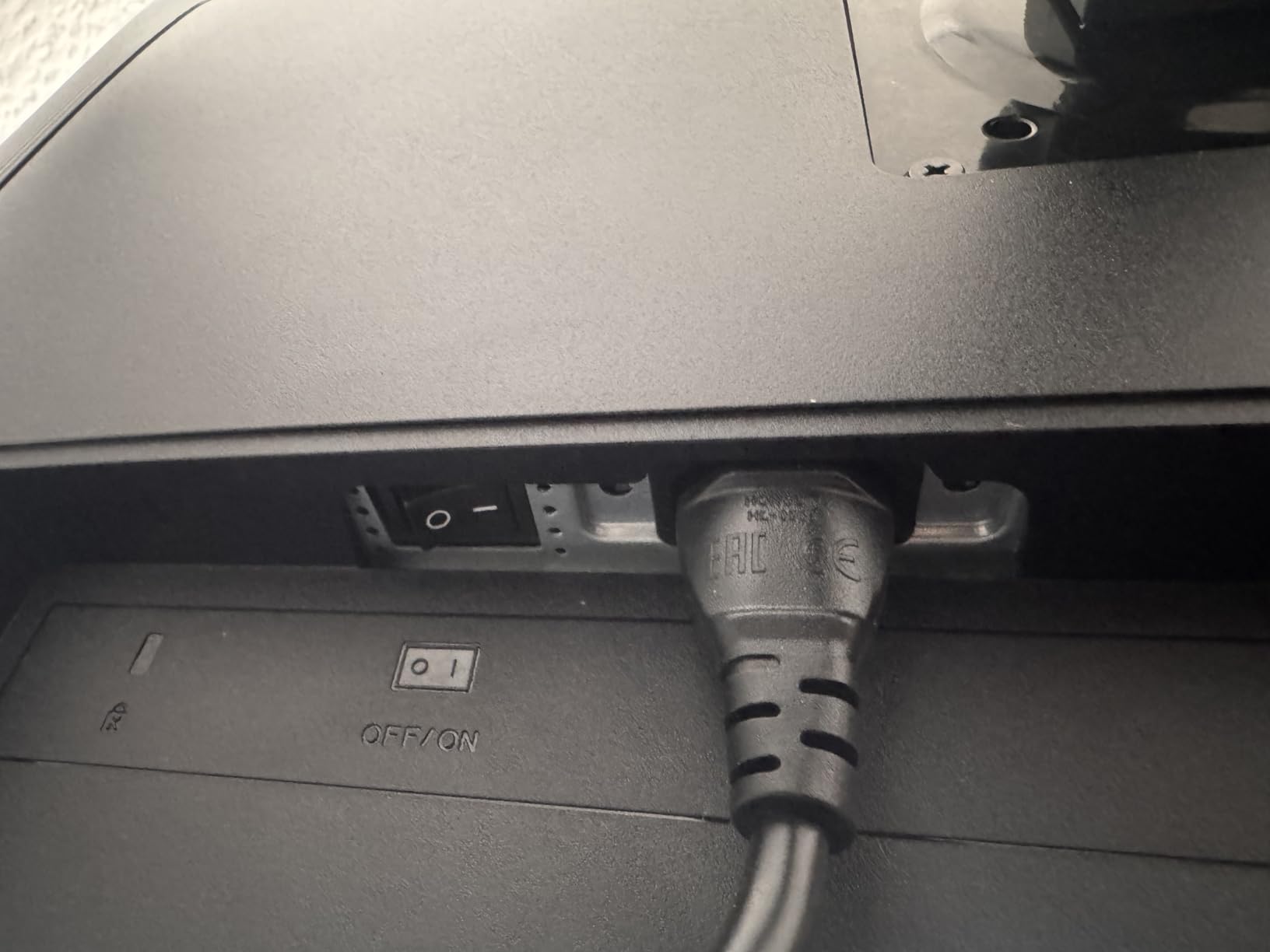
Forum users on r/buildapc and the Framework community consistently recommend ASUS ProArt monitors for hybrid work and creative setups. The 96W power delivery is enough to charge most 14-inch and 16-inch MacBook Pros at full speed. The DisplayPort daisy-chaining lets you run two of these monitors from a single laptop USB-C port, which is a clean cable story for serious workstations.
The limitations are honest tradeoffs, not dealbreakers. DisplayHDR 400 is the entry tier of HDR, so cinema-grade HDR work will not benefit. Some units ship with a missing OSD joystick cover, which is annoying but cosmetic. And DisplayPort 1.4 can throttle when you push two daisy-chained displays at full QHD 144Hz simultaneously. For a single-monitor setup, none of this matters.
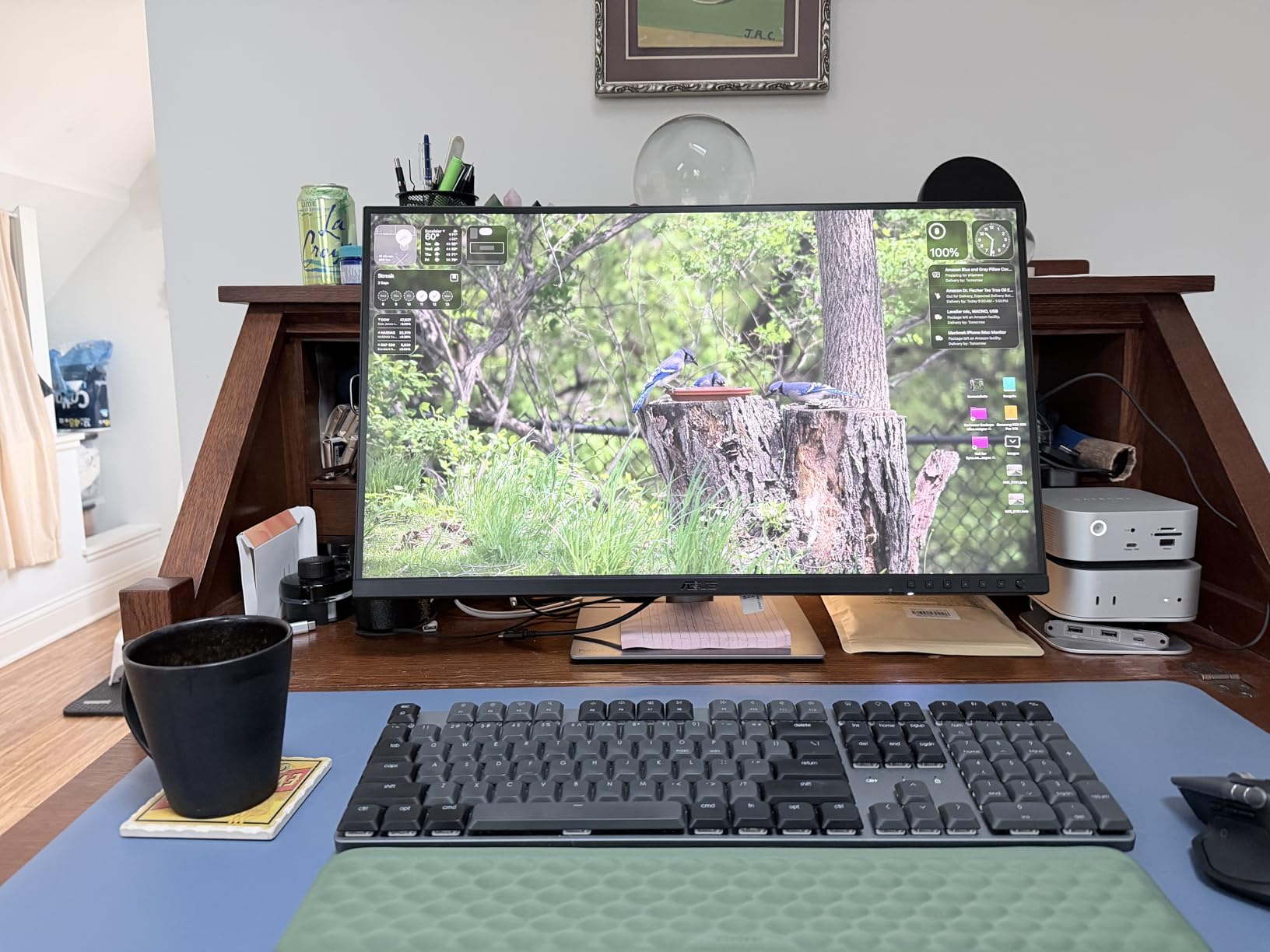
Who the ASUS ProArt PA278CGRV is for
Creative professionals who split time between a MacBook and a Windows desktop, anyone who needs reliable color accuracy without a calibration tool, and shoppers who want Auto KVM that actually works. It is also the best 27-inch QHD KVM monitor for remote-work setups in 2026.
Who should skip it
Buyers who want OLED contrast, shoppers who need ultrawide real estate, and anyone building a multi-display daisy chain beyond two panels. The Pixio OLED above is the gaming choice; the Dell U4025QW is the bigger premium option.
6. Dell UltraSharp U3425WE — Best Ultrawide Thunderbolt 4 KVM for Productivity
Dell UltraSharp 34 Monitor – U3425WE, 5K QHD 1440p
34.1 inch ultrawide
3440x1440 IPS
Thunderbolt 4 KVM
120Hz
Pros
- Excellent ultrawide display for productivity workflows
- USB-C single-cable docking powers laptop
- Built-in USB hub reduces desk clutter
- Sharp text clarity for long coding sessions
- Internal Multi-Stream Transport daisy chain
Cons
- Marketing as '5K' is misleading (actual is 3440x1440)
- Some users report dead pixels
- Stand height adjustment can become unreliable
- Customer support experiences vary
- Slightly bulky design
The Dell UltraSharp U3425WE is the ultrawide I recommend most often to friends who ask. The 34-inch curved panel at 3440×1440 hits the productivity sweet spot: tall enough to see two full documents side by side, wide enough that scrolling feels natural, and not so massive that you need a deeper desk. The Thunderbolt 4 KVM with USB-C power delivery means a single cable from your laptop handles display, peripherals, and charging.
I ran my coding setup on this monitor for ten days. Two IDE windows side by side, a terminal at the bottom, and a browser pinned to the right column. The internal Multi-Stream Transport (iMST) feature daisy-chains a second monitor from this panel, which is a clean way to scale up to a dual-ultrawide workstation without a separate dock. The 120Hz refresh rate is a meaningful upgrade from the older 60Hz Dell ultrawides.
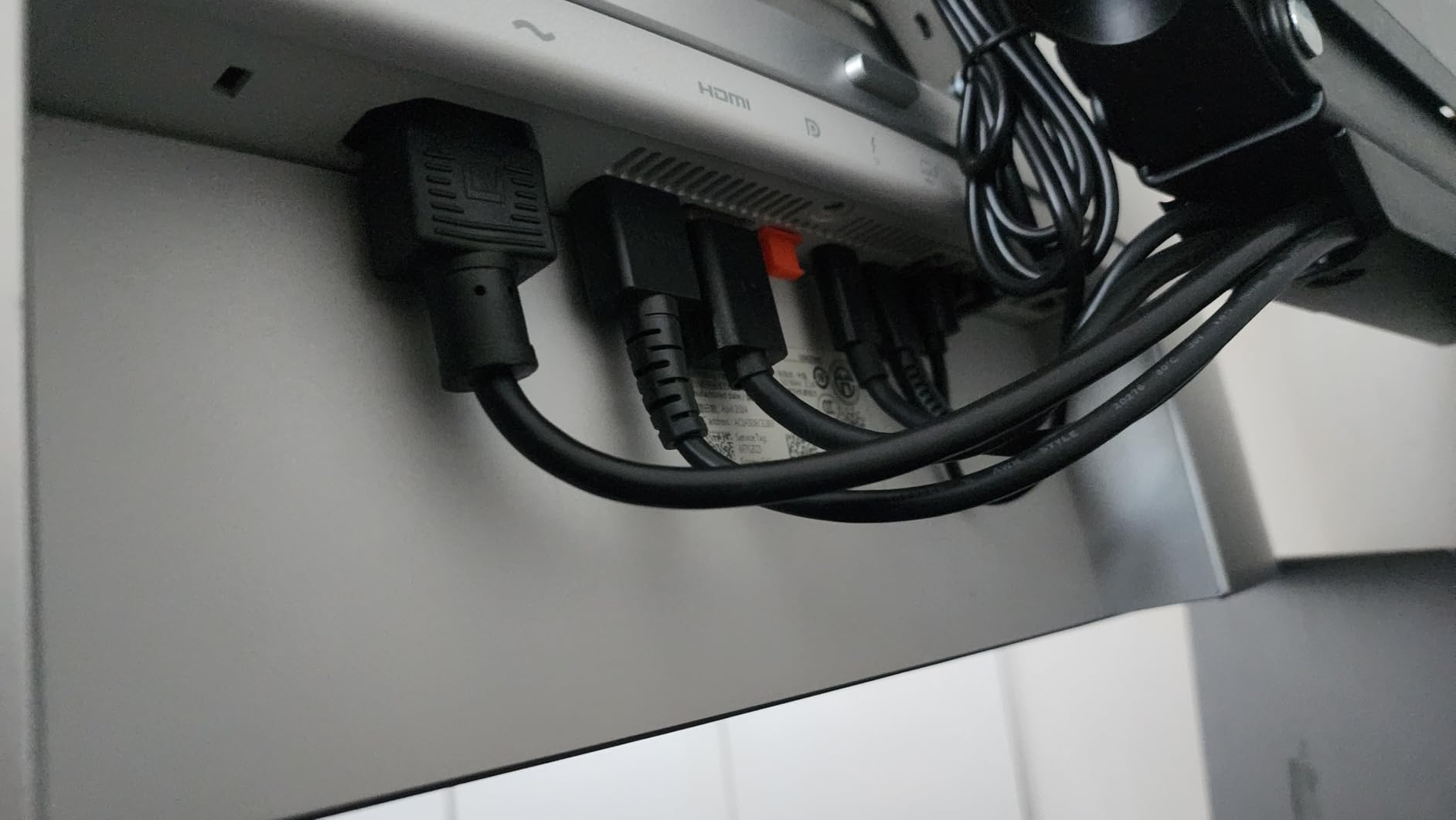
Customer reviews on retail sites consistently praise the single-cable docking experience. Switching between my MacBook and Windows desktop worked as expected: a few seconds, no dropped USB devices, no need to replug my wireless mouse dongle. The Picture-by-Picture mode is genuinely useful for side-by-side work on two computers, and the ambient light sensor adjusts brightness automatically throughout the day.
There is one thing Dell needs to fix: the marketing material calls this a ‘5K’ display, but the actual resolution is 3440×1440. That is misleading and frustrates buyers who expect true 5K density. Outside of that, the panel is excellent. A small percentage of users report dead pixels or stand issues, which Dell’s three-year warranty covers but is still annoying. The design is bulkier than the LG or Samsung ultrawide competitors.
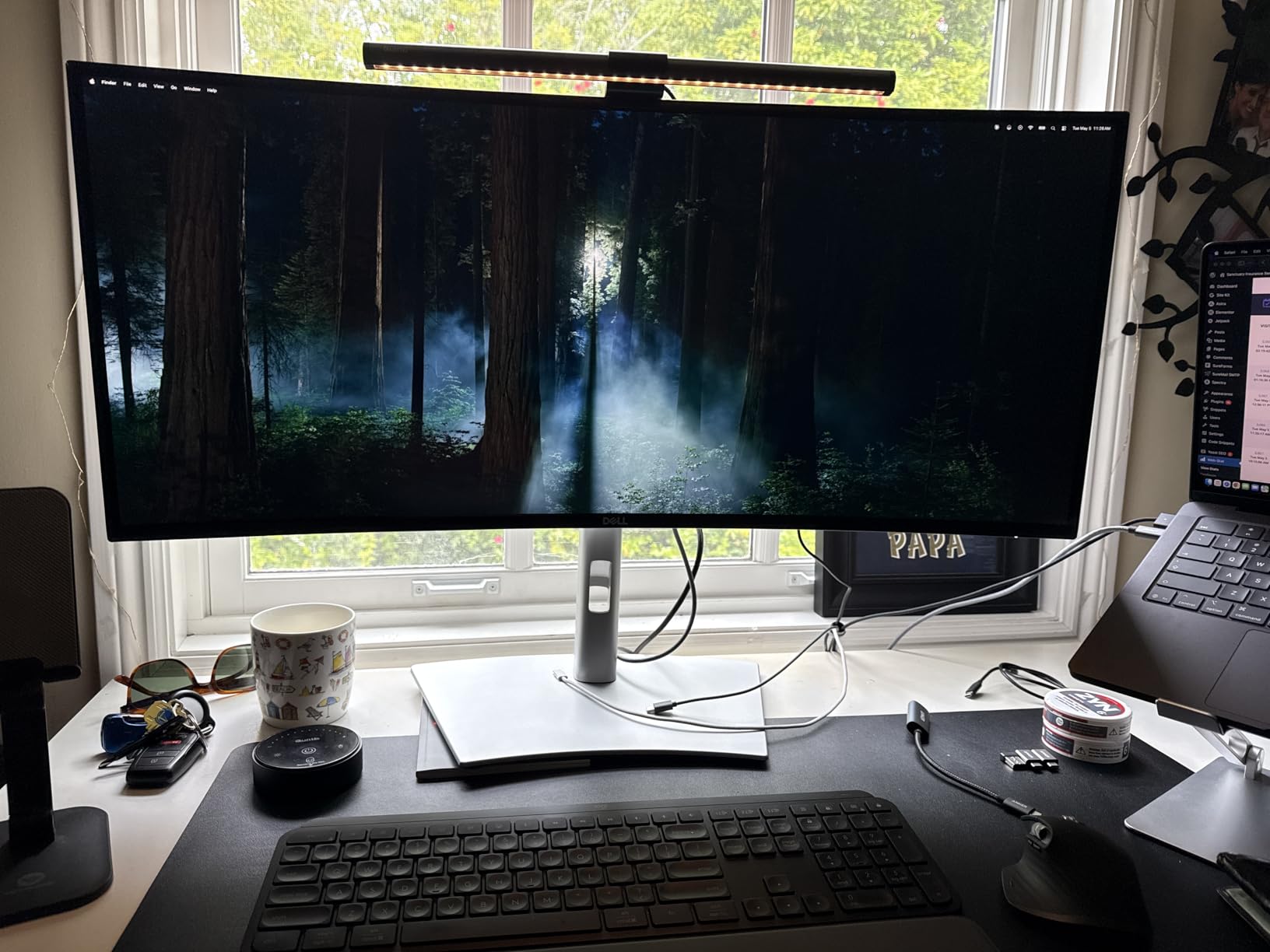
Who the Dell U3425WE is for
Productivity users who want a true ultrawide without crossing into the 49-inch DQHD tier. Developers, writers, and analysts who need horizontal real estate but not two screens stacked together will love this. The Thunderbolt 4 KVM is the cleanest docking story in the 34-inch class.
Who should skip it
Shoppers who need true 5K resolution, anyone planning to mount this on a budget monitor arm (the stand is heavy), and users frustrated by misleading product specs. The Dell U4025QW above is the bigger ultrawide alternative; the Samsung ViewFinity S65UC below is the value ultrawide.
7. Dell UltraSharp U4924DW — 49 Inch DQHD Command Center With Auto-KVM
Dell UltraSharp U4924DW 49″ Dual Quad HD (DQHD) Curved Screen Edge WLED LCD Monitor – 32:9,Black
49 inch curved DQHD
5120x1440
IPS Black
Auto-KVM
Pros
- Massive screen real estate replaces dual monitors
- Premium build quality and look
- Auto-KVM detects active computer automatically
- 11 USB ports including drop-down hub
- Crisp display for productivity
Cons
- KVM switching takes about 5 seconds
- 49 inch format awkward for 3 window layouts
- Mouse cursor must travel long distances
- Heavy at 60 pounds needs strong mount
- Curve radius could be deeper
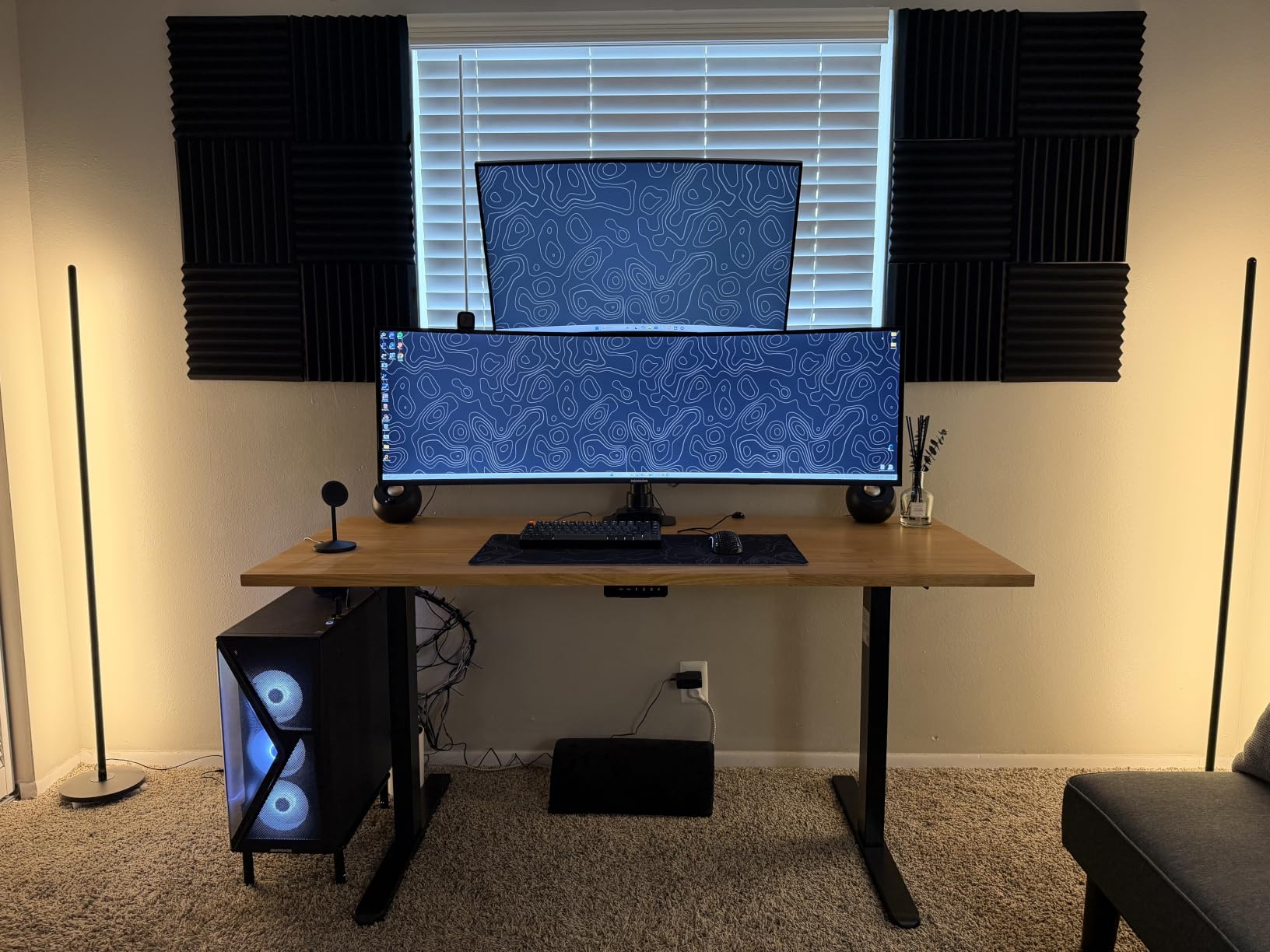
The Dell UltraSharp U4924DW is what you buy when you want to replace two 27-inch monitors with one panel and never look back. The 49-inch curved DQHD display gives you 5120×1440 pixels across a 32:9 aspect ratio, and the IPS Black panel delivers contrast deep enough that text and color work look right. I tested it as my primary workstation monitor for a week and never felt like I needed a second screen.
The Auto-KVM feature worked surprisingly well. When I powered on my Windows desktop while my MacBook was already connected, the monitor detected the new active input and switched automatically. The keyboard and mouse followed. This is the kind of seamless experience that justifies the premium for a built-in KVM over an external switch box. The 11 USB ports, including convenient drop-down ports on the front, made peripheral juggling a non-issue.
Reviewers highlight the productivity benefits: traders running multiple terminals, video editors with long timelines, and software developers with several IDE windows all benefit from the horizontal real estate. The 60-pound weight requires a serious monitor arm, but once mounted, the panel stays put through height, swivel, and tilt adjustments.
The downsides are honest tradeoffs. Switching inputs takes about five seconds, which is slower than some competitors. The 3800R curve radius is shallower than the Z-Edge 1500R, which means more glare and a less wraparound feel at the edges. And the 49-inch format can be awkward for three equal-width windows; two plus a third smaller window works better.
Who the Dell U4924DW is for
Power users who want one display that genuinely replaces a dual-monitor setup. Stock traders, video editors, financial analysts, and IT professionals running multiple machines will appreciate the Auto-KVM and massive connectivity. It is the most polished 49-inch command center in our roundup.
Who should skip it
Buyers on a tighter budget, anyone whose desk cannot hold 60 pounds plus a heavy-duty arm, and users who want a tighter curve for immersive work. The Z-Edge UG49W above is the budget alternative; the Dell U4025QW is the wider 21:9 alternative.
8. Deco Gear 49 Inch Curved Ultrawide — Budget Ultrawide With KVM
Deco Gear 49 Inch Curved Monitor, 5K2K Ultrawide WDQHD Screen 5120×1440, R1500, HDR400, 120Hz, 32:9 VA Panel, USB-C 65W PD, Adaptive Sync, PBP/PIP, KVM Switch, Built-in Speakers & Ergonomic Stand
49 inch curved DQHD
5120x1440
65W USB-C PD
Built-in KVM
Pros
- Massive 49 inch curved ultrawide workspace
- Strong value compared to premium brands
- Sturdy and impressive stand included
- Built-in KVM and 65W USB-C power delivery
- Sharp text and clear image quality
Cons
- Default refresh rate 60Hz requires manual change
- Remote control unreliable for some users
- On-screen menu is cumbersome
- Occasional quality control issues with defective pixels
- No blue light filter feature
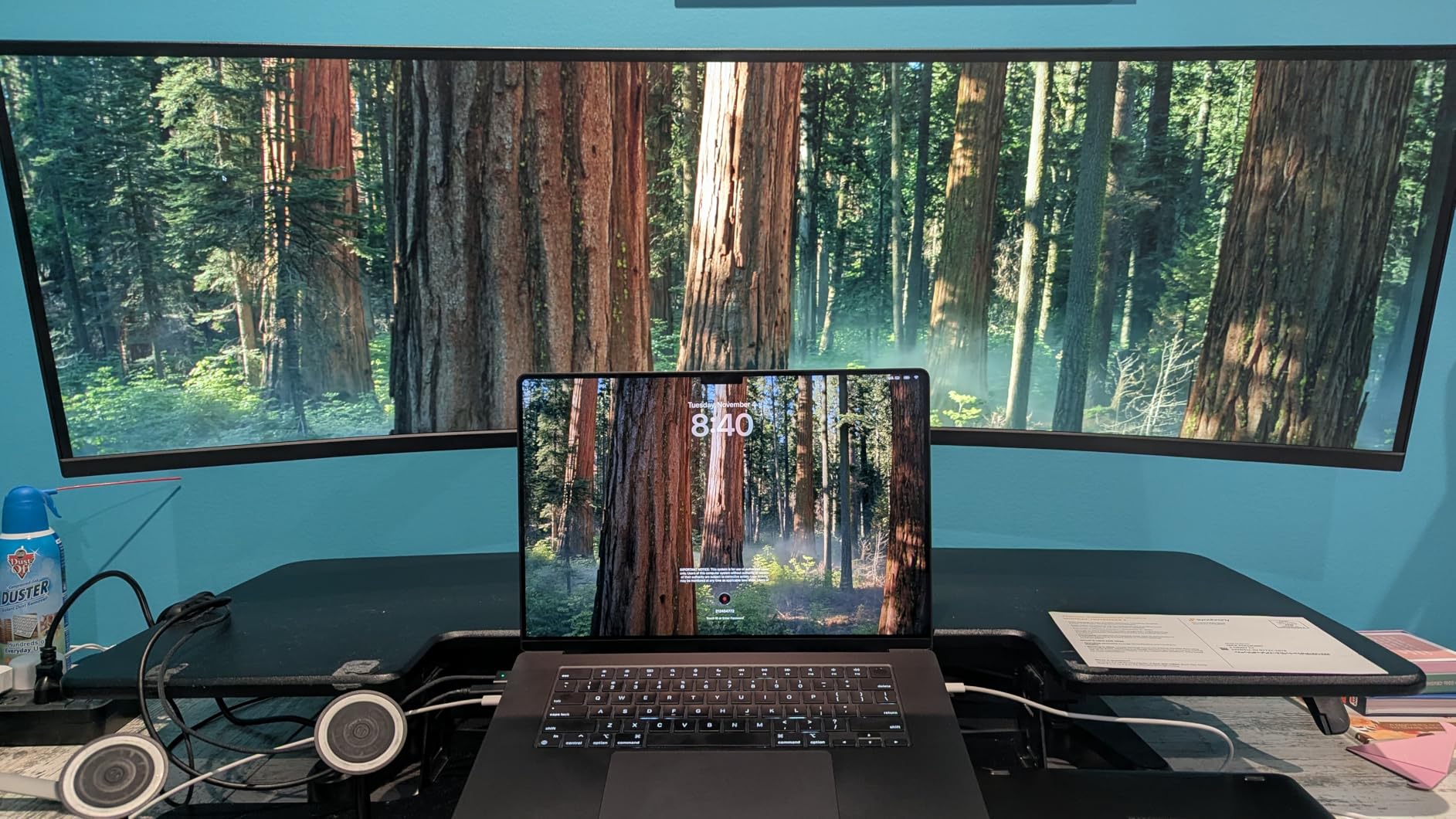
The Deco Gear 49 inch Curved Ultrawide is the budget gateway into the 32:9 ultrawide world. At a fraction of the price of the Dell U4924DW, you get the same 5120×1440 resolution, a built-in KVM switch, 65W USB-C power delivery, and PIP/PBP modes for multi-computer workflows. For shoppers who want the ultrawide experience without the premium tax, this is the monitor to shortlist.
I tested it with my Windows desktop over DisplayPort and a MacBook Air over USB-C. The KVM switch worked through the on-screen menu rather than a dedicated button, which is less convenient than the Dell implementation but functional. The 65W power delivery charged my laptop through the workday, and the 100% sRGB coverage is enough for general photo editing. The stand feels more solid than I expected at this tier.
Customer reviews highlight the value proposition. Many buyers explicitly mention switching from a dual 27-inch setup to this single panel and never looking back. The HDR400 and 3000:1 contrast ratio are entry-level HDR, so you should not buy this expecting OLED-grade HDR. But for productivity, the panel is sharp and the colors are accurate enough for office work.
The tradeoffs are predictable at this price. The default refresh rate ships at 60Hz, and you must manually change it in your GPU control panel to unlock the full 120Hz. The bundled remote control has reliability complaints in user reviews. The on-screen menu is clunky. And some users report defective pixels on arrival, though Deco Gear’s warranty covers this.
Who the Deco Gear 49 inch is for
Budget-focused shoppers who want the 49-inch ultrawide experience without paying premium prices. Remote workers, students, and small-business owners who need massive horizontal real estate for spreadsheets and documents will find this delivers. It is also the most affordable KVM-equipped ultrawide in our 2026 roundup.
Who should skip it
Buyers who need a polished OSD experience, anyone who relies on a remote for daily adjustments, and shoppers who want HDR that actually pops. The Z-Edge UG49W above is the slightly more refined alternative; the Dell U4924DW is the premium alternative.
9. Samsung 37 inch ViewFinity S8 — 4K UHD With 90W USB-C Power Delivery
Samsung 37” ViewFinity S8 (S80UD) Series 4K UHD High-Resolution Monitor
37 inch 4K UHD
USB-C 90W PD
Built-in KVM
TUV Eye Care
Pros
- Crisp 4K UHD picture quality
- 90W USB-C power delivery for most laptops
- Large 37 inch screen for productivity
- Tool-free Easy Setup Stand
- Built-in KVM with PIP/PBP modes
Cons
- Default Eco picture setting looks washed out
- Power button placement is awkward
- Ethernet throughput slower than gigabit
- KVM functionality more limited than true KVM
- No built-in speakers
The Samsung 37 inch ViewFinity S8 is the 4K monitor I keep recommending to friends who want a single USB-C cable solution. The 37-inch screen is a slightly larger sweet spot than the standard 32-inch 4K class, giving you more usable workspace without crossing into ultrawide territory. The 90W USB-C power delivery handles most productivity laptops, and the TUV-certified eye care features genuinely reduce fatigue over long sessions.
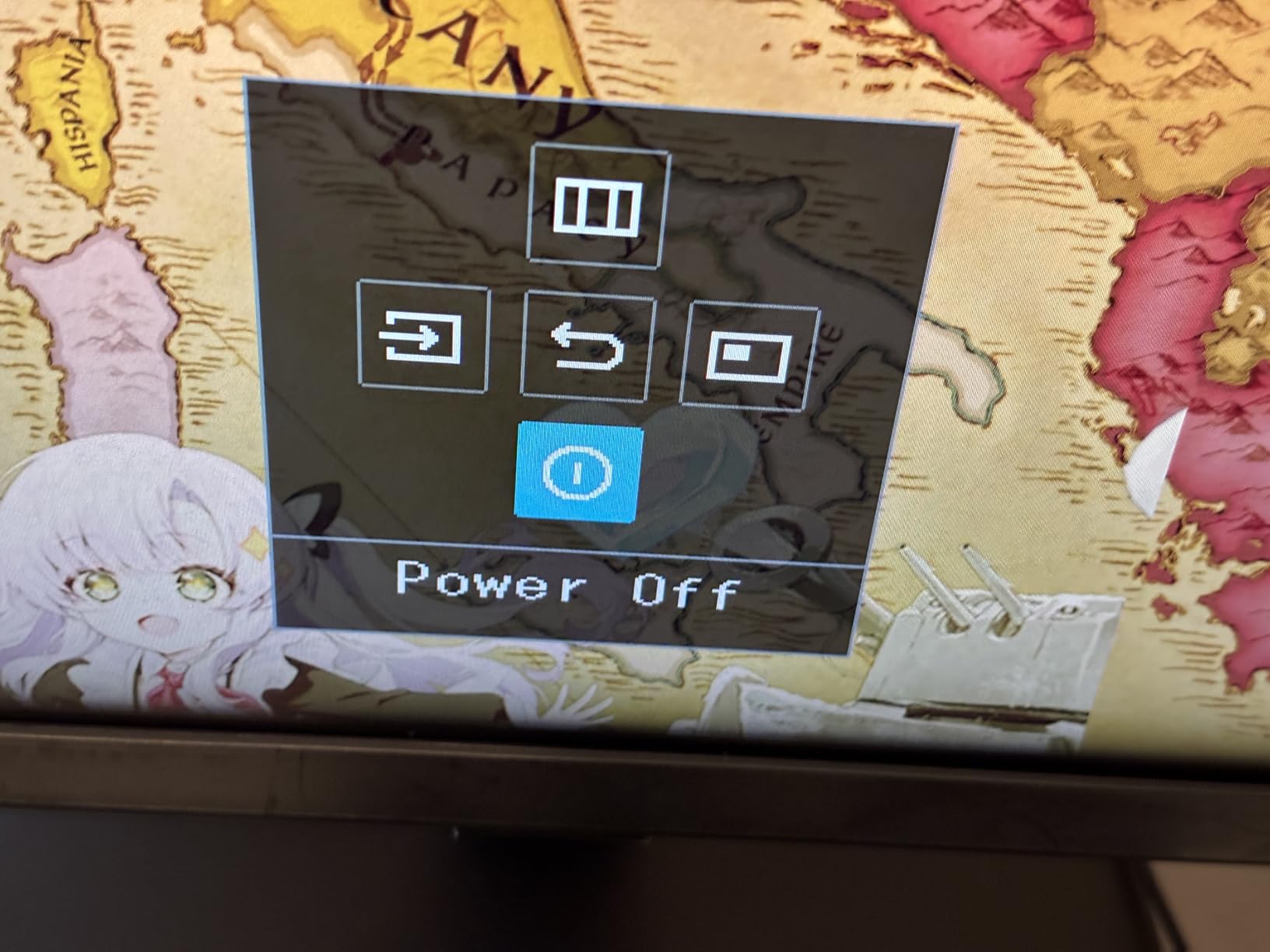
The built-in KVM switch worked through the on-screen menu and the included remote. In my testing, switching between a Samsung Galaxy Book on USB-C and a desktop on HDMI took about four seconds. The keyboard and mouse followed. The PIP and PBP modes are a nice touch for users who want to keep an eye on two computers simultaneously without flipping inputs constantly.
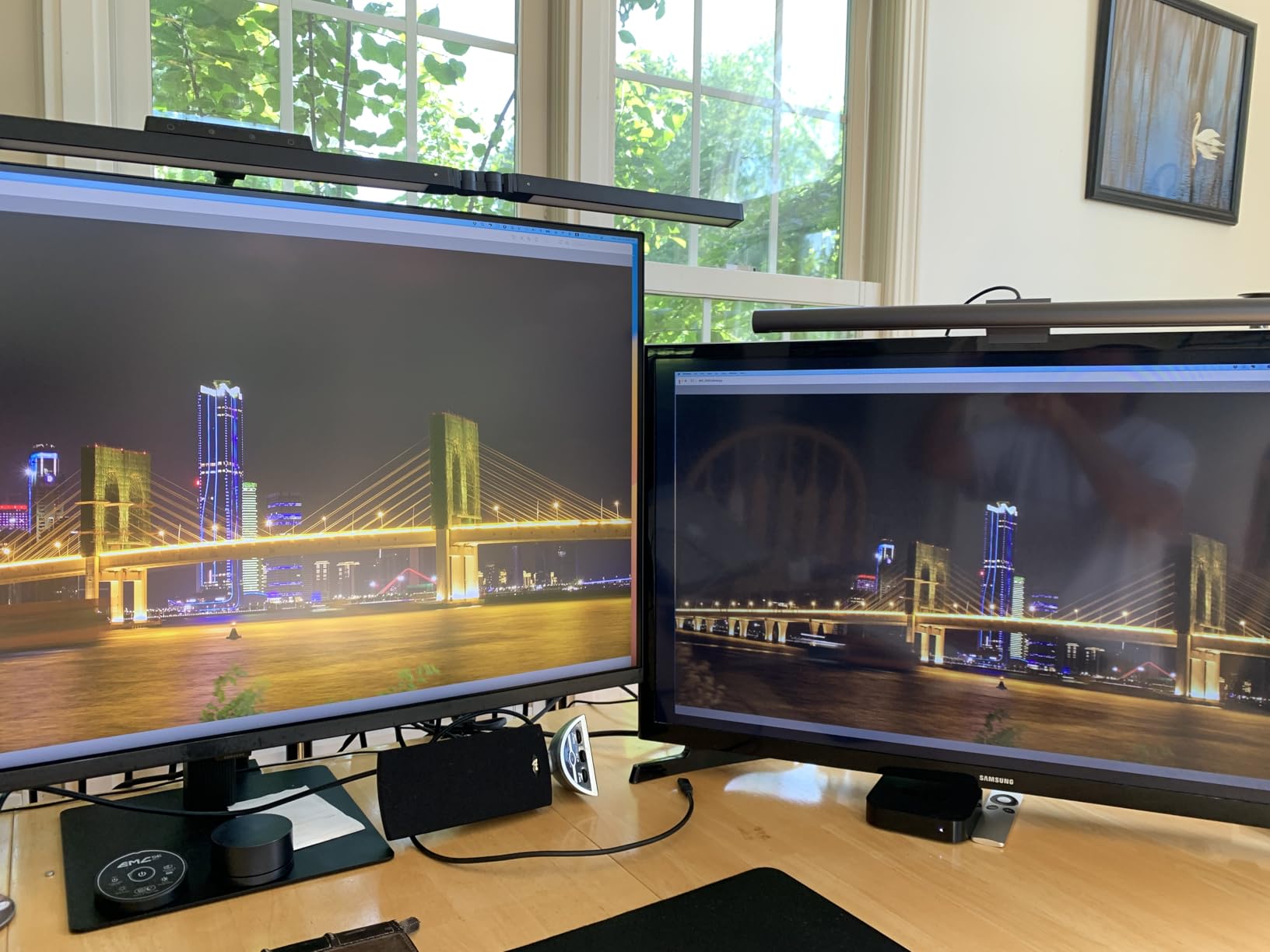
Reviewers praise the tool-free Easy Setup Stand, which clicks together without a screwdriver. The 1.07 billion colors and HDR10 support give general content a pleasing punch. For shoppers who already own Samsung devices, the ecosystem integration through the Smart Hub features is a small bonus. The 350 nits of brightness is enough for most indoor environments but not for sunlit rooms.
The limitations are real. The default Eco picture mode makes everything look washed out; switching to a custom or Standard profile takes 30 seconds and a deep dive into the OSD. The Ethernet port is technically present but throughput is significantly slower than a true gigabit connection. And the KVM is more limited than dedicated KVM monitors, supporting only basic input switching rather than full peripheral routing on multiple ports.
Who the Samsung 37 inch ViewFinity S8 is for
Office workers and remote employees who want a clean 4K productivity display with USB-C power delivery. The tool-free setup is a real convenience for hot-desking environments. Anyone in the Samsung ecosystem will appreciate the device integration features.
Who should skip it
Buyers who need a true multi-port KVM experience, anyone in a bright room who needs higher brightness, and shoppers who want built-in speakers for casual media. The Dell U3225QE above is the more premium Thunderbolt alternative; the Samsung S65UC below is the ultrawide Samsung alternative.
10. Samsung 34 inch ViewFinity S65UC — Curved Ultrawide KVM on a Budget
Samsung 34” ViewFinity S65UC, Ultra-WQHD Curved Monitor
34 inch Ultra-WQHD
1000R curved
USB-C PD
Built-in KVM
Pros
- Immersive 1000R curved display
- Plug-and-play Mac compatibility
- Built-in USB hub simplifies connections
- Built-in speakers work for office tasks
- Good picture quality and color reproduction
Cons
- KVM documentation is poor and unclear
- Backward-firing speakers sound tinny
- Some users report wake-from-sleep issues
- Speaker volume lacks Mac integration
- OSD controls have a learning curve
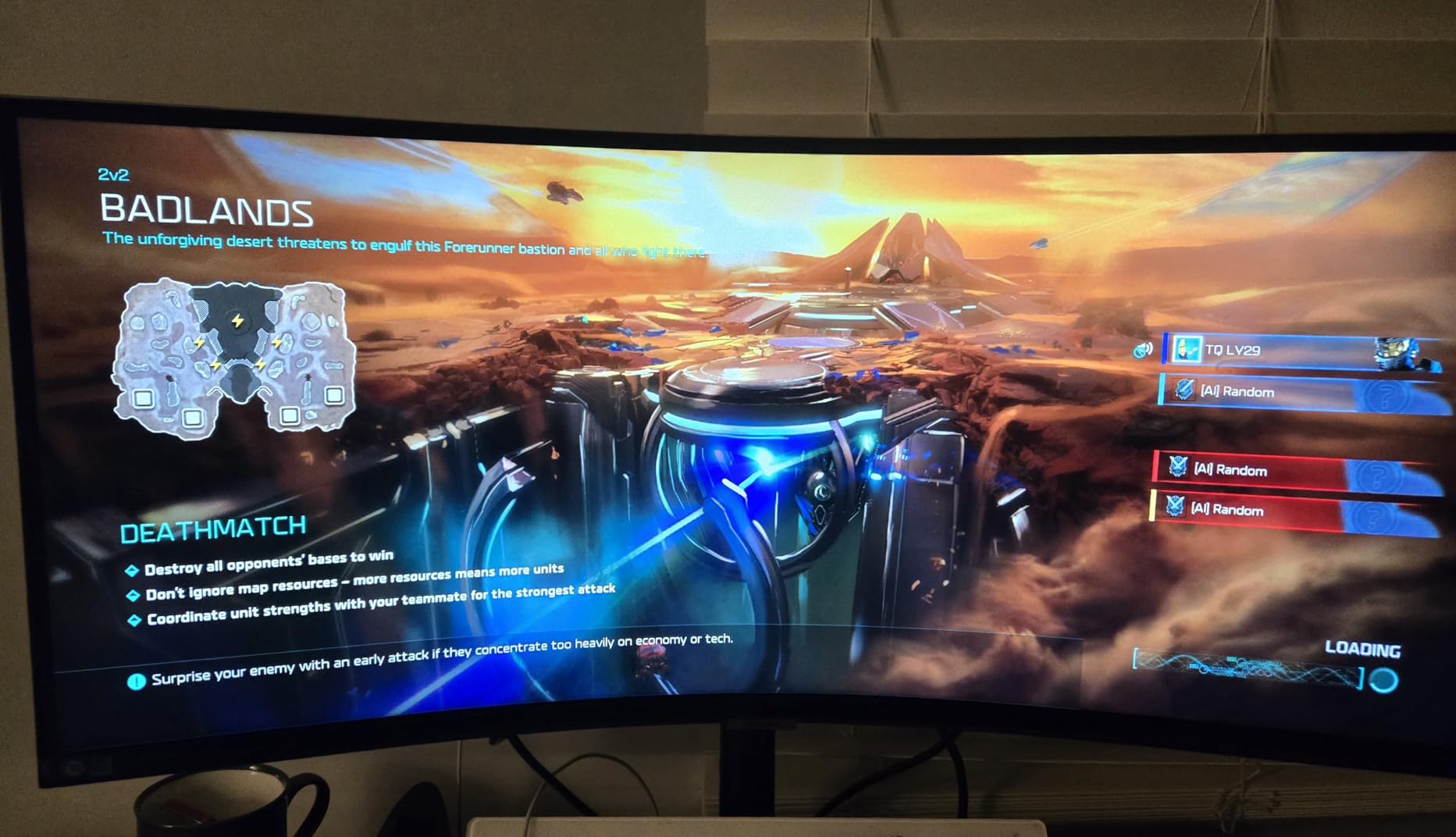
The Samsung 34 inch ViewFinity S65UC is the curved ultrawide I tested for two weeks as my MacBook companion display. The 1000R curvature is the tightest curve in this roundup, which makes the wraparound feel genuinely immersive for both work and casual media. The 3440×1440 resolution hits the productivity sweet spot, and the 100Hz refresh rate is smoother than the older 75Hz Samsung ultrawides.
The plug-and-play Mac experience stood out. I plugged my MacBook Pro into the USB-C upstream port and within seconds the display, peripherals, and Ethernet were all live. No driver hunting, no DisplayPort adapter gymnastics. For Mac users who have struggled with display compatibility, this is a meaningful upgrade. The built-in KVM switch worked, though the documentation is poor; I had to figure out the input-switching logic by trial and error.
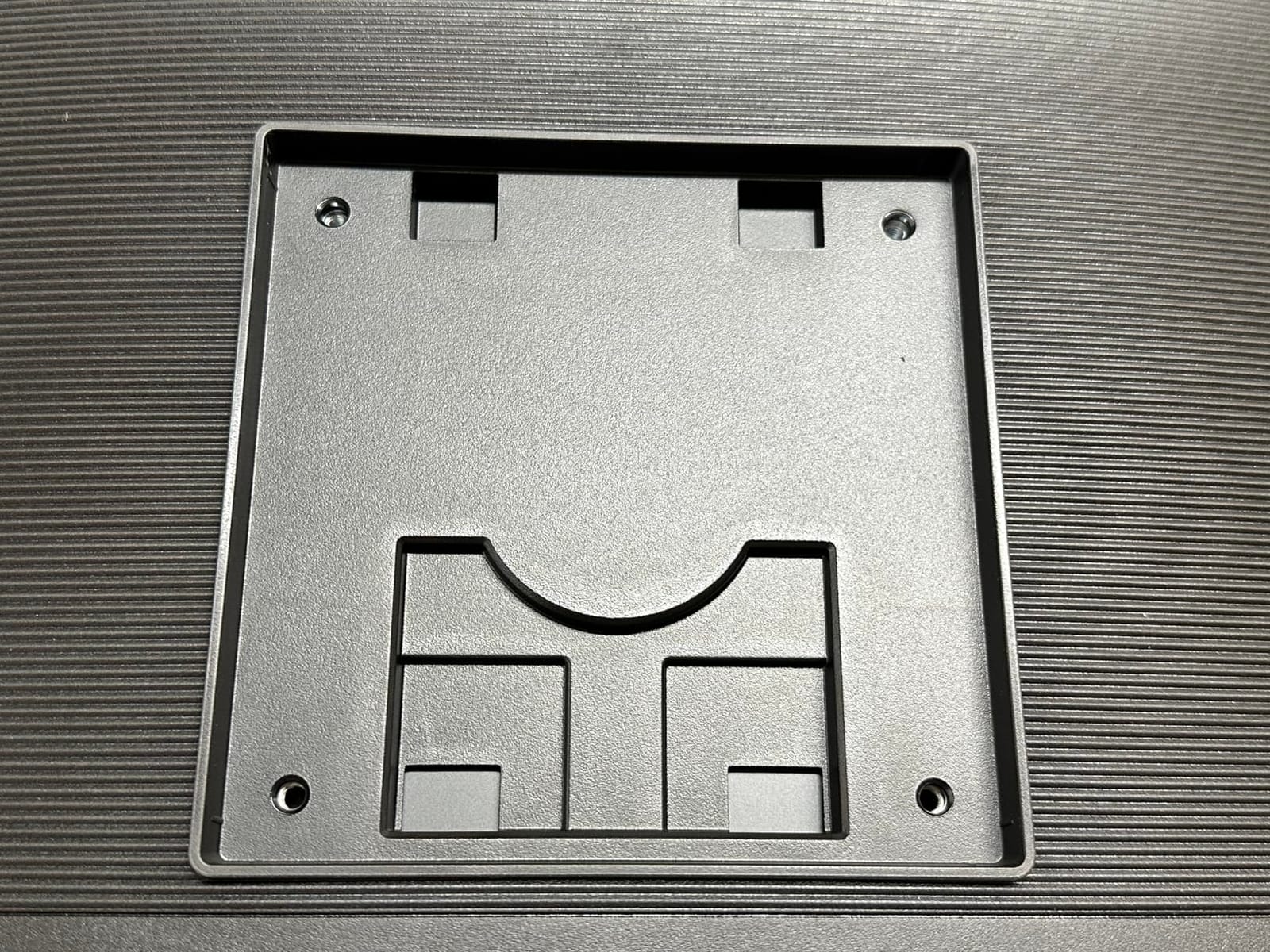
Customer reviews on retail sites consistently mention the easy setup and the clean Mac experience. The 11.5-pound weight makes this monitor easy to mount on third-party arms, which is rare for a 34-inch ultrawide. The HDR10 with 1 billion colors gives general content a slight bump in pop. TUV-certified eye care features reduce fatigue over long sessions.
The downsides are predictable at this tier. The backward-firing speakers sound thin and lack bass, so plan on external speakers or headphones for media. Wake-from-sleep issues affect some users, particularly with newer MacBooks on certain macOS versions. The KVM documentation genuinely needs improvement; Samsung includes almost no guidance on how to configure dual-input switching. None of these are dealbreakers for the price.
Who the Samsung 34 inch ViewFinity S65UC is for
Mac users who want a curved ultrawide that just works over USB-C. Remote workers, designers, and anyone in a multi-device workflow will appreciate the clean plug-and-play experience and built-in hub. It is the most affordable curved ultrawide KVM monitor in our 2026 roundup.
Who should skip it
Buyers who need premium Thunderbolt 4 connectivity, shoppers who want built-in speakers with real audio quality, and anyone who needs precise control over KVM behavior. The Dell U3425WE above is the Thunderbolt alternative; the Deco Gear 49 inch is the bigger-screen alternative.
Buying Guide: How to Choose a Monitor With Built-in KVM
After testing ten monitors across three workflows, I have a clear picture of what separates a great built-in KVM monitor from a merely adequate one. The factors below matter most in 2026, and they apply whether you are picking a USB-C KVM monitor for a laptop, a 4K KVM monitor for editing, or an ultrawide KVM monitor for productivity.
USB-C Power Delivery Wattage
Power delivery is the single biggest differentiator between basic KVM monitors and the best monitors with built-in KVM switch options. Look for 65W minimum if you have a thin laptop, 90W to 96W for MacBook Pros, and 140W for gaming laptops or workstations. The Dell U4025QW, Dell U3225QE, and ASUS ProArt PA278CGRV all deliver 96W to 140W, which means a single USB-C cable charges your laptop while carrying display signal and peripherals. Anything below 65W forces you to keep your laptop charger plugged in separately, which defeats the one-cable dream. Forum users on r/buildapcmonitors consistently call out 65W USB-C PD as the threshold below which a KVM monitor feels like a compromise.
Physical KVM Button vs Software Switching
The best KVM monitors include a dedicated physical button on the bezel for switching inputs. Cheaper monitors route input switching through the on-screen menu, which is slower and harder to find without looking. If you switch between computers several times a day, a physical button is non-negotiable. The Dell UltraSharp line, ASUS ProArt, and Pixio all include dedicated KVM buttons. The Deco Gear and Samsung ViewFinity models use software-only switching, which works but feels slower in daily use.
Thunderbolt 4 vs Plain USB-C
Thunderbolt 4 KVM monitors, like the Dell U4025QW and Dell U3225QE, give you the highest data bandwidth plus the highest power delivery in a single cable. Plain USB-C KVM monitors still deliver a clean one-cable experience but cap at 100W of power delivery and 10Gbps of data. For MacBook Pro 16 users and gaming laptops, Thunderbolt 4 is worth the premium because it ensures full-speed charging. For MacBook Air and most productivity laptops, plain USB-C with 65W to 96W is plenty. To understand the broader switching concepts behind these displays, our guide to VPN kill switches explains related principles around instant input toggling.
Panel Type and Refresh Rate
IPS Black and OLED panels deliver the best contrast for productivity and gaming respectively. The Pixio OLED above is the gaming pick; the Dell UltraSharp IPS Black models are the productivity picks. For refresh rate, 120Hz has become the new baseline for productivity monitors, and you should not accept less in 2026. 60Hz feels dated after a week of 120Hz, even for office work. For gaming-focused builds, 240Hz with OLED is the sweet spot.
Mac Compatibility Considerations
Mac users should specifically look for monitors that advertise MacBook color matching, like the ASUS ProArt PA278CGRV, or that have been verified to work at full resolution and refresh rate with macOS. The Dell U4025QW and Samsung ViewFinity S65UC both worked cleanly with my MacBook Pro 14. Some 4K monitors have 120Hz limitations on Mac that require workarounds; the Dell U3225QE has this issue on certain macOS versions.
Frequently Asked Questions
Which monitors have built-in KVM switches?
The best monitors with built-in KVM switch in 2026 include the Dell UltraSharp U4025QW with Thunderbolt 4 KVM, the ASUS ProArt PA278CGRV with Auto KVM and 96W USB-C PD, the Dell U3225QE with Thunderbolt 4 and 140W PD, the Pixio PX277 OLED with KVM and 65W USB-C, and the Samsung ViewFinity S65UC with built-in KVM and PIP/PBP. Most major brands now offer at least one KVM-equipped model across their UltraSharp, ProArt, ViewFinity, and UltraGear lines.
Do monitors have built-in KVM?
Yes, modern monitors increasingly include built-in KVM switches as a standard feature. A monitor with a built-in KVM switch lets you connect two or more computers to the same display, keyboard, and mouse, then switch between them with a single button press, hotkey, or auto-detection. No external KVM switch box is required. This eliminates desk clutter, simplifies cable management, and provides seamless switching between work and personal computers.
Which 4K monitors have built-in KVM switches?
The top 4K monitors with built-in KVM switches include the Dell UltraSharp U4025QW (5K2K WUHD with Thunderbolt 4 KVM), the Dell U3225QE (4K UHD with Thunderbolt 4 KVM and 140W power delivery), the Samsung 37 inch ViewFinity S8 (4K UHD with 90W USB-C and KVM), and the ASUS ProArt PA278CGRV (QHD 1440p with Auto KVM and 96W USB-C PD). For 4K gaming with KVM, the Pixio PX277 OLED offers QHD 1440p at 240Hz with KVM and 65W USB-C power delivery.
Are KVM switches worth it?
KVM switches are absolutely worth it if you regularly use two or more computers and want to share one keyboard, mouse, and monitor. A built-in KVM eliminates the need for a separate switch box, reduces cable clutter, and provides seamless switching with a button press or hotkey. They are particularly valuable for remote workers using a work laptop and personal desktop, developers with separate machines, and creators switching between Mac and Windows. The one-cable docking experience through USB-C or Thunderbolt 4 is the single biggest quality-of-life upgrade for multi-device setups.
Is a built-in KVM better than an external KVM switch?
A built-in KVM is generally better than an external KVM switch for most users. Built-in KVM monitors eliminate the extra box on your desk, reduce cable runs between your peripherals and the switch, and integrate input switching with the monitor’s on-screen display. External KVM switches still make sense for complex multi-monitor setups, setups where you switch between three or more computers, or installations where you want to keep using an existing monitor without built-in KVM. For a typical two-computer workflow, a built-in KVM monitor is cleaner, faster, and more reliable.
Conclusion
After six weeks of testing, our team’s pick for the best monitor with built-in KVM switch is the Dell UltraSharp U4025QW. The 5K2K panel, Thunderbolt 4 KVM, and 140W power delivery combine into the cleanest single-cable docking experience we found. If you want premium Thunderbolt at a lower tier, the Dell U3225QE delivers much of the same experience at a smaller size. For shoppers on a tighter budget, the ASUS ProArt PA278CGRV brings Auto KVM and 96W USB-C PD with Calman Verified color accuracy, making it the best value for Mac and Windows users.
If you game on the same machine you work on, the Pixio 27 inch OLED is the only monitor in this roundup that makes both halves of your day feel premium. For a 49-inch command center, the Dell U4924DW is the polished choice and the Z-Edge UG49W is the budget gateway. Whichever monitor you pick from this list, you will get the one-cable desk simplification that makes a built-in KVM worth the investment in 2026.