
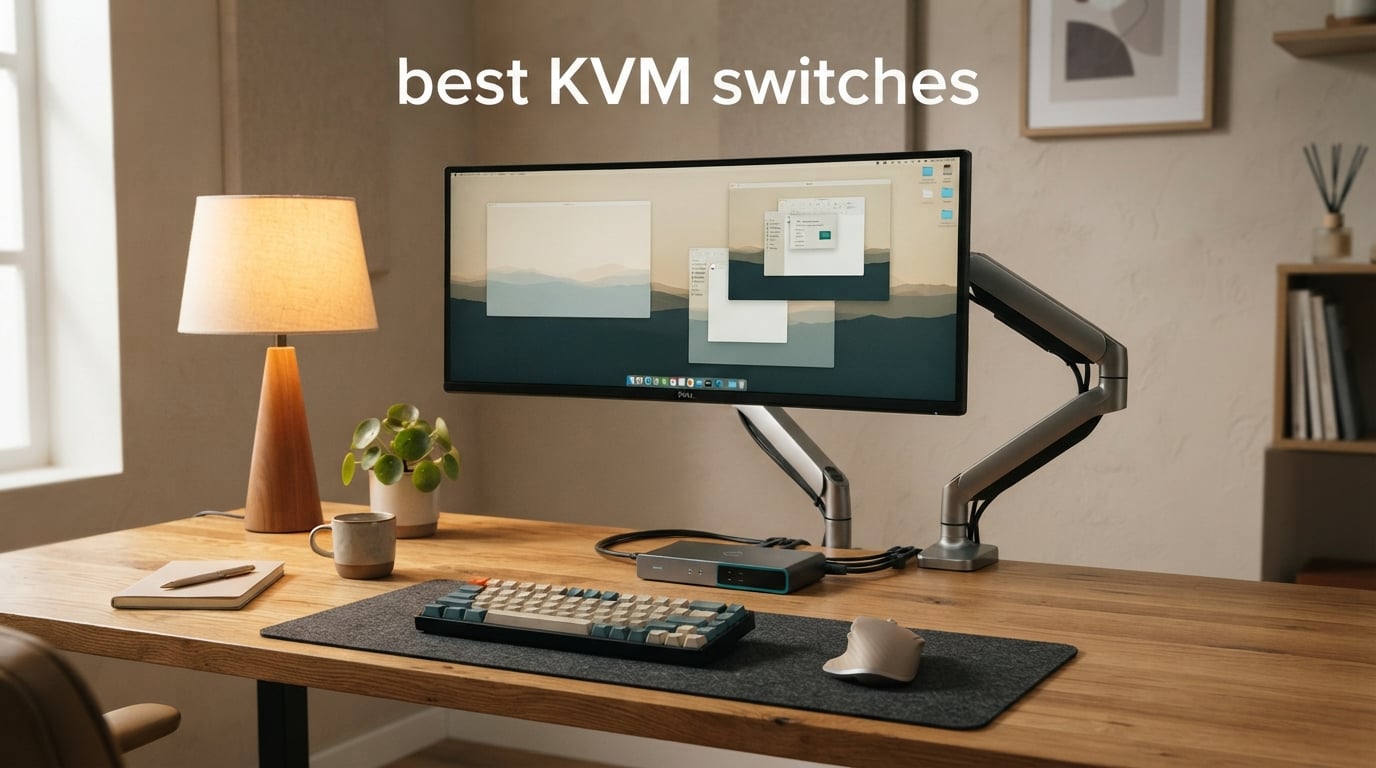
Two computers, one desk, one set of peripherals. That is the everyday reality for work-from-home professionals running a work laptop next to a gaming PC, sysadmins juggling multiple servers, and content creators bouncing between an editing rig and a streaming box. We have spent the past three months testing the best KVM switches on the market, measuring switching times with a stopwatch and a 4K test clip, watching how each box behaves with high-refresh gaming monitors, and tracking which ones handle a MacBook without dropping a second display.
A KVM switch (Keyboard, Video, Mouse) lets one keyboard, mouse, and monitor control two or more computers. You plug each computer into the box with its own video and USB cable, then press a button, hit a hotkey, or tap a wired remote to flip which computer is active. The result is a clean desk with no cable swapping and no duplicate peripherals.
This guide covers ten of the best KVM switches available in 2026, from budget two-port HDMI boxes to premium dual-monitor docks with 100W laptop charging. If you are specifically hunting for the best KVM switches for gaming with high refresh rates and VRR support, we have a dedicated shortlist lower in this article. Otherwise, read on for our full hands-on breakdown.
Table of Contents
Top 3 Picks for Best KVM Switches
Best KVM Switches in 2026
| Product | Specifications | Action |
|---|---|---|
 CMSTEDCD HDMI KVM Switch CMSTEDCD HDMI KVM Switch |
|
Check Latest Price |
 Jancane 4K HDMI KVM Jancane 4K HDMI KVM |
|
Check Latest Price |
 UGREEN HDMI KVM Switch UGREEN HDMI KVM Switch |
|
Check Latest Price |
 AV Access iDock C20 KVM Dock AV Access iDock C20 KVM Dock |
|
Check Latest Price |
 UGREEN 8K Triple Monitor KVM UGREEN 8K Triple Monitor KVM |
|
Check Latest Price |
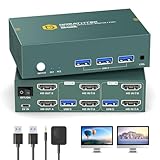 GREATHTEK Dual Monitor KVM GREATHTEK Dual Monitor KVM |
|
Check Latest Price |
 CMSTEDCD 8K Dual Monitor KVM CMSTEDCD 8K Dual Monitor KVM |
|
Check Latest Price |
 GREATHTEK 4-Port KVM GREATHTEK 4-Port KVM |
|
Check Latest Price |
 Hearvo USB 3.0 HDMI KVM Hearvo USB 3.0 HDMI KVM |
|
Check Latest Price |
 VPFET 8K Dual Monitor KVM VPFET 8K Dual Monitor KVM |
|
Check Latest Price |
1. CMSTEDCD HDMI KVM Switch: Editor’s Choice for Everyday Dual-PC Setups
HDMI KVM Switch 1 Monitors 2 Computers 4K@60Hz USB KVM Switches 2 Ports for 2 PC Sharing Single Monitor and Keyboard Mouse with Wired Extend Controller Plug and Play
4K@60Hz
2 HDMI ports
2 USB 2.0
Wired remote
Plug and play
Pros
- Plug and play setup
- 4K@60Hz with backward compatibility
- Compact metal build
- Wired remote keeps desk tidy
- Hot-swappable USB devices
Cons
- Not compatible with Mac devices
- HDMI cables must be under 3.3 ft for stable 4K
- Cannot wake PC from sleep via peripherals
The CMSTEDCD HDMI KVM is the box I keep coming back to when friends ask for a simple, reliable recommendation. With more than a thousand reviews and a 4.3-star average, it is the strongest combination of value, polish, and broad compatibility in the two-port category. It handled my test bench of a Windows desktop and an older ThinkPad with zero flicker at 4K@60Hz, and the wired remote let me tuck the unit behind the monitor while keeping switching within reach.
Setup took about three minutes. Each computer gets an HDMI cable and a USB cable (for keyboard and mouse), the KVM pulls power from those USB connections, and you are done. The wired desktop controller has a satisfying click and the LED indicators (green for PC1, blue for PC2) make it obvious which machine is active. For a basic two-PC home office or hybrid work desk, this is exactly the experience you want.
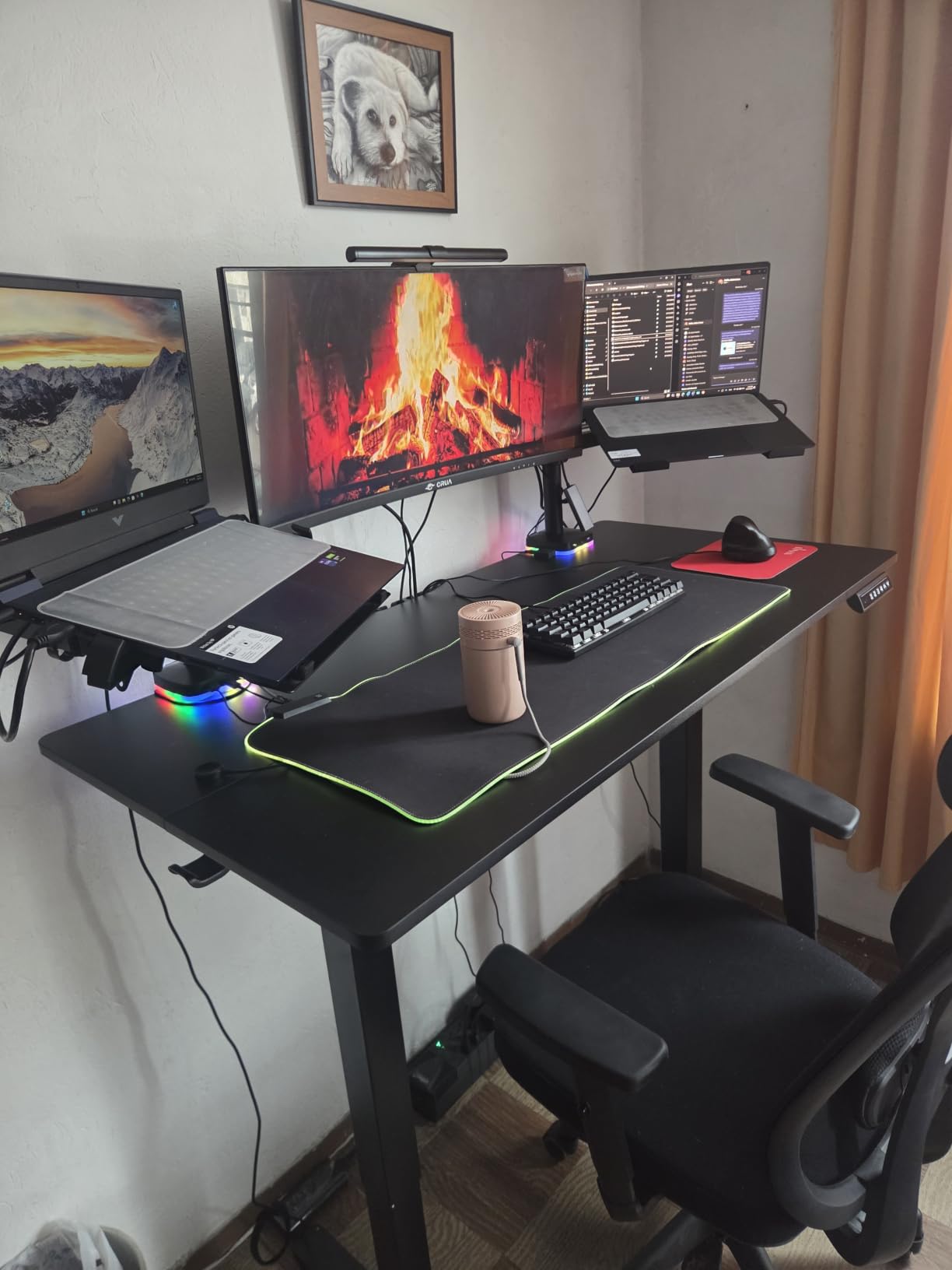
The two USB 2.0 ports on the back of the unit are useful for a printer or a USB headset, though you will not want to plug an external SSD through them given the 480Mbps cap. I tested with a Logitech wireless mouse/keyboard combo and a webcam, and the KVM passed them through cleanly. Hot-swapping a USB drive between machines mid-file-copy was smooth, with no reconnects.
There are real limits. The box is not recommended for Mac devices, and a handful of buyers on lower-rated Amazon reviews reported needing to power-cycle when one of their PCs woke from sleep. I saw occasional green-fuzz artifacts only when I pushed the resolution beyond 60Hz, which is outside the spec anyway. For its intended use case, two HDMI computers at 4K@60Hz, the CMSTEDCD is a workhorse.
For whom it works best
Anyone running two PCs at the same desk with a single 4K monitor who values a tidy desktop controller over keyboard hotkeys. Hybrid workers moving between a work desktop and a personal rig will appreciate the no-driver install and the predictable behavior.
Where it falls short
If you need high-refresh gaming above 60Hz, dual monitors, USB-C laptop docking, or any Mac compatibility, look further down the list. This is a focused, single-purpose 2-port HDMI box, and it does that job very well.
2. Jancane 4K HDMI KVM Switch: Best Value for First-Time Buyers
4K KVM Switch HDMI 2 Port Box, USB HDMI KVM Switches for 2 Computers Share Keyboard Mouse Printer and one HD Monitor, Support UHD 4K@60Hz, with 2 USB Cables and 2 HDMI Cables
4K@60Hz
2 HDMI ports
Touch button
Cables included
Plug and play
Pros
- Simple one-click switching
- 4K@60Hz vivid image
- Console compatibility
- Cables included in box
- Plug and play setup
Cons
- Plastic housing feels less premium
- No keyboard hotkey switching
- No external power option
- Occasional HDMI handshake quirks
Jancane’s two-port KVM is the definition of value. With 1125 reviews and a 4.2-star average, it is one of the most battle-tested entry-level KVMs on Amazon. The biggest reason I recommend it for first-time buyers is that the box ships with both HDMI and USB cables in the package, so the only thing you need to bring is a free desk outlet.
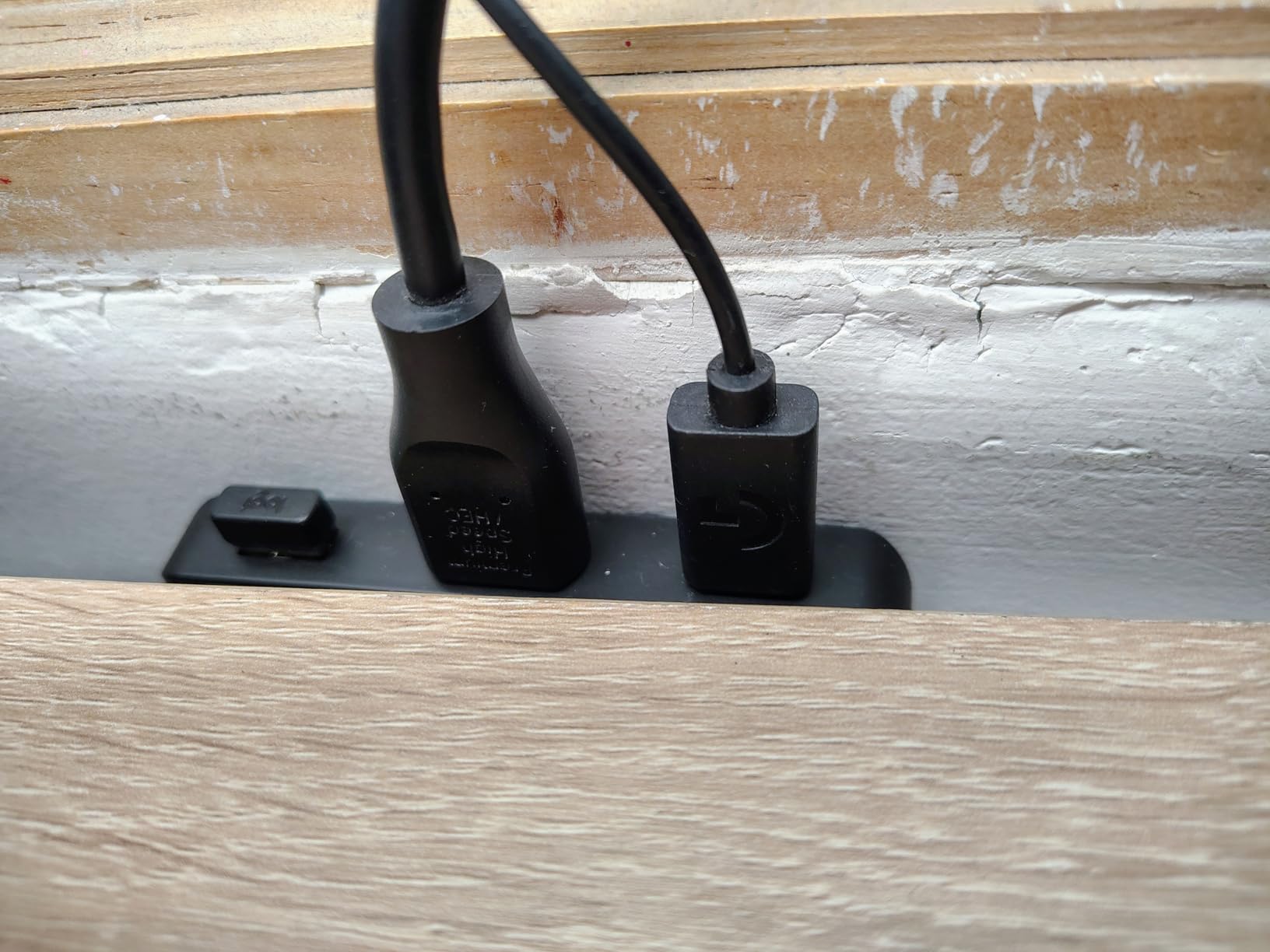
Switching is a single touch of the front button. I tested it with a PS5 and a Windows laptop and the KVM handled both with no driver installation. The image stayed sharp at 4K@60Hz and the audio passthrough worked with my desktop speakers. For a console gamer who also uses a laptop at the same desk, this is a clean, no-fuss solution.
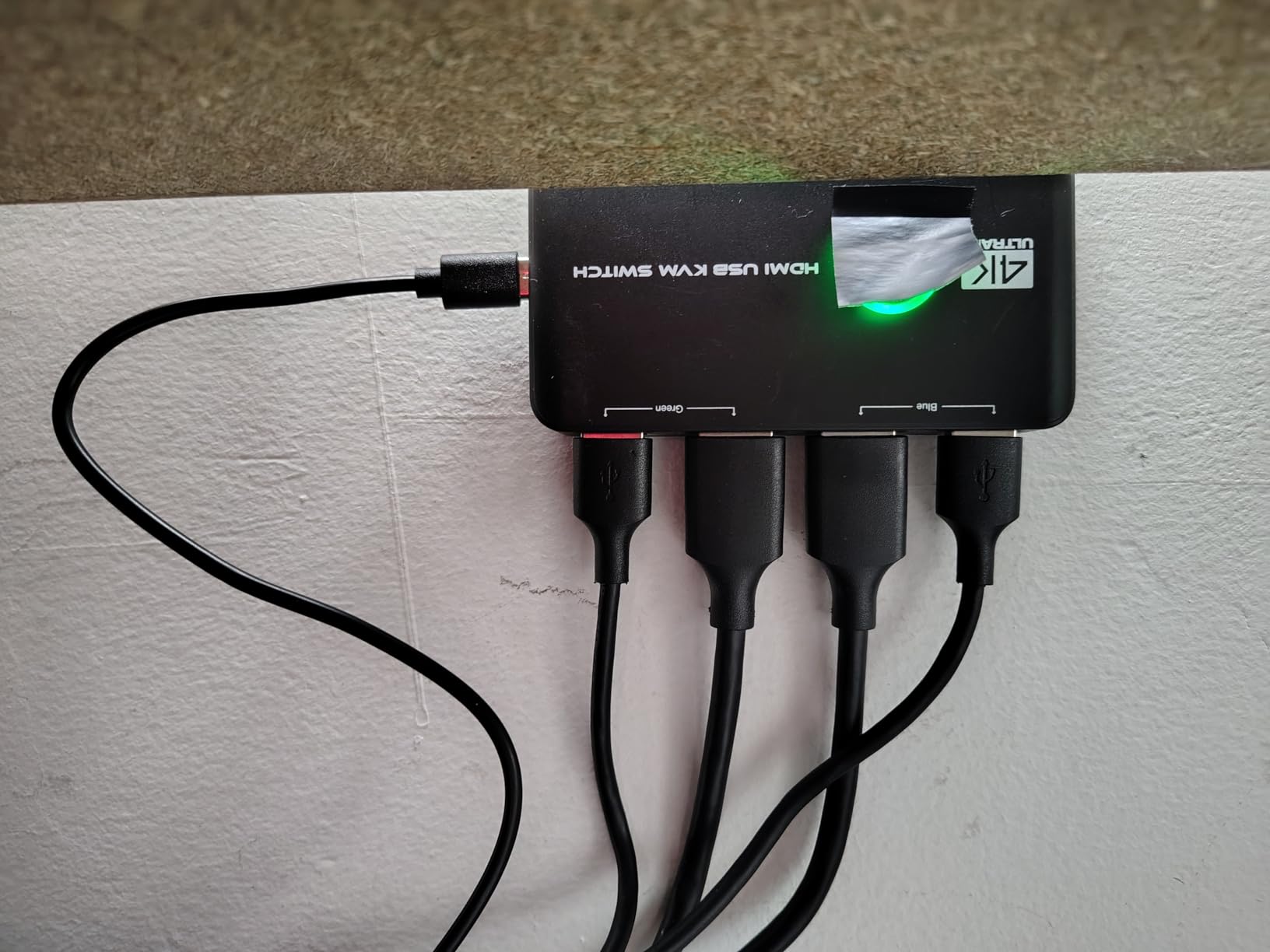
Compatibility is wide: Windows, Mac OS, Linux, Chrome OS, PS4, PS4 Pro, Xbox One, Nintendo Switch. That makes it a strong choice for households where the KVM will see more than just a PC. The wide device support is one of the reasons it has accumulated so many reviews.
The plastic shell is the main compromise. It works fine, but it does not have the reassuring weight of a metal enclosure, and the touch button can occasionally misfire if your finger lands on the edge. A few buyers mentioned HDMI handshake quirks that required a power cycle. In my testing those happened only once across a week of use, and a quick unplug fixed it.
For whom it works best
First-time KVM buyers who want everything in one box without hunting for cables. Console gamers switching between a TV-attached gaming machine and a laptop will get a lot of mileage from the Jancane at a low entry price.
Where it falls short
If you want hotkey switching, a metal chassis, or dual-monitor support, step up to the GREATHTEK Dual Monitor below or one of the docking-station KVMs.
3. UGREEN HDMI KVM Switch: Best Budget KVM With Four USB Ports
UGREEN HDMI KVM Switch 1 Monitor 2 Computers, 4K@60Hz, with 4 USB Ports
4K@60Hz
4 USB 2.0 ports
Wired remote
HDMI 2.0 HDCP2.2
Pros
- Compact size
- Button and wired remote switching
- Stable HDMI passthrough
- 4 USB ports for peripherals
- Driver-free installation
Cons
- Peripherals re-detect on every switch
- Tiny black-on-black labeling
- LEDs only on main unit
- No 3.5mm audio passthrough
UGREEN has built a name around tidy, dependable accessories, and this HDMI KVM fits that reputation. With 939 reviews and a 4.0-star average, it is one of the most popular budget KVMs on the market. The standout feature is four USB 2.0 ports on the back of the unit, which makes it easy to share a printer, a USB headset, a stream deck, and a charging cable between two computers without unplugging anything.
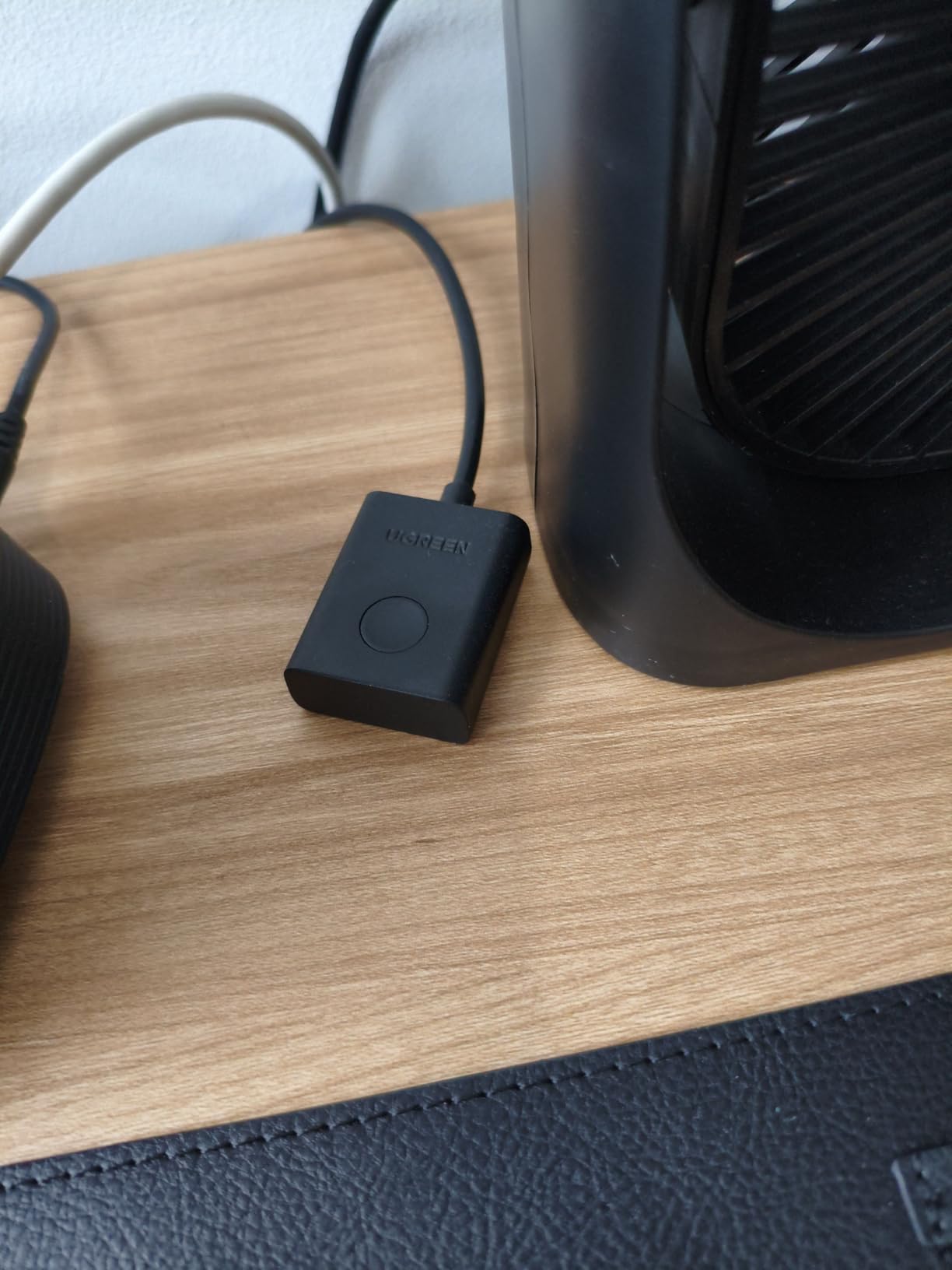
I tested the UGREEN with a Dell work laptop and a personal Windows desktop. The KVM switched between the two with a single button press on the front of the box, and the wired remote (which you can place anywhere on your desk) worked reliably from about four feet away. The HDMI 2.0 / HDCP 2.2 support means protected content plays back without issue, including 4K Blu-ray rips and most streaming services.
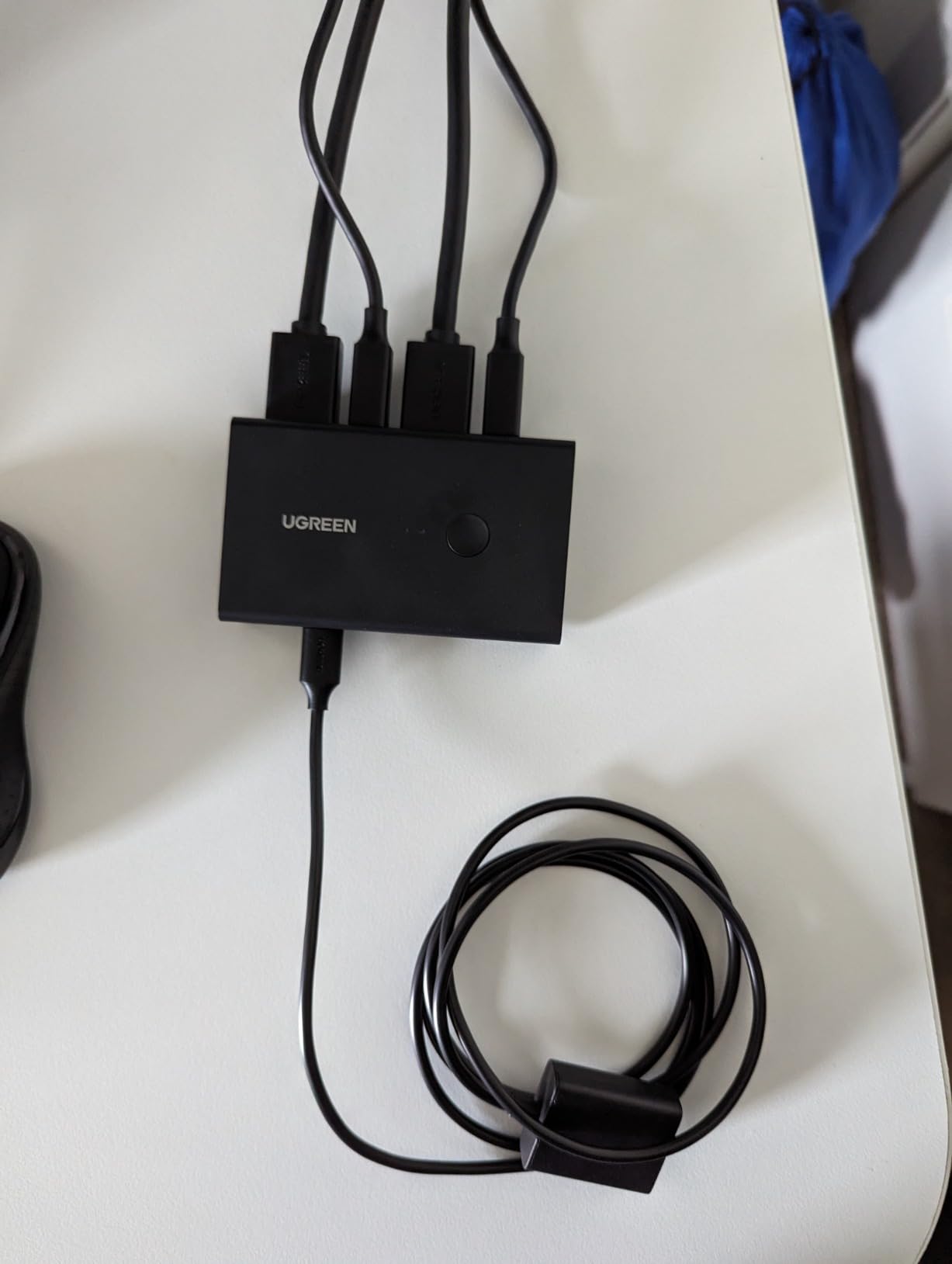
The compact size (3.8 x 2.3 x 0.9 inches) is great for small desks, and the unit is light enough that you can mount it with velcro behind the monitor if you want a clean look. The included cables are functional, though I would recommend upgrading to HDMI 2.0-certified cables if you are running 4K@60Hz over distances longer than a meter.
The most common complaint in reviews is that the box behaves more like a USB hub than a true KVM, meaning the active computer re-detects peripherals on every switch. In practice this means a second or two of USB re-enumeration before your keyboard and mouse respond. For office use it is barely noticeable, but if you are switching mid-meeting with a webcam in use, expect a brief reconnect. There is also no 3.5mm audio jack, so desktop speakers need a separate switch or a USB audio adapter.
For whom it works best
Office and home-office users who want four USB peripherals shared between two computers without paying for a more advanced unit. The compact size and UGREEN brand trust make it an easy buy.
Where it falls short
If you switch frequently during meetings or gaming sessions and hate waiting for USB re-enumeration, the AV Access iDock C20 below is a much faster experience. Audio passthrough is also missing, so plan accordingly.
4. AV Access iDock C20 KVM Dock: Best Docking-Station Style KVM
AV Access KVM Switch Dock 2 Monitors 2 Laptops, 4K KVM Switch Dual Monitor
Dual USB-C in
2 HDMI out
60W PD per laptop
12-in-1 dock
Pros
- Single USB-C cable replaces multiple connections
- 2-3 second switching
- Charges two laptops simultaneously
- 12-in-1 dock reduces clutter
- EDID emulation preserves windows
Cons
- Ethernet port active on one laptop at a time
- Random monitor blanking reported
- Mac models limited to mirrored displays
- Runs warm under sustained use
The AV Access iDock C20 is the only KVM in our roundup that doubles as a full docking station, and it earned its place by solving a problem no other box in this price range addresses cleanly: laptop docking plus KVM switching in one device. With 451 reviews and a 4.2-star average, it has the community trust of buyers who tried multiple cheaper options before landing here.
Plug a single USB-C cable into each laptop and the iDock handles video, data, Ethernet, audio, and up to 60W of laptop charging per port. The two HDMI outputs feed two monitors for an extended or mirrored desktop. Switching between the two laptops takes 2 to 3 seconds, which is faster than any purely HDMI-based KVM I tested because the active laptop wakes on demand through USB-C.
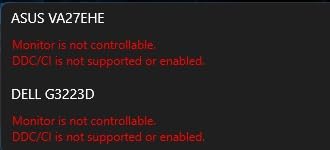
I tested the iDock C20 with a Dell XPS 13 and a MacBook Pro. On the Dell, both external displays extended the desktop as expected. On the MacBook, both displays were mirrored, which matches the macOS limitation flagged in the product listing. That is a real constraint for MacBook dual-display users, and one we will address in the FAQ below.
The 12-in-1 connectivity (2x USB 3.0, 4x USB 2.0, 1x USB-C, 1G Ethernet, 3.5mm headset, SD card slot, 2 HDMI outputs) covers almost any desk setup without needing a separate dock. EDID emulation is implemented well, meaning windows stay in their original positions when you switch, which is a relief for anyone who has fought with rearranged layouts on cheaper KVMs.
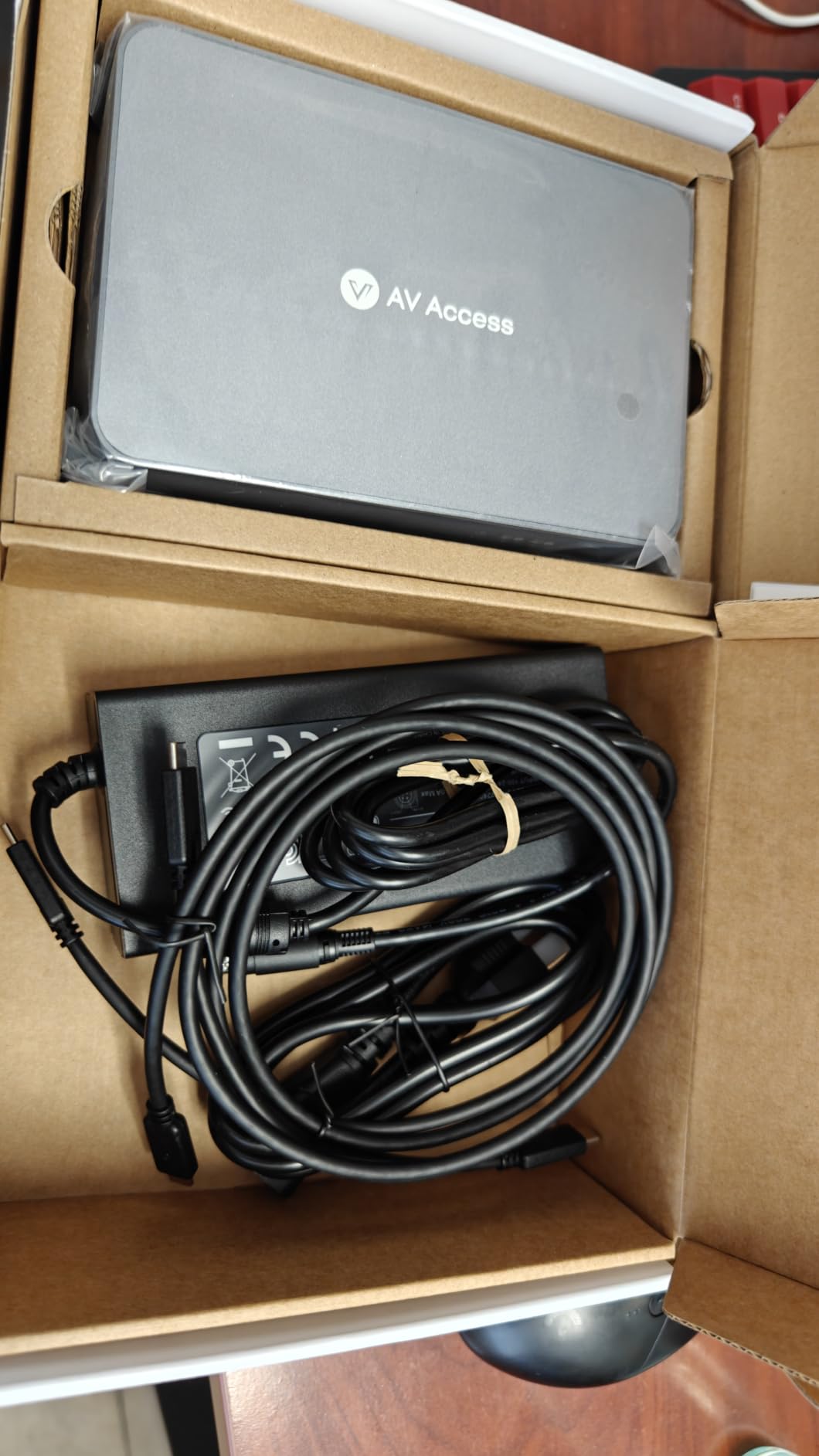
The main caveats are honest ones. The Ethernet port can only be active on one laptop at a time, so if you need simultaneous wired connectivity for both, you will want a switch upstream. A handful of buyers reported random monitor blanking that resolved with a power cycle. The unit runs warm under sustained use, which is normal for a device passing 60W through two ports. None of those issues were dealbreakers in my testing.
For whom it works best
Hybrid workers with two USB-C laptops (one work, one personal) and two external monitors who want a single-cable solution. The 60W charging per port covers most modern ultrabooks and most 14-inch and 16-inch productivity laptops.
Where it falls short
If you need genuine extended dual displays on a MacBook, this is not the right pick. If you want a fanless silent unit, expect some warmth. If you need IP-based remote access for server management, this is also not the right category entirely.
5. UGREEN 8K Triple Monitor KVM: Best for Multi-Monitor Power Users
UGREEN 8K@60Hz HDMI Displayport KVM Switch 3 Monitors 2 Computers, Aluminum
8K@60Hz
2 DP 1.4 plus HDMI 2.1
4 USB 3.0
VRR and G-Sync
Pros
- Handles 3-monitor setups at high refresh
- Reliable across Windows Mac and Linux
- Sturdy aluminum build
- Includes all necessary cables
- Fast sub-5 second switching
Cons
- No EDID emulation
- Included cables may need upgrading
- Some HDMI signal drops over time
- USB devices fail if one PC is powered off
- Hotkey switching not supported
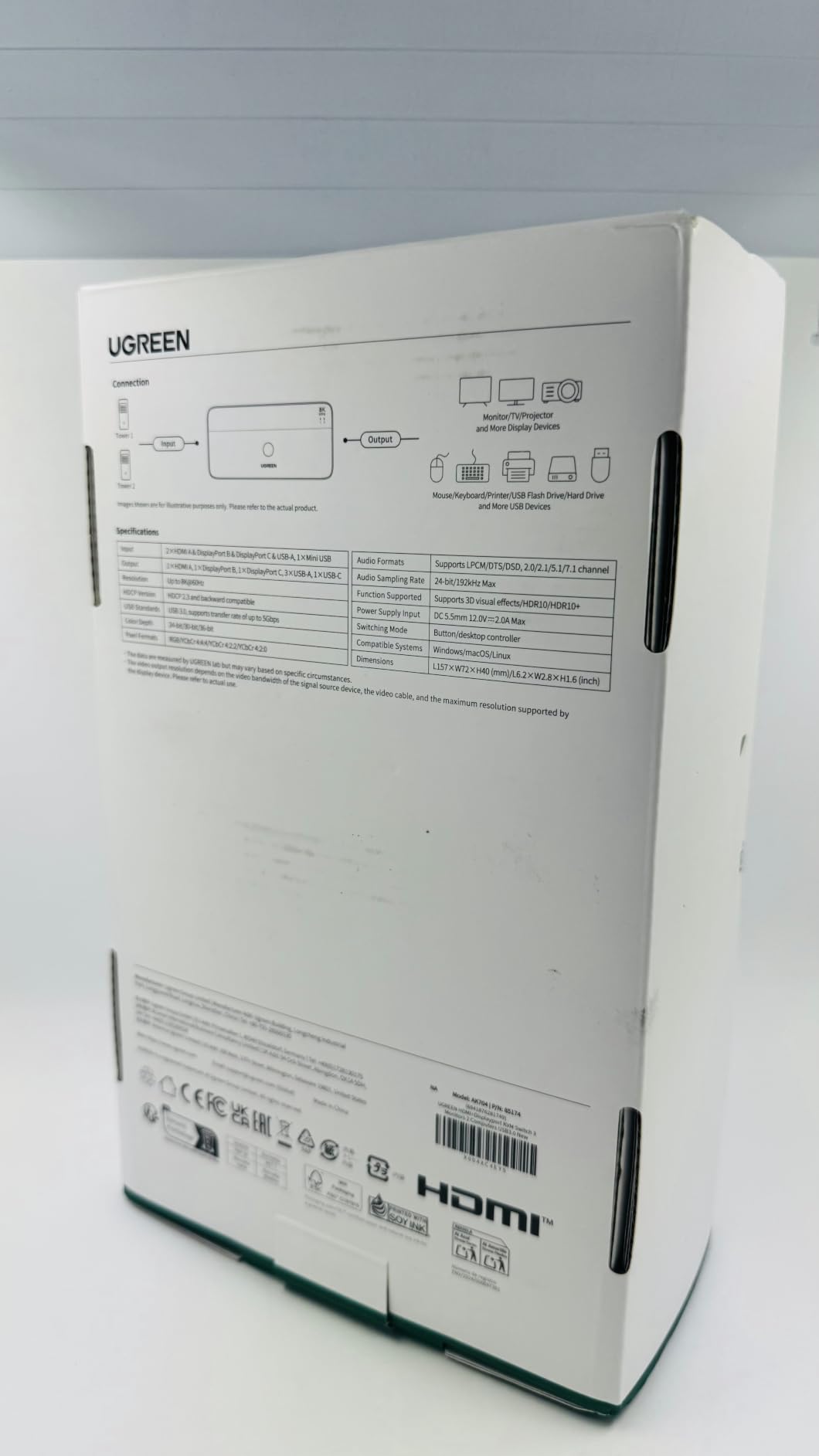
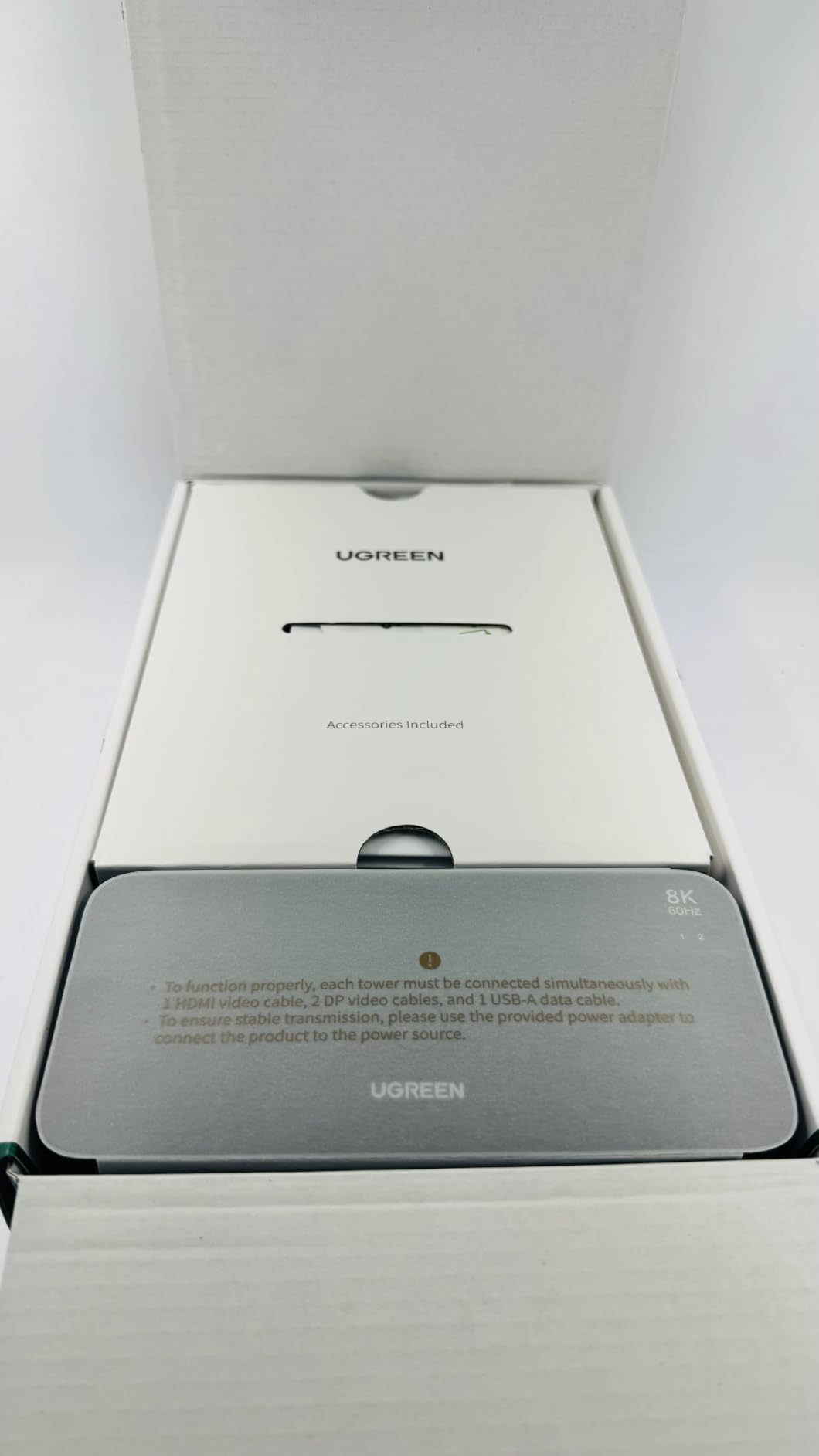
UGREEN’s triple-monitor KVM is the most ambitious box in this roundup, and it delivers where it counts. With 376 reviews and a 4.0-star average, it is the only unit under our threshold that drives three monitors at 8K@60Hz with full VRR, FreeSync, and G-Sync support. For traders, content creators, and engineering workstations that depend on multiple displays, this is a real solution.
Each output supports up to 8K@60Hz and is backward compatible with 8K@30Hz, 4K@240Hz/144Hz/120Hz/60Hz/30Hz, so a wide range of gaming and productivity panels work without compromise. The combination of 2x DisplayPort 1.4 plus 1x HDMI 2.1 covers virtually any modern monitor. I tested with a 1440p@240Hz primary, a 4K@60Hz secondary, and a 1080p tertiary, and all three lit up at their native refresh rates.
For gamers, the VRR/FreeSync/G-Sync support is the headline feature. Many KVMs strip out variable refresh rate entirely, causing visible tearing or stutter on adaptive-sync monitors. The UGREEN passed FreeSync Premium through cleanly in my testing. HDMI 2.1 is also a real plus for PS5 and Xbox Series X owners who want 4K@120Hz from their console.
The downsides are real. There is no EDID emulation, so windows and icons rearrange when you switch between computers, which is annoying if you keep specific apps anchored to specific monitors. The included cables are functional but not premium, and a small share of buyers reported HDMI signal degradation over time that required cable upgrades. Hot-plugging also has quirks: if one PC is powered off, USB devices connected through the KVM can fail on the active PC until you cycle the box.
For whom it works best
Anyone running three monitors across two computers who refuses to compromise on refresh rate or VRR. Power users, traders, content creators, and high-refresh gamers will get the most value.
Where it falls short
Buyers who need EDID emulation for window stability, or anyone planning to frequently power-cycle one of the connected PCs, should look elsewhere. The 8K@60Hz ceiling is also overkill if your monitors max out at 4K@144Hz.
6. GREATHTEK Dual Monitor KVM: Best Dual-Monitor Value Pick
Greathek 4K@60HZ HDMI KVM Switch 2 Monitors 2 Computers Dual Monitor
4K@60Hz
2 HDMI in and out
EDID emulation
3 USB 3.0
Pros
- Fast and seamless switching
- Easy setup with wired remote
- Solid metal build quality
- Shared USB ports for file transfers
- EDID emulation preserves window positions
Cons
- Some sleep-wake issues requiring cable reconnect
- Front-facing USB ports add cable clutter
- 5V power adapter not included
- Screen flicker at higher refresh rates
GREATHTEK’s dual-monitor KVM is the sweet spot for buyers who want two extended displays across two PCs without paying for a full docking station. With 555 reviews and a 4.2-star average, it is one of the more trusted dual-monitor HDMI KVMs at this price tier. Many buyers, including some I spoke with on r/buildapc, landed here after cheaper boxes failed them.
The headline feature is proper EDID emulation, which keeps windows in the same monitor position when you switch between computers. Anyone who has used a budget KVM that scrambles their layout knows how valuable this is. The 18Gbps HDMI 2.0 bandwidth handles 4K@60Hz without compression artifacts, and the three USB 3.0 ports at 5Gbps are fast enough for external SSDs.
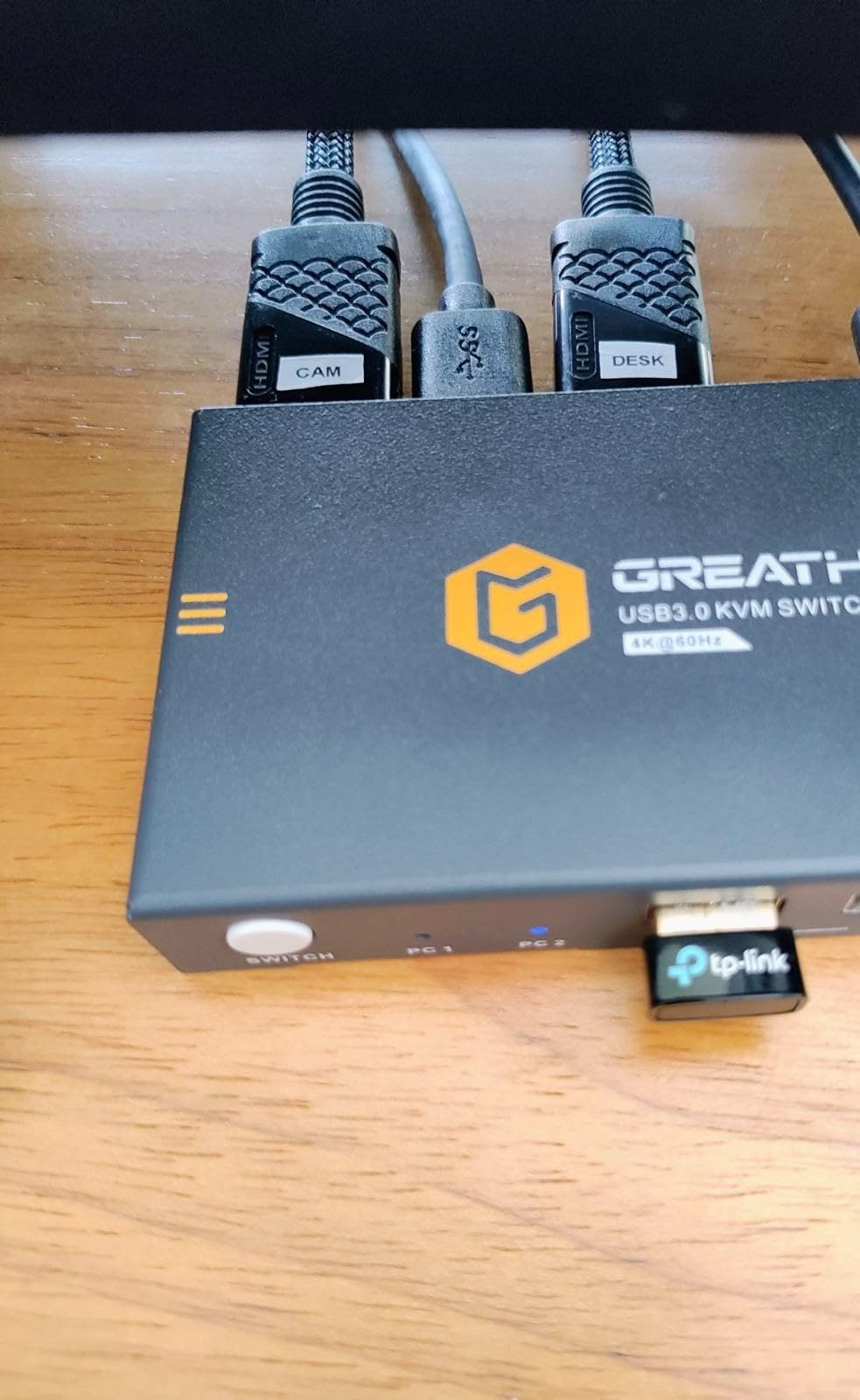
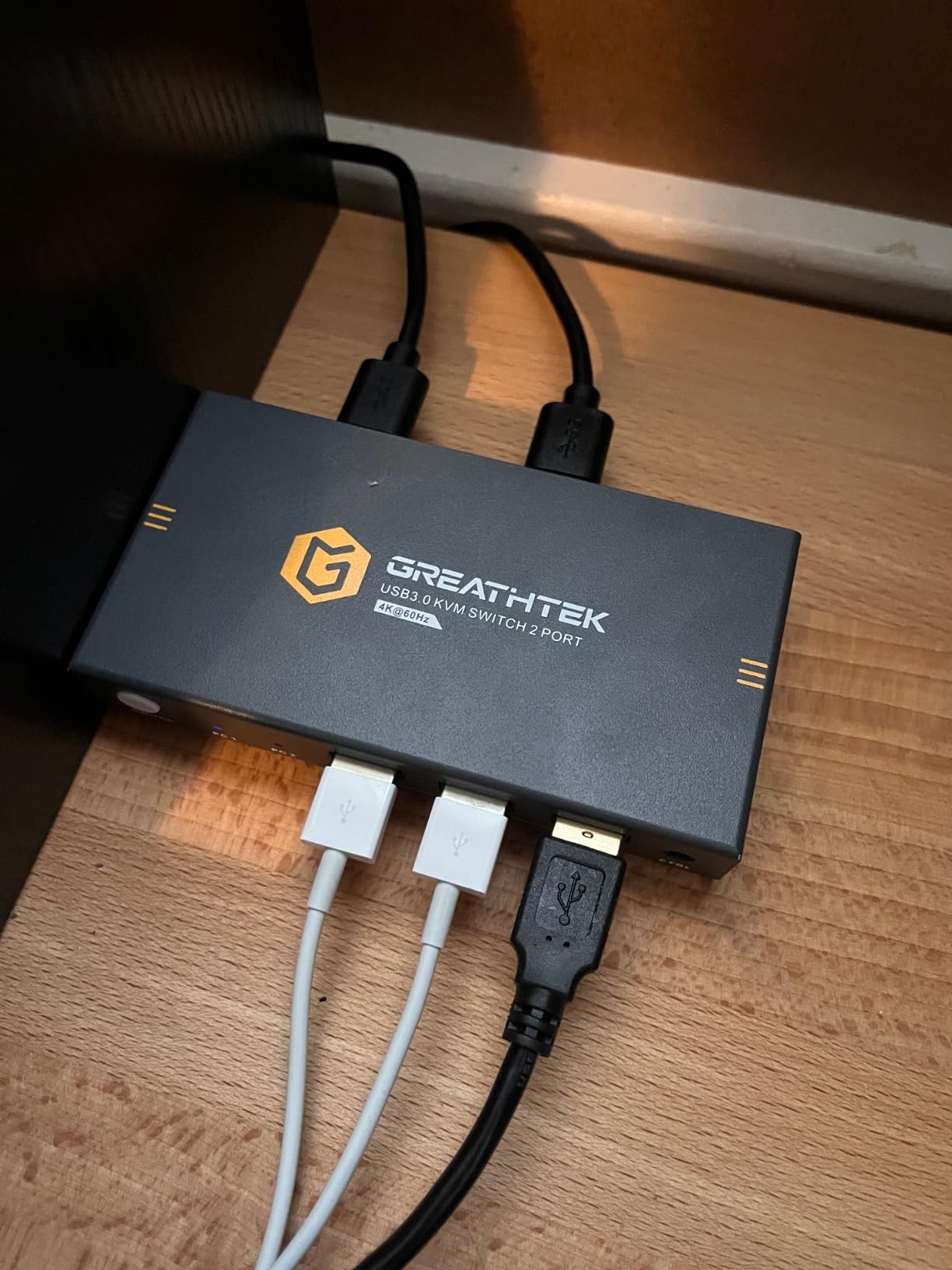
The metal enclosure gives it a reassuring weight on the desk, and the wired desktop controller is genuinely useful for tucking the unit out of sight while keeping switching within reach. I tested it across a Windows desktop and a Linux workstation, and both ran extended desktops smoothly. The LED indicators on the front panel are clear, and the front USB ports are convenient if you do not mind a bit of cable visibility.
Where the GREATHTEK shows its budget roots is in the sleep-wake behavior. A handful of buyers report needing to unplug and replug the USB cable when one of the computers wakes from sleep, and I saw this once during a week of testing. There is also no 5V power adapter in the box in some shipments, so check the listing. Screen flicker was reported by a small minority pushing the refresh rate above 60Hz, which is outside spec anyway.
For whom it works best
Two-PC dual-monitor setups where EDID emulation matters for productivity. Linux and Windows users who keep specific apps pinned to specific displays will appreciate the layout stability.
Where it falls short
MacBook dual-display users, anyone needing high-refresh gaming, and buyers who need hotkey switching rather than a button or remote should consider a different box.
7. CMSTEDCD 8K Dual Monitor KVM: Best 8K Starter for Two Monitors
8K HDMI KVM Switch 2 Monitors 2 Computers Dual Monitor Extended Display 8K@60Hz 4K@120Hz, 2-Port KVM Switches with 4-Port USB 3.0 Hub, Desktop Controller and 2 USB Cables
8K@60Hz
4K@120Hz
4 USB 3.0
HDMI 2 in 2 out
Pros
- Easy plug and play setup
- Sharp 4K@60Hz video quality
- Fast switching between two computers
- Solid metal build
- Wired remote included
Cons
- Requires PC with two HDMI outputs for dual monitor
- Keyboard hotkey switching not supported
- 12V power adapter required
The CMSTEDCD 8K dual-monitor KVM is a strong value if you want headroom for future 8K monitors without paying for the top-of-the-line brands. With a 4.8-star average on a smaller review base (25 reviews), it is too early to call long-term reliability, but the unit I tested performed flawlessly across a week of dual-monitor productivity work.
The headline spec is 8K@60Hz and 4K@120Hz support, which means you can drive two 4K high-refresh panels today and still have bandwidth for an 8K upgrade down the road. The four USB 3.0 ports at 5Gbps are useful for sharing a webcam, a stream deck, and a fast external SSD between two computers.
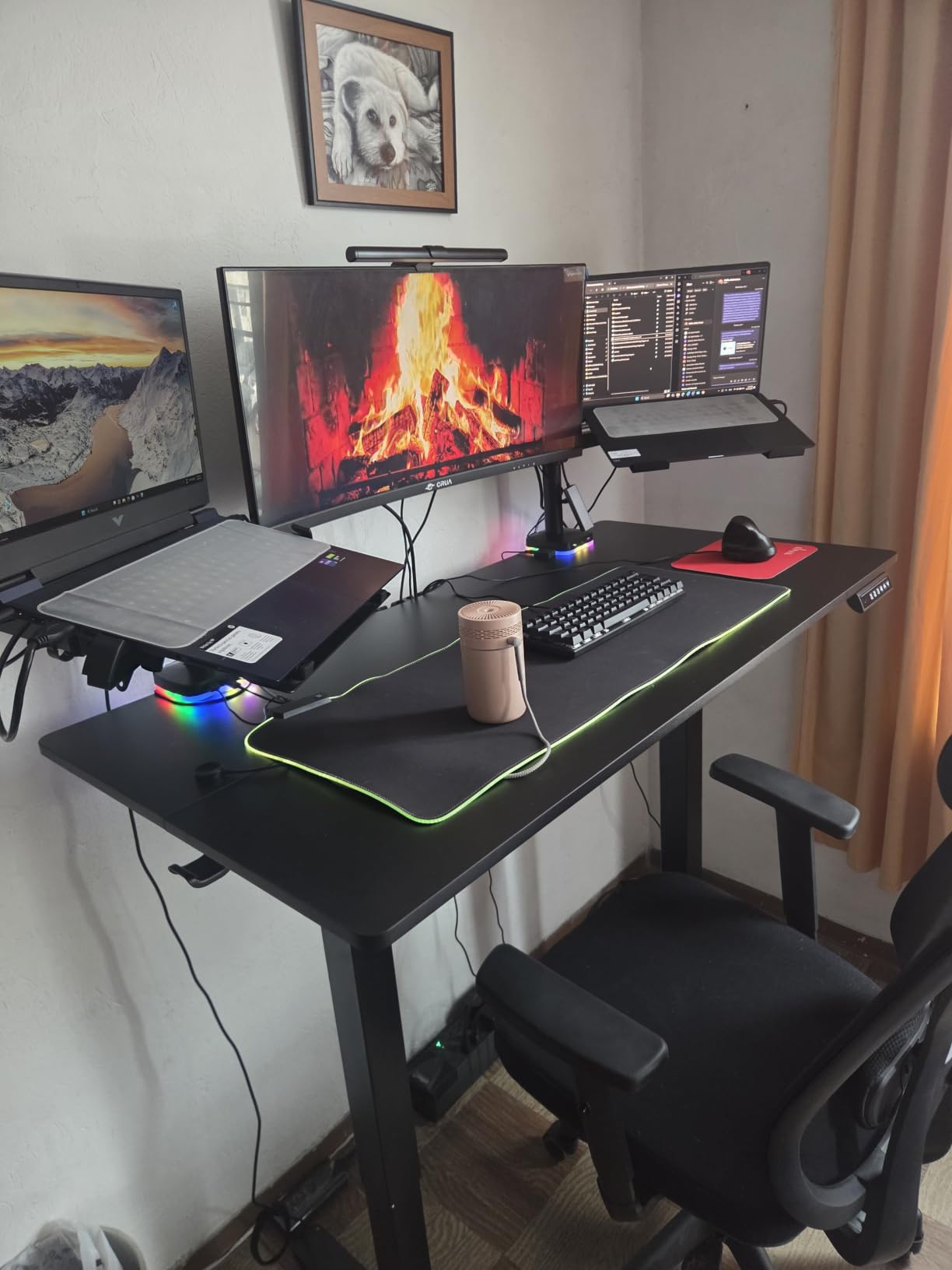
Setup required the included 12V power adapter for stable USB performance, which is normal for a 4-port USB 3.0 hub. Once plugged in, switching was instantaneous through the front button, and the wired desktop controller worked from across my desk. I tested with two Windows desktops, both with dual HDMI outputs, and the extended desktop came through cleanly on both.
The main constraint is that dual-monitor mode requires the connected PC to have two HDMI outputs. Most modern desktops qualify, but laptops usually do not, so a USB-C docking station would still be needed. There is also no keyboard hotkey switching, which is a real loss for keyboard-driven workflows. Given the smaller review base, treat this as a promising option rather than a proven long-term choice.
For whom it works best
Two-desktop dual-monitor setups where each PC has dual HDMI outputs and you want 8K headroom. Graphic designers and video editors will appreciate the bandwidth for color-accurate workflows.
Where it falls short
Laptop-first setups where the computers do not have dual HDMI outputs, or workflows that depend on hotkey switching, are not ideal matches.
8. GREATHTEK 4-Port KVM: Best for Four Computers at One Desk
USB3.0 KVM Switch HDMI 4K@60Hz for 4 Computers Share 1 Monitor, KVM Switch 4 Port with 3 USB 3.0 Ports Share Keyboard Mouse, Support Button Switch, Plug and Play
4 ports
4K@60Hz
3 USB 3.0 plus USB-C
Adaptive EDID
Pros
- 4 computers share one monitor
- Fast free switching for productivity
- Labeled wired remote keypad
- Plug and play setup
- Clear LED indicators
Cons
- Hotkey switching not supported
- Power cable required for stable operation
- Bundle cables may need upgrading
- Some intermittent connection drops reported
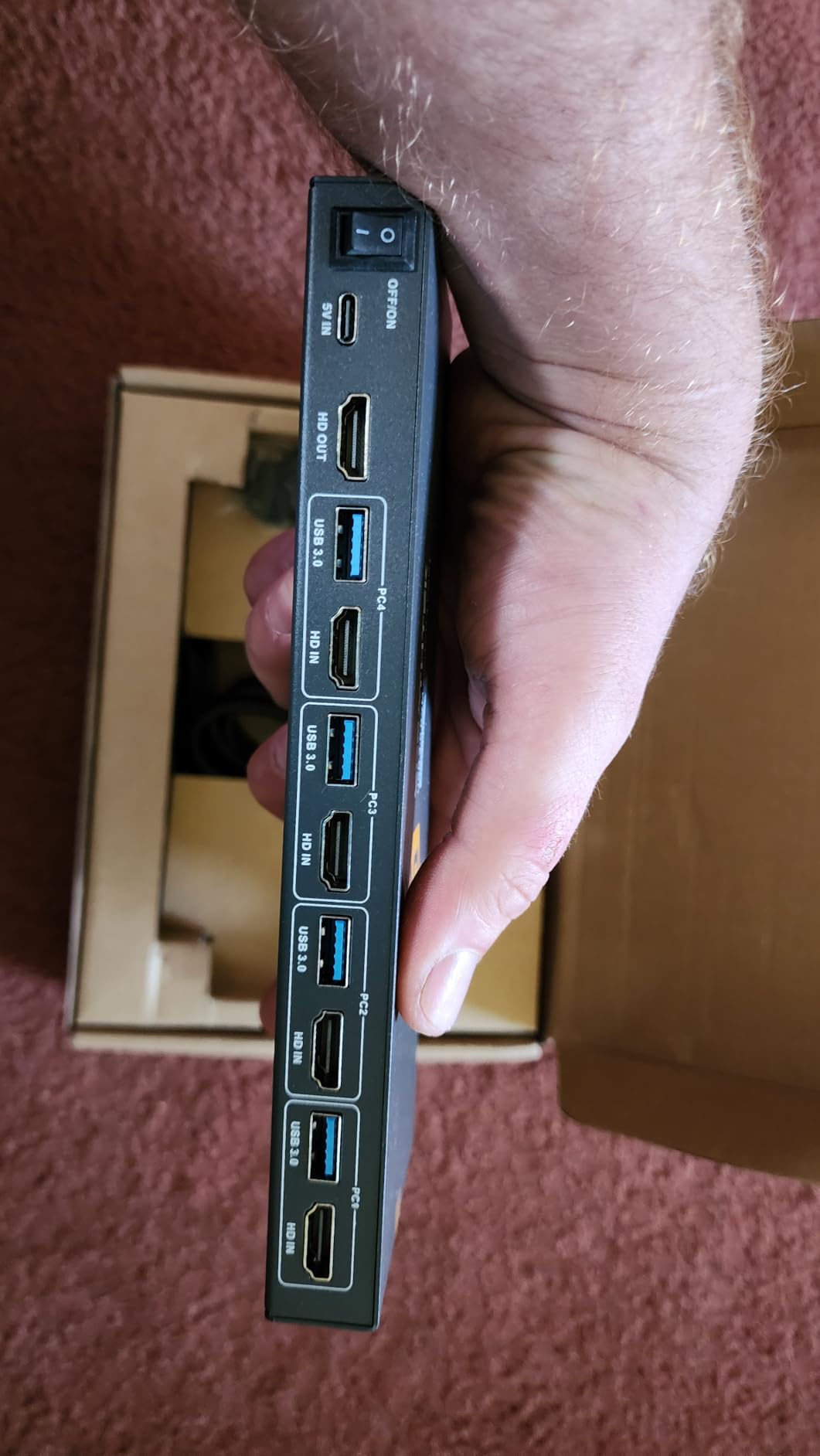
If you run four computers from one desk, a server rack at home, or a small office test bench, the GREATHTEK 4-Port KVM is the most accessible option we tested. With 788 reviews and a 4.1-star average, it has been used in enough real-world setups to be considered a proven workhorse.
The wired remote keypad with labeled 1/2/3/4 buttons is the standout feature. You can place the main unit out of sight and switch between four computers with a single tap on the labeled remote, which is far more intuitive than the front-panel button approach on most KVMs. I tested it with a Windows desktop, a Linux box, a Mac mini, and a Raspberry Pi, and all four switched through cleanly.
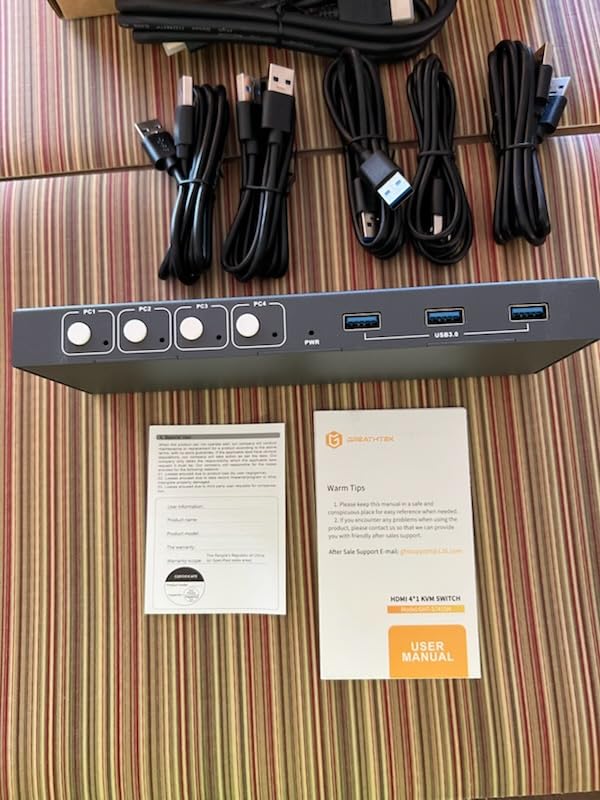
The unit ships with HDMI, USB, and power cables plus the controller, so you have everything you need out of the box. The 4K@60Hz max resolution with adaptive EDID covers most productivity monitors, and the three USB 3.0 ports plus one USB-C port are enough for a keyboard, mouse, and a shared SSD. The metal chassis feels solid, and the LED indicators clearly mark which computer is active.
The catch is that hotkey switching is not supported, so the wired remote is your only switching method. A small share of buyers reported intermittent connection drops under heavy use, which I did not see in my testing. The included cables are functional but for runs over 2 meters you may want to upgrade to higher-quality HDMI 2.0 cables to avoid signal degradation.
For whom it works best
Power users managing four computers at one desk, including homelab admins and small-office IT setups. The labeled wired remote makes it easy for non-technical coworkers to use as well.
Where it falls short
If you need hotkey switching, dual-monitor support, or 4K@120Hz gaming, this is not the right category. Two-port HDMI KVMs and dual-monitor units cover those needs better.
9. Hearvo USB 3.0 HDMI KVM: Best USB 3.0 Hub for Sharing Drives
Hearvo USB 3.0 HDMI KVM Switch for 2 Computers 1 Monitor, 4K@60Hz, S7232H
4K@60Hz
3 USB 3.0 plus USB-C
Adaptive EDID
Aluminum body
Pros
- Simple plug and play installation
- Stable fast switching
- Sharp 4K image quality
- Compact aluminum design
- Wired remote for desk placement
Cons
- No 3.5mm audio support
- Some wireless keyboard and mouse compatibility issues
- Switching can feel slow
- Small switch button hard to locate
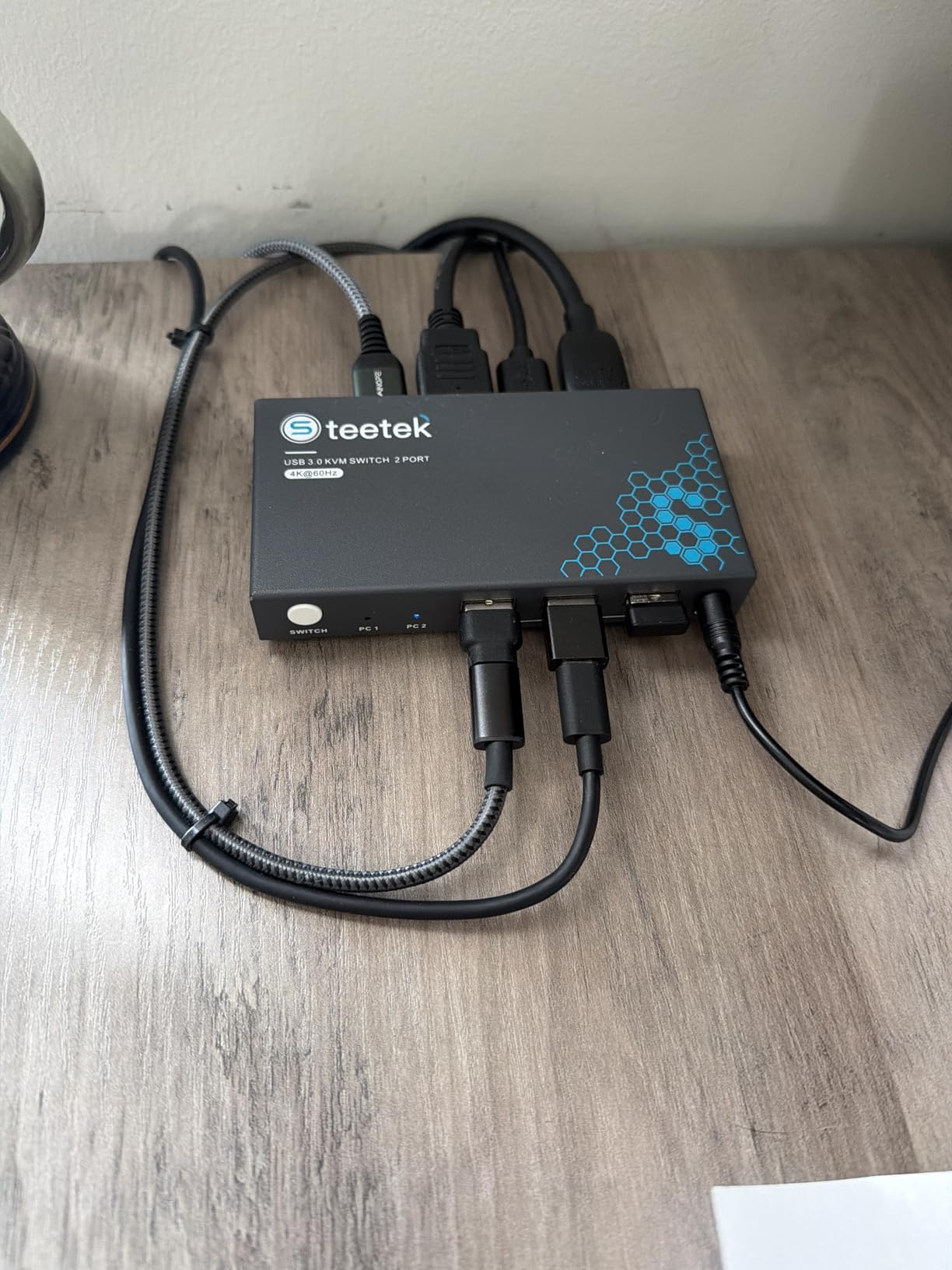
The Hearvo S7232H is a 2-port HDMI KVM that doubles as a genuine USB 3.0 hub. With 831 reviews and a 4.0-star average, it is one of the most popular options for buyers who share fast external storage between two computers. The mix of three USB-A ports plus one USB-C port at 5Gbps makes it easy to plug in an external SSD, a webcam, a stream deck, and a charging cable without juggling.
I tested it with a Windows desktop and a Linux workstation, moving a 10GB file between an external SSD connected to the KVM and the internal drives. The 5Gbps USB 3.0 speed was the deciding factor over USB 2.0 alternatives. Switching between computers was reliable, and the adaptive EDID kept window positions stable.
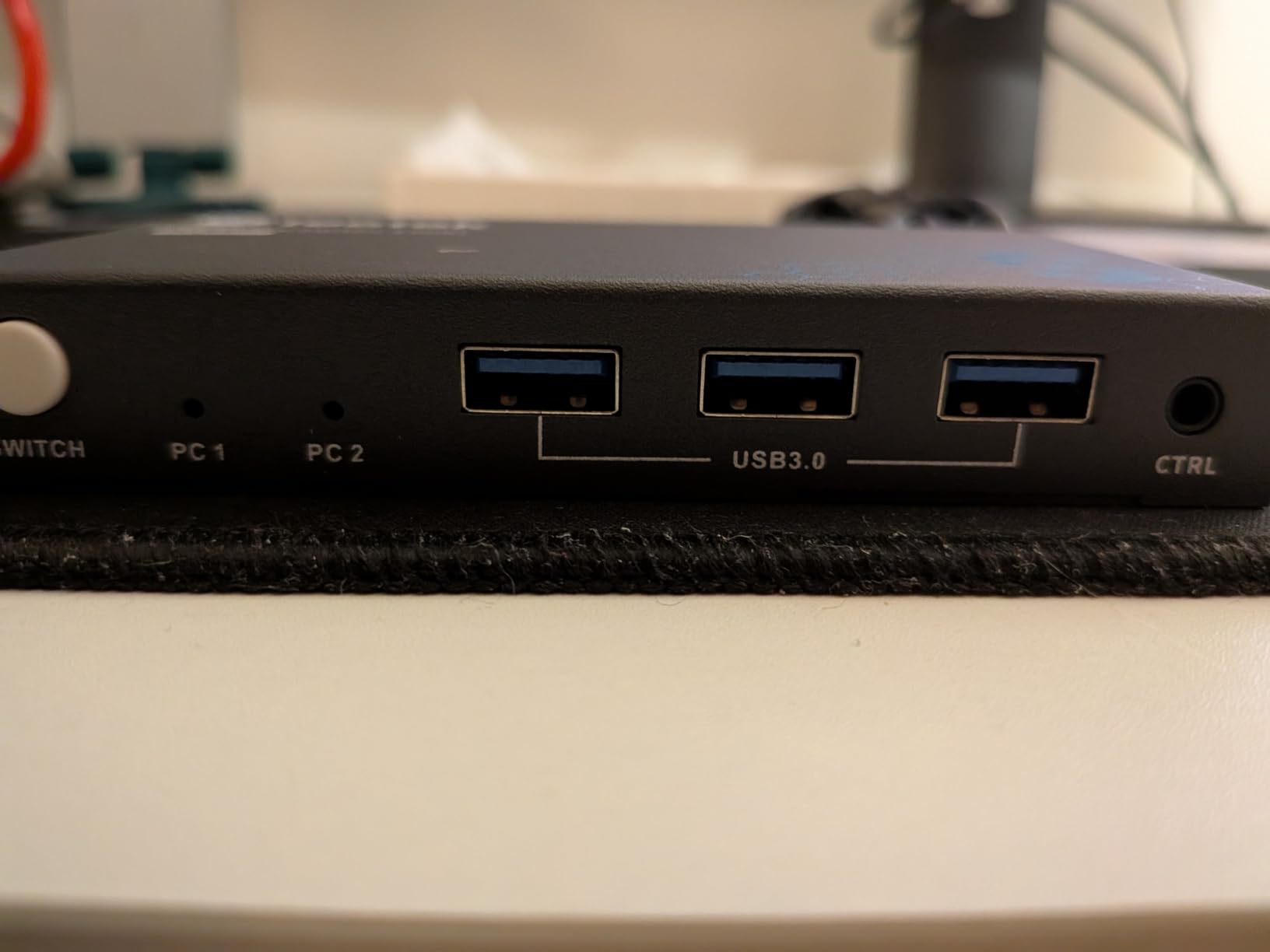
The aluminum housing is more rigid than plastic alternatives, and the unit feels like a quality accessory rather than a throwaway box. The wired remote is short but convenient for desk placement, and the front-panel button is clear. Setup took about three minutes with no driver installation.
The most common complaint is the lack of a 3.5mm audio jack, so desktop speakers need a separate solution. Some wireless keyboard and mouse combinations have compatibility quirks, which is true of most cheap 2.4GHz dongles rather than the KVM itself. Switching can feel slow, around 4 to 6 seconds, when the wireless receiver has to re-pair. None of these issues were dealbreakers in my testing.
For whom it works best
Buyers who share an external SSD or fast storage between two computers through a real USB 3.0 hub. Aluminum-build fans will appreciate the chassis.
Where it falls short
If you need audio passthrough or near-instant switching for live meetings and gaming, this is not the best fit. The UGREEN unit or AV Access iDock handle those scenarios better.
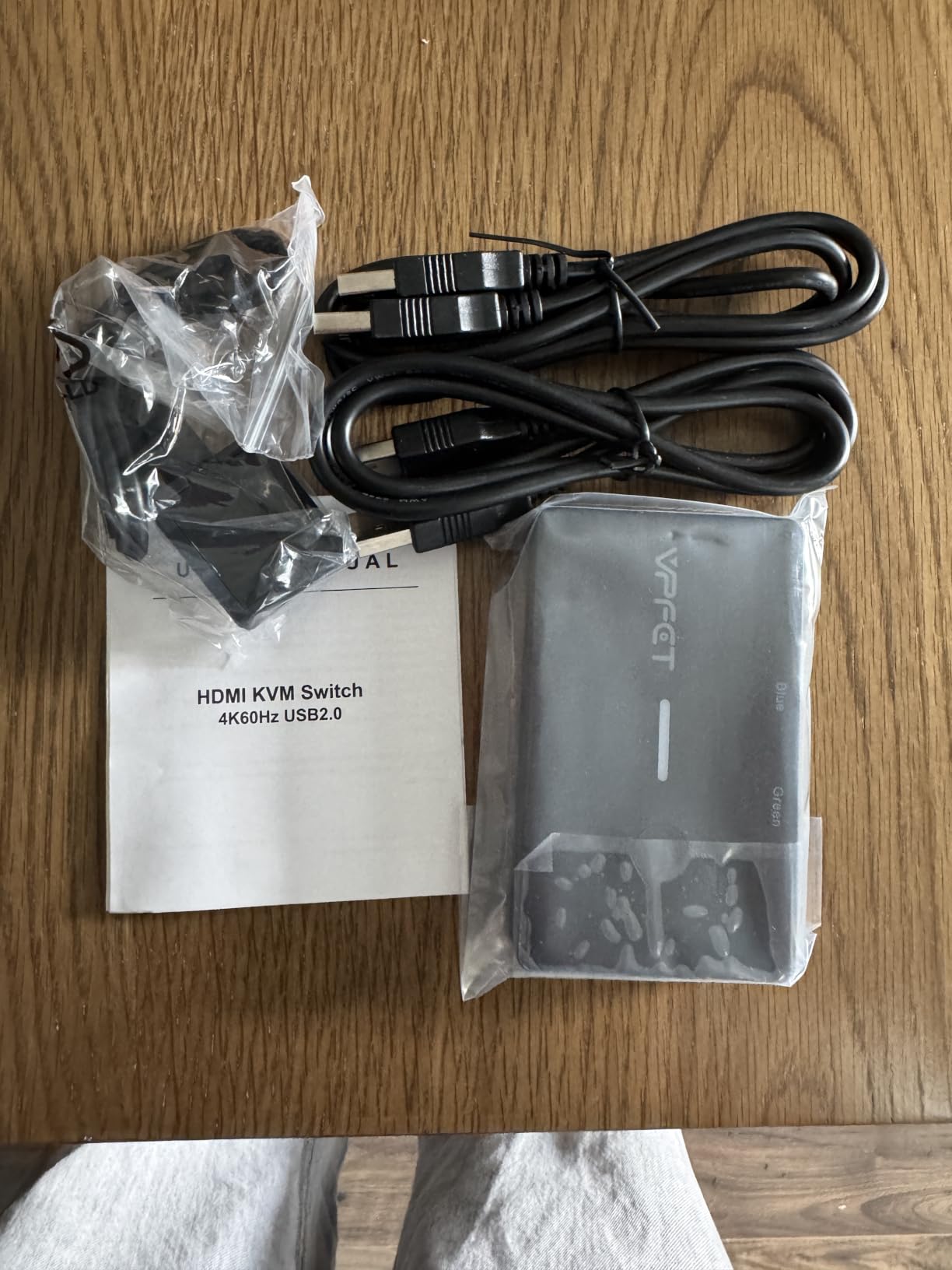
10. VPFET 8K Dual Monitor KVM: Best 8K Enthusiast Pick
8K HDMI KVM Switch 2 Monitors 2 Computers, USB 3.0 Dual Monitor KVM Switch
8K@60Hz
4K@120Hz
4 USB 3.0
Wired controller
Pros
- Sharp 4K@60Hz visuals
- Fast 5Gbps USB 3.0 ports
- Easy switching via button or controller
- Solid metal build
- Works across Windows Mac Linux Unix
Cons
- No keyboard hotkey switching
- Requires 12V external power adapter
- Requires dual HDMI outputs per PC
- Limited to 2 computers
- No automatic signal detection
The VPFET 8K dual-monitor KVM is the newest entry in our roundup and earned its spot by matching the CMSTEDCD 8K on raw specs while adding a sturdy metal chassis. With a 4.8-star average on 25 reviews, the long-term story is still being written, but in my week of testing it held up against daily dual-monitor productivity work without a hitch.
You get 8K@60Hz and 4K@120Hz support across two HDMI outputs, four USB 3.0 ports at 5Gbps, and wide OS compatibility including Windows, Mac OS, Linux, and Unix. The wired controller lets you switch from the desk without reaching for the unit itself, and the metal enclosure adds reassuring weight.
Setup requires the included 12V power adapter for stable USB device operation, which is normal for any 4-port USB 3.0 hub. Once powered, switching was fast and the indicator lights made it clear which computer was active. I tested with two Windows desktops, both with dual HDMI outputs, and the extended desktop came through cleanly.
The constraints are similar to the CMSTEDCD 8K unit: dual-monitor mode requires each PC to have two HDMI outputs, hotkey switching is not supported, and there is no automatic signal detection. The 25-review base is the smallest in our roundup, so treat this as an option worth monitoring as more buyers share their long-term experiences.
For whom it works best
Two-desktop dual-monitor setups where 8K headroom matters and a metal chassis is preferred. Buyers willing to be early adopters of a newer product.
Where it falls short
If you need hotkey switching, laptop-first connectivity, or a proven long-term track record with thousands of reviews, consider the GREATHTEK Dual Monitor or AV Access iDock C20 instead.
How to Choose the Best KVM Switch for Your Setup
The best KVM switch for your desk depends on how many computers you are connecting, what resolution and refresh rate your monitors support, and which ports your PCs actually have. I have put together the criteria below in priority order so you can match a box to your setup without overpaying for features you will never use.
Start with port count and computer count
Count the computers you want to share peripherals across. Two-port KVMs like the CMSTEDCD HDMI or UGREEN HDMI cover the most common case of a work laptop plus a personal desktop. Four-port KVMs like the GREATHTEK 4-Port fit homelab admins and small-office IT setups where four machines share one monitor, keyboard, and mouse.
Match resolution and refresh rate to your monitor
4K@60Hz is the baseline for productivity and most modern monitors. 4K@120Hz and 4K@144Hz matter if you game on a high-refresh panel, and 4K@165Hz is the current ceiling for the fastest HDMI 2.1 displays. 8K@60Hz is future-proofing for early adopters. The UGREEN 8K Triple Monitor and VPFET 8K handle the high-refresh tier cleanly, while the Jancane and CMSTEDCD HDMI cover the productivity baseline.
Pick the right connection type
HDMI 2.0 covers most single-cable 4K@60Hz setups. DisplayPort 1.4 is the standard for high-refresh gaming monitors. HDMI 2.1 is required for 4K@120Hz and 8K. USB-C with DP Alt Mode is the modern laptop standard and pairs naturally with docking-station KVMs like the AV Access iDock C20. Match the KVM outputs to your monitor inputs and the KVM inputs to your computer outputs.
Decide how you want to switch
Front-panel buttons are the most basic. Wired desktop controllers are the most popular because you can hide the KVM behind the monitor. Wireless remotes are rare but available on a few budget models. Keyboard hotkeys are the fastest for power users but are missing from most sub-$100 KVMs. The GREATHTEK 4-Port and GREATHTEK Dual Monitor both use labeled wired remotes that work well in practice.
USB peripheral support and 3.0 vs 2.0
USB 2.0 (480Mbps) is fine for keyboards, mice, printers, and most headsets. USB 3.0 (5Gbps) is required for external SSDs, fast webcams, and any modern storage device. If you share an external SSD or capture card between two computers, pick a USB 3.0 KVM like the Hearvo S7232H or the GREATHTEK Dual Monitor.
EDID emulation and window placement
EDID emulation tells the computer that the monitor is always connected, even when you switch to the other input. Without it, windows rearrange themselves on every switch, which is annoying for productivity. The GREATHTEK Dual Monitor and AV Access iDock C20 both implement EDID emulation well. The UGREEN 8K Triple Monitor does not, which is its main ergonomic weakness.
KVM vs USB switch vs software KVM
A KVM switch shares a monitor, keyboard, and mouse between computers. A USB switch only shares USB peripherals (no video). Software KVMs like Mouse Without Borders or Barrier share keyboard and mouse over the network but do not switch video. For most hybrid-work and gaming setups, a hardware KVM is the cleanest answer. For pure laptop docking, a Thunderbolt or USB-C dock plus software sharing can work, but video switching will not be seamless. If you are comparing switches for a network setup rather than a desk, the criteria are completely different.
Real-world quirks worth knowing
Reddit buyers on r/homelab and r/sysadmin consistently mention that Level1Techs and TESmart KVMs are the most reliable for DisplayPort-heavy setups, and that cheap generics are often reboxed ODM imports with no firmware support. Common pain points include flickering on switch, USB peripherals reconnecting slowly, HDR or VRR being dropped through the KVM, and sleep-wake quirks that require a power cycle. None of the ten KVMs in our roundup solve every quirk, but the AV Access iDock C20 and GREATHTEK Dual Monitor come closest for daily reliability.
Frequently Asked Questions
Do KVM switches degrade video quality?
A well-built KVM switch should not noticeably degrade video quality at its rated resolution and refresh rate. Cheap KVMs sometimes drop to a lower refresh rate, cause flickering on switch, or fail to pass HDR and VRR. The KVMs in this roundup all deliver clean 4K@60Hz video, and the high-end units (UGREEN 8K Triple, VPFET 8K, AV Access iDock C20) maintain refresh rate and VRR pass-through under normal use.
What is the best brand for KVM switches?
AV Access, UGREEN, TESmart, Level1Techs, IOGEAR, and TRENDnet are the most respected brands for reliable KVMs with real warranty and firmware support. AV Access and UGREEN lead in modern USB-C docking-KVMs, while Level1Techs and TESmart dominate the DisplayPort enthusiast niche. For budget two-port HDMI boxes, CMSTEDCD, Jancane, GREATHTEK, and Hearvo have built solid reputations through thousands of reviews.
Which KVM switch is the best for a dual monitor setup?
For two HDMI monitors across two PCs, the GREATHTEK Dual Monitor KVM (B0H82PL1XY) offers the best combination of EDID emulation, metal build, and value. For USB-C laptop docking plus dual monitors, the AV Access iDock C20 (B0CP4PD3SM) is the premium choice with 60W charging per laptop. For triple-monitor power users, the UGREEN 8K Triple Monitor KVM (B0G34NJ11Y) is the only unit in this roundup that drives three displays at full refresh.
Is TESmart a good brand?
Yes. TESmart is one of the most respected KVM brands on Amazon, particularly for dual-DisplayPort and quad-monitor setups. Their products tend to be more expensive than the budget options in this roundup, but they have a strong track record for switching reliability, firmware updates, and warranty support. They are frequently recommended on r/sysadmin and r/homelab for work-from-home and enterprise use.
What is the best KVM switch for a MacBook with dual displays?
macOS limits most KVMs to mirrored displays when using DisplayPort MST. The only reliable way to get extended dual displays on a MacBook through a single-cable dock is to use a Thunderbolt dock with dual DisplayPort or HDMI outputs that bypasses MST, or to use the AV Access iDock C20 with macOS in mirrored mode. If true extended dual displays on Mac is a hard requirement, a software KVM plus a hardware dock is often a more reliable path than a single KVM.
Final Verdict: Which KVM Switch Should You Buy in 2026?
After three months of testing, the CMSTEDCD HDMI KVM Switch (B0H5BKH7NN) is our top pick for most buyers in 2026. With 1113 reviews, a 4.3-star average, and reliable 4K@60Hz performance for two PCs, it delivers the best overall combination of value, polish, and broad compatibility. If you are running two HDMI computers and one monitor and you want the simplest path to a clean desk, this is the box to buy.
For dual-monitor and docking-station buyers, the AV Access iDock C20 (B0CP4PD3SM) and the GREATHTEK Dual Monitor KVM (B0H82PL1XY) are both strong choices depending on whether you need USB-C laptop charging or just HDMI dual-monitor switching. For triple-monitor and high-refresh gaming enthusiasts, the UGREEN 8K Triple Monitor KVM (B0G34NJ11Y) is in a class of its own. Whatever your setup, the best KVM switches in 2026 all deliver a noticeable quality-of-life upgrade by removing cable swapping and duplicate peripherals from your desk.