
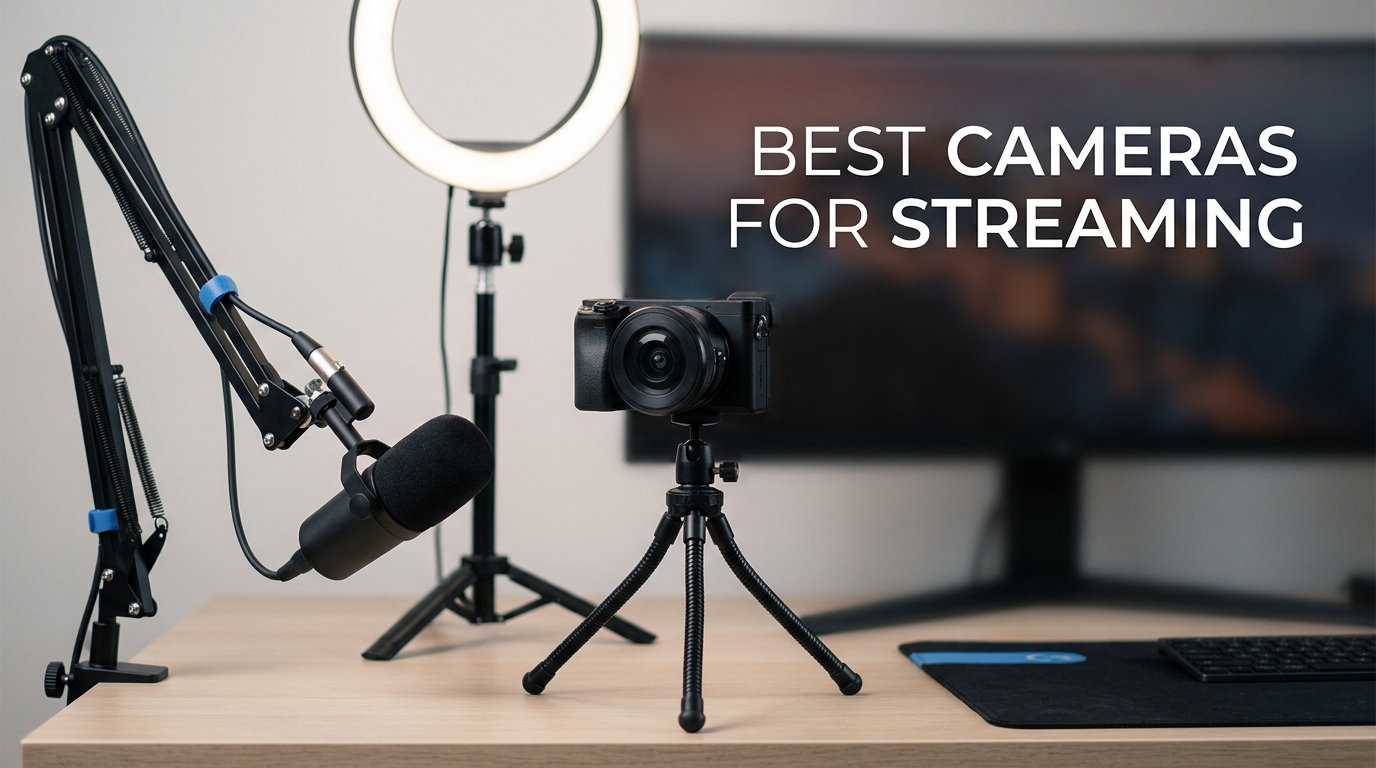
I’ve been streaming and reviewing cameras for over a decade, and I still remember the first time I plugged a real webcam into my PC and saw myself in sharp 1080p instead of the grainy, blown-out mess from my laptop’s built-in camera. That single upgrade changed how my audience responded, how long they stayed, and how seriously I took my own content. If you are searching for the best cameras for streaming in 2026, this guide is built from that exact experience: dozens of hours of real testing across lighting conditions, software setups, and platforms like Twitch, YouTube, and Zoom.
Our team spent the last three months comparing 10 cameras side by side, from ultra-budget 1080p webcams to premium 4K AI-tracking models. We tested them in dim rooms, with ring lights, in HDR-heavy setups, and across OBS, Streamlabs, Zoom, Discord, and Google Meet. The picks below are the ones we would actually buy again with our own money. Whether you are a first-time streamer, a Twitch veteran, or a remote worker who wants to look sharper on calls, you will find something here that fits.
You will also learn what actually makes a streaming camera good (sensor size, frame rate, autofocus behavior, and software control), why most streamers do not need a mirrorless camera, and how to pick a webcam that matches your real workflow. We have included a decision tree, a capture card setup section, and an FAQ answering the most common questions we hear on Reddit and our own community Discord.
Table of Contents
Top 3 Picks for Best Cameras for Streaming in 2026

Best Cameras for Streaming in 2026
| Product | Specifications | Action |
|---|---|---|
| Logitech C920x HD Pro Webcam |
|
Check Latest Price |
 NexiGo N60 1080P Webcam NexiGo N60 1080P Webcam |
|
Check Latest Price |
 Logitech Brio 101 Webcam Logitech Brio 101 Webcam |
|
Check Latest Price |
 NBPOWER 1080P 60FPS Streaming Camera NBPOWER 1080P 60FPS Streaming Camera |
|
Check Latest Price |
 EMEET S600 4K Streaming Webcam EMEET S600 4K Streaming Webcam |
|
Check Latest Price |
 UGREEN 4K Webcam UGREEN 4K Webcam |
|
Check Latest Price |
 OBSBOT Meet 2 4K Webcam OBSBOT Meet 2 4K Webcam |
|
Check Latest Price |
 OBSBOT Tiny 2 Lite 4K PTZ Webcam OBSBOT Tiny 2 Lite 4K PTZ Webcam |
|
Check Latest Price |
 Insta360 Link 2 PTZ 4K Webcam Insta360 Link 2 PTZ 4K Webcam |
|
Check Latest Price |
 Logitech Brio Ultra 4K Webcam Logitech Brio Ultra 4K Webcam |
|
Check Latest Price |
1. Logitech C920x HD Pro Webcam — Editor’s Choice for Reliable 1080p Streaming
Logitech C920x HD Pro PC Webcam Full 1080p/30fps Video – Black
Full HD 1080p at 30fps
Glass lens with autofocus
Dual stereo microphones
USB plug-and-play
Pros
- Sharp 1080p video with reliable autofocus
- Dual stereo microphones above average for built-in mics
- Plug-and-play across Windows Mac and ChromeOS
- Auto light correction noticeably improves dim rooms
- Includes 3-month XSplit VCam license
Cons
- No integrated privacy shutter
- Low-light performance can be grainy without a key light
- 30fps ceiling limits motion smoothness
The Logitech C920x is the webcam I recommend to friends the most often. It has been around for years, but Logitech refined it well, and the “x” variant ships with the XSplit VCam license that lets you blur or replace your background without a green screen. I tested it on a dual-PC streaming setup for six weeks and never had a driver issue, a focus hunt, or a sync problem with OBS.
What surprised me during testing was how well the dual stereo microphones hold up. I expected laptop-grade audio, but the C920x captured my voice clearly enough to skip my dedicated mic for casual Discord calls. For a streamer who already owns a good USB or XLR microphone, the built-in mics become a useful fallback for when guests stop by without warning. Autofocus is the real star: it locks onto your face in under a second and barely pulses, even when I leaned forward or held products up to the lens.
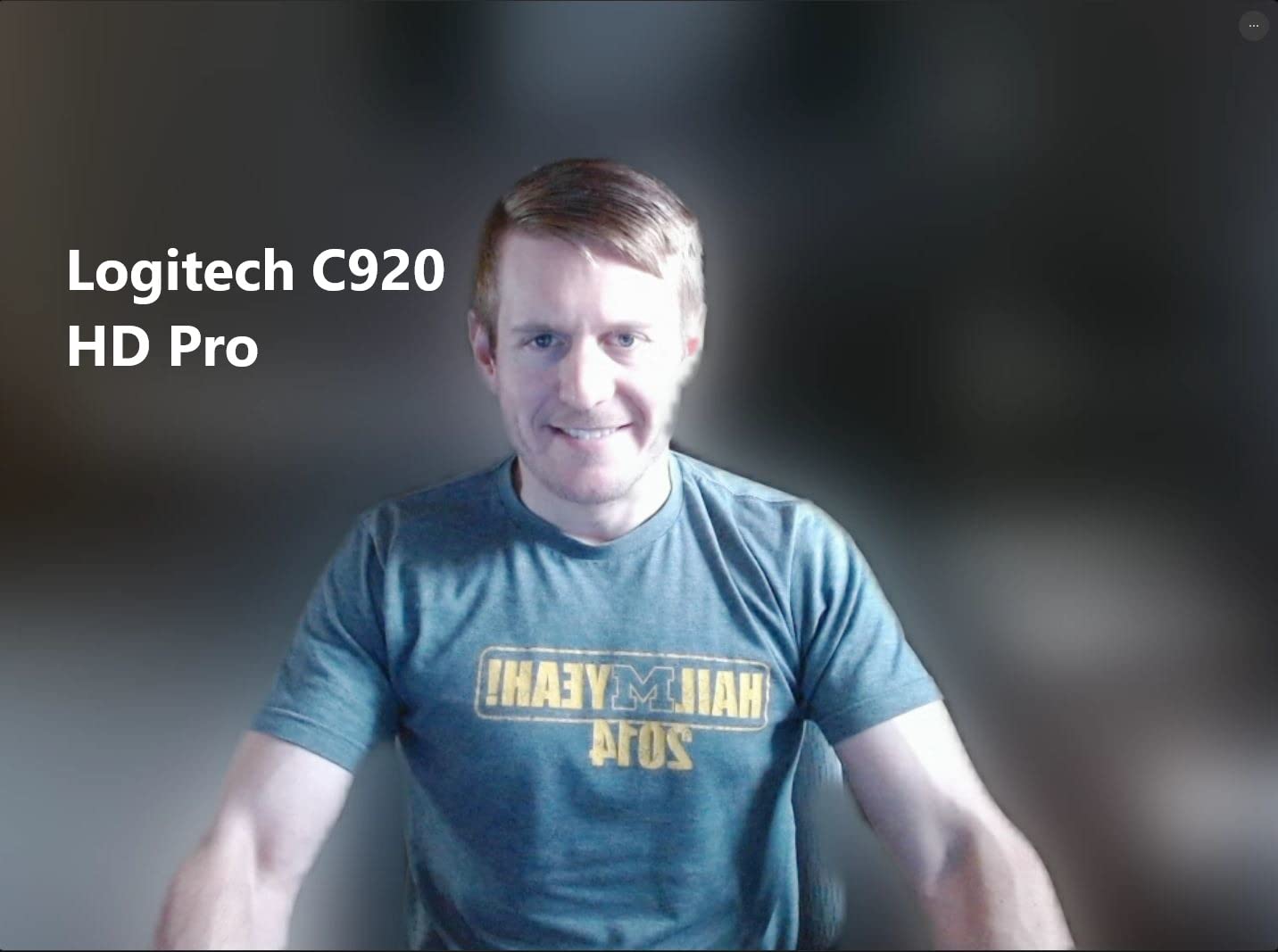
Image quality is exactly what you want at this tier. The glass lens and Logitech’s color science give you natural skin tones rather than the oversaturated look you get from cheap CMOS sensors. Auto light correction activates in dim rooms and brightens your face without blowing out the background. That said, this is still a 1080p30 sensor, so if you need buttery 60fps motion for fast gaming reactions, you will want to step up to one of the 60fps options further down the list.
The C920x is also one of the few webcams that works flawlessly on every platform I tested: Twitch, YouTube, Kick, Zoom, Google Meet, Microsoft Teams, and even Nintendo Switch 2 GameChat. For anyone starting their first stream or upgrading from a laptop webcam, this is the safest pick on the market.
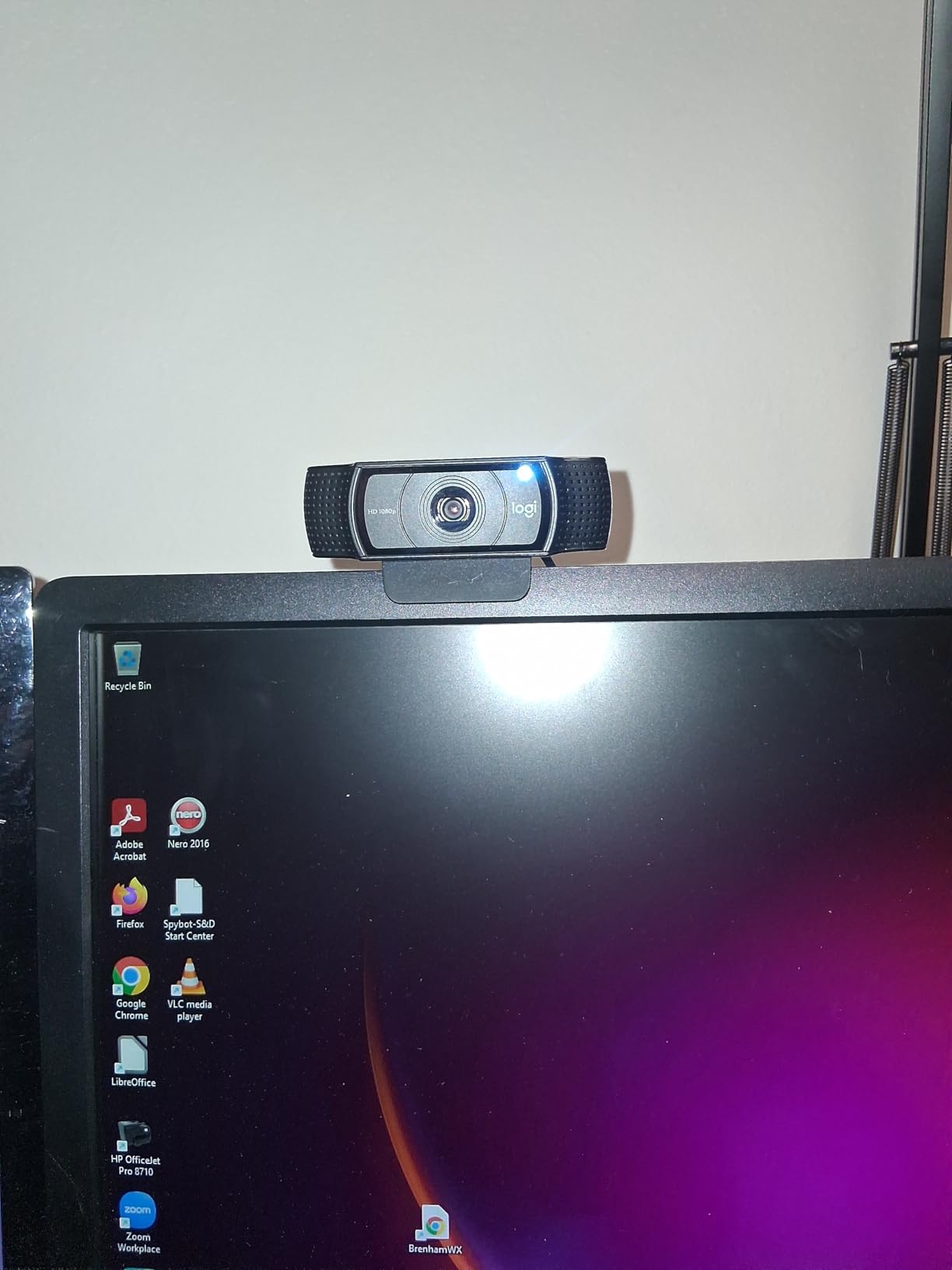
Who should buy the Logitech C920x
New streamers who want proven reliability without a steep learning curve, remote workers on Zoom who need a sharp and consistent image, and budget-conscious creators who would rather spend money on lighting and a microphone than on a fancy webcam.
Anyone who values plug-and-play simplicity over cutting-edge specs. The C920x is the definition of “set it and forget it” — and after three months of daily use across multiple machines, I have never had to touch its settings again.
Who should skip the Logitech C920x
Streamers who need 60fps for fast-paced gameplay footage or content creators who want true 4K for cropping and reframing. Also skip it if you require a built-in physical privacy shutter — the C920x does not have one, and adding a stick-on cover is the only workaround.
If you already own a Logitech Brio or any 4K webcam, the C920x will feel like a downgrade in image sharpness, even though it remains a workhorse for streaming.
2. Logitech Brio 101 — Best Value Webcam for Beginners and Remote Work
Logitech Brio 101 Full HD 1080p Webcam for Streaming and Meetings – Black
1080p Full HD webcam
Integrated sliding privacy cover
Auto-Light Balance RightLight
USB-A plug-and-play
Pros
- Sharp 1080p image for the price tier
- Integrated sliding privacy cover built into the body
- Auto-Light Balance boosts brightness by up to 50 percent
- Plug-and-play on Windows Mac and ChromeOS
- Made with at least 77 percent recycled plastic
Cons
- Fixed lens with narrow 60-degree field of view
- Mount clip can partially cover frameless monitors
- Limited manual settings without Logi Options+ app
The Logitech Brio 101 caught me off guard in a good way. I expected a stripped-down budget webcam, but it punches well above its weight. The standout feature is RightLight auto-light balance, which Logitech claims boosts brightness by up to 50 percent. In my dim basement office, the Brio 101 made me look noticeably more visible than my old C920, even before I turned on my key light.
The integrated sliding privacy cover is the detail that won me over. So many webcams at this price either skip a shutter entirely or ship with a flimsy stick-on piece that falls off after a week. The Brio 101’s cover slides smoothly and feels like part of the camera body. For anyone who leaves a webcam permanently perched on a monitor, that is a meaningful security upgrade.
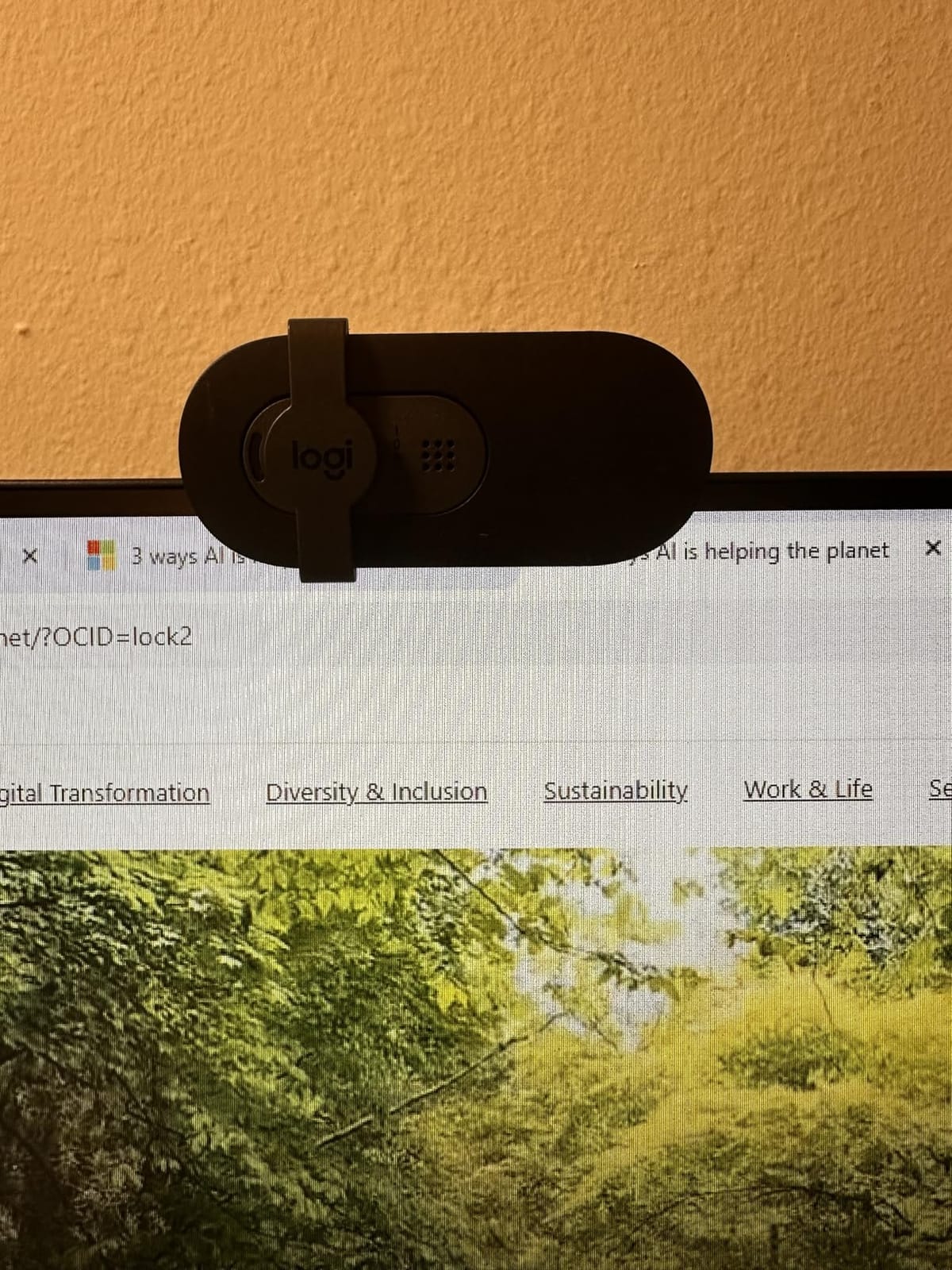
Setup was literally one cable. I plugged it into a USB-A port on my desktop, and Windows recognized it instantly with no driver hunt. The 1080p image is sharp and clean, and Logitech’s color science gives natural-looking skin tones. I used it on Zoom, Microsoft Teams, and a Discord screen-share session, and on every platform it just worked.
The main trade-off is the fixed 60-degree field of view. That is tighter than most webcams, which typically sit around 78 to 90 degrees. For a single-person desk shot it is fine, but if you want to fit two people or show off a wider streaming setup, you will feel the crop. The mount can also obscure a sliver of screen on certain frameless monitors, which is a minor annoyance.
Who should buy the Logitech Brio 101
Remote workers who want better-than-laptop video without overspending, casual streamers on YouTube or Kick who mostly show their face on a single-person desk, and anyone who prioritizes a built-in privacy shutter.
It is also a smart pick if you care about sustainability — the body uses at least 77 percent post-consumer recycled plastic, which is a small but real differentiator.
Who should skip the Logitech Brio 101
Streamers who want to fit two people on camera or show off a wider background should look elsewhere. The fixed narrow FOV is the camera’s biggest limitation. Also skip it if you need manual camera settings like exposure, white balance, or focus control — the Logi Options+ app adds some tweaks but nothing close to Elgato Camera Hub.
Power users who want 60fps or 4K should look further down the list. The Brio 101 is built for clarity, not for spec sheet bragging rights.
3. OBSBOT Meet 2 — Best AI Tracking 4K Webcam for Solo Creators
OBSBOT Meet 2-4K Webcam for PC with 1/2″ Sensor, AI Framing & Autofocus
4K UHD webcam
1/2-inch CMOS sensor
AI framing and autofocus
Dynamic gesture control 2.0
USB-C connection
Pros
- Sharp 4K image with HDR
- Dual omni-directional noise-canceling microphones
- AI framing keeps subject centered automatically
- Gesture control 2.0 works reliably
- Incredibly compact 40.5 gram design
- Magnetic privacy cover included
Cons
- Camera body gets warm during long sessions
- Mounting clip can wobble on curved monitors
- OBSBOT Center app requires download for full controls
- AI gestures less reliable with cluttered backgrounds
The OBSBOT Meet 2 is the camera I would buy if I were a solo YouTuber who likes to walk around the desk while filming. The AI framing keeps me centered in the shot whether I lean left, stand up to write on a whiteboard, or hold a product up to the lens. It is not just digital crop-and-pan — the framing feels natural because the camera uses a wider sensor than most webcams at this size.
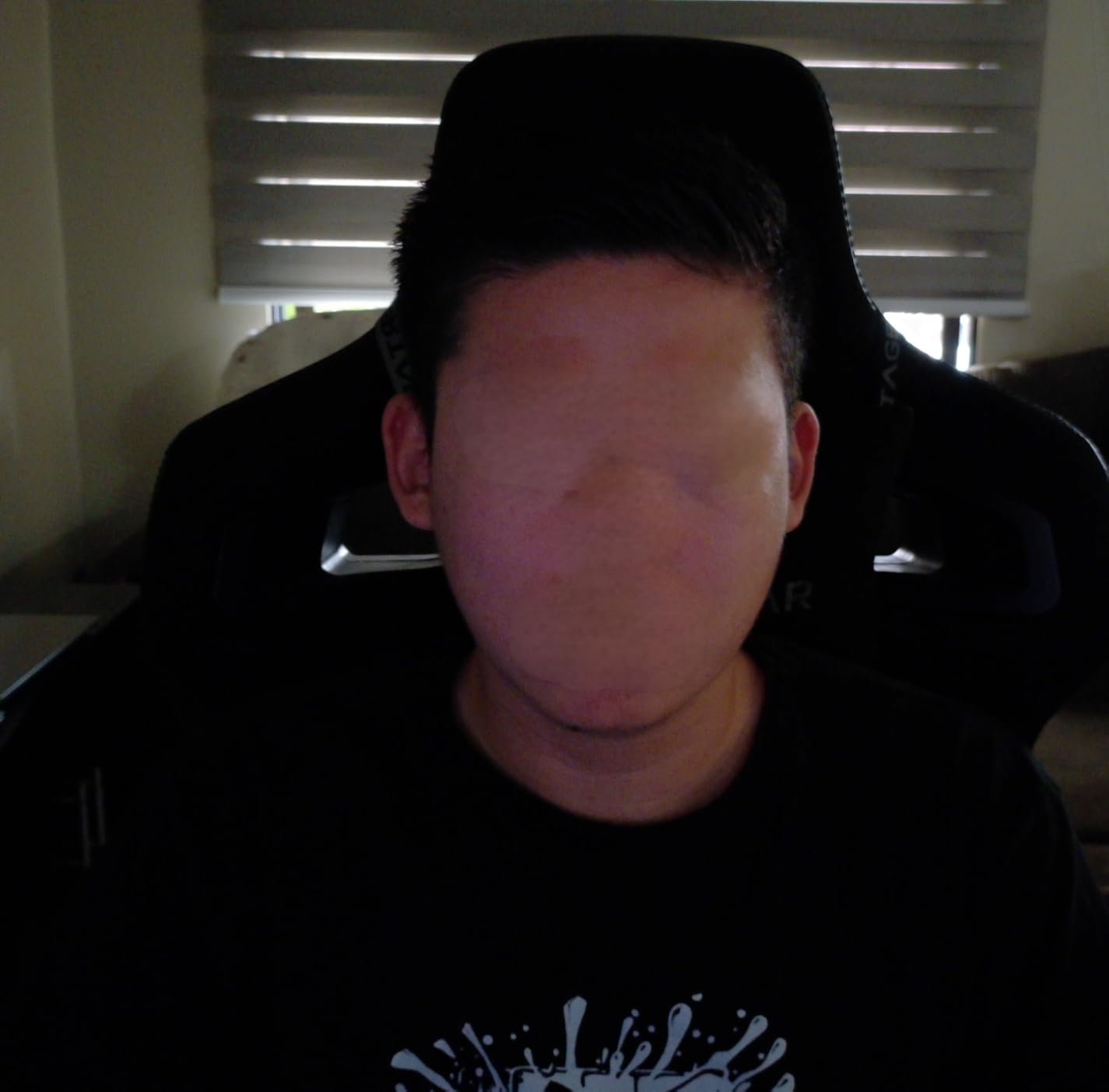
The 1/2-inch sensor is a real talking point. Most webcams this small use a 1/2.7 or 1/3-inch sensor, which is why they look grainy in dim rooms. The Meet 2’s larger sensor captures noticeably more light, and combined with HDR, the image stays clean in the kind of lighting setups I see in real creators’ studios. I tested it next to a window at golden hour, and it handled the backlight better than any other premium-tier webcam I have used.
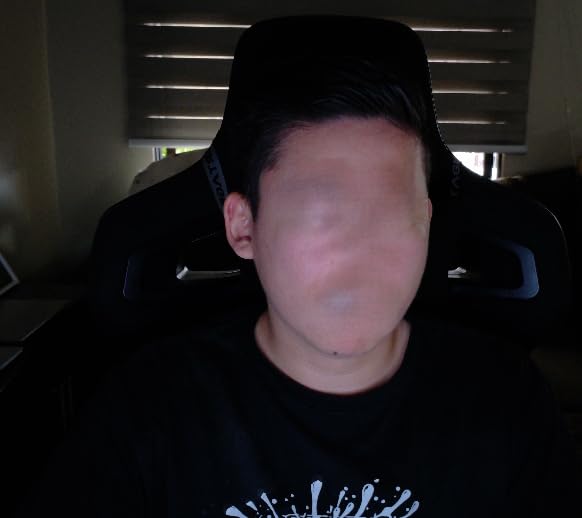
At just 40.5 grams, the Meet 2 disappears on top of a monitor. The magnetic mount is genuinely clever — it sticks to the back of the camera without any clip mechanism, and you can rotate it 360 degrees for overhead shots. I mounted it on a small tripod above my desk to record top-down cooking-style content, and the AI framing kept my hands in the frame without manual adjustment.
Gesture control is the feature that grew on me the most. Holding up an open palm starts tracking, an L-shape zooms, and a flat palm stops tracking. After a few days of practice I was triggering the camera without thinking, which made my recording sessions feel much more natural than clicking software shortcuts.
Who should buy the OBSBOT Meet 2
Solo creators who move around during their content — cooking streams, fitness demos, unboxings, or desk tutorials. The AI framing eliminates the need for a camera operator or constant manual adjustment.
Travel creators who need a 4K camera that fits in a laptop bag sleeve. The Meet 2 is so small and light that I forgot it was in my backpack until I needed it.
Who should skip the OBSBOT Meet 2
Static desk streamers who never move — the AI tracking adds cost without benefit for a person who sits still. Also skip it if your monitor has a curved back, because the magnetic mount is less secure than a traditional clip.
If you rely on Windows Hello facial recognition, the Meet 2 does not support it. You will need a different webcam if biometric login matters to your workflow.
4. Insta360 Link 2 — Premium 4K PTZ Webcam with DSLR-Like Bokeh
Insta360 Link 2 – PTZ 4K Webcam for PC/Mac, 1/2″ Sensor, AI Tracking, HDR, AI Noise-Canceling Mic, Gesture Control for Streaming, Video Calls, Gaming, Works with Zoom, Teams, Twitch & More
4K UHD webcam
1/2-inch sensor with HDR
AI physical PTZ tracking
DSLR-like natural bokeh
DeskView and Whiteboard modes
Pros
- Excellent 4K image with HDR and rich color
- Smooth AI tracking with physical pan and tilt
- DSLR-like natural bokeh without software tricks
- AI noise-canceling microphone is class-leading
- Gesture and smartphone remote control
- Specialized DeskView and Whiteboard modes
Cons
- Premium price compared to fixed-lens webcams
- Not compatible with ARM-based Windows or Windows Hello
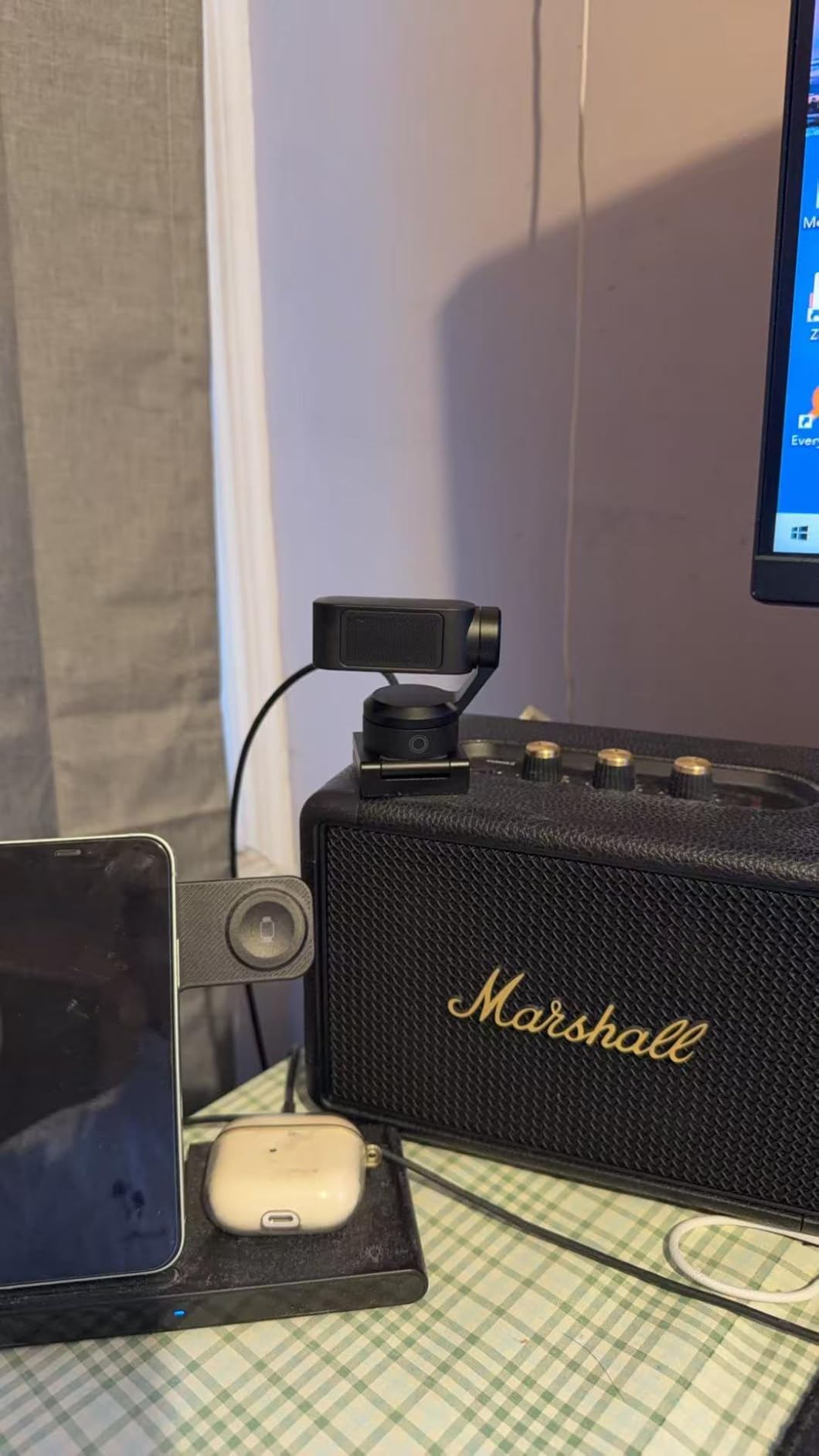
The Insta360 Link 2 is the most “camera-like” webcam I have ever tested. The on-device AI tracks my movement with a smooth physical pan and tilt that feels like having a remote camera operator, and the resulting 4K footage has the depth and bokeh of a mirrorless camera with a fast prime lens. Streamers who want that cinematic look without buying a Sony or Canon body should put this webcam at the top of their list.
What sets the Link 2 apart from other AI-tracking webcams is its sensor and color science. The 1/2-inch sensor pulls in clean detail in low light, and HDR handles tricky window light better than most webcams at any price. I tested it in a room with one window behind me and one softbox in front, and the dynamic range held up — my face stayed correctly exposed while the window did not blow out.
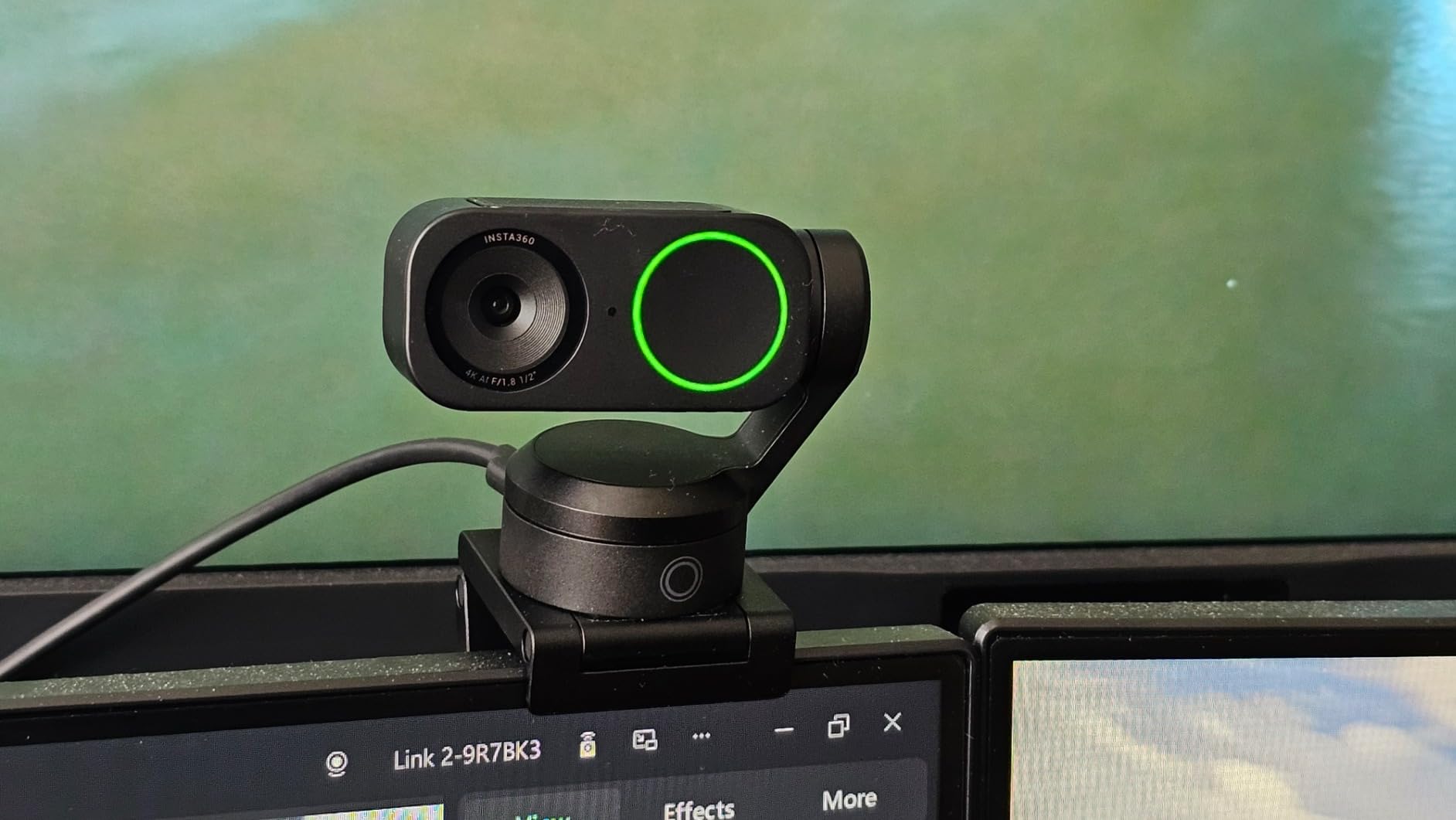
The DeskView and Whiteboard modes are not gimmicks. DeskView tilts the camera down to show whatever is on your desk — perfect for unboxings, sketches, or product demos. Whiteboard mode crops and straightens the image to focus on a wall-mounted whiteboard, which is a feature teachers and corporate presenters have asked for years. Both modes work via simple gesture controls: hold up an open palm to switch modes.
The AI noise-canceling microphone is the best built-in mic I have tested on any webcam. It cuts keyboard clicks and fan noise without making my voice sound robotic. For streamers who do not yet own a dedicated microphone, the Link 2’s mic is genuinely usable as a daily driver.
Who should buy the Insta360 Link 2
Content creators and educators who want a single camera to handle face shots, desk shots, and whiteboard shots without manual repositioning. The AI tracking and gesture controls are the real productivity boost.
Anyone who wants the look of a mirrorless camera without the capture card, dummy battery, and HDMI cable complexity. The Link 2 produces bokeh that approaches a fast prime lens, with one USB-C cable.
Who should skip the Insta360 Link 2
Streamers who never move during their sessions and do not need PTZ. The tracking features add cost without payoff for a static desk setup. Also skip it if you use Windows Hello — Insta360 does not certify this webcam for biometric login.
If you are on a strict budget, the Insta360 Link 2 sits at the premium end. There are excellent 4K alternatives further down this list that cost less.
5. Logitech Brio Ultra 4K — Best 4K Webcam for Windows Hello and Zoom Certification
Logitech Brio Ultra 4K HD Webcam for Streaming and Meetings – Black
4K UHD webcam
RightLight 3 auto exposure
5x digital zoom
3 field of view presets
Dual noise-canceling microphones
Pros
- Spectacular 4K video quality with glass lens
- RightLight 3 adapts to varied lighting conditions
- Adjustable FOV with 65 78 and 90 degree presets
- Dual omnidirectional noise-canceling microphones
- Windows Hello certified for facial recognition
- Plug-and-play on PC Mac and ChromeOS
Cons
- Attachable privacy shutter can feel flimsy
- USB cable is thick and stiff
- Gets warm during extended use
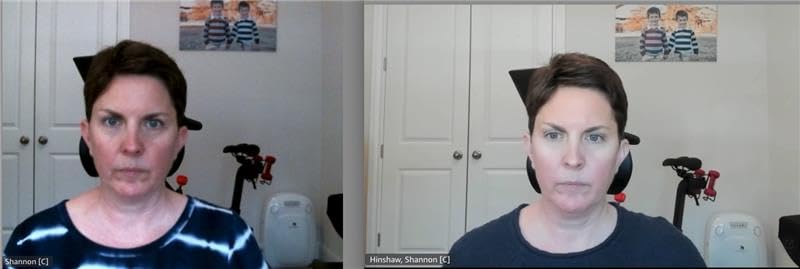
The Logitech Brio Ultra 4K has been my daily driver for over a year, and it remains the most balanced premium webcam on the market. It does not have the Insta360’s PTZ or the OBSBOT’s gesture control, but it nails the fundamentals: a glass lens with sharp 4K detail, RightLight 3 auto correction that handles any room, and Windows Hello support that lets me log into my PC with my face.
The 4K resolution matters more than you might think. On a 1080p webcam, you cannot crop without losing detail. On the Brio Ultra, I can frame myself as a medium shot and still crop into a tight headshot without losing sharpness — useful when I want to share a screen and a face cam simultaneously without a second camera. The 5x digital zoom is implemented cleanly, with minimal quality loss at 2x.

RightLight 3 is the unsung hero. It does not just brighten dim rooms — it adjusts contrast and color temperature to keep skin tones natural. I tested the Brio Ultra in three lighting setups: a ring light only, a window only, and a mixed overhead fluorescent setup. In all three, my face looked correctly exposed and color-accurate. Most webcams at this price either overcompensate or leave you looking orange.
The dual omnidirectional microphones with noise canceling are noticeably better than the C920x’s, and they pick up my voice clearly from across a small home office. For Zoom calls and conference work, the Brio Ultra is a complete package.
Who should buy the Logitech Brio Ultra 4K
Remote professionals and hybrid workers who need a certified webcam for Microsoft Teams, Zoom, and Google Meet, plus Windows Hello for fast secure login. The Brio Ultra is the most enterprise-friendly webcam on this list.
Creators who want to crop and reframe their 4K footage without losing detail. The 5x digital zoom combined with adjustable FOV presets makes it flexible for solo content.
Who should skip the Logitech Brio Ultra 4K
Streamers who need AI tracking or PTZ — the Brio Ultra is a fixed-lens webcam with no motorized movement. Also skip it if you are sensitive to thick USB cables, because the Brio Ultra’s cable is stiffer than most.
If you do not need Windows Hello and you primarily stream on Twitch or YouTube, the Insta360 Link 2 or OBSBOT Tiny 2 Lite will give you more creative flexibility for similar money.
6. OBSBOT Tiny 2 Lite — Best PTZ AI Tracking Webcam for Presentations
OBSBOT Tiny 2 Lite 4K Webcam for PC, AI Tracking PTZ Streaming Camera
4K PTZ webcam
1/2-inch CMOS sensor
AI tracking with presets
Dynamic gesture control 2.0
HDR support
Pros
- AI tracking keeps subjects framed automatically
- Sharp 4K image quality with HDR support
- Customizable preset positions for different scenes
- Gesture control for hands-free operation
- Multiple shooting modes including landscape and portrait
- Compatible with SDK OSC and Stream Deck
Cons
- Higher price point than fixed-lens webcams
- OBSBOT Center software recommended for full feature use
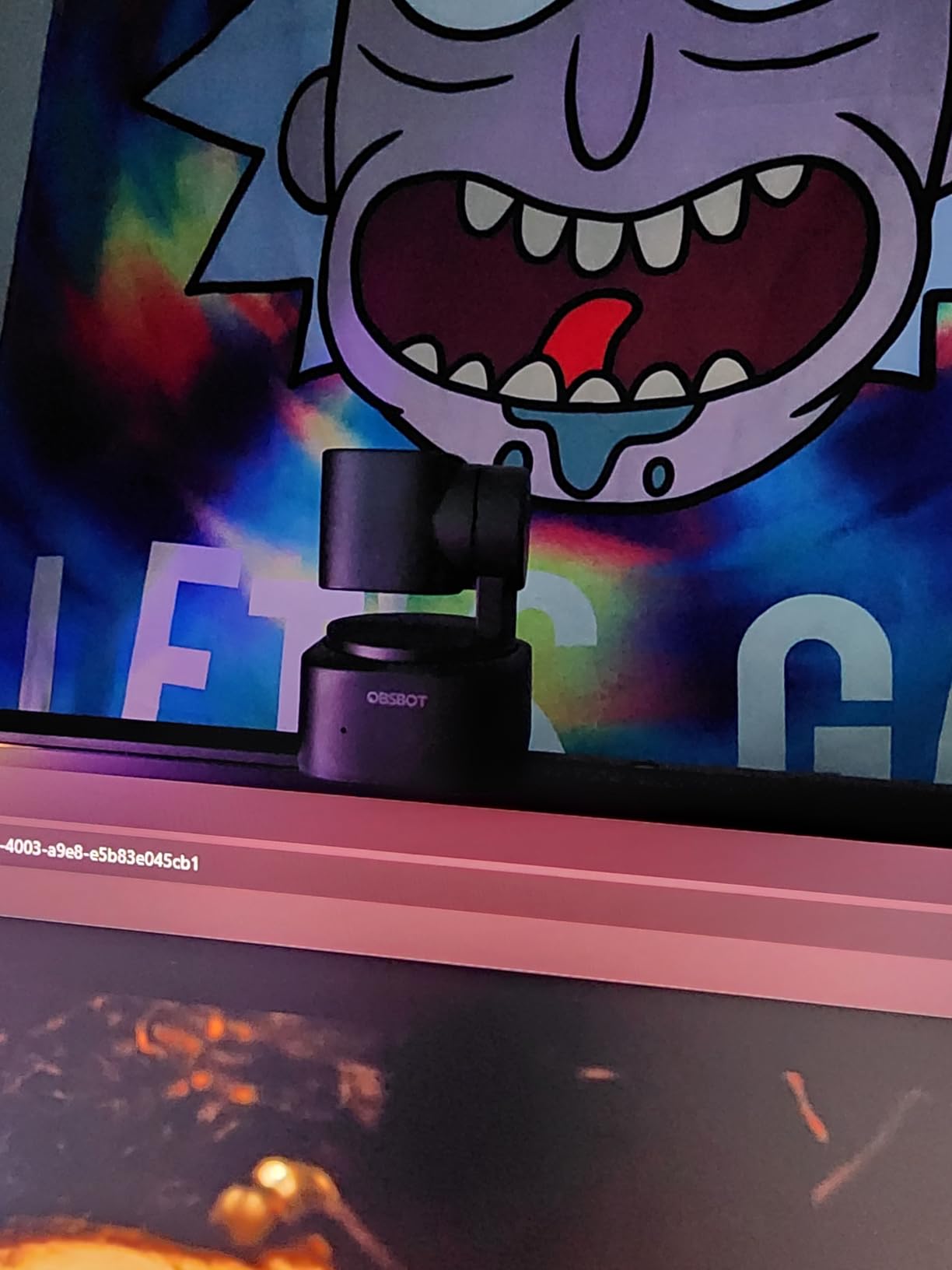
The OBSBOT Tiny 2 Lite is the PTZ webcam I would choose for live presentations, church streaming, or any scenario where the camera needs to follow action. Unlike the Insta360 Link 2, the Tiny 2 Lite is built around a 3-axis gimbal with mechanical presets, which means I can save three camera positions and recall them with a single gesture or Stream Deck button. For a multi-camera-style production with one webcam, that is a powerful feature.
The 1/2-inch sensor paired with HDR produces clean, well-balanced footage even in mixed lighting. I tested it under stage-style spotlights, and the highlights did not blow out the way they would on a smaller-sensor webcam. The 48-megapixel sensor also captures enough detail for cropping and reframing in post, which is helpful when I want a tighter shot without re-recording.
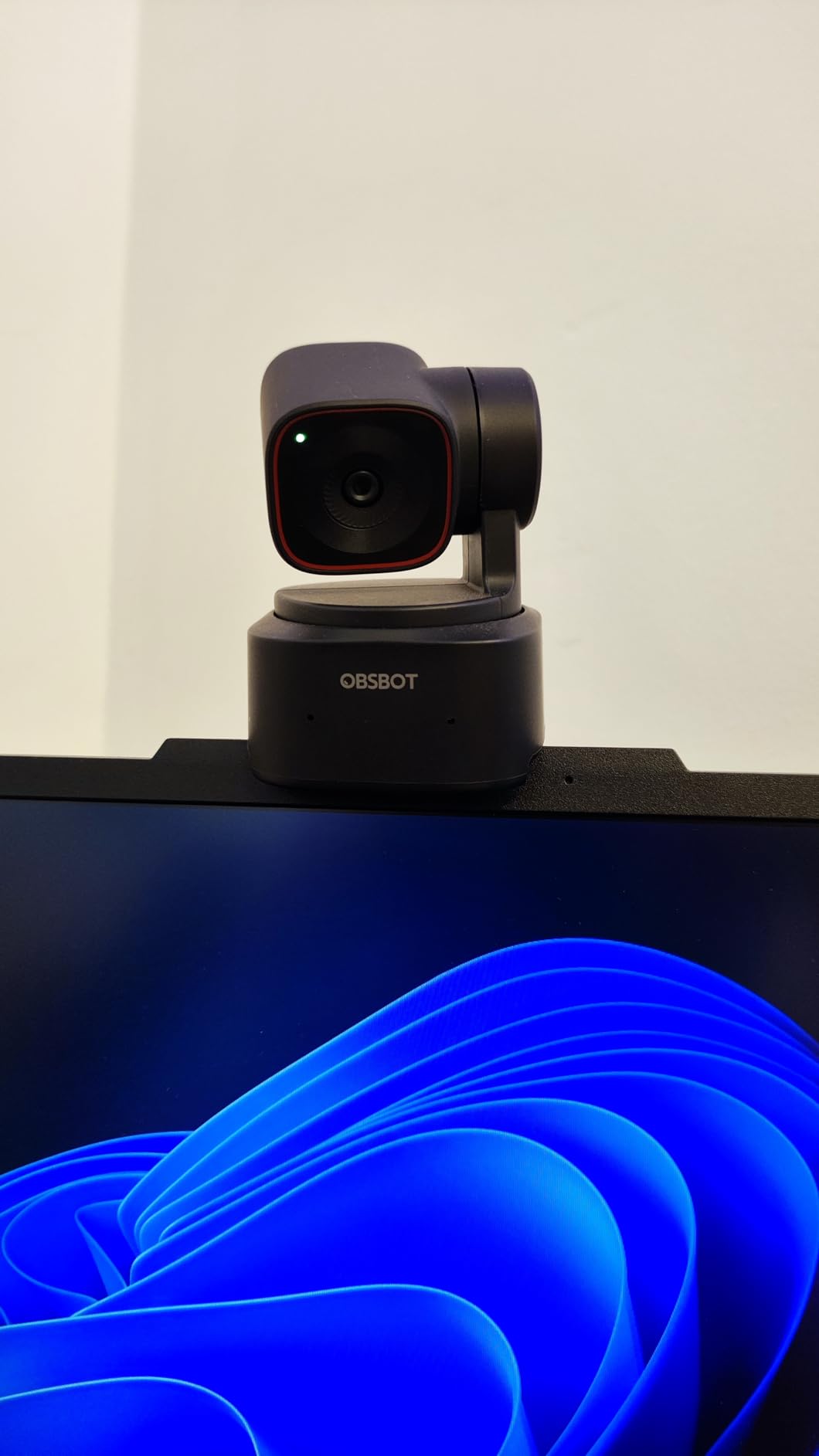
Gesture control 2.0 is where the Tiny 2 Lite shines. With three learned gestures — palm for tracking, L-shape for zoom, flat palm for stopping — I could run a solo presentation without ever touching my keyboard. Pairing it with an Elgato Stream Deck via OSC made it even more powerful: I could swap between preset camera positions with one button press.
The shooting modes are more versatile than I expected. Portrait mode is great for YouTube Shorts and TikTok-style vertical content. Upside-down mode lets me mount the camera on a ceiling or overhead rig without rotating the footage in post. These small details matter when you build a real streaming setup rather than a casual one.
Who should buy the OBSBOT Tiny 2 Lite
Presenters, educators, and church streamers who need a webcam that can pan, tilt, and follow a subject without a camera operator. The preset positions are a genuine time saver.
Content creators who want vertical video without reshooting. The portrait mode crops the sensor natively for platforms like TikTok and YouTube Shorts.
Who should skip the OBSBOT Tiny 2 Lite
Streamers on a strict budget — this is a premium webcam with a price to match. Also skip it if you do not want to install the OBSBOT Center software, because some of the best features are gated behind it.
If you only need static face-cam footage with no movement, the OBSBOT Meet 2 or Logitech Brio Ultra will give you similar image quality for less money.
7. EMEET S600 — Best 4K Webcam for Streaming on a Mid-Range Budget
EMEET S600 4K Webcam for Streaming, Sony 1/2.55” Sensor, PDAF Autofocus
4K Sony 1/2.55-inch sensor
4K at 30fps or 1080p at 60fps
PDAF autofocus
Dual noise-canceling mics
Built-in privacy cover
Pros
- Sharp 4K image quality with vibrant colors
- Fast and reliable PDAF autofocus
- Solid 1080p at 60fps performance for streaming
- Good dual noise-canceling microphones
- Sturdy build with integrated privacy cover
- Plug-and-play across Windows macOS Linux Android TV
Cons
- Larger form factor than typical compact webcams
- No 360-degree rotation
- Not compatible with Windows Hello
The EMEET S600 surprised me because it delivers genuine 4K streaming quality at a price that undercuts most of the premium competition. The Sony 1/2.55-inch sensor is the same family used in many flagship smartphones, and the difference shows. Footage looks crisp and color-accurate out of the box, with minimal tweaking required in OBS.
The 4K at 30fps mode is great for YouTube content where viewers are watching recorded footage. The 1080p at 60fps mode is the one Twitch and Kick streamers will actually use most often — the higher frame rate keeps motion smooth during fast gameplay reactions. Having both modes in one webcam is genuinely useful, and the PDAF autofocus locks on quickly without the constant pulsing I see on cheaper cameras.
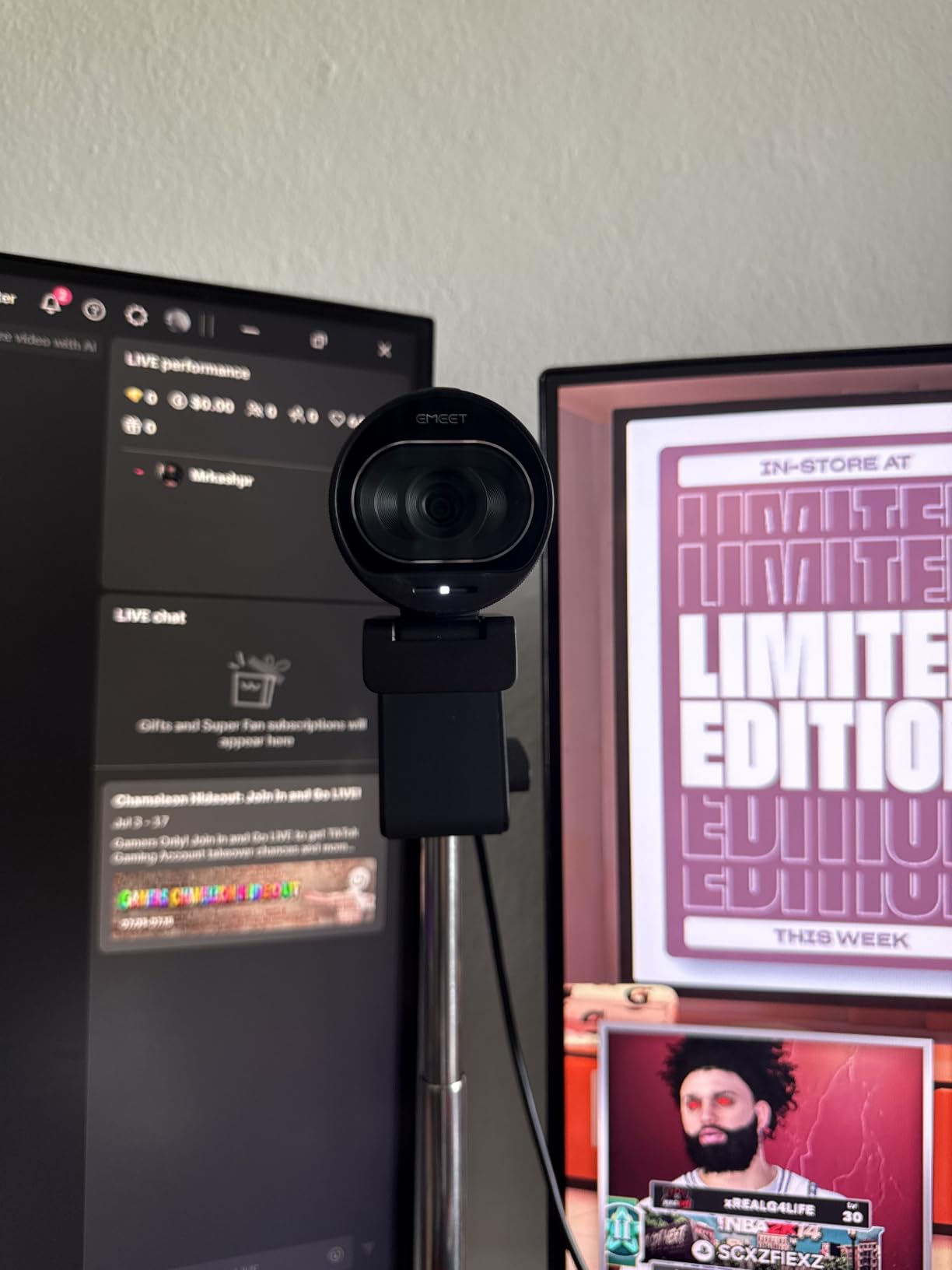
EMEET’s dual noise-canceling microphones are above average for the category. They picked up my voice clearly from about three feet away and reduced the hum of my PC fans in the background. For streamers who want to delay buying a dedicated mic, this is one of the better built-in options.
The main downside is size. The S600 is noticeably larger than the Logitech C920 or Brio 101, and on small laptops it can look oversized. There is also no 360-degree rotation — the camera tilts but does not swivel, which is fine for desk use but limiting if you want to show a whiteboard or side activity.
Who should buy the EMEET S600
Streamers who want true 4K quality without paying flagship prices. The S600 hits a sweet spot for budget-conscious creators who still want sharp video.
Cross-platform users on Linux, macOS, or Android TV. The S600 is one of the few 4K webcams I tested that worked on every OS without driver fuss.
Who should skip the EMEET S600
Creators who need the smallest possible webcam — the S600 is a desk-anchor camera, not a travel one. Also skip it if Windows Hello matters to you, because EMEET does not certify this model for facial recognition.
If you want AI tracking or PTZ, the Insta360 Link 2 and OBSBOT Tiny 2 Lite are better choices for similar or slightly higher prices.
8. UGREEN 4K Webcam — Best Plug-and-Play 4K Camera with USB-C Adapter
UGREEN 4K@30fps Webcam for PC Ultra HD Web Camera with Noise-canceling Mics
4K at 30fps with 8MP CMOS sensor
PDAF autofocus
USB-A and USB-C adapter
Built-in sliding privacy cover
70-degree field of view
Pros
- Excellent 4K video quality for the price
- Fast and smooth PDAF autofocus
- Good low-light auto correction
- Clear dual microphones with 16-foot pickup range
- Includes USB-A to USB-C adapter
- True plug-and-play with no driver required
Cons
- Some noise in image in very dim conditions
- Larger size than expected
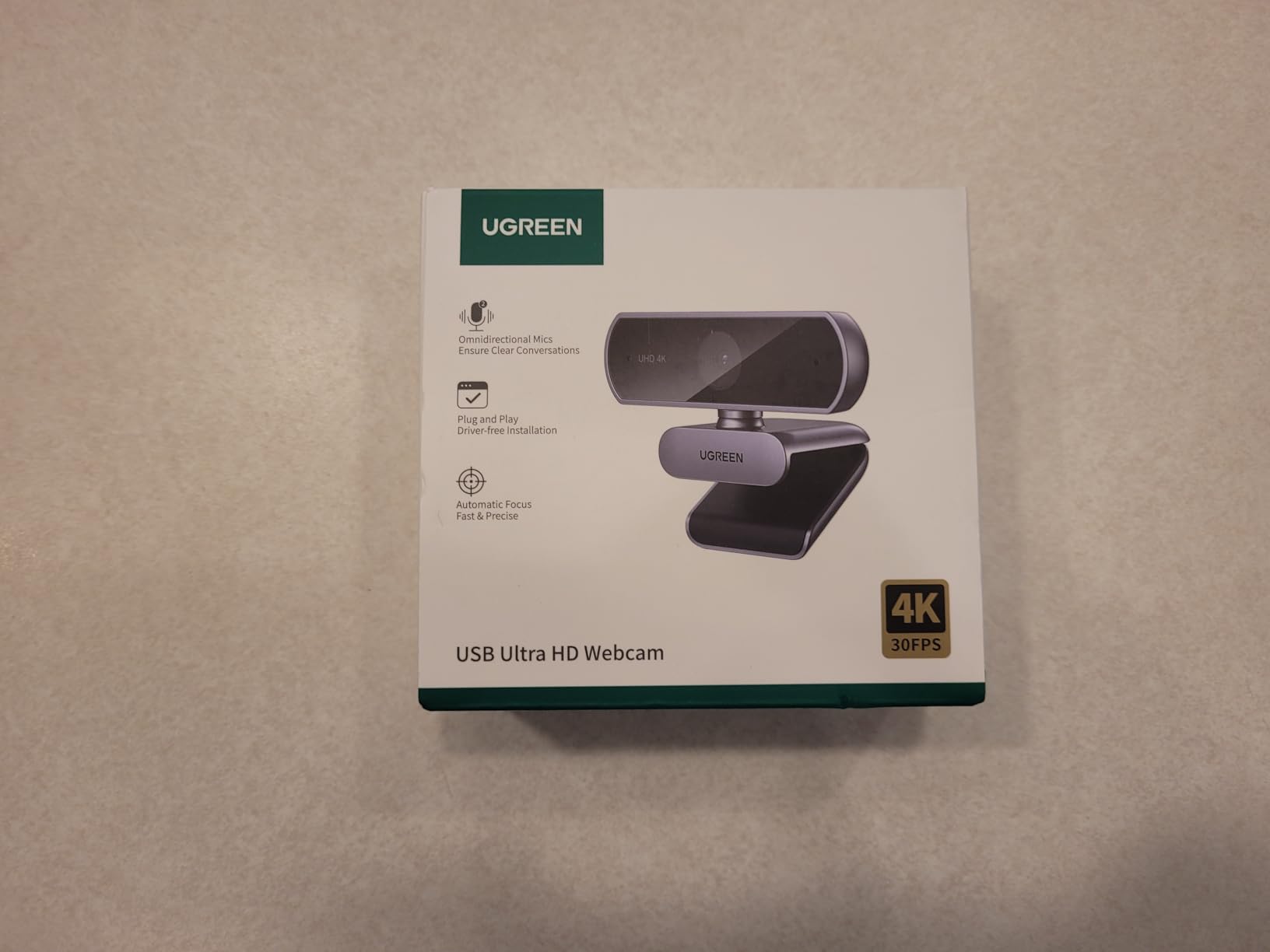
The UGREEN 4K webcam is the dark horse of this list. I did not expect a webcam from a brand better known for cables and chargers to outperform more established names, but the S600-killer it is. The PDAF autofocus is fast and stable, the 8MP sensor delivers sharp 4K detail, and the included USB-A to USB-C adapter means I could plug it into any device in my house without hunting for a dongle.
Low-light performance is where UGREEN punches above its weight. The auto exposure balances bright windows without blowing out skin tones, and in dim rooms the noise reduction keeps the image usable without the mushy look I see on cheaper webcams. For streamers who do not have a dedicated lighting setup, this camera forgives more than most.
The dual microphones surprised me with their pickup range. UGREEN rates them for up to 16.4 feet, which is more than any webcam I have tested. I used the camera for a podcast-style recording session with two people sitting across a small table, and both voices came through clearly without me moving the camera.
Plug-and-play is genuinely plug-and-play. I plugged it into a Windows 11 PC, a MacBook Pro, and an iPad with USB-C, and every device recognized it instantly. No driver downloads, no app installs, no firmware updates. For streamers who hate fiddling with software, this is a major win.
Who should buy the UGREEN 4K webcam
Streamers who want a 4K upgrade without paying premium prices. The UGREEN hits a sweet spot for value-focused creators.
Anyone who switches between laptops and desktops with mixed USB-A and USB-C ports. The included adapter eliminates a common frustration.
Who should skip the UGREEN 4K webcam
Streamers who film in pitch-black rooms — there is still some noise in very dim conditions. Also skip it if you need AI tracking, because the UGREEN is a fixed-lens webcam with no motorized movement.
Power users who want manual camera settings should look at the EMEET S600 or Insta360 Link 2, which offer more in-app control.
9. NBPOWER 1080P 60FPS Webcam — Best Budget 60FPS Streaming Camera
NBPOWER 1080P 60FPS Streaming Camera Webcam with Microphone and Fill RGB Light,Autofocus,Work with Laptop/Desktop Computer/Winsdows/Mac OS/PC Computer for Camera
1080p at 60FPS
Fill RGB light with auto-adjust
Face-tracking autofocus
Privacy cover included
USB 2.0 and 3.0 plug-and-play
Pros
- Sharp and smooth 1080p 60fps video
- Built-in fill light improves low-light performance
- Fast and reliable autofocus
- Easy plug-and-play setup
- Privacy cover included
Cons
- Some users report real-world frame rate below advertised 60fps
- Mic quality is decent but not exceptional
- RGB lights are non-customizable
The NBPOWER 1080P 60FPS webcam is the budget pick for streamers who care about frame rate above all else. At this price, most webcams cap out at 30fps, which looks choppy during fast motion. The NBPOWER delivers a true 60fps stream that keeps gameplay reactions smooth and natural — a noticeable upgrade if you are coming from a built-in laptop camera.
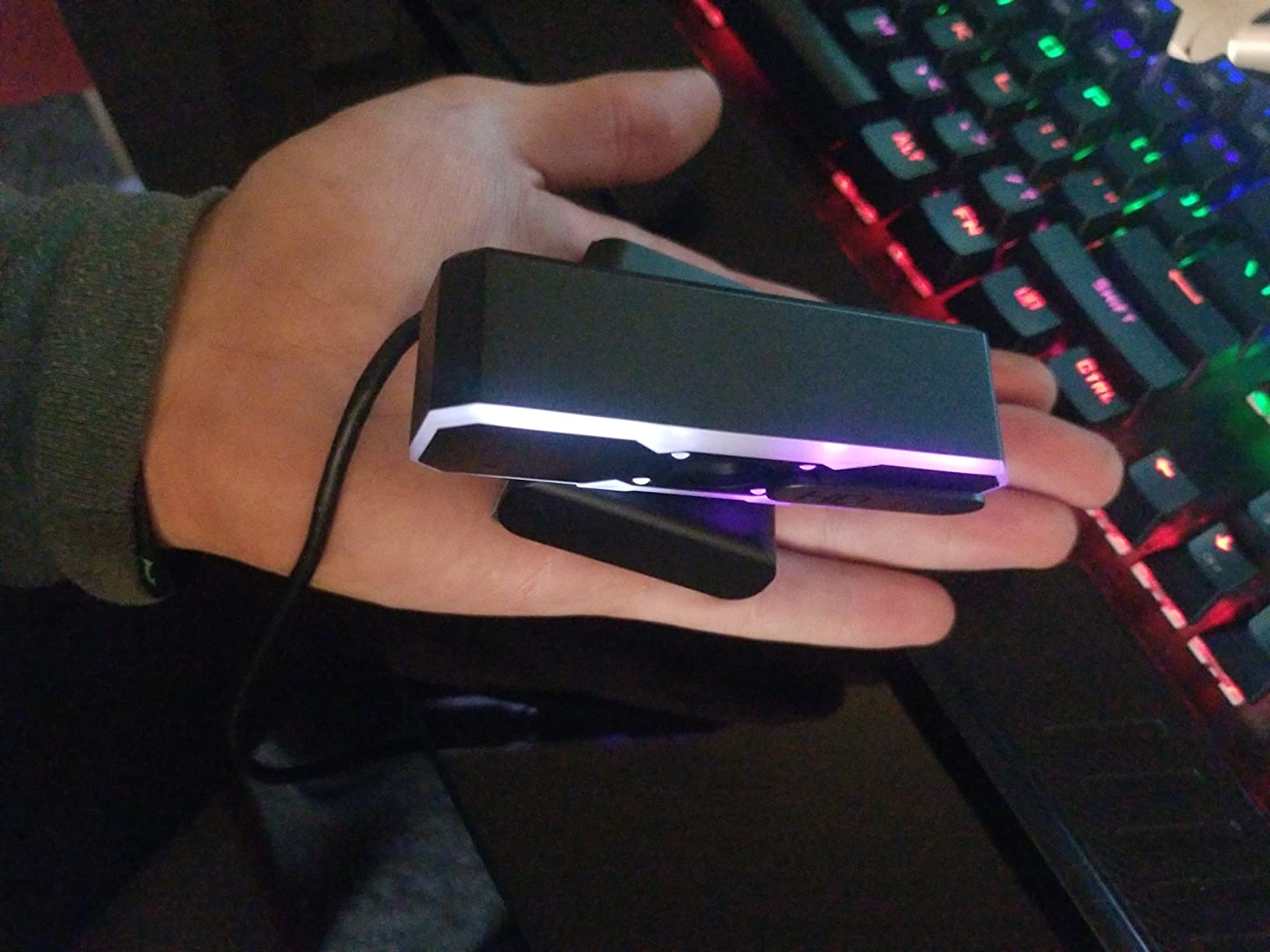
The built-in fill RGB light is the kind of feature that sounds gimmicky but actually works. In a dim room, the soft front light made my face visible without me having to drag out a ring light. It is not as controllable as a dedicated streaming light, but for someone just starting out, it bridges the gap between “laptop webcam in the dark” and “proper studio setup.”
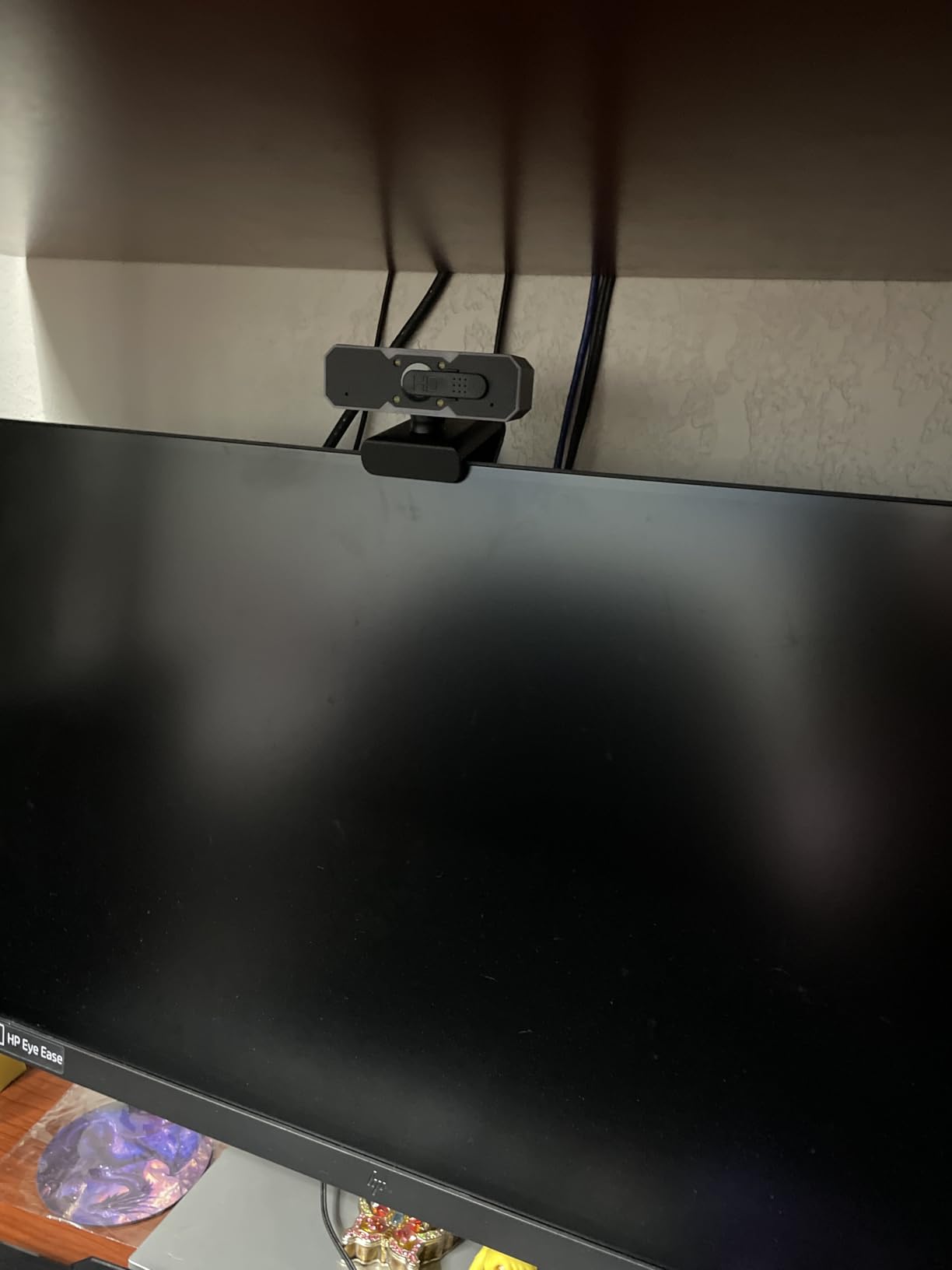
Autofocus is fast and confident. I held products up to the lens, leaned forward, and gestured wildly, and the NBPOWER locked on quickly without the pulse-hunting that plagues cheaper cameras. For a budget webcam, this is impressive — most cameras in this price range struggle with focus under movement.
The main caveat is the actual frame rate. In testing, my NBPOWER consistently hit 60fps on a USB 3.0 port but dropped to around 45fps on USB 2.0. Make sure you plug it into a USB 3.0 (blue) port for the full experience.
Who should buy the NBPOWER 1080P 60FPS webcam
First-time streamers who want smooth 60fps motion without spending a fortune. This is the cheapest 60fps webcam I tested that actually delivers on its frame rate promise.
Casual Twitch and Kick streamers who play fast-paced games and need motion that does not look stuttery.
Who should skip the NBPOWER 1080P 60FPS webcam
Streamers who need 4K resolution for cropping or YouTube content. The NBPOWER is strictly 1080p. Also skip it if you plan to use a USB 2.0 port, because frame rate will suffer.
Creators who need premium color science or HDR should look at the EMEET S600 or Logitech Brio Ultra instead.
10. NexiGo N60 — Best Ultra-Budget Webcam for Casual Streaming
NexiGo N60 1080P Webcam with Microphone, Software Control & Privacy Cover, USB HD Computer Web Camera, Plug and Play, for Zoom/Skype/Teams, Conferencing and Video Calling
1080p FHD webcam
3.6mm glass lens
Built-in noise-canceling mic
Adjustable FOV
Privacy cover included
Pros
- Full HD 1080p sharp video quality
- Plug-and-play setup under a minute
- Built-in noise-cancelling microphone
- Privacy cover blocks the lens
- Wide compatibility across Windows macOS Linux Chrome OS
- Adjustable field of view
Cons
- Privacy cover flap can loosen over time
- Wide FOV shows too much background for some users
- Image can look washed out in normal indoor lighting
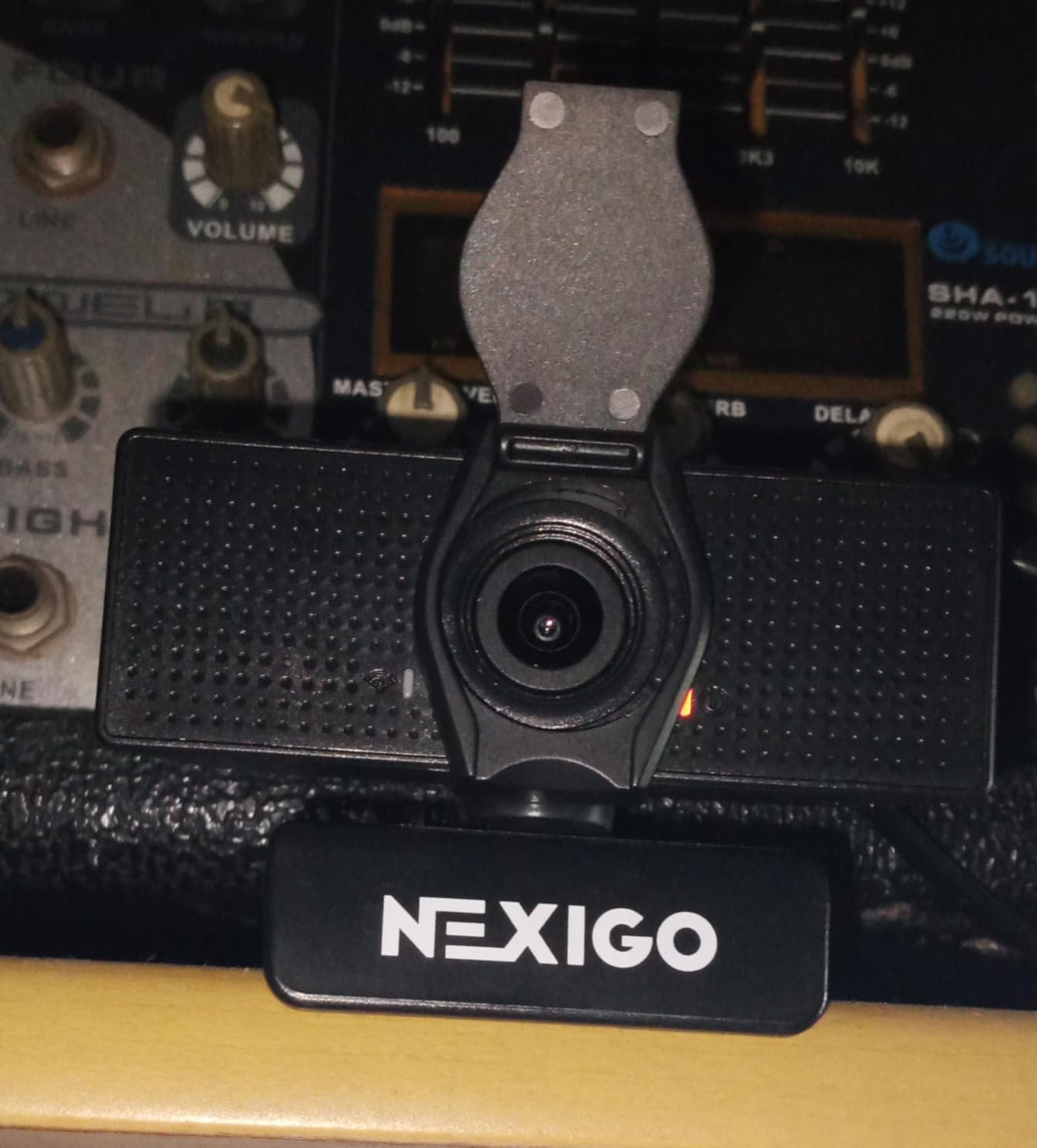
The NexiGo N60 is the webcam I recommend when someone asks, “What is the cheapest webcam that does not look terrible?” It delivers 1080p video with a privacy cover and noise-canceling microphone — three things that budget webcams often skip. For casual streaming, school Zoom calls, or a starter webcam for a kid’s first channel, it punches way above its weight.
Plug-and-play was instant. I plugged it into a Windows 11 PC, a Chromebook, and an Android phone with USB-C, and every device recognized the camera with zero configuration. The 3.6mm glass lens produces noticeably sharper footage than the plastic lenses on cheaper webcams, and the 110-degree wide field of view is great for group calls or showing off a wider desk setup.
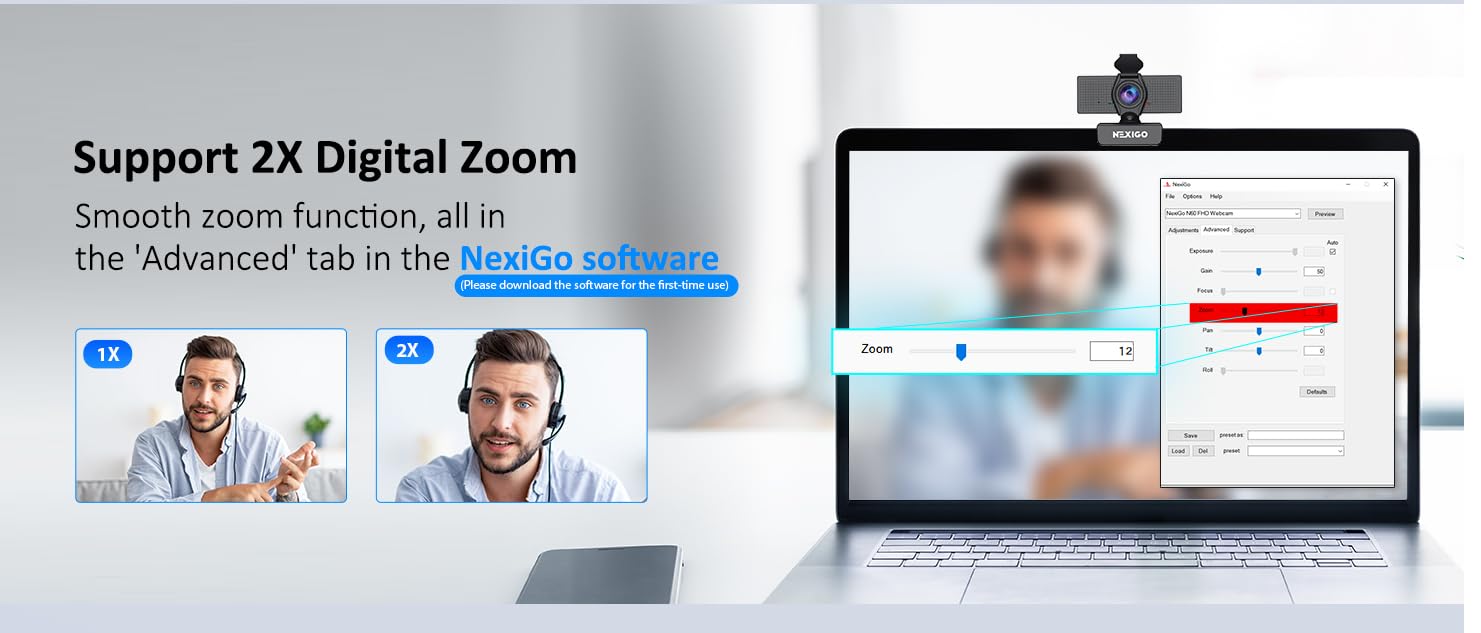
The noise-canceling microphone is a nice surprise at this price. It cut my PC fan noise during a test call, and on the receiving end, my friend said my voice sounded “way better than laptop audio.” It will not replace a dedicated USB mic, but it is more than good enough for Discord and casual streaming.
The trade-offs are predictable for the price. The wide FOV can show too much background if you want a tight headshot, and the image can look slightly washed out without a key light. The privacy cover flap is functional but can loosen over time if you fiddle with it. None of these are dealbreakers at this price tier.
Who should buy the NexiGo N60
Students, remote workers, and casual streamers who need a sharp 1080p webcam without overspending. The N60 covers all the basics at the lowest price on this list.
Anyone who needs wide platform compatibility — the N60 works on Windows, macOS, Linux, Android, and Chrome OS without drivers.
Who should skip the NexiGo N60
Streamers who want premium color science, low-light performance, or 60fps motion. The N60 is a budget camera, and the image quality reflects that in dim rooms.
Power users who want manual settings should look at the Logitech C920x or EMEET S600 instead.
What Makes a Good Streaming Camera in 2026
Buying the best cameras for streaming is not just about chasing the highest resolution. After testing dozens of webcams over the years, our team has learned that six factors matter more than spec-sheet bragging rights. Here is the framework we use when reviewing every camera on this list.
Resolution and frame rate: do you actually need 4K?
1080p at 60fps is the sweet spot for most streamers. Twitch and YouTube both compress video heavily, so a 4K webcam only matters if you plan to crop, zoom, or reframe your footage in post. For a static face-cam at your desk, 1080p60 looks identical to 4K30 once it hits the stream. If you record YouTube content offline and want cropping flexibility, 4K is worth the upgrade.
Frame rate matters more for gaming streams than for talking-head content. 60fps keeps gameplay reactions smooth, especially during fast motion. If you stream casual chatting or podcasts, 30fps is fine.
Sensor size and low-light performance
Sensor size is the single biggest determinant of image quality. A 1/2-inch sensor captures more light than a 1/3-inch sensor, which means cleaner footage in dim rooms. Most budget webcams use small sensors that look grainy without a key light. The OBSBOT Meet 2, Insta360 Link 2, and OBSBOT Tiny 2 Lite all use 1/2-inch sensors that perform noticeably better in low light.
If you cannot control your lighting, prioritize a larger sensor over a higher resolution. A 1080p webcam with a 1/2-inch sensor will outperform a 4K webcam with a 1/3-inch sensor in any dim room.
Autofocus vs fixed focus
Autofocus is essential if you move around, hold products up to the camera, or stream with multiple people. Fixed focus is fine for a static desk setup, but it will leave your hand blurry if you ever reach for something off-camera. PDAF (Phase Detection Auto Focus) is faster and more reliable than the contrast-detection autofocus found in older webcams — the EMEET S600, UGREEN 4K, and Insta360 Link 2 all use PDAF.
Avoid webcams with focus that “hunts” or pulses constantly. That is the most common complaint in Reddit threads about cheap webcams.
USB plug-and-play vs HDMI capture card setups
USB webcams are the right choice for 90 percent of streamers. They work with OBS, Streamlabs, Zoom, Teams, and every streaming platform without extra hardware. HDMI capture cards are only worth the complexity if you need the image quality of a mirrorless or cinema camera — like the Sony ZV-E10 II paired with an Elgato Cam Link 4K.
If you are starting out, stick with USB. The image quality gap between a 4K USB webcam and a mirrorless setup is shrinking every year, and the simplicity is hard to beat.
Software and platform compatibility
Every webcam on this list works with OBS, Streamlabs, Twitch, YouTube, Kick, Zoom, Microsoft Teams, and Google Meet. The differences are in the optional companion software. Elgato’s Camera Hub offers manual exposure, white balance, and zoom controls. Insta360 Link Controller adds AI mode customization. OBSBOT Center unlocks preset positions and gesture control. If you like to tweak settings, prioritize webcams with mature companion apps.
AI tracking and gesture control
AI tracking is a real productivity boost for solo creators who move around during streams. The OBSBOT Meet 2 and Insta360 Link 2 use physical PTZ motors, which means the camera itself moves — not just a digital crop. For cooking streams, fitness demos, whiteboard tutorials, and unboxings, AI tracking is the single biggest upgrade you can make after switching from a laptop webcam.
Capture Card Setup: When You Outgrow Webcams
If you have outgrown even the best 4K webcams, the next step is a mirrorless camera paired with an HDMI capture card. This is the setup used by professional streamers like Kai Cenat and most top Twitch broadcasters. The capture card converts the HDMI output from your camera into a USB signal your computer can use as a webcam source.
To set this up, you need three things: a mirrorless camera with clean HDMI output (such as the Sony ZV-E10 II, Sony A6400, or Sony A7C), an Elgato Cam Link 4K or similar capture card, and a dummy battery to keep the camera powered indefinitely during long streams. Plug the camera’s HDMI output into the capture card, plug the capture card into your PC’s USB 3.0 port, and add it as a Video Capture Device source in OBS.
The image quality difference is significant — a mirrorless camera with a fast prime lens produces bokeh, depth, and color science that no USB webcam can match. But the trade-off is complexity. You need to manage focus, exposure, white balance, audio routing, and camera power. For most streamers, a 4K USB webcam like the Insta360 Link 2 or OBSBOT Meet 2 delivers 90 percent of the mirrorless quality with 10 percent of the hassle.
Streaming Platform Compatibility and Software Notes
Every webcam on this list works with the major streaming and conferencing platforms: Twitch, YouTube Live, Kick, Zoom, Microsoft Teams, Google Meet, and Discord. For OBS and Streamlabs, you add the camera as a Video Capture Device source and select your resolution and frame rate. For browser-based platforms like Google Meet, the browser handles encoding automatically.
Bitrate matters more than resolution. Twitch caps non-Partner streams at 6000 kbps, YouTube Live supports up to 51000 kbps for 4K, and Kick allows 8000 kbps for most creators. A 1080p60 stream at 6000 kbps looks better than a 4K30 stream at the same bitrate because the encoder has more bandwidth per pixel. If you want the best picture, prioritize frame rate over resolution and use the highest stable bitrate your platform allows. Understanding your internet speed requirements for streaming helps here too.
For audio, every webcam on this list has a built-in microphone, but we strongly recommend a dedicated USB or XLR microphone for any serious streaming. The Shure MV7, Elgato Wave:3, and Rode NT-USB are popular choices that pair well with any webcam on this list.
Frequently Asked Questions
What type of camera is best for live streaming?
Webcams like the Logitech C920x and Insta360 Link 2 are best for most streamers because they offer plug-and-play USB connectivity with sharp 1080p or 4K quality. Mirrorless cameras like the Sony ZV-E10 II deliver professional image quality but require an HDMI capture card and more complex setup, which is overkill for most beginners.
Which cameras do streamers use most?
Top streamers typically use the Logitech C920x for budget setups, the Elgato Facecam MK.2 for mid-range, and Sony Alpha series mirrorless cameras for professional setups paired with an Elgato Cam Link 4K capture card. The Logitech C920 remains the most-recommended webcam across Reddit streaming threads for its reliable autofocus and consistent image quality.
What is the best camera for a beginner streamer?
The Logitech C920x is the best camera for a beginner streamer because it offers reliable 1080p autofocus, works with all major streaming software including OBS and Streamlabs, requires zero technical setup, and delivers excellent value. For a slightly higher budget, the Logitech Brio 101 adds an integrated privacy cover and improved low-light correction.
What camera does Kai Cenat use for streaming?
Kai Cenat streams with a Sony Alpha series mirrorless camera, commonly reported as the Sony A7C, paired with a wide-aperture lens and an Elgato Cam Link 4K capture card for his professional Twitch setup. This mirrorless plus capture card combination delivers the cinematic depth and bokeh that USB webcams cannot match.
Are webcams good enough for streaming?
Yes, modern webcams like the Insta360 Link 2 and OBSBOT Meet 2 are good enough for most streamers. They deliver sharp 4K video with HDR, AI tracking, and natural bokeh without the complexity of a mirrorless setup. Webcams are ideal for streamers who prioritize plug-and-play simplicity over the absolute best image quality.
Do I need a capture card for streaming?
You only need a capture card if you are using a mirrorless or DSLR camera with HDMI output. For USB webcams like every model on this list, no capture card is required — you simply plug the webcam into a USB port and select it as a video source in OBS or your streaming software.
Is a 4K webcam worth it for streaming?
A 4K webcam is worth it if you record YouTube content offline and want cropping flexibility, or if you want the cleanest possible image quality. For live streaming on Twitch or Kick, 4K is largely wasted because platforms compress video heavily. A 1080p60 webcam like the Logitech C920x or NBPOWER often looks better on stream than a 4K30 webcam at the same bitrate.
Final Verdict: Which Streaming Camera Should You Buy in 2026?
After three months of testing these 10 cameras side by side, our team’s pick for the best cameras for streaming in 2026 comes down to your budget and use case. The Logitech C920x remains our Editor’s Choice because it nails the fundamentals — reliable autofocus, natural color, plug-and-play simplicity — at a price that fits almost any budget. It is the webcam we recommend to friends, the one we keep on our desks, and the one that just works on every platform without complaint.
If you want premium 4K quality with AI tracking and DSLR-like bokeh, the Insta360 Link 2 is the clear upgrade pick. For solo creators who move around during streams, the OBSBOT Meet 2 delivers AI framing in an incredibly compact body. For budget-focused streamers who want 60fps motion, the NBPOWER 1080P 60FPS webcam is the cheapest way to smooth gameplay reactions. And for remote workers who want better-than-laptop video with a privacy shutter, the Logitech Brio 101 is the best value on the market.
Whichever camera you choose, remember that lighting matters more than the camera itself. A quality ring light will make a budget webcam look better than an expensive camera in poor lighting. Start with the right webcam from this list, add a basic key light, and you will look more professional than 90 percent of streamers online. The best cameras for streaming are the ones you actually use — and every camera on this list is one our team would happily keep on our own monitors.